How to fix
“An error occurred while updating” on Steam
on Windows
Resolve the "An error occurred while updating" issue on Steam for Windows 10 and 11 quickly and easily with expert-tested solutions. Fixed in minutes!

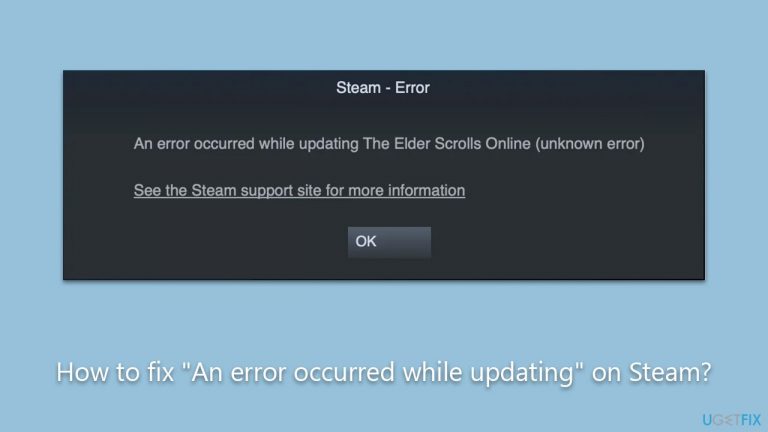
What causes How to fix “An error occurred while updating” on Steam?
- Corrupted game files
- Incorrect permission settings
- Conflicts with other software
- System incapabilities
Repairs Windows system files, removes malware, and restores a clean OS state — without reinstalling.
Hi. I haven't played a game for several months now but when I try to launch it I receive an error "An error occurred while updating Killing Floor 2 (app running)." How do I fix this?
Steam, developed by Valve Corporation, firmly holds its position as the leading platform for PC gaming, providing users with access to a vast library of games, software, and various multiplayer features. A hub where millions acquire, manage, and play their favorite games, Steam consistently updates its offerings and facilitates the global gaming community's connections.
However, despite its impressive capabilities, users, at times, grapple with a few technical glitches - one of them being the error message "An error occurred while updating GAME_NAME (app running)." Encountering this message, particularly when you're eager to dive into your favorite game, can be frustrating.
"An error occurred while updating" primarily materializes when you attempt to launch a game, effectively barring access to it. Several factors could be contributing to the emergence of this issue. Corrupted game files stand out as a frequent culprit; inconsistencies or damages within the game data hinder smooth launching and updating processes.
Moreover, incorrect permission settings, where Steam or its games are prevented from accessing necessary files or systems due to administrative restrictions, can also lead to issues. Additionally, conflicts with other software or system incapabilities can give rise to this vexing situation.
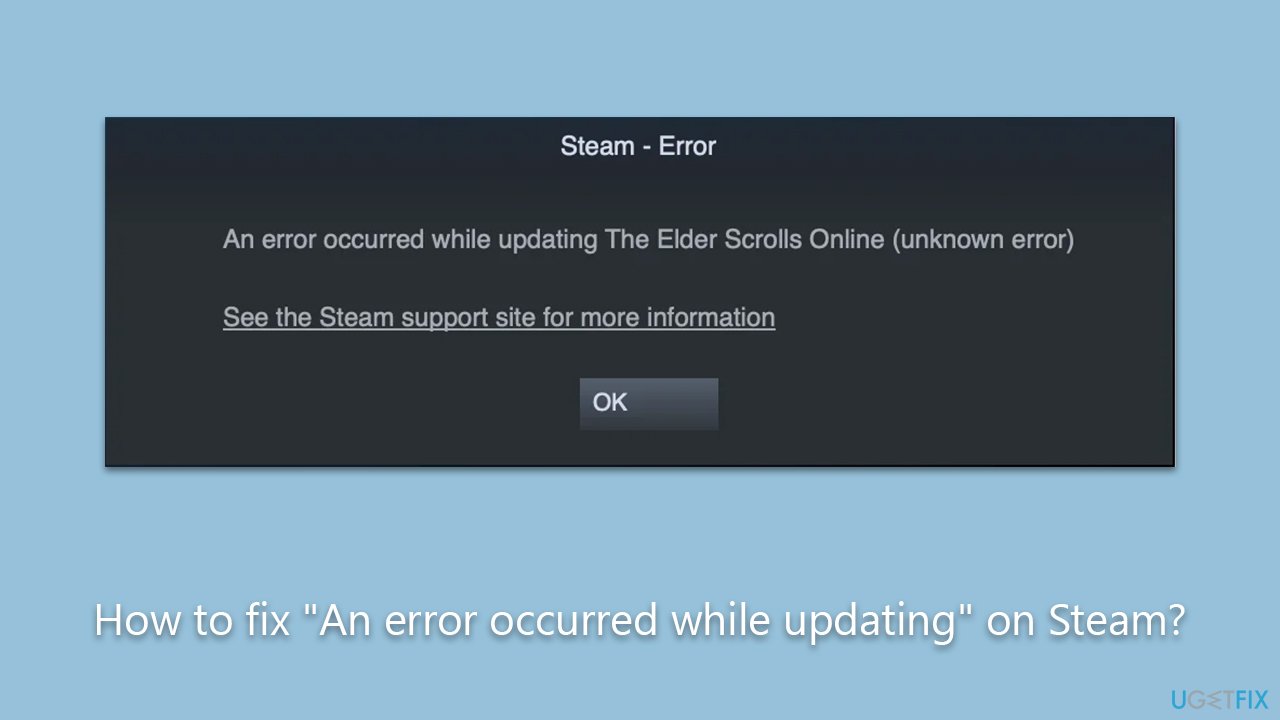
If you find yourself confronting the "An error occurred while updating" issue, a range of solutions is available for your recourse, and these will be elaborated upon in the subsequent instructions below the article. But remember, it’s vital to approach these issues methodically, exploring each possible cause and its corresponding solution and ensuring thorough troubleshooting.
Also, consider utilizing [d1] PC repair software as it might aid in resolving any underlying issues swiftly and effectively, ensuring your gaming adventures remain unimpeded.
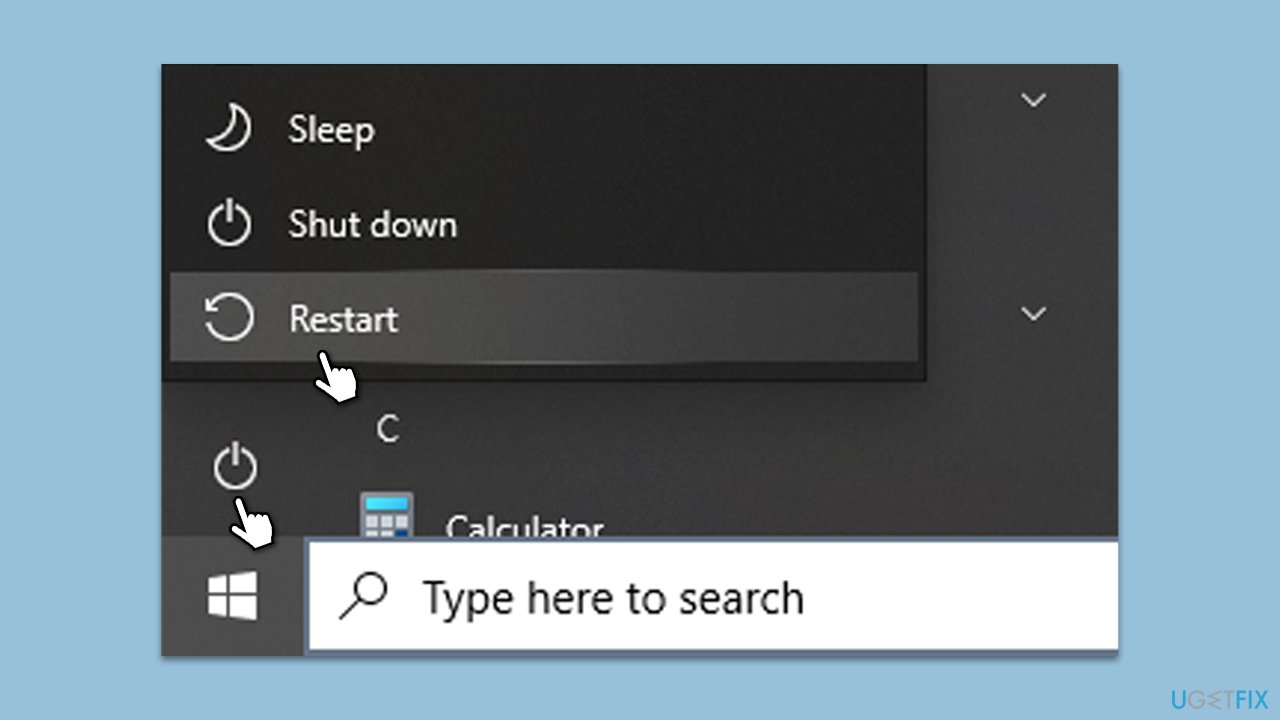
Fix 1. Restart your computer
Occasionally, minor glitches or temporary software conflicts can prevent a game from updating. Restarting your computer can refresh system settings and resolve these minor issues.
- Click on the Windows Start button.
- Select the power icon.
- Choose Restart.
- Once your PC restarts, try updating the game again on Steam.
Fix 2. Verify the integrity of game files
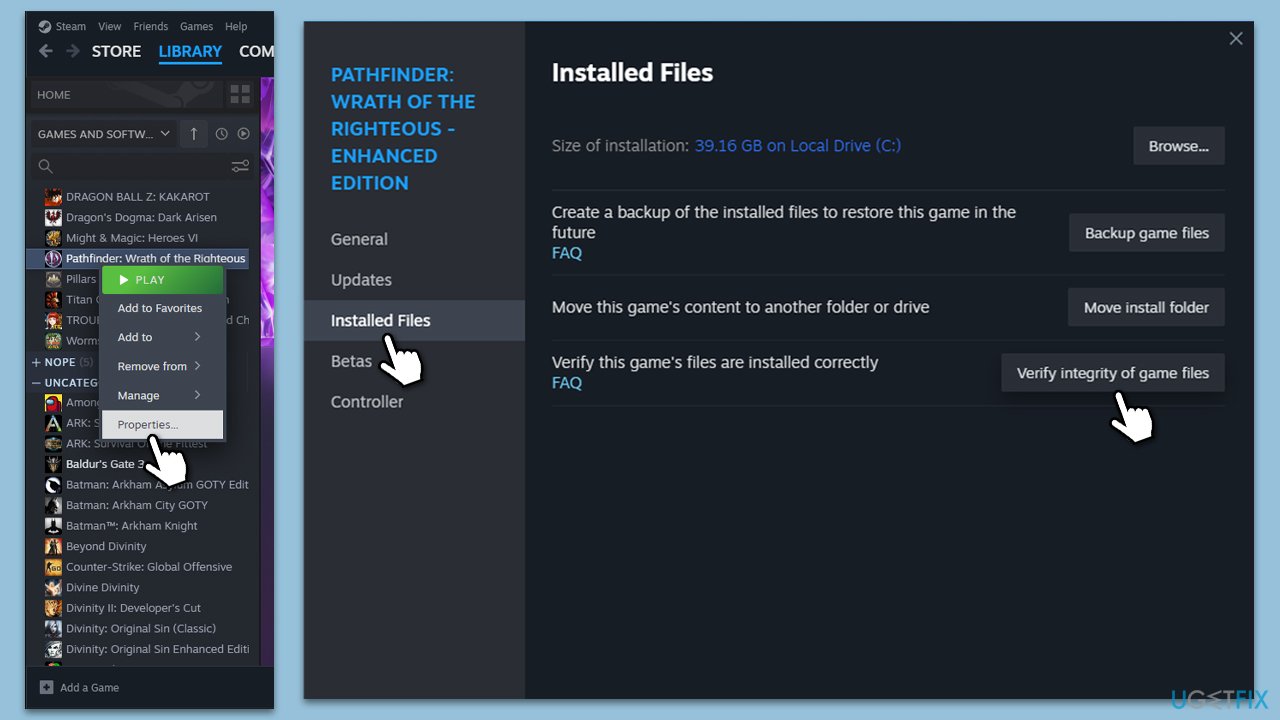
Corrupted or missing game files can lead to errors. Steam offers a feature to check and replace any incorrect files.
- Open Steam and go to your Library.
- Right-click on Starfield and select Properties.
- Go to the Installed Files section.
- Click Verify integrity of game files and wait till the process is complete.
- Launch the game as normal.
Fix 3. Clear Steam's download cache
Cache helps in speeding up processes, but sometimes it might get corrupted or overloaded, leading to issues.
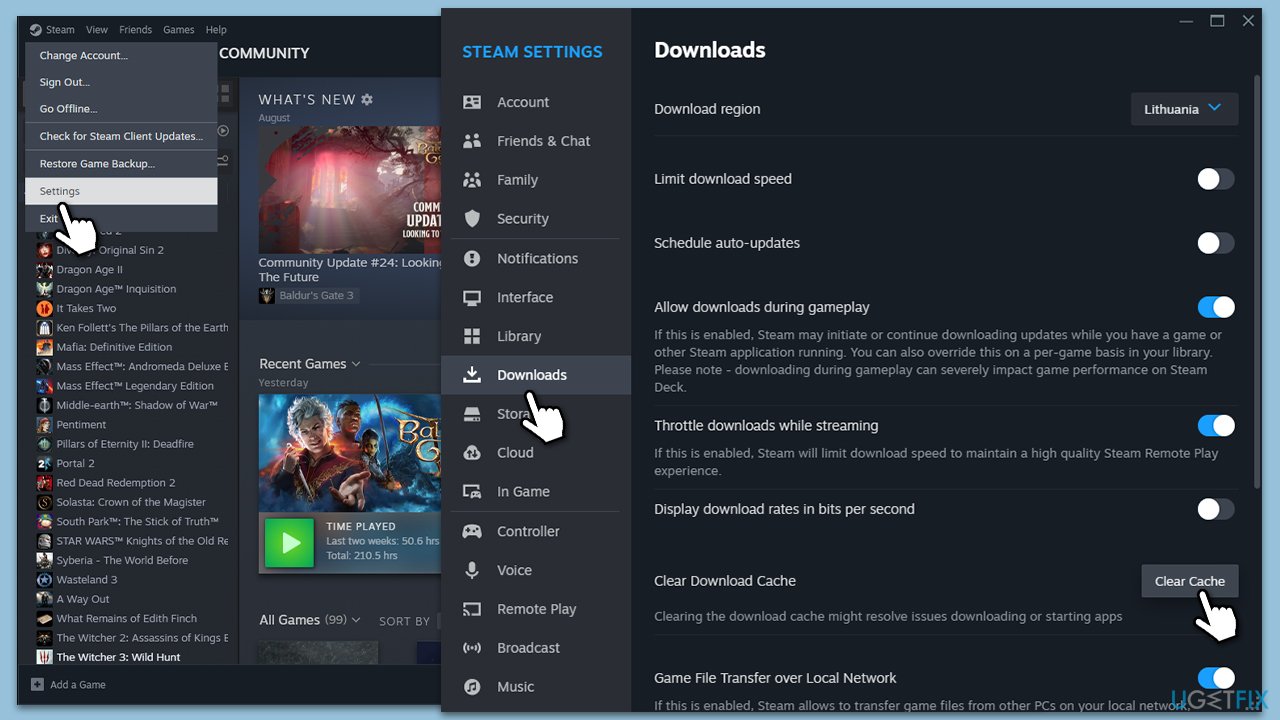
- Open the Steam app.
- Go to Steam > Settings.
- Select the Downloads section on the left.
- Scroll down to the Clear Download cache section.
- Click Clear Cache.
Fix 4. Stop running the game as administrator
Many users managed to fix "An error occurred while updating" on Steam after disabling the administrator's access to the affected game.
- Open Steam and go to your Library.
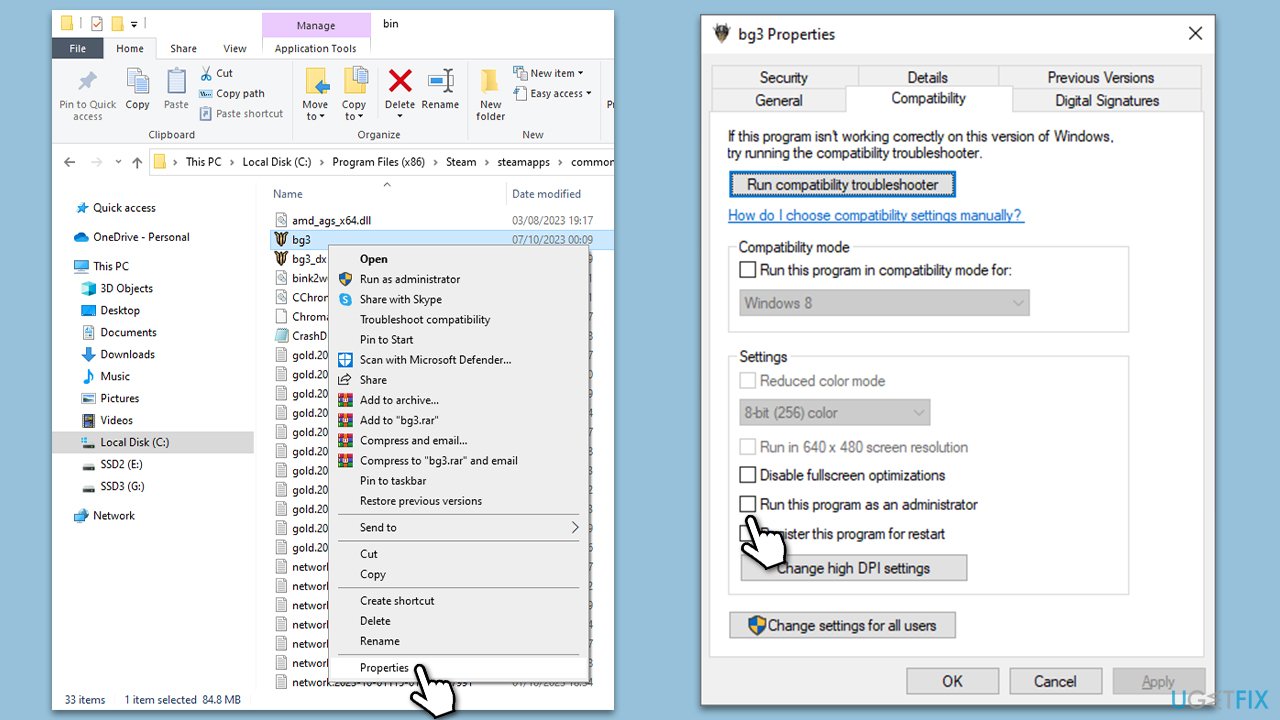
- Right-click on the game causing the error and select Manage > Browse local files.
- Locate the main executable (.exe) of the game - it might be located in the "bin" folder.
- Right-click on the EXE file and select Properties.
- Go to the Compatibility tab.
- Untick the Run this program as administrator option.
- Click Apply and OK, and launch the game again.
Fix 5. Repair library folder
The library folder contains all your game installations. If there's an issue with its permissions, games might fail to update.
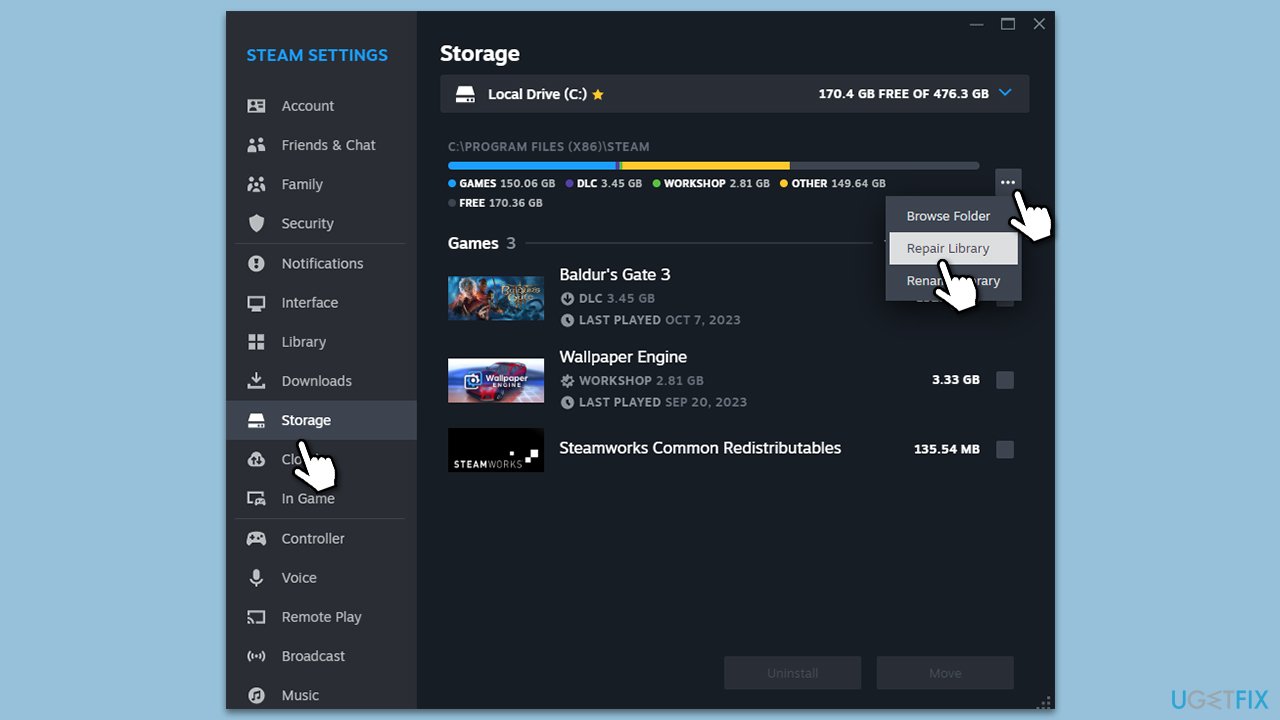
- Open Steam and go to Settings.
- Select Storage on the left.
- Select the Library where the problematic game is installed.
- Click on three horizontal dots (Settings) and select Repair Library.
- Wait for the repair process to complete.
Fix 6. Temporarily disable third-party antivirus or similar software
Some antivirus programs can mistakenly identify game files as threats, blocking them.
- Right-click on your antivirus icon in the system tray.
- Choose Disable or Pause protection (options might vary).
- Try updating the game on Steam.
- Remember to re-enable your antivirus after checking.
Fix 7. Reinstall the problematic game
A fresh install can eliminate any existing issues with the game's installation.
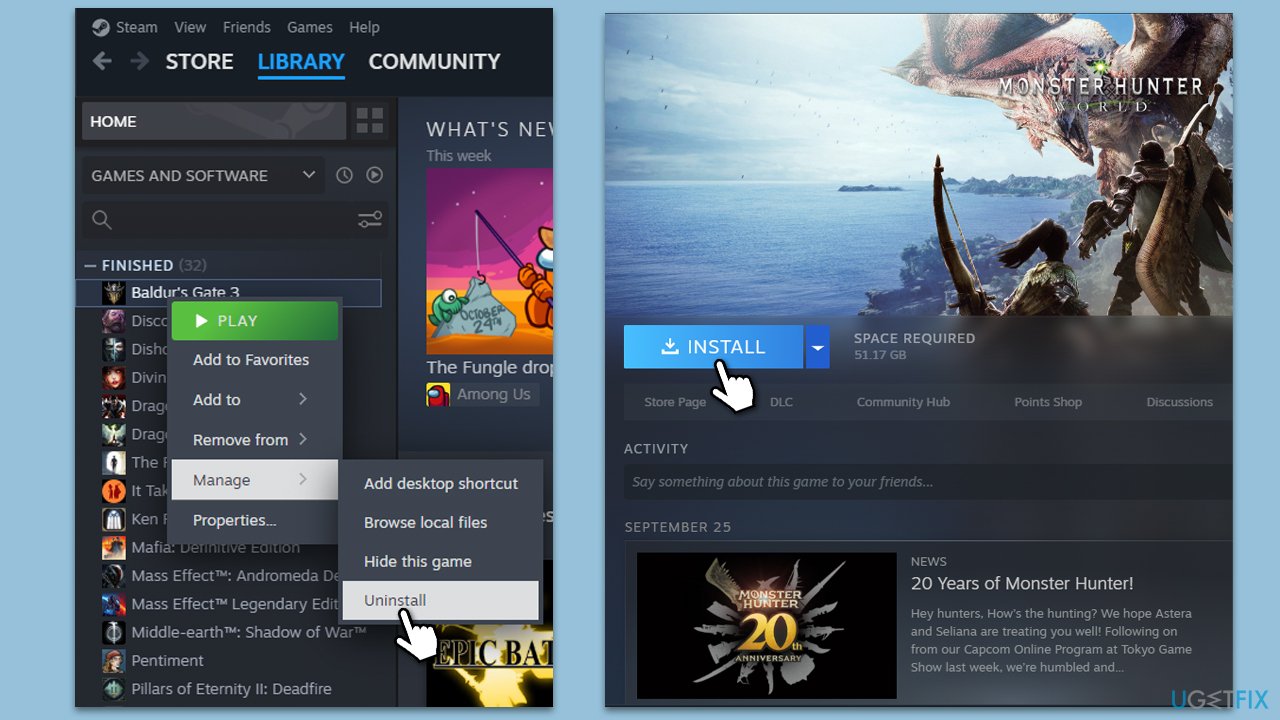
- Open Steam and go to your Library.
- Right-click on the game and choose Uninstall.
- Confirm and wait for the uninstallation to complete.
- Reboot your PC.
- Access Steam again, and click Install to download and reinstall the game.
Fix 8. Update network drivers
Outdated network drivers might disrupt the communication between your PC and Steam servers.
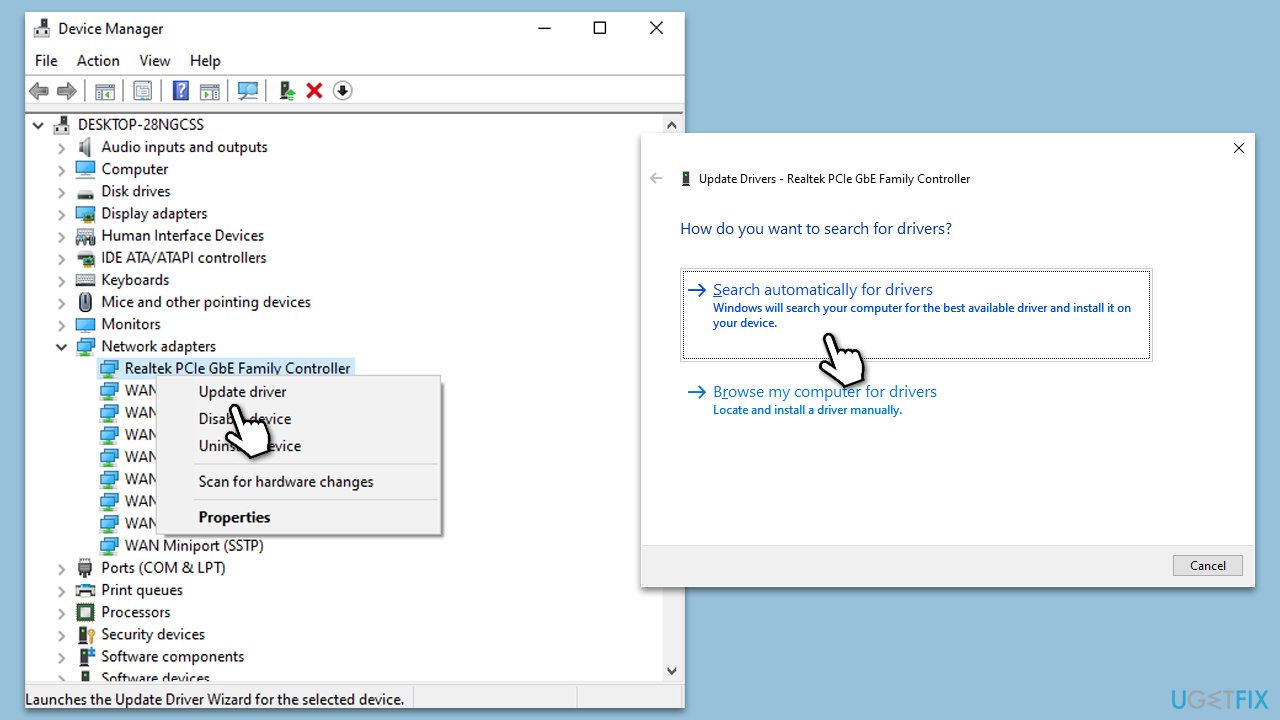
- Right-click on the Windows Start button and select Device Manager.
- Expand Network adapters.
- Right-click on your network device and choose Update driver.
- Follow on-screen instructions and complete the update.
- Restart your PC and try updating the game on Steam.
If you would like a hands-off approach when it comes to driver updates and management, we recommend using [rev id="DriverFix"].
Bottom line
To fix the 'An error occurred while updating' issue on Steam, you can try restarting your computer, checking for corrupted game files, adjusting permission settings, and resolving software conflicts. If these solutions do not work, consider utilizing PC repair software or further troubleshooting methods.
Frequently asked questions
First, try restarting Steam and your computer. If the issue persists, check for any pending Windows updates that might affect your network connection.
You can fix the update error by clearing the download cache in Steam settings. Additionally, ensure that your firewall or antivirus is not blocking Steam's access to the internet.
Yes, you can run Steam as an administrator to ensure it has the necessary permissions. Also, check the properties of your Steam folder to confirm that your user account has full control.




Report an issue
What's wrong with this guide? We review every report and update or remove content.
Report received — thank you. We'll review and fix it.
You need a free account to submit a report.
Be the first to comment