How to fix
An unexpected error 0x8007112A
on Windows
Resolve the unexpected error 0x8007112A on Windows 10 and Windows 11 effortlessly. Fix it quickly and effectively—expert-tested solutions await!

What causes How to fix an unexpected error 0x8007112A in Windows?
- Corrupted system files
- Lack of administrative rights
- Controlled folder access feature
- Suspicious or malicious apps
Repairs Windows system files, removes malware, and restores a clean OS state — without reinstalling.
Hello. I tried to delete a folder on my Windows computer but I received an error code 0x8007112A. What should I do to fix this?
Recently, some users reported encountering the "unexpected error" 0x8007112A in Windows when trying to remove unwanted files. It is unknown why exactly this is happening as there are many possibilities. Firstly, this issue could appear because of corrupted system files.
It is also likely, that people receiving this error do not have the required administrative right on the account that they are on. Another possibility is that the error is caused by a feature called "Controlled folder access" which is supposed to help protect users' documents and files from modification by suspicious or malicious apps. In this guide, you will find 5 steps that should help you fix the 0x8007112A error in Windows when trying to delete or modify files.
However, the manual troubleshooting process can be lengthy. If you want to avoid it, you can use a maintenance tool like [d1]. It can fix most system errors, BSODs,[ref en-1] corrupted files, and registry[ref en-2] issues. It can also clear cookies and cache[ref en-3] which should improve the performance of the device. Otherwise, follow the step-by-step instructions below.
Method 1. Fix Corrupted System Files
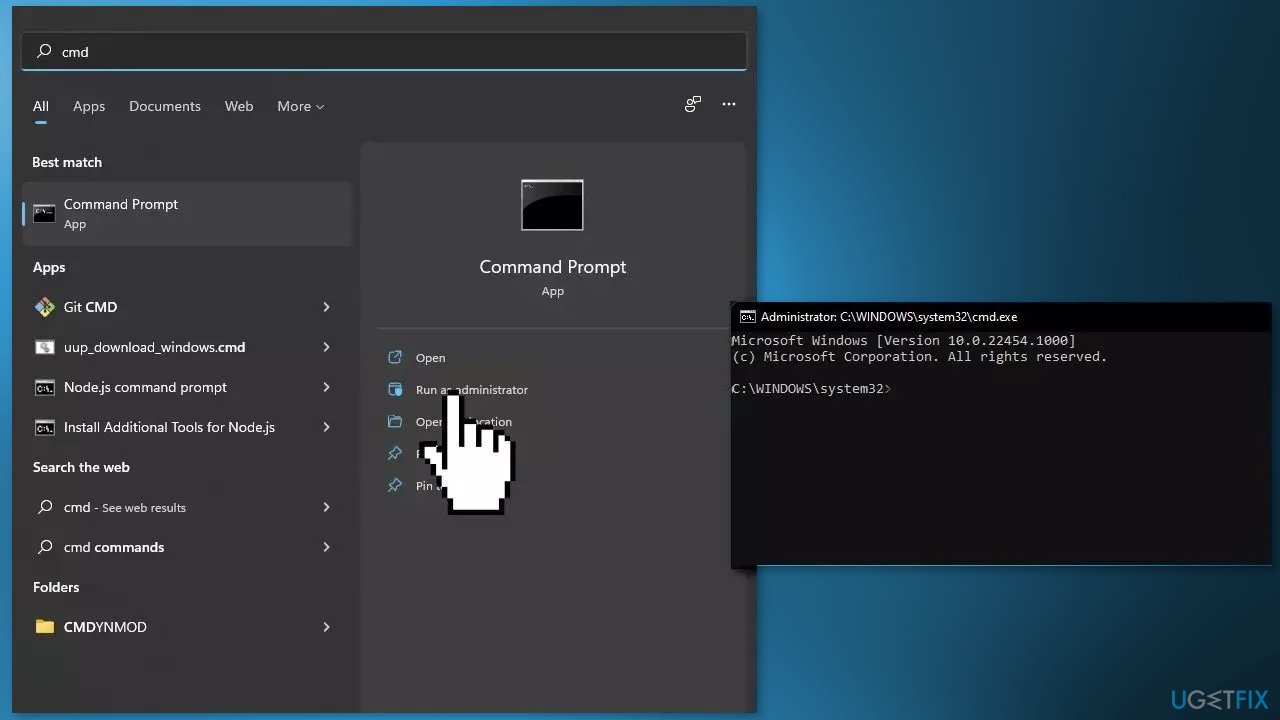
Use Command Prompt commands to repair system file corruption:
- Open Command Prompt as administrator
- Use the following command and press Enter:
sfc /scannow
- Reboot your system
- If SFC returned an error, then use the following command lines, pressing Enter after each:
DISM /Online /Cleanup-Image /CheckHealth
DISM /Online /Cleanup-Image /ScanHealth
DISM /Online /Cleanup-Image /RestoreHealth
Method 2. Turn off Controlled Folder Access
- Type Controlled Folder Access into the Windows Start Menu
- Right-click on the result to Run as Administrator
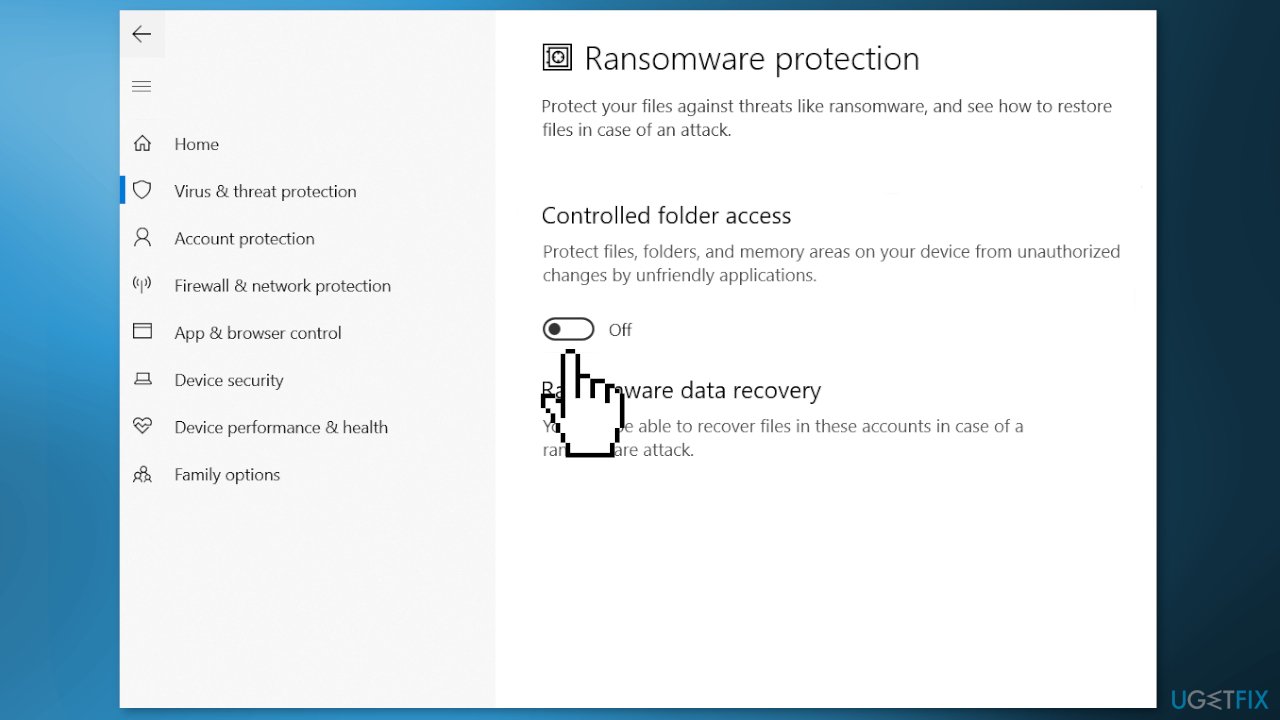
- Turn off Folder Access
Method 3. Run your Account as an Administrator
- Press the Windows key + R to open the Run box
- Type netplwiz and press Enter
- Highlight your account, then click Properties
- Go to the Group Membership tab
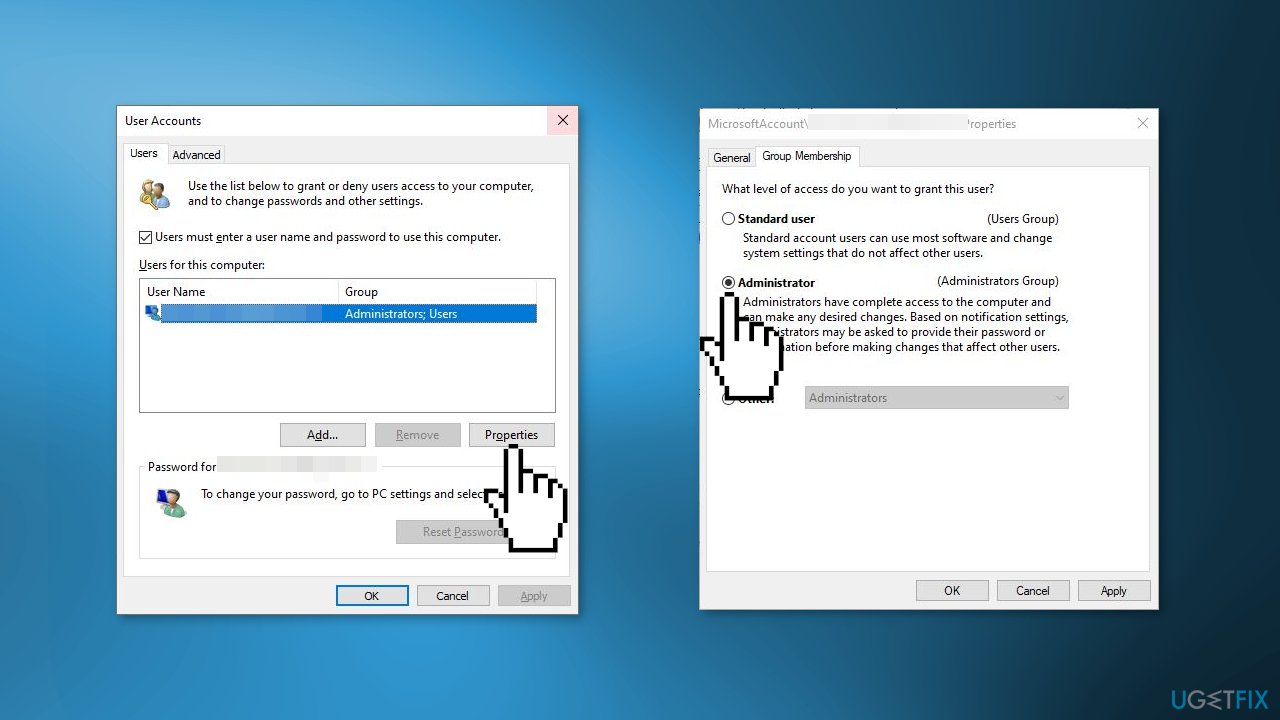
- Click on Administrator, then Apply and OK to save the changes
- Restart your computer and check if the issue is resolved
Method 4. Enable Administrative Rights
- Turn off your computer and hold down the power button while your PC is booting up to interrupt the process
- Start your PC once again and repeat the step above two more types until you successfully enter the Recovery menu
- Press on the Command prompt option
- Type regedit in the prompt and hit Enter to open the Registry Editor
- Now highlight the HKEY_LOCAL_MACHINE branch and then click File > Load Hive
- In the Load Hive window, browse the folder system root drive > Windows > System32 > config
- Under the config folder, type SAM or click the file named SAM and hit Enter
- Name the hive REM_SAM
- Click OK and the hive will be loaded into the HKEY_LOCAL_MACHINE branch
- Navigate to the following registry key:
HKEY_LOCAL_MACHINE\REM_SAM\SAM\Domains\Accounts\Users\000001F4
- Highlight the 000001F4 key and in the corresponding right pane, look for binary registry DWORD (REG_BINARY) named F
- Double-click on this DWORD to edit its Data
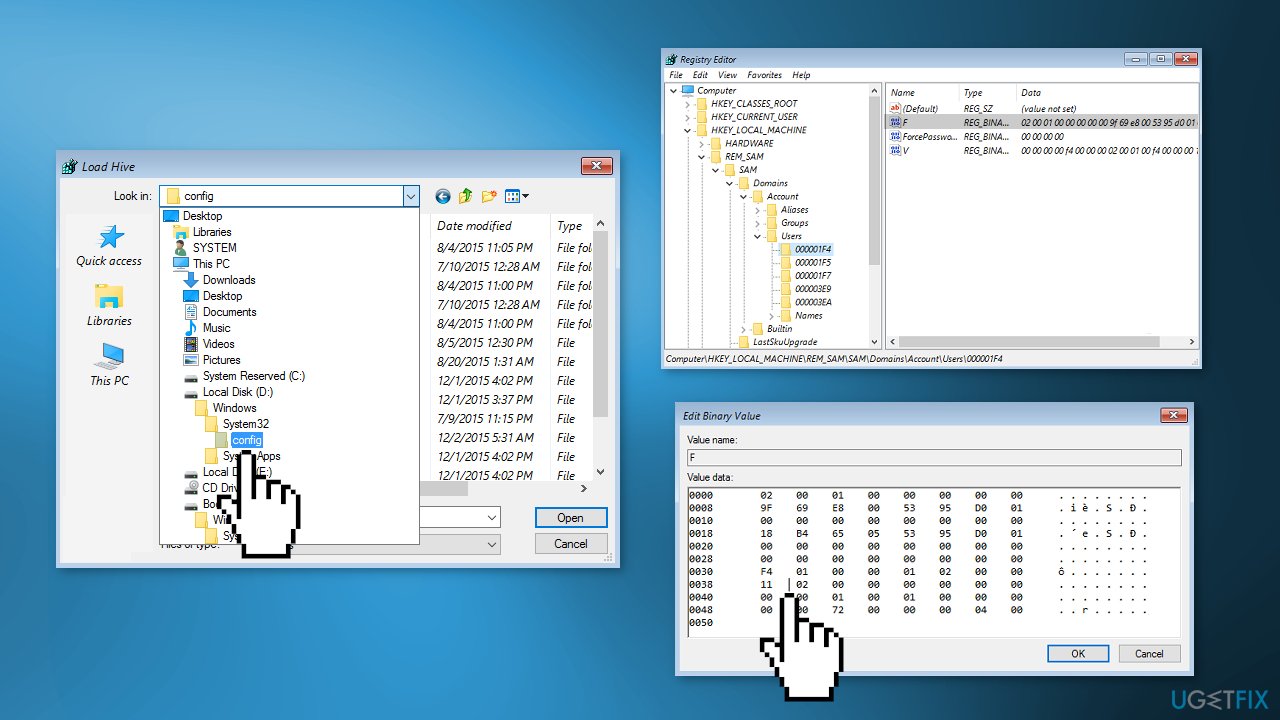
- In the Edit Binary Value box shown above, place your cursor on line 38, on the right side of 11
- Press the Delete key and then type 10
- Click OK and close the Registry Editor and Command Prompt windows
- Restart your PC
Method 5. Create a Local Administrator Account
- Select the Start menu and go to Settings
- Click on Accounts
- Under Family & other users select Add someone else to this PC
- Select I don't have this person's sign-in information, and on the next page, select Add a user without a Microsoft account
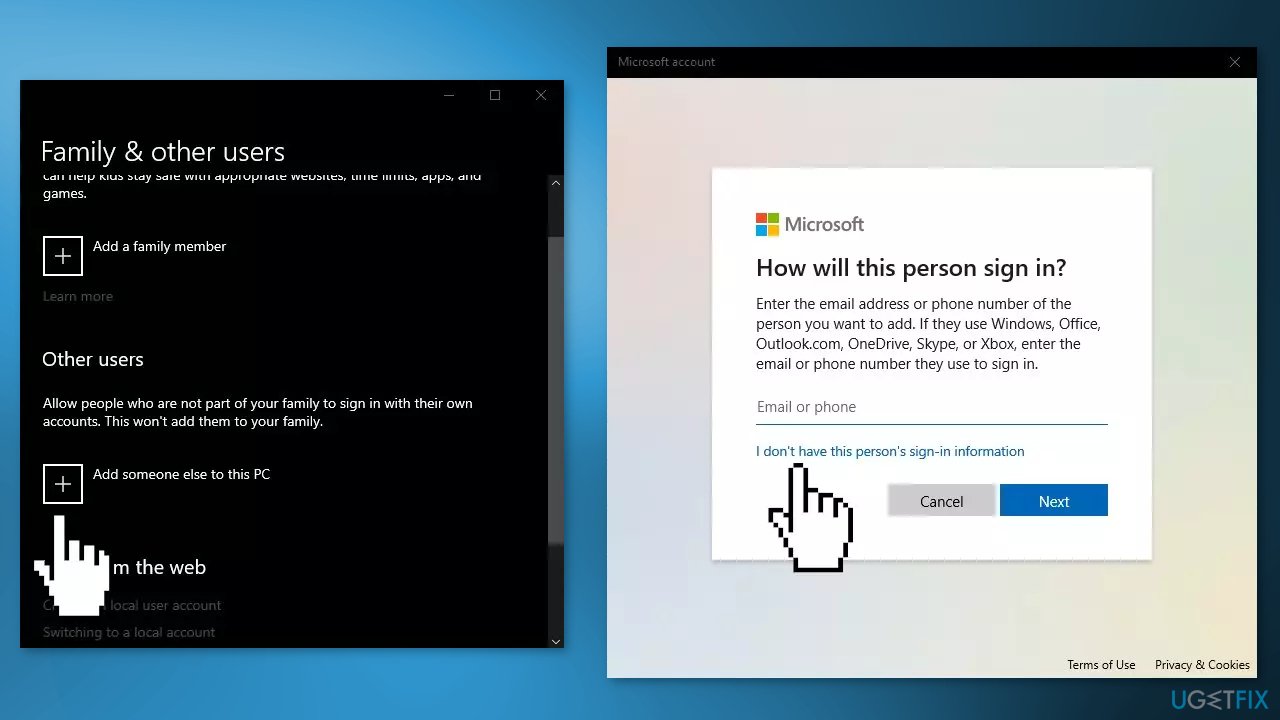
- Enter a user name, password, or password hint, or choose security questions and then select Next to finish the process
- Now, select Change account type
- Under Account type, select Administrator, and then select OK
- Sign in with the new administrator account and check if the issue is resolved
Bottom line
To fix the unexpected error 0x8007112A, you can repair corrupted system files using Command Prompt, turn off Controlled Folder Access, or run your account as an administrator. If these methods do not resolve the issue, consider using a maintenance tool to address system errors.
Frequently asked questions
Error 0x8007112A typically indicates a problem with the file system or storage device, often related to issues with the volume being used for a specific operation.
To troubleshoot this error, try running the built-in Check Disk utility by executing 'chkdsk /f' in the Command Prompt, which can help fix file system errors.
Yes, you can attempt to resolve the issue by performing a System File Check with 'sfc /scannow' in the Command Prompt to repair any corrupted system files.




Report an issue
What's wrong with this guide? We review every report and update or remove content.
Report received — thank you. We'll review and fix it.
You need a free account to submit a report.
Be the first to comment