How to fix
“An update is being prepared for your device, but it’s not quite ready yet” error
on Windows
Resolve the "An update is being prepared for your device" error in Windows 10 and 11 quickly and easily. Expert-tested solutions inside.

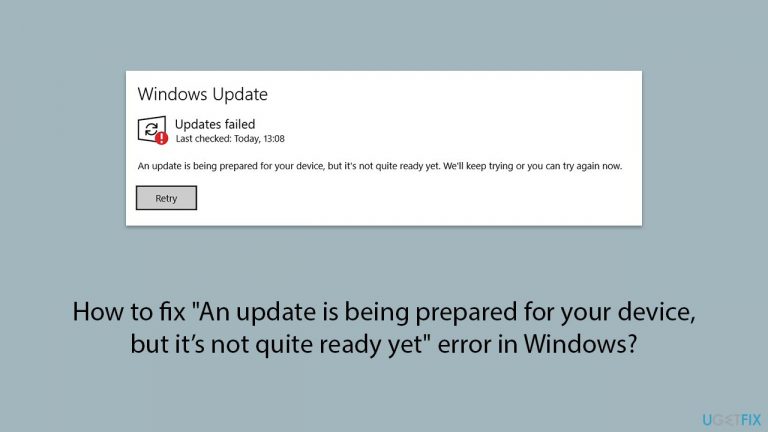
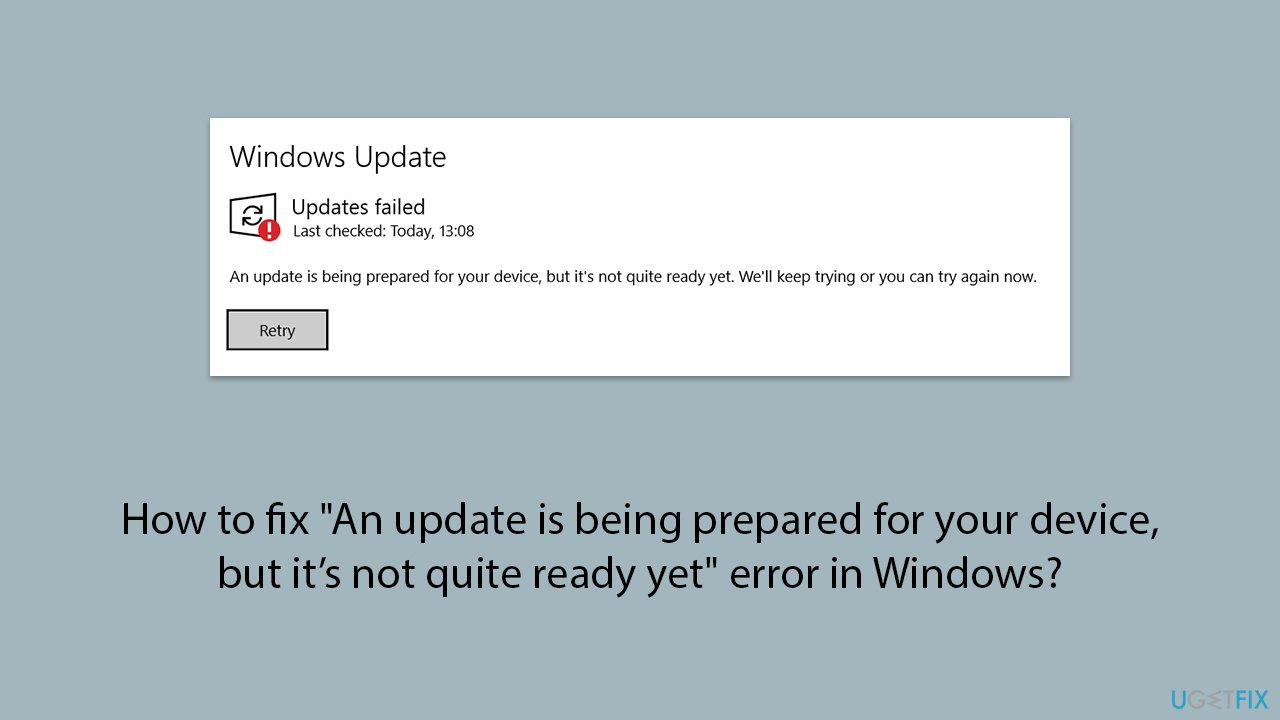
What causes How to fix “An update is being prepared for your device, but it’s not quite ready yet” error in Windows?
- Insufficient storage space
- Incompatible system with the update
- Unstable internet connection
- Obstacles in the Windows Update cache
- Issues with broken registry entries or corrupted files
Repairs Windows system files, removes malware, and restores a clean OS state — without reinstalling.
I have recently purchased a second PC from my friend which wasn't used in a while. When I tried to install Windows updates, I Simply received an update status saying "An update is being prepared for your device, but it’s not quite ready yet." There's also a Retry button but it results in the same message.
The message "An update is being prepared for your device, but it’s not quite ready yet" in Windows indicates that the system is in the final stages of readying an update for installation. This notification is a common sight for users awaiting the latest features and improvements. Unfortunately, not all people receive them successfully.
Encountering this message can be a signal to users that the update is imminent, yet requires a bit more patience. It suggests that while the update is nearly complete, it is undergoing the last round of checks and balances.
To fix the "An update is being prepared for your device, but it’s not quite ready yet" message, users are advised to check their system’s compatibility with the update and ensure there is sufficient storage space.
A stable internet connection is also key to facilitating the update process. For those looking to expedite the resolution, running the Windows Update troubleshooter and clearing the Windows Update cache are practical steps. These actions can help by identifying and removing any obstacles that might be delaying the update.
For a quicker solution, we recommend using a powerful PC repair app [d1], which can quickly identify underlying Windows issues such as broken registry entries or corrupted files, and fix them automatically.
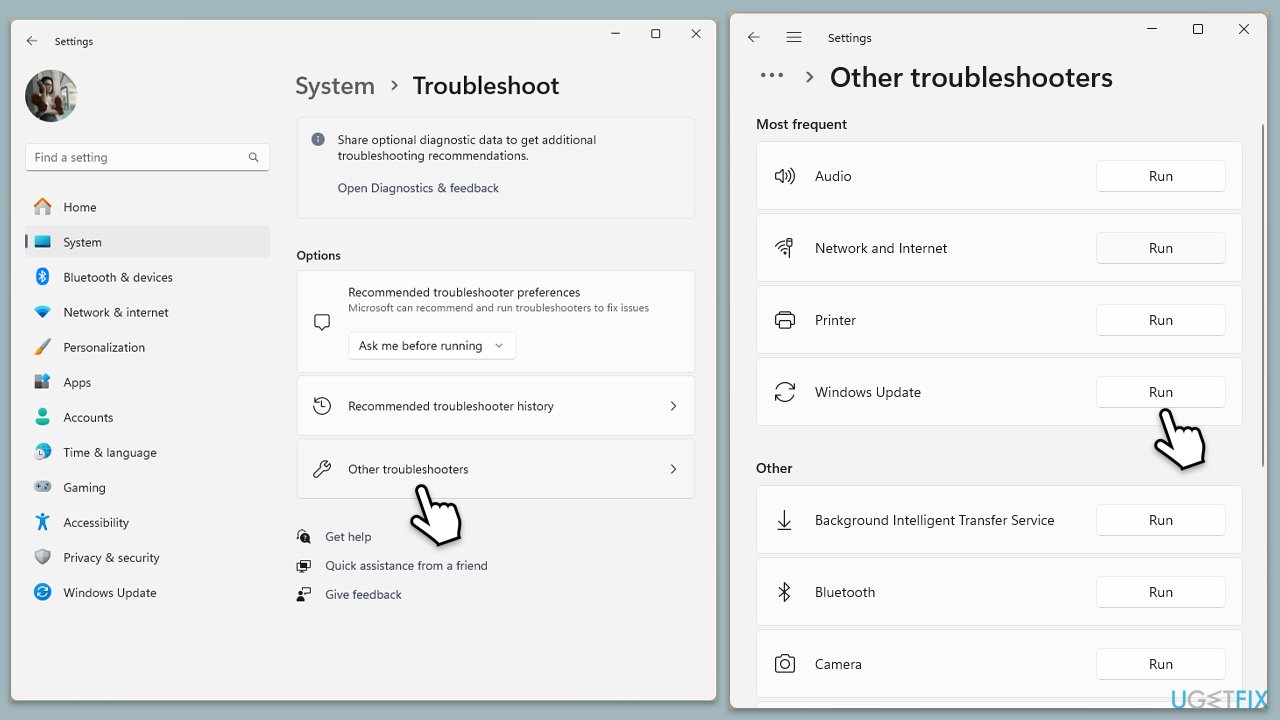
Fix 1. Run Windows Update troubleshooter
The Windows Update Troubleshooter is a built-in utility that identifies and resolves common issues that prevent updates from installing. It automatically analyzes problems with Windows Update and applies remedies when possible.
- Type Troubleshoot in Windows search and press Enter.
- Select Additional troubleshooters/Other troubleshooters.
- Find Windows Update from the list and select Run the troubleshooter/Run.
- Wait till the process is finished and apply the offered fixes.
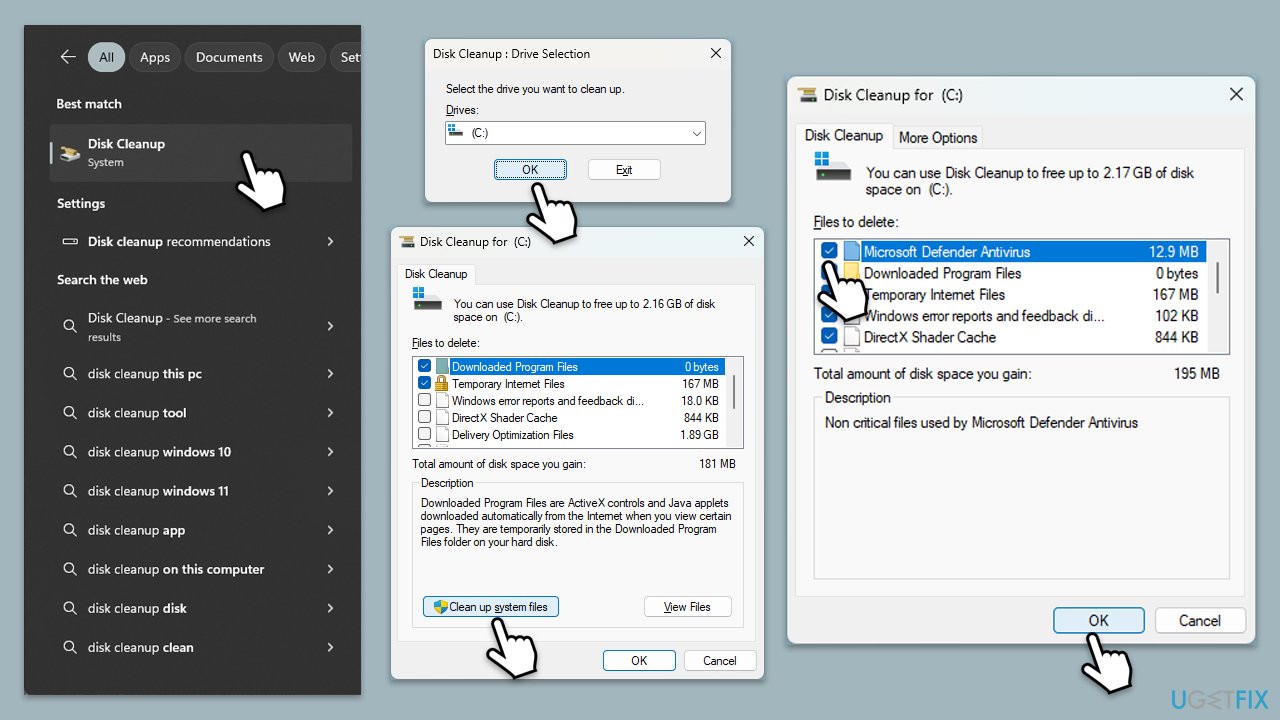
Fix 2. Perform Disk Cleanup
Disk Cleanup helps free up space on your hard drive by removing temporary files, system files, and other items that you no longer need. Insufficient space can hinder update preparation and installation.
- Type Disk Cleanup in Windows search and hit Enter.
- If your Windows is installed on drive C, pick it from the list (should be by default) and press OK.
- Click Clean up system files.
- Select your main drive again and click OK.
- Here, select the largest portions of the data used - these typically include Temporary Internet Files, Windows Update, Temporary Files, Recycle Bin, Delivery Optimization Files, and others. Marking Windows Update is vital here.
- Click OK - the process should be finished shortly.
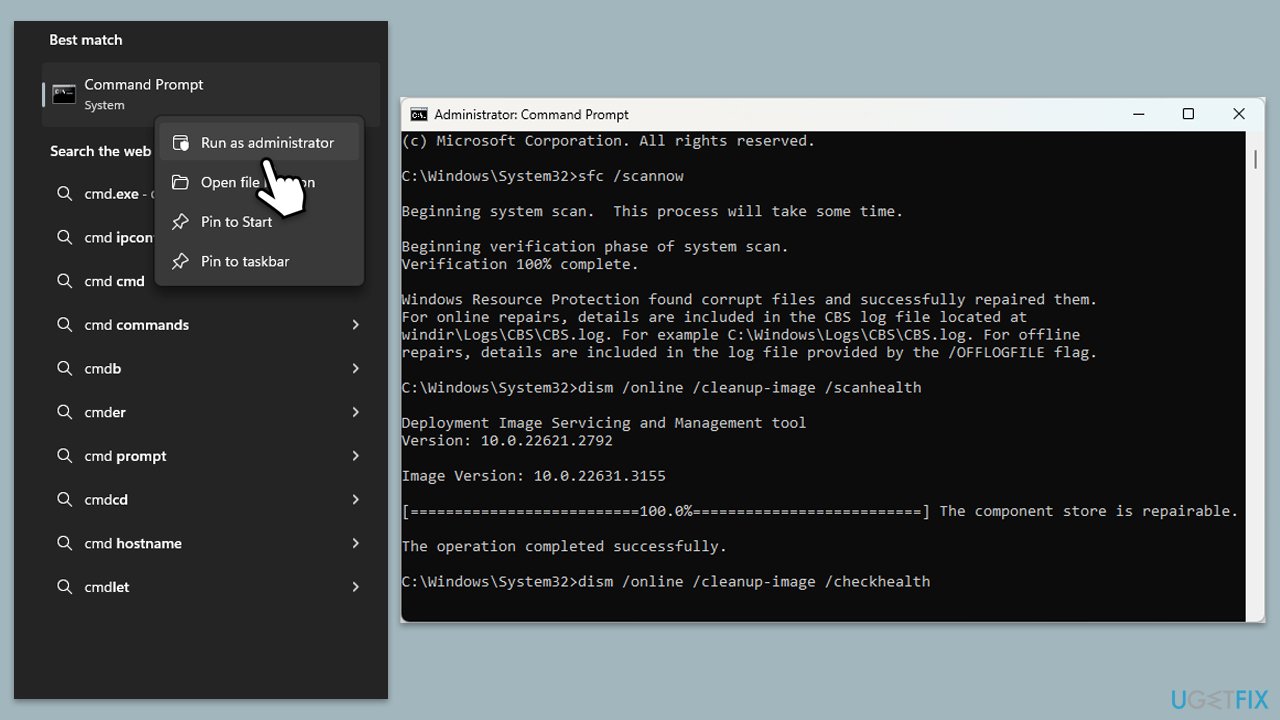
Fix 3. Repair corrupted system files
The System File Checker (SFC) and Deployment Image Servicing and Management (DISM) tools help repair corrupted system files and Windows image files, respectively. Corrupted files can prevent updates from installing properly.
- Type cmd in Windows search.
- Right-click on Command Prompt and pick Run as administrator.
- When User Account Control (UAC) asks you whether you want to allow changes, click Yes.
- Use the following command and press Enter:
sfc /scannow - When the scan is complete, you should also run the following commands to repair Windows image files:
DISM /Online /Cleanup-Image /CheckHealth
DISM /Online /Cleanup-Image /ScanHealth
DISM /Online /Cleanup-Image /RestoreHealth - Restart your PC.
Fix 4. Reset Windows Update components
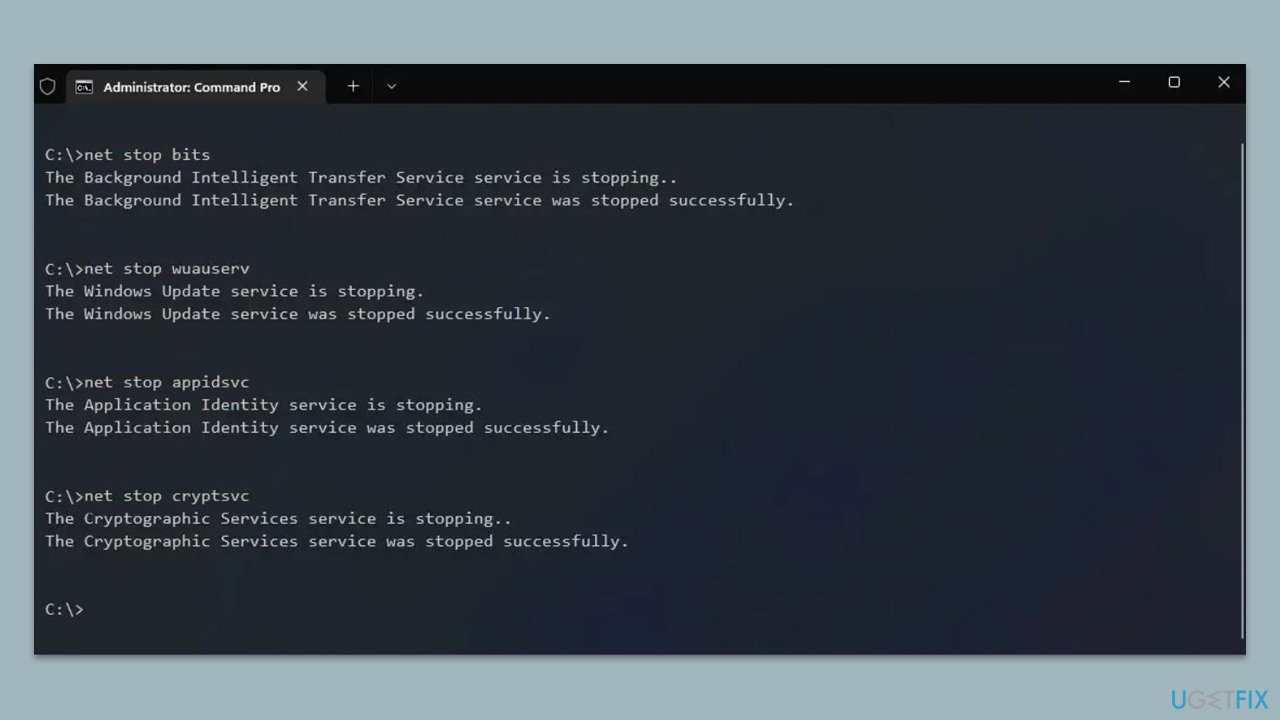
Resetting Windows Update components clears the update history and restarts the update services. This can resolve issues by starting the update process from a clean state.
- Open Command Prompt as administrator, as previously explained
- In the new window, use the following commands, pressing Enter after each:
net stop bits
net stop wuauserv
net stop appidsvc
net stop cryptsvc
Del “%ALLUSERSPROFILE%\Application Data\Microsoft\Network\Downloader\*.*”
rmdir %systemroot%\SoftwareDistribution /S /Q
rmdir %systemroot%\system32\catroot2 /S /Q
regsvr32.exe /s atl.dll
regsvr32.exe /s urlmon.dll
regsvr32.exe /s mshtml.dll
netsh winsock reset
netsh winsock reset proxy
net start bits
net start wuauserv
net start appidsvc
net start cryptsvc - Restart your system.
Fix 5. Use Windows Update Assistant
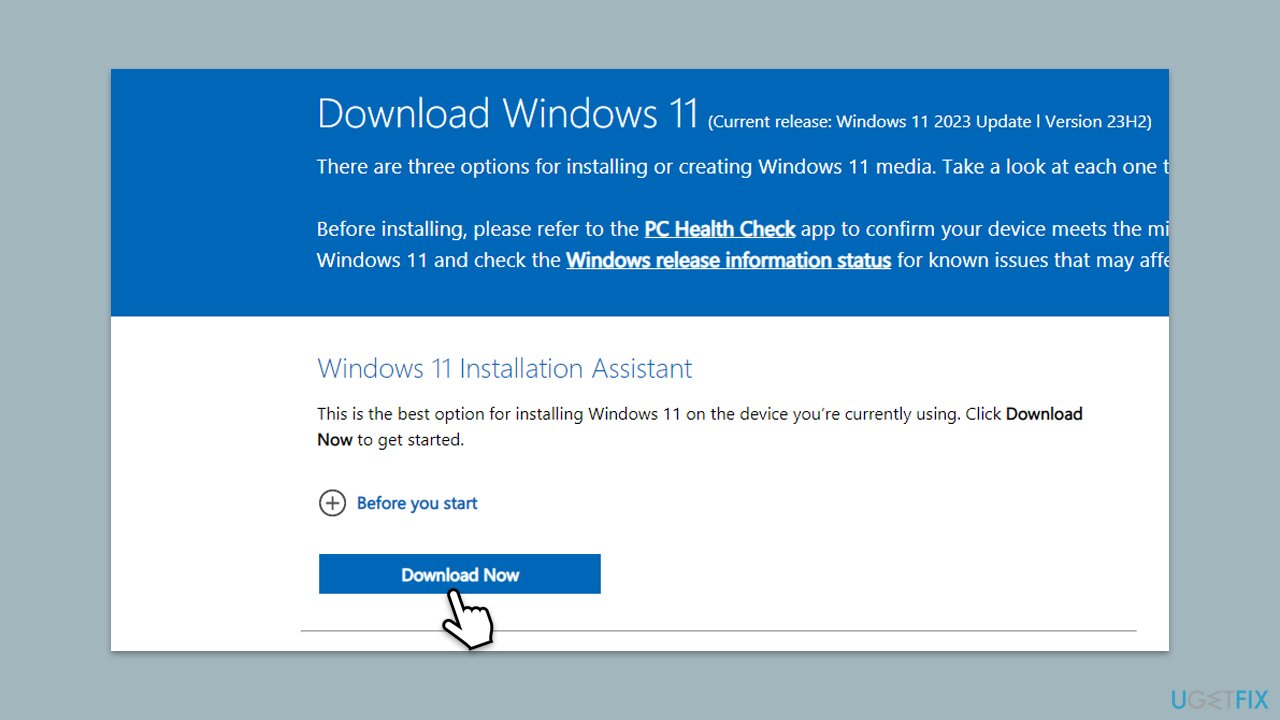
The Windows Update Assistant is a tool that can help you update to the latest version of Windows 10. It's particularly useful when the normal update process isn't working.
- Visit the official Microsoft website to download the Windows Update Assistant (Windows 10) or Windows Installation Assistant (Windows 11).
- Run the downloaded file and follow the on-screen instructions to upgrade your system.
- The tool will guide you through the update process. Follow the prompts to complete the update.
Fix 6. Use Media Creation Tool
The Media Creation Tool can be used to create Windows installation media on a USB drive or DVD. It can also upgrade your PC to the latest version of Windows.
- Visit the official Microsoft website and download Windows 10 installation media (Windows 11 version).
- Double-click the installer and select Yes when UAC shows up.
- Double-click the installer, select Yes when UAC shows up, and agree to the terms.
- Launch the installer.
- Agree to the terms and click Next.
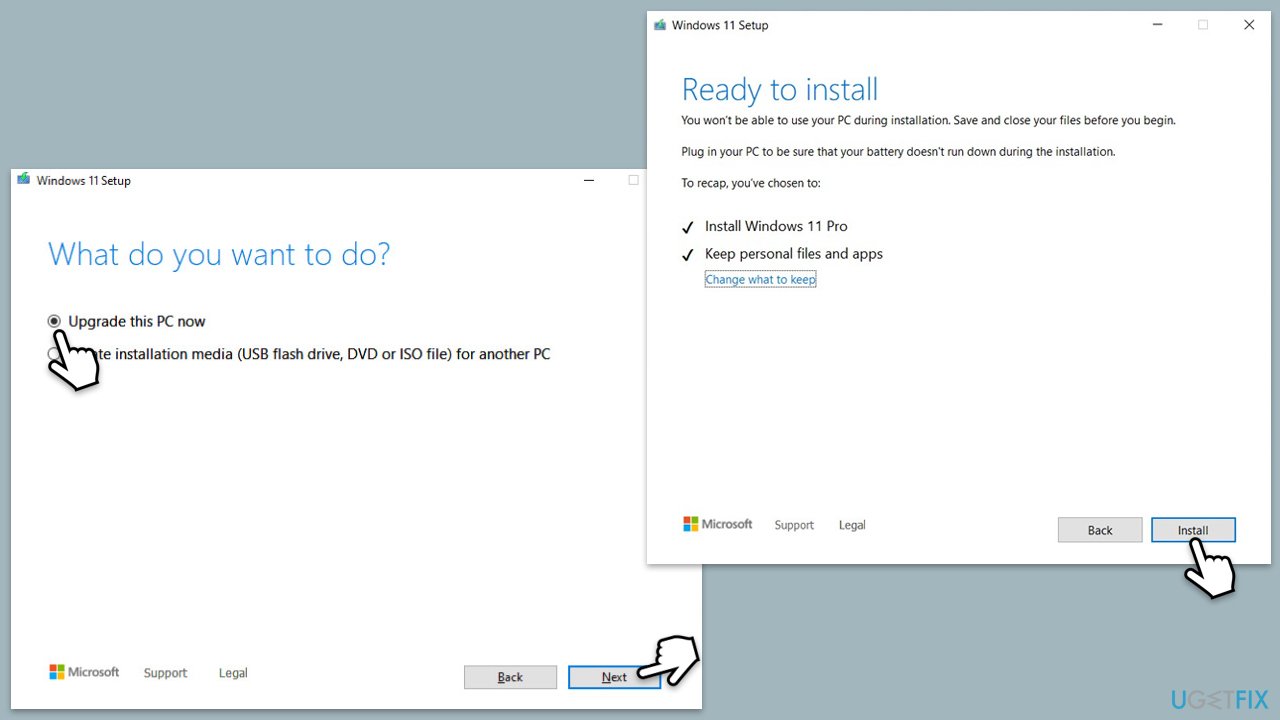
- Select Upgrade this PC now and click Next.
- Windows will start downloading the needed files.
- Agree to terms once again and click Next.
- Before installing, make sure that you are happy with your choices (otherwise, you can click Change what to keep option).
- Finally, click Install to begin the upgrade process.
Bottom line
To resolve the error, users should check system compatibility, ensure sufficient storage, and maintain a stable internet connection. Running the Windows Update troubleshooter and clearing the Windows Update cache are also recommended. If none of these solutions work, consider using a powerful PC repair app to identify and fix underlying issues.
Frequently asked questions
Try restarting your computer as this can often resolve temporary issues. If the problem persists, consider running the Windows Update Troubleshooter from Settings.
You can try clearing the Windows Update cache by stopping the Windows Update service and deleting the contents of the SoftwareDistribution folder. After that, restart the service and check for updates again.
Yes, you can manually check for updates by going to Settings > Update & Security > Windows Update and clicking 'Check for updates.' If updates are available, they will begin downloading.




Report an issue
What's wrong with this guide? We review every report and update or remove content.
Report received — thank you. We'll review and fix it.
You need a free account to submit a report.
Be the first to comment