How to fix
“Another account from your organization is already signed in on this device” error
on Windows
Resolve the "Another account from your organization is already signed in" error on Windows 10/11 quickly and easily. Expert-tested solutions await!

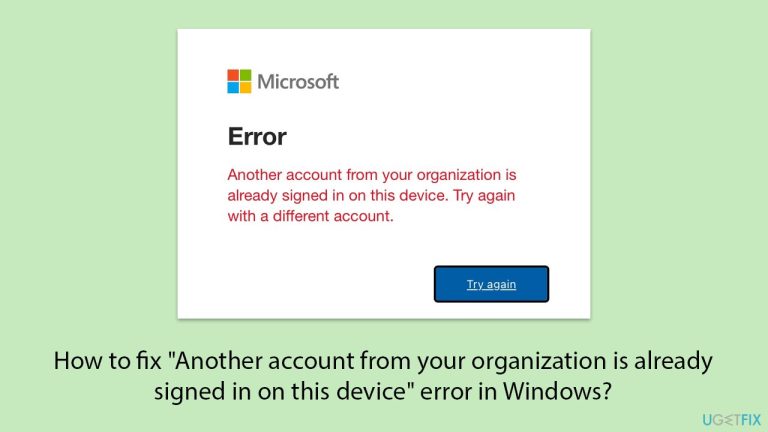
What causes How to fix “Another account from your organization is already signed in on this device” error in Windows?
- Cached credentials lingering in the system
- Multiple work accounts linked to the same device
- Misconfigured Azure AD settings
- Corrupted system files
- Recent Windows update disrupting account synchronization
- Third-party security software or VPNs interfering with authentication processes
Repairs Windows system files, removes malware, and restores a clean OS state — without reinstalling.
I'm trying to log in to my work account on my Windows 11 laptop, but I keep getting the error Another account from your organization is already signed in on this device. It will not let me proceed, and sometimes it logs me out of other programs like Teams or Outlook. I've tried switching accounts and rebooting, but the error keeps happening.
Users who receive the "Another account from your organization is already signed in on this device" error often encounter it when signing into Microsoft services like Azure AD, Office 365, or other organizational accounts. The error inhibits sign-ins, prohibits app functionality, and even initiates random signouts, putting users in an inconvenient loop. This error occurs frequently on Windows 10 and 11 devices linked to organizational networks.
At its core, this error stems from Windows’ management of account credentials and its integration with organizational systems. When a device is registered with an organization - typically via Azure Active Directory (AD) or a workplace join - it tracks signed-in accounts to enforce security policies. The error suggests a conflict, where Windows detects an existing organizational account and refuses to allow another, even if the user believes they’ve signed out.
Several factors can trigger the "Another account from your organization is already signed in on this device" error. Cached credentials might linger in the system, confusing Windows into thinking an account is still active. Multiple work accounts linked to the same device, especially if improperly disconnected, can clash. Misconfigured Azure AD settings, corrupted system files, or even a recent Windows update disrupting account synchronization could also be to blame. In some cases, third-party security software or VPNs interfere with authentication processes.
Fortunately, this can be fixed through targeted steps, such as removing cached credentials, disconnecting conflicting accounts, or repairing system components. The instructions below outline seven practical solutions to resolve the issue. For a faster fix, we recommend [d1], a PC repair tool that can automatically address system file corruption, registry errors, and other Windows issues potentially causing this account conflict.
Fix 1. Sign out of all Microsoft accounts
Lingering account sessions can trick Windows into detecting an active organizational account, even if it’s not visible. Signing out of all Microsoft services clears these sessions and resets the authentication state.
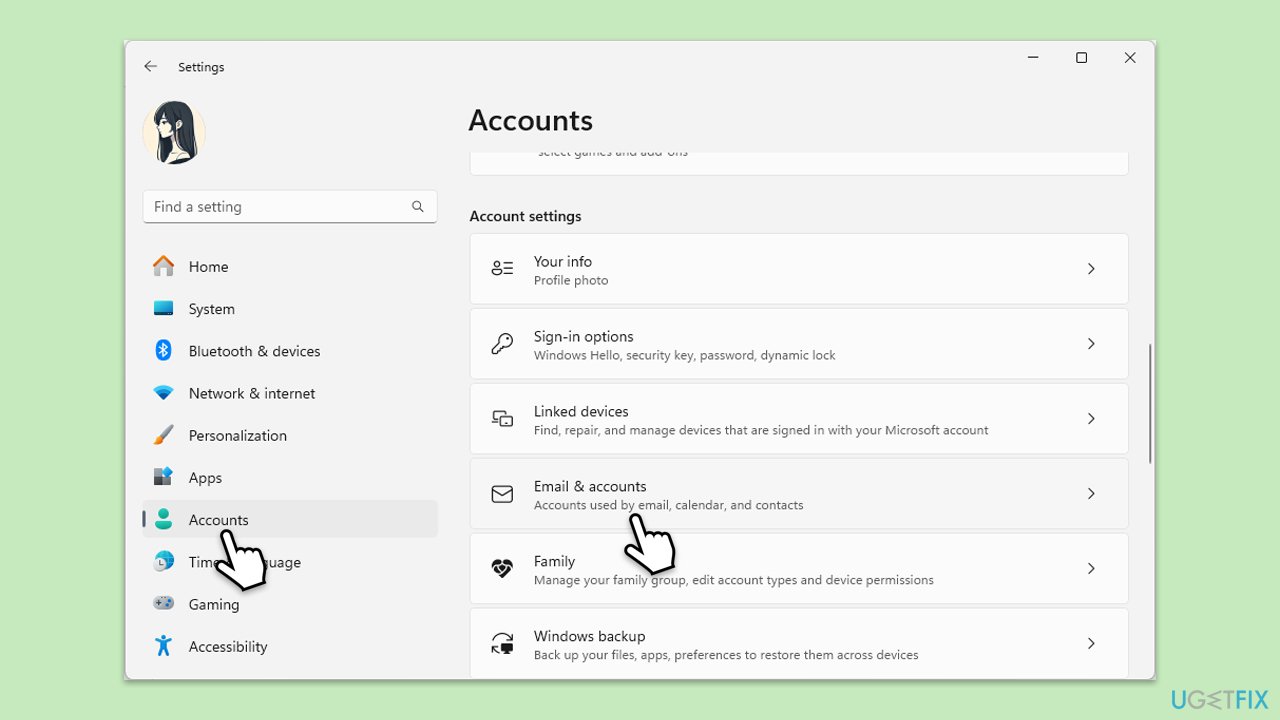
- Right-click on Start and select Settings.
- Go to Accounts > Email & accounts.
- Under Accounts used by other apps, select each Microsoft account and click Remove.
- Confirm the removal and restart your computer.
- Try signing in with your work account again.
Fix 2. Remove cached credentials
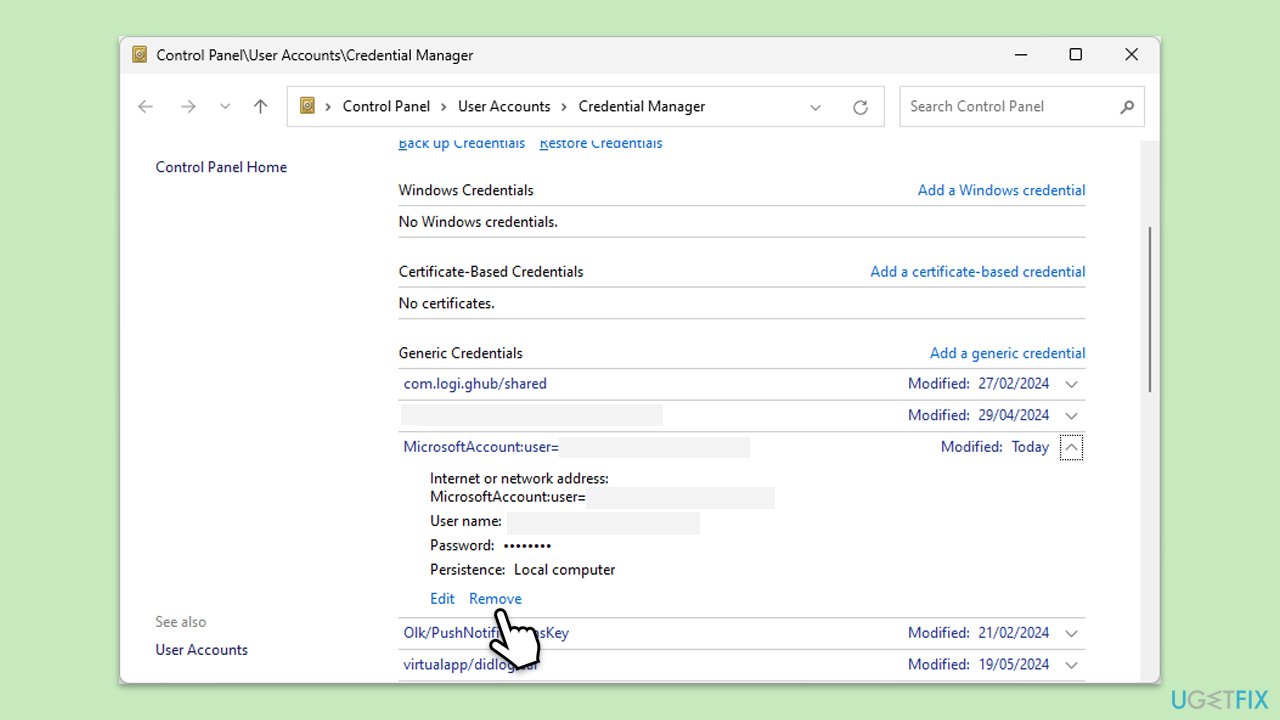
Stored credentials in Windows can persist after sign-out, causing conflicts with new sign-in attempts. Clearing them removes outdated or duplicate entries tied to your organization.
- Type Credential Manager in Windows search and hit Enter.
- Click Windows Credentials and look for entries related to your organization (e.g., AzureAD, MicrosoftAccount).
- Select each relevant entry and click Remove.
- Restart your computer and attempt to sign in again.
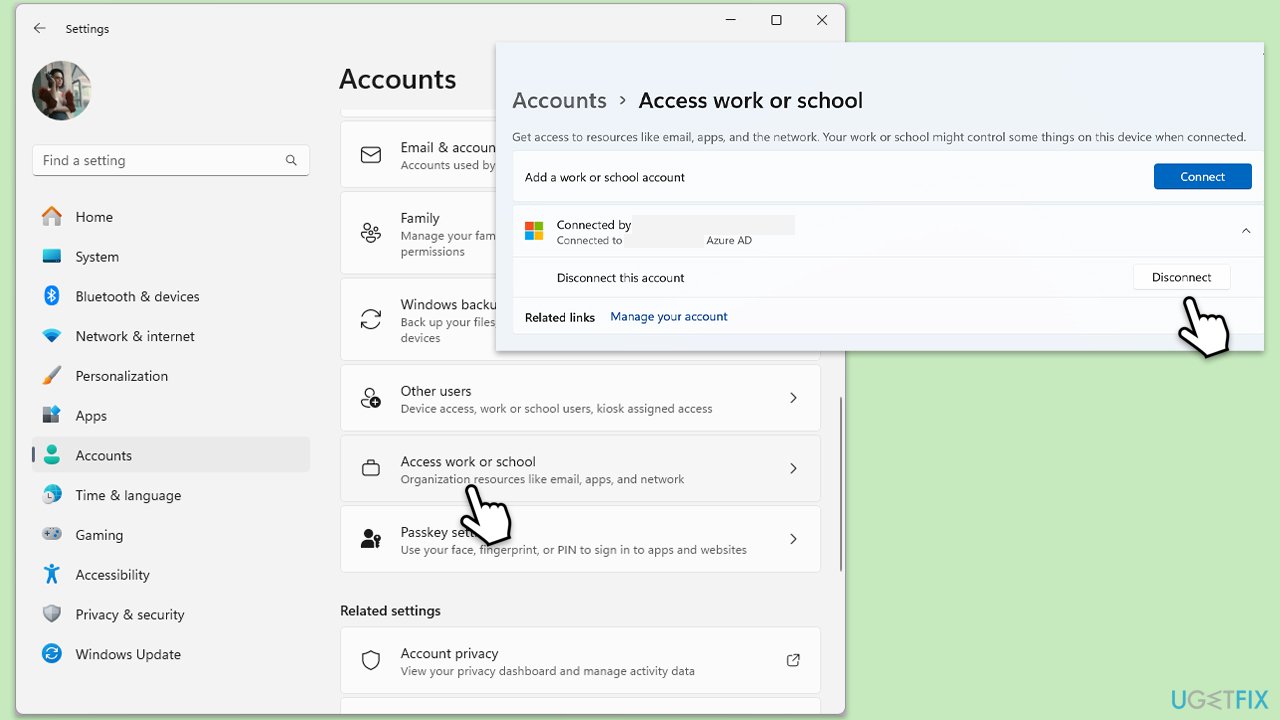
Fix 3. Disconnect work or school account
If your device is linked to an organization via a work or school account, it might block additional sign-ins. Disconnecting it resets the association and allows a fresh connection.
- Click on Start and pick Settings.
- Navigate to Accounts > Access work or school.
- Find your organization’s account and click Disconnect.
- Confirm the action and restart your computer.
- Sign in with your work account to see if the error persists.
Fix 4. Run SFC and DISM scans
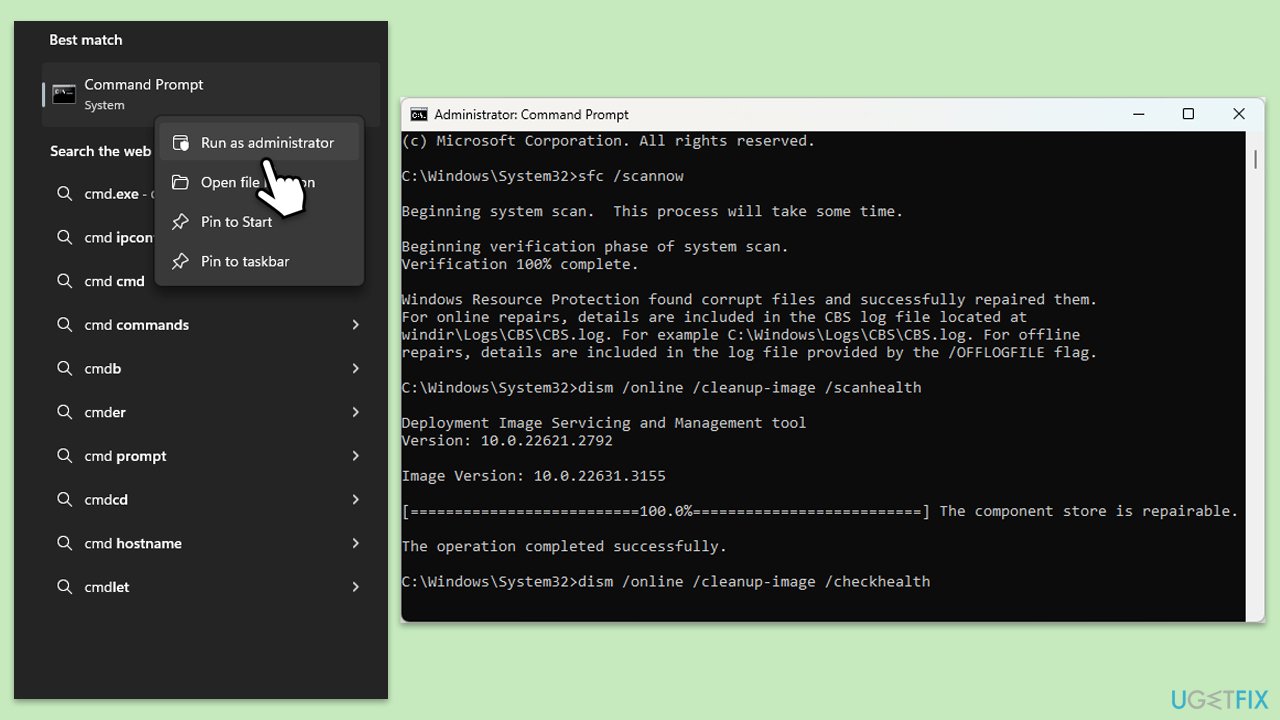
Corrupted system files can disrupt account management, leading to sign-in errors. SFC and DISM tools repair these files and restore proper functionality.
- Type in cmd in Windows search.
- Right-click on Command Prompt and select Run as administrator.
- User Account Control window will show up - click Yes when prompted.
- In the Command Prompt window, paste the following command and press Enter:
sfc /scannow - Wait for the scan to complete.
- Once the SFC scan is finished, run the following set of DISM commands, pressing Enter after each one:
DISM /Online /Cleanup-Image /CheckHealth
DISM /Online /Cleanup-Image /ScanHealth
DISM /Online /Cleanup-Image /RestoreHealth
(Note: if you get an error executing this last command, add /Source:C:\RepairSource\Windows /LimitAccess to it and try again). - After completing these commands, restart your computer.
Fix 5. Re-register Windows with Azure AD
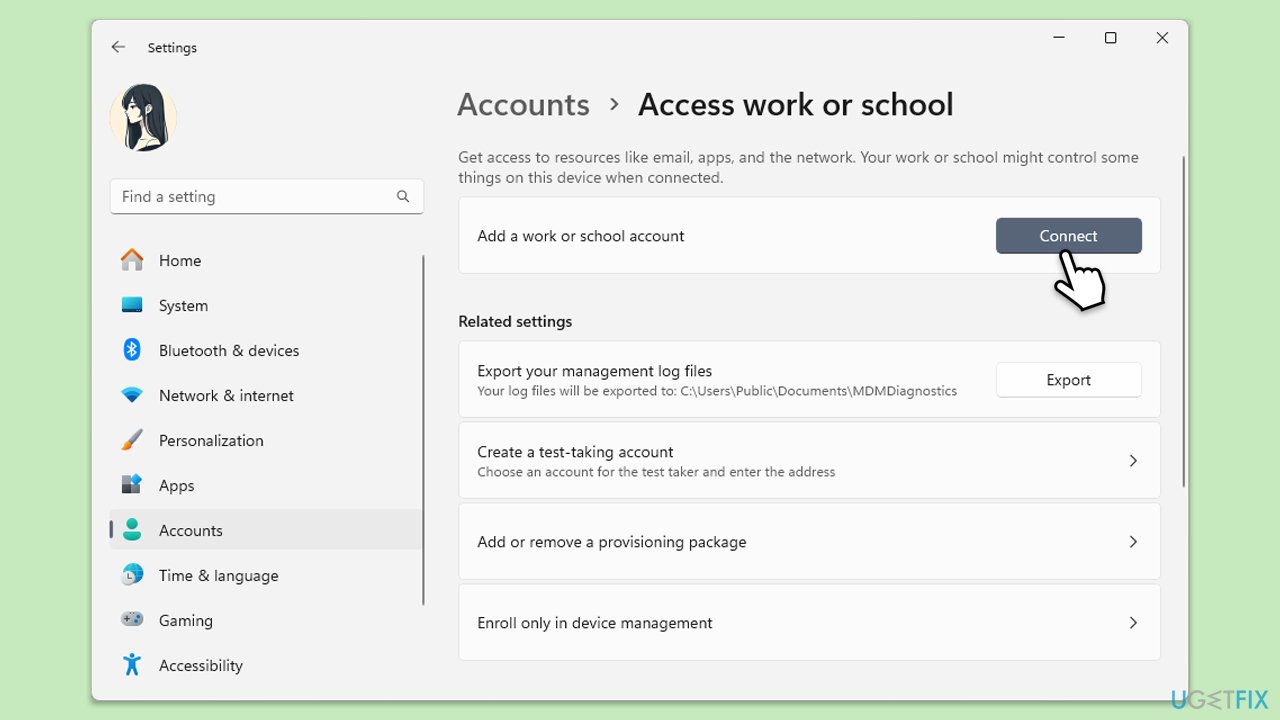
A faulty Azure AD registration might cause Windows to misidentify active accounts. Re-registering the device refreshes its connection to the organization’s directory.
- Right-click on Start and pick Settings.
- Go to Accounts > Access work or school.
- Click Connect and select Join this device to Azure Active Directory.
- Enter your work credentials and follow the prompts to re-register.
- Restart your computer and test the sign-in process.
Fix 6. Reset Windows
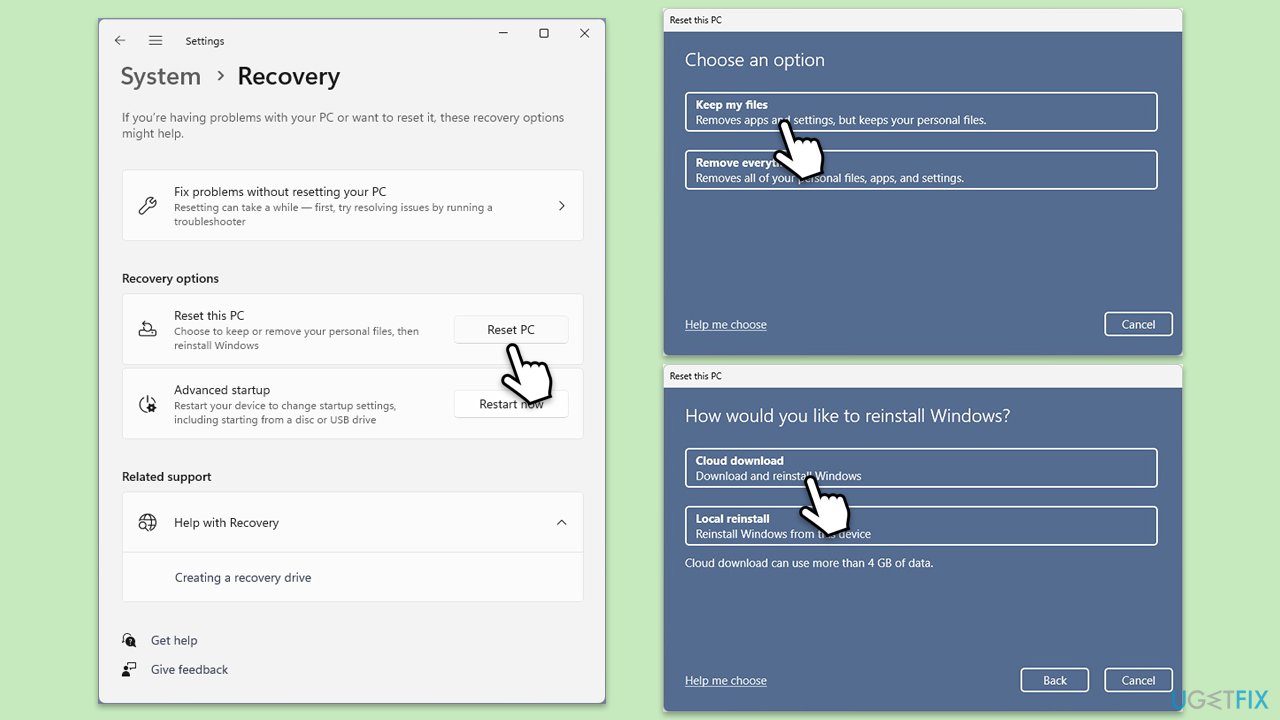
If account conflicts stem from deep system issues, a reset can wipe out problematic configurations while keeping your files, offering a clean slate for organizational sign-ins.
- Click on Start and pick Settings.
- Go to Windows Update/Update & Security.
- Select Advanced options.
- Under Additional options, select Recovery.
- Under Recovery options, click Reset PC.
- Select the option to Keep your files and then press Cloud download.
- Follow on-screen instructions to finish the process.
Bottom line
To resolve the error, users can remove cached credentials, disconnect conflicting accounts, or repair system components. If these solutions do not work, consider using a PC repair tool to address potential system file corruption and registry errors.
Frequently asked questions
This error typically occurs when multiple user accounts from the same organization try to access a device, leading to conflicts. It can also happen if a previous session was not fully signed out.
To fix this issue in Windows 11, you can try signing out of all other accounts through the settings or by using the 'Sign out' option in the account menu. If that doesn't work, restarting the device may help clear the session.
To prevent this error in Windows 10 or Windows 11, ensure that users are properly signing out of their accounts when they finish using the device, and avoid using multiple organizational accounts simultaneously.




Report an issue
What's wrong with this guide? We review every report and update or remove content.
Report received — thank you. We'll review and fix it.
You need a free account to submit a report.
Be the first to comment