How to fix
“Another computer is using the printer” error
on Windows
Resolve the "Another computer is using the printer" error in Windows 10 or 11 quickly and easily. Expert-tested solutions ensure your printer works flaw…


What causes How to fix “Another computer is using the printer” error in Windows?
- Printer’s settings may be misconfigured
- Issues with the printer’s drivers
- Network issues if the printer is on a shared network
- Printer may believe it’s processing an old job due to a system glitch
Repairs Windows system files, removes malware, and restores a clean OS state — without reinstalling.
We have a small office with all of the machines connected to the Canon printer we use occasionally. Recently, we have been unable to print anything due to the "Another computer is using the printer" error. This persists on every PC used. We are using the latest Windows versions.
Printers are essential devices in both our personal and professional lives. Whether you're a student printing an assignment at home or an employee in an office preparing a business report, printers bring digital information to life. They help convert our digital documents into tangible material, a utility that spans across several industries and applications. However, as with any electronic device, printers are not immune to glitches and issues. One such frequent nuisance is the "Another computer is using the printer" error message.
"Another computer is using the printer" error often pops up when attempting to send a new document to the printer, despite no visible printing activity from other computers. A common assumption is that a pending print job from another system might be causing this. While this can be the case in certain scenarios, it's not always the situation. The error might persist even when no print tasks are lined up in the printer's queue. The incongruity between the perceived state of the printer and the error message can lead to confusion and frustration for users.
So, what causes this issue? In reality, several factors can trigger this issue. The printer’s settings might be misconfigured, causing it to falsely report that it's being used by another computer. Issues with the printer’s drivers can also lead to this error, as can network issues if the printer is on a shared network. Sometimes, the printer might still believe it's processing an old job due to a system glitch, even though no such job is present.
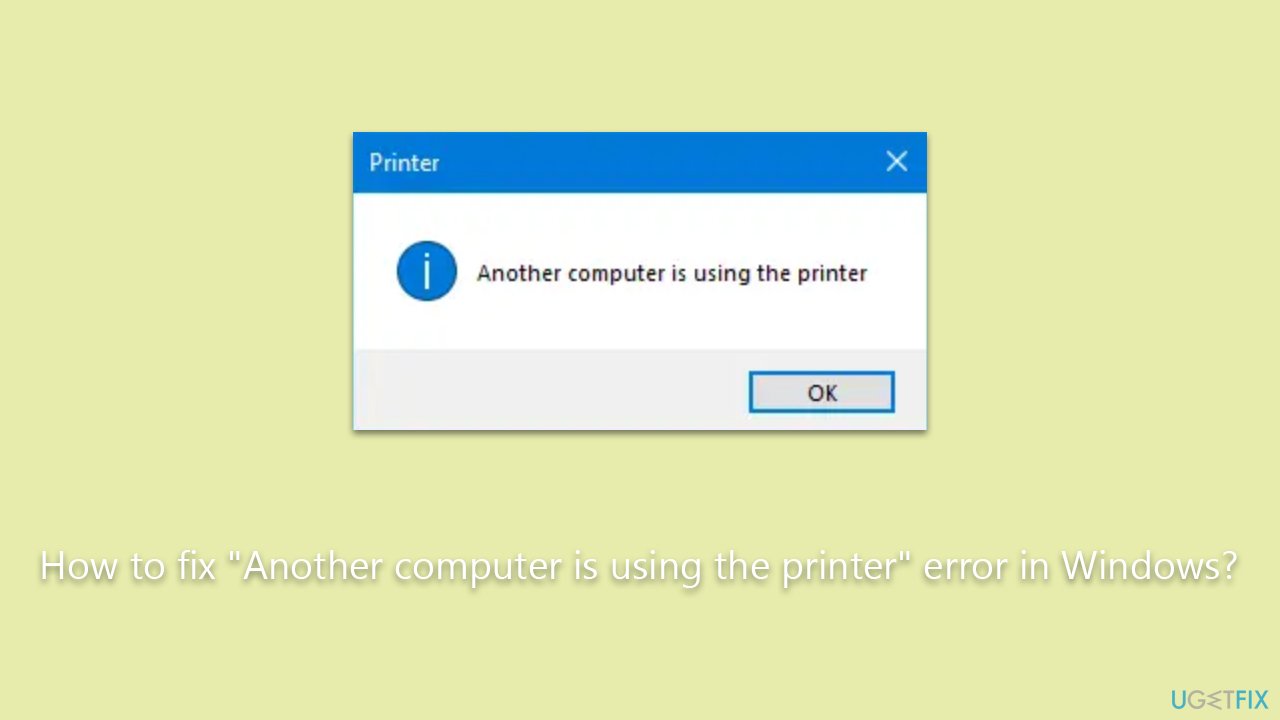
Nevertheless, rest assured that each of these issues comes with its respective solution. In-depth explanations and steps to troubleshoot these problems will be outlined in the sections below this article. By meticulously following these guidelines, users will be able to fix the "Another computer is using the printer" error and restore their printer's functionality.
In addition to these solutions, using a PC repair tool like [d1] can streamline the process of detecting and rectifying system and printer-related errors, making it a worthwhile consideration for anyone dealing with this issue.
Fix 1. Review the printer queue
The printer queue is a list of documents you've sent to the printer to be printed. If a job in the queue gets stuck, it might cause the printer to falsely report it's being used by another computer. Therefore, reviewing and clearing the printer queue can help rectify this issue.
- Navigate to the Control Panel on your computer.
- Select the Devices and Printers option.
- Right-click on your specific printer and opt for See what's printing.
- If there are any pending tasks in the queue, cancel them by right-clicking and selecting Cancel.
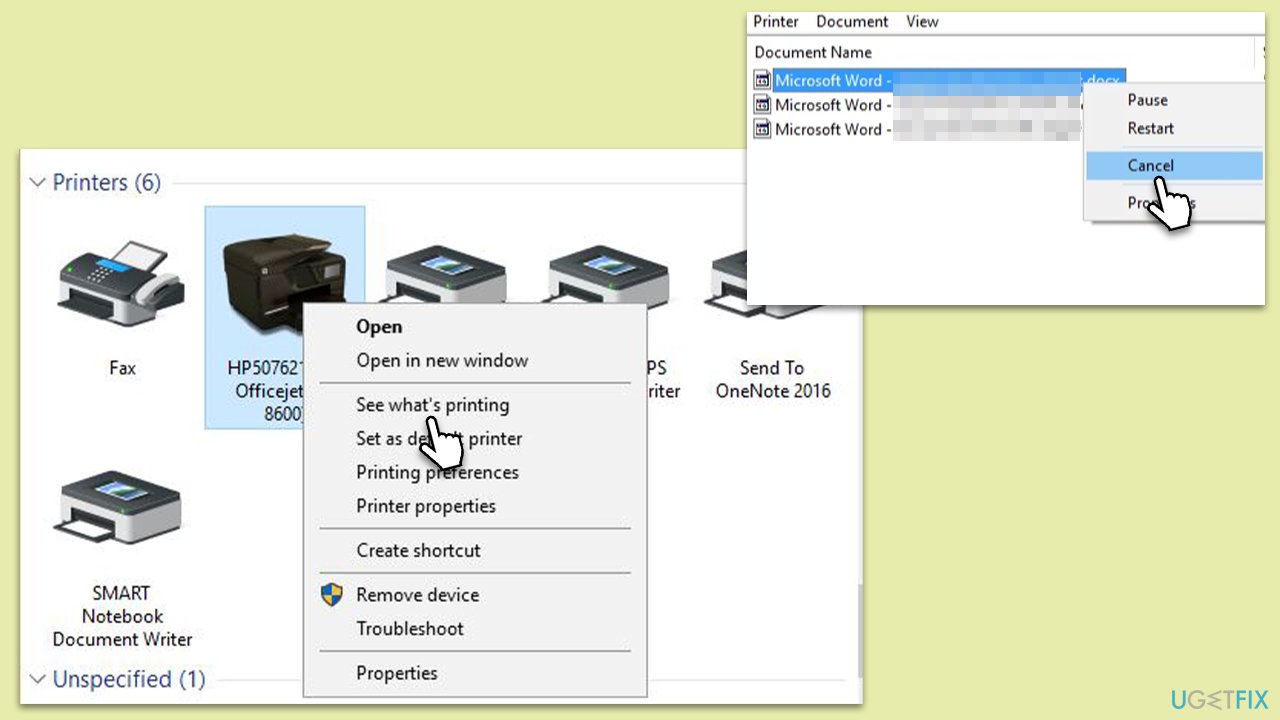
Note: some people noted that two printers might be listed, one of them using the "WS" abbreviation at the end. This is one of the main causes of the error, so avoid using this option when printing a document.
Fix 2. Restart Print Spooler
Print Spooler is a service that manages all print jobs sent to the printer from the computer. If the print spooler runs into problems, it could incorrectly report that the printer is being used. Resetting the print spooler can help solve these kinds of problems.
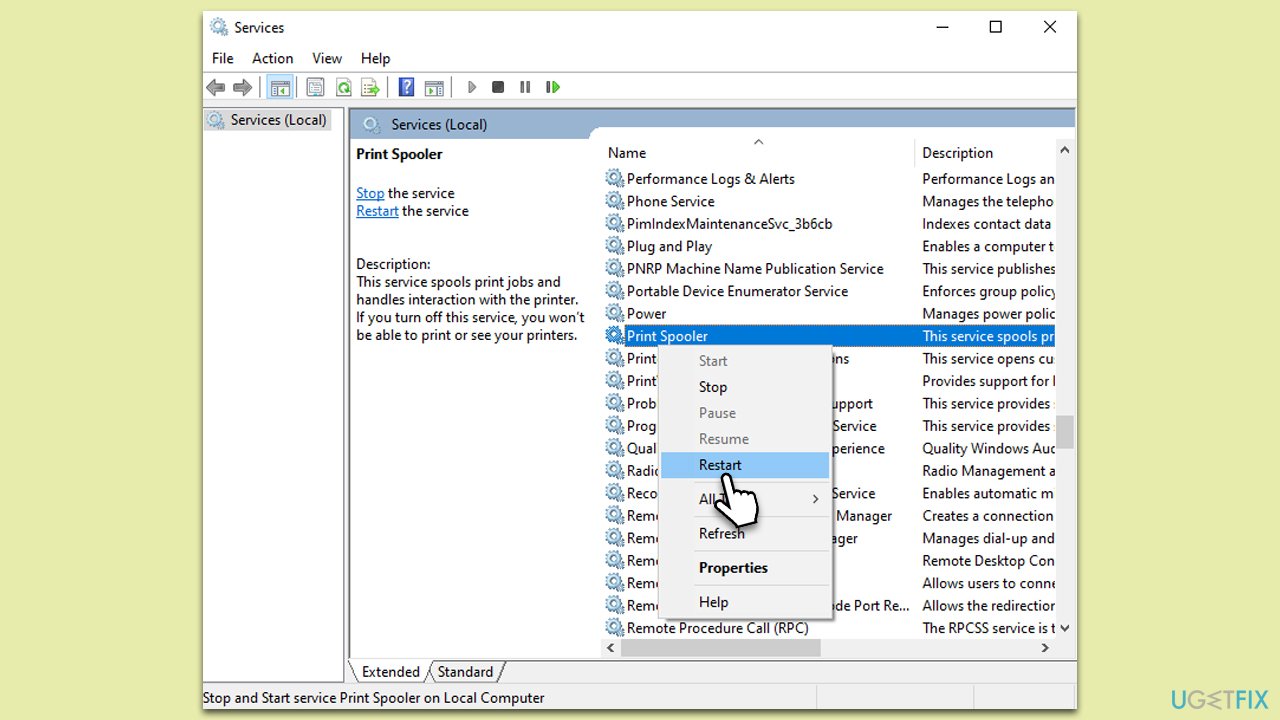
- Press the Windows key + R to open the Run dialog box.
- Type services.msc and hit Enter.
- Find the Print Spooler service in the list.
- Right-click on it and select Restart.
- Close the services window and try printing your document again.
Fix 3. Reinstall printer drivers
Printer drivers are software that allows your computer to communicate with the printer. If these drivers are corrupted or outdated, they might cause the printer to display incorrect error messages. Reinstalling the drivers can potentially solve this problem.
- Right-click on Start and pick Device Manager.
- Find your printer under the Print queues or Printers sections, right-click on it, and select Uninstall.
- Reboot your system.
- Once done, go to the printer manufacturer's website, find the appropriate drivers for your printer model, download them, and follow the instructions provided to install them. If you want a quicker and more straightforward solution, you can always employ [rev id="DrivverFix"] for automatic driver updates.
Fix 4. Update your operating system
Sometimes, the problem might not be with the printer or its drivers but with the operating system itself. Bugs in the system can cause false reports of printer usage. Keeping your system updated can solve these issues and also provide enhanced security and performance.
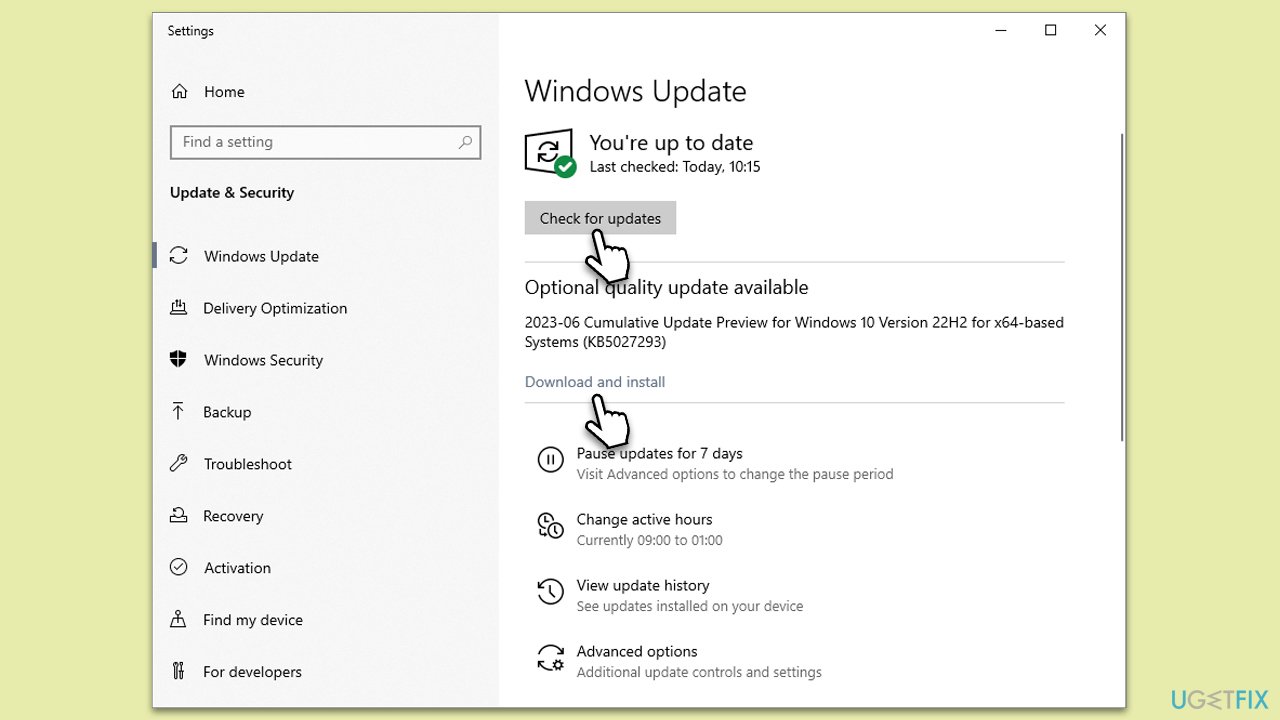
- Type Updates in Windows search and press Enter.
- In the new window, click Check for updates and wait till all the necessary files are downloaded.
- At this point, you might be offered optional updates - install them too.
- When done, reboot your system to implement new changes.
Fix 5. Configure printer sharing settings
Some printers might be configured to allow only one computer to use it at a time. If this is the case, changing this setting to allow multiple computers to use the printer can solve the issue.
- Go to the computer where the printer is physically connected.
- Open Control Panel, and go to Devices and Printers.
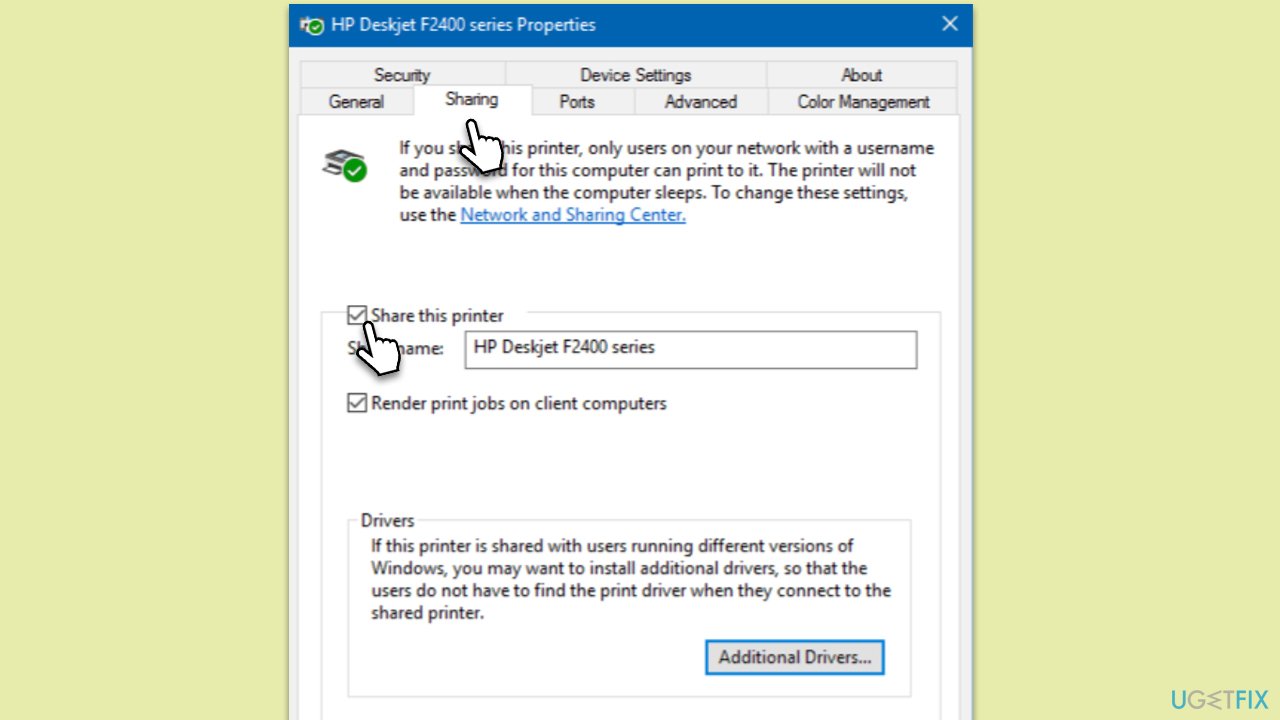
- Right-click on the printer, select Printer Properties, and then click on the Sharing tab.
- Ensure the Share this printer box is checked.
Fix 6. Set as default printer
If you have more than one printer installed on your system, your computer might get confused about which printer to use, causing the error message. Setting your printer as the default can solve this issue.
- Navigate to the Control Panel and select Devices and Printers.
- Find your printer, right-click on it, and select Set as default printer.
Fix 7. Clear Printers folder
The Windows operating system uses a dedicated folder to manage printer tasks. Occasionally, data or files within this folder may become corrupted or overloaded, leading to errors such as "Another computer is using the printer." Therefore, clearing the Printers folder can help in resolving the issue.
- Access Services.
- Find the Print Spooler service in the list, right-click on it, and select Stop.
- Once the service has stopped, press the Windows key + R.
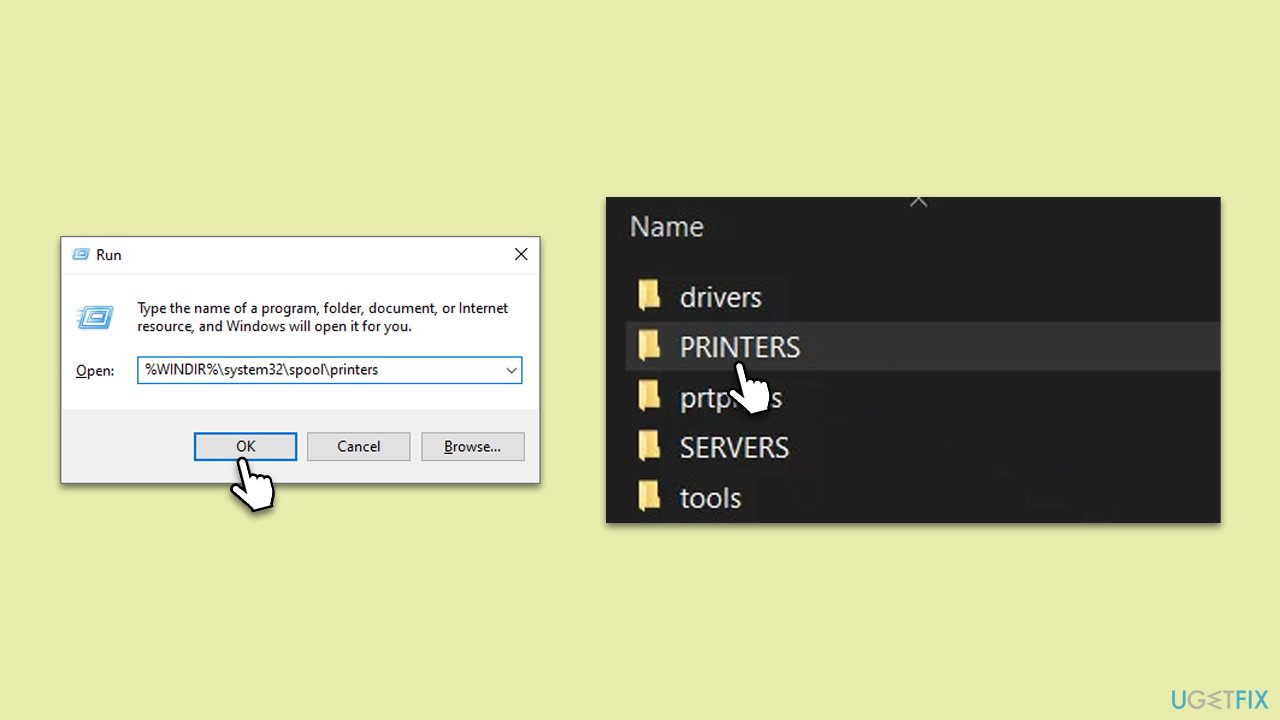
- Type %WINDIR%\system32\spool\printers and press Enter. This should open the Printers folder.
- Delete all files within this folder.
- After clearing it, go back to the services window, find the Print Spooler service, right-click on it, and select Start.
- Close the services window and attempt to print your document again.
Bottom line
To resolve the 'Another computer is using the printer' error, you can check and adjust the printer’s settings, update or reinstall the printer drivers, and troubleshoot any network issues. If these solutions do not work, further investigation into the printer's queue and system settings may be necessary.
Frequently asked questions
First, check if the printer is shared on your network and ensure no other devices are using it. You can also restart the print spooler service through the Services app to resolve the issue.
Make sure to disconnect any other devices that might be actively using the printer, then restart your Windows 11 PC and the printer. Additionally, updating the printer drivers can help eliminate conflicts.
Yes, you can access the printer settings from the Control Panel or Settings app in Windows 10 or Windows 11 to view active print jobs and devices connected to the printer.




Report an issue
What's wrong with this guide? We review every report and update or remove content.
Report received — thank you. We'll review and fix it.
You need a free account to submit a report.
Be the first to comment