
How to fix "Another instance of application is already running" error in Windows?

Prefer to fix it yourself? The manual steps follow.
- 8methods
- 2 to 20 minutes
- Easy
Applies to Windows 11 and Windows 10: desktop programs, Electron apps such as Visual Studio Code, Windows Installer (.msi) and Inno Setup installers, and Windows Setup during a feature update
8 methods in this guide
- What the message means
- Causes and their fixes
- The fixes
- 1. End the hidden copy
- 2. Another installer is running
- 3. Windows Setup is running
- 4. Copy runs as administrator
- 5. Another account runs it
- 6. Remove duplicate autostart
- 7. Repair or reset the app
- 8. Find the cause: clean boot
- Read the real cause
- Keep it from coming back
- FAQ
Hello, something happened to my apps. Every time I open, close, and then try to reopen an app, it always results in an error message that says "Another instance of Messenger is already running. You can't run two instances of Messenger. Please quit the other instance and try again."
"Another instance of this application is already running" means the program found a copy of itself that still holds its lock, even when no window is open. That copy hides in the tray, runs as administrator, belongs to another account, or is an installer or Windows Setup. Open Task Manager, find the copy on the Details page and end it.
A copy of the program is still running where you cannot see it, and it holds the lock that allows only one copy. Press Ctrl + Shift + Esc, open Details, find every line with the program's .exe name and select End task (Fix 1). If the message names Setup or an installer, let the other installation finish or restart (Fix 2). For Windows Setup, open Settings > Windows Update first (Fix 3).
| Error | "Another instance of [program] is already running", "An instance of this application is already running", "Another instance of Setup is already running" or "Windows Setup cannot be launched while another instance of Setup is already running". |
|---|---|
| Where it appears | In a small dialog the moment you start a program or an installer, before its main window opens. The program then closes itself. |
| Main cause | An earlier copy of the same program is still running in the tray or in the background. Windows removes the program's lock only when that process ends. |
| Fastest fix | End the hidden copy on the Details page of Task Manager, then start the program once (Fix 1). |
| Also written as | "Another instance is running", "A previous instance is already running", "The program is already running", "Fatal error: another instance is already running", "Another installation is already in progress" (Windows Installer error 1618). |
| Windows 11 and Windows 10 | The message and the fixes are the same on both. Windows 10 left support on 14 October 2025, so feature updates (Fix 3) matter mostly on Windows 11. |
| Who writes the message | The program itself, not Windows. Each publisher picks its own words, so the text differs from app to app while the mechanism stays the same. |
| Where the cause shows | Task Manager (Details and Users pages), Event Viewer (MsiInstaller events 1033, 11707, 11708) and the Windows Setup logs in C:\$Windows.~BT\Sources\Panther. |
| Time to fix | About 2 minutes for a hidden copy. Up to an hour when a feature update must finish first. |
Facts checked on 14 October 2026. Steps written for Windows 11 (25H2 and 26H2) and Windows 10 22H2.
What "Another instance is already running" means
An instance is one running copy of a program. Many programs allow only one copy at a time, because two copies would write to the same settings, database or licence file. To enforce this, the first copy creates a named lock when it starts. Every copy started later looks for that lock, finds it, shows the message and quits.
On Windows the lock is usually a named mutex. Microsoft's documentation of CreateMutex says that when a named mutex already exists, the second program gets the error ERROR_ALREADY_EXISTS, and that the system closes the handle automatically when the process ends. So the lock can never outlive the program that holds it: when the message appears, something is really still running.
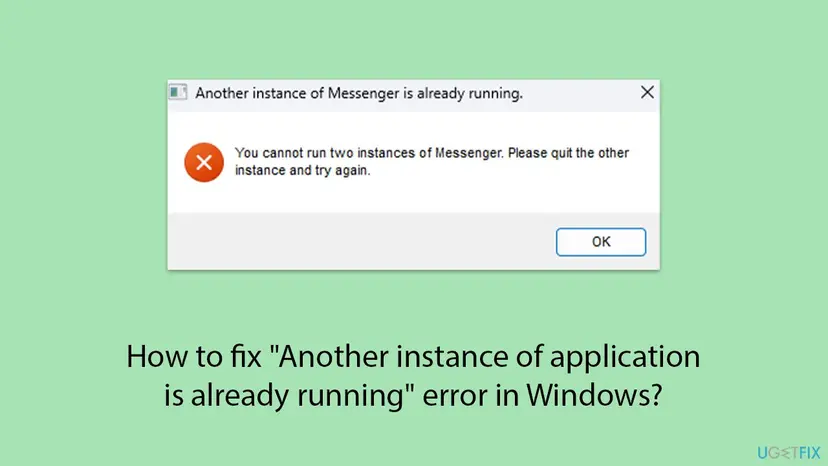
- Another instance of this application is already running and An instance of this application is already running: a hidden copy of the same program (Fix 1).
- Another instance of Setup is already running or Another installation is already in progress: a second installer, often a silent update (Fix 2).
- Windows Setup cannot be launched while another instance of Setup is already running. A feature update might be in progress.: Windows Update is installing a new Windows version (Fix 3).
- Another instance of Code is already running as administrator: an elevated copy that your normal copy cannot reach (Fix 4).
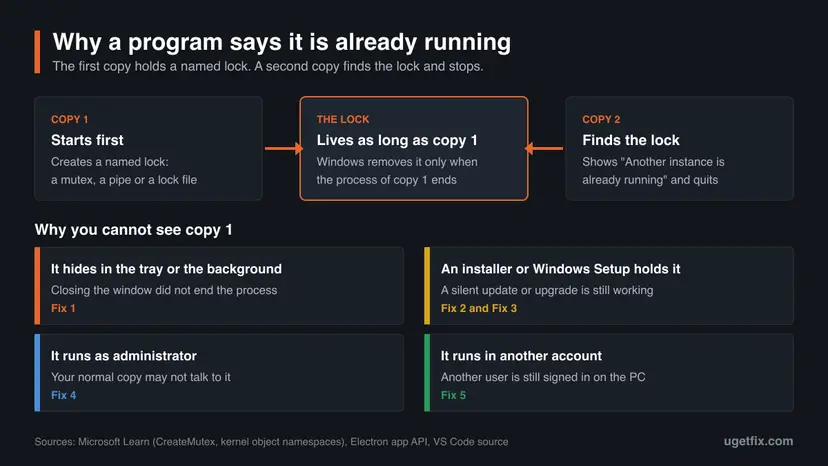
Why another instance is running: causes ranked, each with its fix
The causes are not equal. Most often you closed the window, but the program kept running in the notification area or as a background process. Chat apps, launchers, cloud sync tools and Electron apps do this by default. Less often an installer or a Windows feature update holds the lock. Rarely the other copy runs with other rights or in another account.
| How often | What holds the lock | Sign | Fix |
|---|---|---|---|
| Most often | A copy in the tray or in the background | The program's .exe is on the Details page of Task Manager | Fix 1 |
| Often | A second installer or a silent update | msiexec.exe or another setup program is busy; error 1618 | Fix 2 |
| Often, for Windows Setup | A feature update from Windows Update | Settings shows a download, an install or a pending restart | Fix 3 |
| Sometimes | A copy started as administrator | The message says "as administrator", or the Elevated column says Yes | Fix 4 |
| Sometimes | A copy in another user account | The Users page of Task Manager lists a second account | Fix 5 |
| Sometimes | Two autostart entries for the same app | The message appears right after every sign-in | Fix 6 |
| Rarely | A copy that hangs while it shuts down | The app writes data or a backup on exit and freezes there | Fix 7 |
| Rarely | A third program that starts the app or blocks it | None of the above, and the message stays after a restart | Fix 8 |
Microsoft's page on kernel object namespaces says each signed-in session has its own namespace, and a program can put its lock in the Global namespace to detect a copy "across all sessions". Such a program refuses to start even when the other copy runs in a different user account.
How to fix "Another instance is already running" in Windows 11 and 10
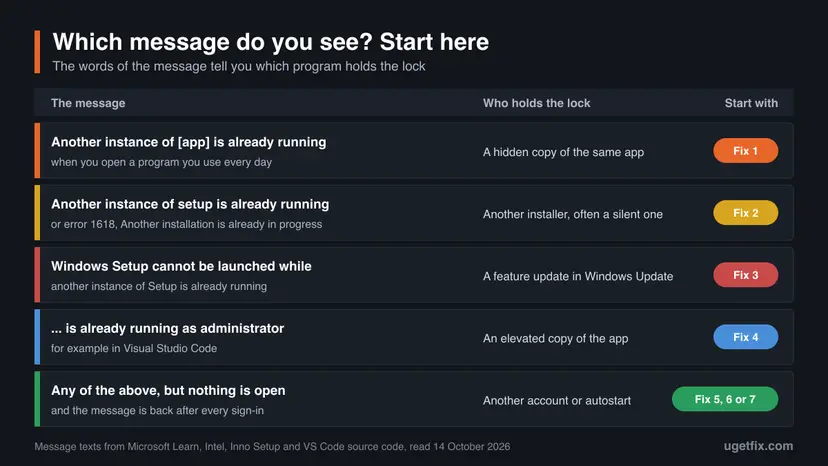
Start with the fix that matches the words of your message. Fix 1 works for most readers with an ordinary program. The installer and Windows Setup messages have their own fixes, 2 and 3.
| What you see | Start with |
|---|---|
| "Another instance of [app] is already running" for a program you use every day | Fix 1 |
| "Another instance of Setup is already running", "Another installer is already running" or error 1618 | Fix 2 |
| "Windows Setup cannot be launched while another instance of Setup is already running" | Fix 3 |
| "Another instance of Code is already running as administrator" or another "as administrator" text | Fix 4 |
| Nothing on the Details page, but the PC has more than one user account | Fix 5 |
| The message appears on its own right after you sign in | Fix 6 |
| The app ends in Task Manager, yet the message is back next time | Fix 7, then Fix 8 |
Fix 1. Find the hidden copy in Task Manager and end it
2 minutesLow riskAny program that says another instance or a previous instance is already running.
The lock lives exactly as long as the first copy's process. When you end that process, Windows closes the lock and the next start becomes the first copy again.
First look for the program's icon in the notification area: select the ^ arrow next to the clock. If the icon is there, right-click it and choose Quit or Exit. That closes the program properly, so it saves its data. If there is no icon, use Task Manager.
- Press Ctrl + Shift + Esc to open Task Manager. On Windows 10, select More details if you see only a short list.
- On the Processes page, look under Apps and Background processes for the program's name.
- Select it and select End task.
- To be sure, open the Details page and select the Name column header to sort by name.
- Find every line with the program's file name, for example
Messenger.exeorCode.exe. Electron apps run several lines with the same name. - Right-click one of them and select End process tree. This ends the process and the processes it started.
- Start the program again from the Start menu.
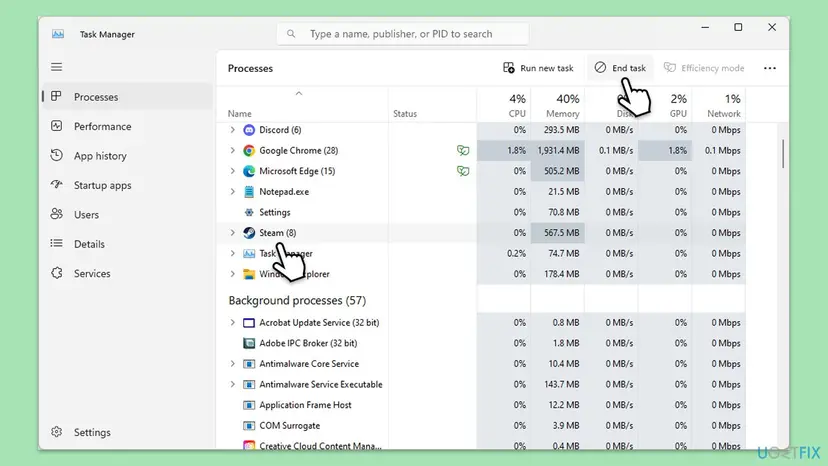
The same from a Command Prompt, when you know the file name (/t also ends the child processes, /f forces it):
taskkill /im Messenger.exe /t /fFor an app from the Microsoft Store, Settings has a button that does the same: Settings > Apps > Installed apps, the three dots next to the app, Advanced options, then Terminate. The general steps for a frozen program are in Close a frozen app (Task Manager, Force Quit).
It worked if: The program opens normally and only one copy of its .exe is on the Details page.
If not: If the copy comes back by itself within seconds, something starts it again: go to Fix 6. If you cannot find it at all, restart the PC once and try again, then continue with Fix 4 and Fix 5.
Fix 2. Let the other installer finish, or find which one is running
5 to 15 minutesLow riskThe message says another instance of Setup or another installation is already running, or the error is 1618.
Windows Installer runs one installation at a time. Microsoft documents error 1618 as "Another installation is already in progress. Complete that installation before proceeding with this install", and it holds the _MSIExecute mutex while an installation is running.
Two kinds of installers show this message. Windows Installer packages (.msi files) answer with error 1618. Installers made with Inno Setup use their own lock, and the Inno Setup documentation gives its text: "Setup has detected that Setup is currently running. Please close all instances of it now, then click OK to continue, or Cancel to exit." Both mean one thing: another setup is not finished.
- Look at the taskbar and the notification area for another setup window, often hidden behind other windows. Finish it or cancel it there.
- Open Settings > Windows Update and check whether an update is downloading or installing. If it is, wait until it is done.
- Press Ctrl + Shift + Esc, open Details and sort by Name.
- Look for
msiexec.exeand for other installers, such assetup.exe,install.exeor a file named after a product withsetupin it. - Wait about 10 minutes and check whether the processes disappear on their own. A silent update often runs that long.
- If a setup process stays and nothing is visibly installing, restart the PC with Start > Power > Restart.
- Run your installer once, and do not double-click it again while it starts.
Ending msiexec.exe while it copies files can leave a half-installed program. One msiexec.exe line can also belong to the Windows Installer service itself (service name msiserver). Wait first, and use a restart instead of End task when you are not sure what it is installing.
To see which product the other installation was, open Event Viewer and read the MsiInstaller events in the Application log, as shown in the section on reading the cause below.
Intel's support article on this message for its graphics driver says to install the driver from Safe Mode. Use that only for a driver installer that fails again after a restart.
It worked if: Your installer starts and shows its first page instead of the message.
If not: If the message names Windows Setup, go to Fix 3. If a program you use every day shows "another instance of Setup" (Autodesk documents this for Revit and a conflicting add-in), go to Fix 8.
Fix 3. Windows Setup: finish or restart the feature update first
5 to 60 minutesLow riskYou started the Installation Assistant, the Media Creation Tool or setup.exe from Windows media and Windows Setup refused to start.
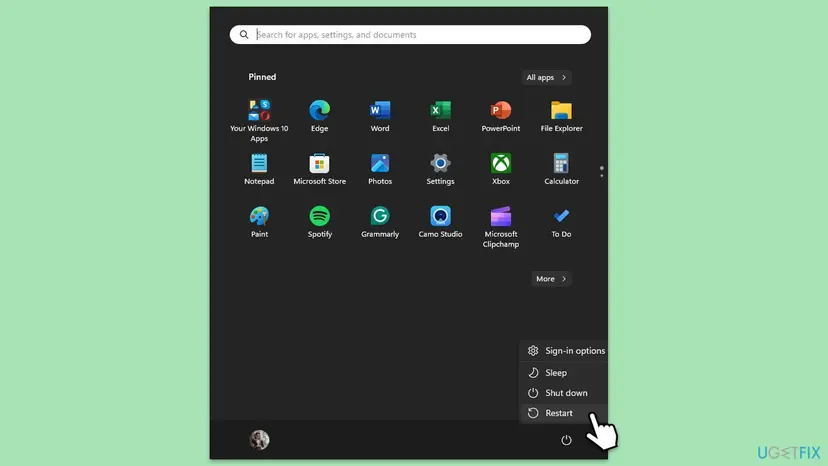
The full message ends with "A feature update might be in progress. Go to Windows Update in the Settings app". Windows Update and the tool you started both use Windows Setup, and only one of them can run.
- Close the tool that showed the message.
- Open Settings > Windows Update (on Windows 10: Settings > Update & Security > Windows Update).
- If a feature update is downloading or installing, wait until it reaches Restart now or Restart required.
- Select Restart now, or use Start > Power > Update and restart when it is offered.
- After the restart, open Settings > Windows Update again and select Check for updates.
- If you still need the tool, run it now. If Windows Update already installed the new version, you do not need it.
Windows Setup runs as SetupHost.exe from the hidden folder C:\$WINDOWS.~BT\Sources. If Windows Update shows nothing in progress, the PC was restarted, and the message still appears, open Details in Task Manager. A SetupHost.exe or SetupPrep.exe line there is the other instance. Restart once more and leave the PC on for 15 minutes before you try again.
We could not find a Microsoft page that tells home users to end SetupHost.exe by hand. We do not recommend it while Windows Update shows an install in progress, because the update then has to start over.
It worked if: Windows Update finishes the feature update, or your setup tool starts and shows its first page.
If not: Read the setup logs as shown in the section after the fixes. For an update that fails again and again, reset the update components with Reset Windows Update components.
Fix 4. Close the copy that runs as administrator
3 minutesNo riskThe message says the other instance runs as administrator, or you started the program with Run as administrator before.
A copy started as administrator runs with higher rights, and a normal copy is not allowed to talk to it. Visual Studio Code shows this text when the connection fails with a permission error.
The Visual Studio Code source code shows the exact text: "Another instance of Code is already running as administrator." with the detail "Please close the other instance and try again." Other programs show the same thing in their own words. The cure is to run every copy at the same level.
- Press Ctrl + Shift + Esc and open Details.
- Right-click any column header, select Select columns, tick Elevated and select OK.
- Find the program's lines. Yes in the Elevated column marks the administrator copy.
- Close that copy from its own window, or right-click it and select End process tree.
- Start the program again, the normal way, from the Start menu.
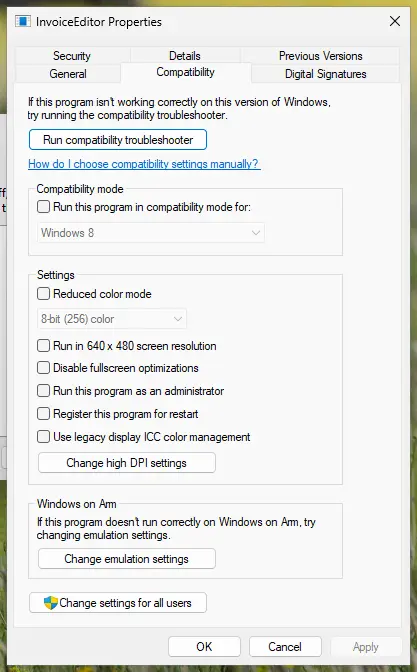
If the program always starts as administrator, a setting does it. Open the shortcut's Properties, select the Compatibility tab and clear Run this program as an administrator. The tab is shown in How to run a program as administrator or in compatibility mode.
It worked if: The program opens, and the Elevated column shows the same value on all its lines.
If not: If you need the program as administrator, close every normal copy first, then start it as administrator. If no copy is elevated, go to Fix 5.
Fix 5. Sign out the other user account that runs the program
3 minutesRead the warningThe PC has two or more user accounts, and someone switched users without signing out.
A program that locks itself in the Global namespace sees a copy in any signed-in session. Microsoft notes that fast user switching uses one session per user, so a copy can run in an account you cannot see.
Signing out another account closes all its programs without saving. Ask that person to sign in and save first. If that is not possible, accept that open documents in that account can be lost.
- Press Ctrl + Shift + Esc and open the Users page.
- Check whether another account is listed next to yours.
- Select the arrow next to that account to see its programs. Look for the program from your message.
- Right-click the other account and select Sign off.
- Confirm, then start the program in your own account.
Microsoft's own OneNote message names this case: "If you use remote sessions to access OneNote on a Microsoft Windows Server, only one session at a time can run OneNote." A Remote Desktop session that was only disconnected counts as signed in too.
It worked if: The Users page lists only your account, and the program starts.
If not: If no other account is listed, go to Fix 6.
Fix 6. Remove the duplicate autostart entry
5 minutesNo riskThe message pops up by itself right after you sign in, before you started anything.
Two autostart entries for the same app start two copies at the same moment. The second one finds the lock of the first and shows the message on every sign-in.
- Open Settings > Apps > Startup.
- Look for the program in the list. Two lines with the same or a similar name are a duplicate.
- Turn one of them Off. If you do not need the program at sign-in at all, turn all its lines off.
- Press Win + R, type
shell:startupand press Enter. Delete a second shortcut to the same program in that folder. - Press Win + R again, type
shell:common startupand press Enter. Check this folder for all users the same way. - Restart the PC and sign in.
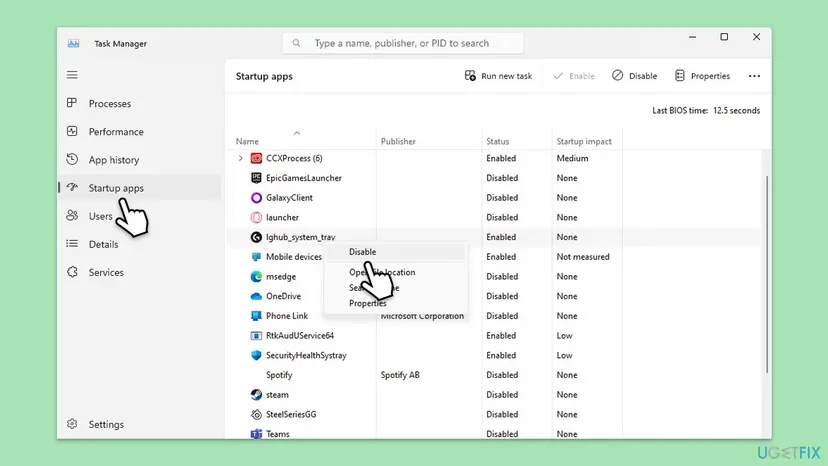
Some programs also have their own option, such as Start with Windows or Launch at login, in their settings. Keep that one and remove the extra entry. More detail: Stop apps from opening at startup.
It worked if: You sign in with no message, and the program's icon appears once in the notification area.
If not: If the message still appears at sign-in, a scheduled task or a service may start the app. Go to Fix 8.
Fix 7. Repair, reset or reinstall the program that hangs on exit
10 minutesRead the warningYou end the program in Task Manager, it starts, and the message is back the next time you close and open it.
Some programs save data or a backup when they close. If that step hangs, the old process never ends and keeps the lock. LaunchBox documents exactly this for its own message.
Repair keeps your data. Reset and reinstalling delete the app's settings and local data, as Settings itself says. Sign in to a cloud account or export your data before you reset.
- Close the program and wait 10 seconds before you start it again. Some apps need that long to finish.
- If the program sits in a OneDrive, Dropbox or Google Drive folder, move it or its data to a normal folder. Sync tools can block its last write.
- Open Settings > Apps > Installed apps, select the three dots next to the program and Advanced options.
- Select Repair and test the program.
- If it still fails, select Reset, then test again.
- If the program has no Advanced options, uninstall it, restart the PC and install the newest version from its publisher.
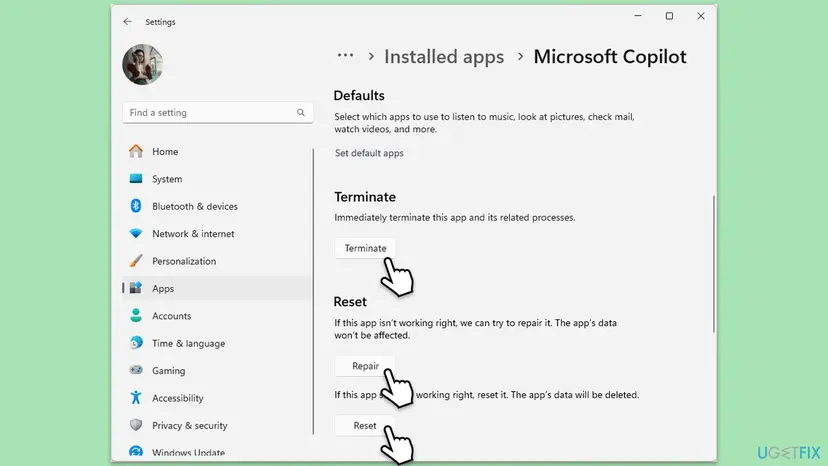
For Microsoft Office apps such as OneNote, use Modify and Online Repair instead of Reset. The full steps for Store apps are in How to repair or reset an app in Windows.
It worked if: You can close and open the program several times in a row without the message.
If not: Go to Fix 8 to find a program that interferes, then contact the program's publisher with the details from the section below.
Fix 8. Find the program that starts or blocks the app with a clean boot
20 minutesLow riskNone of the fixes above helped, and the message stays even right after a restart.
A clean boot starts Windows without third-party services and startup apps. If the message disappears, one of them starts your program or blocks it, and you can find which by turning them back on in groups.
Microsoft support staff suggest this step for "Another installer is already running", and Autodesk traces the Revit case to an add-in. Add-ins and plug-ins load inside the program, so start the program without them first if it has a safe mode.
- Open System Configuration. Select Search on the taskbar, type msconfig and select System Configuration from the results.
- Hide Microsoft services. On the Services tab, select the Hide all Microsoft services check box. Only services from other companies stay in the list.
- Disable the remaining services. Select Disable all, then select Apply.
- Open Task Manager. On the Startup tab of System Configuration, select Open Task Manager.
- Disable the startup apps. On the Startup apps tab in Task Manager, select each item whose status is Enabled and select Disable. Write down or take a screenshot of the items you disable: you need the list to turn them back on.
- Confirm the changes. Close Task Manager. On the Startup tab of System Configuration, select OK.
- Restart and test. Restart the PC. Windows now starts in a clean boot environment: try again the thing that failed (run the app, install the update, uninstall the program).
These steps were written for Windows 11 25H2 and 26H2. The full page with the other versions and what each result means: How to perform a clean boot in Windows

It worked if: After the clean boot the program starts without the message. Turning the items back on in groups shows which one caused it.
If not: Undo the clean boot as the procedure shows, then send the details from the next section to the program's publisher.
Still says another instance is running? Read the cause where Windows writes it
Three places name the other copy. Check the one that matches your message before you contact anyone.
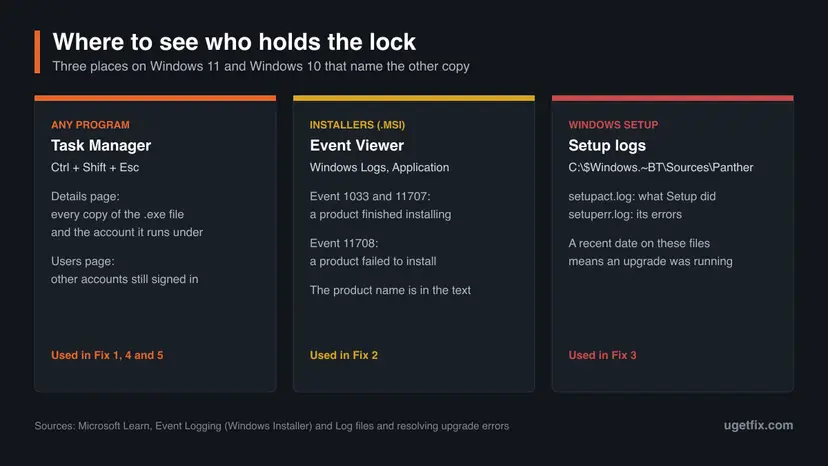
- Task Manager: the Details page shows every copy with its user name, and the Users page shows other accounts. Add the Command line column to see where each copy was started from.
- Event Viewer for installers: press Win + X, select Event Viewer, open Windows Logs > Application and filter by the source MsiInstaller. Event 1033 says "Installation completed with status", 11707 a successful install and 11708 a failed one. Each names the product.
- Windows Setup logs:
setupact.logandsetuperr.loginC:\$Windows.~BT\Sources\Panther. Microsoft calls setupact.log "the most important log for diagnosing setup issues". A recent date on these files means an upgrade was running.
The exact text of the message, the program's version, your Windows version from Settings > System > About, whether the Details page showed a copy and under which user, and whether a clean boot changed anything.
How to keep "Another instance is already running" from coming back
- Quit tray programs from their icon with Quit or Exit when you want them closed.
- Wait a few seconds after closing a program that saves a lot of data before you open it again.
- Keep one autostart entry per program.
- Let Windows Update finish and restart before you run a Windows setup tool.
- Sign out instead of switching users when you leave a shared PC.
- Double-click an installer again while it is still starting.
- Mix normal and administrator copies of the same program.
- End
msiexec.exeorSetupHost.exewhile an install is visibly in progress. - Keep a program's data in a cloud sync folder when the program warns against it.
Some programs have a setting for what the close button does, such as Minimize to tray or Keep running in the background. When it is on, the close button never ends the program, and you will meet this message again.
Frequently asked questions
What does "another instance is already running" mean in plain words?
It means a copy of the program is already open, and the program allows only one copy. An instance is one running copy. The message comes from the program, not from Windows, so the first copy may be hidden in the notification area, in the background or in another account. Ending that copy in Task Manager or quitting it from its tray icon lets you open the program again. Nothing is broken in Windows when you see it.
What is the translation of "another instance is already running" (traduzione, artinya)?
In Italian it reads roughly as "un'altra istanza è già in esecuzione", and in Indonesian as "instans lain sudah berjalan", meaning another copy of the program is already open. In Korean searches it is often typed with 오류, which means error. The meaning is the same in every language: the program found its own copy and refuses to start a second one. The fixes on this page apply whatever the language of Windows.
Is the message different on Windows 11?
No. Windows 11 and Windows 10 handle these locks the same way, so the message and the fixes do not change. On Windows 11 the most common extra case is the Windows Setup message, because feature updates arrive through Windows Update while people also run the Installation Assistant. Windows 10 left support on 14 October 2025 and no longer gets new feature updates, so that case is now rare there.
Why does the message come back after I restart the PC?
A restart ends every process, so the old copy is gone. If the message returns, a new copy started again on its own. Usually two autostart entries start the program twice at sign-in (Fix 6). Less often, another account signs in automatically, or a service or scheduled task starts the program. A clean boot (Fix 8) tells you which of these it is.
Is it safe to end the process in Task Manager?
It is safe for Windows, but the program loses what it had not saved. A chat app or a launcher usually loses nothing. A program that was saving data or a backup can lose that last change, as LaunchBox warns for its own app. Quit from the tray icon when you can, and use End task only when the program does not react.
What is error 1618?
Error 1618 is Windows Installer's code for "Another installation is already in progress. Complete that installation before proceeding with this install." Its name is ERROR_INSTALL_ALREADY_RUNNING. It appears when you start an .msi installer while another one is still running, often a silent update. Wait for the other installation, or restart the PC, then run your installer once (Fix 2).
Can I run two copies of a program anyway?
Only when the program allows it. The lock is the program's own decision, made to protect its settings or data, so Windows has no switch to turn it off. Some programs offer a separate profile, a portable version or a command-line option for a second window. Running a second copy against the program's wishes can damage its data, so we do not recommend tricks that delete or rename the lock.
What does "You cannot proceed because following process(es) is/are already ongoing" mean?
That message does not come from Windows. Searches for it are about the online member portal of India's Employees' Provident Fund Organisation (EPFO), for example when marking a date of exit. Its wording says the portal sees an earlier request that is not finished yet. We could not find EPFO's own explanation of it, so check the status of your earlier requests on the portal or ask EPFO. This page cannot fix it.
Why does Disk Drill or another tool say an instance is already running?
Tools such as disk recovery programs, remote control servers and USB writers lock themselves the same way, because two copies working on the same drive or port would clash. Their message often has its own words, such as "already an instance is running". The fix is the same: end the copy on the Details page of Task Manager (Fix 1), and check for an administrator copy (Fix 4).
Does a virus cause this message?
Not as a rule. The message is normal behaviour of the program. Be suspicious only when a program you never installed shows it, or when the file on the Details page runs from an odd folder such as a Temp folder. Right-click the line, select Open file location to check, and scan the PC with Microsoft Defender if the location looks wrong.
Sources
- Microsoft Learn: CreateMutexW function (synchapi.h) (learn.microsoft.com)
- Microsoft Learn: Kernel object namespaces (learn.microsoft.com)
- Microsoft Learn: MsiExec.exe and InstMsi.exe error messages (error 1618) (learn.microsoft.com)
- Microsoft Learn: _MSIExecute Mutex (learn.microsoft.com)
- Microsoft Learn: Event Logging (Windows Installer) (learn.microsoft.com)
- Microsoft Learn: Log files and resolving upgrade errors (learn.microsoft.com)
- Microsoft Q&A: Cannot update to 21H1 using Windows Update Assistant (full Windows Setup message) (learn.microsoft.com)
- Microsoft Support: Configure Startup applications in Windows (support.microsoft.com)
- Microsoft Learn: taskkill (learn.microsoft.com)
- Electron documentation: app.requestSingleInstanceLock (electronjs.org)
- Visual Studio Code source code: src/vs/code/electron-main/main.ts (github.com)
- Inno Setup documentation: [Setup] SetupMutex (jrsoftware.org)
- Intel Support: Getting Another Instance of Setup Is Already Running during Graphics Driver Installation (000092559) (intel.com)
- Autodesk Support: Another instance of setup is already running when launching a second session of Revit (autodesk.com)
- LaunchBox help: Troubleshooting Another Instance is Already Running error (feedback.launchbox-app.com)
Did this fix work?
One click, no account. It tells the next reader which guides are worth their time.
Questions and experiences: fix "Another instance of application is already running" error in Windows
Still broken, or found a fix we did not cover? Ask here: members and our editors answer. Reading is open; writing needs a free account.
…