How to fix
“Another user on this device uses this Microsoft account” error
on Windows
Resolve the "Another user on this device uses this Microsoft account" error in Windows 10 or 11 quickly and efficiently. Expert-tested solutions await!

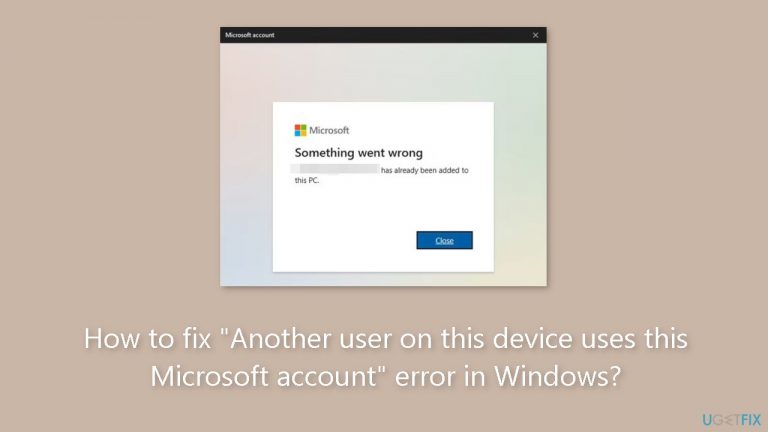
What causes How to fix “Another user on this device uses this Microsoft account” error in Windows?
- Another user is signed in with the same Microsoft account
- Multiple users sharing the device
- User attempting to access account from a different device
- Incomplete account removal processes
- Remnants of a previously signed in account on the device
Repairs Windows system files, removes malware, and restores a clean OS state — without reinstalling.
Hello. When I try to sign in to Windows I receive the "Another user on this device uses this Microsoft account" error. What does it mean?
When attempting to sign in to their Microsoft accounts, users may see the "Another user on this device uses this Microsoft account" issue on Windows. When attempting to connect in to a Microsoft account on a device that already has a user signed in under the same account, this error message appears. This scenario can occur as a result of numerous users sharing a device or when an individual attempts to access their account from a separate device.
This error message primarily serves as a precaution against illegal account access. By displaying this message, Windows attempts to reduce the possibility of unauthorized users getting access to a Microsoft account on a shared or unfamiliar device. It is essentially a security precaution implemented to ensure the integrity of personal accounts.
The occurrence of the error might cause a variety of problems and significant concerns for users. Users, for example, may find themselves unable to access their accounts, limiting their ability to use linked services, apps, and data. This could be especially problematic for people who rely largely on Microsoft services for job or personal reasons. Furthermore, users who were unaware of other active sessions with their account on a shared computer or device may be perplexed by the error.
This problem frequently occurs when a user previously signed in to their account on a device but then removed it, only for the remains of that account to remain on the device. In such circumstances, the error occurs as a result of the system recognizing the account's prior link with the device. This could happen as a result of incomplete account removal processes.
There are several potential solutions to this problem. To resolve the problem, ensure that the Microsoft account is completely removed from the device in question. This could include logging out of any sessions associated with the account on the device, verifying account removal from the system, and removing any traces of the account's presence.
In this guide, you will find 4 steps that should help you fix "Another user on this device uses this Microsoft account" error. If you experience any OS issues, you can use a maintenance tool like [d1] that can fix most system errors, BSODs,[ref en-1] corrupted files, registry[ref en-2] issues, or clear cookies and cache.[ref en-3] Otherwise, follow the step-by-step instructions below.
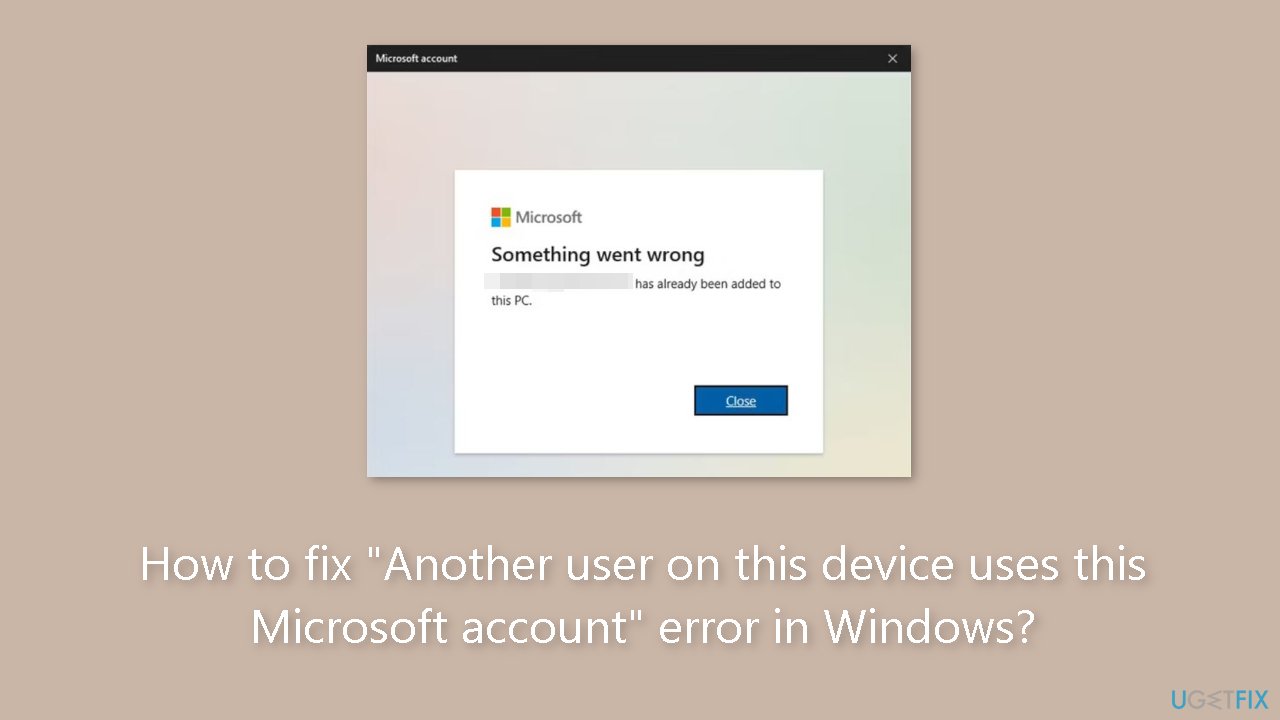
Solution 1. Remove the Device from Microsoft Account
- Visit the Microsoft account website.
- Log in using your account credentials.
- Navigate to the Devices tab.
- Choose the specific device you wish to sign in to.
- Locate and click on the Remove hyperlink for that device.
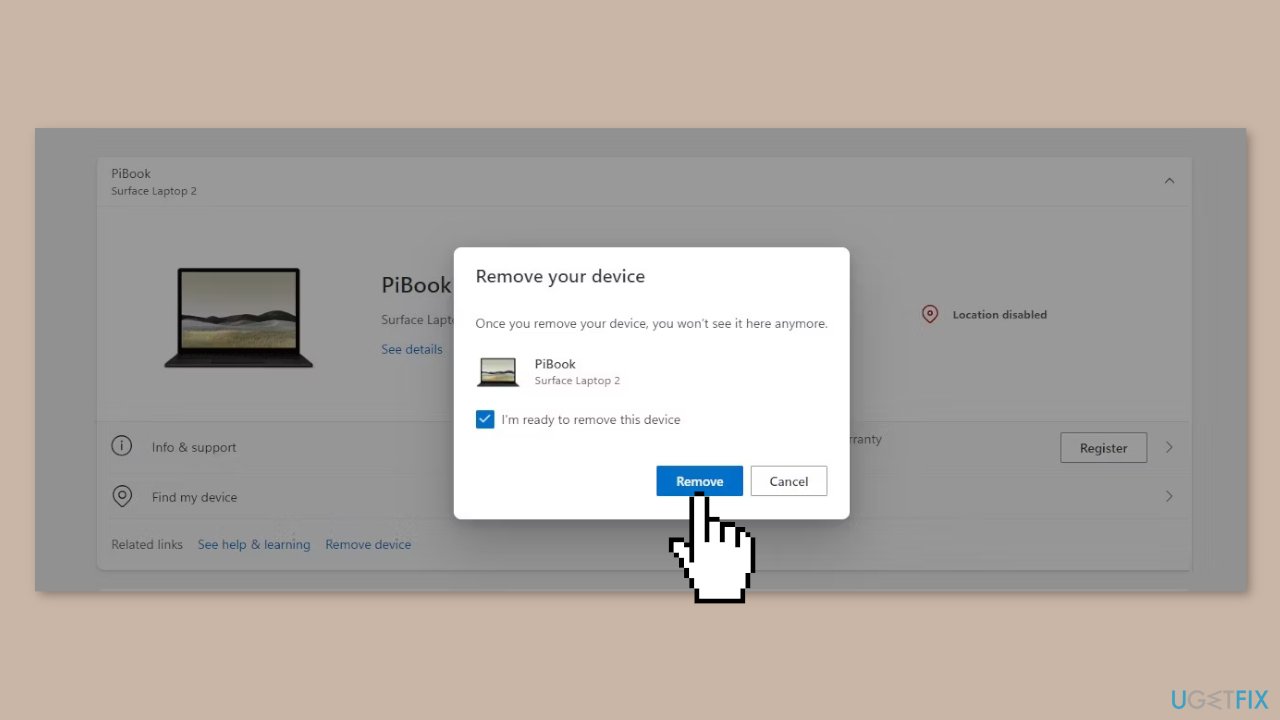
- A confirmation prompt will appear. Check the box that says I'm ready to remove this device.
- Click the Remove button.
- Restart the device that was removed from your Microsoft account.
- Attempt to sign in to your Microsoft account once the device restarts.
Solution 2. Delete Account from the Local Users and Groups Settings
- Press the Windows key + R to launch the Run dialog box.
- Input lusrmgr.msc into the search box and press Enter.
- Within the Local Users and Groups window, proceed to the Users section.
- Identify the user account responsible for the error.
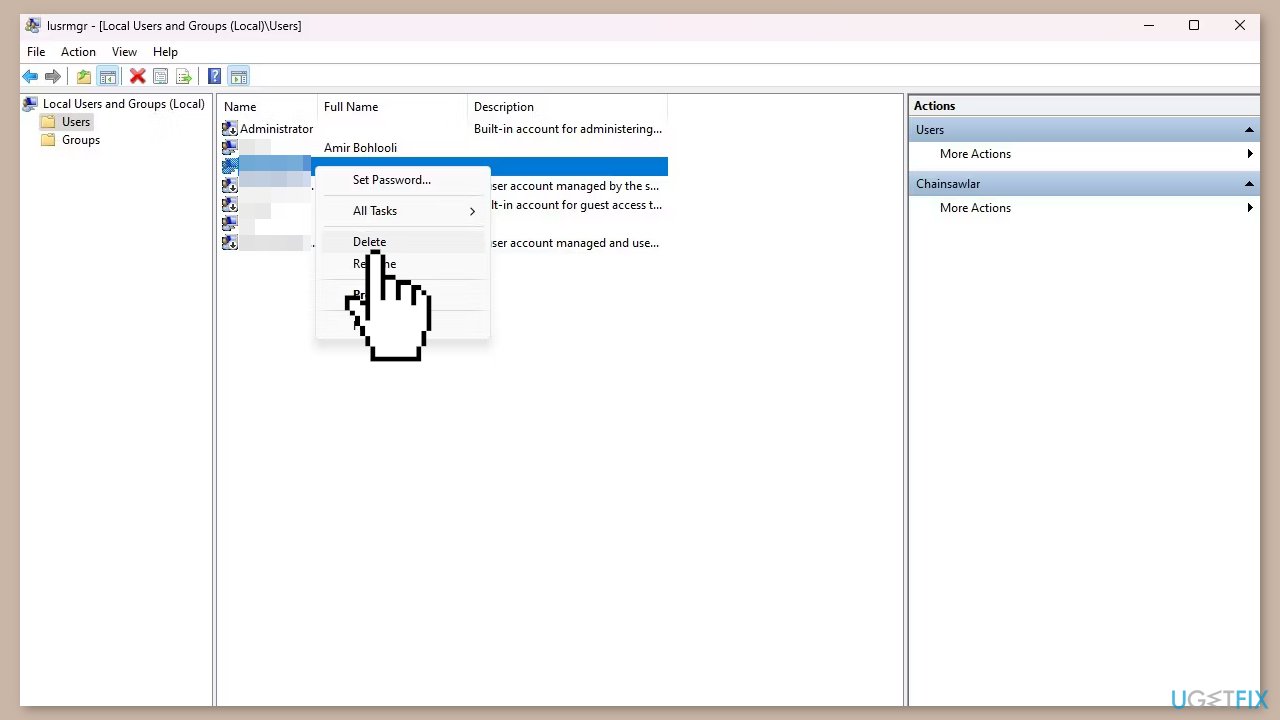
- Right-click on the problematic user account.
- From the context menu, choose the Delete option.
Solution 3. Use the Registry Editor
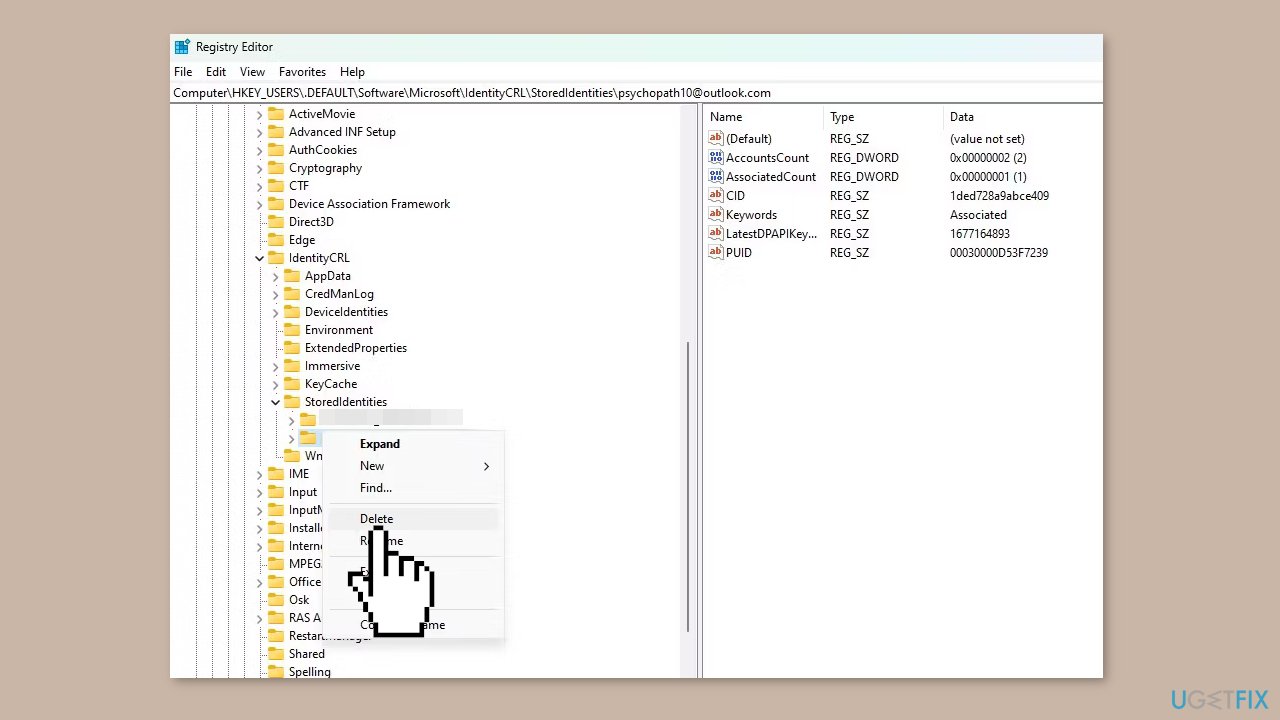
- Initiate the Start menu and conduct a search for Registry Editor.
- Launch the Registry Editor application.
- Within the left-side pane, traverse through HKEY_USERS > .DEFAULT > Software > Microsoft > IdentityCRL > StoredIdentities.
- After expanding StoredIdentities, logged-in Microsoft accounts will be visible.
- Execute a right-click on the specific account and opt for the Delete choice.
Solution 4. Modify Local Security Policy Settings
- Launch the Local Security Policy window.
- Inside the Local Security Policy window, go to Security Settings > Local Policies > Security Options.
- Locate the policy named Accounts: Block Microsoft accounts and double-click on it.
- Opt for This policy is disabled from the available drop-down menu.
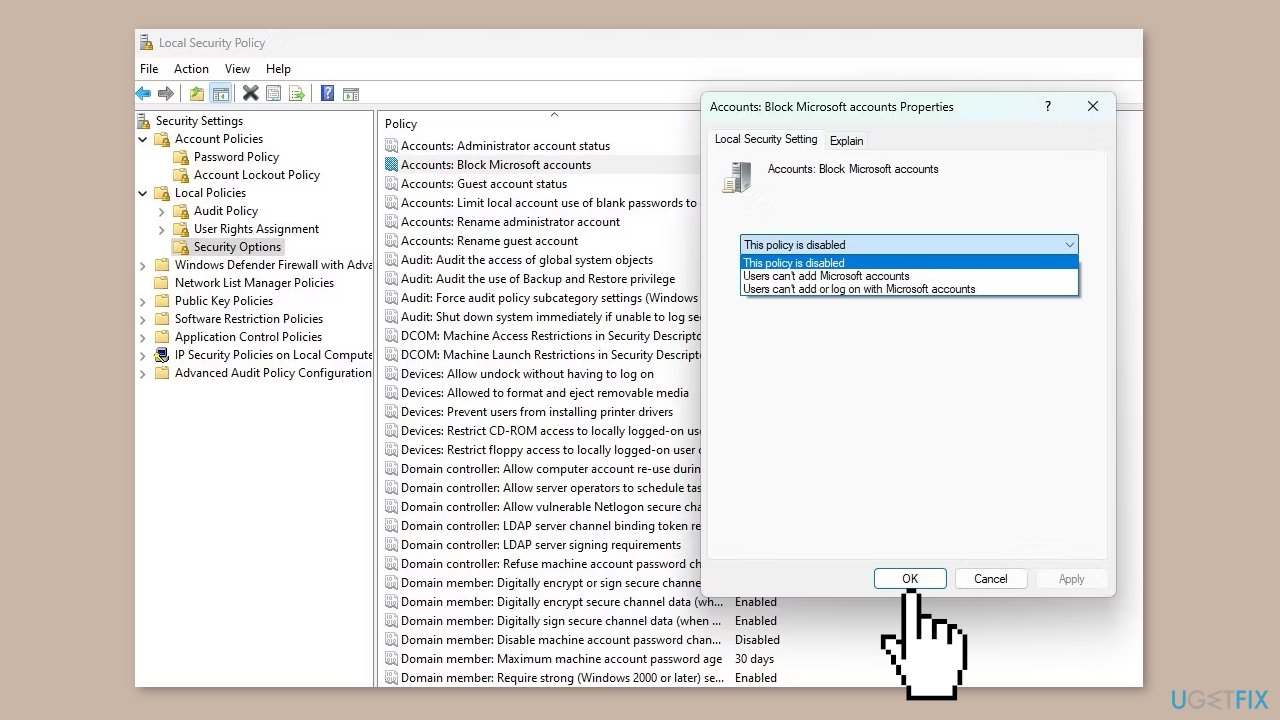
- Click the Apply and OK buttons to confirm and store the modifications.
- Reboot your device and make an attempt to log in to your Microsoft account.
Bottom line
To resolve the issue, ensure that the Microsoft account is completely removed from the device by logging out of any sessions associated with the account and verifying account removal from the system. If the problem persists after these steps, consider additional troubleshooting methods or seek further assistance.
Frequently asked questions
This error typically occurs when the same Microsoft account is logged in on multiple devices or profiles, leading to conflicts. Windows 10 may prevent you from signing in to avoid data corruption.
To fix the error on Windows 11, try signing out of the conflicting account on other devices or create a new local account to access your files. You can then transfer your data to the new account.
Resetting your Microsoft account password may help if the issue is related to account authentication, but it won't resolve conflicts from simultaneous logins on different devices.




Report an issue
What's wrong with this guide? We review every report and update or remove content.
Report received — thank you. We'll review and fix it.
You need a free account to submit a report.
Be the first to comment