How to fix
AOL email synchronization error
on Windows
Resolve AOL email synchronization errors on Windows 10 and Windows 11 with our expert-tested solutions. Get back to seamless emailing in minutes!

What causes How to fix AOL email synchronization error?
- Sync issue after Windows OS update
- Account permissions problem
- Two-step verification settings
- Server settings incorrectly configured
- Corrupted or altered application files
Repairs Windows system files, removes malware, and restores a clean OS state — without reinstalling.
Hello. I have a problem with AOL email synching. It seems that the account cannot be accessed due to the sync issue. I try to log in, and the error is displayed that states about the account permissions and sync to this device. I have the account working fine on different devices, so I don't want to change the password here. Can you help solve this somehow?
AOL email synching issue can occur after the particular Windows OS update. Especially when Windows 10 upgrades trigger issues with various common processes and activities.[ref en-1] The problem is frustrating because users cannot use the email service without syncing or changing other settings.
People[ref en-2] state that the AOL client requires two-step verification disabling or tweaking of different settings. That is not recommended, you may want to check the issue with a different account before altering any preferences. AOL is a popular email service, so many users report issues with the program and their client accounts.[ref en-3]
There can be some different issues that AOL users encounter. From server issues to AOL email and windows 10 problems or entirely not working, AOL email service even. Synchronization problems can be accompanied by these additional issues ad occur due to the existing issues with AOL email proper performance.
The possible message that occurs when AOL client is out of sync and users cannot connect to the account:
We Couldn't access this account. You might need to update your password or give the account permission to sync to this device
Server settings can lead to system issues when set incorrectly. Other programs or files get corrupted or altered too, so these issues with applications can be connected. You can run [d1] and find affected parts of the system to solve the issue. When the general performance gets improved, you can move on with the manual step and fix the AOL email synchronization error.
Step 1. Remove the AOL account and add it again
- In the Mail app, choose Settings.
- Go to Manage accounts, select Delete an account.
- Select and delete your AOL account.
- Then you need to add it back again and check if the problem still persists.
Step 2. Check server settings
- Go to Settings and select Manage accounts.
- Select the AOL account.
- Click Mailbox Sync Settings and make sure the following settings are there:
IMAP Username: [email protected]
Incoming Mail Server: imap.aol.com (Use port 143 for standard or 993 for SSL connections).
SMTP Outgoing Server Address: smtp.aol.com. Set the port to 587.
SMTP Username: [email protected].
SMTP Password: the password you use to log in to Windows 10 Mail app.
Step 3. Check privacy settings and provide Calendar access to apps
- Open Settings.
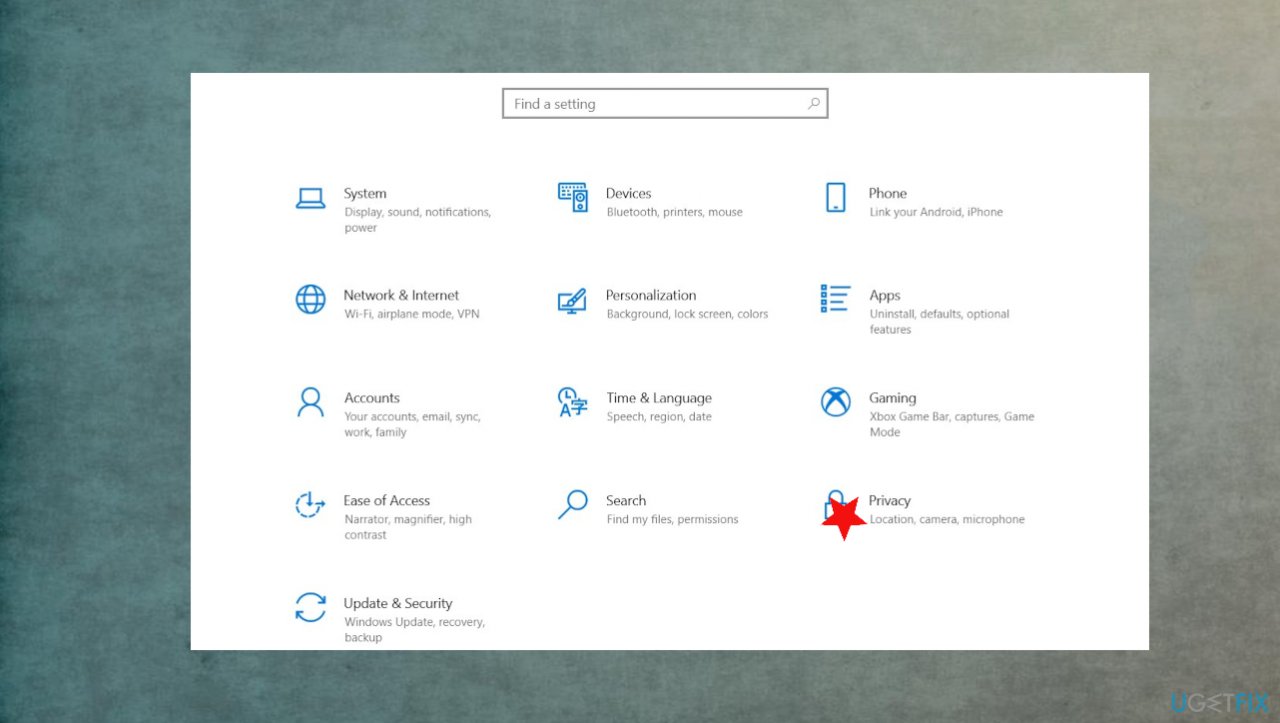
Aol email synching fix privacy settings - Go to Privacy.
- Then scroll down the left pane and select Calendar.
- Turn on the Allow apps access my calendar feature.
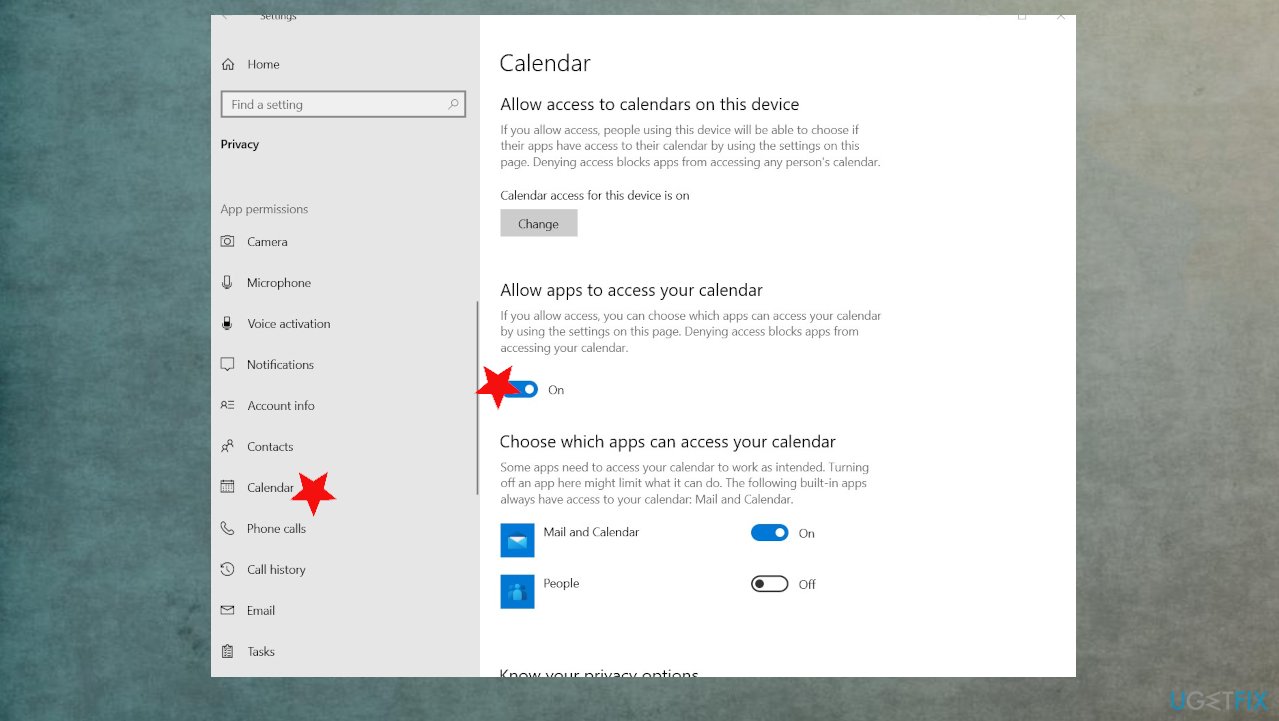
Aol email synching fix app access
Step 4. Change the sync duration
- In your Windows 10 Mail go to Settings.
- Click on Account settings and select the AOL account.
- In the new dialogue box, click on AOL Sync Settings and personalize the sync duration.
Step 5. Troubleshoot
- Press Windows Key + I to open the Settings.
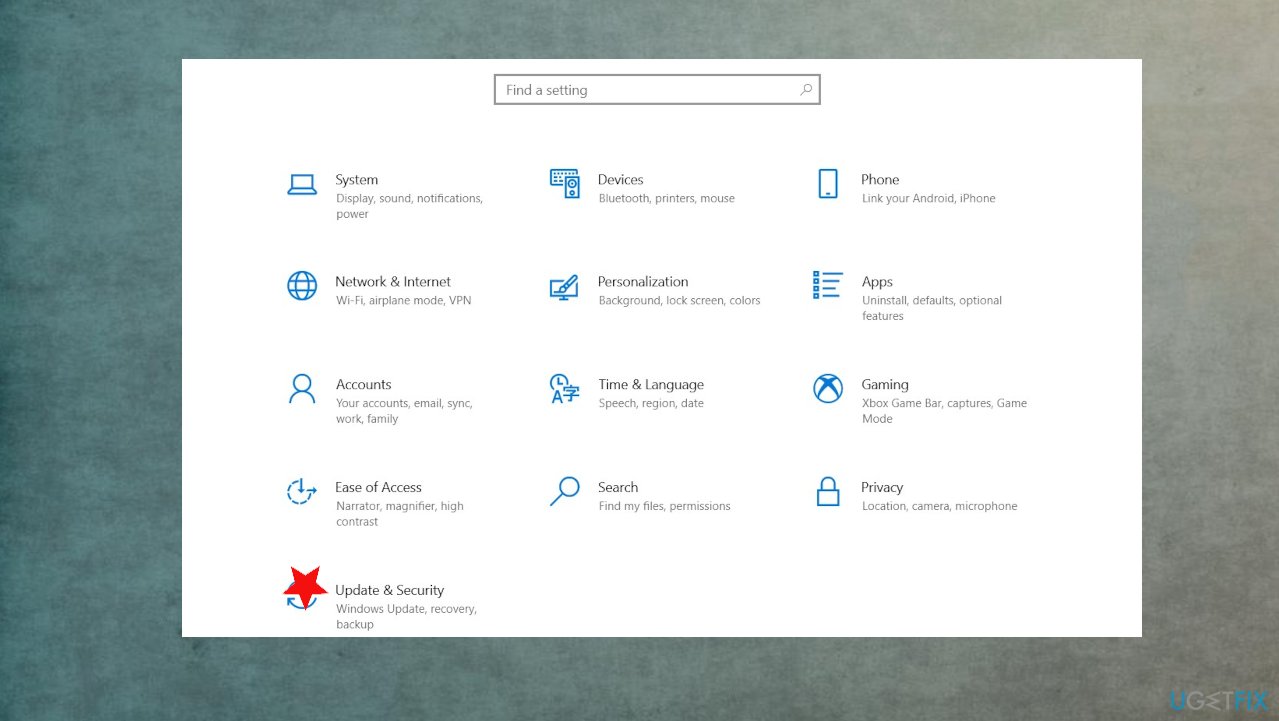
Aol email synching fix update - Go to the Update & Security section.
- Select Troubleshoot from the left pane.
- Choose additional troubleshooters.
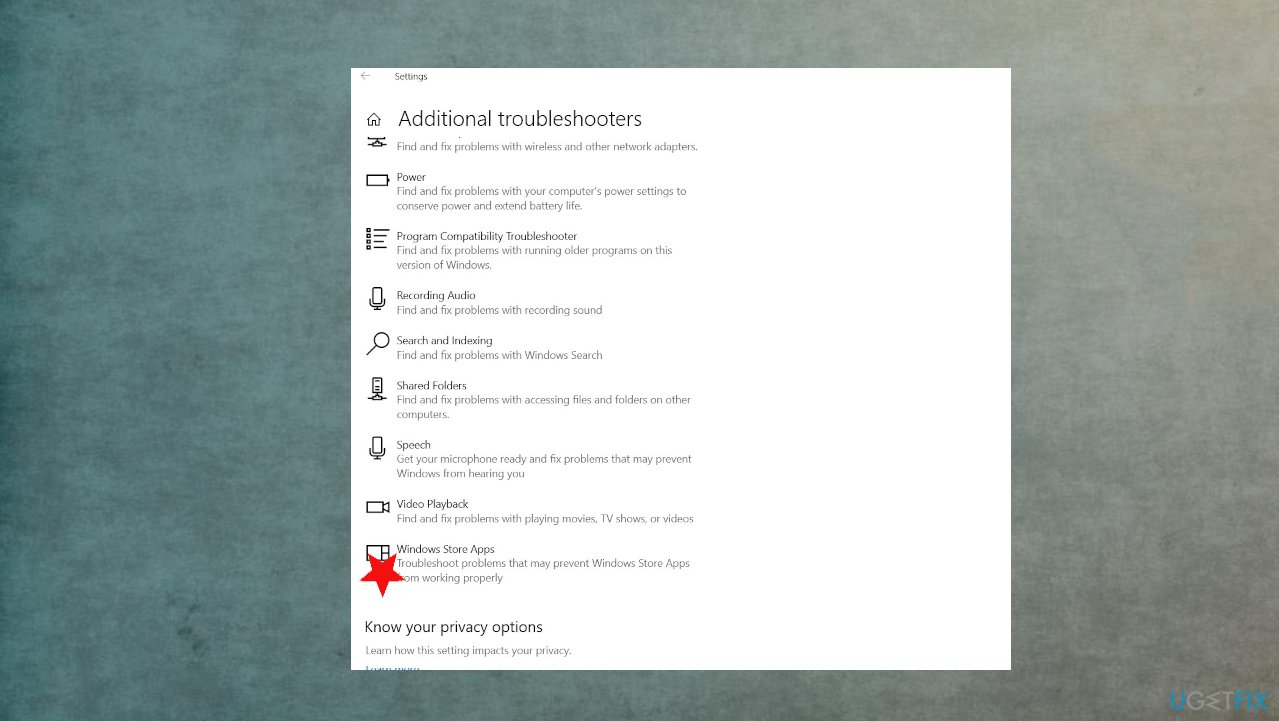
Aol email synching fix troubleshooting - Find Windows Store apps and click Run the troubleshooter button.
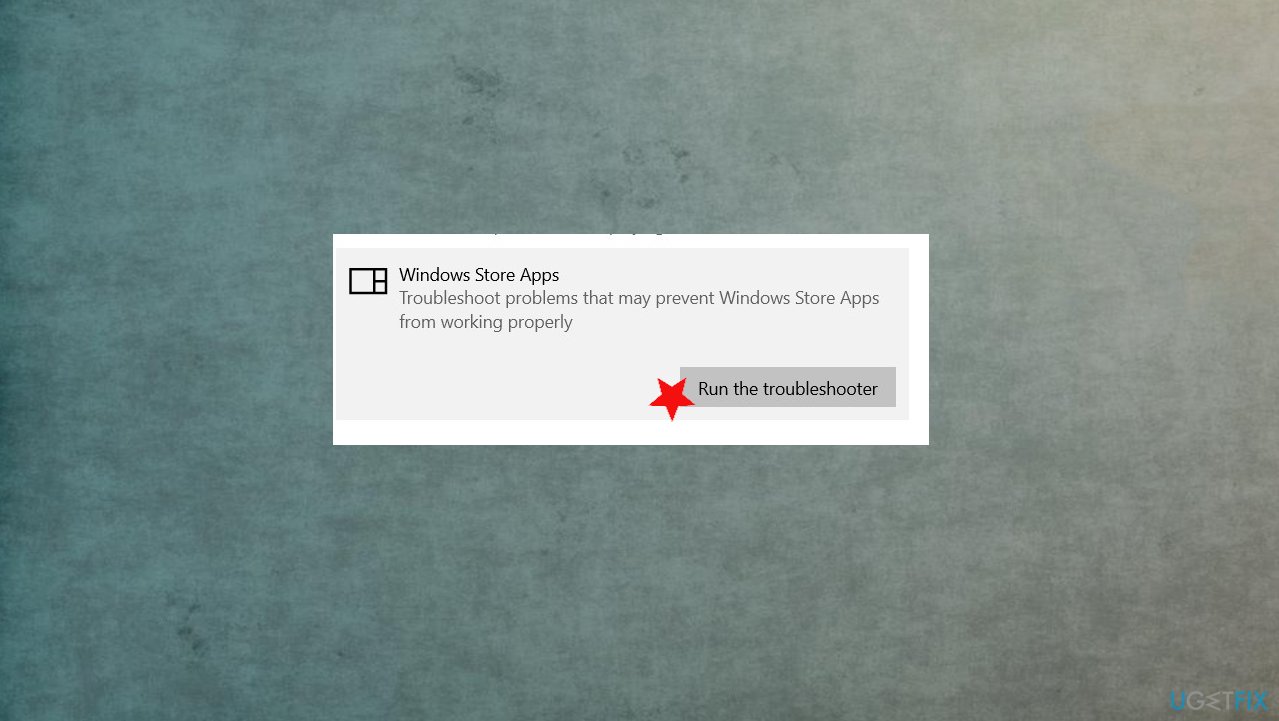
Aol email synching fix run troubleshooting - Follow the instructions on the screen.
Bottom line
To fix the AOL email synchronization error, you can remove the AOL account from the Mail app and add it back again. If the issue persists, consider checking your account permissions and server settings. If none of these solutions work, further troubleshooting may be necessary.
Frequently asked questions
First, check your internet connection and ensure that your AOL account settings are correctly configured in your email client. If the issue persists, try removing and re-adding your AOL account in the Mail app.
You can resolve synchronization issues by updating the Mail app through the Microsoft Store and ensuring that your Windows 11 is up to date. Additionally, verify your AOL account settings for any discrepancies.
Yes, ensure that the IMAP settings are correctly configured, including the incoming and outgoing server details, and that SSL is enabled for security in your email client.




Report an issue
What's wrong with this guide? We review every report and update or remove content.
Report received — thank you. We'll review and fix it.
You need a free account to submit a report.
Be the first to comment