How to fix
Apex Legends Anti Cheat Error
on Windows
Resolve the Apex Legends Anti Cheat Error on Windows 10 or 11 effortlessly. Get expert-tested solutions that fix issues in minutes, ensuring smooth game…


What causes How to fix Apex Legends Anti Cheat Error in Windows?
- Game not running the anti-cheat
- Failed anti-cheat authentication
- Installation issues
- Malfunctioning anti-cheat system
- Corrupted game files
Repairs Windows system files, removes malware, and restores a clean OS state — without reinstalling.
Hello. I just installed Apex Legends and when I try to launch it, I get the “The client is not running the anti-cheat, or has failed the anti-cheat authentication” error. Is there a way to fix this?
The popular battle royale game Apex Legends is available for free and was created by Respawn Entertainment and released by Electronic Arts. Since its 2019 release, the game has attracted a sizable player following thanks to its distinctive characters, captivating gameplay, and exciting team-based competitive mode.
On the other hand, a noteworthy problem with the game's anti-cheat mechanism affects some players. According to the problem notice, "The client is not running the anti-cheat, or has failed the anti-cheat authentication." This problem usually happens when the game is being installed or when the game is being played.
The fact that this specific anti-cheat error prevents the game's security mechanisms from operating normally presents a serious problem for players. The goal of the anti-cheat system is to maintain fair play by discouraging cheating and unauthorized modifications, although gameplay may be interrupted if the system malfunctions or is unable to authenticate.
The effect that this problem has on users is noteworthy. The system may mistakenly flag players, preventing them from joining matches, causing abrupt interruptions to the game, or possibly leading to a temporary or permanent ban. A bad user experience and sometimes even discontent within the player base might result from the annoyance of not being able to enjoy the game as intended.
Although there are several possible fixes for the Apex Legends anti-cheat error, ranging from reinstalling the anti-cheat software to validating game files, the intricacy of the problem could require various strategies for certain situations. The 5 steps in this guide should help you resolve the Apex Legends Anti Cheat Error on Windows.
You can also try to run a maintenance tool like [d1] that can fix most system errors, BSODs,[ref en-1] corrupted files, and registry[ref en-2] issues. Otherwise, follow the step-by-step instructions below.

Method 1. Update Network Drivers
- Press the Windows key + R to open the Run dialog box.
- Type devmgmt.msc and click OK to open the Device Manager app.
- In the Device Manager window, locate and click on Network adapters to expand the category.
- Right-click on the specific network adapter driver that you want to update.
- From the context menu, select Update driver.
- Choose the option Search automatically for updated driver software.
- Follow the on-screen instructions to complete the driver update process.
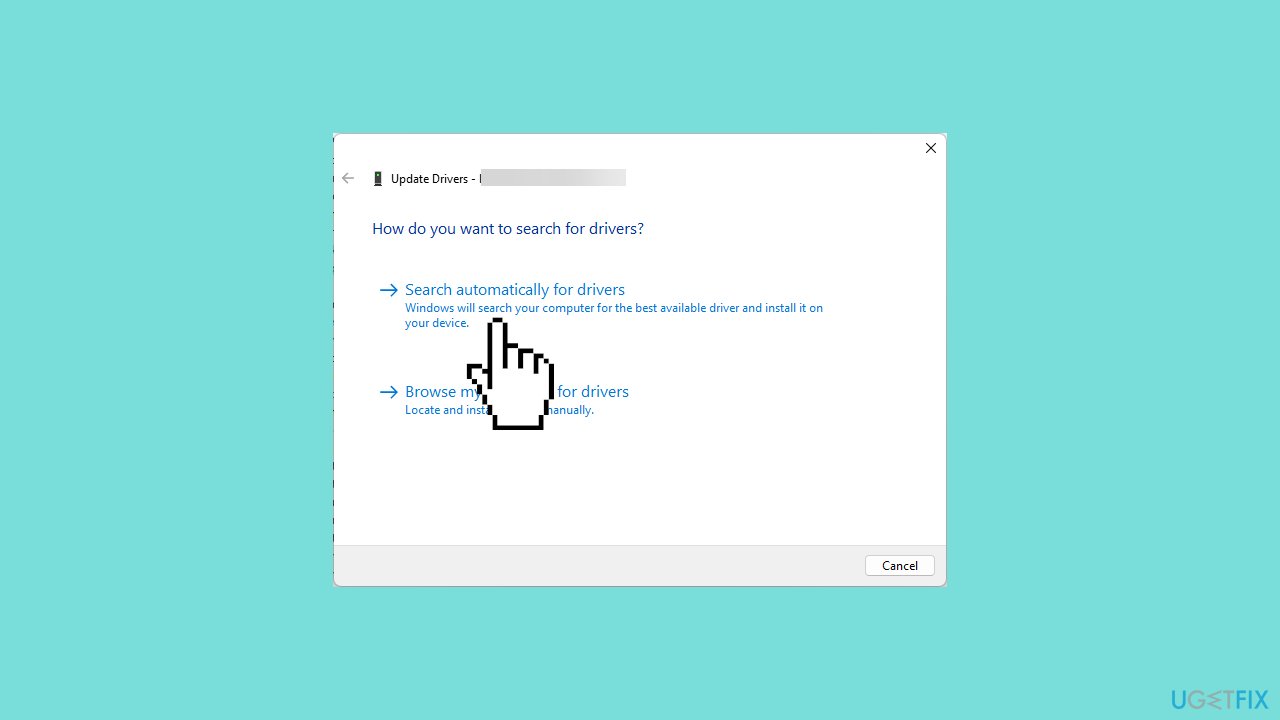
You can also use a dedicated utility like [rev id="DriverFix"] that can find the best drivers for your machine and install them automatically.
Method 2. Run Apex Legends and EA as Administrator
- Press Ctrl + D to navigate to the Desktop.
- Locate Apex Legends, right-click on it, and choose Properties.
- Go to the Compatibility tab and check the box next to Run this program as administrator.
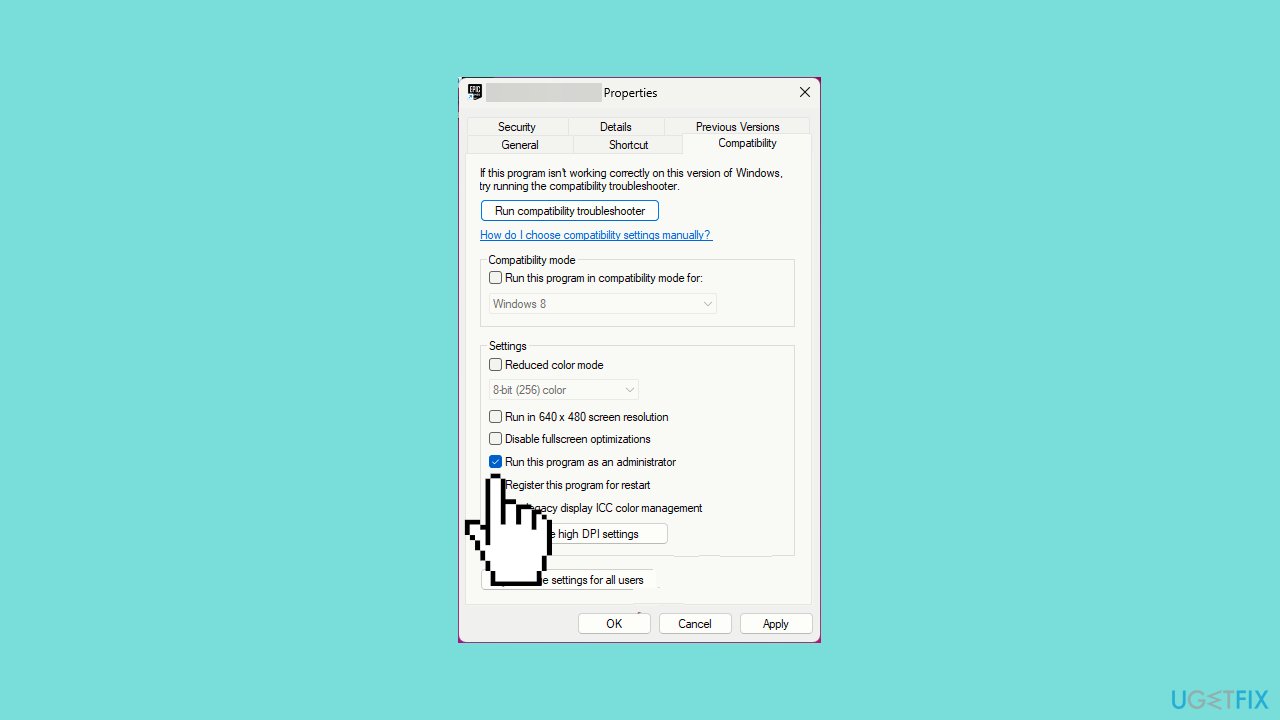
- Click Apply and then OK to confirm the changes.
- Right-click on Apex Legends again and select Open file location.
- In the Windows Explorer window that opens, right-click on EasyAntiCheat_Setup.exe.
- Choose Run as administrator from the context menu.
- Click on the Repair option to restore any damaged files if needed.
Method 3. Repair the Game Files
Steam:
- Press the Windows key and type steam, then click on Open.
- Navigate to the Library section.
- Right-click on Apex Legends and choose Properties.
- Click on Installed Files in the left pane.
- Select Verify integrity of game files.
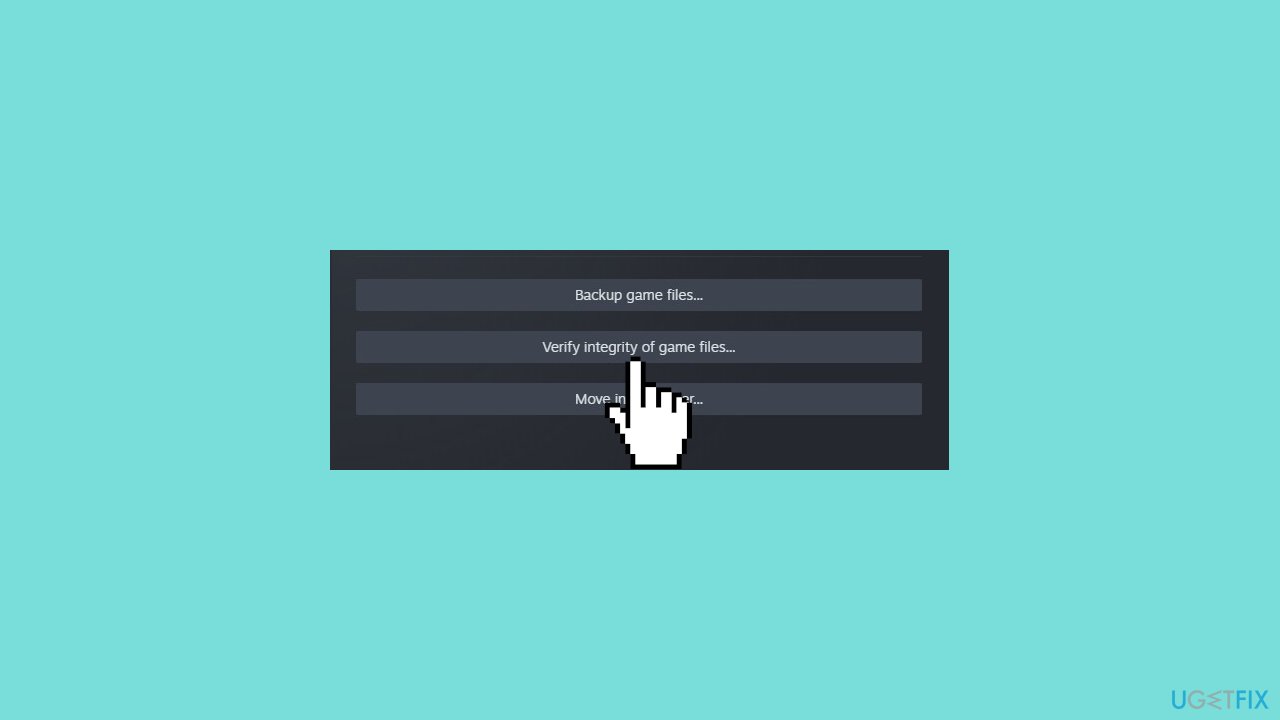
- Wait for the verification process to complete.
- Reboot your PC.
- Launch the game after the reboot.
EA:
- Press the Windows key and type ea.
- Click on Run as administrator.
- Navigate to the games library.
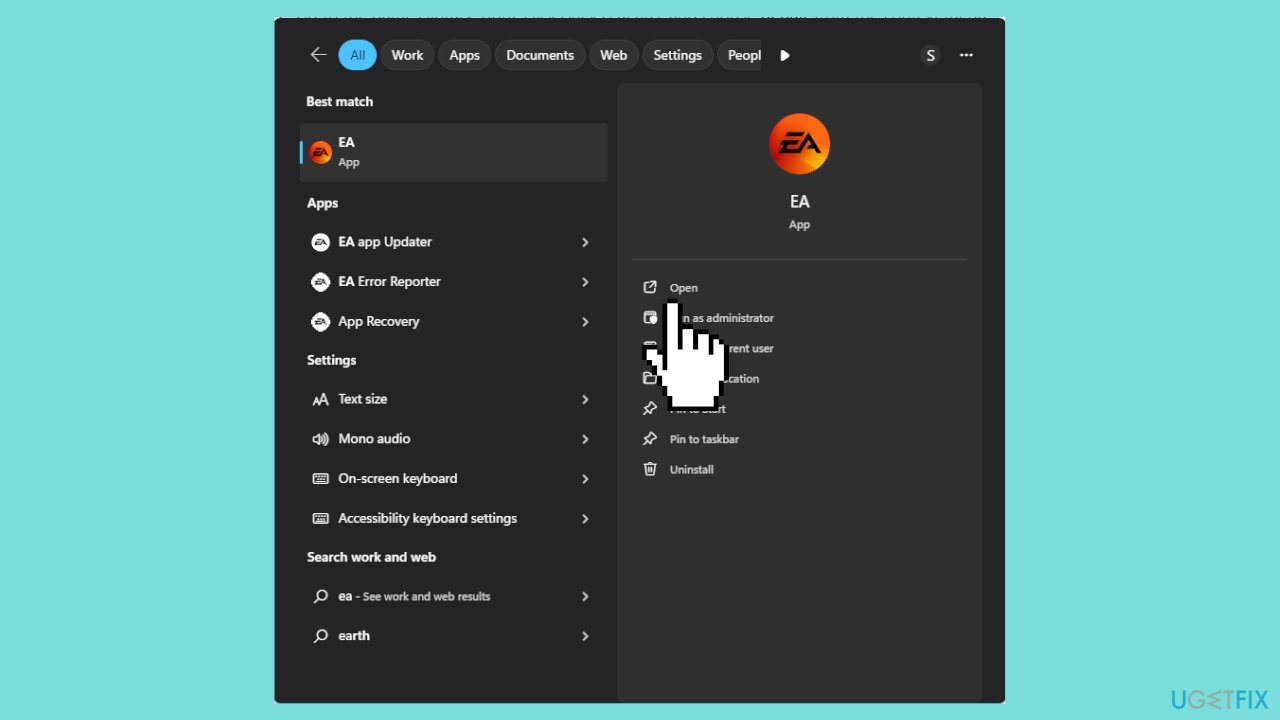
- Right-click on Apex Legends.
- Choose Repair from the context menu.
- Wait for the repair process to complete.
- Restart your computer.
- Launch the game after the restart.
Method 4. Disable the Windows Firewall
- Press the Windows key and type control panel, then click on Open.
- In the Control Panel, select Category from the View by option.
- Click on System and Security.
- Choose Windows Defender Firewall.
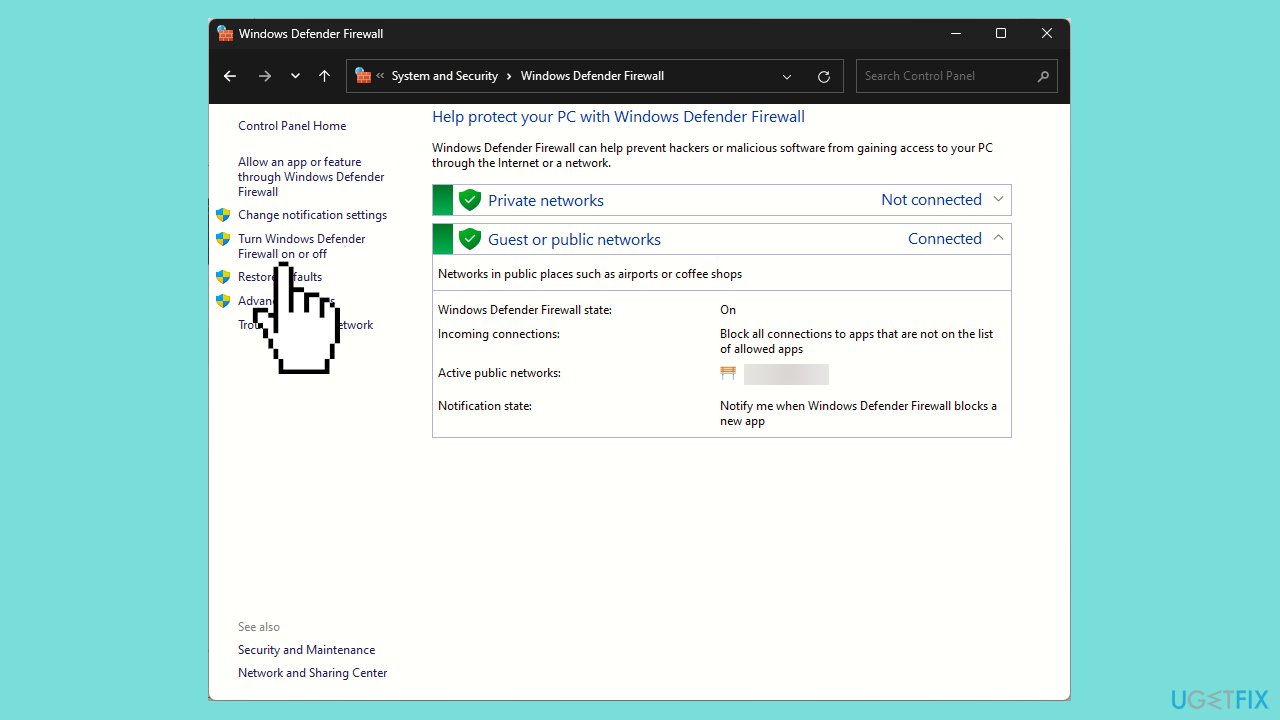
- In the left pane, click on Turn Windows Defender Firewall on or off.
- Place a checkmark next to Turn off Windows Defender Firewall (not recommended) for both Public and Private network settings.
- Click OK to save the changes.
Method 5. Reinstall Apex Legends and EA Client
- Press the Windows key and type ea, then click on Run as administrator.
- In the EA launcher, go to the Library.
- Right-click on Apex Legends and select Uninstall.
- Close the launcher and reboot your PC.
- Press the Windows key + E to open File Explorer and navigate to C:\Program Files\EA Games.
- Search for Apex Legends, select it, and click the Delete icon to remove the game files.
- Open the EA launcher again, go to My Game Library, right-click Apex Legends, and choose Install, then click Next.
After the reinstallation, check if the issue persists. If it does, follow these steps to reinstall EA games:
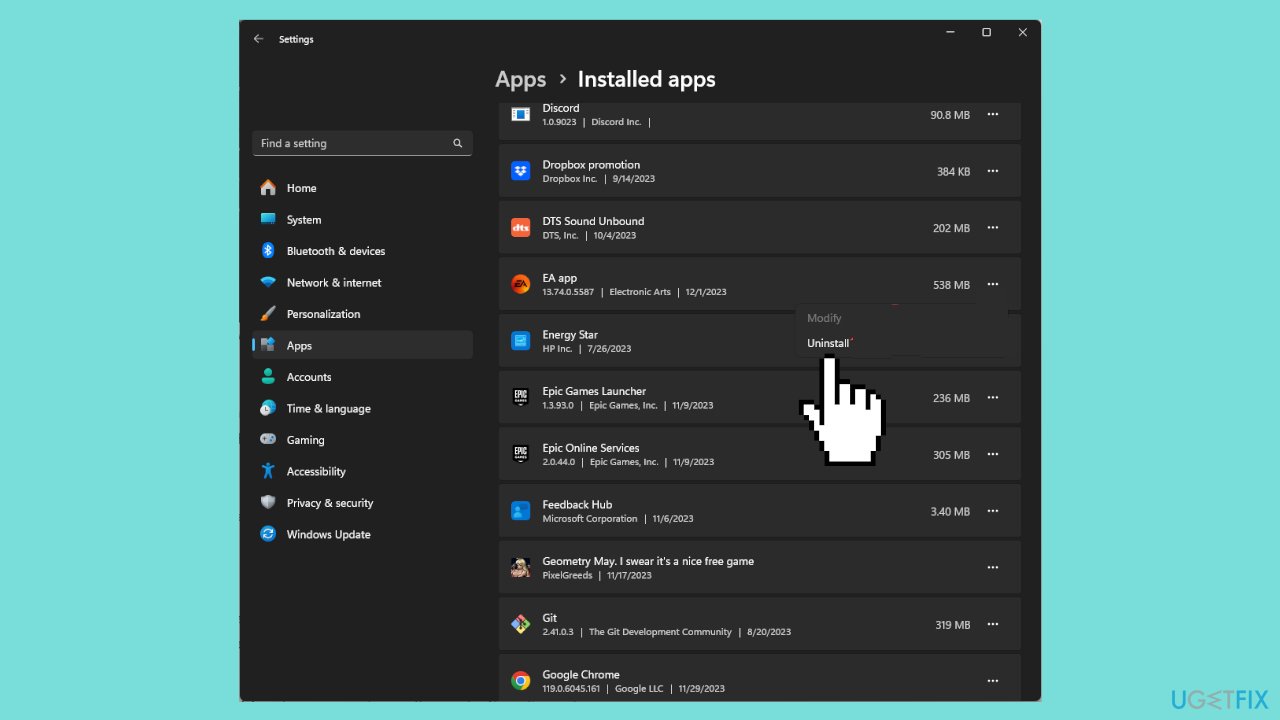
- Press the Windows key + I to open the Settings app.
- Go to Apps, then click on Installed apps.
- Locate EA, click the three dots, and select Uninstall. Confirm the uninstallation.
- Restart your computer.
- Press the Windows key + E to open File Explorer.
- In the address bar, type %ProgramData% and press OK. Delete the EA folder.
- Type %AppData% in the address bar and hit Enter. Delete the EA folder from the Roaming directory.
- Go to the Local folder in the AppData directory, find and delete the EA folder.
- Visit the EA official website, click Download the EA app, double-click the downloaded file, and follow the on-screen instructions to complete the installation.
- Right-click on EA, select Run as administrator, and sign in using your credentials.
- Go to My Game Library, right-click on Apex Legends, and choose Install.
Bottom line
To resolve the Apex Legends Anti Cheat Error on Windows, you can try updating your network drivers, reinstalling the anti-cheat software, and validating game files. If these methods do not work, consider using a maintenance tool to fix system errors.
Frequently asked questions
You can try verifying the game files through Origin or Steam, and ensure that your Windows 10 is updated to the latest version. Additionally, running the game as an administrator may help resolve the issue.
Yes, you can temporarily disable Windows Defender by going to Settings > Privacy & Security > Windows Security > Virus & threat protection, then turn off real-time protection. However, remember to re-enable it after playing.
You can check for driver updates by going to Device Manager, right-clicking on your graphics card, and selecting 'Update driver.' Ensuring your graphics drivers are current is essential for smooth gameplay on Windows 10 or Windows 11.




Report an issue
What's wrong with this guide? We review every report and update or remove content.
Report received — thank you. We'll review and fix it.
You need a free account to submit a report.
Be the first to comment