How to fix
Apex Legends error 0xc0000005
on Windows
Resolve the Apex Legends error 0xc0000005 on Windows 10 or 11 effortlessly with our expert-tested solutions. Fix it in minutes and get back to gaming!


What causes How to fix Apex Legends error 0xc0000005 in Windows?
- Access violation error due to memory address issues
- Corrupted game files
- Outdated system drivers
- Incompatible system settings
- Hardware problems
Repairs Windows system files, removes malware, and restores a clean OS state — without reinstalling.
Hello. When I try to play Apex Legends on my Windows PC, it crashes with a 0xc0000005 error code. How do I fix this?
Apex Legends is a popular free-to-play battle royale game created by Respawn Entertainment and released by Electronic Arts (EA). It has attracted gamers all over the world. Apex Legends, set in the Titanfall universe, distinguishes itself by presenting a diverse cast of characters known as "Legends." Each Legend has a distinct set of powers that contribute to strategic team-based gaming. The dynamic world of the game, along with fast-paced action and character-driven tactics, has aided in its broad success.
The Apex Legends 0xc0000005 error, which is most commonly seen on Windows operating systems, denotes an access violation error. This issue occurs when the computer has problems processing the necessary game files and configuration parameters for seamless gameplay. More specifically, the error code indicates when a program attempts to access a memory address that it does not have permission to access. As a result of this violation of access, the game malfunctions or abruptly terminates.
To address the persistent 0xc0000005 problem, thorough troubleshooting is required in order to discover and reduce the underlying causes of the access violation. Users should examine their system's hardware for probable problems, inspect game files for corruption, update or reinstall critical system drivers, and change system compatibility settings.
In this guide, you will find 6 steps that should help you fix Apex Legends error 0xc0000005. You can also run a system repair tool like [d1] that can fix most system errors, BSODs,[ref en-1] corrupted files, registry[ref en-2] issues, or clear cookies and cache.[ref en-3] Otherwise, follow the step-by-step instructions below.

Method 1. Install Windows Updates
- Press the Windows key + R to open the Run box.
- Type ms-settings:windowsupdate in the text box and press Enter.
- Click the Check for updates button.
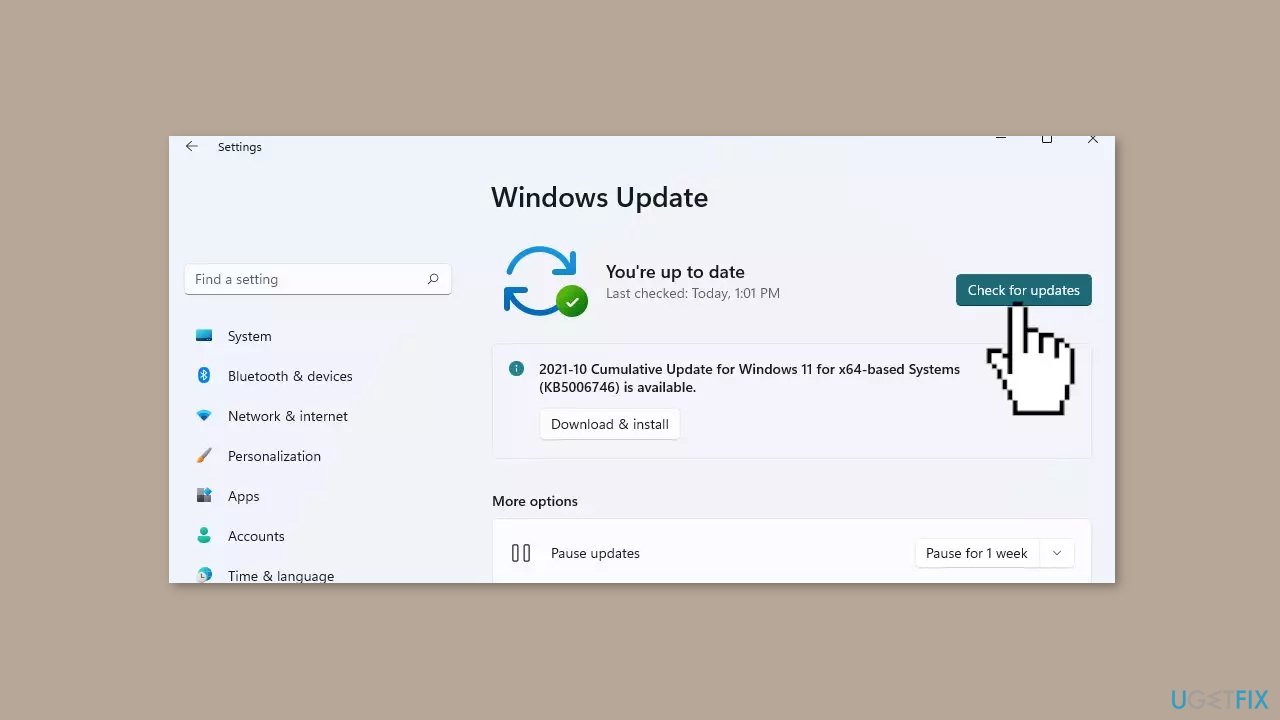
- If a new update is available, click the Download & Install all button.
- Restart your computer after the process is finished and check to see if the problem is fixed.
Method 2. Lower EasyAntiCheat Process Priority
- Press the Windows key + X to open the Quick Link menu.
- Select Task Manager from the menu that appears.
- In the Task Manager window, click on the Details tab.
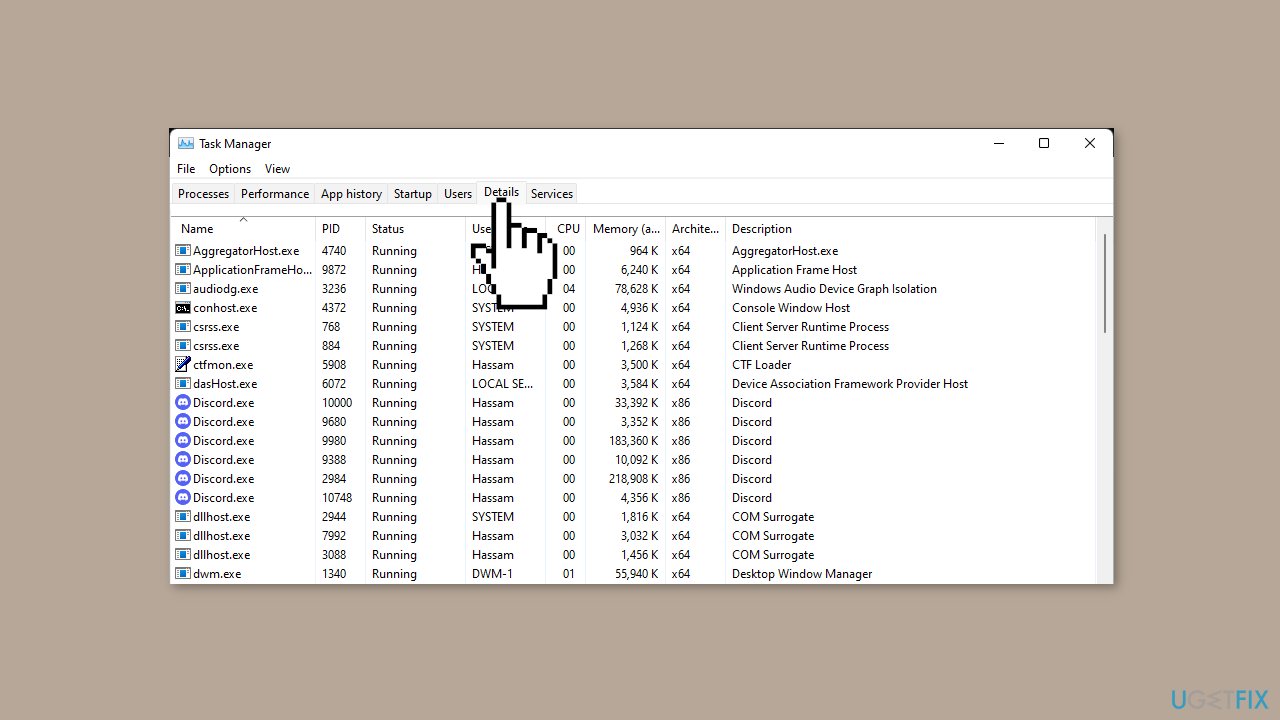
- Look through the list to locate the EasyAntiCheat process.
- If you can't find the process in the list, proceed to the next step.
- Attempt to launch the game.
- If you still can't find the EasyAntiCheat process:
- Right-click on an empty area of the Task Manager and choose More details if applicable.
- Go to the Processes tab and look for the EasyAntiCheat process.
- Once you locate the EasyAntiCheat process, right-click on it.
- From the context menu, choose Set Priority and then select Low.
- Close the Task Manager.
- Relaunch the game to see if the problem has been resolved.
Method 3. Repair EasyAntiCheat Service
- Open the directory where Apex Legends is installed on your computer.
- Find and run the file named EasyAntiCheat_Setup.exe with administrative privileges.
- From the dropdown menu, choose Apex Legends.
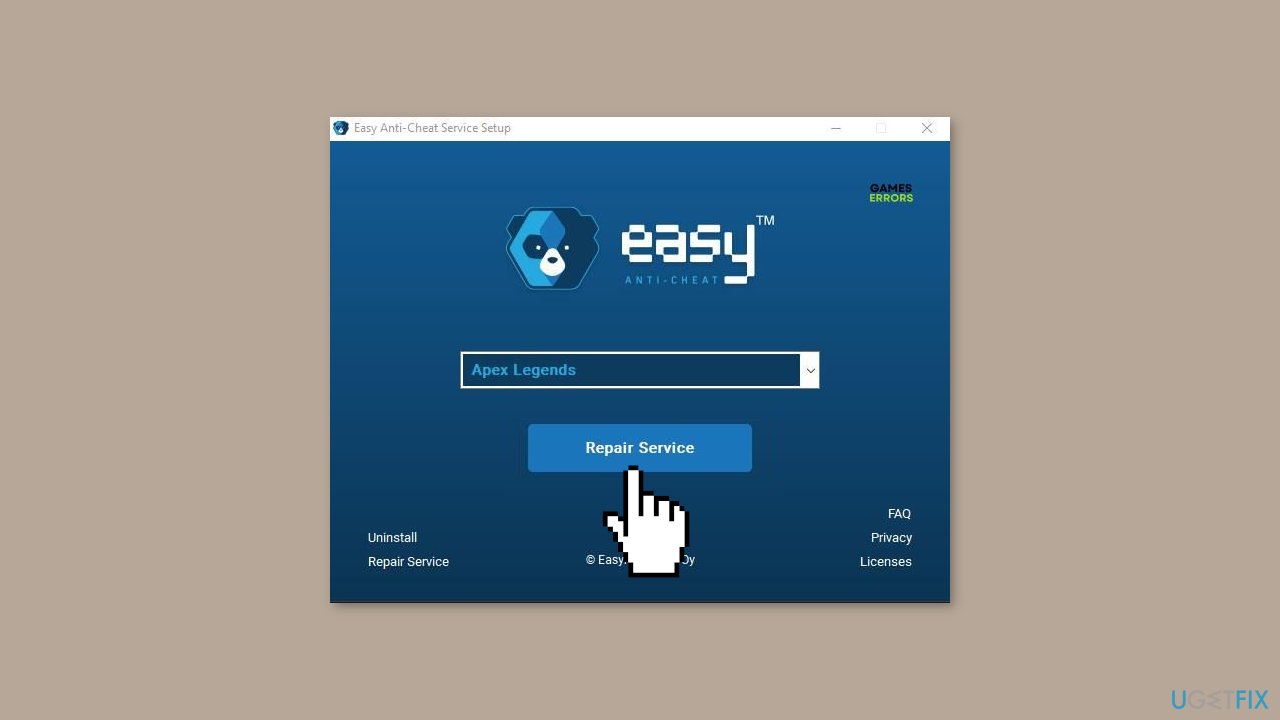
- Select the Repair option to initiate the repair process for the anti-cheat service.
- Wait for the repair process to complete.
- After the repair is finished, close the repair tool.
- Launch the Apex Legends game again to confirm if the issue has been resolved.
Method 4. Run r5apex.exe in Compatibility Mode
- Discover the installation directory of Apex Legends on your PC.
- Locate the file named r5apex.exe.
- Right-click on the r5apex.exe file.
- From the context menu, choose Properties.
- Navigate to the Compatibility tab within the Properties window.
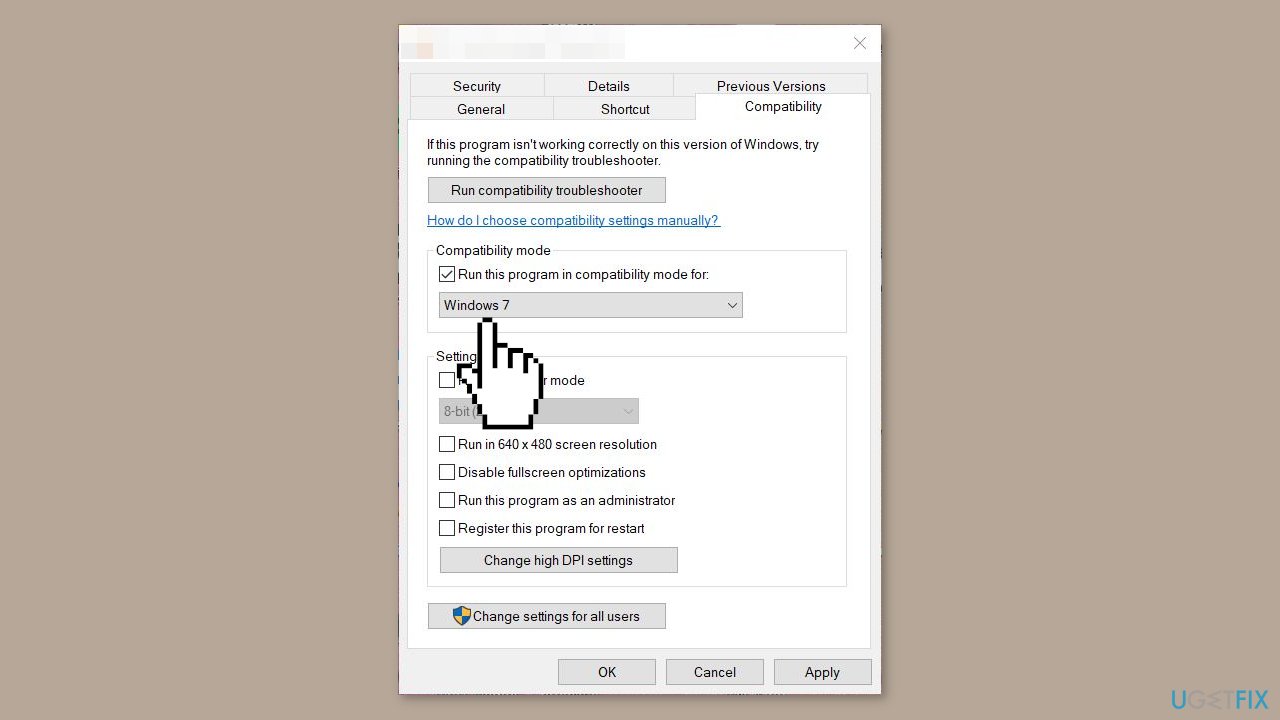
- In the Compatibility mode section, mark the checkbox labeled Run this program in compatibility mode for.
- Select Windows 7 from the options provided.
- Confirm your changes by clicking OK and then Apply.
- Close the Properties window.
- Restart the Apex Legends game to verify if the issue has been resolved.
Method 5. Disable Origin Overlay
- Begin by launching the Origin client.
- In the top left corner of the client, click on the Origin drop-down menu.
- Select Application Settings from the drop-down menu.
- Next, click on the More drop-down menu located to the right.
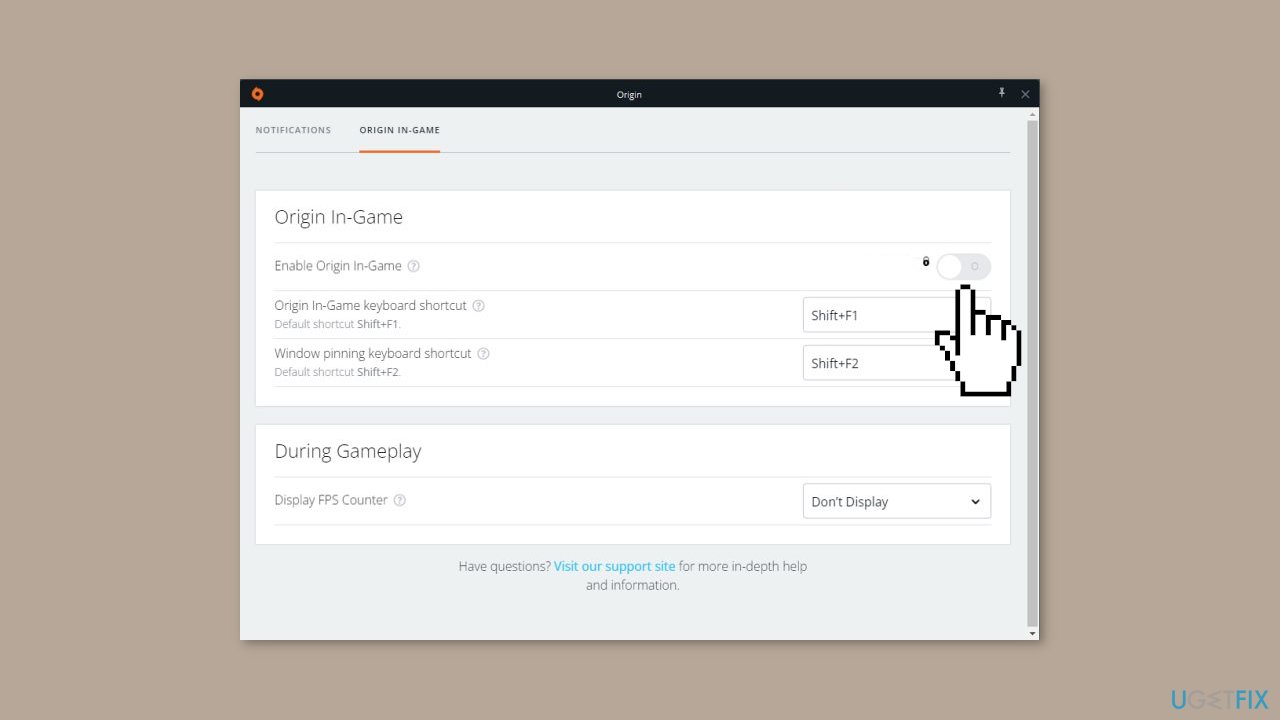
- From the extended menu, choose Origin In-Game.
- Within the Origin In-Game settings, you'll find a slider - click on it to disable the Origin in-game overlay.
- After making this change, check if Apex Legends continues to crash on your system.
Method 6. Try Clean Boot
- Open the Search menu, type in system configuration, and press Enter.
- Under the Services tab, tick the Hide all Microsoft services box.
- Click on Disable all button.
- Head over to the Startup tab and click on Open Task Manager.
- Select a third-party program and click on Disable at the top.
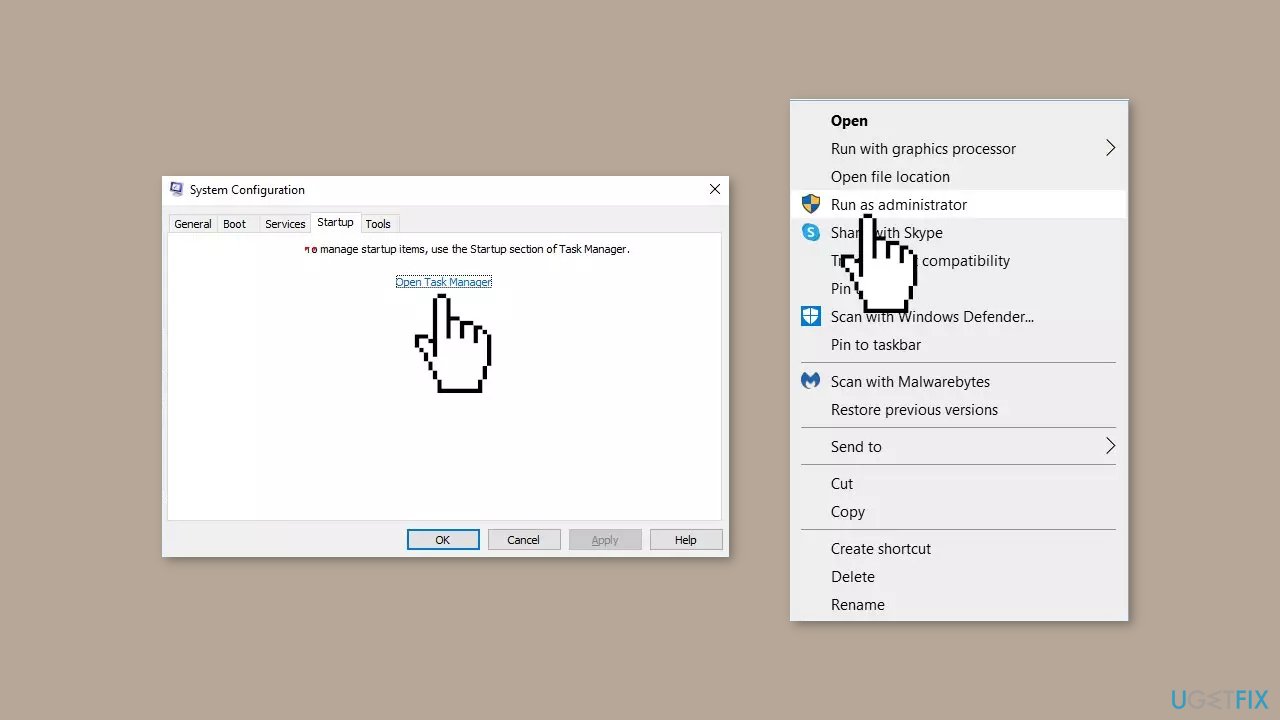
- Repeat this step to disable all third-party apps and programs.
- Restart your PC to enter the clean boot state and see if the issue persists.
- If the issue disappeared in the clean boot state, then you can be certain that a third-party app is causing it.
- Go through all recently installed apps or programs and remove them one by one.
Bottom line
To fix the Apex Legends error 0xc0000005, you can install Windows updates, lower the EasyAntiCheat process priority, and perform other troubleshooting steps. If these methods do not resolve the issue, consider using a system repair tool to address deeper system errors.
Frequently asked questions
The error 0xc0000005 typically indicates an access violation, which means the game is trying to access memory that it shouldn't. This can be caused by corrupted game files, outdated drivers, or issues with your system's configuration.
You can verify the integrity of game files by opening the Origin or Steam client, right-clicking on Apex Legends, selecting 'Properties', and then clicking on 'Verify Integrity of Game Files'. This process will check for and replace any corrupted files.
Yes, make sure your graphics drivers are up-to-date, as outdated drivers can lead to compatibility issues causing error 0xc0000005. Visit the manufacturer's website for your graphics card to download the latest drivers for Windows 11.




Report an issue
What's wrong with this guide? We review every report and update or remove content.
Report received — thank you. We'll review and fix it.
You need a free account to submit a report.
Be the first to comment