How to fix
Apex Legends r5apex.exe Application error
on Windows
Resolve the r5apex.exe Application error in Apex Legends on Windows 10 or 11 quickly and efficiently. Expert-tested solutions for gamers, updated 2025.

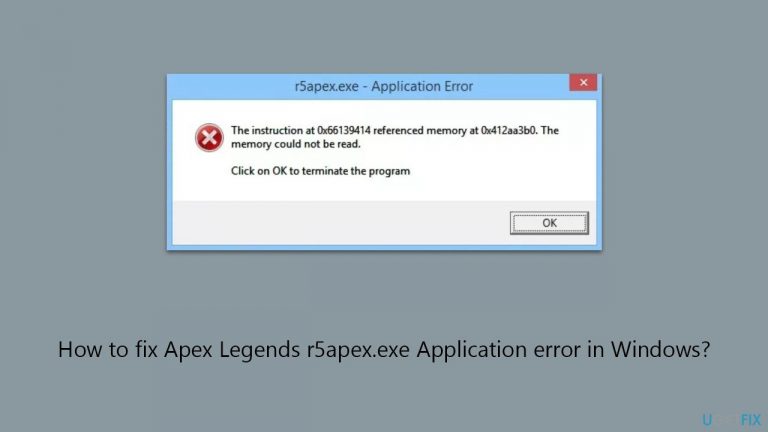
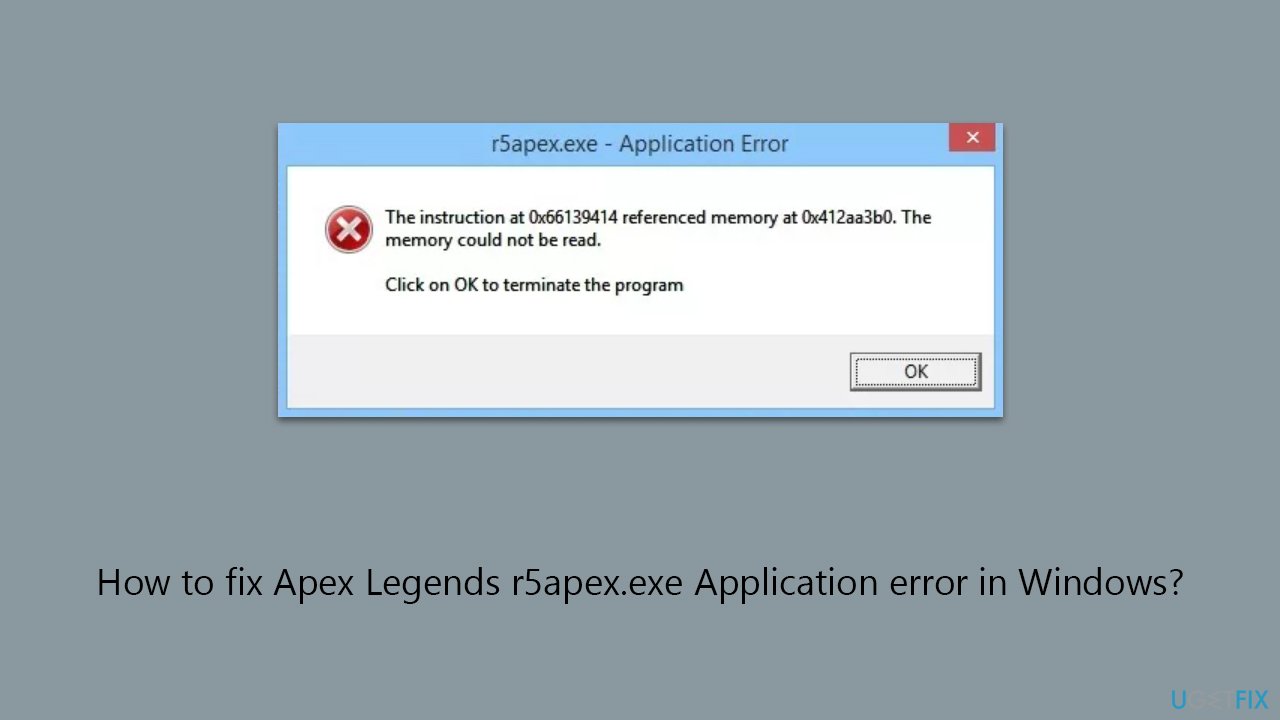
What causes How to fix Apex Legends r5apex.exe Application error in Windows?
- Compatibility issues with certain Windows versions
- System configurations, especially for older or non-updated systems
- AntiCheat affecting the game's startup
- Outdated drivers
- Hardware limitations
- Corrupted game files from interrupted updates or software conflicts
Repairs Windows system files, removes malware, and restores a clean OS state — without reinstalling.
Hello, I encountered "r5apex.exe - Application error" numerous times already when attempting to launch Apex Legends. Can anyone please assist? It would be greatly appreciated.
Apex Legends, developed by Respawn Entertainment and published by Electronic Arts, is a popular battle royale game that has captivated millions of players around the world. This free-to-play title, renowned for its dynamic gameplay and immersive experience, has become a staple in the gaming community.
However, like any software, it is not immune to technical issues - "r5apex.exe Application error" is one of the issues that players experience when launching Apex Legends. Not only does it hinder the game from starting but also disrupts the gaming experience, leaving players unable to join the action-packed world of Apex Legends.
"r5apex.exe Application error" can occur due to various reasons, including compatibility issues with certain Windows versions or system configurations are common culprits, especially for those using older or non-updated systems.
AntiCheat, a system meant to deter cheating in the game, can inadvertently affect the game's startup. Additionally, technical PC issues such as outdated drivers, hardware limitations, and corrupted game files from interrupted updates or software conflicts, are potential causes.
If you're experiencing this error, understanding these potential factors can be helpful. Direct solutions are not provided here, but recognizing the root causes can lead you toward relevant troubleshooting methods.
Lastly, an automated approach to resolving such issues involves using a PC repair tool like [d1]. This software aims to identify and fix Windows-related problems automatically, which may include resolving the "r5apex.exe Application error."
Fix 1. Verify the integrity of game files
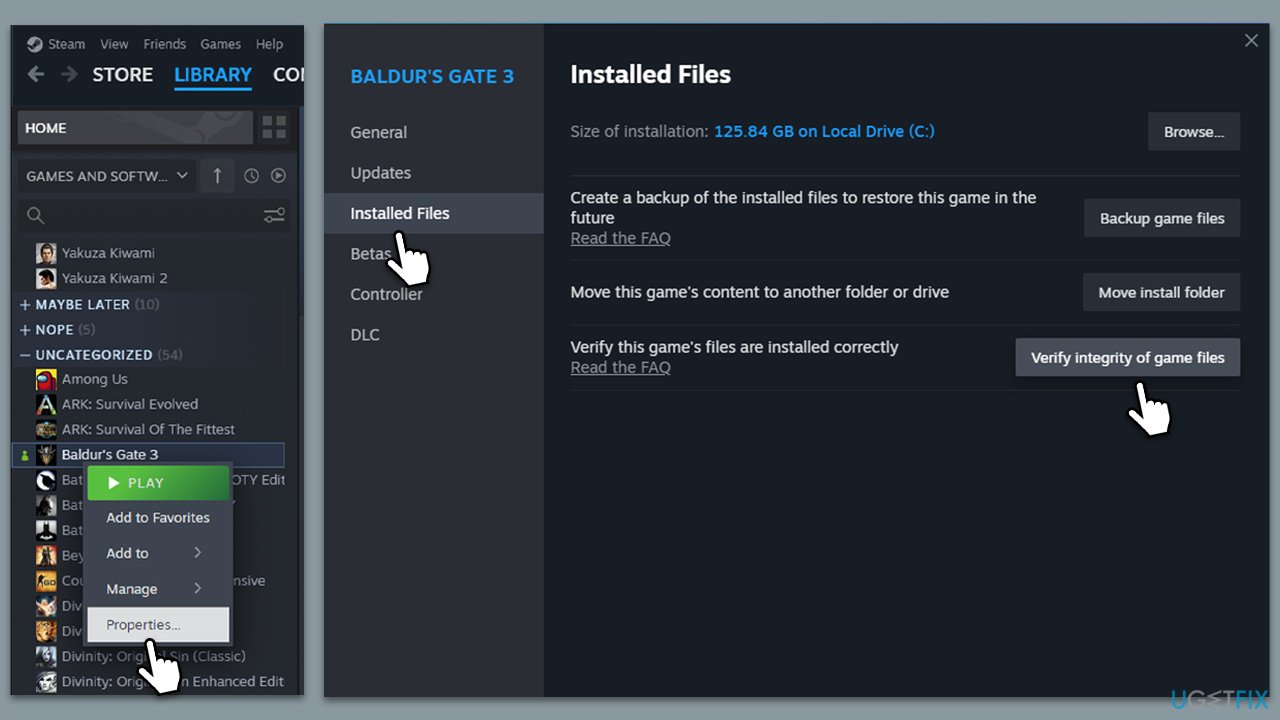
Verifying the integrity of game files is a crucial step in resolving issues like the r5apex.exe Application error. This process checks if all the game files are correctly downloaded and are not corrupted. If any discrepancies are found, the game launcher (like Steam or Origin) will automatically replace the corrupted or missing files with the correct versions. This can fix issues caused by incomplete updates, unexpected shutdowns, or software conflicts.
Steam
- Open Steam and go to your Library.
- Right-click on the game and select Properties.
- On the left side, pick Installed files.
- Click Verify integrity of game files.
- Wait till the process is finished.
Origin/EA app
- Open the app.
- Go to your Library.
- Select Apex Legends and then pick Manage > Repair.
Fix 2. Repair or reinstall AntiCheat
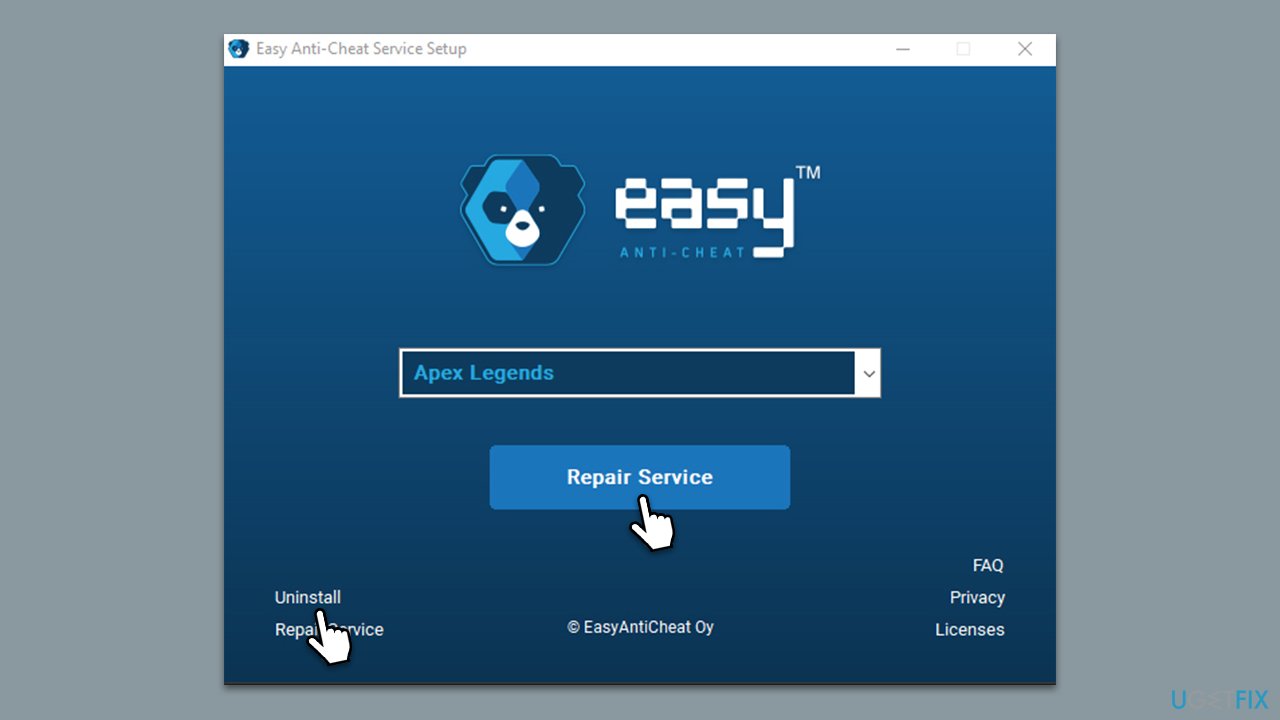
AntiCheat is essential for fair gameplay, but it can sometimes cause errors. Repairing or reinstalling the AntiCheat software can resolve these conflicts. This process involves either running a repair tool or uninstalling and then reinstalling the AntiCheat software to ensure it functions correctly without interfering with the game launch.
- Press Win+E to open File Explorer.
- Navigate to the following location:
C:\Program Files (x86)\EasyAntiCheat - Click on EasyAntiCheat.exe/EasyAntiCheat_Setup.exe.
- When User Account Control shows up, click Yes.
- From the drop-down menu, select the game you are having issues with.
- Click Repair Service and follow the prompts.
- If that does not help, choose the Uninstall option and then reinstall it again.
Fix 3. Run the game in compatibility mode
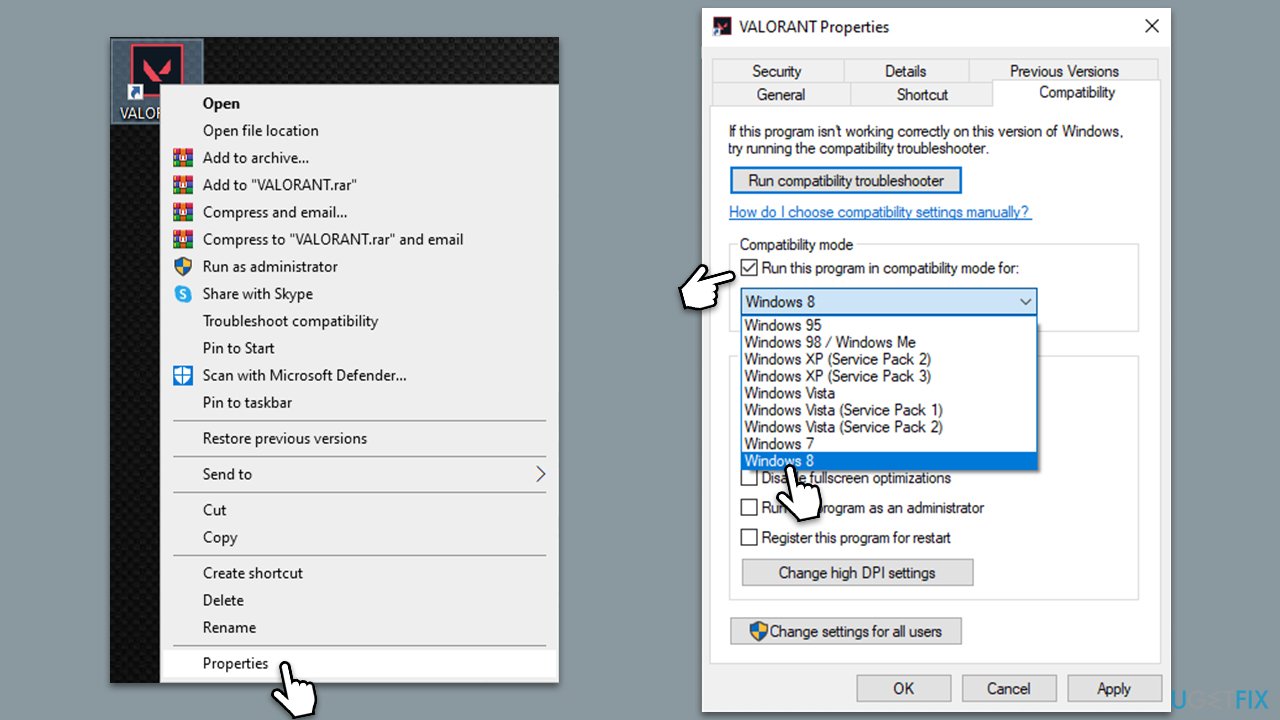
Running Apex Legends in compatibility mode can resolve issues caused by incompatibilities with your Windows version. This method allows the game to run under settings optimized for an older version of Windows, which can be helpful if you're using a newer operating system.
- Right-click on the Apex Legends executable file or shortcut.
- Select Properties.
- Go to the Compatibility tab.
- Check the box next to Run this program in compatibility mode for.
- Select an older Windows version from the dropdown menu.
- Click Apply and then OK.
- Try launching the game to see if the issue is resolved.
Fix 4. Perform Clean Boot
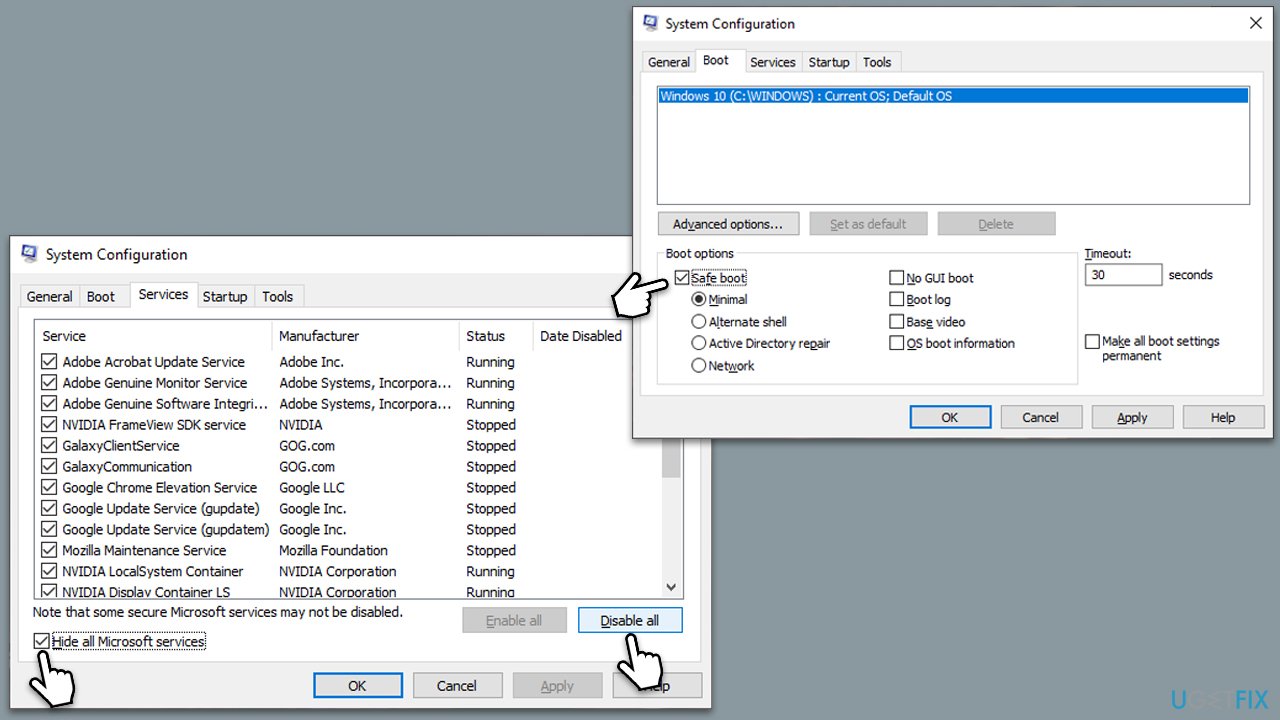
A Clean Boot starts Windows with a minimal set of drivers and startup programs. This can help identify if background programs are causing conflicts with Apex Legends. By systematically turning on groups of services and startup programs, you can determine what is causing the issue.
- Type msconfig in Windows search and hit Enter.
- Go to the Services tab and tick the Hide all Microsoft services checkbox.
- Select Disable all.
- Go to the Startup tab and click Open Task Manager.
- Here, right-click on each of the non-Windows entries and select Disable.
- Close down the Task Manager.
- Go to the Boot tab and tick the Safe boot option.
- Restart your device.
- If the game runs without issues, re-enable services and startup items gradually to identify the problematic software.
Fix 5. Update GPU drivers
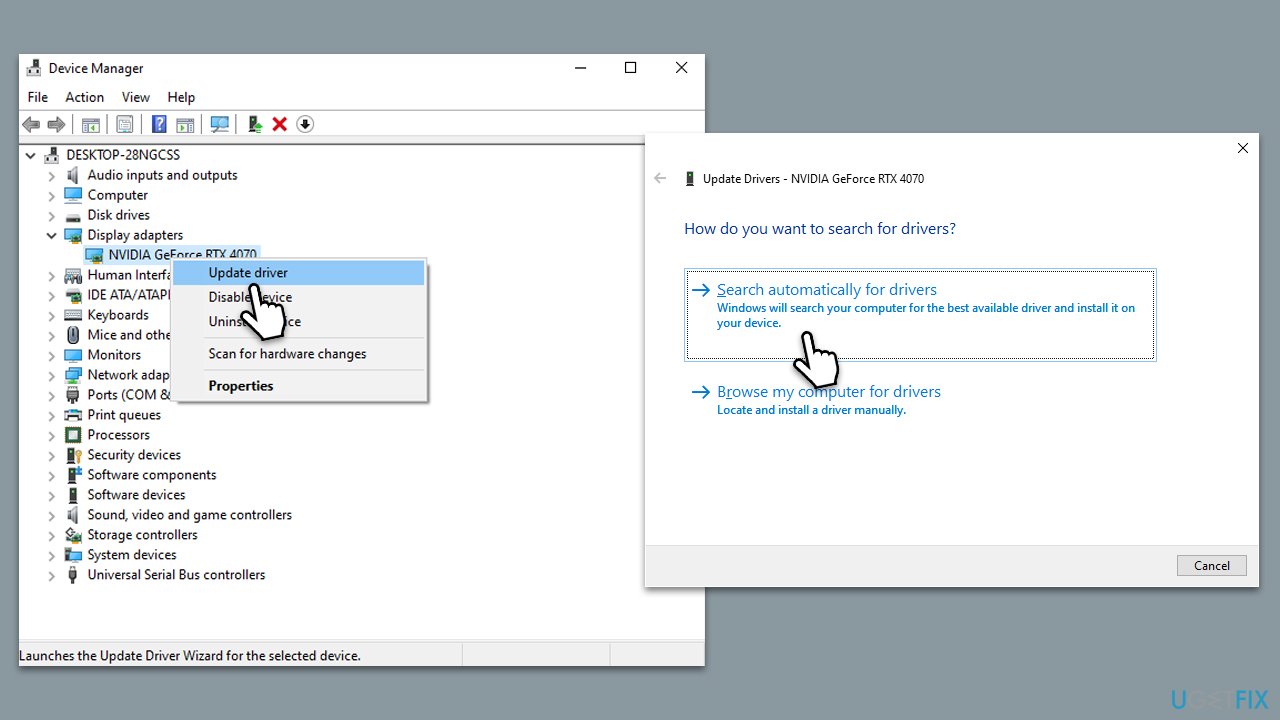
Video cards always require the latest drivers to operate without issues. When gaming, this is particularly important, so make sure that your GPU drivers are always updated. To do so, you can either refer to your video card's official website, employ [rev id="DriverFix"], or follow these steps:
- Right-click on the Start button and select Device Manager from the menu.
- Expand the Display adapters section.
- Right-click on your graphics card and select Update driver.
- Pick Search automatically for drivers.
- If updates are found, allow them to install.
- Restart your computer after updating all necessary drivers.
Fix 6. Reinstall Apex Legends
If none of the above solutions work, reinstalling Apex Legends can resolve issues caused by deeply rooted file corruption or major software conflicts. This involves uninstalling the game completely and then downloading a fresh copy from your game launcher.
- Uninstall Apex Legends through your game launcher or the Control Panel.
- Restart your computer after the uninstallation.
- Open your game launcher and navigate to the store or library.
- Search for Apex Legends and start the download for a fresh installation.
- Wait for the installation to complete and then launch the game.
Bottom line
To fix the r5apex.exe Application error, you can verify the integrity of game files through your game launcher, such as Steam or Origin. This process checks for corrupted or missing files and replaces them automatically. If these solutions do not resolve the issue, consider using a PC repair tool to identify and fix Windows-related problems.
Frequently asked questions
First, try verifying the game files through the Origin or Steam client, as corrupted files can trigger this error. If the issue persists, consider updating your graphics drivers and ensuring Windows 10 is fully updated.
Yes, the troubleshooting steps, such as verifying game files and updating drivers, are applicable to both Windows 10 and Windows 11. Make sure to also check for any pending Windows updates.
Yes, you can right-click on the Apex Legends shortcut, select 'Properties', go to the 'Compatibility' tab, and try running the game in compatibility mode for Windows 8 or Windows 7.




Report an issue
What's wrong with this guide? We review every report and update or remove content.
Report received — thank you. We'll review and fix it.
You need a free account to submit a report.
Be the first to comment