How to fix
“App Container profile failed with error 0x800700B7” bug in Event Viewer
on Windows
Resolve the "App Container profile failed with error 0x800700B7" issue in Windows 10 easily. Expert-tested solutions to fix it in minutes!


What causes How to Fix “App Container profile failed with error 0x800700B7” bug in Event Viewer on Windows 10?
- Unable to register the AppContainer SID
- Software conflicts due to startup programs
- Issues related to the CldFlt service
- Recent upgrade to Windows 10 Creators Update (V1703)
- Littered Event Viewer entries
Repairs Windows system files, removes malware, and restores a clean OS state — without reinstalling.
I've been getting "App Container profile failed with error 0x800700B7” error during every boot, after upgrading to 1703 build. Is someone encountering the same problem?
"App Container profile failed with error 0x800700B7 because it was unable to register the AppContainer SID." That’s an error message that many Windows 10 users received at Windows boot in Event Viewer.[ref en-1] We have found some threads related to 0x800700B7 error that has been created before Windows 10 Creators Update (V1703) release. Nevertheless, most of the computers affected by this bug were recently upgraded to Creators Update.[ref en-2]
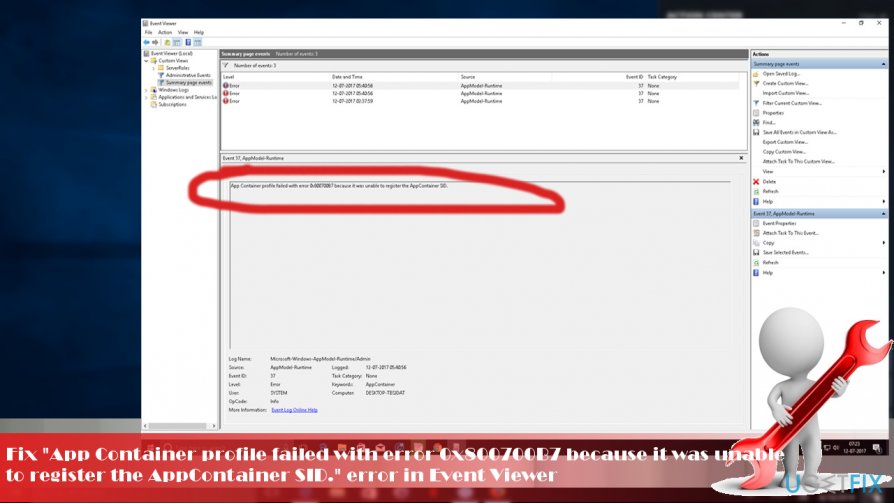
Luckily, the "App Container profile failed with error 0x800700B7” error does not have negative effect on system’s performance. However, “littered” Event Viewer can annoy some users and they might want to clean it. Besides, the error may also be accompanied by “The request is not supported” error when trying to start the CldFlt service.[ref en-3]
Microsoft community is fussing about "App Container profile failed with error 0x800700B7” error and casting anxiety due to Microsoft’s unresponsiveness. It seems that this time the company’s support team is not even going deep about the "App Container profile failed with error 0x800700B7” error because the recently created thread has been moved to the Windows Update discussion topic, which is not relevant.
Nevertheless, Microsoft is working hard on every issue, so it can be expected that the upcoming patch will fix the 0x800700B7 error. If, nevertheless, you are not willing to wait for the official fixes, you can try these methods:
Perform a Clean Boot
Clean Boot requires minimal set of drivers and startup programs to run Windows OS. By performing it, you will be able to isolate the software conflicts that may occur on the system and trigger the issues like "App Container profile failed with error 0x800700B7” bug.
- Press Windows key + R, type msconfig, and press Enter.
- Open Services tab and check the Hide all Microsoft services box.
- Click Disable all.
- Now open Startup tab again and select Open Task Manager.
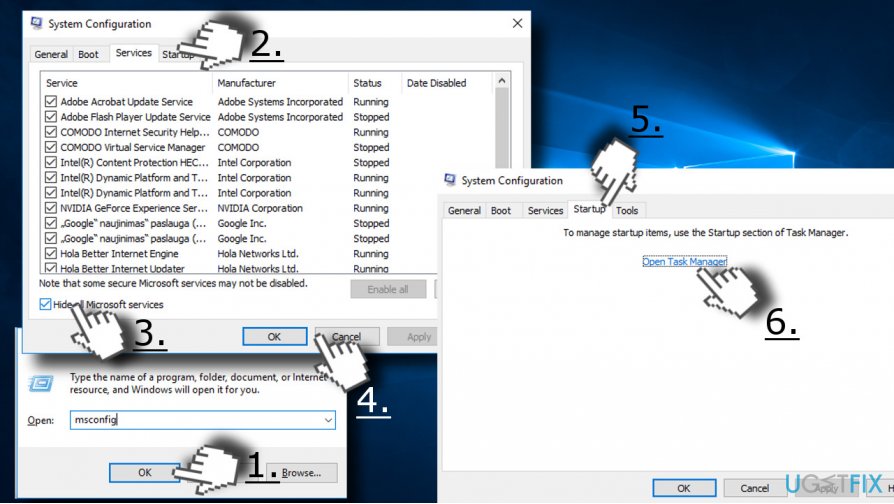
- Disable all startup items and close Task Manager.
- Click OK and restart the system.
If the error disappeared, then you should enable startup items and processes one-by-one to see which application causes problems.
Run Registry Editor
- Press Windows key + R, type regedit, and press Enter.
- Use the left pane to navigate to the Computer\\HKEY_LOCAL_MACHINE\\SYSTEM\\CurrentControlSet\\Services\\CldFlt directory.
- Find the Start registry DWORD (REG_DWORD) on the right side of the CldFlt key.
- Double-click on it and set the value from 2 to 3.
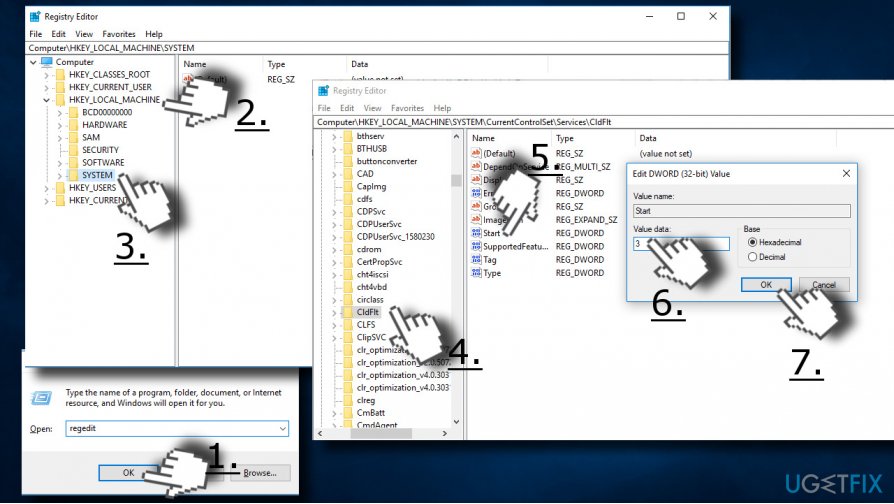
- Click OK and close Registry Editor.
- Finally, reboot the system. You may need to reboot it twice to clean the Even Viewer completely.
Bottom line
To fix the 'App Container profile failed with error 0x800700B7' error, you can perform a Clean Boot to isolate software conflicts. If the issue persists, consider waiting for an official patch from Microsoft or exploring other troubleshooting methods.
Frequently asked questions
The error code 0x800700B7 typically indicates that there is a conflict with an existing entry, often due to duplicate entries in the system. This can occur when the App Container profile tries to create a profile that already exists.
To fix the App Container profile error on Windows 11, you can try resetting the Windows Store cache and running the DISM tool to repair any potential system corruption. Additionally, ensure that your system is up to date with the latest Windows updates.
Yes, you should check for any conflicting applications or services that may be causing the duplicate entries, and consider disabling unnecessary startup items. Regularly updating your software and running system maintenance can also help prevent this error from reoccurring.




Report an issue
What's wrong with this guide? We review every report and update or remove content.
Report received — thank you. We'll review and fix it.
You need a free account to submit a report.
Be the first to comment