How to fix
“App is damaged and can’t be opened” error
on Windows
Resolve the "App is damaged" error on Windows 10 and 11 quickly and easily with our expert-tested solutions. Fixed in minutes with clear instructions!

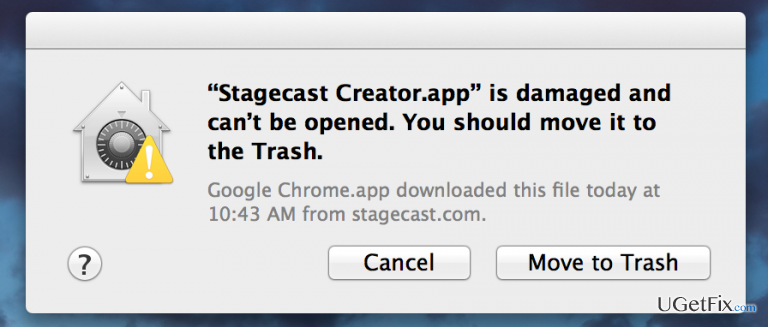
What causes How to fix “App is damaged and can’t be opened” error on Mac OS?
- Expiration of the security certificate
- DRM failure
- Faulty installation of the application
- Damaged download files
- Security preferences blocking unknown developers
Repairs Windows system files, removes malware, and restores a clean OS state — without reinstalling.
Hi. Strangely, some of the apps on my Mac cannot be opened. For example, I’ve recently downloaded HomeBudget app, but when I try to open it the error message “HomeBudget.app is damaged and can’t be opened. Delete Name.app and download it again from the App Store.” I’ve removed it, uninstalled it one more time, but the error did not disappear. Could you please help because this is happening with the other apps as well. Thanks!
Mac OS users are commonly asking for a question how to deal with an application error, which says: “Name.app is damaged and can’t be opened. Delete Name.app and download it again from the App Store.” It occurs when a Mac owner downloads a random application from Mac App Store and attempts to run it. Sometimes, when the user re-downloads the supposedly damaged app, an alternative error message “Sign in to use this application on this computer” may show up. This issue has emerged long time ago, but, apparently, it remained a common problem up till now.
The reason why some of the apps downloaded from the Store cannot be opened may be related to the expiration of the security certificate, which is obligatory when signing the application. In this case, neither the user nor the Mac device is guilty for the app “damaged and can’t be opened” error. It stems from the DRM failure.
In some rare cases, this application bug may occur due to the faulty installation of the application, which happened due to some damaged download files. Nevertheless, the culprit of the “Name.app is damaged and can’t be opened” error is security preferences. These days, Apple is increasing security measures due to the massive malware and virus attacks, which is reasonable. Therefore, Mac devices are typically set to block applications from unknown developers or the ones that are not signed with Apple certificate. Luckily, this issue is easily resolvable. To fix “App is damaged and can’t be opened” error on Mac, try the following methods:
Fix 1. Re-install the application
- First of all, restart your Mac device.
- After that, find the application that throws an error on the Applications folder, click it and hold.
- Drag the application to Trash.
- Open Mac App Store and re-download it.
- Try to open it. If the error is still there, we would recommend you to remove it again before performing the following fixes.
Fix 2. Empty Mac’s cache
- Open Finder.
- Open Go menu and head over to the Go to Folder.
- Type ~/Library/Caches and press Enter.
- When the Cache folder opens, clear its content.
Fix 3. Modify Security Preferences
- Open System Preferences and select Security & Privacy.
- Click General tab.
- Find the Allow applications downloaded from and mark the third option, which is Anywhere.
- Click the padlock icon at the left bottom corner of the window to save the changes.
- Once done, install the application that you could not open before. The error should be gone.
NOTE: once you download and successfully open the required app, it’s advisable to change Security Preferences from Anywhere to Mac App Store and identified developers. That’s because by letting any application on the system poses a high-risk of virus or malware infection. That’s the reason why Apple decided to restrict the installation of applications.
Finally, if you install an application from a third-party download source or an unidentified developer, we would recommend running a scan with a powerful anti-malware, such as [rev id=”MacKeeper”] or [d1].
Bottom line
To fix the "App is damaged and can’t be opened" error on Mac, you can try re-installing the application after restarting your Mac. If the problem persists, check your security preferences to ensure they are not blocking applications from unknown developers.
Frequently asked questions
This error typically doesn't occur on Windows, but if you encounter similar issues with Windows applications, try running the app as an administrator or reinstalling it.
Ensure that the file is not blocked by right-clicking it, selecting 'Properties', and checking for an 'Unblock' option under the General tab.
Yes, Windows Defender or other antivirus software might block apps; check your security settings or temporarily disable your antivirus to see if that resolves the issue.




Report an issue
What's wrong with this guide? We review every report and update or remove content.
Report received — thank you. We'll review and fix it.
You need a free account to submit a report.
Be the first to comment