How to fix
App launching problem
on Windows
Resolve app launching issues on Windows 10 quickly and effectively. Follow our expert-tested solutions for a smooth experience, fixed in minutes.

What causes How to fix app launching problem in Windows 10?
- Updates may be at fault
- Specific local settings may trigger the issue
- Hardware capacities of user devices may contribute
- Modified ownership and editing rights
- Overload of cache files
Repairs Windows system files, removes malware, and restores a clean OS state — without reinstalling.
When I try to launch any programs in Win 10, they either do not open at all or just crash at the very moment of launching. Resetting the system did not help. This is getting on my nerves. Can you advise a solution for this problem?
The new changes bring new challenges. Though the latest edition of Windows 10 introduced some significant improvements, it may still cause a variety of smaller or more troublesome problems for users. Not only the updates may be at fault, but the specific local settings and hardware capacities of users devices may trigger the issue. Thus, not all may encounter app launching problem. The latest edition might possess certain bugs which meddle with the administration rights of your computer. As a result, you might face the problem due to modified ownership and editing rights. The overload of cache files might be at fault as well. In any case, use the guidelines to restore full access. Before you proceed to the repair methods, you might want to check your system for any damaged files with [rev id=”RegCure Pro”].
Option 1. Removing Windows app cache files
- After clicking the Start button, type cmd. Enter Command Prompt. Note that you may need to run it as the administrator.
- Type WSReset.exe.
- When the process is finished, reboot the device.
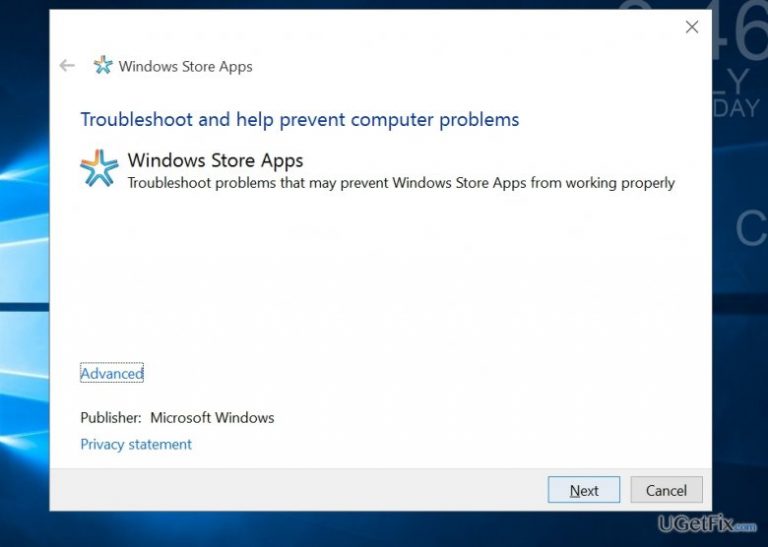
Note. Launch Troubleshoot app in Windows 10. Even if this program does not solve the problem, it still comes in handy checking the computer for issues.
Option 2. Run Powershell
- Type Powershell after clicking the Start button. Do not forget to run the application as administrator.
- Copy and paste the following entry.
Get-AppxPackage -allusers | foreach {Add-AppxPackage -register "$($_.InstallLocation)\appxmanifest.xml" -DisableDevelopmentMode} - You may reset the broken apps manually by navigating to the Apps and Features folder. Choose each app and click Reset after expanding Advanced options.
Option 3. Create a new user account
- Click Settings and navigate to Accounts.
- Select on Family and other users and click add someone else to this PC.
- Choose the Person doesn't have an email address option at the bottom of the newly opened window.
- Select Add a user without Microsoft account.
- Type the username and password you wish and click Finish.
- In order to shift from standard user to an administrator, expand Options.
Bottom line
To resolve the app launching problem in Windows 10, you can remove Windows app cache files using WSReset.exe, run Powershell commands to reset apps, or create a new user account. If none of these solutions work, consider checking for damaged files or seeking further technical support.
Frequently asked questions
First, try restarting your computer and then attempt to launch the app again. If the issue persists, consider resetting the app by going to Settings > Apps > Apps & features, selecting the app, and clicking on 'Advanced options' to reset it.
You can troubleshoot app launching errors by running the Windows Store Apps troubleshooter found in Settings > Update & Security > Troubleshoot. Additionally, ensure your Windows 10 is up to date by checking for updates in Settings.
Yes, certain settings like User Account Control (UAC) and antivirus software can interfere with app launching. Make sure UAC is set to a standard level and check if your antivirus is blocking the app.




Report an issue
What's wrong with this guide? We review every report and update or remove content.
Report received — thank you. We'll review and fix it.
You need a free account to submit a report.
Be the first to comment