How to fix
APPCRASH – Fault Module Name: ism.dll error
on Windows
Resolve the ism.dll APPCRASH error on Windows 10 or 11 effortlessly. Follow our expert-tested guide for a quick fix with zero traces left.

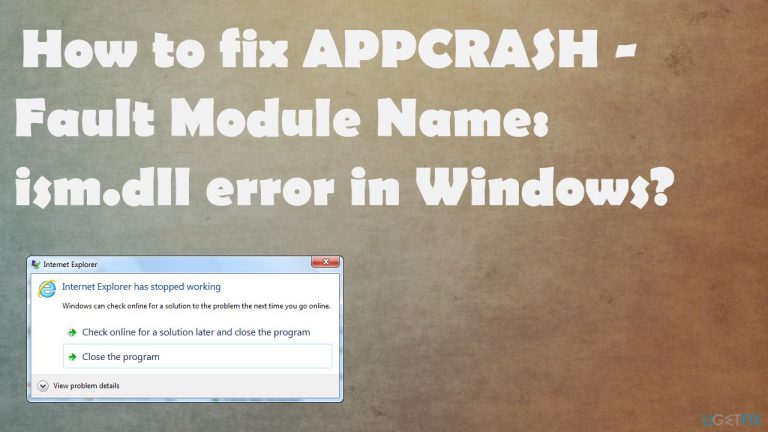
What causes How to fix APPCRASH – Fault Module Name: ism.dll error in Windows?
- Missing files
- Corrupted files
- Compatibility issues
- Driver issues
- Software not compatible with Windows version
Repairs Windows system files, removes malware, and restores a clean OS state — without reinstalling.
Hello. I get this continuous crashing on my computer. The faulty module ism.dll is indicated when the app crashes. Desktop Window Manager is the one that fails to operate. It stops working out of nowhere, and I don't know what to do to fix the issue. Can you help me?
APPCRASH - Fault Module Name: ism.dll error in Windows is one of the Appcrash incidents when the program cannot run properly due to missing or corrupted files. The pop-up error message shows up on Windows machines[ref en-1] and creates issues because the app cannot be executed and run, so it crashes with the message appearing on the screen.
The error can state about the particular module like APPCRASH - Fault Module Name: ism.dll error does, and it can also just indicate that the application stopped working. You can see errors with particular error codes or indications of EXE, DLL, other files. The more information this error pop-up provides, the better, but solutions can vary.
There are various Windows OS errors[ref en-2] that are triggered by compatibility issues, so it might be possible to fix APPCRASH - Fault Module Name: ism.dll error in Windows by running compatibility mode or fixing particular issues with drivers and system files. It might be the case that the software you try to launch is not running on the particular version of Windows.
Unfortunately, there are many reasons why such an error like APPCRASH - Fault Module Name: ism.dll error appears in Windows. So it is not good to blame it on one particular issue or even the file indicated on the pop-up. Computer virus[ref en-3] is not likely but can be blamed here too.
If the issue is related to corrupted files, software, or registries, you might fix APPCRASH - Fault Module Name: ism.dll error in Windows y running a tool like [d1]. This is the application that can help with Windows Registry editing and system file like DLL recovery. We also have a manual method for registry entries, but you might want to run this tool before doing anything yourself, so you can avoid further damage.
1. Use the compatibility mode to fix APPCRASH - Fault Module Name: ism.dll error in Windows
- Right-click the .exe file or the shortcut of your program that is not responding.
- Click Properties.
- Click on the Compatibility Tab.
- Check, Run this program in compatibility mode for and select an appropriate option.
2. Run SFC scan to fix APPCRASH - Fault Module Name: ism.dll error in Windows
- Open Command Prompt as administrator.
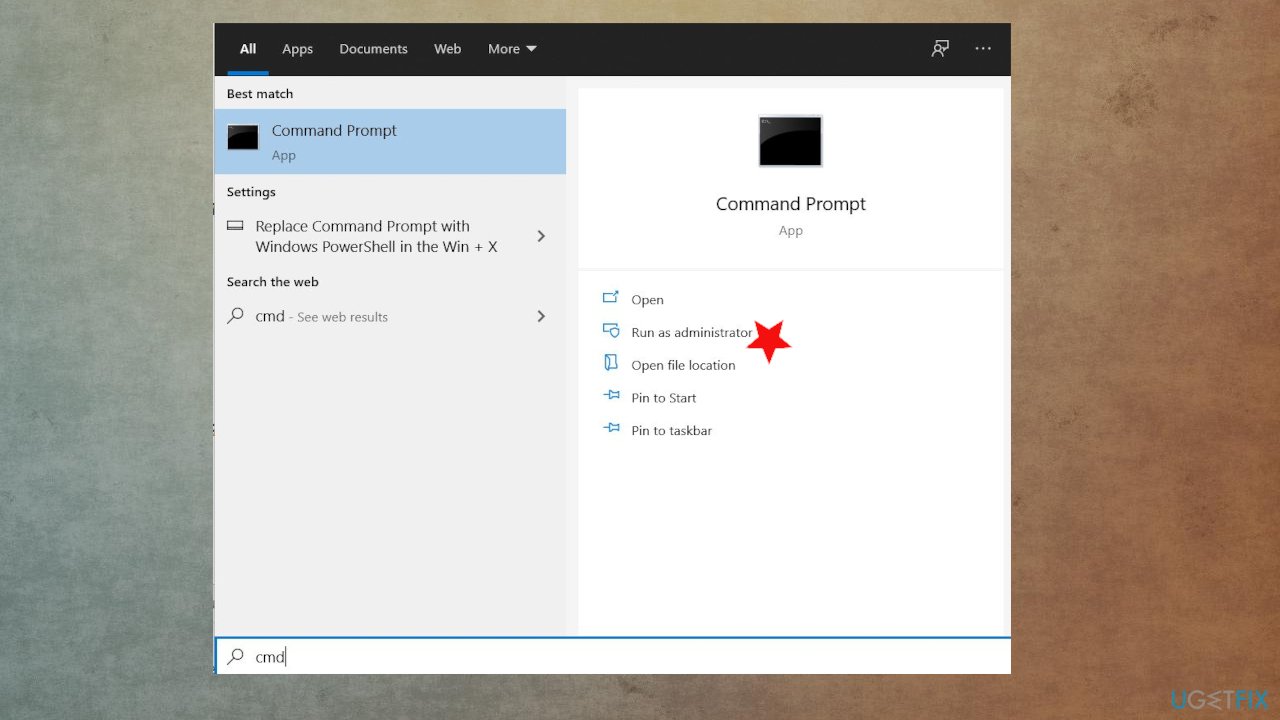
Appcrash faulty dll fix command - Paste in the following command, pressing Enter after:
sfc /scannow - Wait till the scan is finished and close down Command Prompt.
- Restart the PC.
3. Edit registry
- Open the Run dialog box by pressing the Windows key and the R key together.
- Type Regedit and hit the Enter key.
- When the Registry Editor opens, navigate to the following location:
HKEY_LOCAL_MACHINE\\SYSTEM\\CurrentControlSet\\Control\\GraphicsDrivers - Right-click on the panel and click on New DWORD (32-bit) Value.
- Set the name of this newly created DWORD as TdrDelay.
- Double click on the newly created DWORD and set its value as 10.
4. Disable hardware acceleration
- Press Windows + R keys.
- Type regedit and hit the Enter.
- When the Registry Editor opens, navigate to the following location:
HKEY_CURRENT_USER/Software/Microsoft /Avalon.Graphics - Find DisableHWAcceleration on the right pane.
- If missing, then right-click on the blank area on the right pane and click New.
- Then DWORD (32-bit) Value and name it DisableHWAcceleration.
- Double click on DisableHWAcceleration and set its value to 1 to disable hardware acceleration.
- Click OK, close the registry editor.
- Restart the PC.
5. Perform a Clean Boot to fix APPCRASH - Fault Module Name: ism.dll error in Windows
- Go to the search box.
- Type MSConfig.
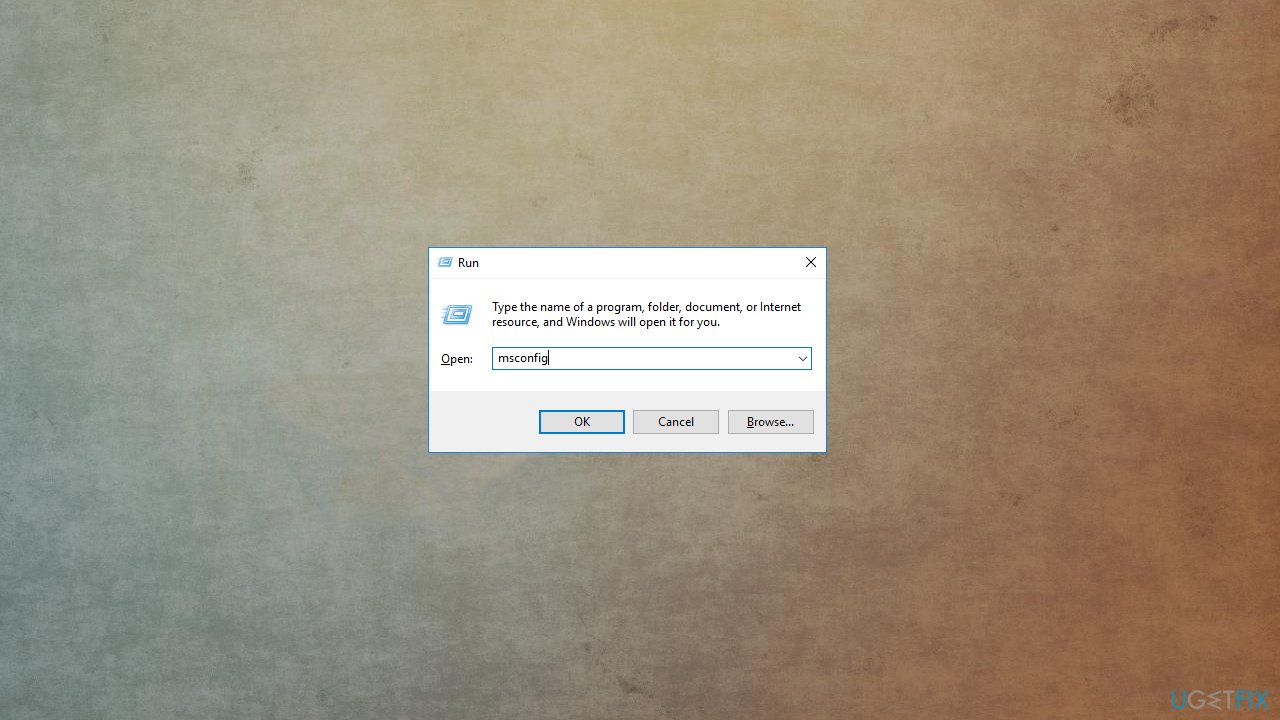
Appcrash faulty dll fix msconfig - Select System Configuration.
- Go to the Services tab.
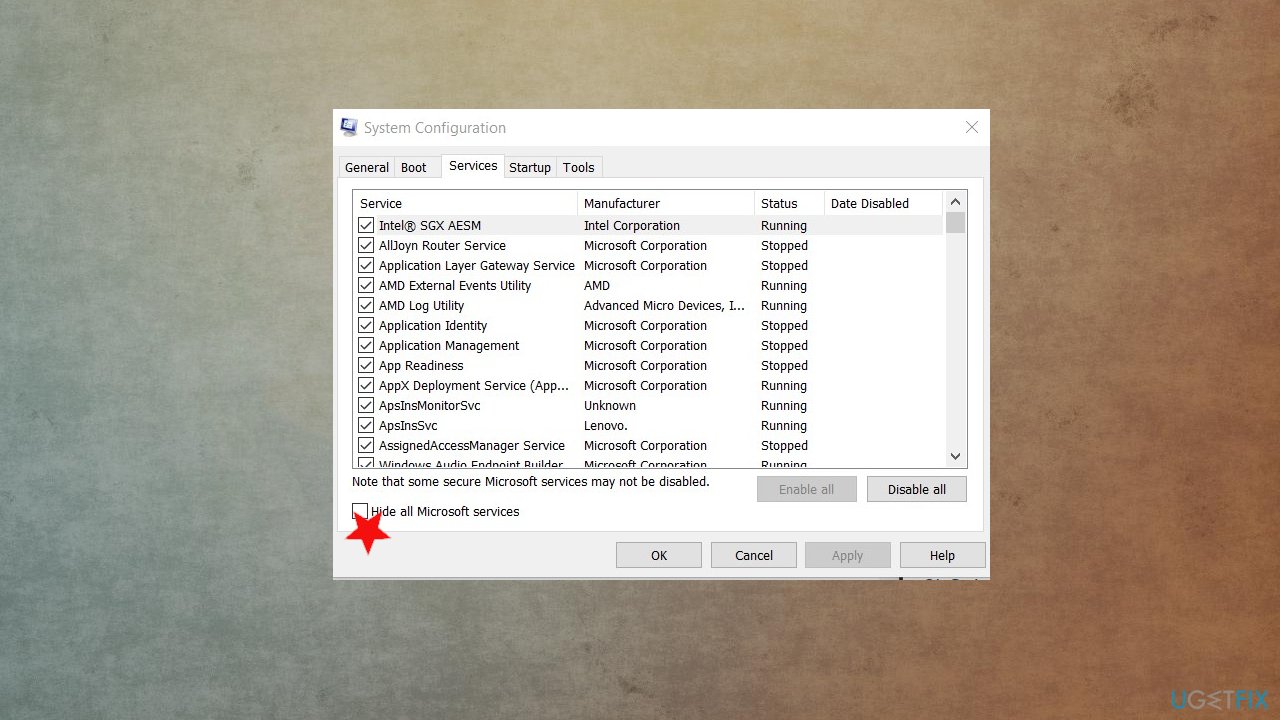
Appcrash faulty dll fix services - Select and put a checkmark on Hide all Microsoft services.
- Click Disable all.
- Go to Startup tab.
- Open Task Manager.
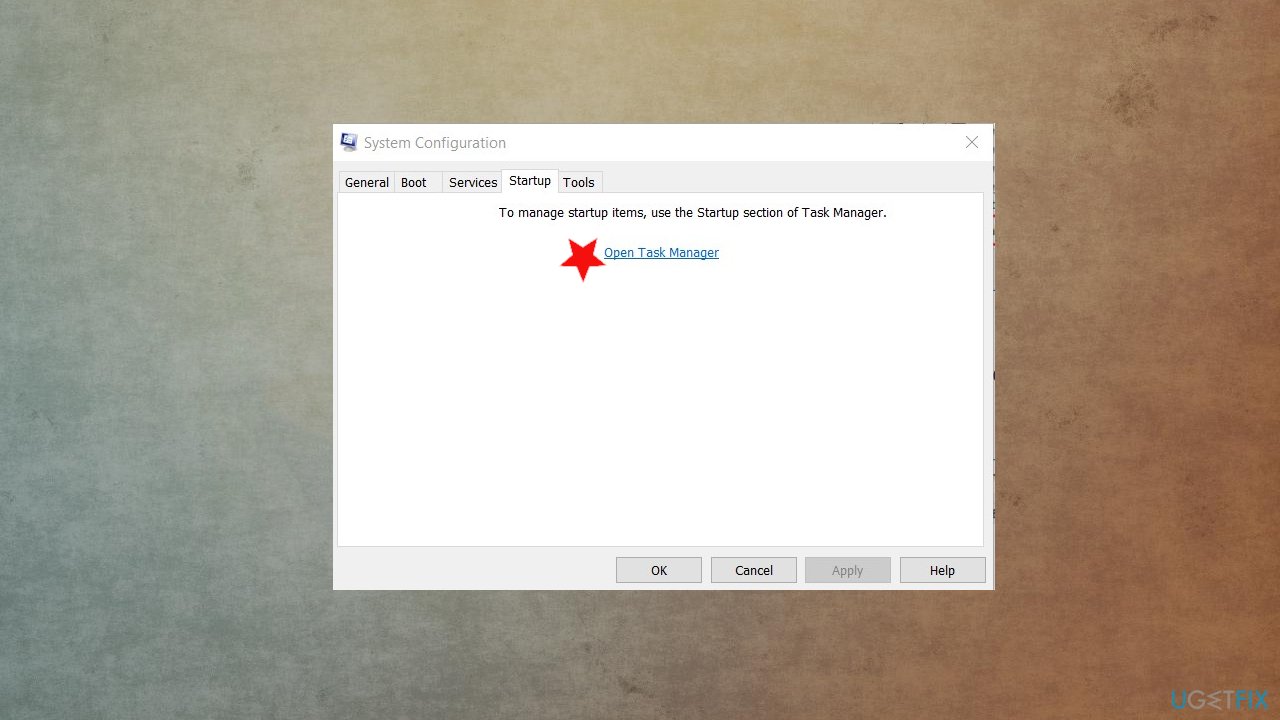
Appcrash faulty dll fix open task manager - Disable all the unnecessary services running there.
- Restart your computer.
Bottom line
To fix the APPCRASH - Fault Module Name: ism.dll error in Windows, you can try running the program in compatibility mode, updating drivers, or using a tool for Windows Registry editing and system file recovery. If these solutions do not resolve the issue, consider manually editing the registry or seeking further assistance.
Frequently asked questions
The ism.dll APPCRASH error in Windows 10 is often caused by corrupted system files, outdated drivers, or conflicts with software applications. Identifying the specific application causing the error can help in resolving the issue.
To repair the ism.dll file in Windows 11, you can use the System File Checker tool by running the command 'sfc /scannow' in the Command Prompt as an administrator. This will scan for and restore corrupted files.
Yes, updating Windows 10 can resolve the ism.dll error by installing the latest patches and fixes that address known issues. It's always a good practice to keep your operating system up to date.




Report an issue
What's wrong with this guide? We review every report and update or remove content.
Report received — thank you. We'll review and fix it.
You need a free account to submit a report.
Be the first to comment