How to fix
Apple Mobile Device Failed to Start error
on Windows
Resolve the Apple Mobile Device Failed to Start error on Windows 10 and 11 effortlessly. Get fast, expert-tested solutions to keep your devices running …

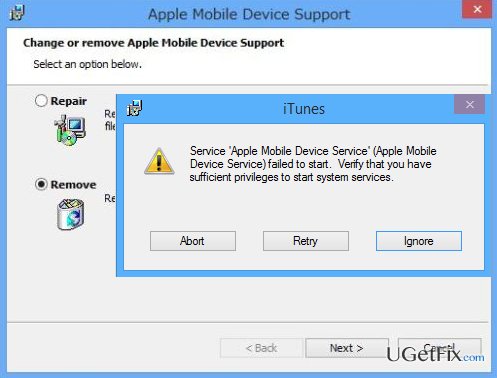
What causes How to fix Apple Mobile Device Failed to Start error?
- Installation of software required for data transfer triggers problems
- Corrupt application due to overwritten files during update
- Insufficient privileges to start system services
- Conflicts with existing files after update
- Issues during iTunes installation
Repairs Windows system files, removes malware, and restores a clean OS state — without reinstalling.
I successfully updated my iTunes, and everything seemed to go smooth. However, when I launch the app, it immediately drops a pop-up saying that “Apple Mobile Device Failed to Start.” How do I solve this issue?
It has become almost comical how often the users report issues related to transferring music or other files on their iPhone or other iOS devices. However, we should start from the beginning and point out that installing the software required for the data transfer triggers problems too. Apple Mobile Device Failed to Start error or, more precisely, “Apple Mobile Device Failed to Start. Verify that you have sufficient privileges to start system services” notification usually pops during the iTunes installation, and it is one of the most annoying and issues the Apple users complain about. Nevertheless, the same issue can occur when you try to connect your device to the app or when you update the application to a newer version. This means that this error may occur on your PC even if you did not have any trouble with this application before. The reason for this is simple. The files which are overwritten in the process of the update can clash with the already existing ones resulting in a corrupt application. Thus, the program fails to initiate. To solve this issue, we have prepared a short guide below.
How to fix Apple Mobile Device Failed to Start error on Windows:
To eliminate Apple Mobile Device Failed to Start error you have to reinstall iTunes. But before you do, you have to eliminate all of the Apple products and related files from your computer. We highly suggest doing that automatically, with the help of specially designed software such as [rev id="Perfect Uninstaller"] if you are a Windows user or [rev id=”MacKeeper”] if you use Mac OS X. However, in case you can’t get your hands on this software, you can try eliminating the Apple-related software manually. The removal and reinstallation steps are listed below:
- Go to the Add/ Remove programs in your Control Panel
- Uninstall Apple programs in this sequence: iTunes, Quicktime, Bonjour, and AMDS.
- Reboot your PC.
- Go to the official itunes.com website and download the latest version of the app.
- Once the iTunes icon is on your desktop, right-click it and choose Run as Administrator.
- When the installation is done, do not click Finish just yet. Plug in your iPhone, iPod or other desired device to your computer and wait until the driver is installed.
- When the installation is done, you can finally click Finish.
How to fix Apple Mobile Device Failed to Start error on Mac:
You can try eliminating the Apple Mobile Device Failed to Start from your Mac OS X by reinstalling the iTunes or by using the “Repair Disk Permission” function:
- Go to Applications and select Utilities
- Double-click click Disk Utility.
- Choose Mac Hard disk, and navigate to Verify Disk Permission and Repair
Disk Permission options. - Select Repair Disk Permission and wait until the repair is done.
- Open iTunes and see if the Apple Mobile Device Failed to Start notification still there.
Bottom line
To fix the Apple Mobile Device Failed to Start error, you should first uninstall all Apple-related software, including iTunes, Quicktime, and Bonjour. After that, reinstall iTunes to resolve the issue. If these steps do not work, consider using specialized uninstaller software or seek further assistance.
Frequently asked questions
First, try restarting the Apple Mobile Device Service by opening the Run dialog, typing 'services.msc', and locating the service to restart it. If the issue persists, reinstalling iTunes may also resolve the problem.
Yes, you can fix this error on Windows 11 by updating your iTunes installation and ensuring that all related Apple services are running properly. Additionally, checking for Windows updates may help resolve compatibility issues.
Common causes include outdated iTunes software, issues with the Apple Mobile Device USB driver, or conflicts with other software. Ensuring that your Windows 10 or Windows 11 system is fully updated can help mitigate these issues.




Report an issue
What's wrong with this guide? We review every report and update or remove content.
Report received — thank you. We'll review and fix it.
You need a free account to submit a report.
Be the first to comment