How to fix
Apps opening on the wrong monitor
on Windows
Resolve the issue of apps opening on the wrong monitor in Windows 10 or 11 effortlessly. Quick fixes with expert-tested methods!

What causes How to fix apps opening on the wrong monitor in Windows?
- Apps opening on the incorrect monitor due to misconfigured display settings
- Users not designating a primary monitor
- The 'Remember window locations based on monitor connection' feature being disabled
- Third-party applications not managing window locations effectively
- Frequent changes in monitor connections causing confusion
Repairs Windows system files, removes malware, and restores a clean OS state — without reinstalling.
Hello. I have a dual monitor setup at home on my Windows PC, and when I open apps they open on the wrong monitor. How do I change this?
Users who utilize multi-monitor Windows setups may find it annoying and detrimental to their productivity when apps start on the incorrect display. This issue can interfere with workflow and result in time lost to rearranging and repositioning program windows, which is a problem given the rising prevalence of multi-monitor setups in workspaces and home offices.
Users may be impacted by this issue in many ways. Their regular workspace structure is first disrupted because they may have particular programs set up on particular screens for a purpose. Users must spend extra time manually relocating applications to the correct screen when they open on the incorrect monitor repeatedly, which can be particularly annoying if it happens frequently.
Additionally, this problem may result in diminished productivity, particularly in professional settings. Users run the danger of unintentionally opening private or secure information on the incorrect monitor. Additionally, it might cause confusion because users may continually have to remember which programs open in which locations, taxing their cognitive abilities and sometimes resulting in errors.
There are a number of potential solutions to this problem. Some users claim that adjusting Windows' display settings, such as choosing a primary monitor or turning on the "Remember window locations based on monitor connection" function, has helped them. The arrangement of application windows across several monitors can also be managed and controlled by third-party applications, which are also readily available.
In this guide, you will find 5 steps that should help you fix apps opening on the wrong monitor in Windows. You can also run a maintenance tool like [d1] that can fix most system errors, BSODs,[ref en-1] corrupted files, and registry[ref en-2] issues. Otherwise, follow the step-by-step instructions below.

Solution 1. Modify Display Settings
- Press the Windows key + I to open Settings.
- Go to System, then click Display.
- Locate Multiple displays and click the drop-down to get more options.
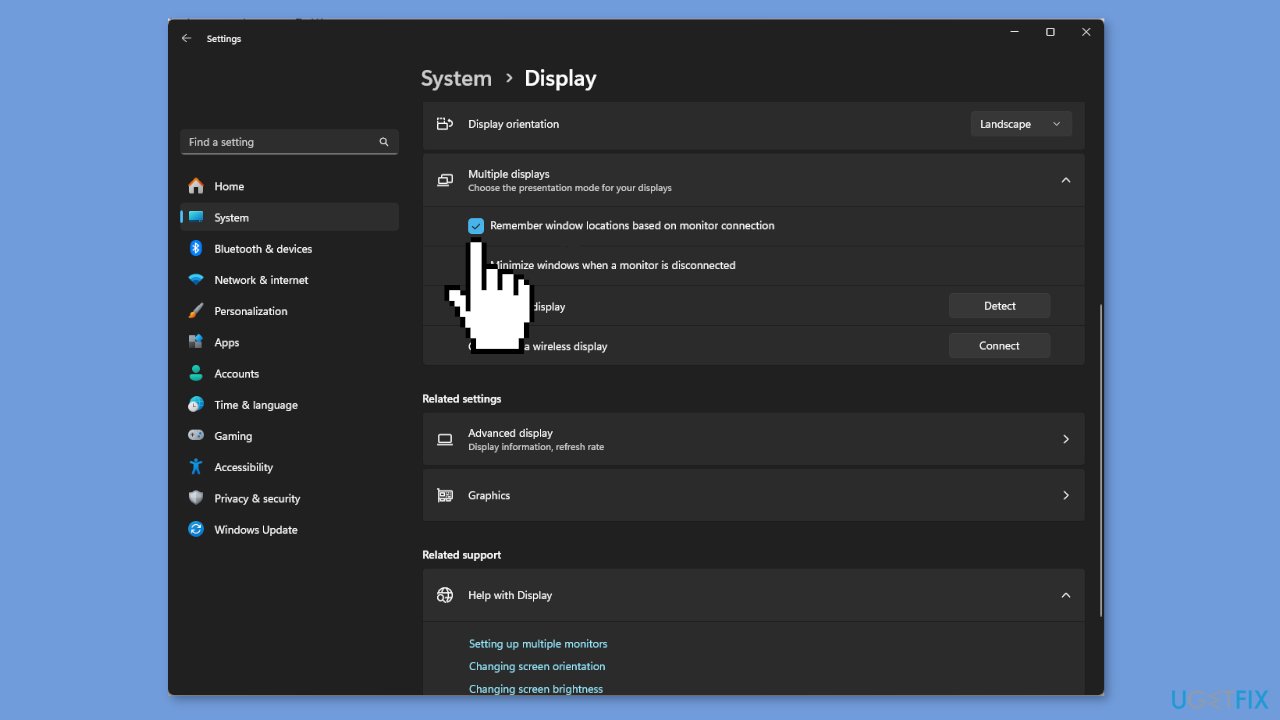
- Place a checkmark next to Remember window locations based on monitor connection.
- Next, click Identify to know the screen number and choose Show only on 1 or Show only on 2 according to the number displayed for the desired monitor.
- Disconnect the cable of the secondary display and connect again.
Solution 2. Disable the Remove a display from desktop Option
- Press the Windows key + I to open the Settings app.
- Go to System, then click Display.
- Go to the Advanced display option.
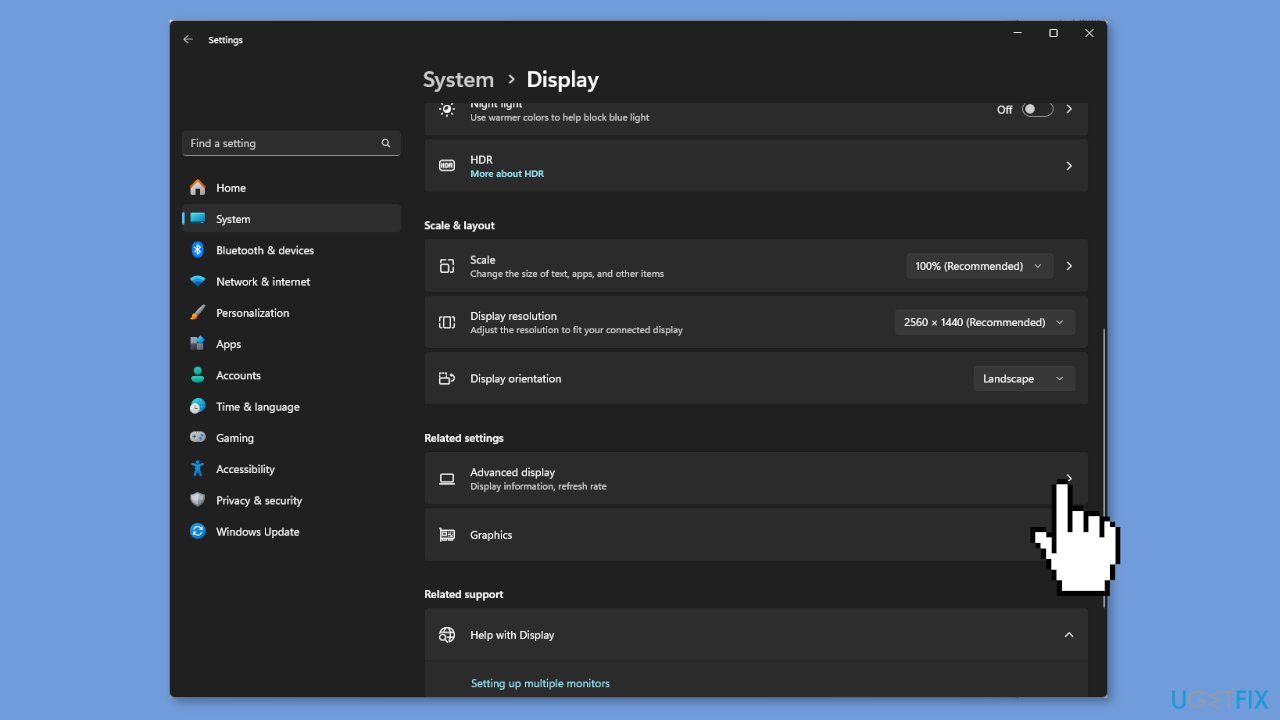
- Locate Select a display to view or change its settings, and choose the monitor that you want to remove or restore.
- Next, you can also locate the Remove display from desktop and turn it on if you have Enterprise and Pro editions for Windows.
Solution 3. Re-enable the Secondary Monitor
- Close the app, and press Ctrl + Shift + Esc to open Task Manager.
- Locate and right-click any process related to the app, then select End process.
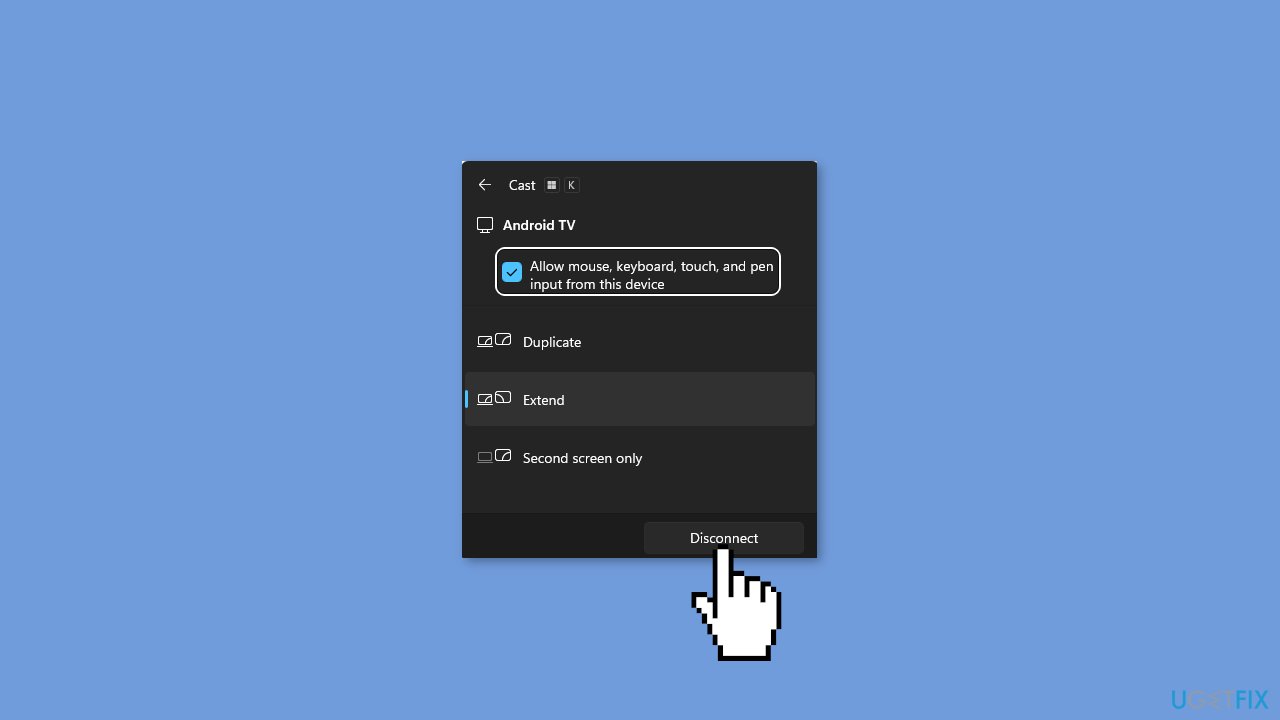
- Press Windows + K to access the Cast options.
- Locate the display, click Disconnect, then reboot your computer.
- Once your computer is up, relaunch the app on the specific monitor, then exit the app.
- Now, check if the app is opening on the preferred monitor. If not, then you need to remove the secondary monitor again. Follow these steps to remove all the monitors:
- Press the Windows key + R to open the Run dialog box.
- Type devmgmt.msc and click OK to open Device Manager.
- Go to View, then click Show hidden devices.
- Locate Monitors and double-click to expand.
- Right-click the monitors listed one by one and select Uninstall device except for the primary monitor.
- Restart your computer to reinstall the device and launch the app to check if the issue persists.
Solution 4. Make the Monitor your Primary Display
- First, exit the app and close the processes related using Task Manager.
- Press the Windows key + I to open the Settings app.
- Go to System, then click Display.
- Click the specific monitor on the Display page to select it.
- Go to Multiple displays and expand it.
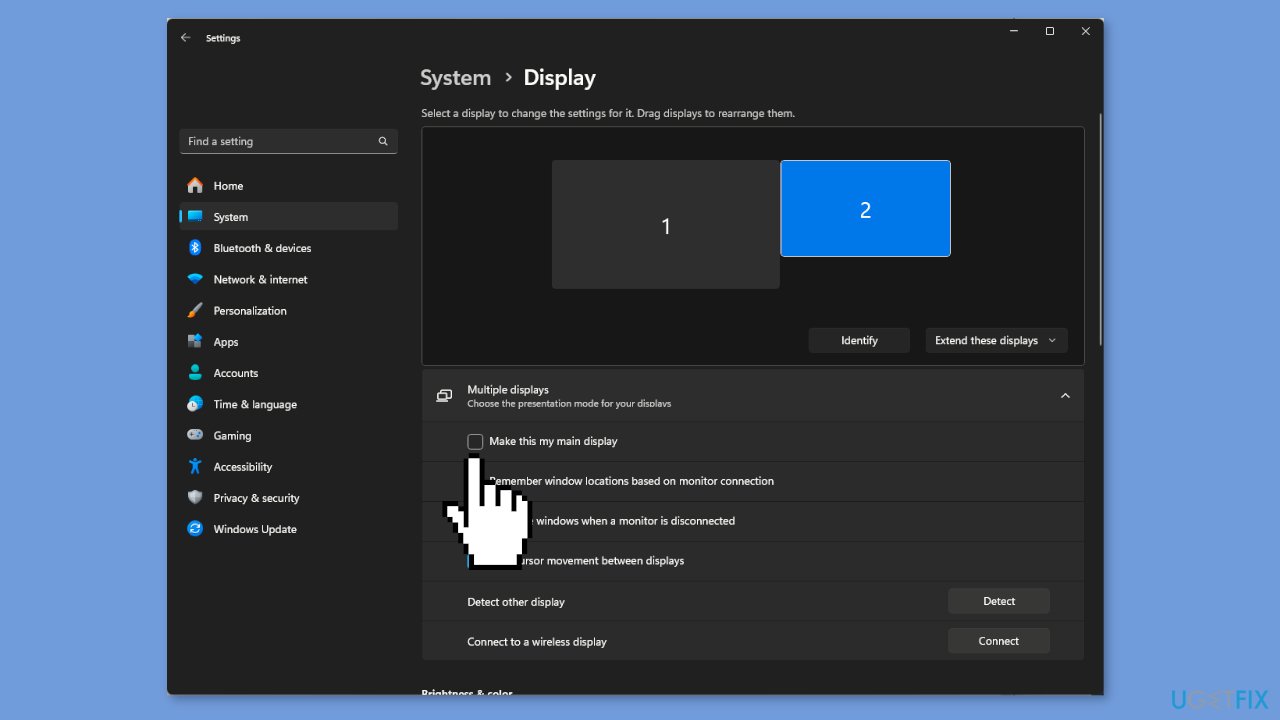
- Place a checkmark next to Make this my main display.
- If you want to choose the primary display, the option for it is already selected and grayed out by default.
- However, if you are choosing the secondary monitor as the preferred one, make sure you select it.
Solution 5. Customize Taskbar Settings
- Right-click anywhere on the desktop and choose Personalize from the context menu.
- Select the Taskbar option.
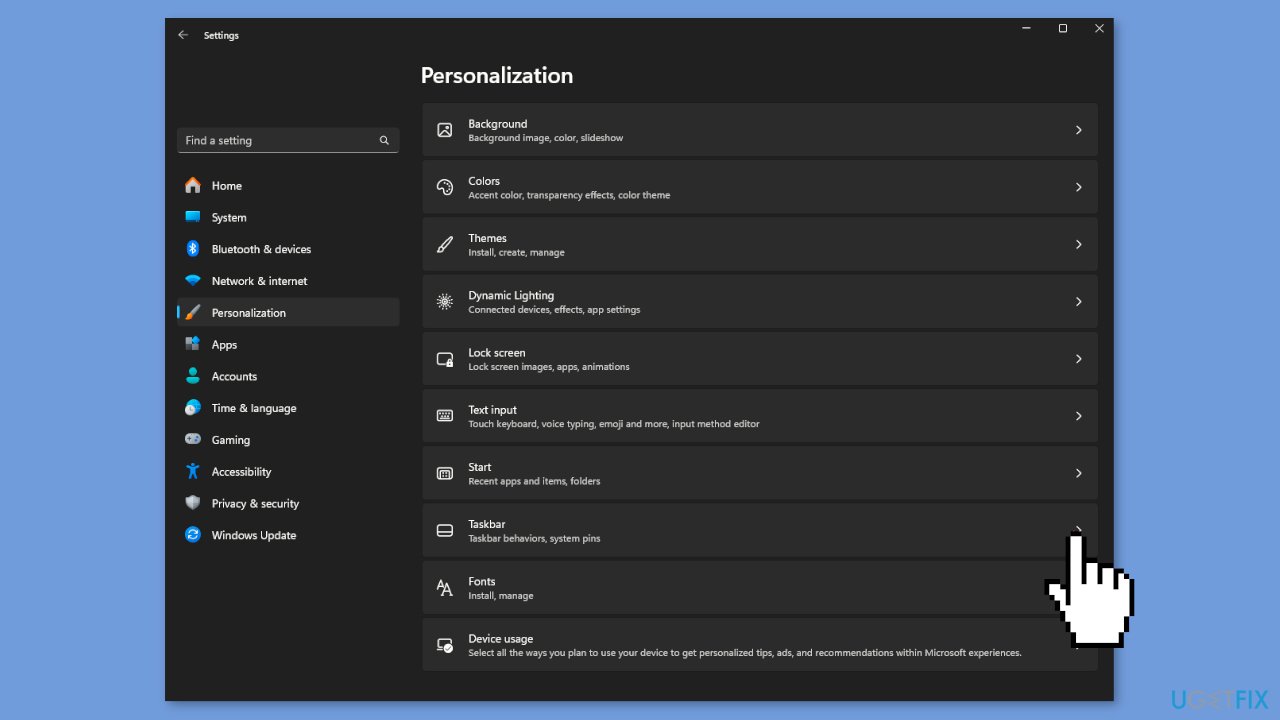
- Click Taskbar behaviors to expand it.
- For the When using multiple displays, choose show my taskbar apps on from the drop-down list.
- Select Taskbar where window is open from the drop-down list.
Bottom line
To fix apps opening on the wrong monitor, you can modify display settings, designate a primary monitor, and enable the 'Remember window locations based on monitor connection' feature. If these solutions do not resolve the issue, consider using third-party applications to manage window placements.
Frequently asked questions
To change the default monitor for apps, right-click on the desktop, select Display settings, and then rearrange the monitors by dragging them to the desired order.
Apps may open on the wrong monitor if their last position was on a different screen or due to display settings not being configured correctly.
Try closing the app while it's on the correct monitor, as this can help save its position for next time it opens in Windows 10 or Windows 11.




Report an issue
What's wrong with this guide? We review every report and update or remove content.
Report received — thank you. We'll review and fix it.
You need a free account to submit a report.
Be the first to comment