How to fix
Astro A10 Mic not working
on Windows
Resolve your Astro A10 mic issues on Windows 10 and 11 with expert-tested solutions and tips. Get it fixed in minutes for crystal-clear audio!


What causes How to fix Astro A10 Mic not working?
- Outdated audio drivers
- System updates
- Malfunctions
- Incorrect microphone settings
- Disabled microphone device
Repairs Windows system files, removes malware, and restores a clean OS state — without reinstalling.
Hello. I bought a new gaming headset Astro A10 and I cannot get it to work. How can I fix it?
Astro A10 is a gaming headset released in 2018. It is targeted specifically at the Nintendo Switch.[ref en-1] The headset has received a lot of good reviews. People say it is comfortable to wear for a prolonged period of time thanks to the soft velour ear pads and a flexible band. However, the headset has left a lot of people scratching their heads when they tried to set it up.
Users report the setting up process being far more complicated than it needs to be. Many people have flooded the online forums looking for help. Getting a new device to connect to your console or PC may be a painful process but luckily, you just have to do it once. In this guide, you will find 4 methods that can help you fix Astro A10 Mic not working.
The issue could be caused by outdated audio drivers,[ref en-2] system updates or even malfunctions. We recommend having a repair tool like [d1] always at your disposal. It can fix various system errors, BSODs,[ref en-3] corrupted files, and registry issues. Otherwise, proceed with the steps provided below.
Method 1. Restart your Machine
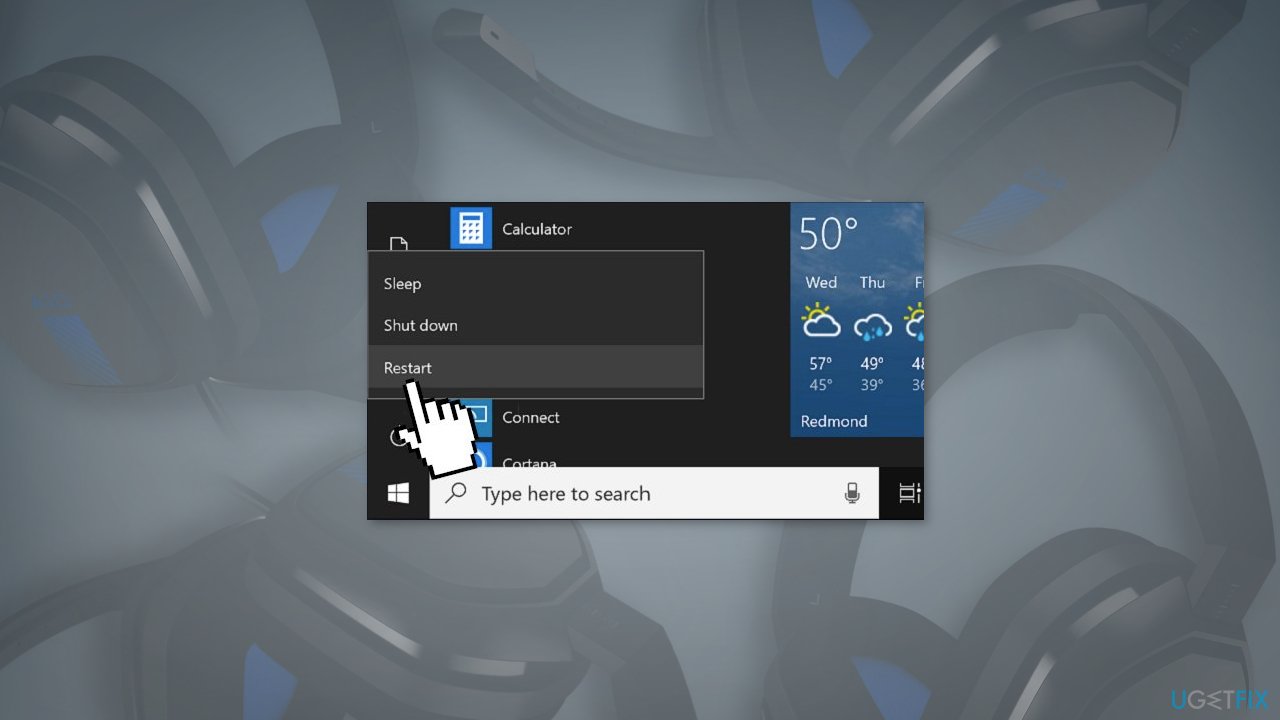
- Click on the Windows logo button and choose Restart
- If you want to restart a console, turn it off, unplug the power cord, wait a few minutes and turn it back on
- Check if the issue is fixed
Method 2. Update your System
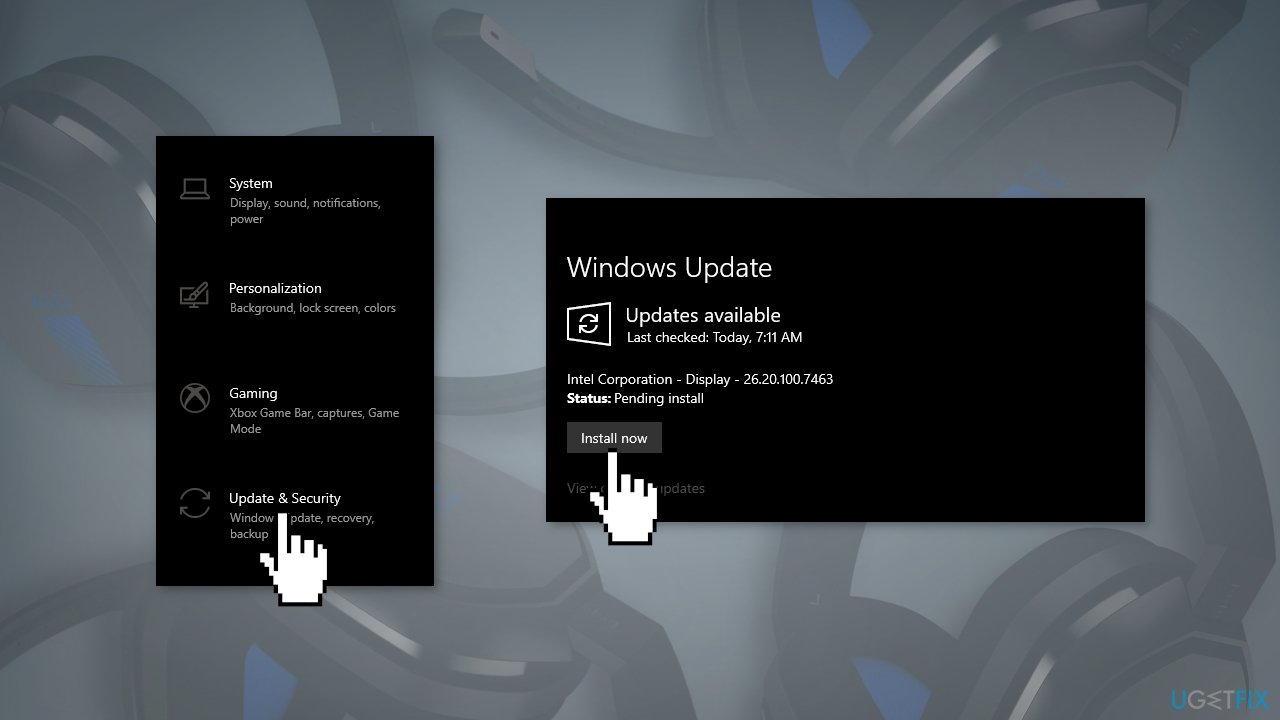
- Click Settings from your start menu and click Update & Security
- Choose Windows Upgrade from the left panel and click the Check for updates button, and then your computer will check for, download, and install any updates found
Method 3. Fix Microphone Device Settings
- Press Windows key + R to open the Run dialog
- Type control and press Enter
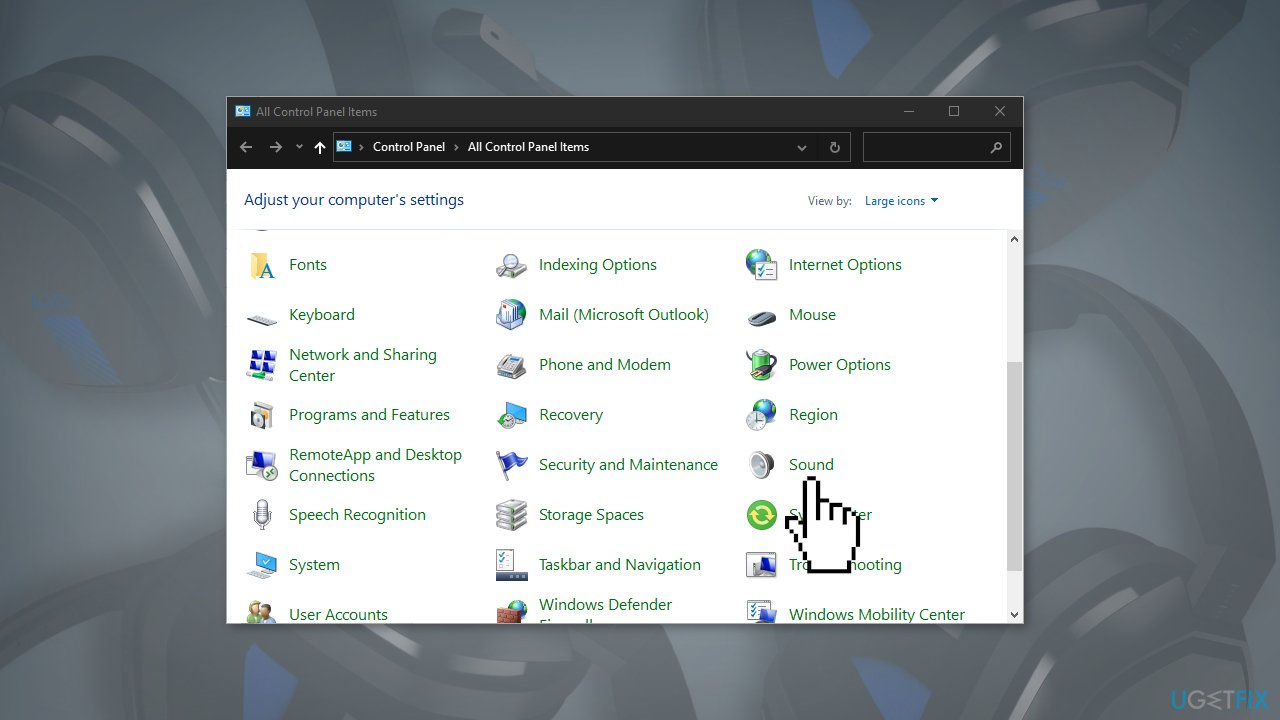
- In the Control Panel, select Large icons from the View by menu
- Select Sound
- Select the Recording tab, then right-click on the window and tick Show Disabled Devices
- Right-click the Headset Microphone and click Enable
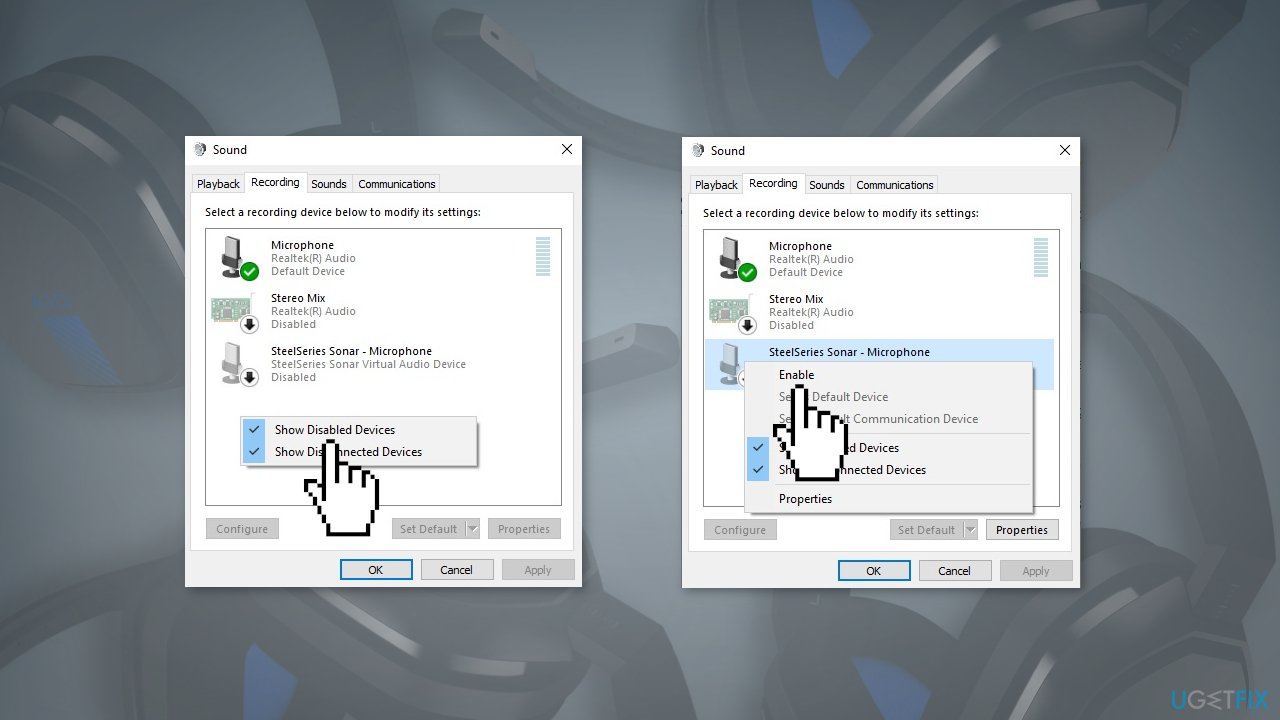
- Right-click it again and select Set as Default Device
- Right-click Headset Microphone and click Properties
- Press on the Levels tab, then drag the volume slider towards the largest value
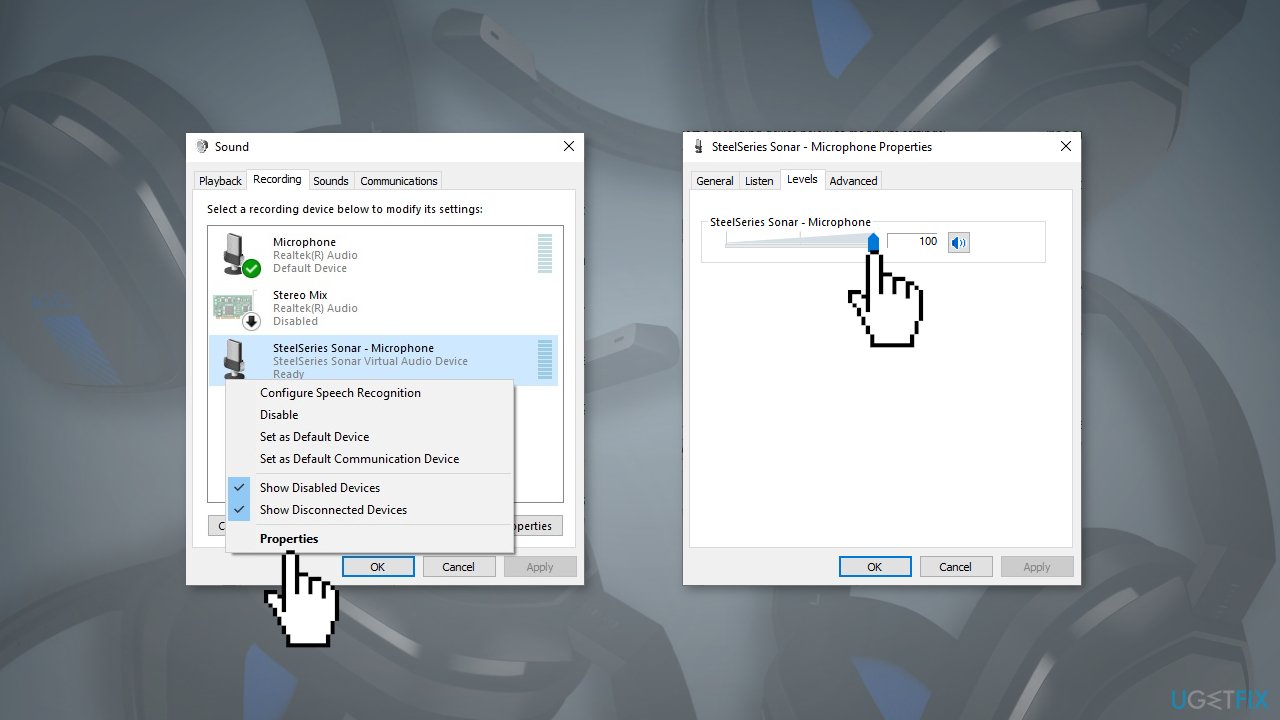
- Click OK
- Check if the issue persists
Method 4. Update Audio Drivers
- Go to Device Manager
- Find your Audio drivers in the list
- Right-click them and choose Update device
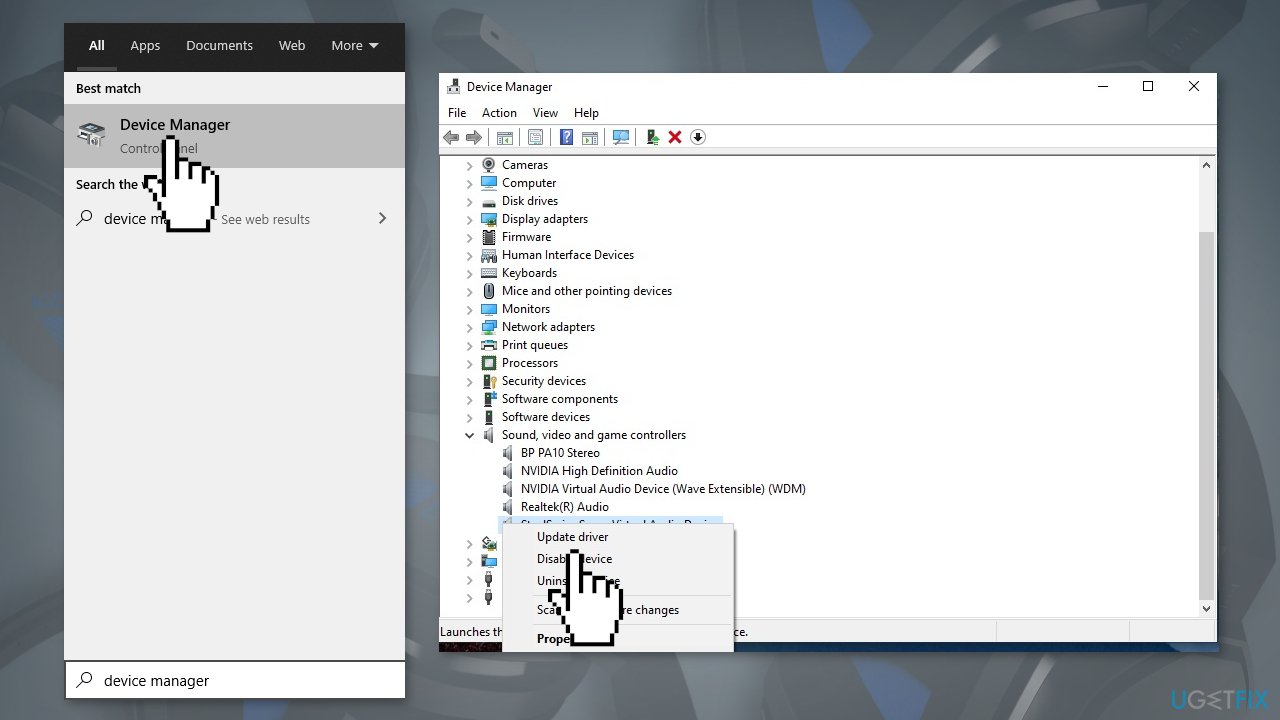
- You can also use a dedicated tool like [rev id="DriverFix"] that can find the best drivers automatically and update them
Bottom line
To fix the Astro A10 mic not working, you can restart your machine, update your system, and adjust the microphone device settings. If these methods do not resolve the issue, consider using a repair tool or seeking further assistance.
Frequently asked questions
Ensure that the Astro A10 headset is securely plugged into the correct audio jack or USB port, and check the Sound settings in Windows to confirm that the device is recognized.
Look for a mute button on the headset itself and check the audio settings in Windows to ensure the microphone is not muted in the device properties.
Go to Device Manager, expand the 'Sound, video and game controllers' section, right-click your audio device, and select 'Update driver' to search automatically for updated drivers.




Report an issue
What's wrong with this guide? We review every report and update or remove content.
Report received — thank you. We'll review and fix it.
You need a free account to submit a report.
Be the first to comment