How to fix
Audacity Internal PortAudio error
on Windows
Resolve the Audacity Internal PortAudio error on Windows 10 and 11 effortlessly with expert-tested solutions. Get your audio back in minutes!


What causes How to fix Audacity Internal PortAudio error in Windows?
- Outdated audio drivers
- Windows service malfunctions
- Corrupted system components
- Registry issues
- BSODs
Repairs Windows system files, removes malware, and restores a clean OS state — without reinstalling.
Hello. I have been trying to launch Audacity for the past two days but every time I receive an "Internal PortAudio" error. I have no idea what it means and how to fix it. Any tips would be appreciated.
Audacity is a free and open-source digital audio editor and recording application software. It can also be used for basic post-processing of all types of audio, including effects such as normalization, trimming, and fading in and out. With over 110.7 million downloads since March 2015 at FossHub, people love this application for its simplicity. It has an easy-to-use interface and people can start recording as soon as they launch it.
However, some people say that they run into some issues when they try to use Audacity. More specifically, they receive the Internal PortAudio error. This error has been confirmed to occur with different versions of Audacity on Windows 7, Windows 8.1, and Windows 10. However, it seems to be related more to the operating system than the program itself. It could be caused by outdated audio drivers or Windows service[ref en-1] malfunctions.
Troubleshooting manually could take a while as you will have to reinstall Windows drivers, enable services, and more. You can try using an automatic solution [d1] to avoid going through all of the possibilities. The repair tool can identify the damaged system components, fix BSODs,[ref en-2] corrupted files, and registry issues by scanning the system. This software could also be used to free up space by clearing cookies and cache,[ref en-3] which should boost the device's performance.
Below you will find a few manual methods that could fix the Audacity Internal PortAudio error in Windows and let you record again. Note that this will take a while, so please follow all of the steps very carefully:
Solution 1. Run the Audio Troubleshooter
- Press Windows key + R keys to open the Run box
- Type ms-settings:troubleshoot and press Enter
- Click on Additional Troubleshooters, Playing Audio, and then, Run the troubleshooter
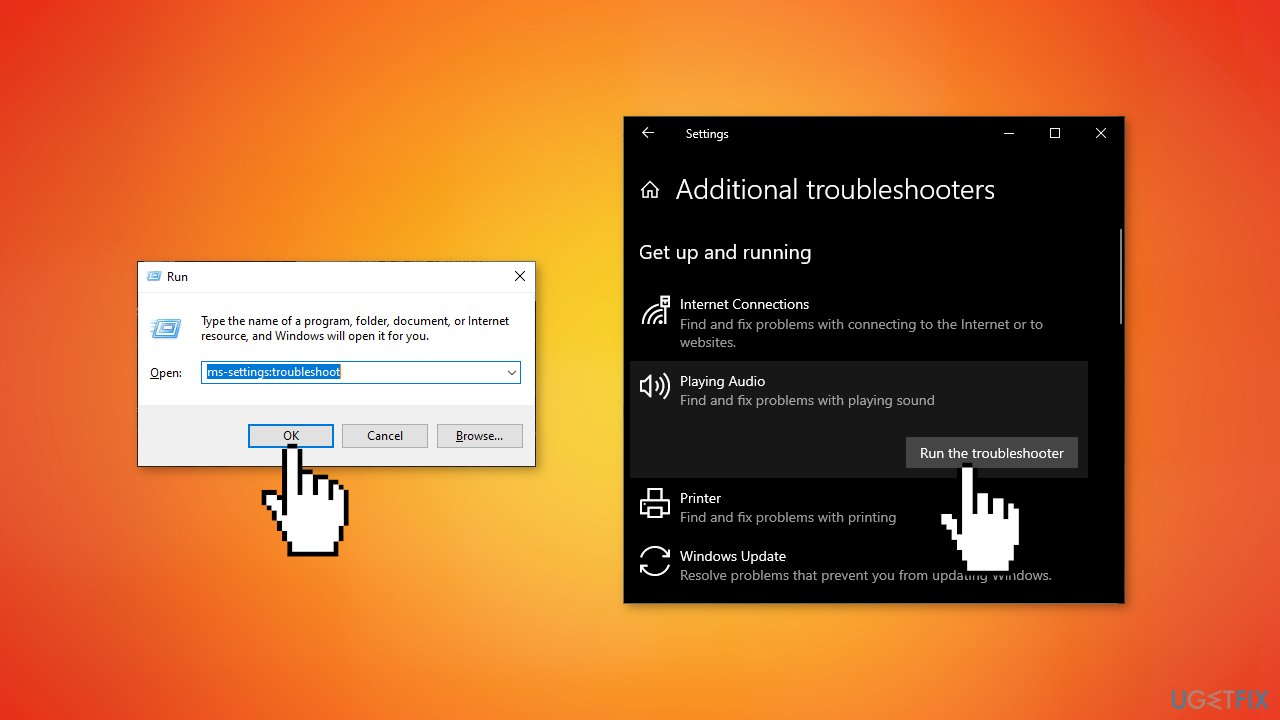
- If a problem is identified, click on Apply this fix and follow the remaining instructions if necessary
- Restart your computer
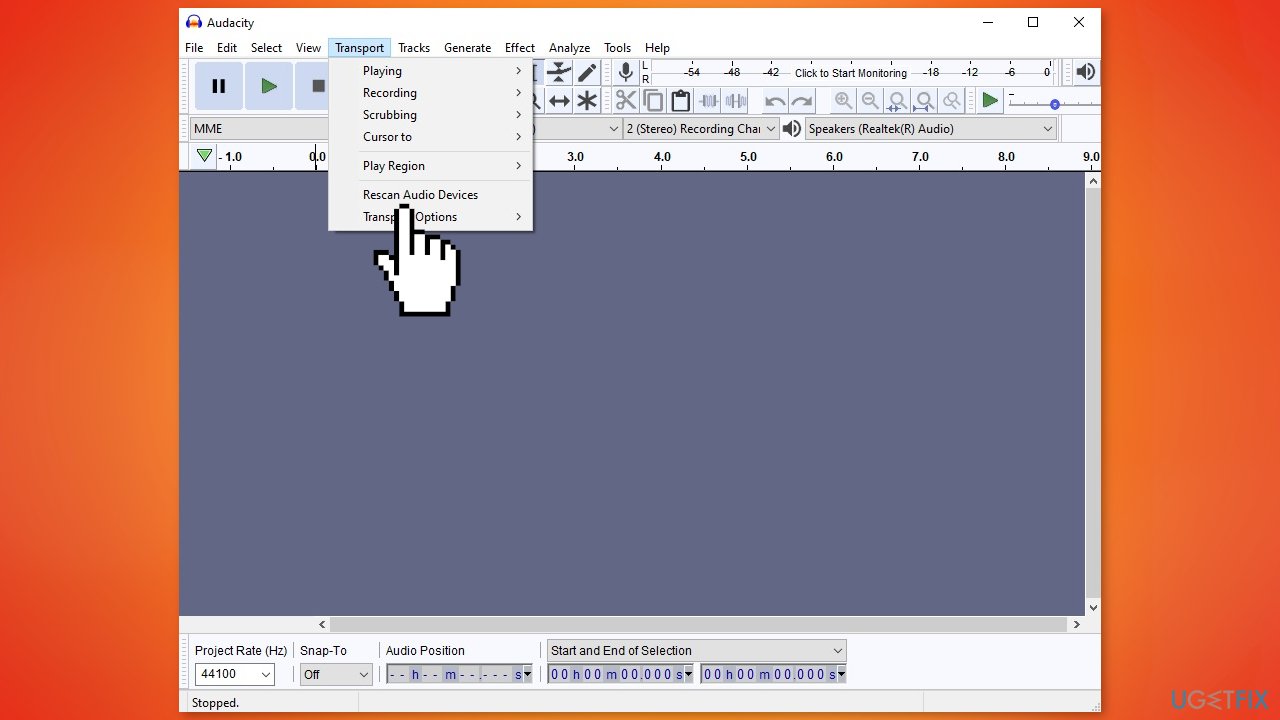
Solution 2. Rescan Audio Devices
- If you are able, open Audacity
- Click on Transport
- Press on Rescan Audio Devices
- Restart Audacity
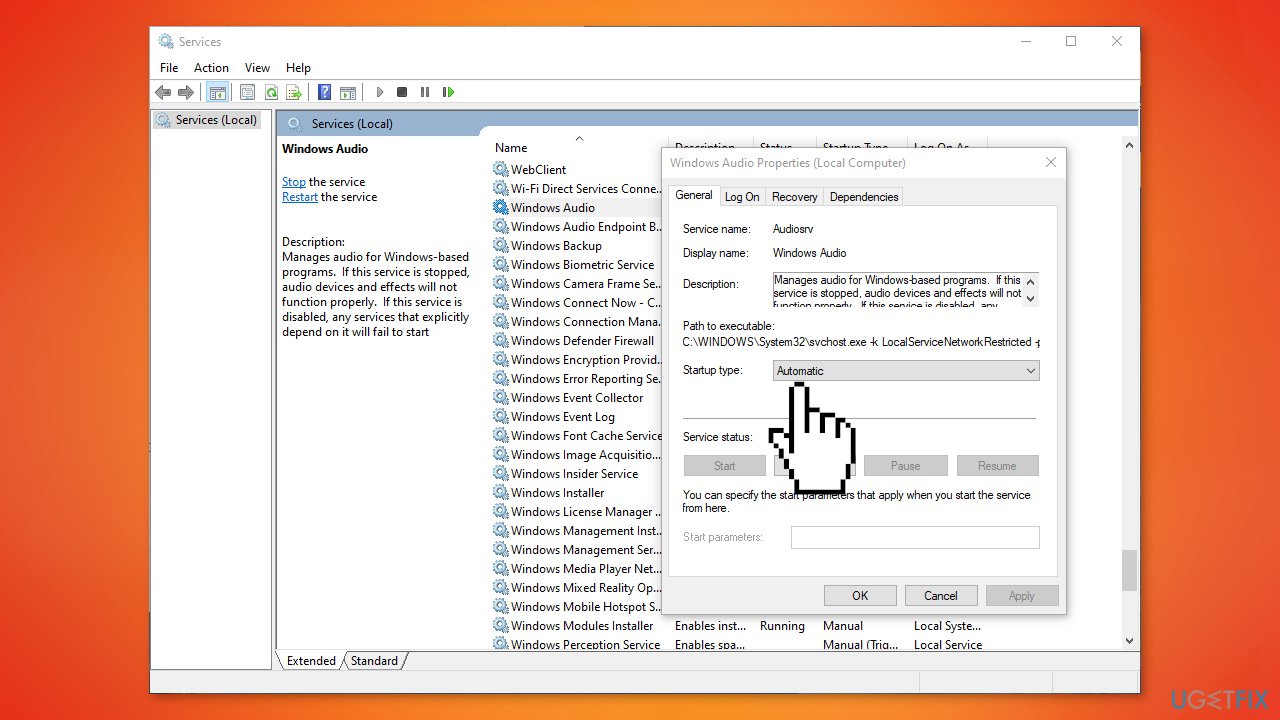
Solution 3. Enable Windows Audio Services
- Press Windows + R keys to open the Run box.
- Type services.msc and press Enter
- Scroll down and locate Windows Audio
- Right-click on it and choose Properties
- Click on the General tab, then change the drop-down menu associated with Startup Type to Automatic before clicking on Apply to save the changes
- Repeat the steps with the Windows Audio Endpoint Builder service
- Restart your computer
Solution 4. Enable Playback and Recording Devices
- Press Windows + R keys to open up a Run dialog box
- Type mmsys.cpl inside the text box and press Enter
- Click on the Playback tab and right-click on every device that is disabled and choose Enable
- Click on the Recording tab and look for any disabled device inside the list below. If you find any, right-click on the disabled device and choose Enable
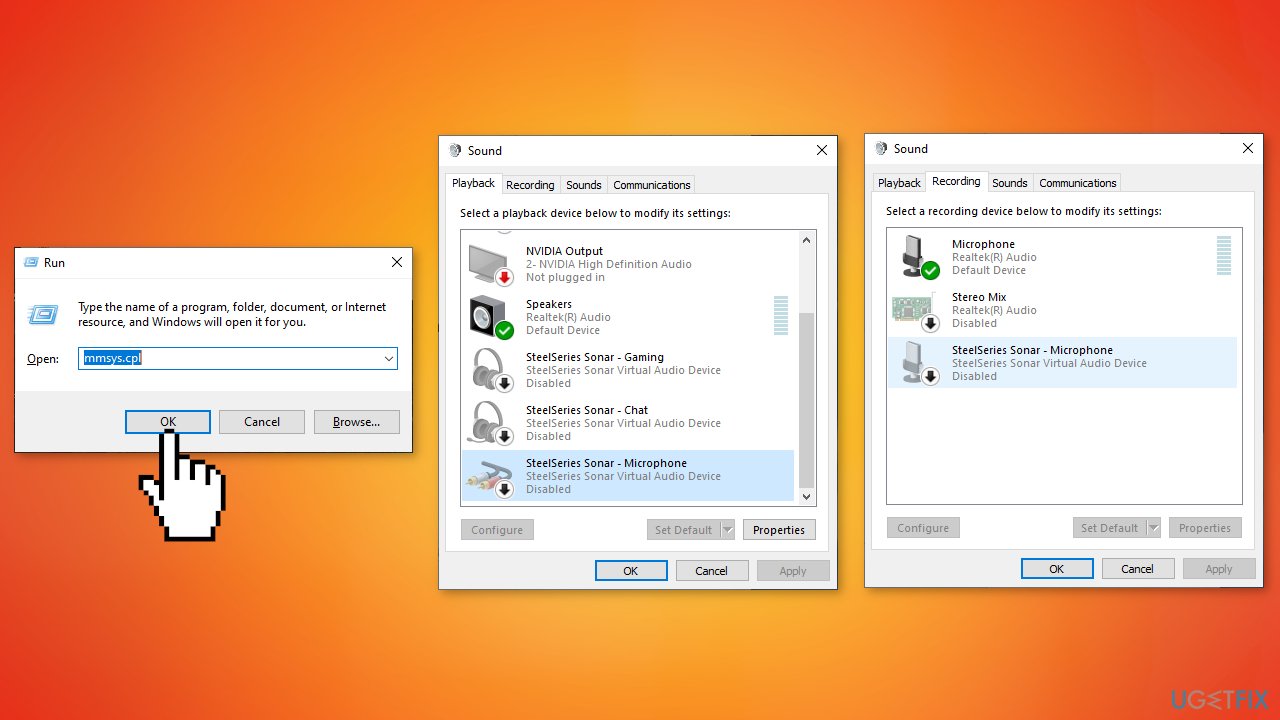
- Click on Apply to save the changes, then reboot your computer
Solution 5. Reinstall Windows Drivers
Downloading drivers via the Windows update feature can help you avoid driver conflicts. However, it usually takes time before the manufacturers cooperate with Microsoft and implement the newest drivers there. If you would like to automatically receive the latest drivers as quickly as possible, you should employ an automatic driver updater such as [rev id= "DriverFix"].
Audio drivers:
- Press Windows + R keys to open up a Run dialog box
- Type devmgmt.msc and press Enter to open Device Manager
- Expand the Sound, video and game controllers drop-down menu
- Right-click on every Audio device driver listed inside and choose Uninstall
- Expand the Universal Serial Bus controller and uninstall every host controller that you see
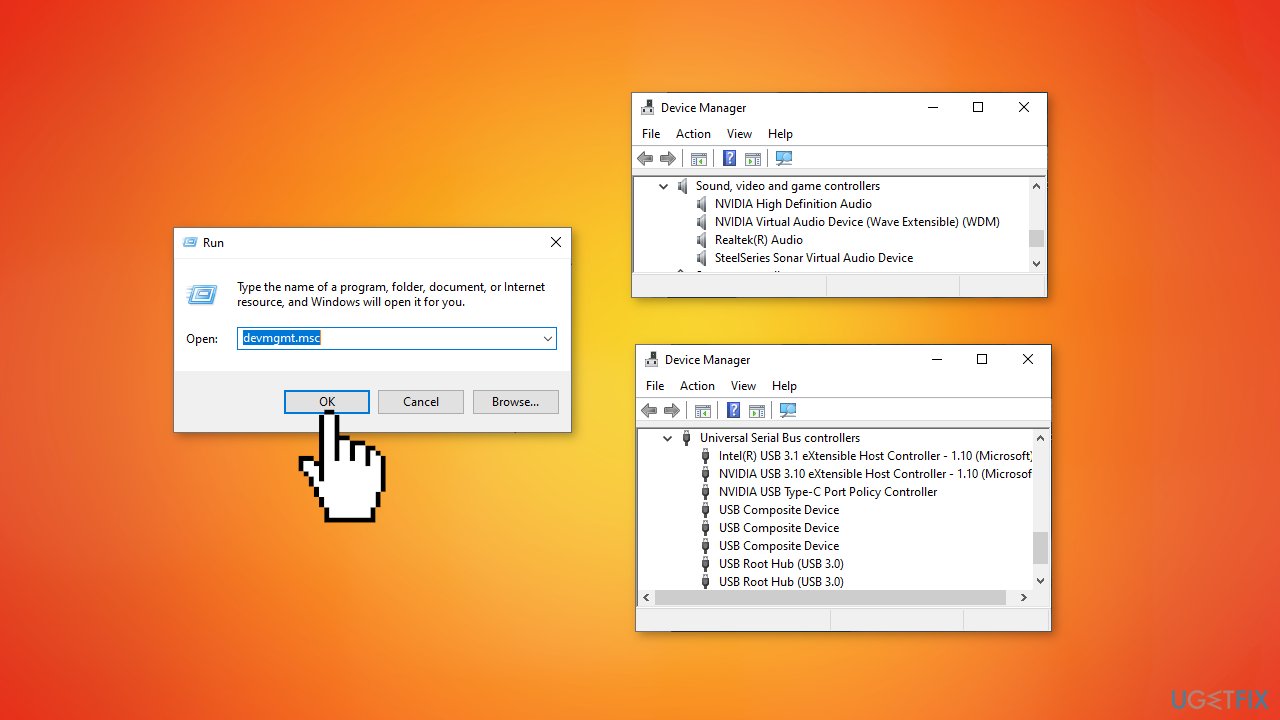
- Reboot your computer
Realtek Audio driver:
- Open up a Run dialog box by pressing Windows + R keys
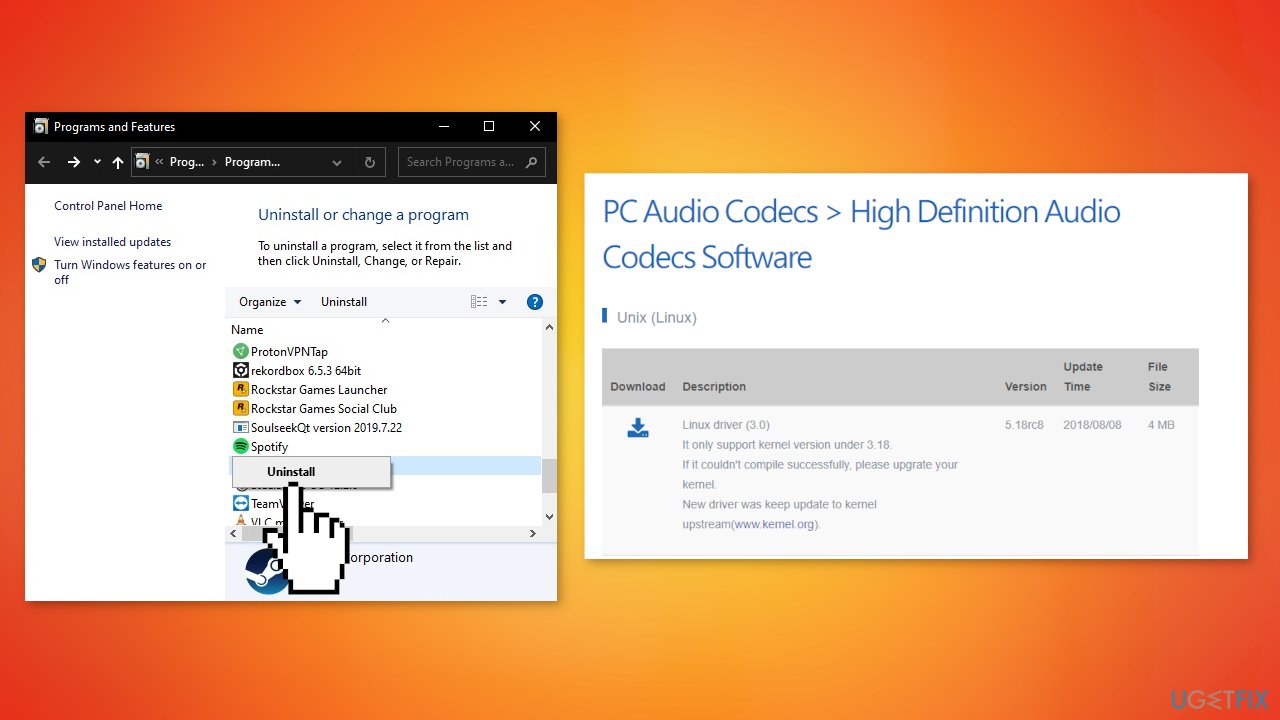
- Type appwiz.cpl and press Enter to open Programs and Features
- Locate the Realtek HD Manager
- Right-click on it and choose Uninstall from the context menu, then follow the on-screen prompts
- Restart your computer
- Download the latest version of Realtek Audio driver
DroidCam Virtual Audio driver:
- Open up a Run dialog box by pressing Windows + R keys
- Type appwiz.cpl and press Enter to open Programs and Features
- Locate Droidcam Virtual Audio
- Right-click on it and choose Uninstall from the context menu, then follow the on-screen prompts
- Restart your computer
Solution 6. Reinstall the Audacity Suite
- Open up a Run dialog box by pressing Windows + R keys
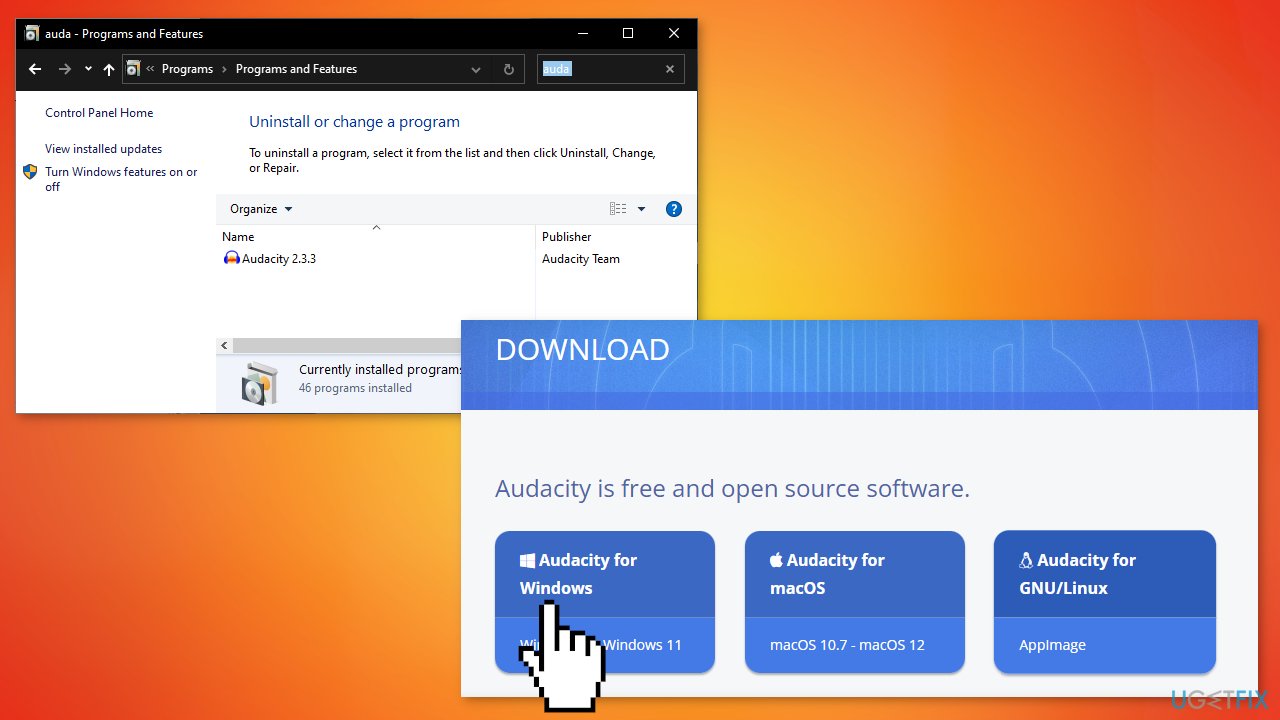
- Type appwiz.cpl and press Enter to open Programs and Features
- Locate Audacity
- Right-click on it and choose Uninstall from the context menu
- Restart your computer
- Download the latest Audacity version available
Bottom line
To fix the Audacity Internal PortAudio error, you can run the Audio Troubleshooter and rescan audio devices. If these solutions do not resolve the issue, consider using an automatic repair tool or further troubleshooting methods.
Frequently asked questions
The Audacity Internal PortAudio error is often caused by incompatible audio drivers or incorrect audio settings in Windows 10 or Windows 11. Ensuring your audio drivers are updated and configured correctly can help resolve this issue.
To update audio drivers in Windows 10 or Windows 11, go to Device Manager, expand the 'Sound, video and game controllers' section, right-click your audio device, and select 'Update driver.' Follow the prompts to search for and install the latest drivers.
Check the sound settings in Windows 10 or Windows 11 by right-clicking the sound icon in the taskbar, selecting 'Sounds,' and ensuring the correct playback and recording devices are set as default. Also, adjust the sample rate and bit depth in the device properties to match Audacity's settings.




Report an issue
What's wrong with this guide? We review every report and update or remove content.
Report received — thank you. We'll review and fix it.
You need a free account to submit a report.
Be the first to comment