How to fix
Audio error 0xc00d4e86
on Windows
Resolve audio error 0xc00d4e86 on Windows 10 or 11 with ease. Get expert-tested solutions and enjoy seamless sound in minutes.

What causes How to fix audio error 0xc00d4e86 in Windows?
- Outdated audio drivers
- Corrupted audio drivers
- Conflicts between software applications
- Malware infections
- Faulty hardware
Repairs Windows system files, removes malware, and restores a clean OS state — without reinstalling.
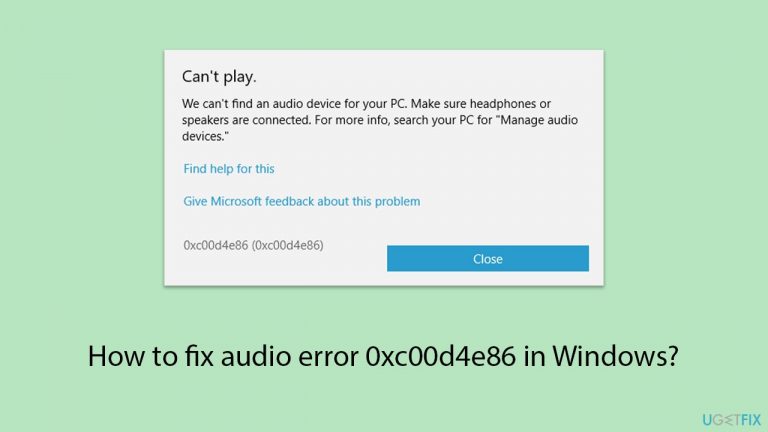
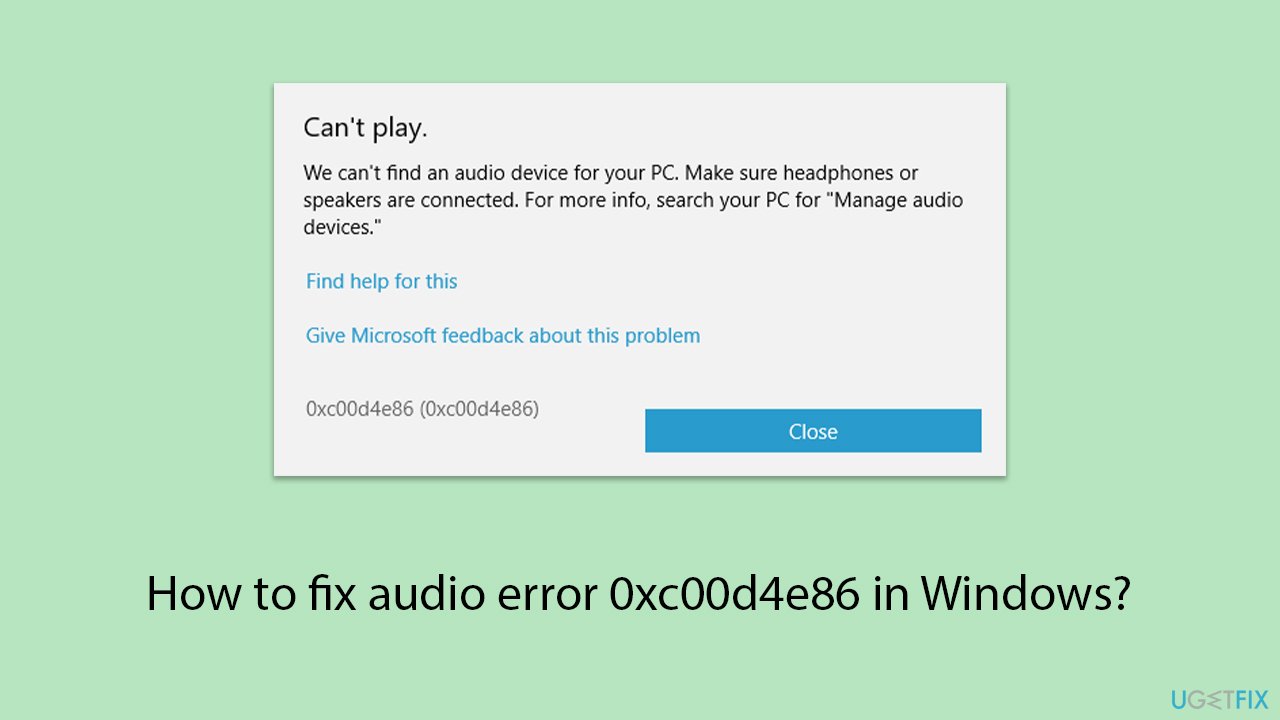
Hi. I have recently upgraded to Windows 11 and ever since then, I can't hear sounds once I plug in and plug out my headphones. I can hear the sound on the first plug-in, but as soon as I plug them out, sounds disappear on both my headphones and laptop. Here's the error I get: "Can't Play. We can't find an audio device for your PC. Make sure headphones or speakers are connected. For more info, search your PC for "Manage audio devices. 0xc00d4e86 "
Audio issues can significantly disrupt your computing experience, particularly when you rely on sound for communication, entertainment, or work. One such problem that Windows users may encounter is audio error 0xc00d4e86, which can prevent audio from functioning properly on your system.
The audio error 0xc00d4e86 is a specific issue that occurs within the Windows operating system - your audio stops working entirely, leading to an inability to play sound through speakers, headphones, or other audio output devices. It can affect all forms of audio, including system sounds, music playback, and video audio.
0xc00d4e86 error might be caused by numerous reasons, including outdated or corrupted audio drivers, conflicts between different software applications, malware infections, or even faulty hardware itself.
There are various possible fixes for the audio problem 0xc00d4e86. These could involve reinstalling or upgrading your audio drivers to make sure they are up to date and operating properly, scanning for and fixing software conflicts by removing or updating troublesome apps and performing a comprehensive virus scan to get rid of any dangerous software.
Furthermore, it is crucial to ensure that all physical audio connections are sturdy and hardware itself is not damaged. Many people find that using a specialized PC repair program like [d1] can be a very efficient approach to automatically resolve underlying Windows problems, possibly fixing the audio fault without any manual troubleshooting.
Fix 1. Run Audio troubleshooter
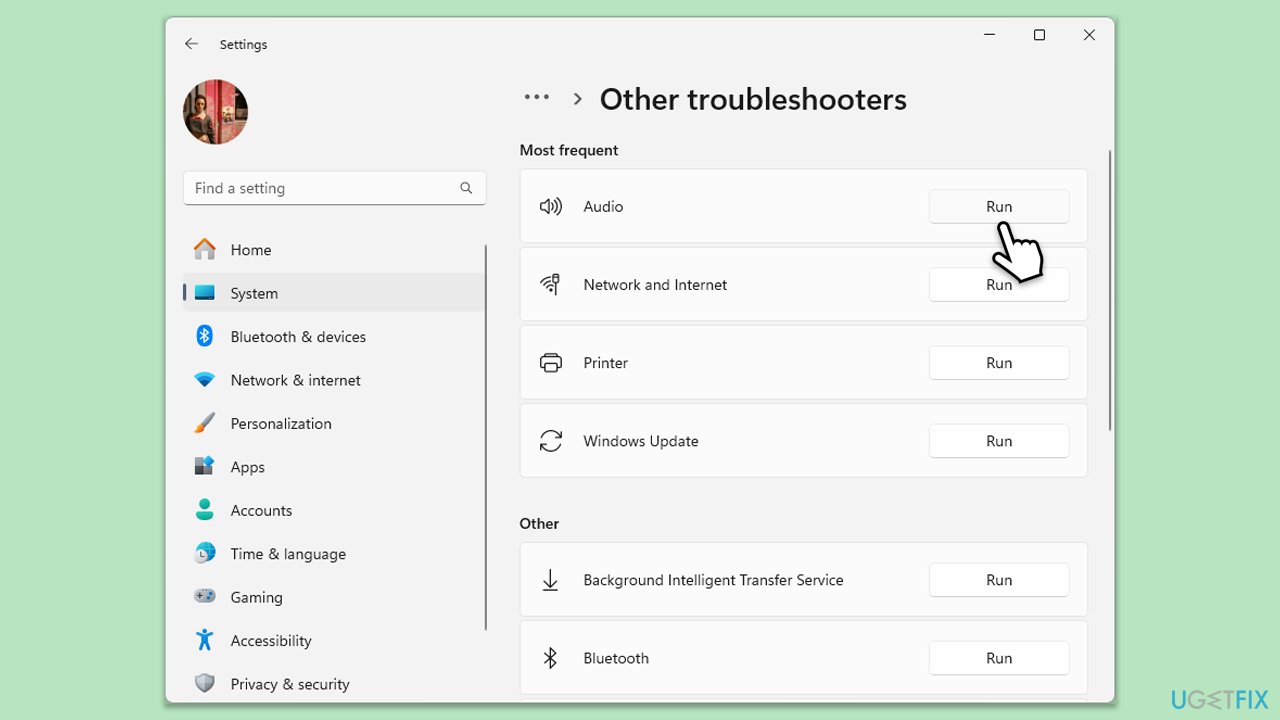
The audio troubleshooter can automatically detect and fix many audio problems by diagnosing and resolving common issues within the system.
- Type Troubleshoot in Windows search and press Enter.
- Select Other troubleshooters/Additional troubleshooters.
- Choose Playing Audio and click on Run/Run the troubleshooter.
- Follow the on-screen prompts to allow the troubleshooter to diagnose and resolve any problems.
Fix 2. Check Sound properties settings
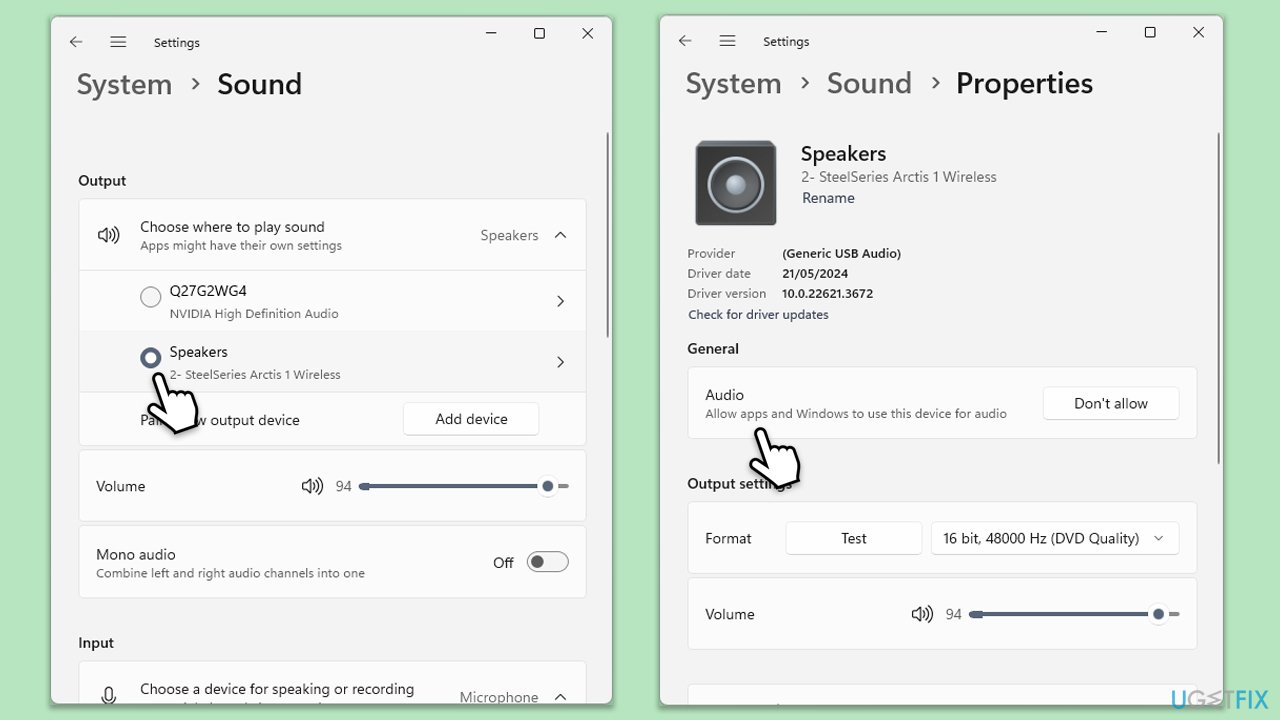
Incorrect sound settings can prevent audio from working properly. Adjusting these settings can resolve conflicts and ensure the proper audio output device is selected.
- Right-click on the sound icon in the taskbar.
- Select Open Sound settings/Sound settings.
- Ensure the correct output device is chosen under Output.
- Click on the device to access additional settings.
- Ensure that Allow apps and Windows to use this device for audio is set to Allow.
- Ensure the volume is loud enough that you can hear sounds.
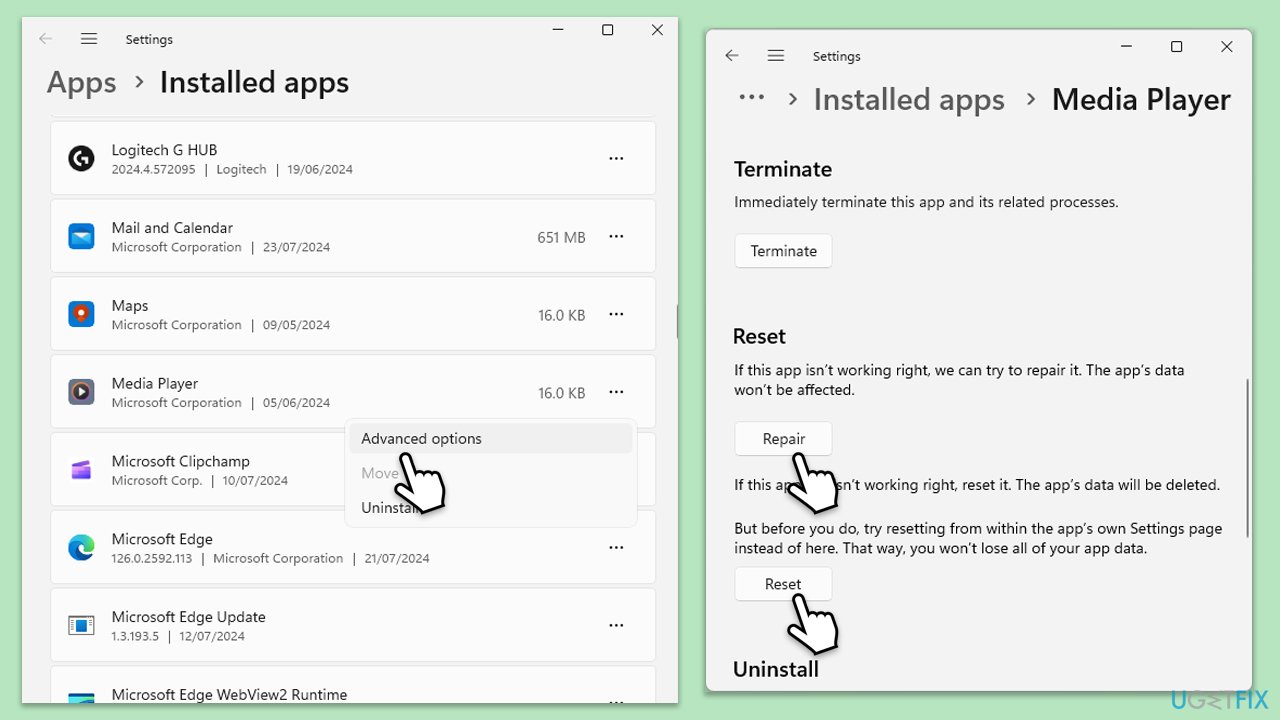
Fix 3. Repair or reset Media Player app on Windows
Corrupted files within the Media Player app can cause audio issues. Repairing or resetting the app can resolve these issues by restoring the app to its default state.
- Right-click on Start and pick Installed apps.
- Locate and click on the Media Player app.
- Click on three dots and select Advanced options.
- Choose the Repair option first.
- If the problem persists, select Reset.
Fix 4. Disable audio enhancements
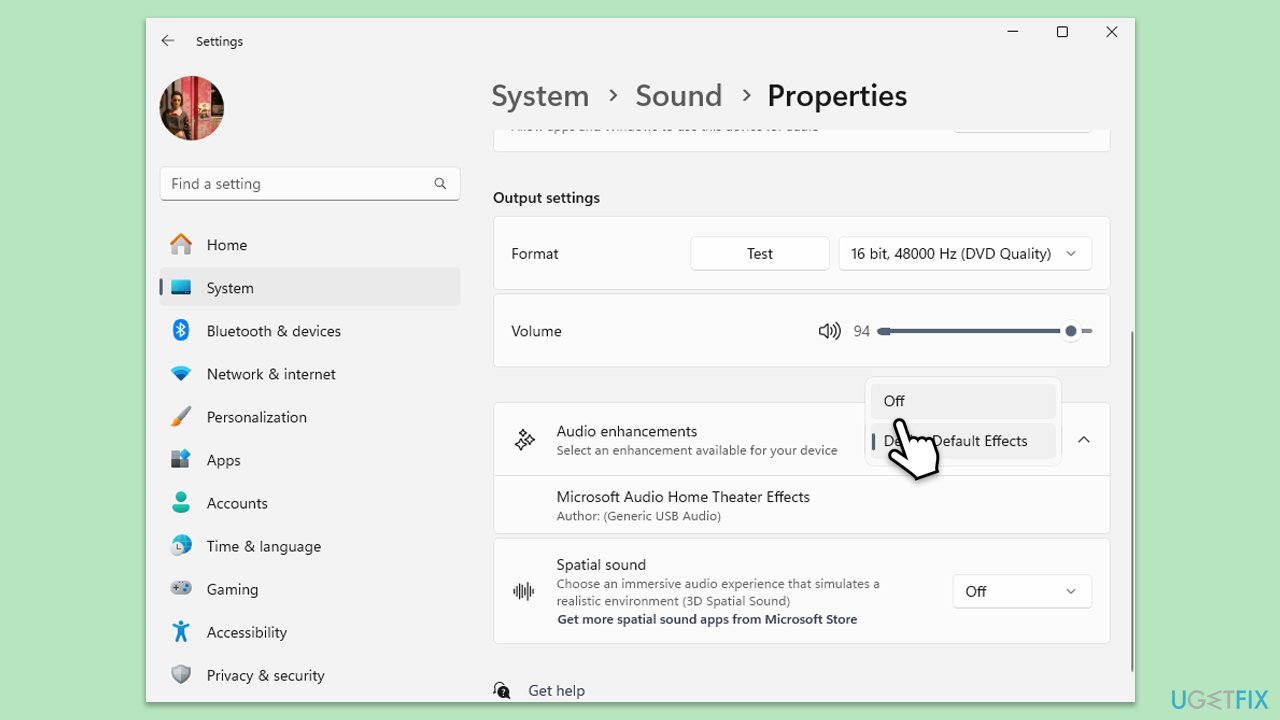
Audio enhancements can sometimes interfere with sound quality and cause errors. Disabling these enhancements can resolve issues by preventing software conflicts.
Windows 11
- Right-click on the speaker icon on your taskbar and pick Sound settings.
- Select the device you are using, for example, headphones.
- Under Output settings, locate the Audio enhancements section.
- Click on the drop-down menu and pick Off.
Windows 10
- Right-click on the speaker icon on your taskbar and select Sounds.
- Go to the Playback tab.
- Right-click your default playback device (like Speakers) and choose Properties.
- Navigate to the Enhancements tab.
- Check Disable all enhancements or Disable all sound effects.
- Click Apply, then OK.
Fix 5. Update audio drivers
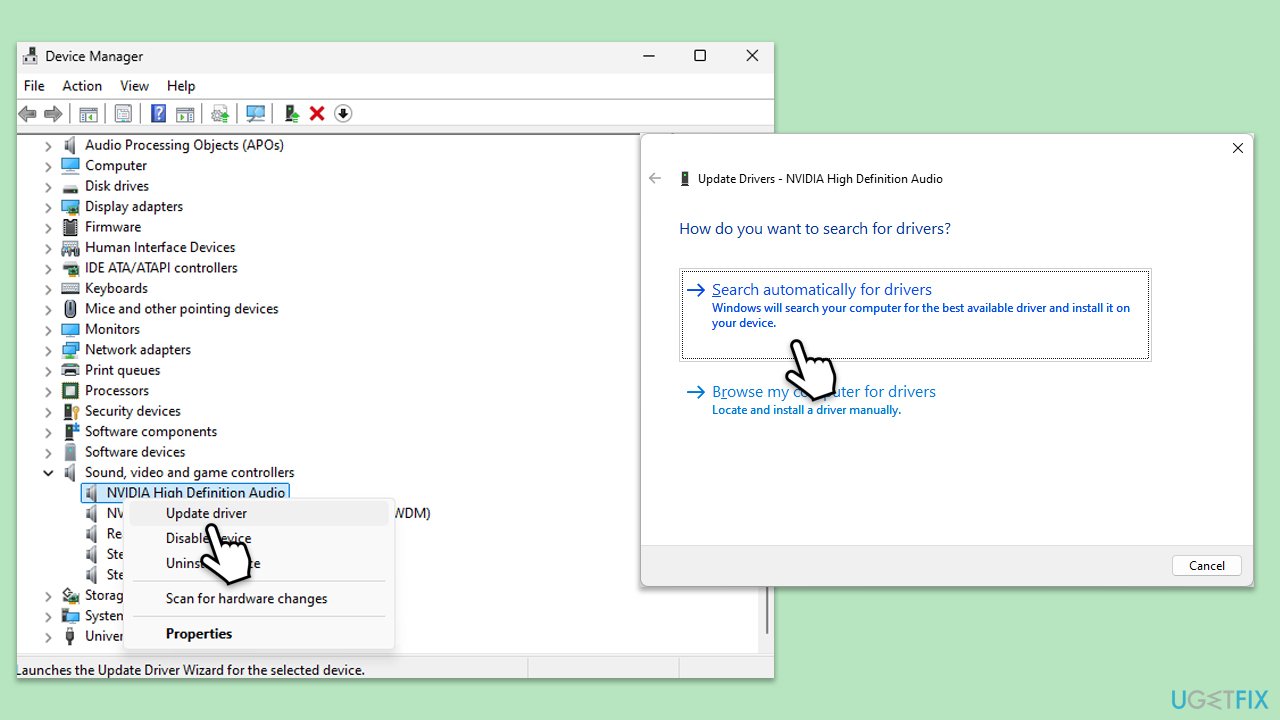
Outdated audio drivers can cause compatibility issues and errors. Updating the drivers ensures that your system has the latest fixes and improvements from the manufacturer.
- Open Device Manager.
- Expand the Sound, video, and game controllers section.
- Right-click your audio device and select Update driver.
- Choose Search automatically for drivers.
- Follow the on-screen instructions to complete the update.
- Restart your computer after the update is installed.
Fix 6. Reinstall audio drivers
Reinstalling audio drivers can resolve issues caused by corrupted or improperly installed drivers. This process removes the current driver and reinstalls a fresh version.
- Open Device Manager from the Start menu.
- Expand the Sound, video, and game controllers section.
- Right-click on your audio device and select Uninstall device.
- Confirm the uninstallation.
- Restart your device.
- Windows will automatically reinstall the network adapter upon reboot. If it doesn't, download the driver manually or use automatic tools such as [rev id="DriverFix"].
Bottom line
To fix audio error 0xc00d4e86, you can run the audio troubleshooter, reinstall or upgrade your audio drivers, and perform a virus scan. Additionally, ensure all physical audio connections are secure and check for hardware damage. If none of these solutions work, consider using a specialized PC repair program.
Frequently asked questions
Audio error 0xc00d4e86 typically occurs due to incompatible audio formats, corrupted audio drivers, or issues with the Windows Media Player. It can also arise from missing codecs necessary for audio playback.
To update your audio drivers, go to Device Manager, expand the 'Sound, video and game controllers' section, right-click on your audio device, and select 'Update driver.' Follow the prompts to search automatically for updated driver software.
Yes, you can repair Windows Media Player by going to Control Panel, selecting 'Programs and Features,' clicking on 'Turn Windows features on or off,' and then unchecking and rechecking Windows Media Player. Restart your PC after making these changes.




Report an issue
What's wrong with this guide? We review every report and update or remove content.
Report received — thank you. We'll review and fix it.
You need a free account to submit a report.
Be the first to comment