How to fix
Audio not working when webcam is connected
on Windows
Resolve audio issues when your webcam is connected in Windows 10 or Windows 11 effortlessly. Expert-tested solutions with screenshots for quick fixes.

What causes How to fix audio not working when webcam is connected in Windows?
- Conflict between audio drivers and webcam drivers
- Windows automatically switches default playback or recording device to the webcam
- Webcam has a built-in microphone causing audio disruption
- Software applications interfering with audio settings
Repairs Windows system files, removes malware, and restores a clean OS state — without reinstalling.
Hi. Every time I plug in my webcam, all the audio is disabled on Windows. As a result, I can't use my webcam along with a properly working PC. Please help me to resolve this problem.
A webcam is an essential peripheral for many Windows PC users. With the rise of remote work, virtual meetings, and social interaction via digital platforms, webcams have become integral in facilitating face-to-face communication without the need for physical presence. These devices enable video conferencing, live streaming, and video recording, making them indispensable for professionals, educators, students, and general users alike.
However, a recurring issue some encounter is the unexpected interruption of audio once the webcam is connected to a Windows PC. This disruption can be both perplexing and inconvenient, especially during crucial meetings or recordings where both video and audio are essential.
Several reasons might account for this phenomenon. The most common cause is a conflict between the audio drivers and the webcam drivers. When two devices compete for control over the audio system, it can lead to malfunctions. Another possible reason is that Windows might automatically switch the default playback or recording device to the webcam once it's connected, particularly if the webcam has a built-in microphone. Additionally, some software applications, especially those related to audio and video recording, might interfere with the audio settings once a webcam is detected.
If your webcam makes audio disappear as soon as you connect it, it's advisable to first check the default audio settings to ensure the right playback and recording devices are selected. Furthermore, ensure that the latest drivers for both the audio system and the webcam are installed. In some instances, disabling and re-enabling the audio device from the device manager can rectify the problem.
Lastly, for a comprehensive solution and to address potential underlying issues, consider using the [d1] PC repair tool, which can diagnose and rectify common PC-related problems effectively.
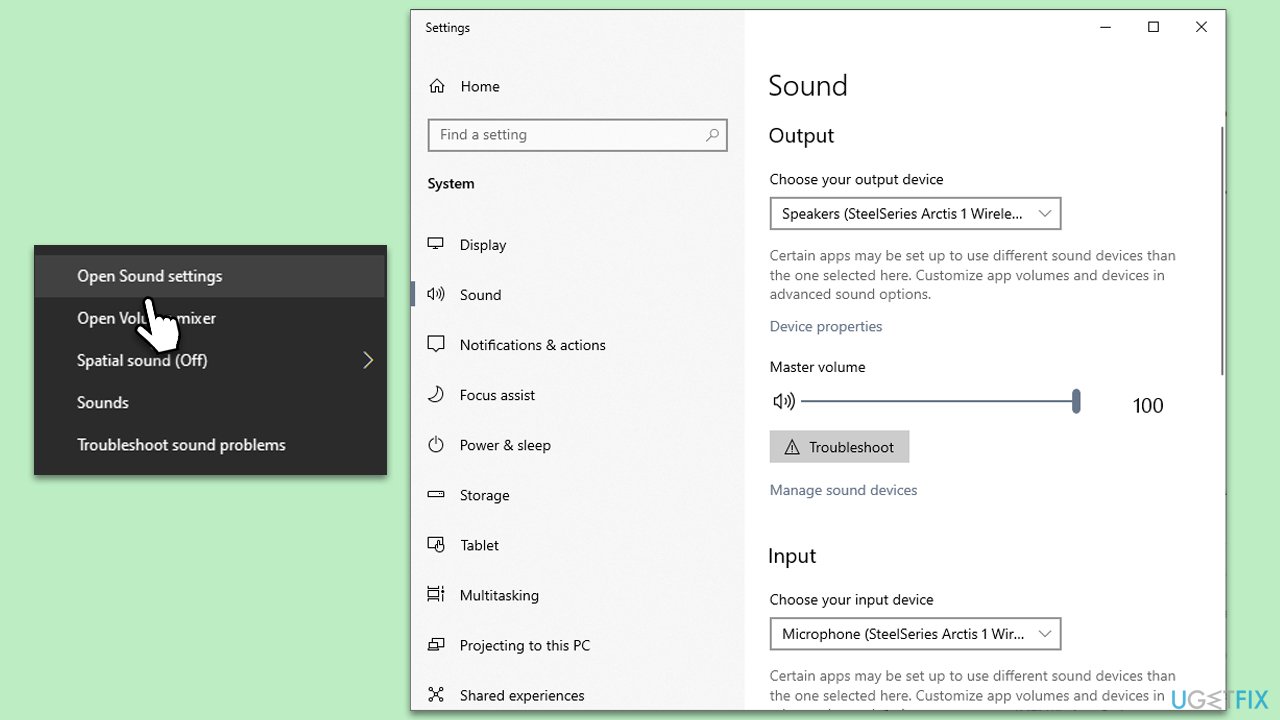
Fix 1. Check default audio settings
Windows may sometimes automatically switch the default audio device when new hardware, like a webcam, is connected. Ensuring the correct device is set as default can resolve unexpected audio issues.
- Navigate to the bottom-right corner of your screen to find the speaker icon on the taskbar.
- Right-click on this icon and select Open Sound settings from the contextual menu.
- In the Sound settings window, locate the Output section. Here, you'll find a dropdown list. Make sure to select the desired playback device from this list.
- Similarly, in the Input section, select the microphone you intend to use.
- Once you've made the changes, click on Apply or OK at the bottom to save and confirm.
Fix 2. Update device drivers
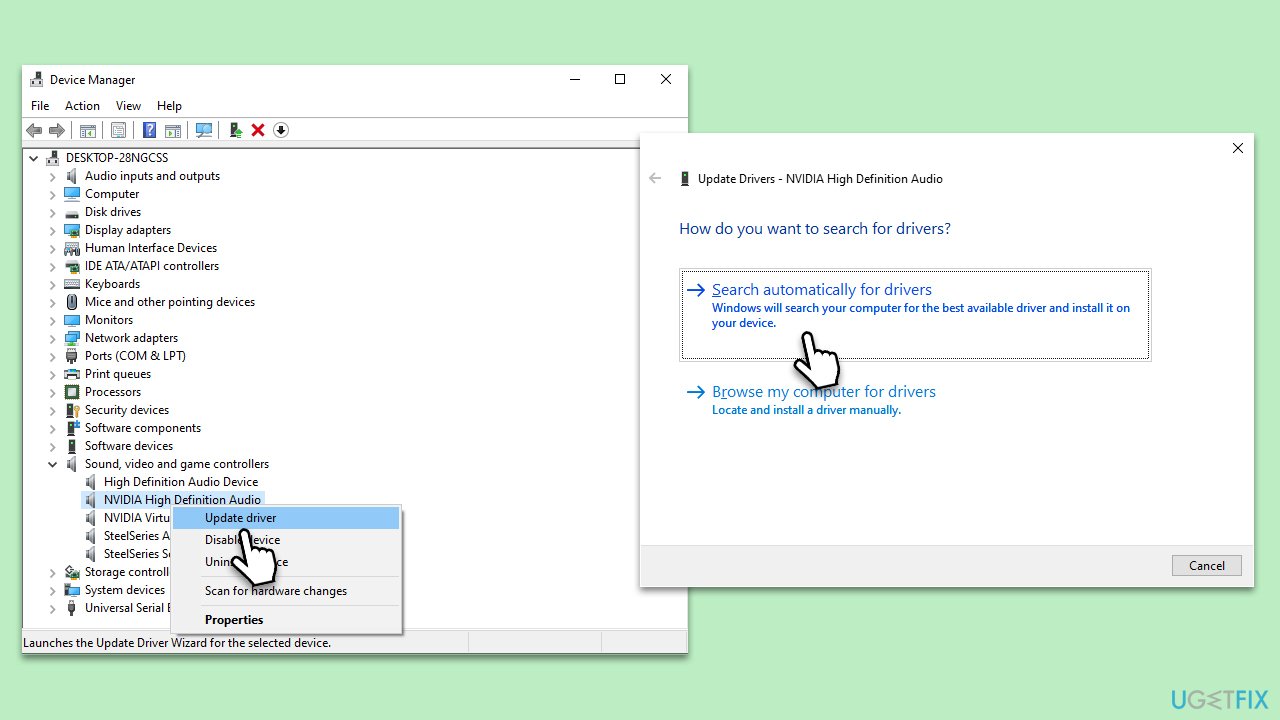
Audio disruptions can sometimes be the result of outdated or incompatible drivers. Keeping drivers updated ensures devices communicate effectively with the operating system.
- Press Win + X keys on your keyboard and select Device Manager.
- Inside the Device Manager, find and expand the Audio inputs and outputs section.
- Right-click on the listed audio device, then select Update driver from the dropdown.
- A window will pop up, guiding you through the driver update process. Follow the instructions provided.
Alternatively, you can download drivers automatically with dedicated software, such as [rev id="DriverFix"].
Fix 3. Re-enable audio device
Temporarily disabling and then re-enabling the audio device can serve as a system refresh, potentially clearing any minor conflicts or glitches.
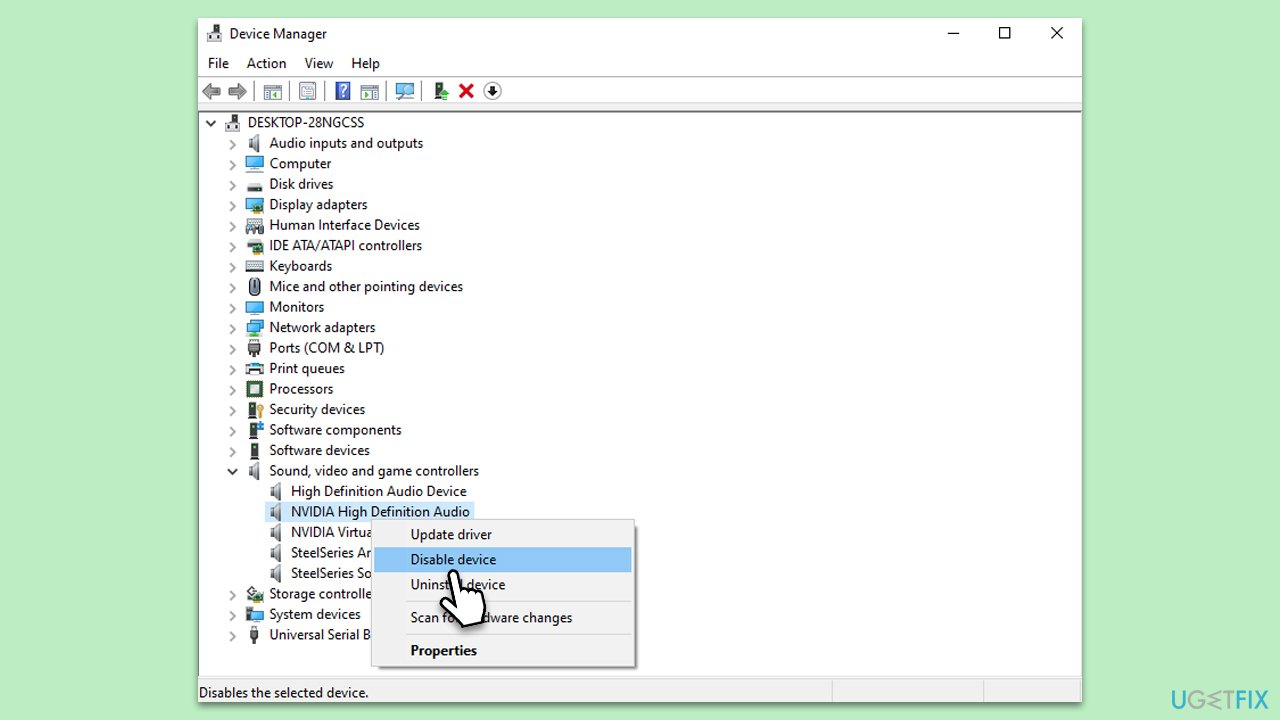
- Access the Device Manager as detailed in Fix 2.
- Right-click on the audio device listed under Audio inputs and outputs.
- From the dropdown, select Disable device.
- Wait approximately 10 seconds for the system to process this action.
- Now, right-click the same device and choose Enable device.
Fix 4. Disable audio enhancements
Audio enhancements, while intended to boost sound quality, can sometimes cause conflicts with other software or hardware, leading to disruptions.
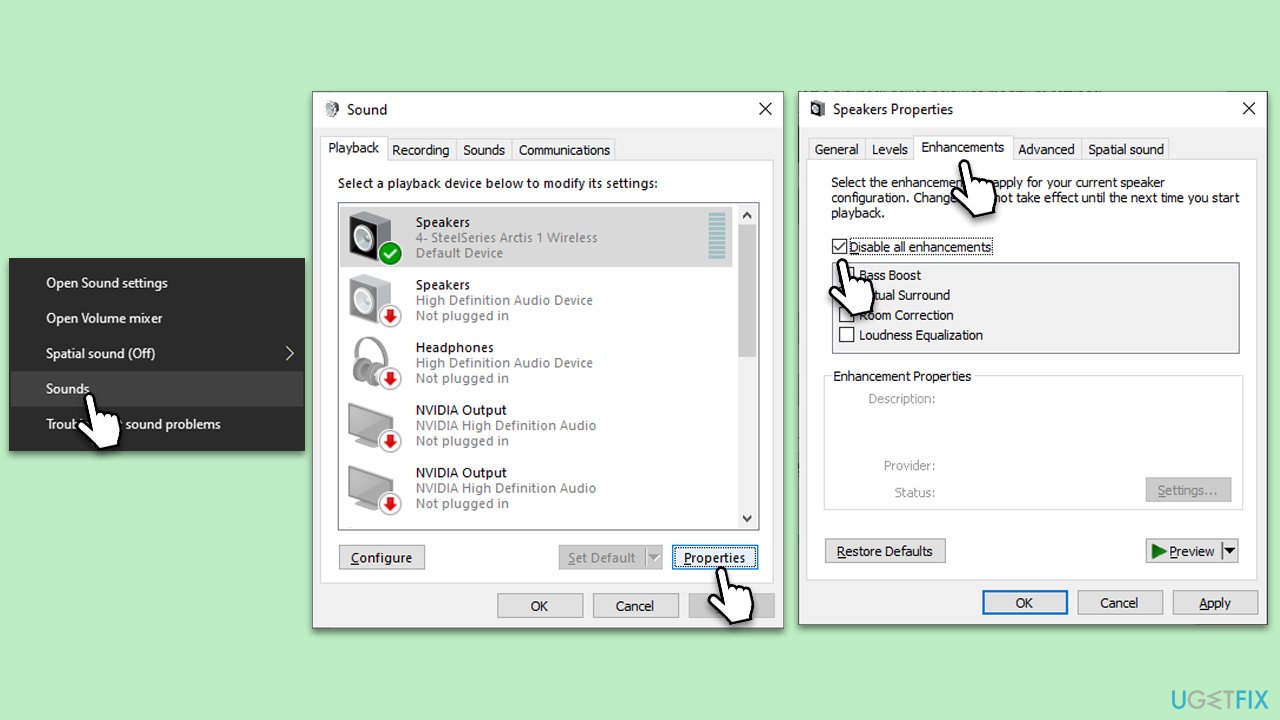
- Right-click on the speaker icon on your taskbar and select Sounds.
- Go to the Playback tab.
- Right-click your default playback device (like Speakers) and choose Properties.
- Navigate to the Enhancements tab.
- Check Disable all enhancements or Disable all sound effects.
- Click Apply, then OK.
Fix 5. Allow Windows Audio Service to interact with desktop
The Windows Audio Service is crucial for sound functionality on your PC. Occasionally, granting it permission to interact with the desktop can resolve audio issues.
- Press the Win + R to open the Run dialog box.
- Type
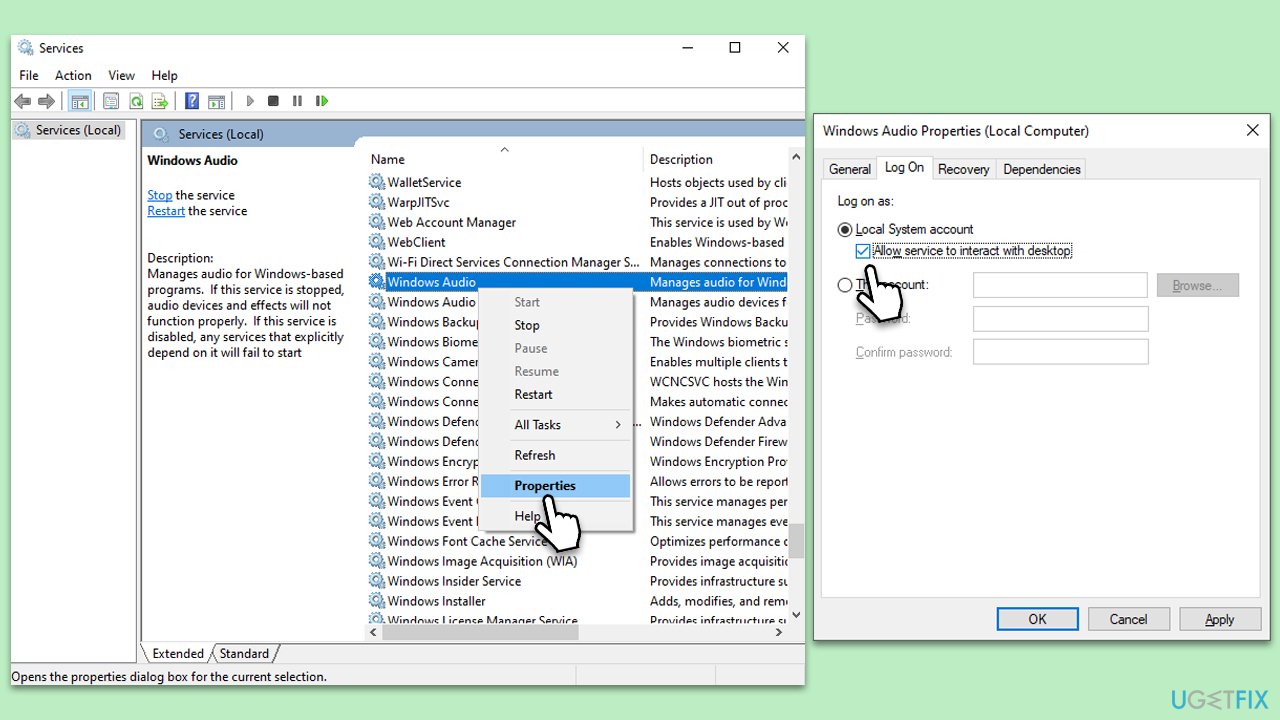
services.mscand press Enter. - In the services window, scroll down and locate the Windows Audio service.
- Right-click on Windows Audio and choose Properties.
- Navigate to the Log On tab.
- Check the box next to Allow service to interact with desktop.
- Click Apply, then OK.
- Restart the Windows Audio service by right-clicking on it and selecting Restart.
Fix 6. Use Windows troubleshooter
Windows has embedded troubleshooters designed to diagnose and potentially resolve various hardware and software issues.
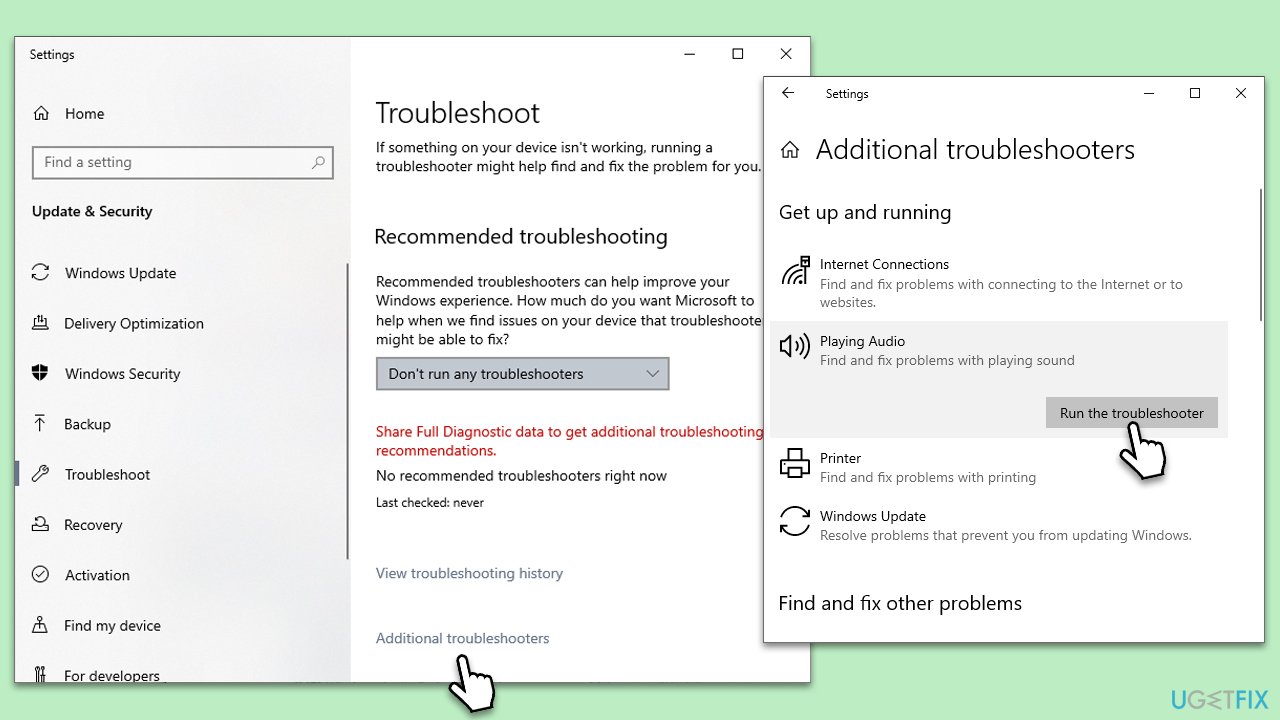
- Go to Settings on your computer, then select Update & Security.
- Click on Troubleshoot.
- Select Additional troubleshooters/Other troubleshooters.
- Choose Playing Audio and click on Run the troubleshooter.
- Follow the on-screen prompts to allow the troubleshooter to diagnose and resolve any problems.
Fix 7. Change USB port
USB ports can occasionally malfunction or not provide adequate power for connected devices. Trying a different port may alleviate the issue.
- Carefully remove the webcam's USB connector from its current port.
- Pause for about 20 seconds to let the system recognize the disconnection.
- Insert the webcam's USB connector into another available USB port on your computer.
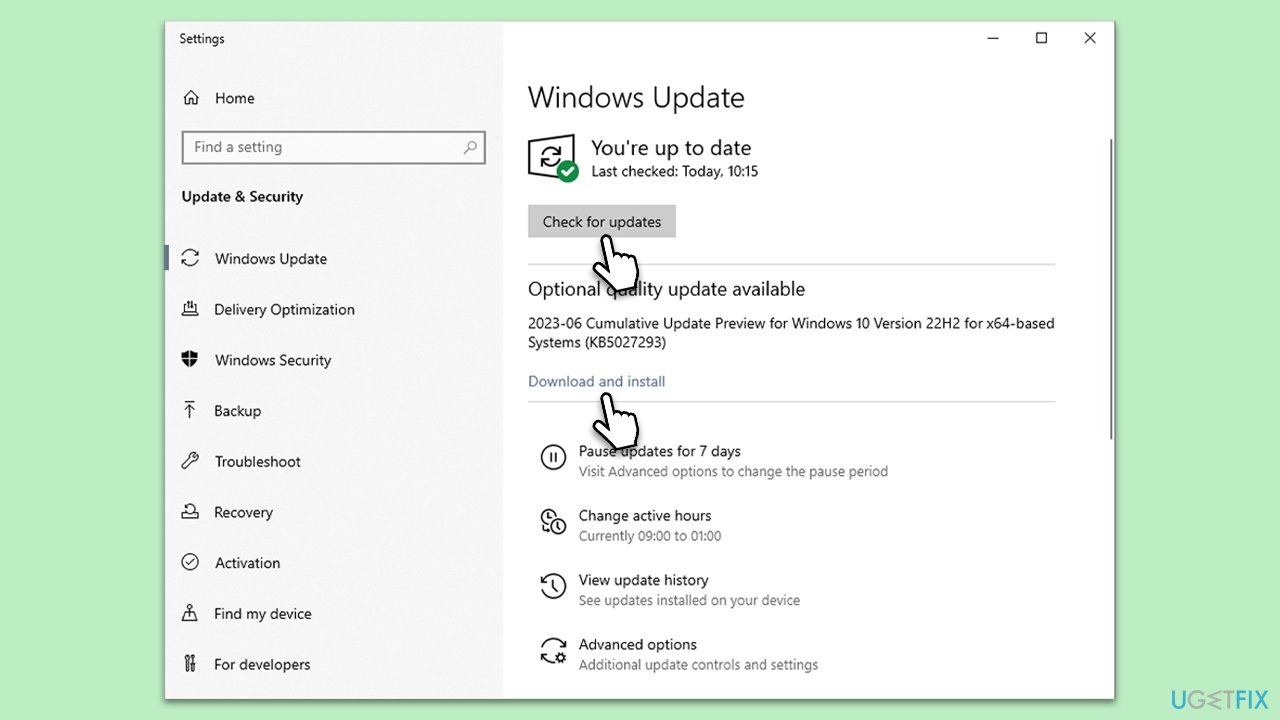
Fix 8. Check for Windows updates
Windows regularly releases updates, some of which address hardware compatibility or system glitches. Keeping your system updated might provide a fix.
- Type Updates in Windows search and press Enter.
- In the new window, click Check for updates.
- If optional updates are available, install them as well.
- Wait till all the files are downloaded and installed.
- Restart your device.
Bottom line
To resolve the audio issue when a webcam is connected, check the default audio settings, ensure the latest drivers for both the audio system and webcam are installed, and consider disabling and re-enabling the audio device in the device manager. If these solutions do not work, consider using a PC repair tool to diagnose and fix underlying problems.
Frequently asked questions
This issue may occur due to conflicting audio settings or drivers when the webcam is connected. Check your sound settings to ensure the correct playback device is selected.
You can troubleshoot by updating your audio drivers and checking the webcam's audio input settings in the device manager. Additionally, ensure that the webcam is not set as the default audio device unless intended.
First, verify that the webcam's microphone is enabled in the sound settings and that the volume levels are appropriately adjusted. If the problem persists, try reinstalling the webcam drivers.




Report an issue
What's wrong with this guide? We review every report and update or remove content.
Report received — thank you. We'll review and fix it.
You need a free account to submit a report.
Be the first to comment