How to fix
Audiodg.exe high CPU usage
on Windows
Resolve audiodg.exe high CPU usage in Windows 10 and 11 quickly. Follow our expert-tested tips for a smoother experience, fixed in minutes!

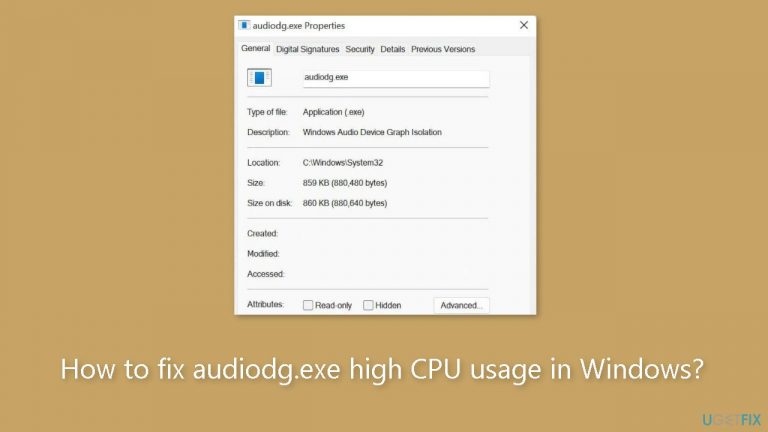
What causes How to fix audiodg.exe high CPU usage in Windows?
- High CPU usage by audiodg.exe
- Audio distortion and delay issues
- Conflicts with headset audio processing requirements
- Outdated audio drivers
- Audio settings with high quality
- Third-party audio software or enhancements
Repairs Windows system files, removes malware, and restores a clean OS state — without reinstalling.
Hello. I noticed that a file named audiodg.exe uses a lot of CPU power on my Windows PC. Please give any suggestions on how to fix this.
Users may find it difficult when Windows' audiodg.exe consumes a lot of their CPU[ref en-1] power and noticeably degrades their entire computer experience. Audio distortion and delay issues are only two of the issues that might arise when audiodg.exe uses a large amount of the CPU's resources.
One user claims that when audiodg.exe uses more than 10% of the CPU, the sound in his Logitech g930 headset turns static. This raises the possibility of a conflict between the system's capability to effectively handle those demands and the headset's audio processing requirements. This is a widespread problem that is not exclusive to Logitech headsets and can happen with a variety of audio equipment.
Users who rely on their computer's audio capabilities for activities like gaming, video conferencing, or media consumption should be aware of the ramifications of this problem. Communication breakdowns, poor gaming quality, and ruined music and movie experiences can all be caused by distorted audio.
User options to solve this issue are often limited. Updates to audio drivers may provide fixes for performance problems, so they should attempt that first. It may also be possible to reduce CPU load by adjusting the audio settings, such as lowering the audio quality. Additionally, conflicts can be avoided by making sure Windows and other audio-related software are updated. In some circumstances, the problem can be fixed by removing audio improvements or third-party audio software.
However, it's important to note that the effectiveness of these solutions may vary depending on the specific hardware and software configurations of each user's system. In this guide, you will find 7 steps that should help you fix audiodg.exe high CPU usage in Windows. You can also run a repair tool like [d1] that can fix most system errors, BSODs,[ref en-2] corrupted files, and registry[ref en-3] issues.

Method 1. Fix Corrupted System Files
Use Command Prompt commands to repair system file corruption:
- Open Command Prompt as administrator
- Use the following command and press Enter:
sfc /scannow

- Reboot your system
- If SFC returned an error, then use the following command lines, pressing Enter after each:
DISM /Online /Cleanup-Image /CheckHealth
DISM /Online /Cleanup-Image /ScanHealth
DISM /Online /Cleanup-Image /RestoreHealth
Method 2. Install Windows Updates
- Click Start and select Settings.
- Go to the Windows Update section.
- Click Check for updates and wait.

- Go to the Advanced options and install optional updates.
- Reboot your system.
Method 3. Run the Audio Troubleshooter
- Go to Settings.
- Click System.
- Click Troubleshooter, then Additional troubleshooters.
- Look for Playing Audio and Run the troubleshooter.

Method 4. Disable Audio Enhancements
- Right-click the Speaker icon Image in the right-hand notification area on the taskbar.
- Select Playback Devices from the menu. A list of devices should appear on the screen.
- Double-click the device that has a green checkmark. The properties window for that device should open.
- Click the Enhancements tab at the top.
- From the list of enhancements, uncheck all of them, or click the Disable all enhancements checkbox.

- Click the OK button to save your changes and close the window.
- Click OK to close the Playback Devices window.
Method 5. Roll Back Driver
- Expand the Sound and Video Game Controllers.
- Look for the Audio driver that was installed.
- Right-click and Update.
- Look for Browse my computer for drivers.

- Click Let me pick available drivers.
- Choose an old driver and use it.
Method 6. Try Clean Boot
- Open the Search menu, type in system configuration, and press Enter.
- Under the Services tab, tick the Hide all Microsoft services box.
- Click on Disable all button.

- Head over to the Startup tab and click on Open Task Manager.
- Select a third-party program and click on Disable at the top.
- Repeat this step to disable all third-party apps and programs.
- Restart your PC to enter the clean boot state and see if the issue persists.
- If the issue disappeared in the clean boot state, then you can be certain that a third-party app is causing it.
- Go through all recently installed apps or programs and remove them one by one.
Method 7. Use System Restore
System Restore is a feature in Microsoft Windows that allows users to revert their computer's state to a previous point in time. This can be helpful if you have made changes to your system that are causing problems.
- Press the Windows key + R on your keyboard to open the Run box.
- Type SystemPropertiesProtection and press Enter.
- Go to the System Protection tab.

- You will see the System Restore… button. Click it to run System Restore.
- Follow the prompts until you can select a restore point.
- Select the one you want (ideally before the issue started occurring) and go ahead with the process.
Bottom line
To address high CPU usage by audiodg.exe, users should first update their audio drivers and consider lowering audio quality settings. Additionally, ensuring that Windows and audio-related software are up to date, and removing any audio enhancements may help. If these solutions do not resolve the issue, running a repair tool may be necessary.
Frequently asked questions
High CPU usage by audiodg.exe can be caused by audio enhancements or third-party audio drivers that conflict with system processes. Disabling enhancements or updating drivers may help resolve the issue.
To disable audio enhancements, right-click the speaker icon in the taskbar, select 'Sounds', go to the 'Playback' tab, choose your default device, click 'Properties', and under the 'Enhancements' tab, check 'Disable all enhancements'.
If the issue persists, consider running the Windows Troubleshooter for audio problems or resetting your audio settings to default. You can access these options through the 'Settings' app under 'System' > 'Sound'.




Report an issue
What's wrong with this guide? We review every report and update or remove content.
Report received — thank you. We'll review and fix it.
You need a free account to submit a report.
Be the first to comment