How to fix
Auto-Hide Taskbar not reappearing
on Windows
Resolve the Auto-Hide Taskbar issue in Windows 10 or 11 quickly and easily. Effective solutions provided by experts, with screenshots for clarity.

What causes How to fix Auto-Hide Taskbar not reappearing in Windows?
- Auto-hide preference settings are incorrect
- Background processes are interfering
- Third-party programs causing conflicts
- Recent OS upgrade issues
- Corrupted or altered system files
Repairs Windows system files, removes malware, and restores a clean OS state — without reinstalling.
Hello. The auto-hide taskbar is not appearing for me. I heed to minimize all windows or hit the Windows key on the keyboard. I don't think that this is the feature that should be like this, so I would like to fix this properly. Can you tell me about the options or solutions here?
Auto-Hide Taskbar not reappearing in Windows issue occurs on Windows 10 or Windows 11.[ref en-1] The feature is a way to add more space to the desktop, but the function sometimes fails, as the reports[ref en-2] from users show. It can be stubborn and refuse to hide or reappear when it is supposed to. Throughout the years users got accustomed to seeing the taskbar on the desktop, so it seems weird when there is none.
Many users experience these issues with the taskbar when some of the settings get changed. Taskbar settings include the auto-hide preference when the mouse cursor is on it. There are instances when only these preferences should be checked to see why the issue appears and annoys you.
There are particular troubleshooting for such issues like Auto-Hide Taskbar not reappearing in Windows. Restarting or ending background processes, and checking third-party programs that can cause some of the issues. These particular programs can cause issues with machines and functions too.
Often these applications are PUPs or malicious apps that leave particular files hidden.[ref en-3] Such virus leftovers or third-party programs that interfere with the system can cause file damage and lead to system crashes and failure of particular features. It is common for altered files to cause system problems.
You can solve that issue and avoid more serious problems with [d1] and similar tools. These applications can find leftovers of the particular programs and clear those. Also, applications detect system damage, and corrupted or altered files and clear them off of the machine for you.
These issues with files and features that fail can often occur after a recent OS upgrade or due to the not properly installed update. You might want to update or revert the upgrade if you recently did one to fix Auto-Hide Taskbar not reappearing in Windows. Other options are listed and do not take a lot of time.
1. Restart the File explorer
- Go to Task Manager > press CTRL+ ALT+ Delete - Task Manager.
- Switch to the Details tab at the top.
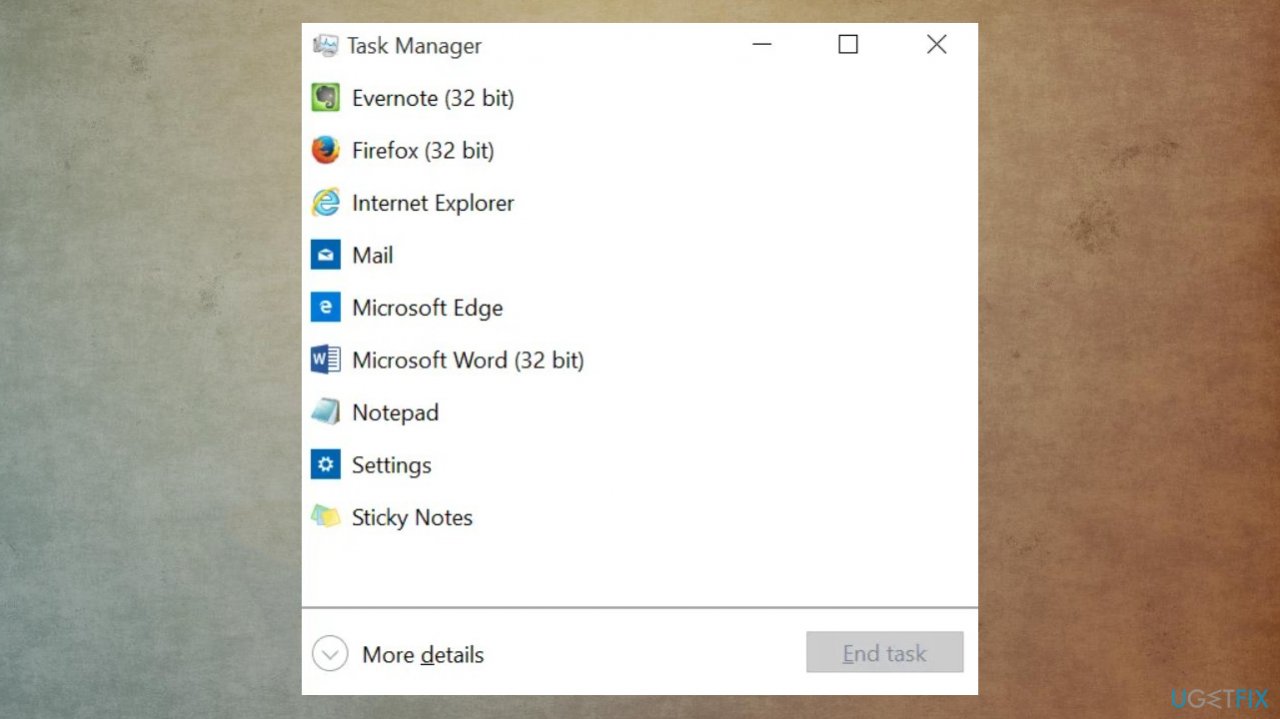
Auto hide taskbar not reappearing task manager - Now find the following running services and select them by clicking on them.
- Hit Delete on your keyboard and confirm your choice by selecting End Process.
- Then restart Windows Explorer.
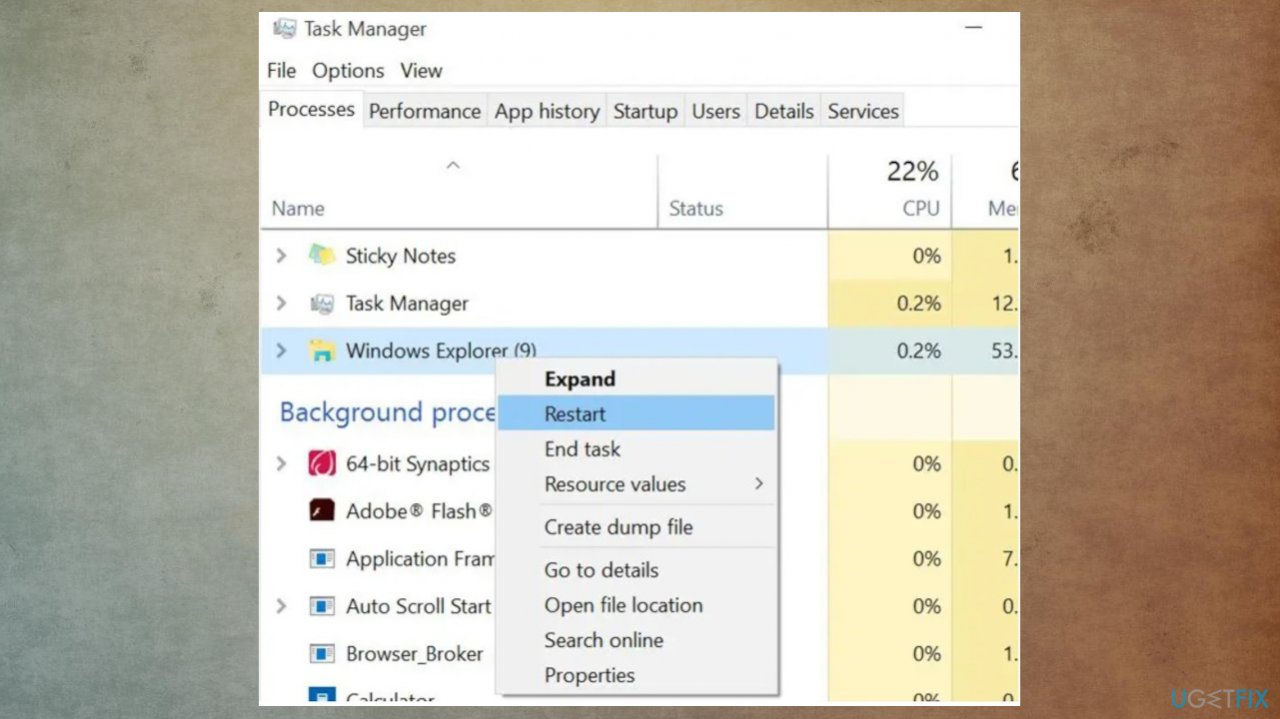
Auto hide taskbar not reappearing restart - Click on File in the top left corner and select Run new task.
- Type explorer.exe click on Ok.
- Once explorer is restarted, restart the PC.
2. Stop programs from residing in the tray
- Open the Settings app.
- Go to System.
- Then Notifications and actions page.
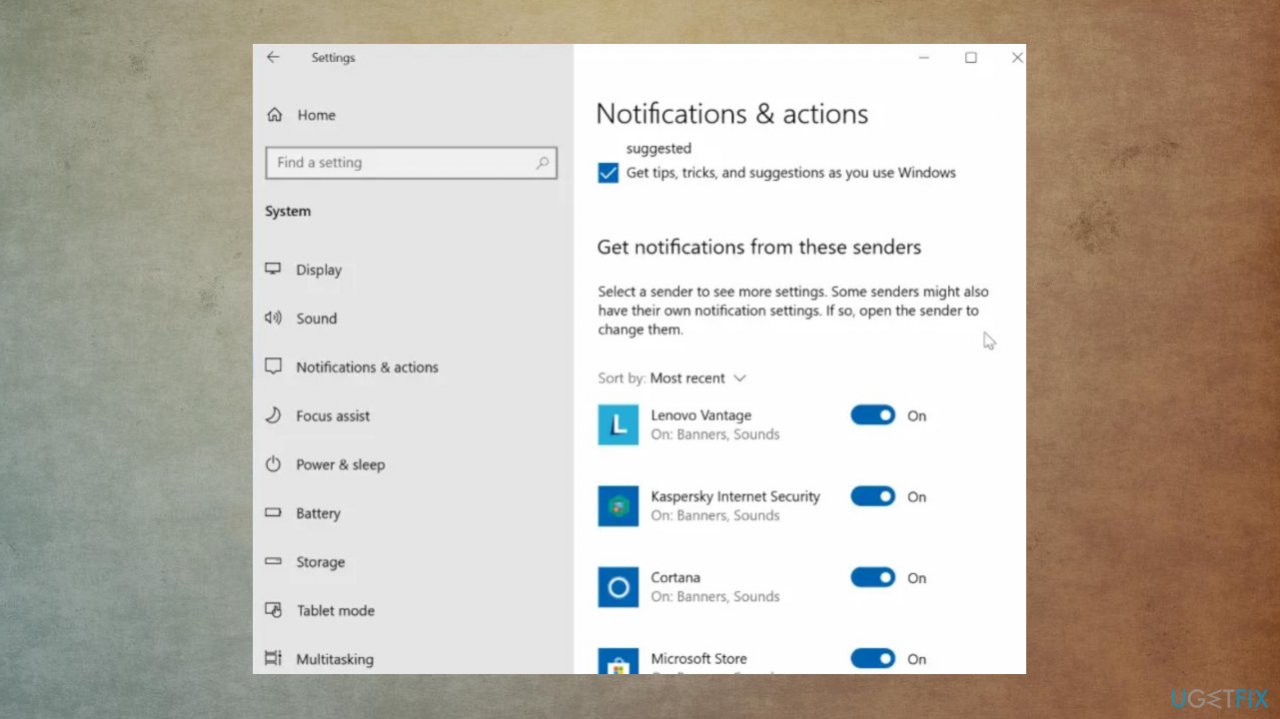
Auto hide taskbar not reappearing notifications and action - Under the Get notifications from these apps section, make sure that the program is not configured to show notifications. If enabled, please turn it off here.
- Navigate to Settings > Personalization > Taskbar page.
- Click Select which icons appear on the taskbar link and then turn off the icon of the program.
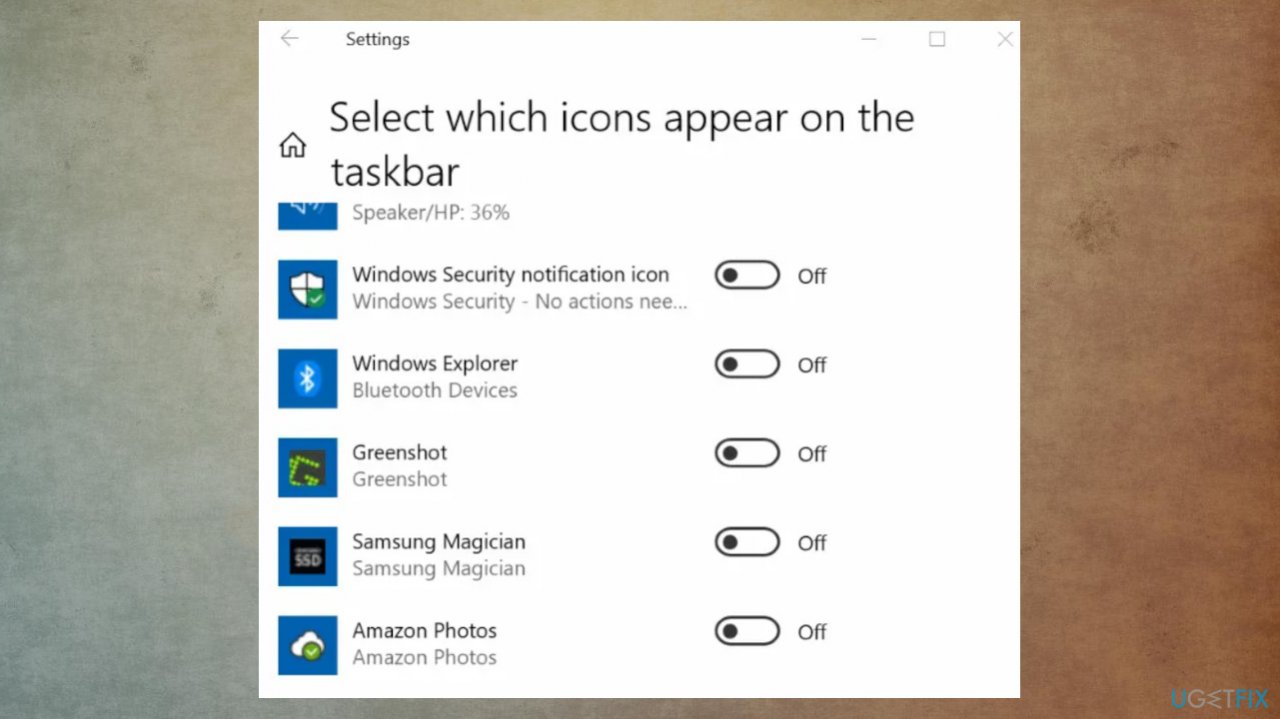
Auto hide taskbar not reappearing notifications
3. Try the particular auto-hide option properties
- Right-click on Taskbar.
- Click on Properties
- Check the box Auto-hide the taskbar.
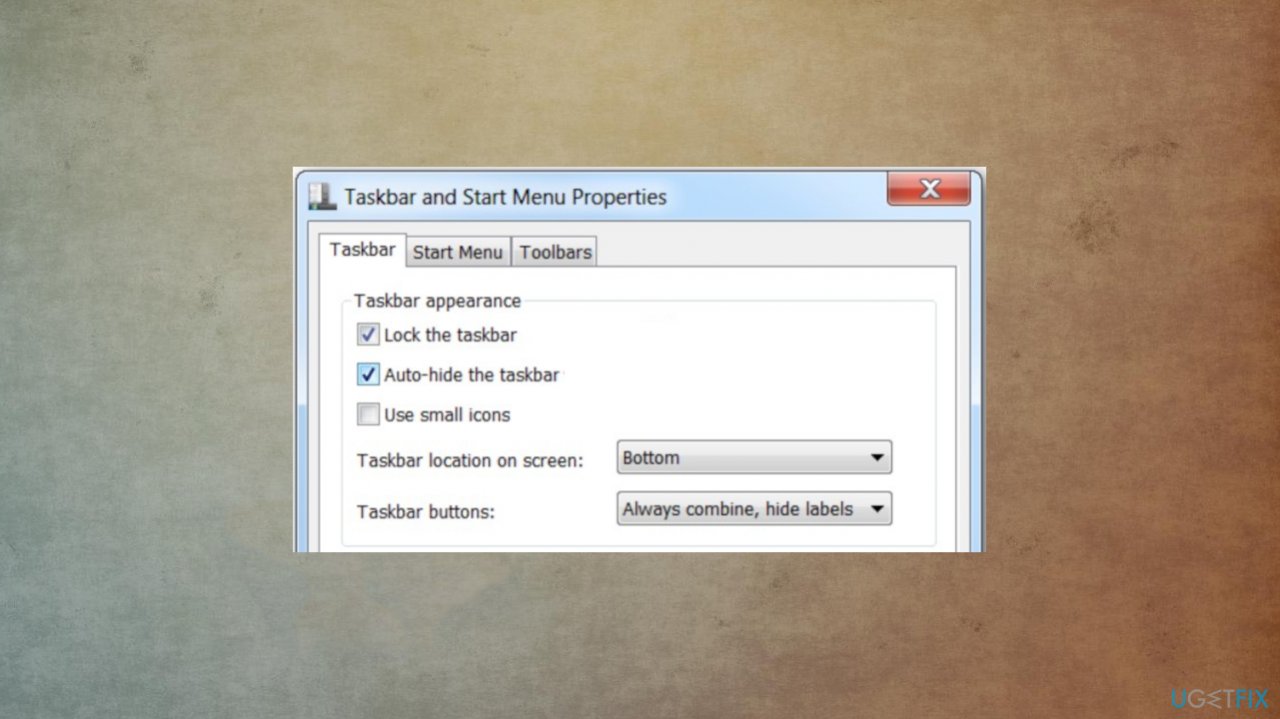
Auto hide taskbar not reappearing taskbar allow - Click on OK.
Bottom line
To fix the Auto-Hide Taskbar not reappearing issue, check your taskbar settings, restart or end background processes, and investigate any third-party applications that may be causing conflicts. If the problem persists, consider using tools to detect and clear corrupted files or reverting any recent OS upgrades.
Frequently asked questions
Try restarting Windows Explorer through the Task Manager, as this can refresh the desktop environment and resolve minor glitches.
Right-click on the taskbar, select 'Taskbar settings', and ensure the 'Automatically hide the taskbar' option is enabled.
Yes, you can run the System File Checker by executing 'sfc /scannow' in the Command Prompt to repair any corrupted system files affecting the taskbar.




Report an issue
What's wrong with this guide? We review every report and update or remove content.
Report received — thank you. We'll review and fix it.
You need a free account to submit a report.
Be the first to comment