How to fix
AutoComplete if It’s not Working on Edge
on Windows
Resolve AutoComplete issues in Edge on Windows 10 or 11 effortlessly. Get expert-tested solutions that can fix your browser in minutes.


What causes How to fix AutoComplete if It’s not Working on Edge?
- AutoComplete bug reported by users
- Cache issues
- Incorrect web browser settings
- Outdated Windows version
- Potential malware infection
Repairs Windows system files, removes malware, and restores a clean OS state — without reinstalling.
Hello, I feel very annoyed as I can’t manage to turn on AutoComplete on Microsoft Edge. It’s a month or even more when I’m struggling with this issue. It’s really frustrating as I have to type in my full email address when signing in Hotmail, Outlook or any other website that requires email address and passwords. I used to save my log-in details, but now the function simply does not work. Please help!!
Microsoft Edge and other web browsers as well allow people to save passwords and other log-in credentials for the regularly visited sites. This feature also makes it easier for people to fill frequently used information by collecting it and auto-filling in forms. This function is known as AutoComplete, AutoFill or AutoSave.[ref en-1]
Indeed, having all passwords auto-saved is extremely helpful, especially having in mind that there are lots of websites, which require signing up for performing activities like shopping, sending emails, and so on.
Unfortunately, but lots of people do not have the habit of writing important passwords down and, having in mind how many different passwords and log-ins they may have, AutoComplete may save the day by reminding/typing in each password for you.
Don’t forget about scammers who may attempt to steal your passwords using various scam techniques.[ref en-2] That’s why it’s not recommended to use AutoSave for sites, which contain information like your banking account, full name, address, and similar because this information is especially valuable.
Recently, people started reporting about AutoComplete bug. Edge users on Microsoft discussion forum indicate the fact that the auto-fill function does not work even though “save from entries” is enabled.[ref en-3] It's an irritating piece of bug, which may occur due to cache or false web browser’s settings.
Methods for AutoComplete not Working on Edge issue
Various Windows updates had issues with different OS features and functions so updating to different versions could work. We would also recommend you to perform a scan with [d1] or another sophisticated anti-malware program. It will ensure that your PC doesn’t have registry or file data issues, and is not infected with malware.
Enable AutoComplete on Microsoft Edge
- Launch Microsoft Edge and open More (three dots at the right top corner).
- Select Settings and click View advanced settings.
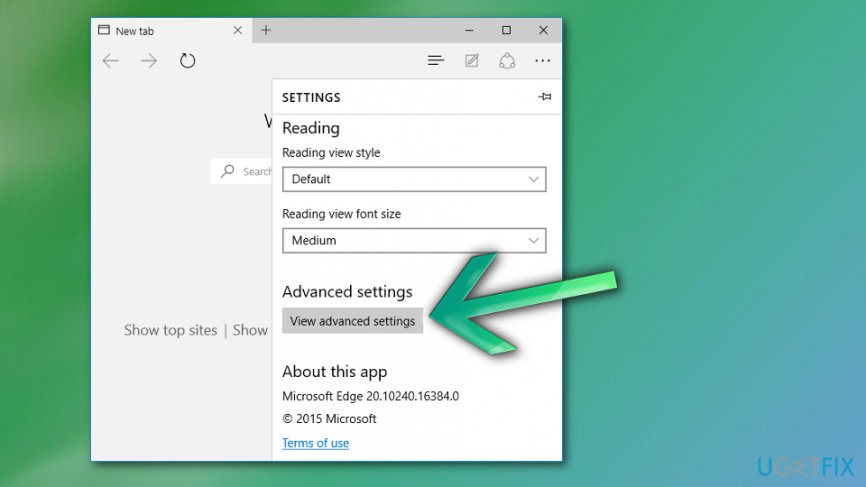
How to fix autocomplete if its not working on edge advanced settings - Open Privacy and find Save from entries option.
- Slide a toggle to enable the Save from entries.
- In case you want to manage each password individually, leave Save from entries disabled.
- Open Manage my saved passwords under Offer to save passwords.
- If you want Edge to exclude a particular password from saving, move the toggle below Offer to save the password to the left.
- When you’re done, close Microsoft Edge and reopen it. Now AutoSave should be working properly.
Remove cached data and files
If AutoComplete is functioning properly but crashes after some time of using Edge, you should try to eliminate cached data and files. For this purpose, do the following:
- Launch Microsoft Edge.
- Open More (three dots at the right top corner) and select Settings.
- Locate Clear browsing data option and select choose what to clear.
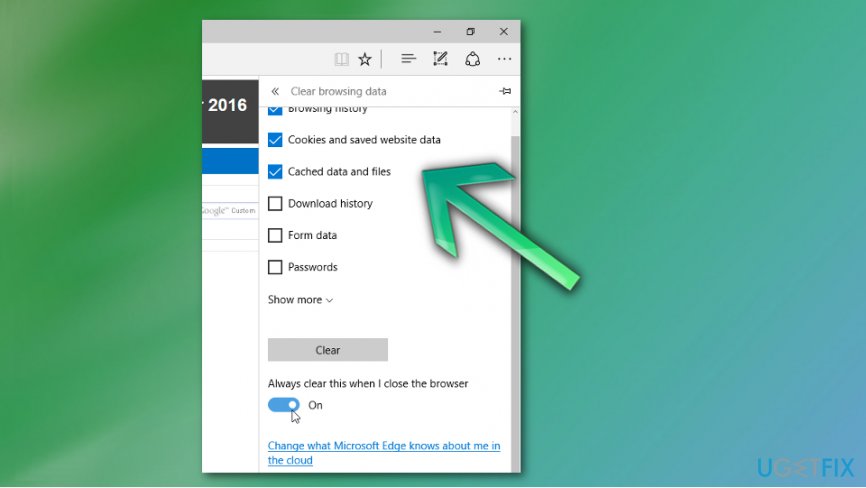
How to fix autocomplete if its not working on edge cached data files - Find Cached data and files and select these options to Clear.
Reset Edge
- Navigate to the C:\\Users\\%username%\\AppData\\Local\\Packages\\Microsoft.MicrosoftEdge_8wekyb3d8bbwe location.
- Delete all data stored in this folder.
- Then type Powershell in Windows search.
- Right-click on the search result and select Run as administrator.
- Type in the following command and press Enter after it:
Get-AppXPackage -AllUsers -Name Microsoft.MicrosoftEdge | Foreach {Add-AppxPackage -DisableDevelopmentMode -Register "$($_.InstallLocation)\\AppXManifest.xml" –Verbose}. - Once done, close Edge and, at best, reboot the system.
Note: Microsoft Edge resetting may also reset security settings, privacy settings, parental control, extensions, start page, search engine, and other personal settings.
Run Windows Apps Troubleshooter
If none of the listed fixes helped to enable AutoComplete function on Edge, you should try to run Windows Apps Troubleshooter. For this purpose, click on this link and then click Run Troubleshooter button. Follow on-screen instructions and wait until the scan is completed.
Bottom line
To fix the AutoComplete issue on Edge, consider updating your Windows version, clearing the cache, and scanning for malware. If these methods do not resolve the problem, further investigation into browser settings may be necessary.
Frequently asked questions
AutoComplete issues in Microsoft Edge on Windows 10 can occur due to corrupted browser data or incorrect settings. Try clearing your cache and checking your AutoComplete settings in the browser to resolve the issue.
To reset AutoComplete settings in Edge on Windows 11, go to Settings > Privacy, search, and services, then scroll down to Clear browsing data and reset your preferences. This should restore the AutoComplete feature.
If AutoComplete still doesn't function in Edge after troubleshooting, consider updating your browser or resetting Edge to its default settings in Windows 10 or Windows 11.




Report an issue
What's wrong with this guide? We review every report and update or remove content.
Report received — thank you. We'll review and fix it.
You need a free account to submit a report.
Be the first to comment