How to fix
AVCTP high CPU usage
on Windows
Solve AVCTP high CPU usage on Windows 10 and 11 effortlessly. Boost performance with expert-tested tips and tricks that yield results in minutes.


What causes How to fix AVCTP high CPU usage in Windows?
- Bluetooth driver conflicts
- Outdated drivers
- Conflicts with other audio or video programs
- Corrupted system files
- Updates causing compatibility issues
Repairs Windows system files, removes malware, and restores a clean OS state — without reinstalling.
Hi, so for some reason, out of nowhere the process AVCTP is using 100% CPU. The weird part is that I don't use anything intensive (except have some browser tabs open), and this happens after hours of using my PC. Could you help me?
Windows apportions CPU, memory, and disk space among all the processes and applications and tries to keep everything running smoothly and efficiently. In a word, these resources are in such a balance that your computer performs well: it runs the essential services and user-initiated tasks without major decreases in performance.
Generally, the level of CPU usage is normal; during basic activities, it usually stays low and rises moderately with heavier tasks. However, sometimes certain services or processes can use up a great deal more resources than anticipated, which is considered abnormal and may be indicative of an underlying problem.
One such abnormality that one might run into is high CPU usage from AVCTP - a protocol service commonly running in Windows. This is called the Audio/Video Control Transport Protocol, commonly abbreviated as AVCTP, which handles Bluetooth audio devices.
These devices allow for the control of functions such as play and pause on Bluetooth-connected devices. Since most often this service uses very low system resources when problems arise-which could be slowing your overall system performance or other processes - you might find a jump in CPU usage related to the service.
There may be several reasons as to why the AVCTP would result in the consumption of too much CPU. Sometimes, this protocol excessively utilizes the CPU because of Bluetooth driver conflicts or because drivers have become outdated.
Conflicts between this software and other programs that involve audio or video, along with corrupted system files, can also result in high CPU consumption by AVCTP. Updates that also change the way Bluetooth works on your system or bring compatibility issues may also be a reason for this.
In order to fix the problem with AVCTP high CPU usage, you should try a few specific actions, such as checking driver updates or adjusting Bluetooth settings. Those steps are discussed further in this article. To that end, the [d1] maintenance and repair utility would be so much handy in case of problems related to registries, broken DLL files, corrupted system files, and BSODs - when it is hard to identify the very cause of the problem.

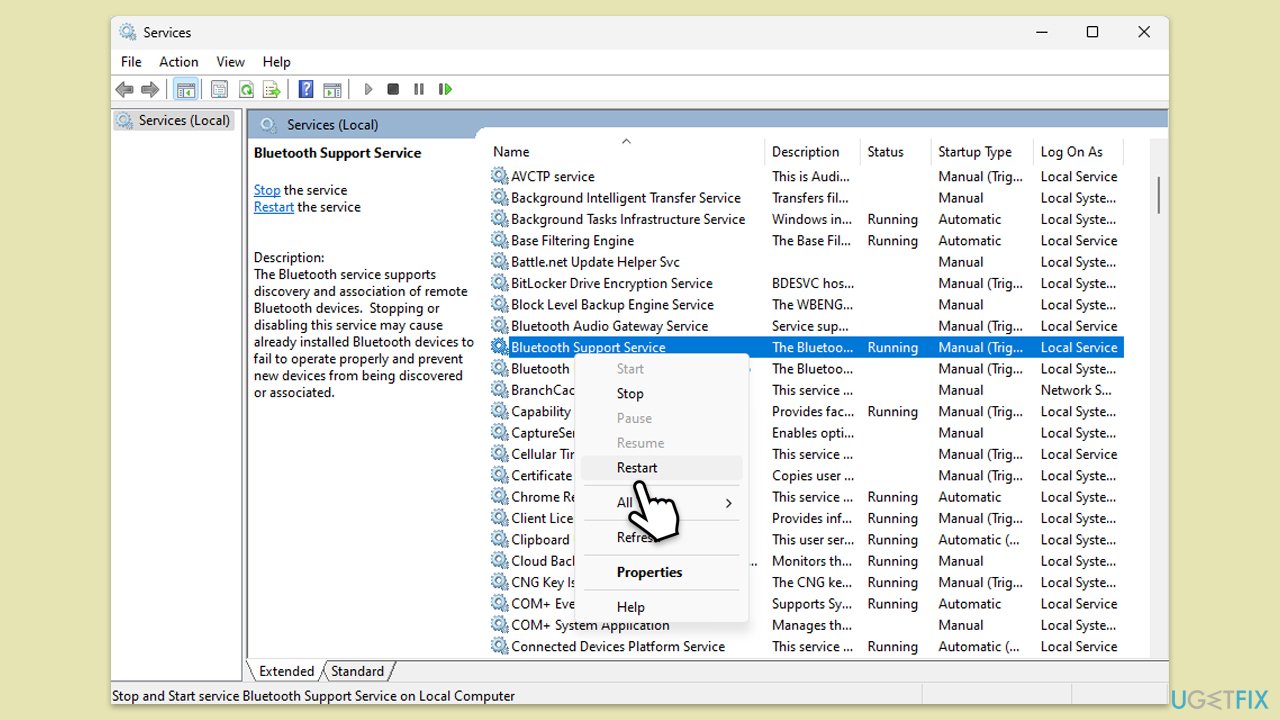
Fix 1. Restart Bluetooth service
When AVCTP high CPU usage stems from Bluetooth device connections, restarting the Bluetooth service can often resolve minor glitches that lead to high resource consumption.
- Press Win + R to open the Run dialog.
- Type services.msc and press Enter.
- Scroll down to find Bluetooth Support Service.
- Right-click on it, select Restart and wait for the process to refresh.
- Check CPU usage to see if the issue persists.
Fix 2. Update Bluetooth drivers
Outdated or incompatible drivers can lead to excessive CPU usage for Bluetooth-related processes. Ensuring your Bluetooth drivers are up-to-date helps improve compatibility and reduces unexpected resource use.
- Right-click on Start and pick Device Manager.
- Expand the Bluetooth section.
- Right-click on your Bluetooth adapter and select Update driver.
- Choose Search automatically for drivers and follow the prompts.
- Restart your device to implement the changes.
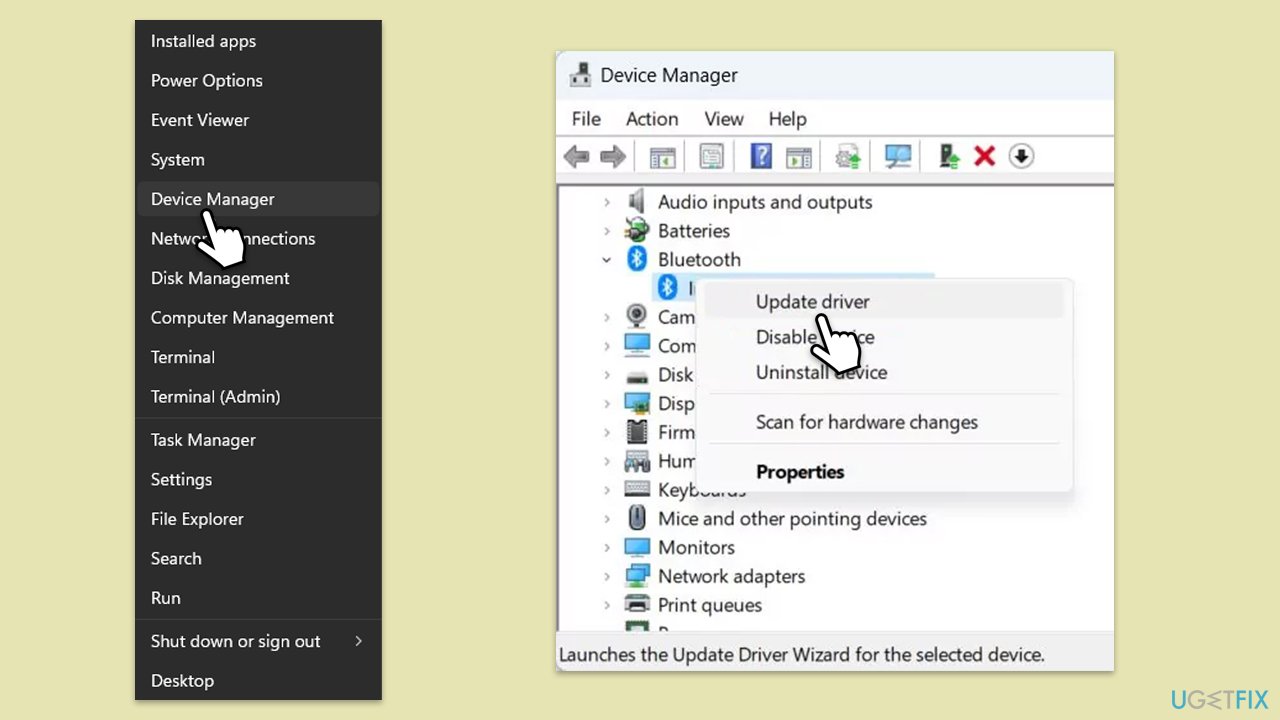
Keep in mind that Device Manager may not always locate and install the most up-to-date drivers for your specific adapter. To simplify the driver update process, you can use tools like [rev id="DriverFix"].
Fix 3. Run the Bluetooth troubleshooter
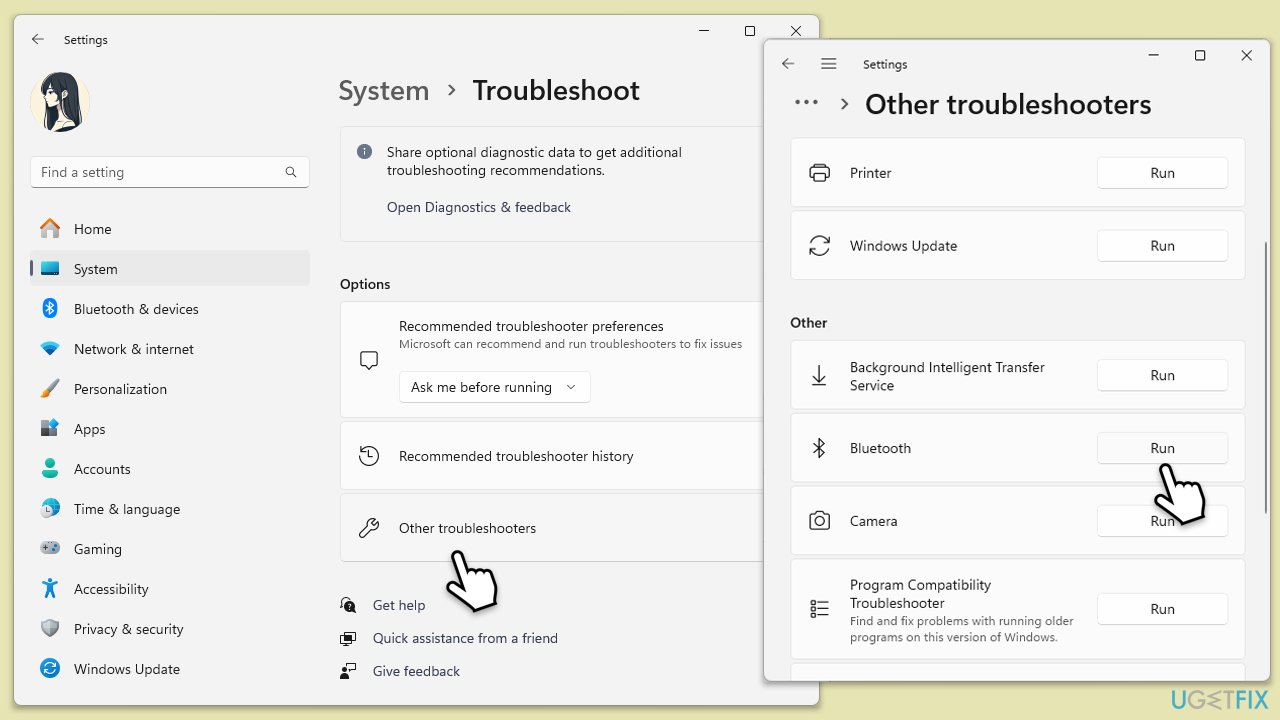
Windows includes a built-in troubleshooter that can automatically identify and fix common issues with Bluetooth, helping reduce high CPU usage when related issues are detected.
- Go to Settings on your computer, then select Update & Security.
- Click on Troubleshoot.
- Select Additional troubleshooters/Other troubleshooters.
- Choose Bluetooth and click on Run the troubleshooter/Run.
- Follow the on-screen prompts to allow the troubleshooter to diagnose and resolve any problems.
Fix 4. Check for Windows updates
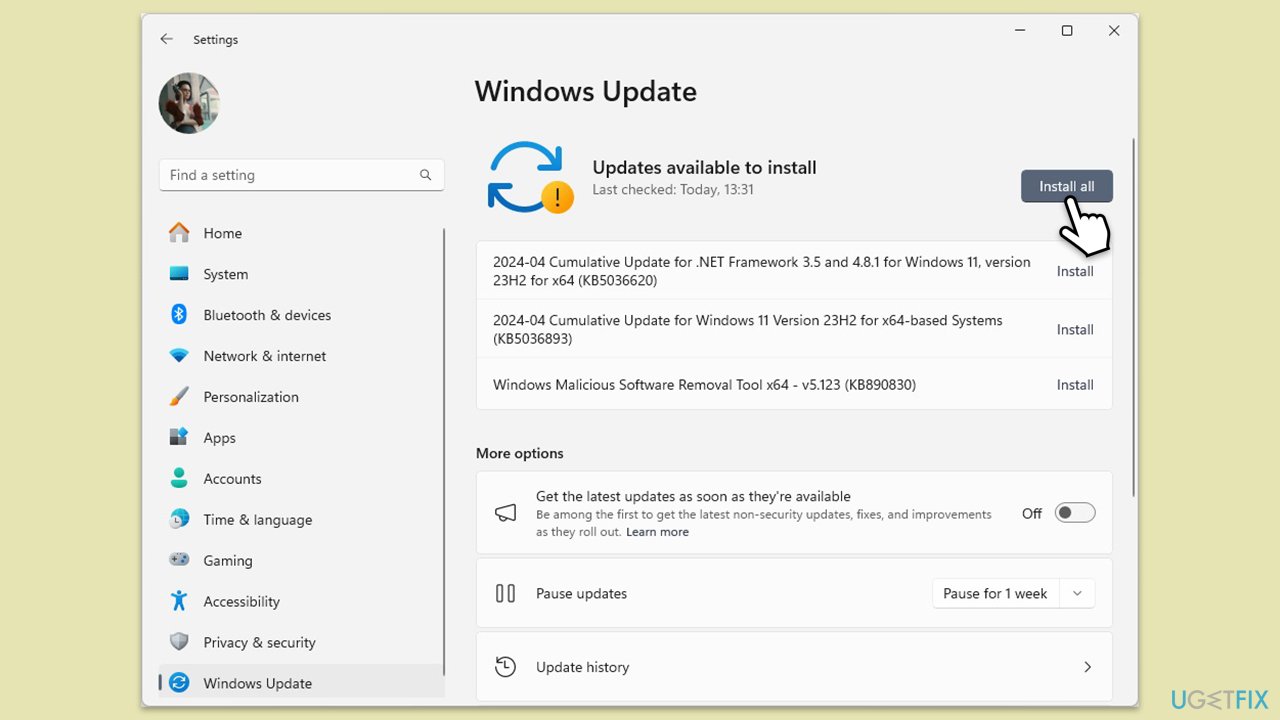
System updates can include patches that address performance issues with AVCTP and other Bluetooth processes. Keeping Windows updated is essential for optimal resource management.
- Type Updates in the Windows search box and press Enter.
- Click Check for Updates or Install all.
- Ensure optional and pending updates are installed as well.
- Wait till the process is finished.
- Restart your system.
Fix 5. Run Clean Boot
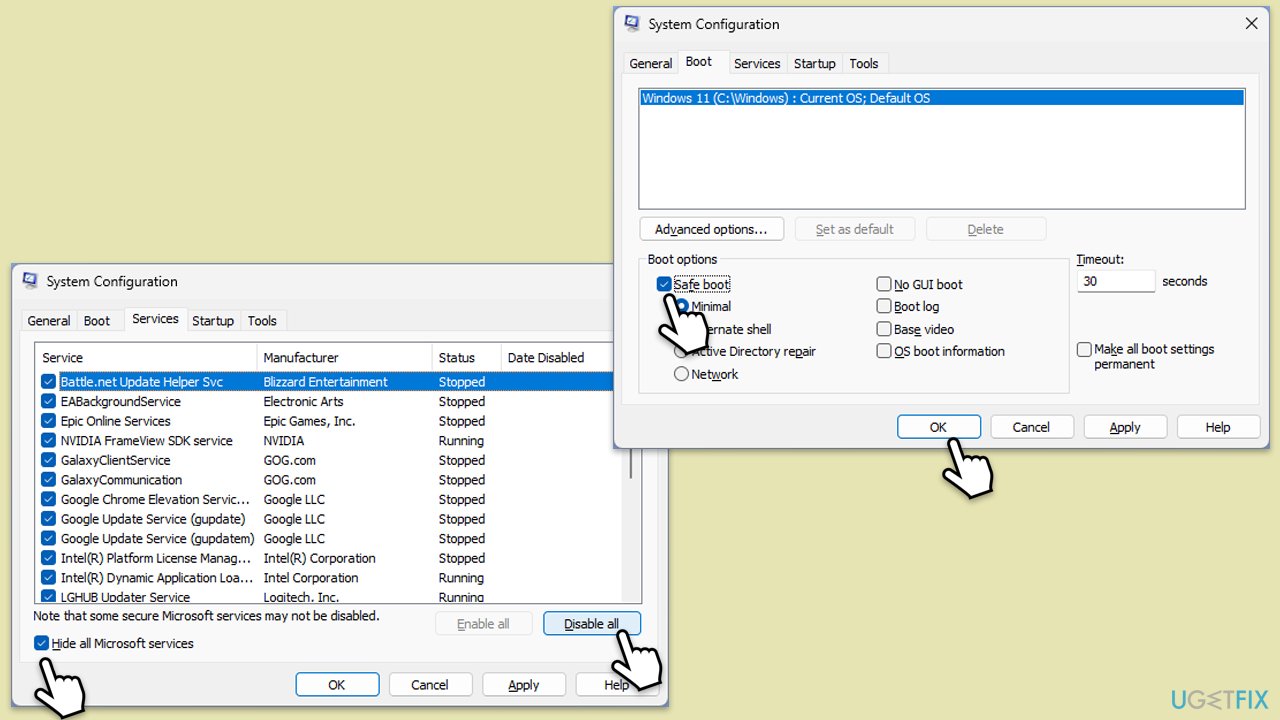
Running a clean boot starts Windows with a minimal set of drivers and startup programs, which can help identify if a background application or service is causing AVCTP to use high CPU resources.
- Type msconfig inWindows Search and press Enter to open the System Configuration window.
- Click on the Services tab and check the Hide all Microsoft Services box.
- Click Disable all to disable non-Microsoft services, then click the Startup tab.
- Open the Task Manager, disable all startup items, and close the Task Manager.
- Go to the Boot tab and mark the Safe boot option.
- Click OK on the System Configuration window and restart your computer.
- If the problem is gone, you need to find which software is causing conflicts.
- Enable half of the disabled services in System Configuration.
- Restart and check CPU usage.
- Repeat, enabling services in smaller groups until the issue reappears.
- Once found, keep the problematic service disabled or consider updating it.
Fix 6. Reinstall Bluetooth drivers
If updates do not resolve the issue, reinstalling the Bluetooth driver can eliminate corrupted files and reconfigure the driver for better performance.
- Open Device Manager.
- Expand the Bluetooth section, then right-click your Bluetooth adapter and select Uninstall device.
- Confirm uninstallation, then restart your PC; Windows will automatically reinstall the driver.
- Check if AVCTP CPU usage is now within the normal range.
Fix 7. Perform a system scan for corrupted files
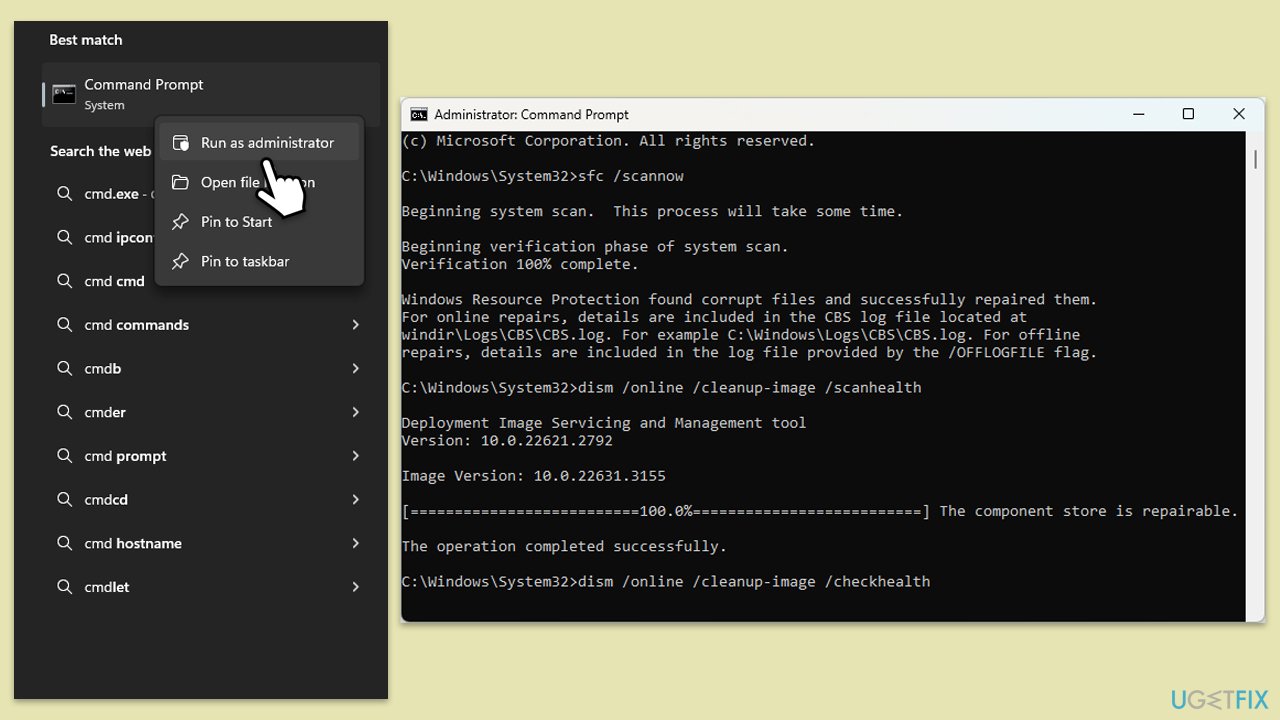
Corrupted system files can sometimes cause AVCTP to behave abnormally. Running a system file scan can detect and repair these files, stabilizing CPU usage.
- Type in cmd in Windows search.
- Right-click on Command Prompt and select Run as administrator.
- When User Account Control shows up, click Yes.
- In the Command Prompt window, paste the following command and hit Enter:
sfc /scannow - Next, use the following commands, pressing Enter each time:
Dism /Online /Cleanup-Image /CheckHealth
Dism /Online /Cleanup-Image /ScanHealth
Dism /Online /Cleanup-Image /RestoreHealth
(Note: if you get an error executing this last command, add /Source:C:\RepairSource\Windows /LimitAccess to it and try again). - Reboot your computer.
Bottom line
To fix the AVCTP high CPU usage issue, you should check for driver updates and adjust your Bluetooth settings. If these steps do not resolve the problem, consider further troubleshooting or seeking additional support.
Frequently asked questions
AVCTP stands for Audio/Video Control Transport Protocol, and it manages Bluetooth audio devices. High CPU usage can occur due to outdated drivers or conflicts with other applications.
You can update AVCTP drivers by going to Device Manager, locating the Bluetooth section, right-clicking on your Bluetooth device, and selecting 'Update driver'.
If updating drivers doesn't help, try disabling Bluetooth devices that you are not using, or consider uninstalling and reinstalling the Bluetooth drivers.




Report an issue
What's wrong with this guide? We review every report and update or remove content.
Report received — thank you. We'll review and fix it.
You need a free account to submit a report.
Be the first to comment