
How to fix Azure AD 801c03ed error in Windows?

Prefer to fix it yourself? The manual steps follow.
- 5methods
- 5 to 30 minutes for an administrator
- Intermediate
Applies to Windows 11 and Windows 10 Pro, Enterprise and Education PCs joined to Microsoft Entra ID (Azure AD), with or without Windows Autopilot and Intune
5 methods in this guide
Hello. Azure AD does not let me join the network on my Windows PC. I get the "Administrator policy does not allow this user to device join" message with error 801c03ed. Is there any way to fix this?
Error 801c03ed appears when Windows tries to join a PC to Microsoft Entra ID, the new name of Azure AD, and the server answers Administrator policy does not allow user to device join. Nothing is broken on the PC. An administrator has to allow your account to join devices or enable the PC's device record, so start with Fix 1 or send IT the details.
801c03ed means Microsoft Entra ID (Azure AD) refused to join this PC because a policy blocks your account or the PC's record. Only an administrator can fix it. In the Entra admin center, under Devices > Device settings, set Users may join devices to Microsoft Entra to All, or add you under Selected (Fix 1). If that is already set, enable the disabled device object (Fix 2).
| Error | Something went wrong. Error code 801c03ed, with the server message Administrator policy does not allow user (your address) to device join. |
|---|---|
| Where it appears | During Windows setup (OOBE) right after you sign in with a work or school account, in Windows Autopilot, or under Settings > Accounts > Access work or school when you join the PC to Microsoft Entra ID. |
| Main cause | The tenant setting Users may join devices to Microsoft Entra is None, or Selected without your account. Second: the PC's device object in Entra ID is disabled or was deleted. |
| Fastest fix | An administrator sets Users may join devices to Microsoft Entra to All, or adds your account or group under Selected (Fix 1). Then select Try again on the PC. |
| Also written as | 801c03ed, 801C03ED, 0x801C03ED, server error code 801c03ed, OOBE error code 801c03ed. |
| Affects | Windows 11 and Windows 10 Pro, Enterprise and Education. User-driven Autopilot and pre-provisioned Entra join; not hybrid join or self-deploying mode, which do not join as a user. |
| Microsoft's status | Not a bug and no update fixes it. It is a policy answer from Entra ID. Microsoft's Autopilot FAQ (updated April 2026) documents both causes: the join setting and a deleted device object. |
| Time to fix | 5 minutes for Fix 1 or Fix 2 once an administrator is at the portal. Up to 30 minutes for Fix 3, which deletes and imports the Autopilot record again. |
Facts checked on 15 October 2026. Steps written for Windows 11 (25H2 and 26H2) and Windows 10 22H2 setup (OOBE) and Settings, read against Microsoft's Windows Autopilot troubleshooting FAQ and Intune Windows enrollment error documentation.
What error 801c03ed means and where it appears
You turn on a new or reset PC, choose to set it up for work or school, and sign in with your work address. Instead of the next setup screen, Windows shows Something went wrong and the code 801c03ed. The full text reads: Confirm you are using the correct sign-in info and that your organization uses this feature. You can try to do this again or contact your system administrator with the error code 801c03ed.
The password was accepted. The error comes one step later, when Windows asks Microsoft Entra ID (called Azure Active Directory or Azure AD until 2023) to create a device record for the PC. The server's reply, shown as Server error code: 801c03ed in the details, is the line people search for: Administrator policy does not allow user followed by your address and to device join.
| What you see | What it tells you |
|---|---|
| Something went wrong and Confirm you are using the correct sign-in info | A general setup message. The sign-in info is usually right; the join was refused. |
| Server error code: 801c03ed | The answer of the Entra ID device registration service. Also written 0x801C03ED. |
| Administrator policy does not allow user ... to device join | A tenant policy blocks this account, or this device, from joining. Only an administrator can change it. |
| Try again | Repeats the join. It works once the administrator has fixed the setting or the device object. |
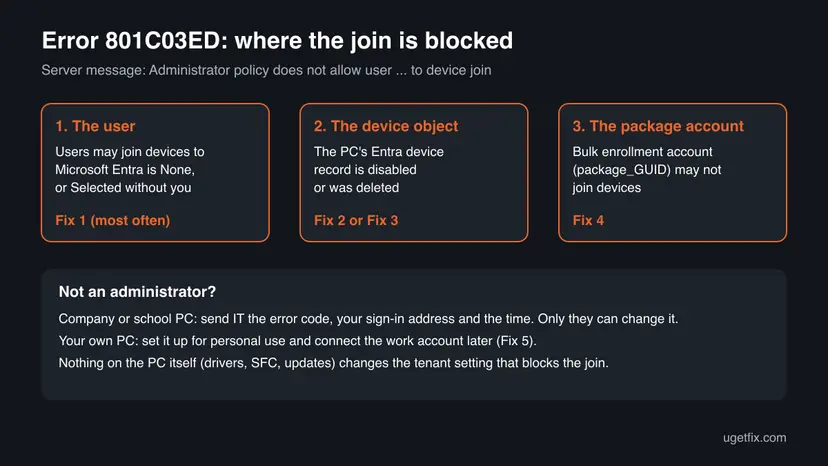
The same code appears on Windows 10 and Windows 11, on new PCs and on PCs that were reset. Drivers, system file checks and Windows updates do not touch the Entra ID setting that refuses the join, so they are not in this guide.
What causes error 801c03ed, ranked
The order below follows Microsoft's Autopilot documentation and the technical write-up we read. It is our ranking by how often each cause is described, not a measured statistic.
| How often | Cause | Typical sign | Fix |
|---|---|---|---|
| Most often | Users may join devices to Microsoft Entra is None, or Selected and your account is not in the list | Every new PC fails for this user, or for all users after a security change. | Fix 1 |
| Often with Autopilot | The PC's device object in Entra ID is disabled | Other PCs join fine. This one shows Enabled: No in the device list. | Fix 2 |
| Less often | The device object was deleted while the Autopilot record stayed | The PC is in the Autopilot list but its Entra device is gone. | Fix 3 |
| Bulk enrollment only | The provisioning package account (package_GUID) may not join devices | A setup failure during bulk enrollment with a package or the Set up School PCs app. | Fix 4 |
| Home users | A personal PC set up with Set up for work or school in a tenant that blocks user joins | Your own laptop, your employer or school allows only registered devices. | Fix 5 |
Microsoft says a user who exceeds the number of devices they may join also gets errors, with a default limit of 50 devices. Our sources do not tie that limit to 801c03ed by name, so Fix 1 only asks you to look at it while you are on the same page.
How to fix error 801c03ed in Windows
Fix 1 to Fix 4 are done by an administrator of the organisation's Microsoft Entra ID and Intune. If you are not one, send IT the error code, your sign-in address and the time of the attempt, or use Fix 5 on a PC you own. After every fix, select Try again on the PC: success is the next setup screen or Connected to your organisation in Settings.
| Your case | Start with | Then |
|---|---|---|
| Company or school PC, you are not an administrator | Send IT the details for Fix 1 | Fix 2 |
| Administrator: the user is not allowed to join devices | Fix 1 | Fix 2 |
| Administrator: the device shows as disabled in Entra ID or Intune | Fix 2 | Fix 1 |
| Administrator: the device is in Autopilot but missing in Entra ID | Fix 3 | Fix 1 |
| Bulk enrollment with a provisioning package or Set up School PCs | Fix 4 | Fix 1 |
| Your own PC and you only need work apps and mail | Fix 5 | Ask IT for Fix 1 |
Fix 1. Allow the user to join devices to Microsoft Entra ID
5 minutesLow riskAdministrators, first. The error says Administrator policy does not allow user ... to device join, or several new PCs fail for the same people.
801c03ed is the answer Entra ID gives when the join setting excludes the signed-in user. In user-driven and pre-provisioned Autopilot, the user's own account creates the join, so it must be allowed.
- Sign in to the Microsoft Entra admin center at
https://entra.microsoft.comas an administrator who can change device settings. - Go to Identity > Devices > Device settings. In the Azure portal the same page is Microsoft Entra ID > Devices > Device Settings.
- Find Users may join devices to Microsoft Entra. If it is None, select All, or select Selected.
- With Selected, open the list and use Add Members to add the user or a group that holds everyone who sets up PCs.
- While you are on the page, check Maximum number of devices per user. Microsoft's default is 50; raise it if this user already has that many.
- Select Save.
- On the PC, select Try again, or restart it and sign in again. The join needs a working connection: How to check your internet connection in Windows.
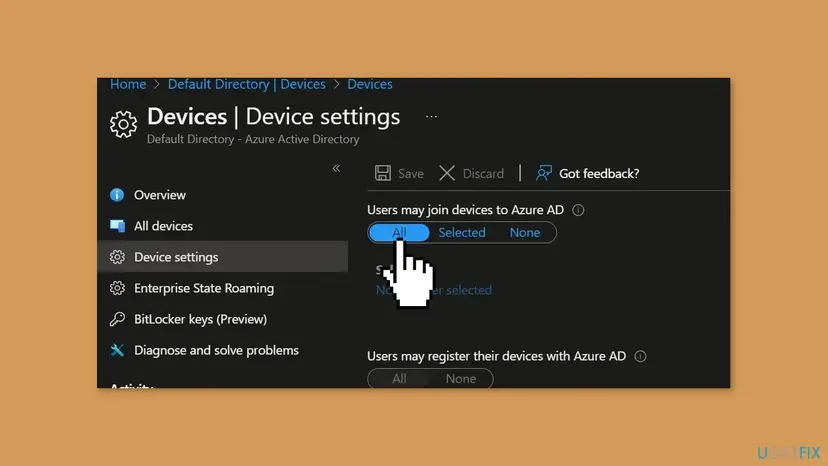
Selected is the safer choice for most organisations: it keeps personal devices out while the people who set up PCs can join them. The setting on the line below, Users may register their devices with Microsoft Entra, is a different thing: it controls registration, the lighter link that Fix 5 uses.
It worked if: The PC moves past the sign-in to the next setup screen, or Settings shows Connected to your organisation's Entra ID.
If not: If the setting already allows the user, check the device object with Fix 2.
Fix 2. Enable the PC's disabled device object in Entra ID
5 minutesLow riskThe PC is registered in Windows Autopilot and other PCs join fine, but this one fails with 801c03ed.
Autopilot creates a Microsoft Entra device object when the hardware hash is imported. If someone disabled that object, the join for that serial number is refused although the user is allowed to join.
- Sign in to the Microsoft Intune admin center at
https://intune.microsoft.com. - Go to Devices > Enroll devices > Devices, the list of Windows Autopilot devices.
- Search for the PC by its serial number and select it.
- Open the linked Microsoft Entra device from its details.
- Select Enable at the top of the device page and confirm.
- On the PC, select Try again or restart the setup.
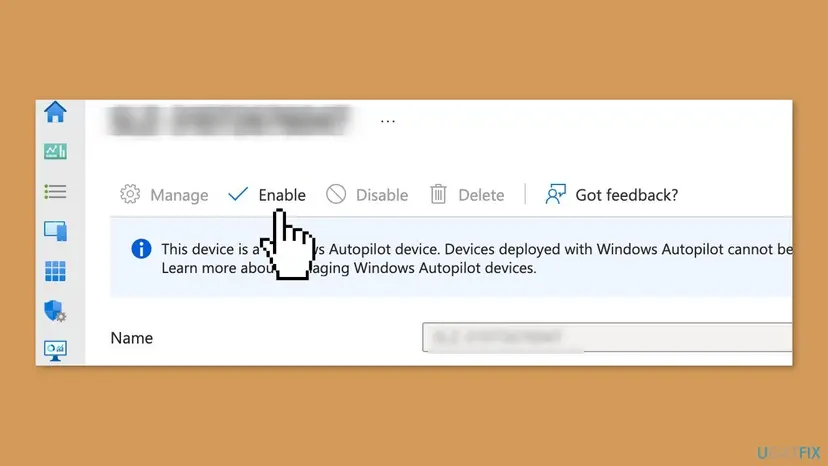
You can do the same in the Entra admin center: open Devices > All devices, search for the PC's name or serial, select it and select Enable. If the device is missing from that list, it was deleted rather than disabled: use Fix 3.
It worked if: The device shows Enabled: Yes, and the PC joins on the next attempt.
If not: If the Entra device object does not exist at all, recreate it with Fix 3.
Fix 3. Delete and import the Autopilot device again when its Entra object was deleted
20 to 30 minutesRead the warningThe PC is in the Windows Autopilot list, but its Microsoft Entra device object was deleted, for example during a clean-up of old devices.
Microsoft calls this object Autopilot's anchor in Entra ID. Deleting it can cause join errors, and Microsoft's fix is to delete and import the device again, which creates the object anew.
Deleting the Autopilot record removes its group tag, assigned user and profile assignment. Write them down, and keep the hardware hash CSV, so you can import the device with the same values.
- In the Intune admin center, open Devices > Enroll devices > Devices.
- Select the PC by its serial number, select Delete and confirm with Yes.
- Wait a few minutes and select Refresh until the PC is gone from the list.
- Collect the hardware hash again the way your organisation did the first time: from the maker or reseller, or with the Get-WindowsAutopilotInfo script.
- Select Import, choose the CSV file and wait for the import to finish.
- Set the group tag and user again, and wait until Profile status shows Assigned.
- Reset or restart the PC and run the setup again.
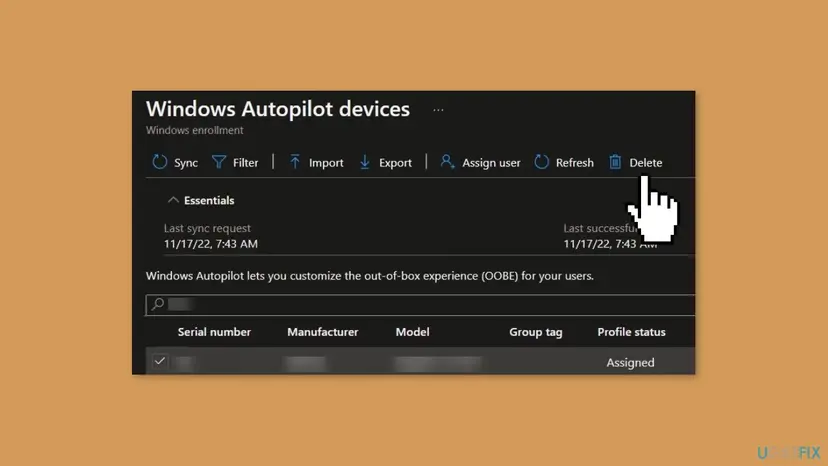
It worked if: A new Entra device object appears for the serial number, the profile is assigned, and the setup passes the sign-in.
If not: If the import fails or the error stays, read the Autopilot log on the PC described in the section below.
Fix 4. Allow the provisioning package account to join devices
10 minutesLow riskYou enroll PCs in bulk with a provisioning package from Windows Configuration Designer or the Set up School PCs app, and the setup fails.
Microsoft explains that these tools create Entra accounts named Package_GUID that join the PCs. If those accounts are not allowed to join devices, the bulk enrollment fails for the same policy reason.
- Sign in to the Azure portal at
https://portal.azure.comas an administrator. - Go to Microsoft Entra ID > Devices > Device Settings.
- Set Users may join devices to Microsoft Entra ID to All or Selected.
- With Selected, select Add Members and add every Package_GUID account of your provisioning packages.
- Select Save and apply the package to the PC again.
Microsoft's enrollment documentation shows this cause under the message A setup failure has occurred during bulk enrollment. The account name begins with package_ followed by a long ID, so search for that prefix in the member list.
It worked if: The package applies without a setup failure and the PC appears as Microsoft Entra joined.
If not: If only one PC of the batch fails, check its device object with Fix 2.
Fix 5. Your own PC: set it up for personal use and connect the work account
15 minutesLow riskThe PC is yours, not the organisation's, and you only need work mail, Teams and Office. Your IT does not allow users to join devices.
Many organisations block joins but allow registration. A registered PC keeps your own account and signs in to work apps, while the blocked join would hand control of the PC to the organisation.
- At the 801c03ed screen, go back to the setup choice and select Set up for personal use on Windows 11 Pro, or finish the setup with a personal Microsoft account.
- If you want no online account at all, create a local one: Create a new user account to test a problem.
- After the desktop opens, go to Settings > Accounts > Access work or school.
- Select Connect, type your work or school address and sign in. Do not select Join this device to Microsoft Entra ID, which would hit the same block.
- Open Outlook, Teams or the Office apps and sign in with the same address.
If your organisation also blocks registration or requires managed devices, the work apps will say so after sign-in. In that case only IT can decide, and the answer may be a company PC.
It worked if: Access work or school lists your work account as connected, and the work apps sign in.
If not: If the work apps refuse the PC, send IT the details in the next section.
If 801c03ed is still there: logs to read and what to send IT
When the join setting and the device object are fine and the error stays, the PC's own logs show the step that failed. Microsoft points to the Autopilot event log for this; the device registration log adds the server's answer.
- Autopilot log: in Event Viewer, open Applications and Services Logs > Microsoft > Windows > ModernDeployment-Diagnostics-Provider > Autopilot. Look for errors at the time of the attempt.
- Device registration log: Applications and Services Logs > Microsoft > Windows > User Device Registration > Admin holds the join result.
- During setup: press Shift + F10 to open a command prompt, type
eventvwrand press Enter to open Event Viewer before the desktop exists. - For IT: the code 801c03ed, the server message, your sign-in address, the PC's serial number and the time of the attempt.
| What you see | Likely reason | Who can fix it |
|---|---|---|
| Every user fails on every new PC | Join setting is None | Entra administrator, Fix 1 |
| One user fails, colleagues join | User not in Selected, or device limit reached | Entra administrator, Fix 1 |
| One PC fails for every user | Device object disabled or deleted | Intune administrator, Fix 2 or Fix 3 |
| A used PC asks for an organisation you do not know | It is still registered in the previous owner's Autopilot | The previous owner or the seller |
How to keep 801c03ed from coming back
The error returns when a security change or a device clean-up hits accounts and PCs that still need to join. A few habits on the administrator side keep the setting and the device records in step with the people who set up PCs.
- Use a group with Selected, such as one for IT staff and new hires, instead of single users who are easy to forget.
- Never delete Autopilot device objects in Entra ID during clean-ups. Microsoft warns that this leads to join errors. Delete the Autopilot record instead when a PC leaves.
- Disable, then wait, when you retire a device. A disabled object can be enabled again in seconds; a deleted one needs a new import.
- Add new provisioning package accounts to the Selected group each time you build a package.
- Tell staff with personal PCs to use Access work or school > Connect, not a join during setup.
Frequently asked questions
What does error code 801c03ed mean?
It means Microsoft Entra ID, formerly Azure AD, refused to join the PC because of an administrator policy. The server message reads Administrator policy does not allow user, then your address, then to device join. Your password was accepted. Either your account is not allowed to join devices, or the PC's device object in Entra ID is disabled or deleted. Both are settings in the organisation's tenant, so the fix is made by an administrator, not on the PC.
Can I fix 801c03ed myself without an administrator?
Not on a PC that must join the organisation. The block is a tenant setting in Entra ID, and nothing on the PC changes it: reinstalling Windows, updating drivers or running repairs gives the same answer. What you can do is send IT the code, your address, the serial number and the time. On a PC that you own, you can skip the join, set it up for personal use and connect your work account under Access work or school (Fix 5).
Why do I get 801c03ed during OOBE on a new laptop?
OOBE is the first setup of Windows. When you choose a work or school setup, or the laptop is registered in your organisation's Windows Autopilot, Windows joins it to Entra ID right after you sign in. If the tenant does not let your account join devices, or the laptop's Autopilot device object is disabled, OOBE stops with 801c03ed. The administrator fixes it with Fix 1 or Fix 2, and you then select Try again without resetting the laptop.
Is "Server error code 801c03ed" on Windows 11 different from Windows 10?
No. The code comes from the Entra ID service, not from Windows, so Windows 11 25H2, 26H2 and Windows 10 22H2 show the same code and message for the same cause. The fixes are identical. Windows 10 left support on 14 October 2025, so a company that still sets up Windows 10 PCs without Extended Security Updates should plan to move them, but that is not what causes this error.
What are errors 0x801c03f3 and 0x801c03f2?
They belong to the same family of Entra ID device registration codes, but they are not 801c03ed. We could not confirm their exact meaning in the Microsoft documentation we read. Administrators report them mostly around a device object that Entra ID cannot find, which is the situation Fix 3 repairs. Before you act on either code, read the device registration and Autopilot logs described above, because the server message in the log names the real reason.
Should I set Users may join devices to All?
Only if every user in the organisation may own a joined PC. All is the quickest test and fixes the error at once, but it also lets anyone join a personal device. Most organisations use Selected with a group for the people who set up PCs. Microsoft supports both. If you choose Selected, remember to add new staff and provisioning package accounts to the group, or the error returns for them.
How long after the change can the user try again?
Microsoft does not state a time. In practice, select Save, then let the user select Try again on the error screen. If the old answer comes back, restart the PC and sign in again, which repeats the whole join. Changes to group membership can take longer than a direct change of the setting, so adding the user directly is the fastest way to test.
Does a disabled device object cause 801c03ed?
Yes, according to the technical write-up we read, and Microsoft's Autopilot FAQ confirms that problems with this object lead to Entra join errors. Autopilot creates the object when the hardware hash is imported. If it is disabled, the join of that PC fails even for allowed users. Enable it in Intune or in the Entra admin center (Fix 2). If it was deleted, Microsoft's fix is to delete and import the Autopilot device again (Fix 3).
I bought a used laptop and setup asks for a company sign-in. What now?
The laptop is probably still registered in the previous owner's Windows Autopilot, so setup expects that organisation's accounts. Your own work account will not pass there, and you cannot remove the registration yourself. Contact the seller and ask them to have the previous owner delete the device from their Autopilot list. Until then, the laptop keeps showing that organisation's sign-in after every reset.
Sources
- Microsoft Learn: Windows Autopilot troubleshooting FAQ (event log path, device limit, deleted device object and reimport) (learn.microsoft.com)
- Microsoft Learn: Troubleshoot Windows device enrollment errors in Intune (Users may join devices setting, provisioning package accounts) (learn.microsoft.com)
- scloud: Autopilot error 801C03ED, two causes and how to fix them (scloud.work)
Did this fix work?
One click, no account. It tells the next reader which guides are worth their time.
Questions and experiences: fix Azure AD 801c03ed error in Windows
Still broken, or found a fix we did not cover? Ask here: members and our editors answer. Reading is open; writing needs a free account.
…