How to fix
Background Apps grayed out
on Windows
Resolve the grayed-out Background Apps issue in Windows 10 and 11 quickly. Follow our expert-tested tips for a smooth experience in minutes.

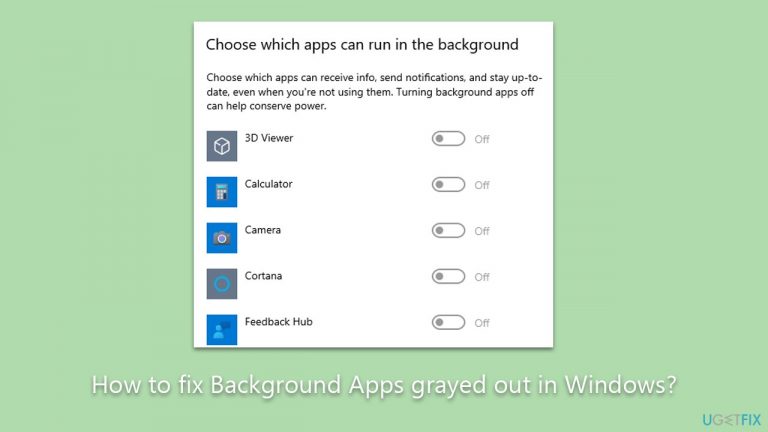
What causes How to fix Background Apps grayed out in Windows?
- Power settings set to a power-saving mode
- Configuration issues within the Windows operating system
- Incorrect system policies
- User account control settings
- Issues within the registry
Repairs Windows system files, removes malware, and restores a clean OS state — without reinstalling.
Hi, I was wondering why my Camera app on Windows was not running, and upon checking the background apps section, I've noticed that all of them are grayed out (and turned off). Any idea on how to tackle this?
Background applications in Windows are programs that run behind the scenes, providing various functionalities without direct user involvement. These applications are crucial as they offer seamless experiences, such as timely notifications, automatic updates, and the facilitation of system processes. Users have the control to enable or disable these applications through the Windows Settings menu, allowing for customization based on individual needs and preferences for system performance and resource consumption.
However, a number of users have reported encountering issues where the Background Apps settings are unavailable, appearing grayed out and inaccessible. This disabled setting impedes the users from managing the background applications, leading to potential challenges in system operation and resource allocation.
This graying-out phenomenon may occur due to several reasons. Firstly, power settings can be a contributor. If the system is set to a power-saving mode, Windows might automatically restrict access to background application settings to conserve energy. In such cases, adjusting the power settings to a higher performance mode may resolve the issue.
Secondly, configuration issues within the Windows operating system can also result in the graying out of background apps settings. These might be due to incorrect system policies, user account control settings, or issues within the registry that limit access to certain features and settings of the operating system. For users facing such challenges, tweaking the respective configuration settings or making modifications to the system’s Group Policy might offer a solution.

For users not comfortable with manual troubleshooting or those looking for an expedient resolution, employing an automated tool might be the best course of action. [d1] PC repair tool is a viable option for those aiming to address various Windows-related issues in an automated and efficient manner.
Fix 1. Enable let apps run in the background
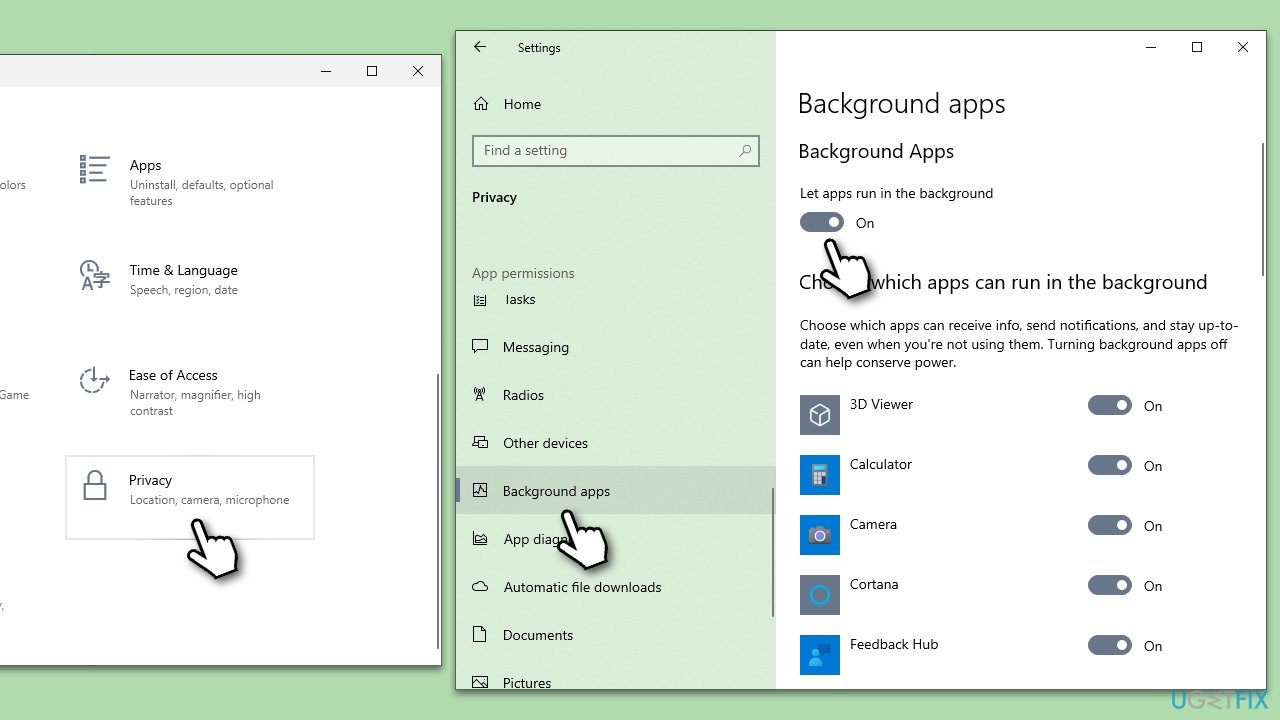
Enabling this setting allows all applications on your device to operate in the background, providing continuous functionality. This might resolve the issue of grayed-out app settings.
- Navigate to the Windows Settings by pressing the Win key and selecting the gear icon.
- Once in Settings, find and select the Privacy option.
- In the Privacy menu, locate and select Background apps on the left sidebar.
- Here, you will find the option Let apps run in the background. Toggle the switch to the ON position.
Fix 2. Run SFC and DISM
SFC and DISM are utilities designed to find and repair corrupted system files, which might be the cause of grayed-out background apps.
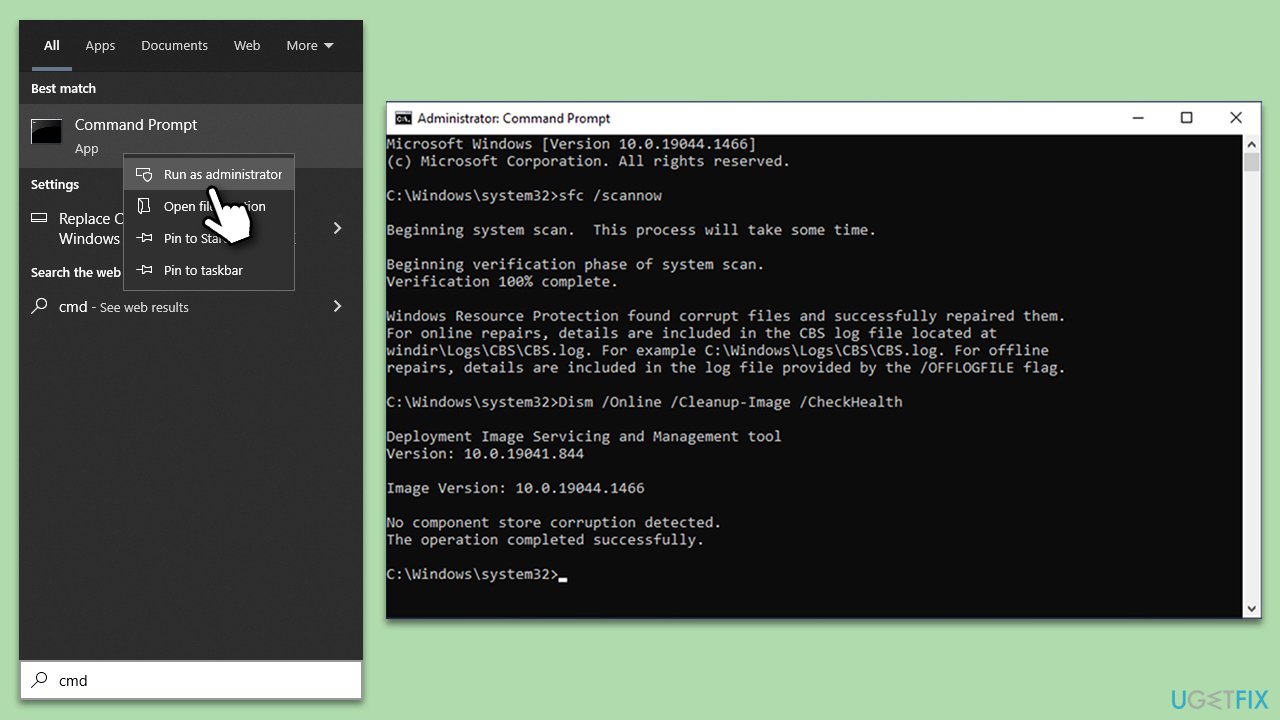
- Type cmd in Windows search.
- Right-click on Command Prompt and pick Run as administrator.
- User Account Control window will show up - click Yes when prompted.
- Then, copy and paste the following command, pressing Enter after:
sfc /scannow - Wait till the scan is finished. If Windows finds system file integrity violations, it will attempt to fix them. After this, use the set of the following commands, pressing Enter each time:
DISM /Online /Cleanup-Image /CheckHealth
DISM /Online /Cleanup-Image /ScanHealth
DISM /Online /Cleanup-Image /RestoreHealth - (Note: if you get an error executing this last command, add /Source:C:\RepairSource\Windows /LimitAccess to it and try again).
- Close down the Command Prompt and restart your computer.
Fix 3. Edit Group Policy
Incorrect Group Policy settings might limit access to certain system features. Adjusting these settings may alleviate the issue.
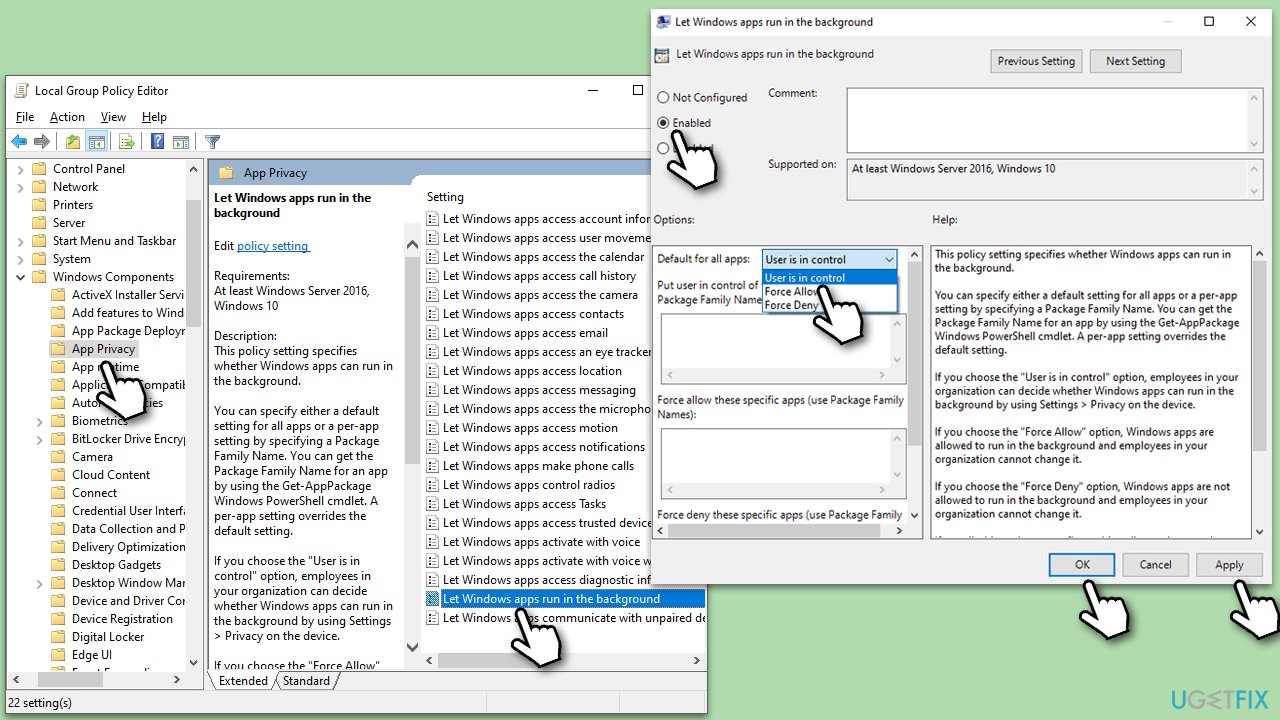
- Press Win + R to open the Run dialog.
- Type gpedit.msc and press Enter to open the Group Policy Editor.
- Navigate through the directory:
Computer Configuration>Administrative Templates>Windows Components>App Privacy - Locate the Let Windows apps run in the background option on the right and double-click it.
- Select Enabled from the three options available.
- Under Options, click on Default for all apps drop-down menu and pick User is in control.
- Click Apply and OK.
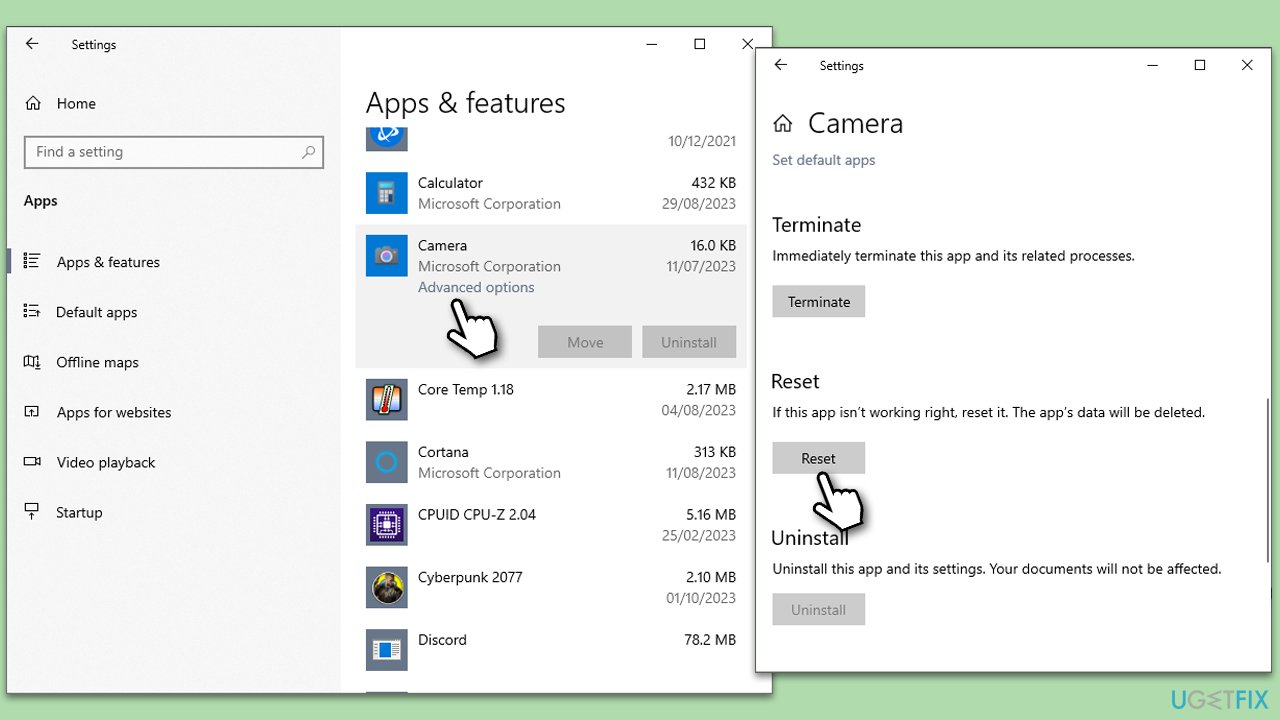
Fix 4. Reset or repair the affected app
Applications sometimes malfunction due to altered or corrupted settings. Resetting or repairing these apps can restore default settings and functionality.
- Go to Settings > Apps.
- Select the problematic app from the list.
- Click on Advanced options.
- Within this menu, you'll see the options to Repair or Reset the app. Select the appropriate action and follow the prompts.
Fix 5. Update Windows
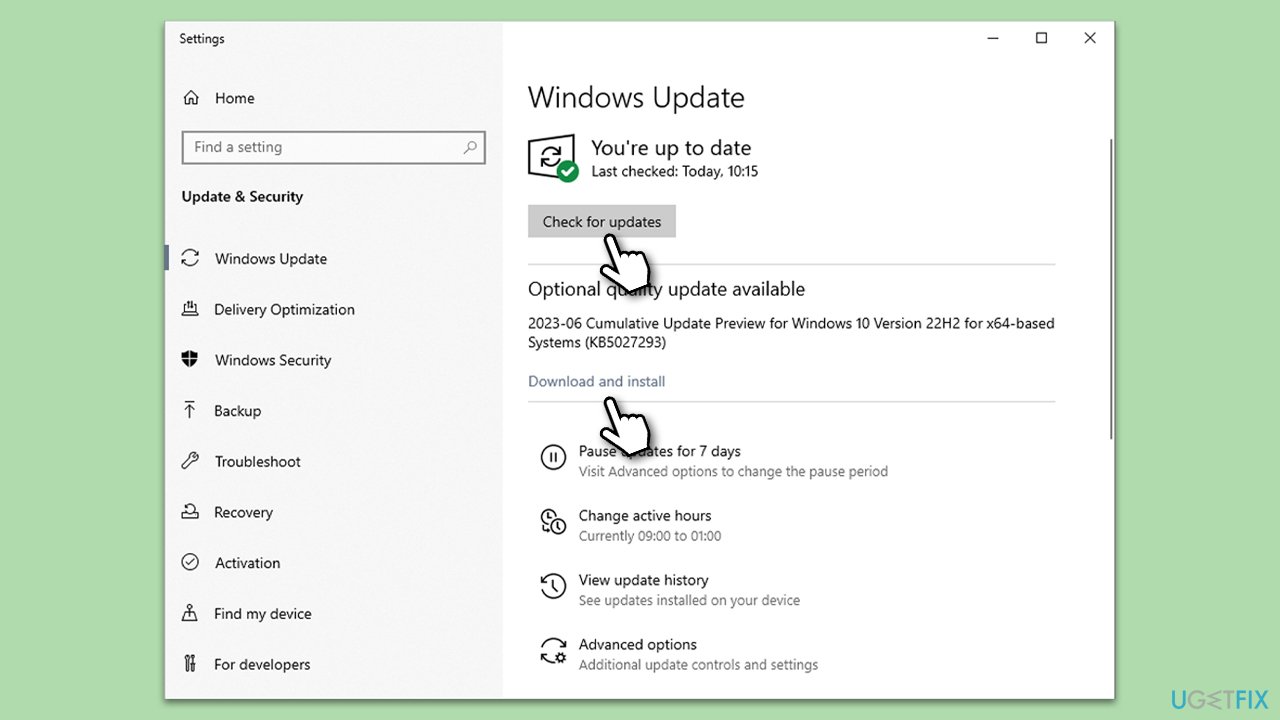
Updating Windows ensures that you have the latest security and system updates, potentially resolving compatibility issues with background apps.
- Type Updates in Windows search and press Enter.
- Click Check for updates and wait.
- Install all the optional updates as well.
- Restart your system.
Fix 6. Check power settings
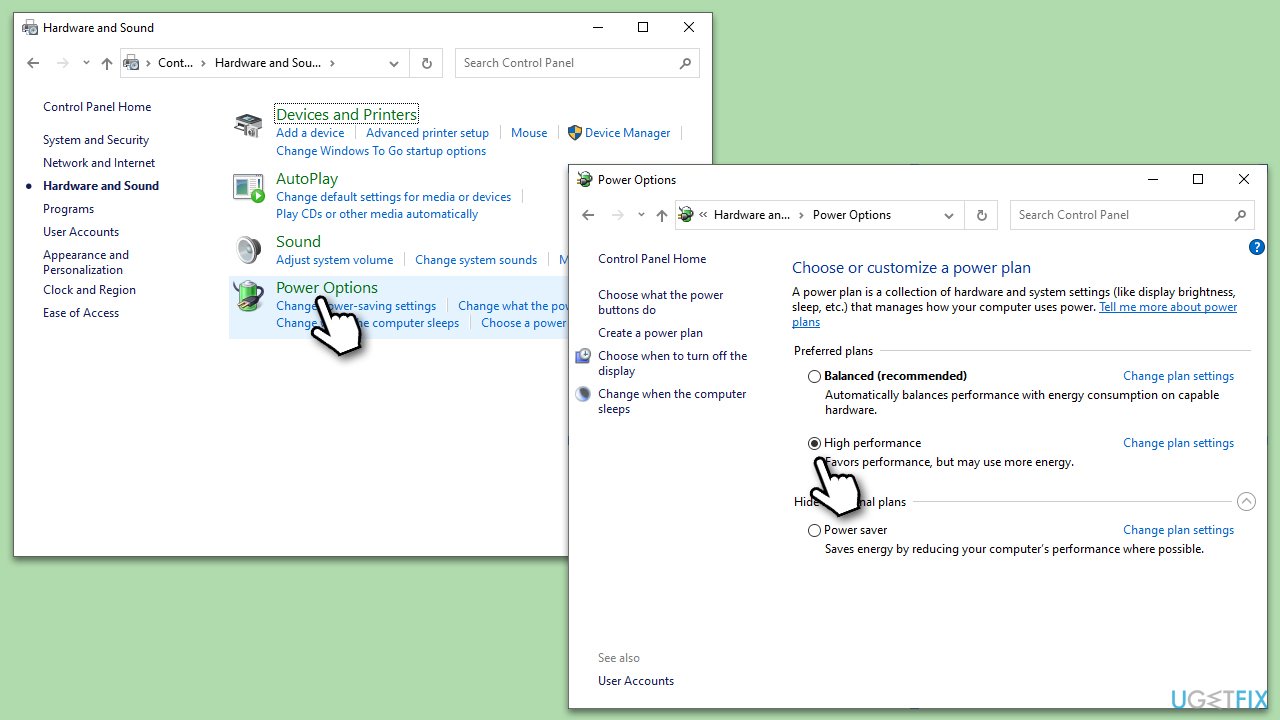
Your power settings may affect the functionality of background apps. Adjusting these settings can optimize your system’s performance.
- Type Control Panel in Windows search and hit Enter.
- Here, go to Hardware and Sound > Power options.
- Here, you will see the listed plans.
- Change the plan from Power saver to High performance.
Fix 7. Create a new user account
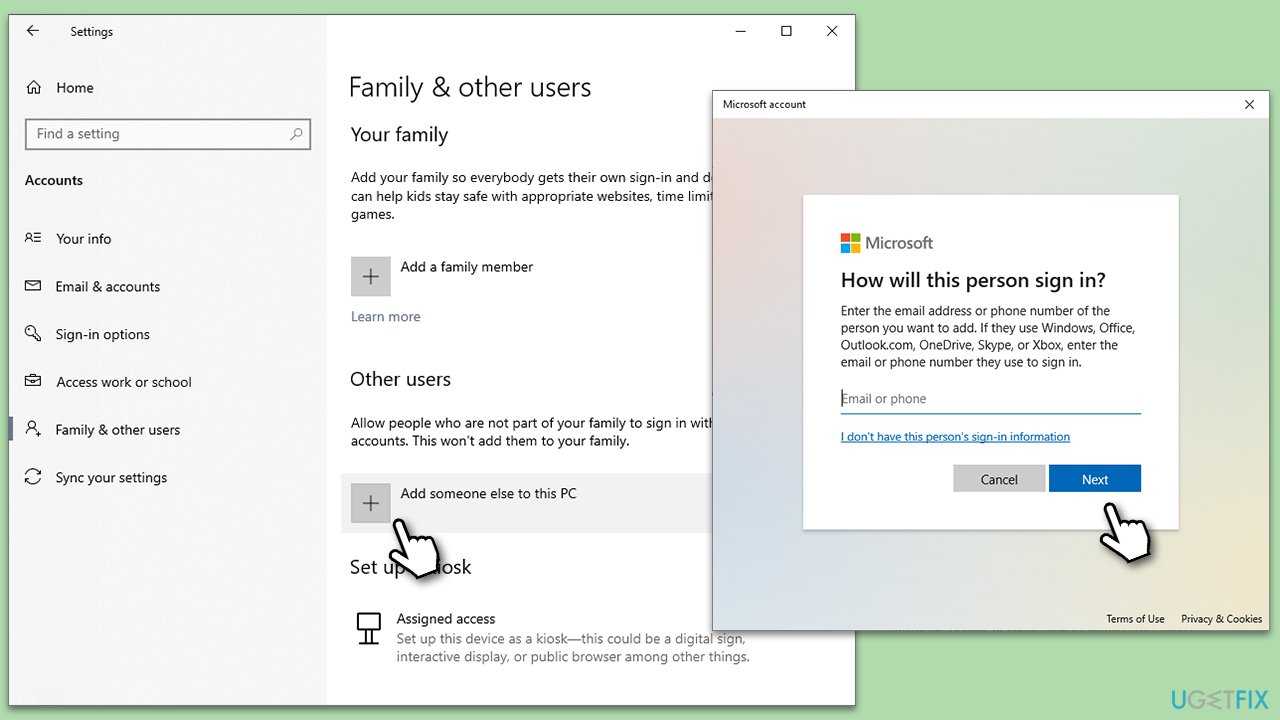
Creating a new user account provides a fresh environment, potentially free from the issues affecting your current account.
- Open Settings by clicking the Start button and selecting the gear icon.
- Navigate to Accounts, then select Family & other users.
- Under Other users, click on Add someone else to this PC.
- If you do not want to use a Microsoft account, choose I don’t have this person’s sign-in information, then select Add a user without a Microsoft account.
- Fill in the required fields for the username, password, and password hint.
- Click Next and then Finish.
- Sign out of your current account and sign into the new account to check if the notification icon appears on the taskbar.
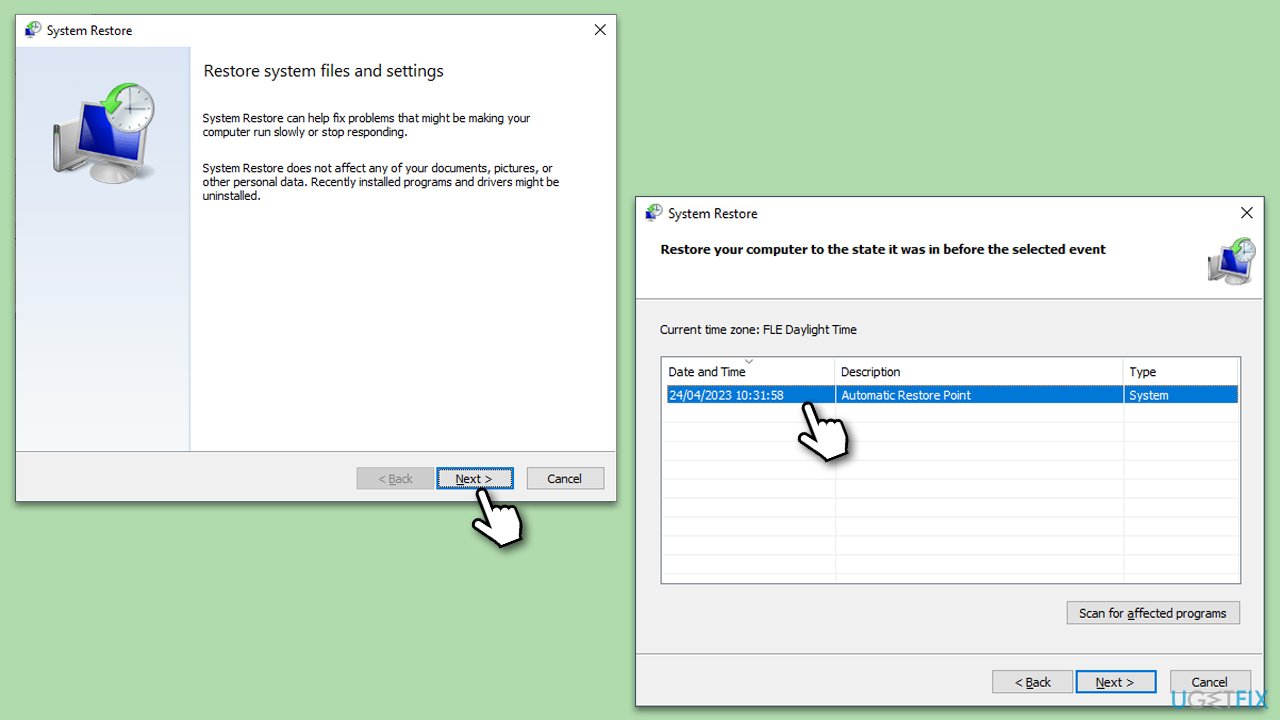
Fix 8. Perform a System Restore
A system restore reverts your computer to an earlier state, potentially resolving any recent issues.
- Type in Create a Restore point in Windows search and hit Enter.
- In the System Protection tab, pick System restore.
- Click Next.
- Click Show more restore points (if available).
- Pick the time before the problem occurred and click Next.
- Your computer will reboot.
Bottom line
To fix the grayed out background apps issue, you can adjust the power settings to a higher performance mode, modify system configuration settings, or use an automated tool like a PC repair tool. If these solutions do not resolve the problem, further manual troubleshooting may be necessary.
Frequently asked questions
Background apps may be grayed out due to group policy settings or restrictions set by system administrators. Additionally, certain power settings can limit background app activity, causing them to appear disabled.
To enable grayed out background apps, go to Settings > Privacy > Background apps and toggle the 'Let apps run in the background' option. If still grayed out, check for any group policy restrictions or system management settings.
If background apps remain grayed out, try running the Windows Troubleshooter for Apps or check for Windows updates that might resolve underlying issues. Additionally, ensure that your user account has sufficient permissions.




Report an issue
What's wrong with this guide? We review every report and update or remove content.
Report received — thank you. We'll review and fix it.
You need a free account to submit a report.
Be the first to comment