How to fix
Background Apps permissions missing
on Windows
Resolve missing Background Apps permissions in Windows 11 quickly and easily. Enjoy seamless performance with expert-tested solutions and screenshots.

What causes How to fix Background Apps permissions missing in Windows 11?
- Corrupted system files
- Recent update conflicting with background permissions
- Incorrect settings in Group Policy
- Incorrect settings in Registry Editor
- Missing permissions for apps
Repairs Windows system files, removes malware, and restores a clean OS state — without reinstalling.
In Windows 11 22H2, Xbox Game Bar settings allow enabling/disabling background permissions - a feature that is missing in 23H2, causing errors in Xbox party chat. How do I fix this?
To operate in the background on Windows, applications require specific permissions. This is a necessary feature for apps that do tasks or run even when the user is not actively using them. Xbox Game Bar is a popular program that depends on background permissions. With the use of this technology, players can access an overlay that improves their gameplay experience overall by providing features like performance statistics, live chat, and screen recording.
However, following the update to Windows 11 version 23H2, a number of users have reported a problem with background program permissions appearing to be broken. In particular, the permissions required for some apps to run in the background aren't working or missing. As a result, features like the live chat option in the Xbox Game Bar become useless. This issue has the potential to seriously impair user experience, particularly in gaming sessions when interaction is crucial.
Of course, the main cause for this problem is the newest update for Windows 11, which is version 23H2. As a result, background app permissions might be missing because of corrupted system files, a recent update conflicting with background permissions, or incorrect settings within the system's Group Policy or Registry Editor.
To fix this issue, you can try repairing corrupted files, uninstalling recent updates, adjusting settings through Group Policy or Registry Editor, or repairing the app in question directly. Some users have found a temporary workaround by keeping the affected app pinned to the foreground, though this is more of a workaround than a solution.
Using a PC repair tool [d1] can be a simple solution for handling such situations. So if you want to try a more hands-off solution, try using this software - it can automatically check for file corruption, fix registry errors, and more.
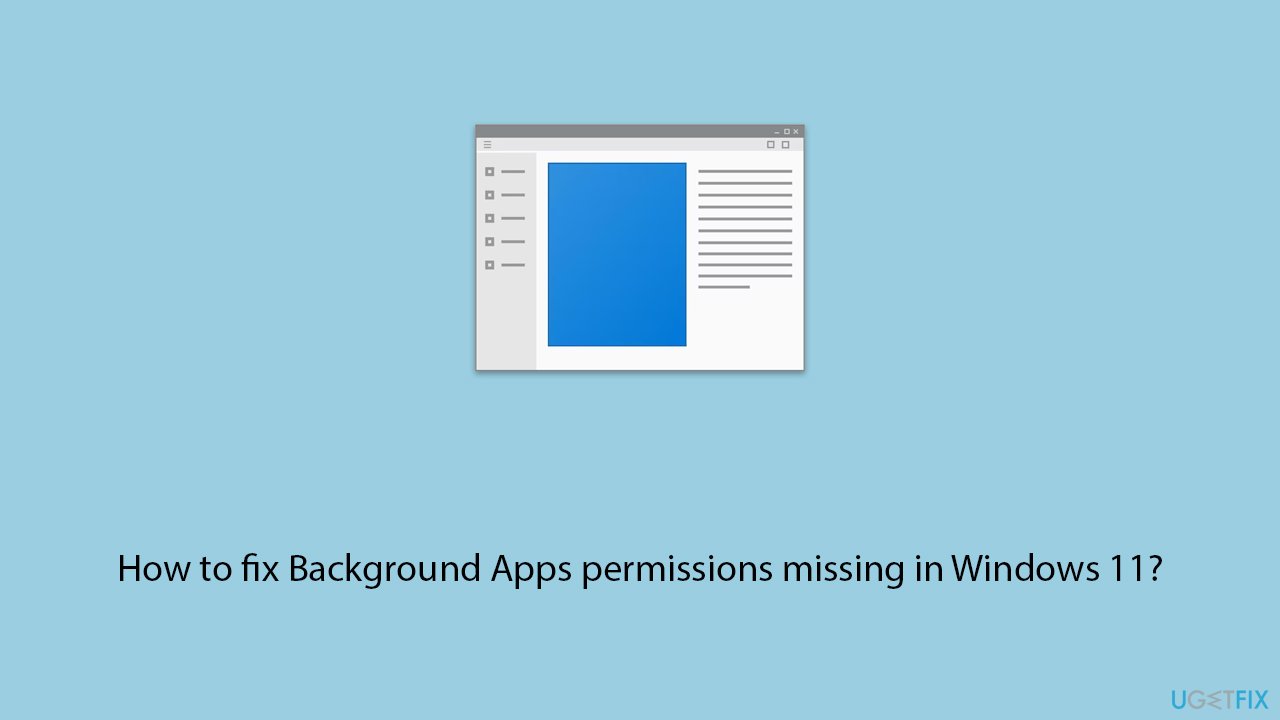
Fix 1. Run Windows Store apps troubleshooter
The Windows Store apps troubleshooter is a built-in tool designed to identify and fix common problems with apps downloaded from the Microsoft Store. It works by scanning the app and its related components for issues and attempting to resolve them automatically.
- Type troubleshoot in Windows search and hit Enter.
- Click Additional troubleshooters/Other troubleshooters.
- Find Windows Store Apps.
- Click on it, and select Run the troubleshooter/Run.
- Wait for the scan to be completed and apply the suggested fixes.
- You can also try running the Windows update troubleshooter.
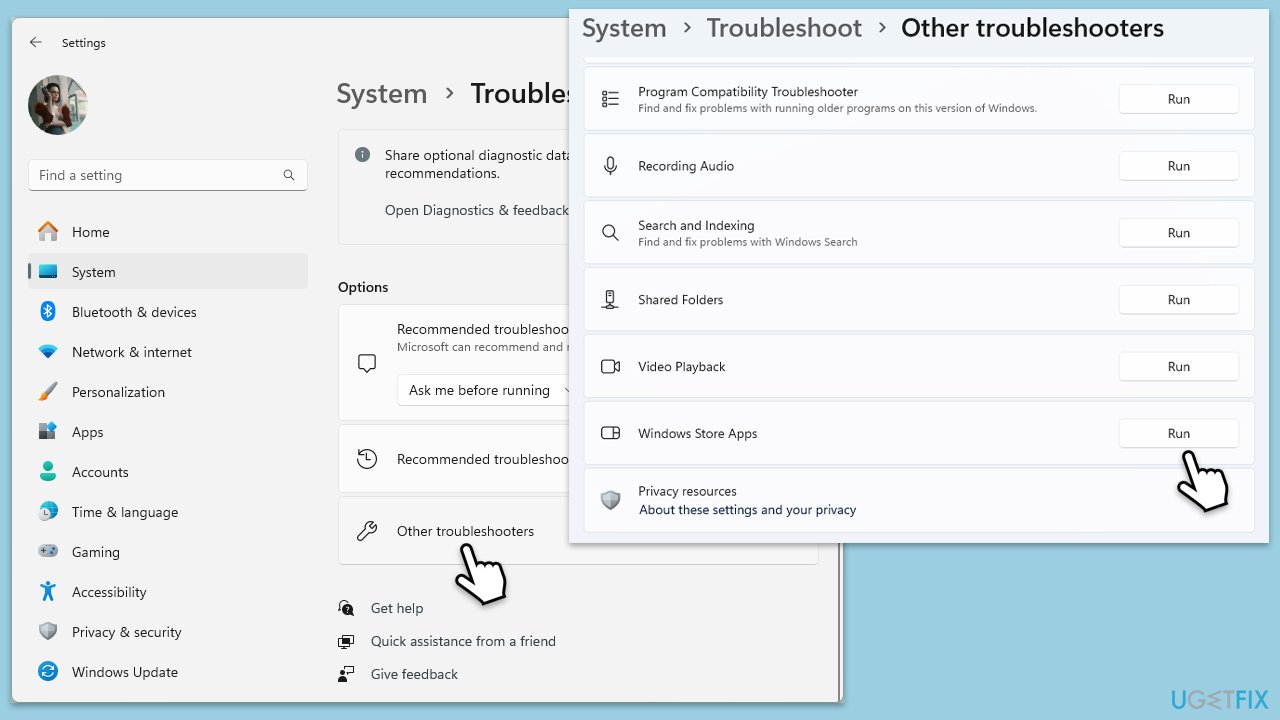
Fix 2. Repair corrupted files
System File Checker and Deployment Image Servicing and Management scans are tools for repairing corrupted system files and Windows image files, respectively. Running these scans can fix underlying system issues that might be affecting app permissions.
- Type cmd in Windows search
- Right-click on the Command Prompt search result and select Run as administrator
- UAC (User Account Control) will ask whether it can make changes, click Yes
- In the Command Prompt window, paste the following command and press Enter:
sfc /scannow - Wait for the scan to complete.
- Once the SFC scan is finished, run the following set of DISM commands, pressing Enter after each one:
DISM /Online /Cleanup-Image /CheckHealth
DISM /Online /Cleanup-Image /ScanHealth
DISM /Online /Cleanup-Image /RestoreHealth - After completing the DISM commands, restart your computer.
Fix 3. Fix app permissions using Group Policy
Group Policy Editor allows you to manage system and user settings, including app permissions. Adjusting these settings can resolve permission issues for background apps.
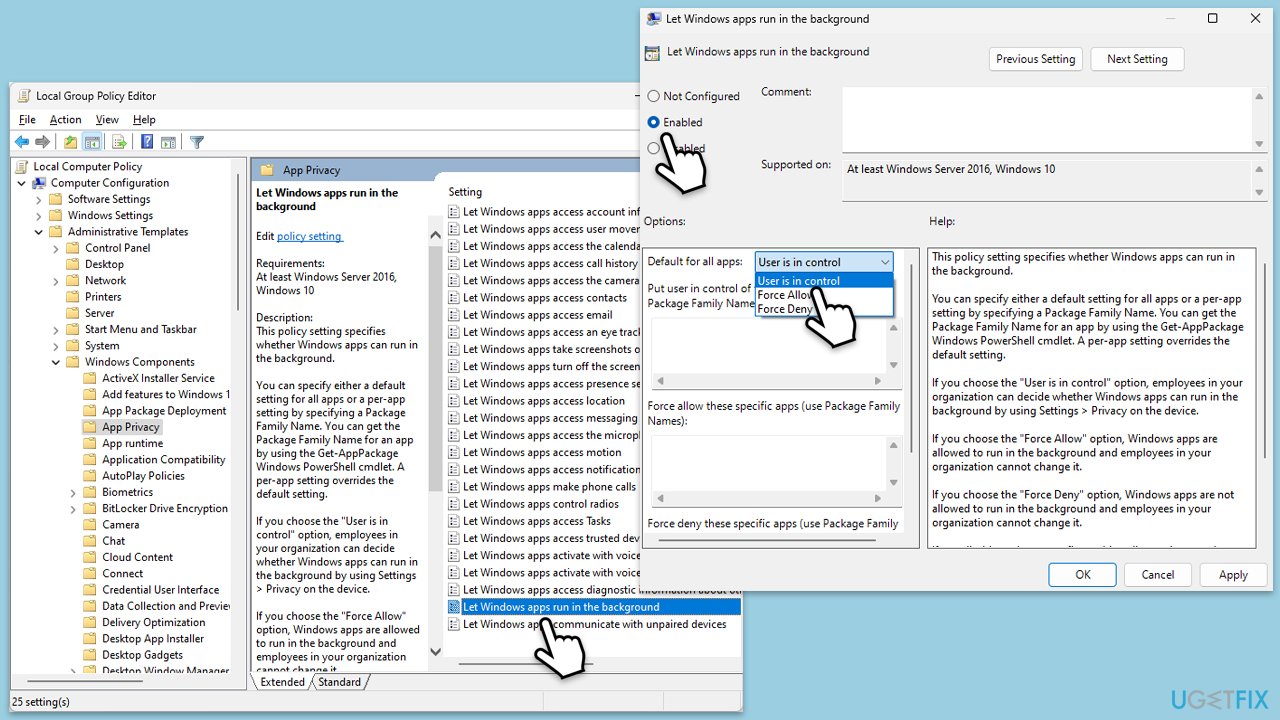
- Press Win + R, type gpedit.msc, and press Enter to open Group Policy Editor.
- Navigate to Computer Configuration > Administrative Templates > Windows Components > App Privacy.
- Find Let Windows apps run in the background and double-click it.
- Set it to Enabled and choose Default for all apps under Options.
- Click Apply and OK, then restart your computer.
Fix 4. Repair or Reset the Xbox (or another) app
Repairing or resetting an app can fix issues by restoring it to its default state without affecting your data (for repair) or by removing all app data (for reset).
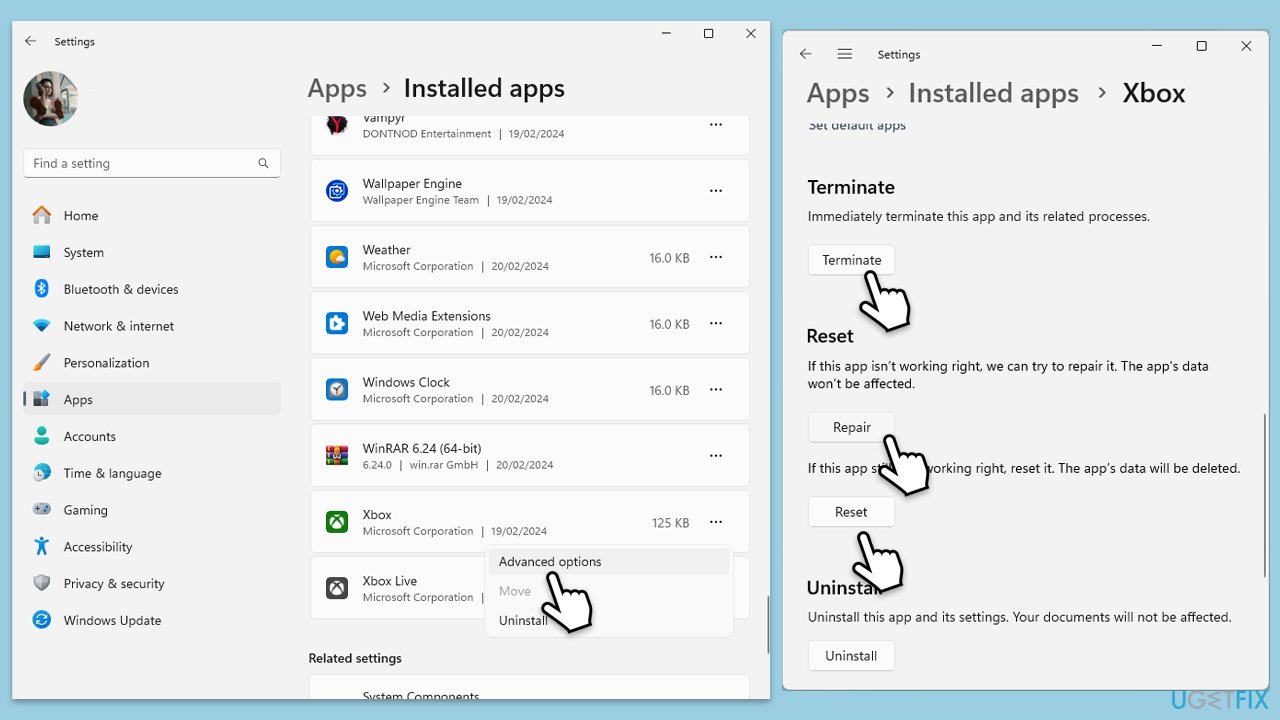
- Right-click on Start and select Apps & Features/Installed apps.
- Scroll down to find Xbox app and click Advanced options.
- Scroll down again and click Terminate and Repair.
- If that does not work, try using Reset.
Fix 5. Try using Registry Editor
Caution: incorrect changes can cause system issues. Always back up the registry before making changes.
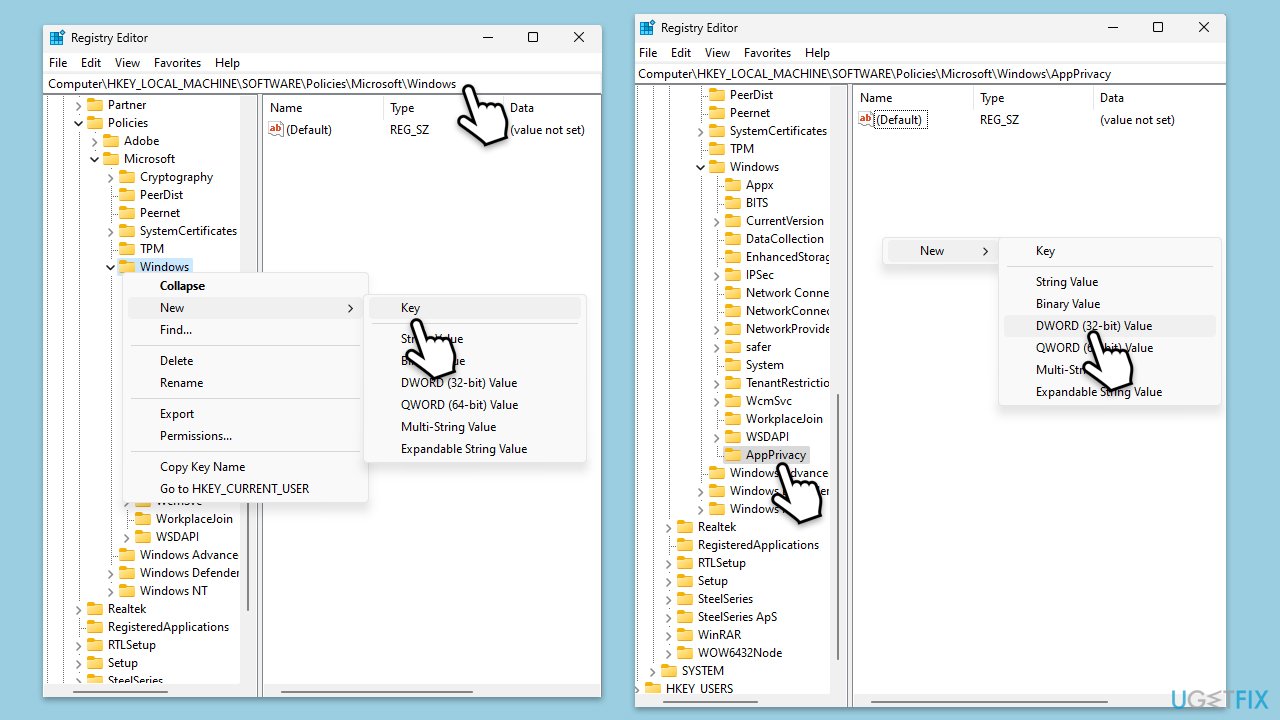
- Press Win + R, type regedit, and press Enter to open Registry Editor.
- Navigate to the following location:
Computer\HKEY_LOCAL_MACHINE\SOFTWARE\Policies\Microsoft\Windows\AppPrivacy - If AppPrivacy is not present, right-click on Windows folder, select New > Key, and name it AppPrivacy.
- Right-click on the empty spot on the right side of the window and select New > DWORD (32-bit) Value, name it LetAppsRunInBackground, and set its value to 0.
- Restart your computer for changes to take effect.
Fix 6. Uninstall the most recent update [workaround]
Uninstalling recent updates can resolve conflicts between the update and background app permissions. This is a temporary measure until a more permanent solution is available.
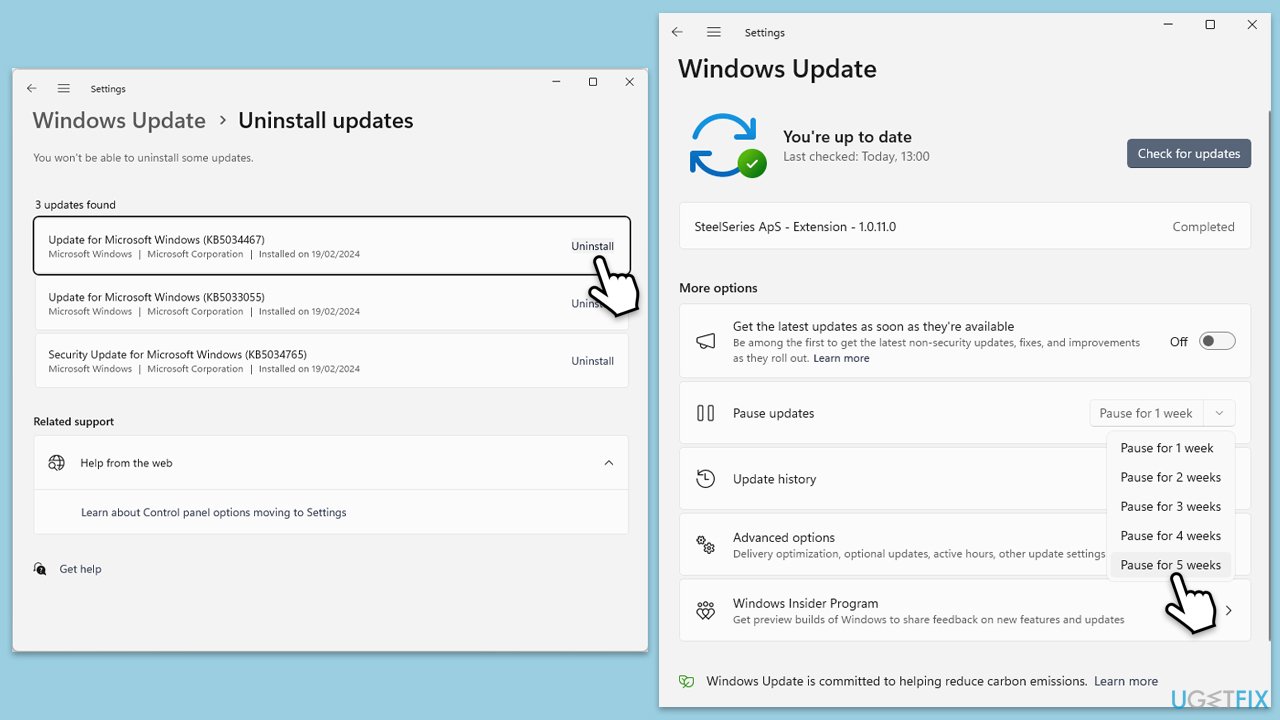
- Type Control Panel in Windows search and press Enter.
- Select Programs > Uninstall a program.
- Click on View installed updates on the left side of the window.
- Uninstall the most recent update.
- Proceed with on-screen instructions.
- Don't forget to pause the update.
- Install updates only once the issue is addressed by Microsoft.
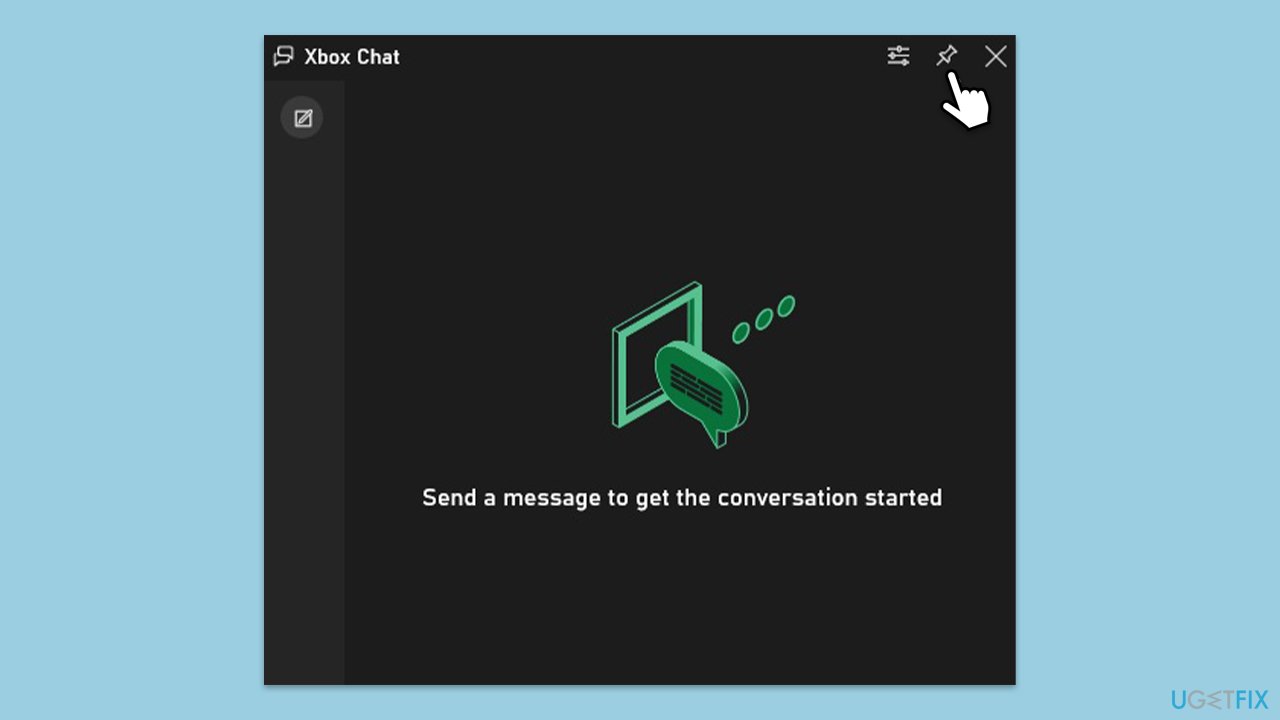
Fix 7. Pin the app to the foreground [workaround]
Pinning the app to the foreground is a workaround that keeps it active, bypassing background permission issues.
- Open the Xbox Game Bar by pressing Win + G.
- Select the Xbox Chat window.
- Click the Pin button at the top-right to keep Xbox Chat in the foreground.
Bottom line
To fix the missing background app permissions, you can try repairing corrupted files, uninstalling recent updates, adjusting settings through Group Policy or Registry Editor, or repairing the affected app directly. If these solutions do not work, consider using a PC repair tool for a more automated approach.




Report an issue
What's wrong with this guide? We review every report and update or remove content.
Report received — thank you. We'll review and fix it.
You need a free account to submit a report.
Be the first to comment