
How to fix Background Task Host high CPU usage in Windows 11?

Prefer to fix it yourself? The manual steps follow.
- 8methods
- 5 to 40 minutes
- Easy
Applies to Windows 11, Windows 10; PCs with Microsoft Store apps or built-in apps allowed to run in the background
8 methods in this guide
- What the process is
- Normal or a problem
- Causes, most common first
- The fixes
- 1. Find the app behind it
- 2. End the task for now
- 3. Turn off background running
- 4. Phone Link, Spotlight, tips
- 5. Repair or update the app
- 6. Update Windows
- 7. Check the file is genuine
- 8. Repair Windows files
- Still broken
- Prevent it
- FAQ
Hello. I recently noticed in Task Manager that a process called "Background Task Host" is using a lot of CPU for no reason. How can I fix this?
Background Task Host (backgroundTaskHost.exe) is the Windows process that runs the background tasks of Store and built-in apps, so its CPU use belongs to one of those apps. A short spike is normal. When it stays high, expand the entry in Task Manager to see which app it serves, then stop or fix that app.
High CPU from Background Task Host almost always comes from one app's background task, such as Feedback Hub, Microsoft To Do, Get Started or Phone Link. Open Task Manager, expand the Background Task Host group and note the app under it (Fix 1). End it for now (Fix 2), then set that app's background permission to Never or remove it if you do not use it (Fix 3). Keep, repair and update the apps you need (Fix 5).
| Error | No error window. Task Manager shows Background Task Host with high CPU for minutes, often with the fan running and the PC slow. |
|---|---|
| Where it appears | Task Manager, Processes tab, under Background processes, often as a group such as Background Task Host (3) with an app name inside. |
| Main cause | The background task of one app keeps running or starts again and again: Feedback Hub, Microsoft To Do, Get Started, Phone Link, Windows Spotlight content or a Surface app. |
| Fastest fix | Find the app in the expanded group (Fix 1) and set its Let this app run in background option to Never (Fix 3). |
| The file | C:\Windows\System32\backgroundTaskHost.exe, signed by Microsoft. It is a Windows file, not a virus and not part of Cortana. |
| Also written as | backgroundtaskhost, backgroundTaskHost.exe, background taskhost, backround task host, background host task, windows background task host. |
| Normal behavior | Microsoft limits most background tasks to 30 seconds of run time, and timer tasks run at most every 15 minutes. A spike that ends within a minute or two needs no fix. |
| Affects | Windows 11 (25H2 and 26H2) and Windows 10 22H2. The process and the fixes are the same on both. |
| Vendor status | Microsoft has no known-issue article on Background Task Host CPU use. Its developer rules say background tasks must be light and short; a task that runs for long is an app bug. |
| Time to fix | 5 minutes for Fix 1 to Fix 3; 20 to 40 minutes for the Windows checks in Fix 6 to Fix 8. |
Facts checked on 16 October 2026. Steps written for Windows 11 (25H2 and 26H2) and Windows 10 22H2.
What is Background Task Host in Task Manager?
Background Task Host is the name Task Manager gives to backgroundTaskHost.exe. Microsoft's developer documentation describes background tasks: small pieces of code that a Windows app registers so it can do work while it is closed. Out-of-process tasks do not run inside the app itself. Windows starts them in a separate host process, and on Windows that host is backgroundTaskHost.exe.
So the host has no work of its own. It runs a task for an app when a trigger fires (a timer, a network change, sign-in or a maintenance window), then ends. When it uses a lot of CPU, the code that burns it belongs to the app whose task is running.
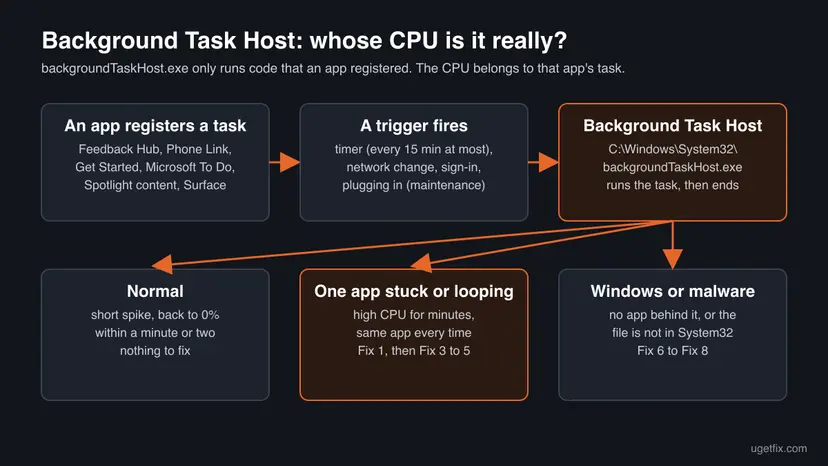
- Name in Task Manager
- Background Task Host. Task Manager shows the app it serves inside the group, for example Microsoft To Do, Feedback Hub, Get Started or Microsoft Content.
- Location
C:\Windows\System32\backgroundTaskHost.exe. A file with this name in any other folder is not the Windows one.- Many entries
- Normal. Each app that runs a task can get its own Background Task Host.
- Suspended or paused icon
- Normal. Windows has paused that task, and it uses no CPU.
- Run time limit
- Microsoft: most triggers allow 30 seconds of wall-clock run time, a few up to 10 minutes for heavy work.
- Timer tasks
- Microsoft: the built-in timer runs app tasks at 15-minute intervals; a shorter interval is refused.
- Needed?
- Yes. Without it, apps cannot sync, refresh content or show notifications while closed.
The old idea that backgroundTaskHost.exe is part of Cortana is out of date. The process serves every Store and built-in app that declares background tasks, and it is still there on Windows 11 builds where Cortana is gone.
When Background Task Host high CPU is a problem
Microsoft's guidelines tell app makers that background tasks must be lightweight and short. Most may run for 30 seconds, some for up to 10 minutes. That gives you a simple test:
| What you see | What it means | What to do |
|---|---|---|
| A spike to 10 to 50 % that falls back to 0 % within a minute or two | A task ran and finished, as designed | Nothing |
| A paused icon or Suspended next to the entry | Windows paused the task; it uses no CPU | Nothing |
| High CPU for 10 minutes or more, every time with the same app inside | That app's task hangs or loops | Fix 1, then Fix 3 to Fix 5 |
| High CPU comes back every 15 minutes or so | A timer task of one app starts again and again | Fix 1, then Fix 3 |
| No app name inside the group, or the file is not in System32 | A Windows part, damaged files or a fake file | Fix 6 to Fix 8 |
This page is about Background Task Host using too much processor time. If you see a window titled backgroundTaskHost.exe - System Error instead, read our guide to the backgroundTaskHost.exe System Error.
What causes Background Task Host high CPU, most common first
Microsoft has not published one cause. The order below follows from how background tasks work and from the app names people search for together with Background Task Host.
| Cause | How often | Start with |
|---|---|---|
| The task of one Store app you rarely use hangs or loops: Feedback Hub and Microsoft To Do are named most often. | Most often | Fix 1, then Fix 3 |
| A built-in content or phone component works hard in the background: Phone Link, Get Started, Windows Spotlight content (Microsoft Content). | Often | Fix 4 |
| An app you use has a bug in its task, often right after an app update. | Often | Fix 5 |
| A bug in a Windows build or an old app version that an update fixes. | Sometimes | Fix 6 |
| Malware named backgroundTaskHost.exe running from another folder. | Rarely | Fix 7 |
| Damaged Windows system files, so tasks fail and retry. | Rarely | Fix 8 |
Some Background Task Host groups carry a hardware maker's app name, such as a Surface or HP Smart app. The same fixes apply: find it in Fix 1, then limit, repair or update that app.
How to fix Background Task Host high CPU usage
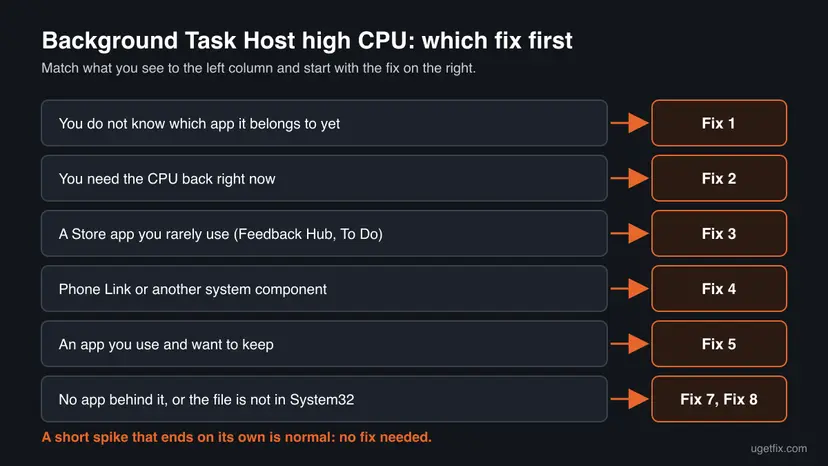
Fix 1 tells you which app's task is using the CPU, and Fix 2 gets the CPU back right now. Fixes 3 to 5 deal with that app for good. Fixes 6 to 8 check Windows itself when no app is behind it.
| What you see or have | Start with |
|---|---|
| You do not know which app the Background Task Host belongs to yet. | Fix 1 |
| You need the CPU back right now, for a game or a call. | Fix 2 |
| The app inside is one you rarely use, such as Feedback Hub or Microsoft To Do. | Fix 3 |
| The app inside is Phone Link, Get Started or Microsoft Content (Spotlight). | Fix 4 |
| The app inside is one you use every day and want to keep. | Fix 5 |
| No app is named, or it started after a Windows update. | Fix 6 |
backgroundTaskHost.exe runs from a folder other than C:\Windows\System32. | Fix 7, then Fix 8 |
Fix 1. Find which app the Background Task Host is working for
2 minutesNo riskAlways first: the host has no work of its own, so you need the app's name.
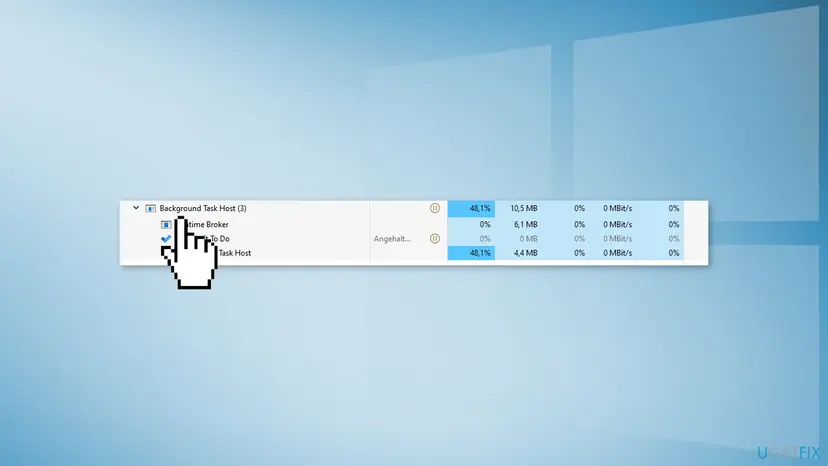
Task Manager groups each Background Task Host under the app whose task it runs. That name tells you which app to stop, repair or remove, so you do not change Windows blindly.
- Press Ctrl + Shift + Esc to open Task Manager on the Processes page.
- Select the CPU column header so the busiest processes go to the top.
- Find Background Task Host under Background processes and select the arrow next to it to expand the group.
- Read the app name inside, for example Microsoft To Do, Feedback Hub, Get Started or Microsoft Content, and check which line has the high CPU.
- Watch it for two or three minutes. If the CPU falls back to 0 % on its own, it was a normal task run.
- If no app name shows, open the Details page, right-click the column headers, choose Select columns and turn on Command line. The line of backgroundTaskHost.exe often contains part of the app's package name.
It worked if: You know the app name and whether the CPU stays high or falls back on its own.
If not: If the CPU falls back within a minute or two, nothing is wrong. If it stays high, go to Fix 2 for quick relief, then Fix 3, Fix 4 or Fix 5 for that app.
Fix 2. End the busy Background Task Host to get the CPU back now
1 minuteLow riskYou need the processor right away and will fix the app afterwards.
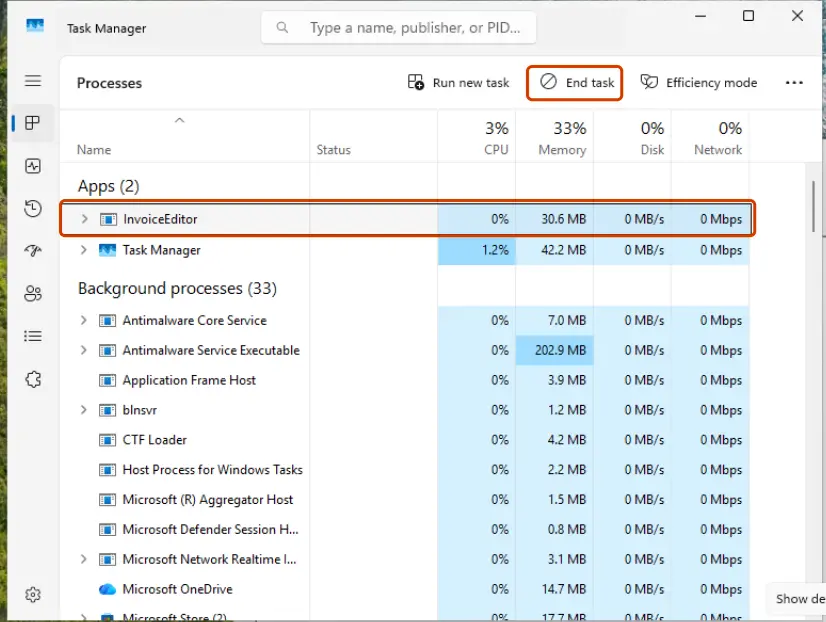
Ending the process stops the stuck task at once. It is only a pause: Windows starts the task again at its next trigger, at the latest within about 15 minutes for a timer task, so use Fix 3 to Fix 5 to stop it for good.
- In Task Manager, right-click the expanded Background Task Host line that uses the CPU.
- Select End task.
- Wait a minute and check that the CPU graph on the Performance page drops.
Task Manager basics, with pictures: Close a frozen app (Task Manager, Force Quit)
It worked if: CPU use drops within seconds and the fan slows down.
If not: If the entry comes back with high CPU after a few minutes, go to Fix 3 for that app.
Fix 3. Stop the app's background tasks, or remove an app you never use
3 minutesLow riskThe app inside is a Store app you rarely use: Feedback Hub, Microsoft To Do, a maker's utility.
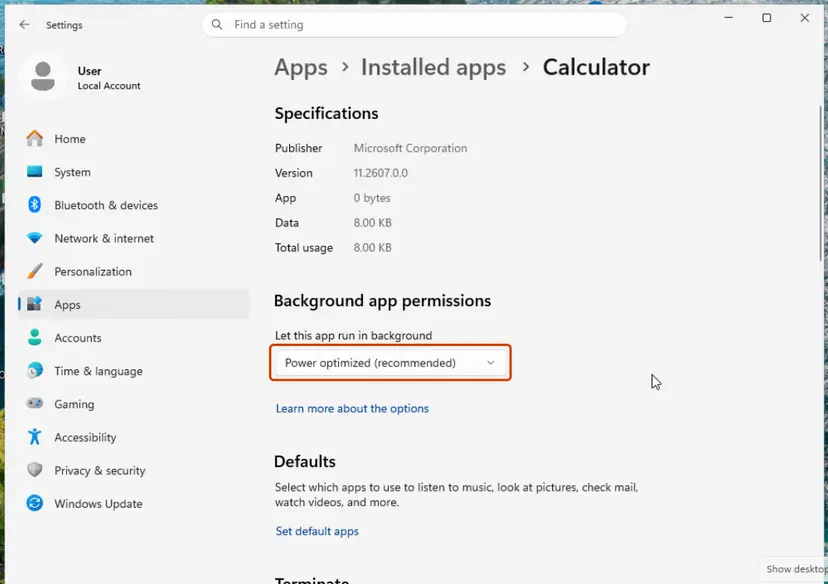
Microsoft's rules say an app must check that the user has not denied it background access before it registers tasks. When you set the app's background permission to Never, Windows stops starting its tasks, so the host has nothing of that app's to run. The app still works when you open it.
- Press Win + I and open Apps > Installed apps (Windows 10: Apps > Apps & features).
- Find the app, select the three dots and choose Advanced options.
- Under Background app permissions, set Let this app run in background to Never.
- Check Task Manager again after 15 to 30 minutes.
Both Windows 11 and Windows 10 paths: Stop apps from running in the background
If you never use the app at all, remove it. Feedback Hub and Microsoft To Do can be uninstalled from Installed apps; built-in apps without an Uninstall button can be removed with PowerShell: Remove built-in Windows apps with PowerShell
Feedback Hub is the app Windows uses to send feedback to Microsoft. Turning off its background running does not stop Windows updates or diagnostic data settings, and you can still open it when you want to report something.
It worked if: The group for that app no longer appears with high CPU, and the PC stays quiet over the next hour.
If not: If another app's name now shows under Background Task Host, repeat this fix for it. If the app has no Advanced options link, it is a system component: go to Fix 4.
Fix 4. Tame Phone Link, Get Started and Windows Spotlight content
5 minutesLow riskThe app inside is Phone Link, Get Started, Microsoft Content or another built-in Windows part.
These parts sync your phone, download new pictures and tips, and refresh content in the background. Turning off the feature you do not use removes the work their tasks do, which the background permission alone cannot always reach.
- Phone Link: press Win + I, open Bluetooth & devices > Mobile devices and turn off access to your mobile devices if you do not use a linked phone.
- Windows Spotlight pictures: open Personalization > Background and set Personalize your background to Picture or Solid color.
- Spotlight on the lock screen: open Personalization > Lock screen and set Personalize your lock screen to Picture or Slideshow.
- Get Started and tips: if it has Advanced options under Apps > Installed apps, set its background permission to Never as in Fix 3.
- Restart the PC and watch Task Manager for half an hour.
Task Manager shows the name a component gives itself. We could not confirm from Microsoft which component uses the name Microsoft Content. It is signed by Microsoft and is usually linked to Spotlight and lock screen content, so the Spotlight steps above are the first thing to try.
It worked if: The Phone Link, Get Started or Microsoft Content group stops using high CPU or no longer appears.
If not: If the component keeps using CPU with the feature off, install the newest updates (Fix 6).
Fix 5. Repair, reset or update an app you want to keep
10 minutesRead the warningThe app inside is one you use every day, so you do not want to stop its background work.
A task that loops is a bug in the app's code or a damaged app state. An app update often contains the fix, Repair puts the package files back, and Reset clears a bad cached state that keeps the task busy.
- Open the Microsoft Store, select Library and Get updates, and install the app's newest version.
- If the CPU stays high, open Settings > Apps > Installed apps, the app's three dots and Advanced options.
- Select Repair and check Task Manager again.
- If it is still busy, select Reset on the same page and sign in to the app again.
Reset deletes the app's data on this PC: settings, sign-in and offline files. Items the app syncs to your account come back after you sign in again. Repair keeps the data, so try it first.
Step by step, with pictures: How to repair or reset an app in Windows

It worked if: The app's Background Task Host runs for a short time and goes back to 0 %.
If not: If the app still loops, limit its background running (Fix 3) until its maker ships an update, and report it to the maker.
Fix 6. Install the latest Windows and app updates
20 minutesLow riskNo app name shows, the high CPU began after a Windows update, or Windows is several months behind.
Built-in apps and the parts their tasks use are serviced through Windows Update and the Store. A newer build can replace the code that makes a task loop.
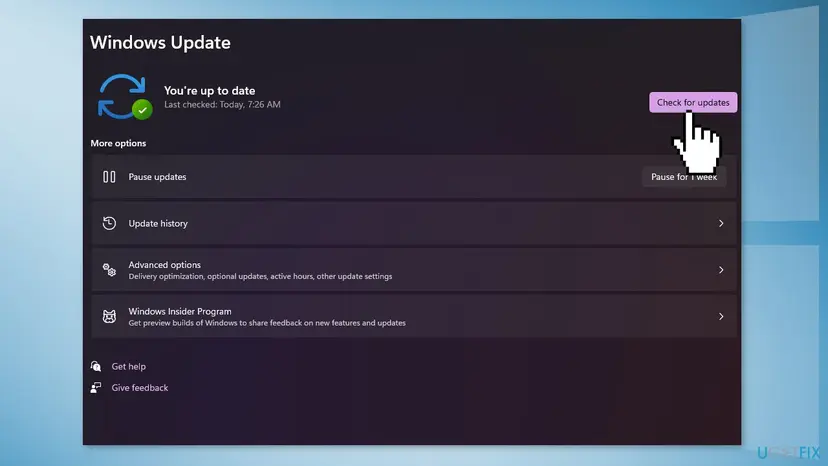
- Press Win + I, open Windows Update and select Check for updates.
- Install everything offered, including optional quality updates, and restart.
- Open the Microsoft Store, go to Library and select Get updates.
- Check Task Manager over the next hour.
Windows 10 left support on 14 October 2025. A Windows 10 22H2 PC without Extended Security Updates gets no new fixes, so Fix 3 and Fix 4 matter more there.
It worked if: After the restart, Background Task Host shows short spikes only.
If not: If it began right after an update, remove that update with How to uninstall a Windows update and pause updates for a week. Otherwise go to Fix 7.
Fix 7. Check that backgroundTaskHost.exe is the real Windows file
15 minutesNo riskThe CPU stays high with no app name inside, the process runs from an odd folder, or the PC also behaves strangely.
Malware sometimes takes the name of a known Windows process to hide its own CPU use, for example for crypto mining. The real backgroundTaskHost.exe sits only in C:\Windows\System32 and is signed by Microsoft.
- In Task Manager, open the Details page.
- Right-click each backgroundTaskHost.exe and select Open file location.
- The folder must be
C:\Windows\System32. - If it is any other folder, such as
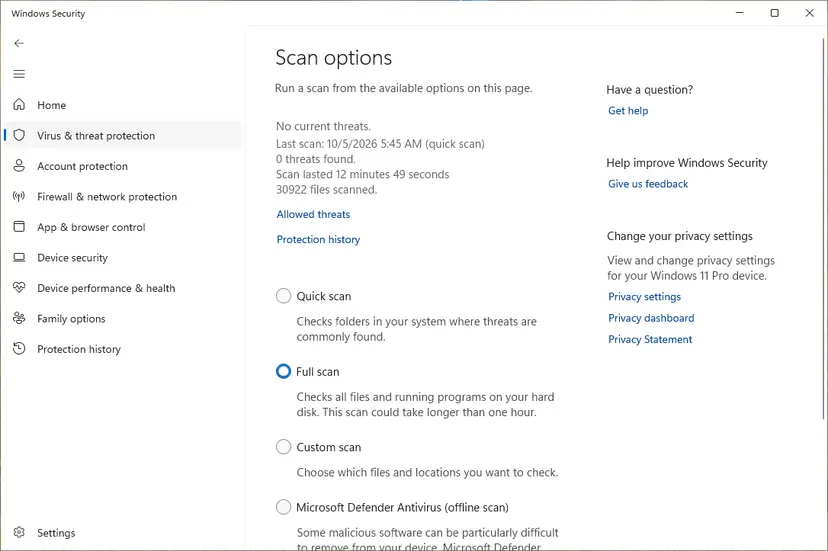
AppData,TemporProgramData, run a full scan with Microsoft Defender.
Full scan and Protection history: How to scan for malware with Microsoft Defender
It worked if: Every backgroundTaskHost.exe opens C:\Windows\System32, or Defender found and removed the fake file.
If not: If the file is genuine and the CPU stays high with no app behind it, go to Fix 8.
Fix 8. Repair Windows system files with DISM and SFC
20 minutesNo riskNo app is named, the file is genuine, and the high CPU keeps coming back.
Background tasks load Windows system files. When those are damaged, tasks can fail and be started again and again. DISM repairs the Windows image, and SFC then restores damaged protected files.
- Right-click Start and open Terminal (Admin) (Windows 10: Windows PowerShell (Admin)).
- Run
DISM /Online /Cleanup-Image /RestoreHealthand wait until it reaches 100 %. - Run
sfc /scannow. - Restart the PC.
Step by step: Run DISM and SFC to repair Windows system files

It worked if: SFC reports no integrity violations or that it repaired them, and Background Task Host shows short spikes only.
If not: Read the section below on where to look next and what to send to support.
If Background Task Host still uses high CPU: where to look
Task Manager shows only the moment. These places show what ran and when:
| What to check | Where | What it tells you |
|---|---|---|
| Which app's task it is | Task Manager > Details > column Command line | The arguments of backgroundTaskHost.exe, often with part of the app's package name. |
| CPU use over time per app | Task Manager > App history | Which apps used the most CPU time in the last 30 days. |
| Which apps may run in the background | Settings > Apps > Installed apps > the app > Advanced options | Whether the app is set to Never, Power optimized or Always. |
| Task crashes and retries | Reliability Monitor: Win + R, perfmon /rel | Red backgroundTaskHost.exe entries; a crash that repeats can look like constant CPU. |
| The Windows build | Win + R, winver | Which update you have, to compare with the day the high CPU began. |
When you ask Microsoft support or the app's maker for help, send the app name from the expanded group, the Command line text, how long the CPU stays high, your Windows build and what you already tried.
If every process feels slow, the CPU runs hot even when Task Manager shows little use, or the PC shuts down on its own, look at cooling and power first. A laptop on a battery saver plan or with clogged vents can show any short task as a heavy one.
How to keep Background Task Host CPU use low
- Let only the apps you use run in the background.
- Uninstall Store apps you never open.
- Keep Store apps updated: Microsoft Store > Library > Get updates.
- Install Windows updates every month.
- Do not delete or rename backgroundTaskHost.exe. Every app loses its background work.
- Do not download backgroundTaskHost.exe from file download sites.
- Do not end every Background Task Host on a schedule; Windows starts them again.
- Do not use registry cleaners or tuning tools for this. They do not fix an app's task.
Frequently asked questions
What is Background Task Host in Task Manager?
Background Task Host is the Windows process backgroundTaskHost.exe. It runs the background tasks of Microsoft Store apps and built-in Windows apps, so those apps can sync, refresh content and show notifications while they are closed. Task Manager lists it under Background processes and shows the app it serves inside the group. The real file sits in C:\Windows\System32 and is signed by Microsoft. It starts when a task's trigger fires and ends when the task is done.
Why is Feedback Hub running in Background Task Host with high CPU?
Feedback Hub registers background tasks, for example to check for feedback requests and notifications. If one of them hangs or loops, it keeps Background Task Host busy. Set Feedback Hub's Let this app run in background to Never in Settings > Apps > Installed apps > Feedback Hub > Advanced options (Fix 3). You can still open Feedback Hub when you want to report something. If you never use it, uninstall it from the same page.
What is Microsoft Content in Task Manager?
Microsoft Content is a name that shows inside a Background Task Host group on many Windows 11 PCs. Task Manager shows the name a component gives itself, and we could not confirm from Microsoft which component uses it. It is signed by Microsoft and is usually linked to Windows Spotlight content on the desktop and lock screen. If it keeps using CPU, switch the background and lock screen from Spotlight to Picture (Fix 4) and install the latest updates (Fix 6).
What is Get Started background task host?
Get Started is the built-in Windows app with tips and setup help, earlier called Tips. It registers background tasks to refresh its content and notifications, and those tasks run in Background Task Host. A short run is normal. If the Get Started group keeps the CPU busy, set its background permission to Never when the app offers Advanced options (Fix 3 and Fix 4), and install the latest Windows updates (Fix 6).
What is MR Background Host?
This page is about Background Task Host (backgroundTaskHost.exe). We could not confirm from Microsoft a Windows process named MR Background Host or mr background host.exe, so we cannot say what it is. Check it the way Fix 7 shows: open its file location in Task Manager and look at the folder and the publisher. If it is not a known, signed program you installed, run a full Microsoft Defender scan.
Is it safe to end Background Task Host?
Yes, ending one Background Task Host in Task Manager is safe. You stop only one app's background task, and Windows starts it again at the next trigger. Unsaved work in an open app is not affected, because the app's window runs in its own process. Ending it again and again is not a fix, though: find the app behind it and limit or repair that app (Fix 3 to Fix 5).
Can I disable Background Task Host completely?
No, and you should not try. backgroundTaskHost.exe is part of Windows, and every Store and built-in app that works in the background needs it. Deleting or blocking it breaks notifications, syncing and content updates for all of them. Turn off background running only for the apps you do not need, under Settings > Apps > Installed apps > the app > Advanced options (Fix 3).
Why are there so many Background Task Host entries in Task Manager?
Each app that runs a background task can get its own Background Task Host, so ten or more entries can be normal on a PC with many apps. Most of them are paused or use no CPU. The number alone is not a problem. Look only at an entry that keeps high CPU for minutes, and set background running to Never for apps you do not use (Fix 3).
Is Background Task Host a virus?
No, not when it runs from C:\Windows\System32 and is signed by Microsoft. It is a normal Windows process, and earlier claims that it belongs to Cortana are out of date. Malware can use the same name from another folder to hide its CPU use. Check the folder with Open file location in Task Manager and run a full Microsoft Defender scan if it is anywhere else (Fix 7).
Is Background Task Host the same as Host Process for Windows Tasks or Service Host?
No. Background Task Host (backgroundTaskHost.exe) runs the background tasks of Store and built-in apps. Host Process for Windows Tasks is taskhostw.exe, which runs other Windows tasks, and Service Host (svchost.exe) runs Windows services. They are different processes with different fixes. This page covers only Background Task Host; if Task Manager shows one of the others with high CPU, start by finding out which task or service it runs.
Sources
- Microsoft Learn: Guidelines for background tasks (CPU quotas: 30 seconds for most triggers, up to 10 minutes for some) (learn.microsoft.com)
- Microsoft Learn: Run a background task on a timer (15-minute intervals) (learn.microsoft.com)
- Microsoft Q&A: backgroundTaskHost.exe Background Task Host, what it is (learn.microsoft.com)
Did this fix work?
One click, no account. It tells the next reader which guides are worth their time.
Questions and experiences: fix Background Task Host high CPU usage in Windows 11
Still broken, or found a fix we did not cover? Ask here: members and our editors answer. Reading is open; writing needs a free account.
…