How to fix
Backup error 0x81000019
on Windows
Resolve backup error 0x81000019 in Windows 10 or 11 quickly and effectively. Get expert-tested solutions and restore your backups with zero traces left.


What causes How to fix backup error 0x81000019 in Windows?
- Insufficient space in the System Reserved partition
- Temporary problems with the backup process
- Incompatibilities with third-party backup software
- Issues with the Volume Shadow Copy Service (VSS)
- File system inconsistencies
- Corrupted system files
Repairs Windows system files, removes malware, and restores a clean OS state — without reinstalling.
I'm constantly receiving the 0x81000019 backup error whenever I try to backup on my Windows PC, with the message that "A shadow copy could not be created." I've tried restarting already and ensuring that my external is connected, but I'm still receiving the error and am worried about losing everything should anything go wrong. What is this, and how can I resolve it to backup my files?
Windows has a built-in backup program that allows people to create system images and restore points. During this, however, some people find themselves facing the backup error 0x81000019 that prevents the process from being completed. This particular issue arrives along with the alert: "Insufficient storage available to create either the shadow copy storage file or other shadow copy data."
The 0x81000019 backup error tends to crop up when trying to create a system image or backup using the Windows Backup and Restore tool. What makes this issue so infuriating is that it can pop up even when there is clearly enough free disk space. The bad news is that the error is not always a question of overall free space - it's generally a question of how the system handles shadow copies, a technology employed to snapshot in-use files.
Among the most common reasons for this problem is that the System Reserved partition (or EFI partition for newer systems) does not contain sufficient free space to create the necessary shadow copies. Temporary problems, third-party backup software incompatibilities, or Volume Shadow Copy Service (VSS) issues could be the reason.
Some users have also mentioned that resizing partitions or modifying shadow storage settings resolved the error, while others managed by doing disk cleanup or repairing corrupted system files. Since backup error 0x81000019 does not have a one-size-fits-all solution, we've listed down some solutions in the next section so you can try them step by step.
For disk configuration issues or file system inconsistencies of systems, there is also a repair and maintenance program like [d1] that can automatically fix related issues.

Fix 1. Free up space on System Reserved or EFI partition
The shadow copy system often needs free space specifically on the system reserved or EFI partition, not just the main drive.
- Type Disk Management in Windows search and press Enter.
- Locate the System Reserved or EFI partition (usually 100–500 MB).
- If it's nearly full, use third-party partitioning software to extend it.
- Avoid deleting or modifying partition contents manually.

Fix 2. Configure Shadow Copy storage manually
Misconfigured shadow storage can block the creation of system images or backups.
- Type in cmd in Windows search.
- Right-click the Command Prompt result and pick Run as administrator.
- User Account Control will ask whether you want to allow changes - click Yes.
- Type in the following command and press Enter:
vssadmin list shadowstorage - Next, use the following command, pressing Enter after:
vssadmin resize shadowstorage /For=C: /On=C: /MaxSize=10% - Replace C: with the appropriate drive letter if needed.

Fix 3. Delete old system restore points
Old restore points can occupy hidden shadow storage and prevent new ones.
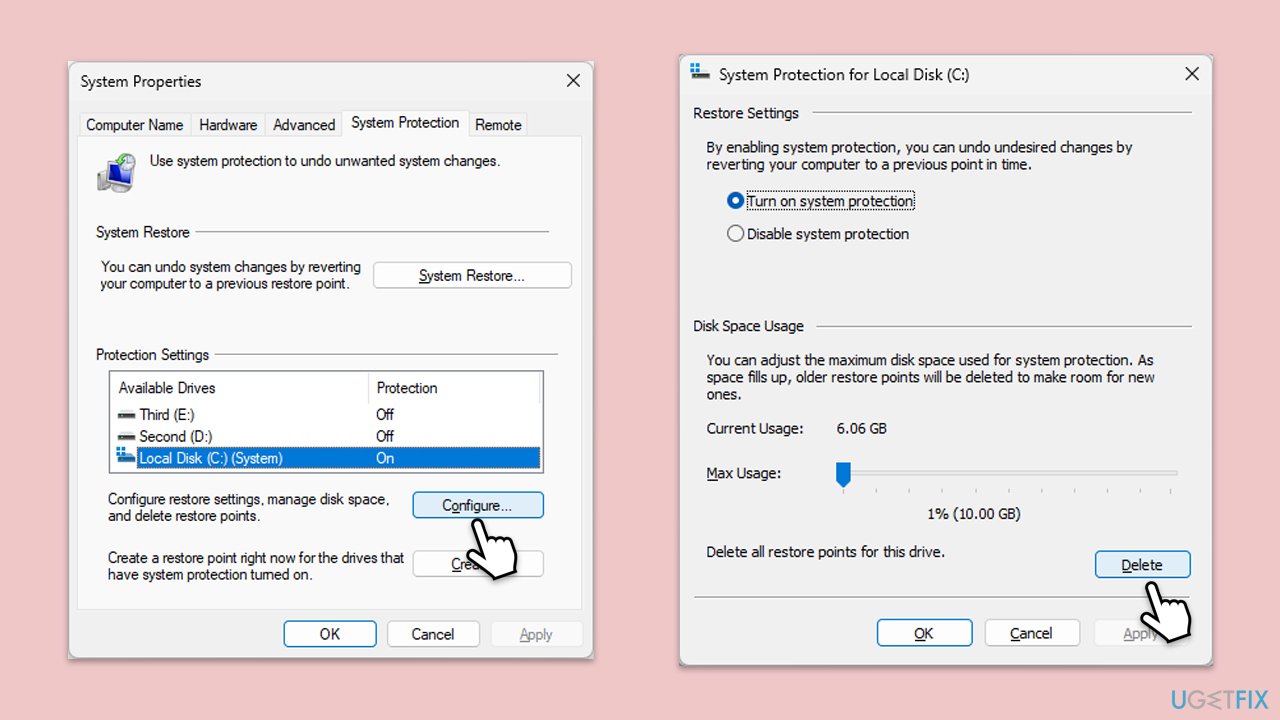
- Type System Protection in Windows search and press Enter.
- Under Protection Settings, select your system drive and click Configure.
- Click Delete to remove old restore points.
- Click Apply and OK.
Fix 4. Run Disk Cleanup with system files
Removing unnecessary files and temporary system data may free enough space for shadow copies.
- Type Disk Cleanup in Windows search and hit Enter.
- If your Windows is installed on drive C, pick it from the list (it should be by default) and press OK.
- Click Clean up system files.
- Select your main disk again and click OK.
- Here, select the largest portions of the data used - these typically include Temporary Internet Files, Windows Update, Temporary Files, Recycle Bin, Delivery Optimization Files, among others.
- Click OK - the process should be finished shortly.

Fix 5. Check Volume Shadow Copy and related services
If Volume Shadow Copy isn't working correctly, backup operations may fail.
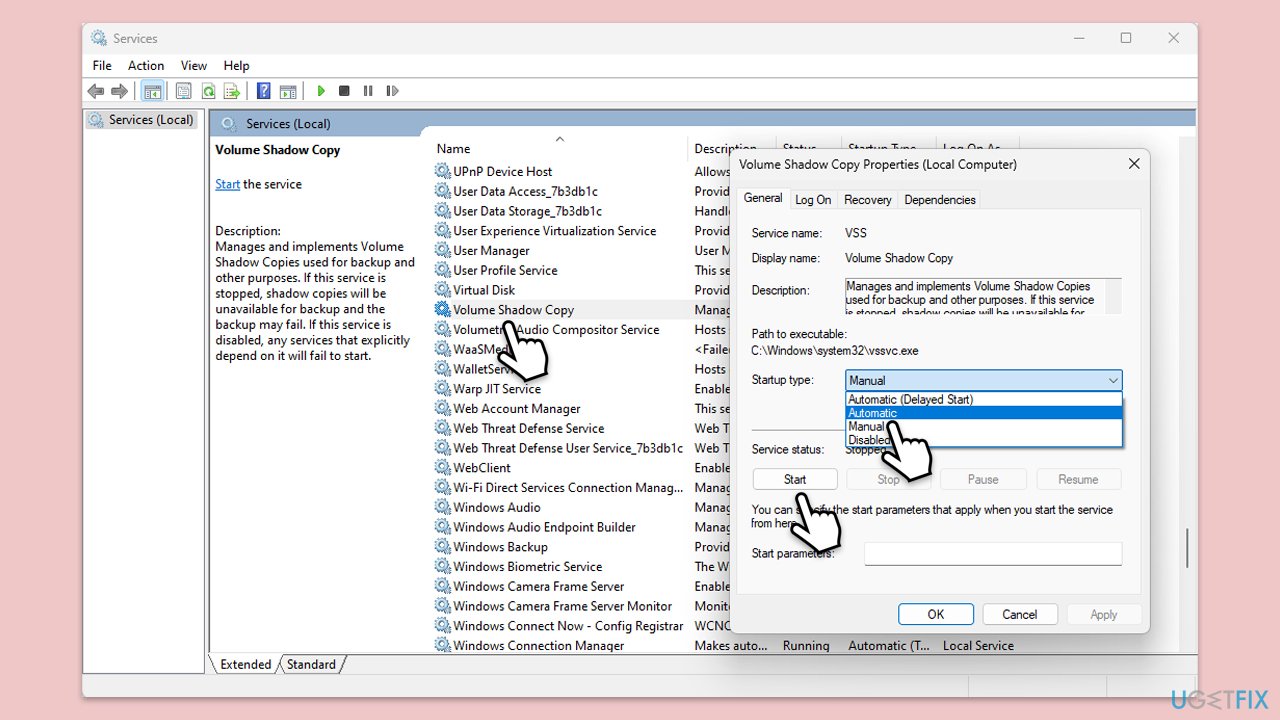
- Type in Services in Windows search and press Enter.
- Scroll down to locate Volume Shadow Copy Service (VSS).
- Double-click the service, and select Automatic under the Startup type from the drop-down menu.
- If it is already running, right-click and pick Restart.
- If the service is not running, double-click it to open Properties, and select Automatic under the Startup type from the drop-down menu.
- Click Start, Apply, and OK.
- Repeat this process with Microsoft Software Shadow Copy Provider and Windows Management Instrumentation.
Fix 6. Run system file and disk health checks
Corrupt system files or disk errors may interrupt backup operations.
- Open Command Prompt as administrator.
- Type this command and press Enter:
sfc /scannow - Wait for the scan to finish.
- Then, use the following commands, pressing Enter after each:
Dism /Online /Cleanup-Image /CheckHealth
Dism /Online /Cleanup-Image /ScanHealth
Dism /Online /Cleanup-Image /RestoreHealth - (Note: if you get an error executing this last command, add /Source:C:\RepairSource\Windows /LimitAccess to it and try again).

- Next, type in the following command to check your disk:
chkdsk c: /f
(Note: use chkdsk c: /f /r /x command if you are using SSD as your primary partition. Also, replace c: with another drive letter if you are not using default) - If you receive an error, type in Y, close down Command Prompt, and restart your system.
- Wait till the scan is finished.
Fix 7. Disable third-party backup or antivirus software
These tools can interfere with Windows’ native backup system.
- Temporarily disable any third-party antivirus or backup tools.
- Try running the backup again.
Fix 8. Use Storage Sense to clean hidden caches
Storage Sense can clear out background cache and free hidden space.
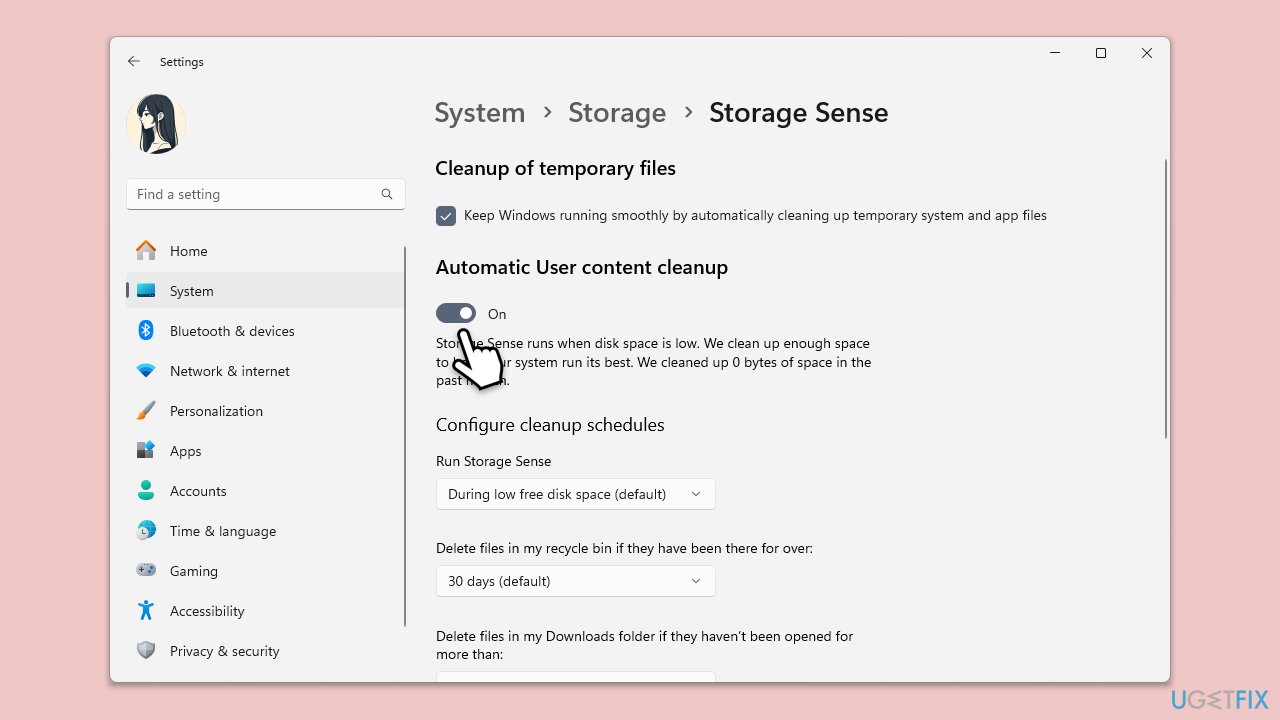
- Right-click on Start and pick Settings.
- Go to the System section.
- Click on Storage, then select Configure Storage Sense or find Storage Management > Storage Sense section.
- Turn on Storage Sense.
- Select unneeded files, including Previous Windows installations if available.
- Click Remove files.
Fix 9. Re-register VSS components
- Open Command Prompt as an administrator.
- Type the following commands one by one, pressing Enter after each:
- net stop vss
- net stop swprv
- cd %windir%\system32
- regsvr32 ole32.dll
- regsvr32 oleaut32.dll
- regsvr32 vss_ps.dll
- vssvc /register
- regsvr32 /i swprv.dll
- regsvr32 /i eventcls.dll
- regsvr32 es.dll
- regsvr32 stdprov.dll
- regsvr32 vssui.dll
- regsvr32 msxml.dll
- regsvr32 msxml3.dll
- regsvr32 msxml4.dll
- After executing these commands, restart your computer.
Bottom line
To resolve the backup error 0x81000019, you can try freeing up space, resizing partitions, modifying shadow storage settings, performing disk cleanup, or repairing corrupted system files. If these solutions do not work, consider using a repair and maintenance program to automatically fix related issues.
Frequently asked questions
Backup error 0x81000019 typically occurs due to a corrupted system file or issues with the Volume Shadow Copy Service (VSS). This can prevent the backup process from completing successfully.
To fix the 0x81000019 error, you can try running the 'sfc /scannow' command in Command Prompt to repair corrupted system files, or check and restart the Volume Shadow Copy Service.
To prevent error 0x81000019, ensure that your Windows 11 system is regularly updated and perform routine maintenance on the backup settings and storage devices used.




Report an issue
What's wrong with this guide? We review every report and update or remove content.
Report received — thank you. We'll review and fix it.
You need a free account to submit a report.
Be the first to comment