How to fix
Backward typing
on Windows
Resolve backward typing issues in Windows 10 or Windows 11 effortlessly. Quick solutions to restore normal typing—expert-tested and fixed in minutes.

What causes How to fix backward typing in Windows?
- Certain software or applications related to right-to-left languages
- Unintended changes in keyboard settings
- Unintended changes in language settings
- Unintentional keystrokes activating backward typing
Repairs Windows system files, removes malware, and restores a clean OS state — without reinstalling.
For some reason, whenever I attempt to type something, it types backward, i.e., from right to left. This is extremely annoying. I am not sure why this started to happen but I want to make everything normal again. Please advise.
Typing on a computer is a fundamental activity. Every day, millions enter text to search, communicate, or perform their jobs. The standard method of typing involves characters appearing sequentially from left to right. However, an issue some encounter is typing backward. This results in text appearing from right to left, a deviation from the standard left-to-right order.
Backward typing can be disorienting. Text appears in reverse, making straightforward tasks like writing emails or creating documents challenging. For those accustomed to the left-to-right convention, this can hinder productivity and cause frustration.
The occurrence of typing backward isn't arbitrary. Certain software or applications related to right-to-left languages, such as Arabic or Hebrew, may adjust the typing direction. Unintended changes in keyboard or language settings can also cause this. It's possible, too, that unintentional keystrokes can activate this mode, though that is less common.
If you've encountered the issue of typing backward, it's crucial to understand you're not alone. Many have faced this challenge and sought solutions. The root cause can vary, but often, it's a setting or application that needs adjustment or correction. Familiarizing yourself with system settings related to language and input can be beneficial.
Backward typing, while daunting initially, is a solvable problem. By identifying the cause and making the necessary adjustments, you can return to the standard typing mode. For those seeking guidance, step-by-step instructions to address this are provided below. Remember, while the experience can be jarring, solutions are at hand.

For those seeking a more straightforward approach, [d1] PC repair tool stands out as a premier solution for addressing Windows-related complications. Specifically designed for automatic detection and repair of common Windows errors, crashes, and other anomalies, it streamlines the troubleshooting process, ensuring that your system runs optimally with minimal hassle.
Fix 1. Use keyboard troubleshooter
The keyboard troubleshooter is an in-built tool within Windows designed to identify and automatically fix common keyboard issues. It scans for problems related to keyboard functioning and provides recommendations.
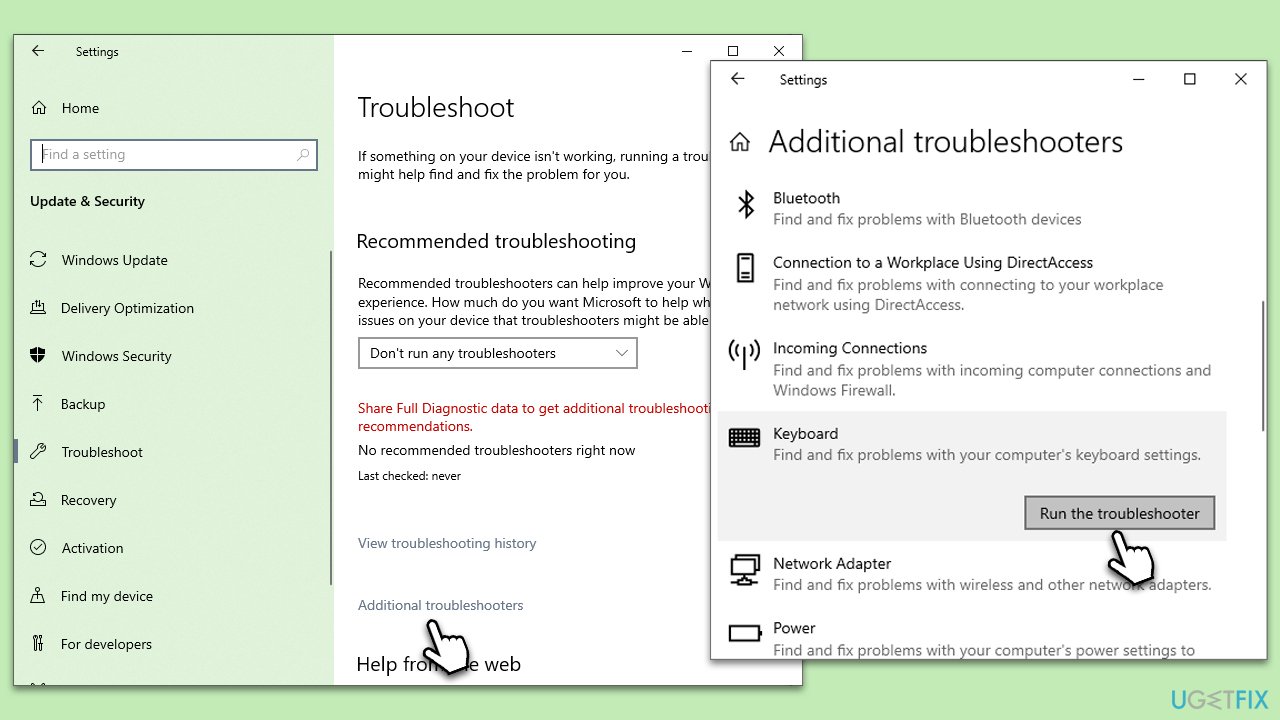
- Type Troubleshoot in Windows search and hit Enter.
- Select Additional troubleshooters/Other troubleshooters.
- Find Keyboard from the list and select Run the troubleshooter/Run.
- Wait till the scan is finished - you will be provided with potential causes so you can proceed with fixes.
- If no suggestions were given, proceed with the solutions below.
Fix 2. Change typing direction using keyboard shortcut
Sometimes, unintentional keystrokes can alter the typing direction. A quick keyboard shortcut can often reverse this change.
- While in a text field, press Ctrl (left) + Shift simultaneously.
- Test typing to see if the direction is corrected.
- If it doesn’t work, try the same combination while holding the right Ctrl and Shift keys.
Fix 3. Select the correct regional settings
The regional settings in Windows can impact how text is displayed and entered. If set to a right-to-left language region, it might change the typing direction.
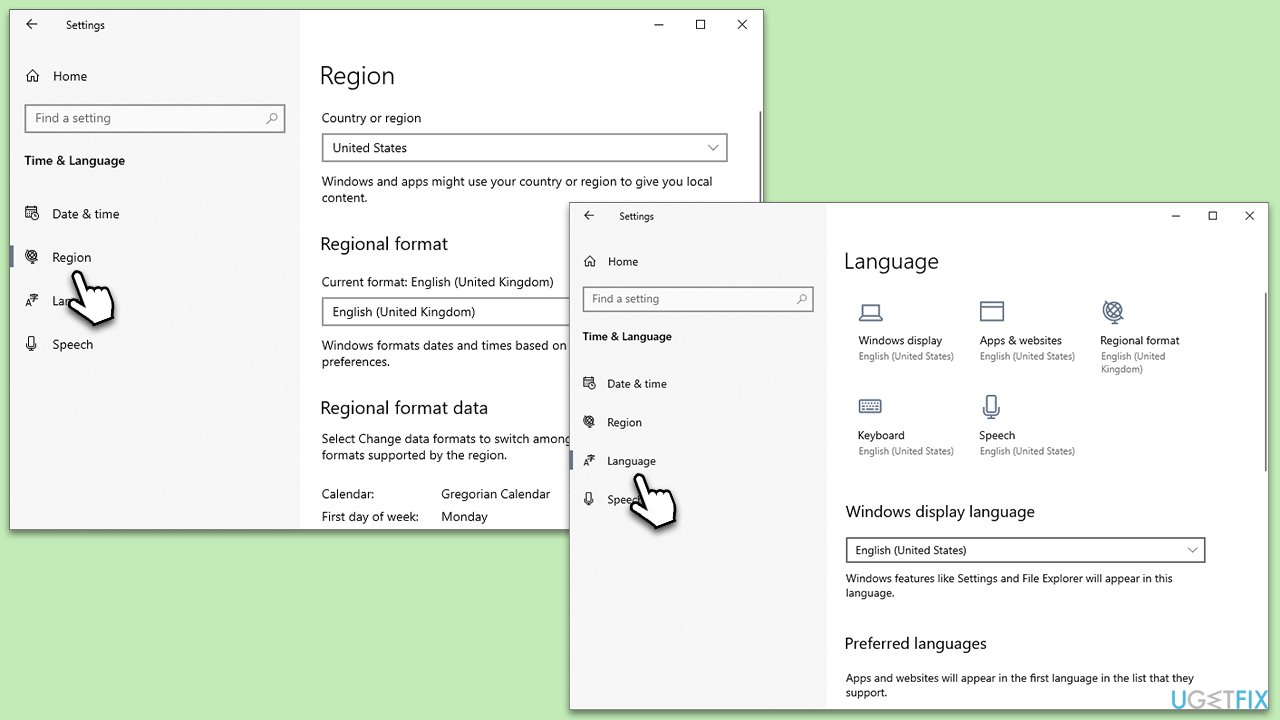
- Type Region settings in Windows search and press Enter.
- Click on Region & language settings.
- Ensure your Country or region is correctly selected.
- Under Languages, ensure your primary language is set correctly. If not, adjust accordingly.
Fix 4. Update keyboard drivers
Drivers are software components that allow your operating system to communicate with hardware. Outdated or corrupt drivers can cause unexpected behavior.
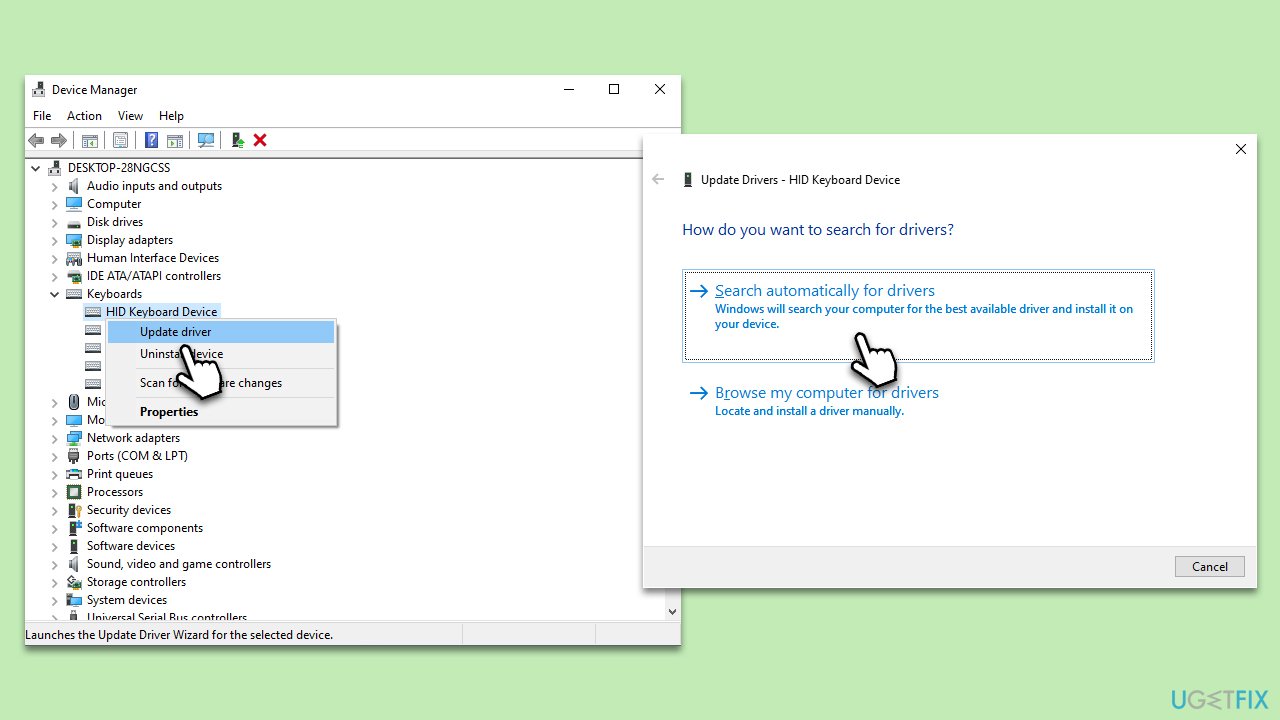
- Right-click on the Start button and select Device Manager.
- Expand the Keyboards section.
- Right-click on Standard PS/2 Keyboard or any similar option.
- Select Update driver.
- Choose Search automatically for drivers.
- Follow the prompts to complete the update and restart your PC.
If you'd like a more hands-off approach when it comes to updating drivers, you can choose automatic driver updater [rev id="DriverFix"].
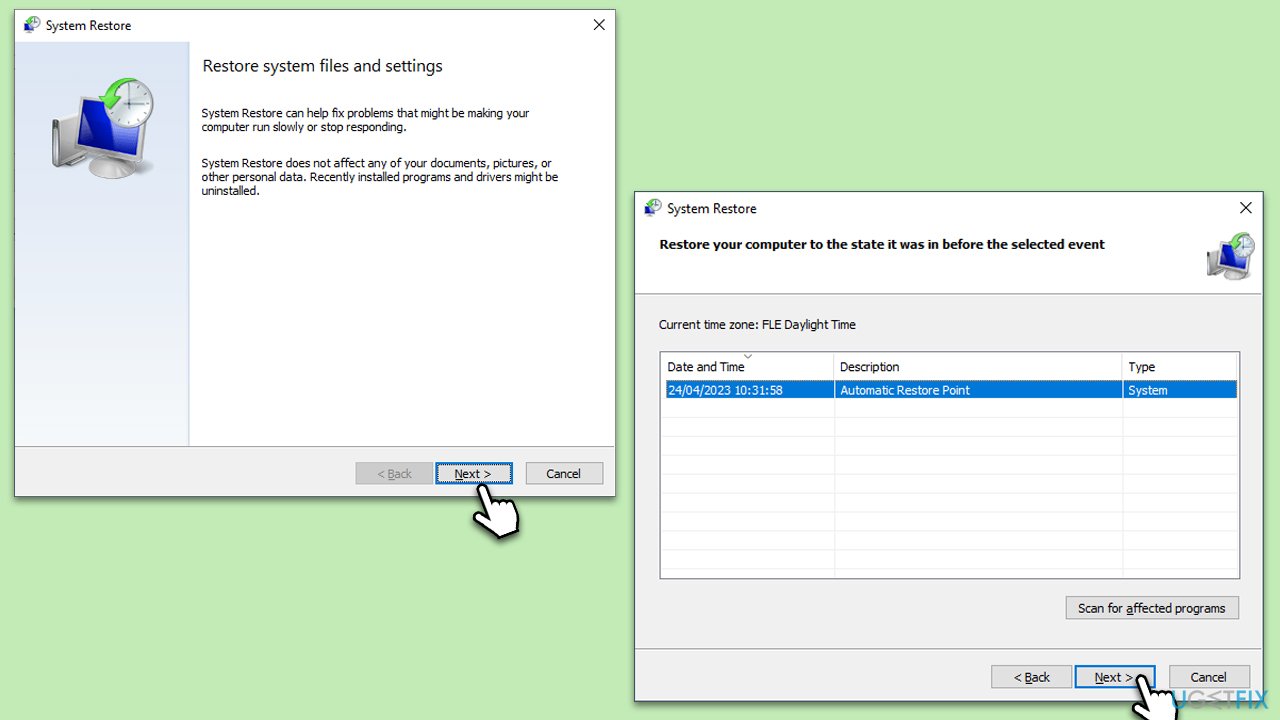
Fix 5. Restore Windows to a previous point
System Restore allows you to revert your computer's state to a previous point in time. This can help if recent changes have caused the issue.
- Type in Create a Restore Point in Windows search and hit Enter.
- Click System Restore.
- Pick Choose a different restore point (if available) and click Next.
- Mark the Show more restore points checkbox.
- Choose a time before issues occurred.
- Click Next and reboot the system as required.
Fix 6. Perform a Clean boot
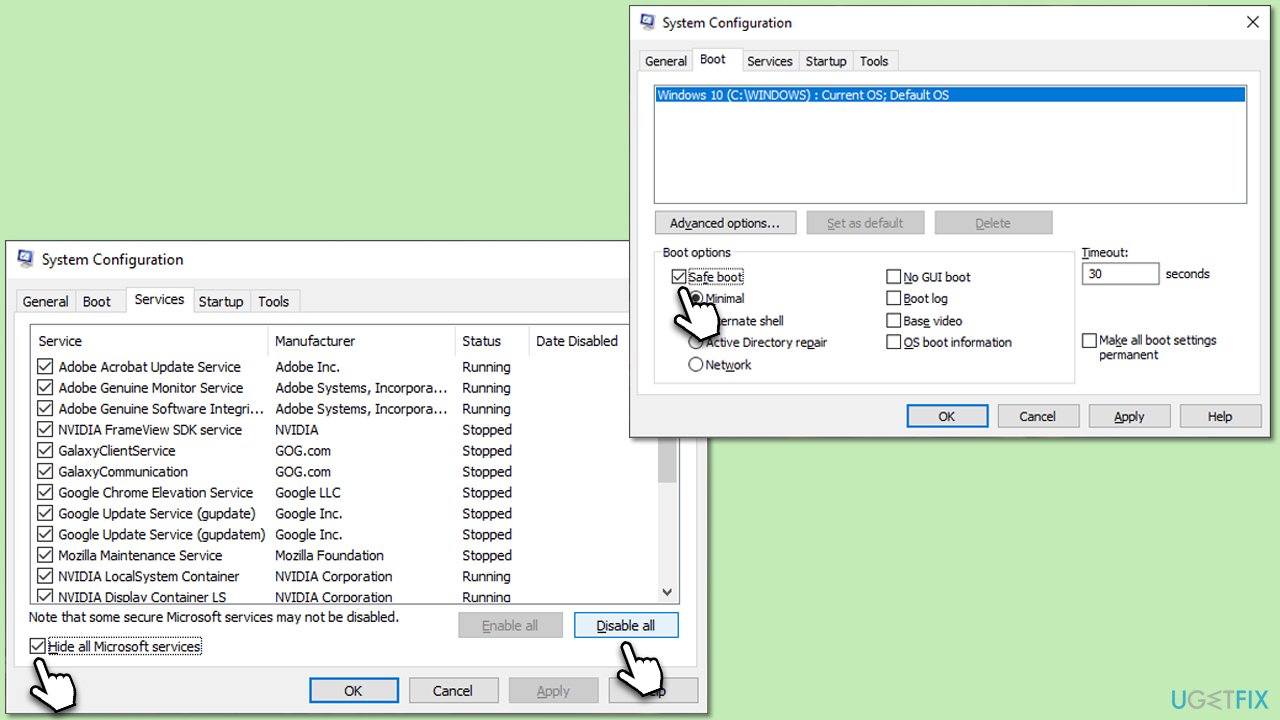
A clean boot starts Windows with a minimal set of drivers and startup programs. This can help pinpoint any conflicts causing the backward typing.
- Press Win + R, type msconfig, and hit Enter.
- Go to the Services tab and tick the Hide all Microsoft services checkbox.
- Select Disable all.
- Go to the Startup tab and click Open Task Manager.
- Here, right-click on each of the non-Windows entries and select Disable.
- Close down the Task Manager.
- Go to the Boot tab and tick the Safe boot option.
In clean boot state:
- See if the backward typing persists.
- Gradually re-enable services in System Configuration, restarting after each change, to identify the problem source.
- Update or uninstall the problematic software or service.
- In System Configuration, select Normal startup, click OK, and restart.
Bottom line
To fix backward typing in Windows, you can use the keyboard troubleshooter and adjust your language and input settings. If these solutions do not resolve the issue, consider using a PC repair tool for automatic detection and repair of common Windows errors.
Frequently asked questions
Backward typing can be caused by a stuck key, incorrect keyboard settings, or software glitches. It often occurs when the 'Insert' key is activated accidentally.
You can disable the 'Insert' key by remapping it using third-party software or editing the registry. This will help you avoid accidental backward typing in Windows 10 or Windows 11.
If the issue persists, consider updating your keyboard drivers or checking for system updates in Windows 10 or Windows 11. A complete system scan for malware may also help.




Report an issue
What's wrong with this guide? We review every report and update or remove content.
Report received — thank you. We'll review and fix it.
You need a free account to submit a report.
Be the first to comment