How to fix
Battery icon missing from taskbar
on Windows
Restore your battery icon on Windows 10 or 11 quickly and easily with these expert-tested solutions. Get back on track in minutes!

What causes How to fix battery icon missing from taskbar in Windows?
- Battery icon is hidden in taskbar settings
- Power-related processes or drivers are not functioning properly
- Troubleshooting utilities have not been run
- Group policy settings may need modification
Repairs Windows system files, removes malware, and restores a clean OS state — without reinstalling.
Hello. Today I noticed that the battery icon is missing from the taskbar on my Windows laptop. How do I get it back?
The battery icon is a small but important element on Windows' taskbar that provides users with important information about their device's battery status. It functions as a visual indicator, showing the remaining battery charge as well as power management options. When the battery icon disappears from the taskbar, users may experience inconvenience and uncertainty.
The battery icon on the taskbar's purpose is to keep users informed of their device's battery status at a glance. It allows users to effectively monitor and manage their power usage by displaying the battery charge level. Furthermore, the battery icon frequently provides quick access to power-related settings and options, such as adjusting power plans or activating battery-saving features.
When the battery icon is missing from the taskbar, users may encounter a number of issues. For starters, the lack of a visual battery indicator makes determining the remaining battery charge difficult without opening additional menus or applications. This lack of information can result in unexpected power drain and the loss of unsaved work if the device shuts down unexpectedly due to a depleted battery.
Furthermore, the lack of a battery icon can make it difficult for users to easily adjust power management settings. Without the battery icon on the taskbar, it may be difficult to access power-related options such as changing power plans, enabling battery saver mode, or checking estimated battery life. Users may need to use alternative methods or delve into system settings to gain access to these features.
There are several potential solutions for resolving the issue of a missing battery icon. Adjusting taskbar settings to ensure the battery icon is not hidden, checking the status of power-related processes or drivers,[ref en-1] running troubleshooting utilities, or even modifying group policy settings are examples of such actions. However, depending on the underlying cause of the problem and the specific Windows version being used, the exact solution may differ.
In this guide, you will find 7 steps that should help you fix the battery icon missing from the taskbar. You can also try utilizing a system repair tool like [d1] that can fix most system errors, BSODs,[ref en-2] corrupted files, and registry[ref en-3] issues. Otherwise, follow the step-by-step instructions below.
Solution 1. Check if the Icon is Disabled
The first step is to determine whether the battery icon is missing or simply hidden in your system tray. The battery icon may be present on your computer but hidden among the hidden items in the system tray.
Click on the upward-pointing arrow in the system tray to see if the battery icon is hidden. If you find the battery icon, you can drag it back to the system tray on your taskbar by clicking and dragging it. If the battery icon does not appear among the hidden items in the system tray, it is possible that it is disabled. In such cases, you can resolve the problem using the alternative methods outlined in this article.
Solution 2. Repair Corrupted System Files
Use Command Prompt commands to repair system file corruption:
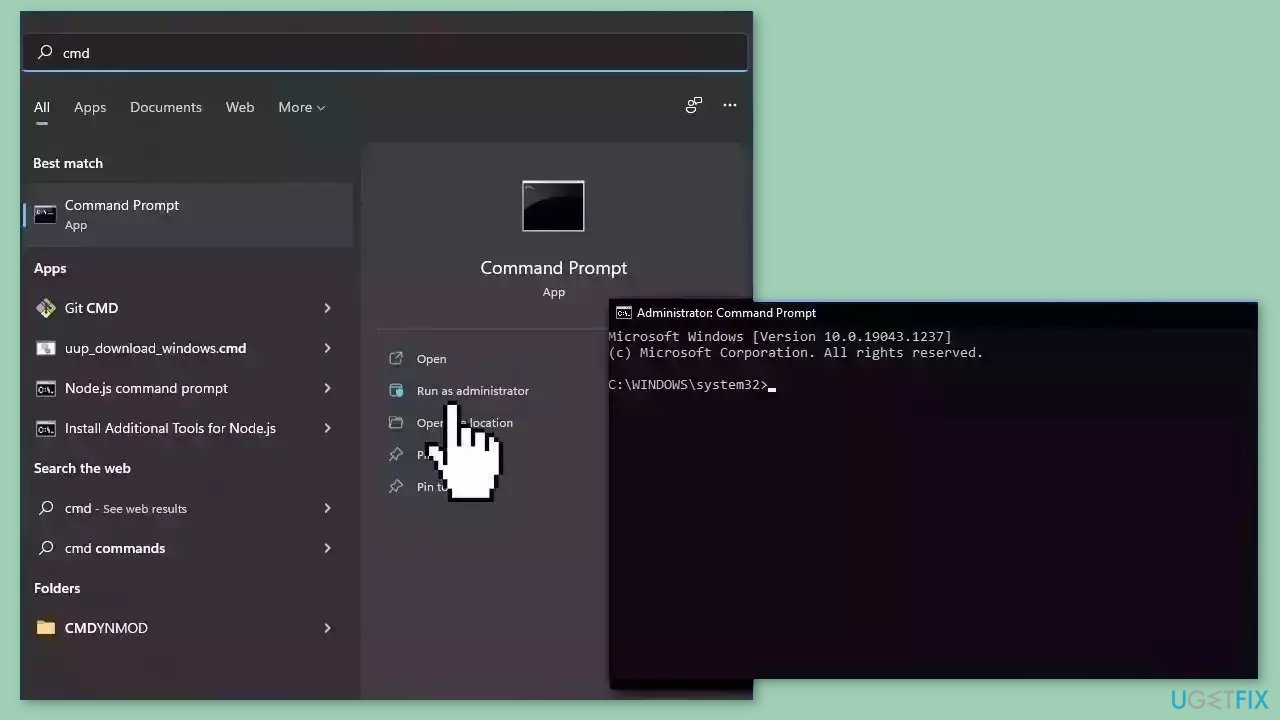
- Open Command Prompt as administrator
- Use the following command and press Enter:
sfc /scannow
- Reboot your system
- If SFC returned an error, then use the following command lines, pressing Enter after each:
DISM /Online /Cleanup-Image /CheckHealth
DISM /Online /Cleanup-Image /ScanHealth
DISM /Online /Cleanup-Image /RestoreHealth
Solution 3. Change Taskbar Settings
- Open the Taskbar Settings window by right-clicking on the taskbar and selecting Taskbar settings.
- In the Taskbar settings, scroll down and click on Select which icons appear on the taskbar under the Notification area section.
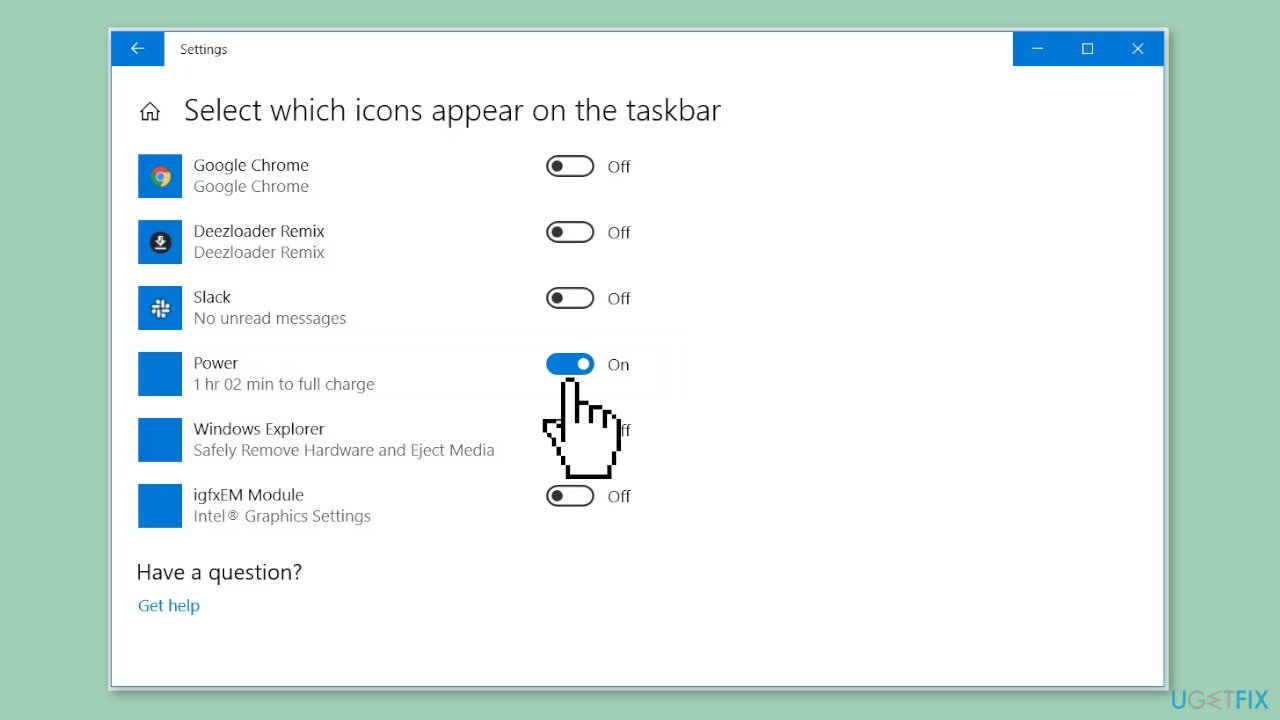
- Locate the Power option in the list and check if the button next to it is turned on or off.
- If the button is turned off, toggle it on by clicking on the switch to enable the Power option.
- Once the Power option is enabled, the battery icon should appear on the taskbar.
Solution 4. Run the Power Troubleshooter
- Open the Windows Start Menu.
- Click on Settings to access the settings menu.
- In the Settings menu, select Update & Security.
- Scroll down and click on Troubleshoot.
- Look for the Power option and select it.
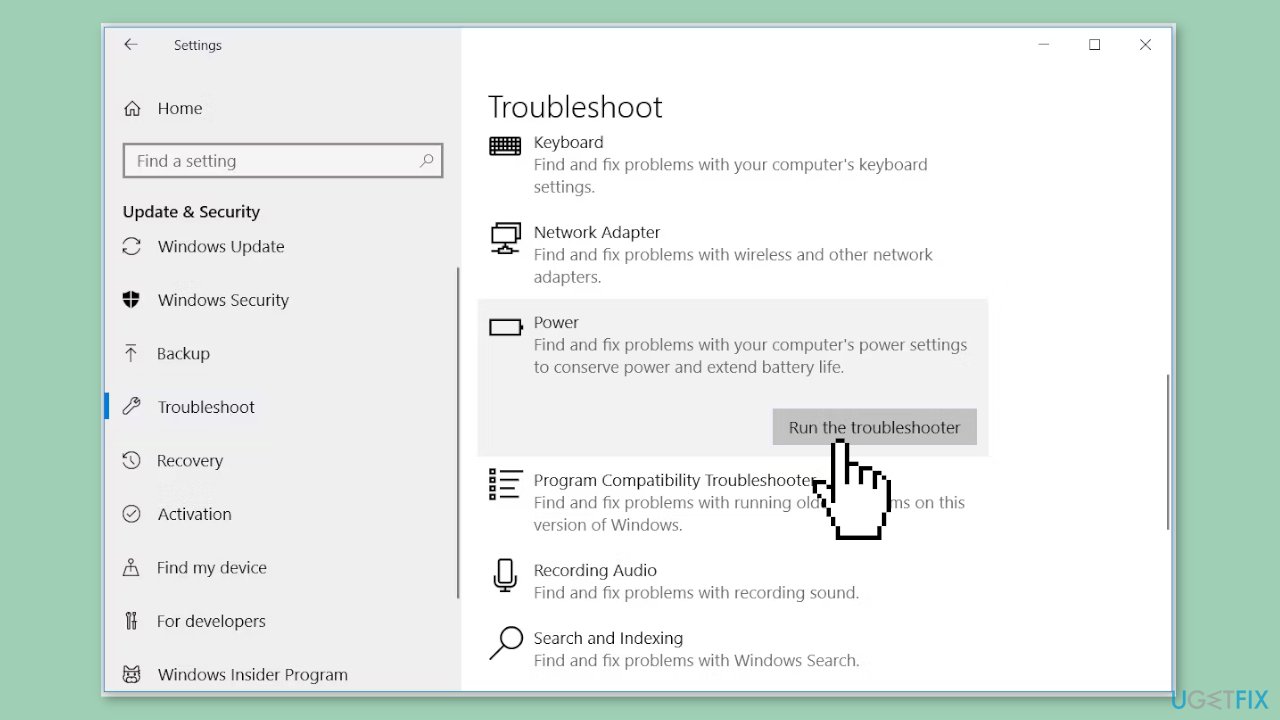
- Click on the Run the troubleshooter button.
- The troubleshooter will start running and attempt to resolve any issues related to power.
- Once the troubleshooter finishes, check if it has resolved the issue you were facing with the battery icon.
Solution 5. Restart Windows Explorer
- Right-click on a blank area of your Taskbar.
- From the context menu, select Task Manager.
- In the Task Manager window, navigate to the Processes tab.
- Scroll down and locate the Windows Explorer process.
- Right-click on the Windows Explorer process.
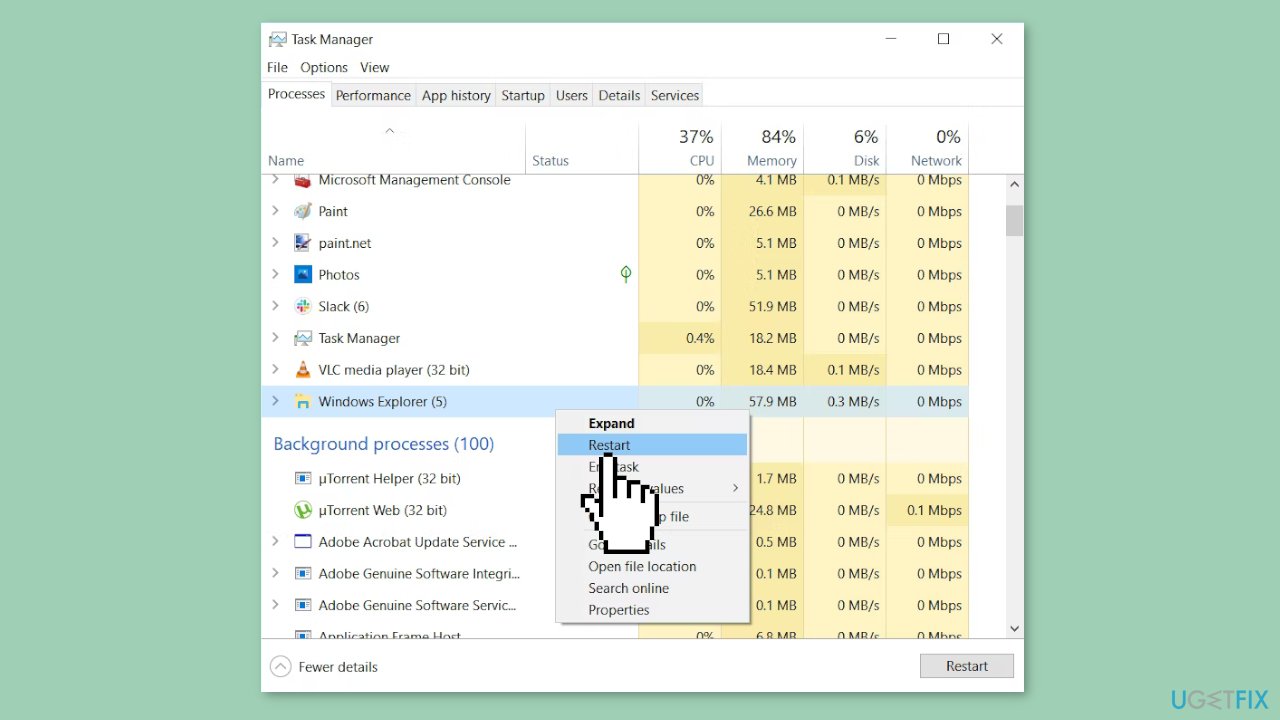
- From the options that appear, click on Restart.
- Close the Task Manager window.
- Restart your computer.
Solution 6. Restart or Reinstall Battery Drivers
- Press the Windows key + X on your keyboard to open the quick access menu.
- From the pop-up menu, select Device Manager.
- In the Device Manager window, locate and double-click on the Batteries option to expand it.
- You should see two options: Microsoft AC Adapter and Microsoft ACPI-Compliant Control Method Battery.
- Right-click on each adapter and select Disable device.
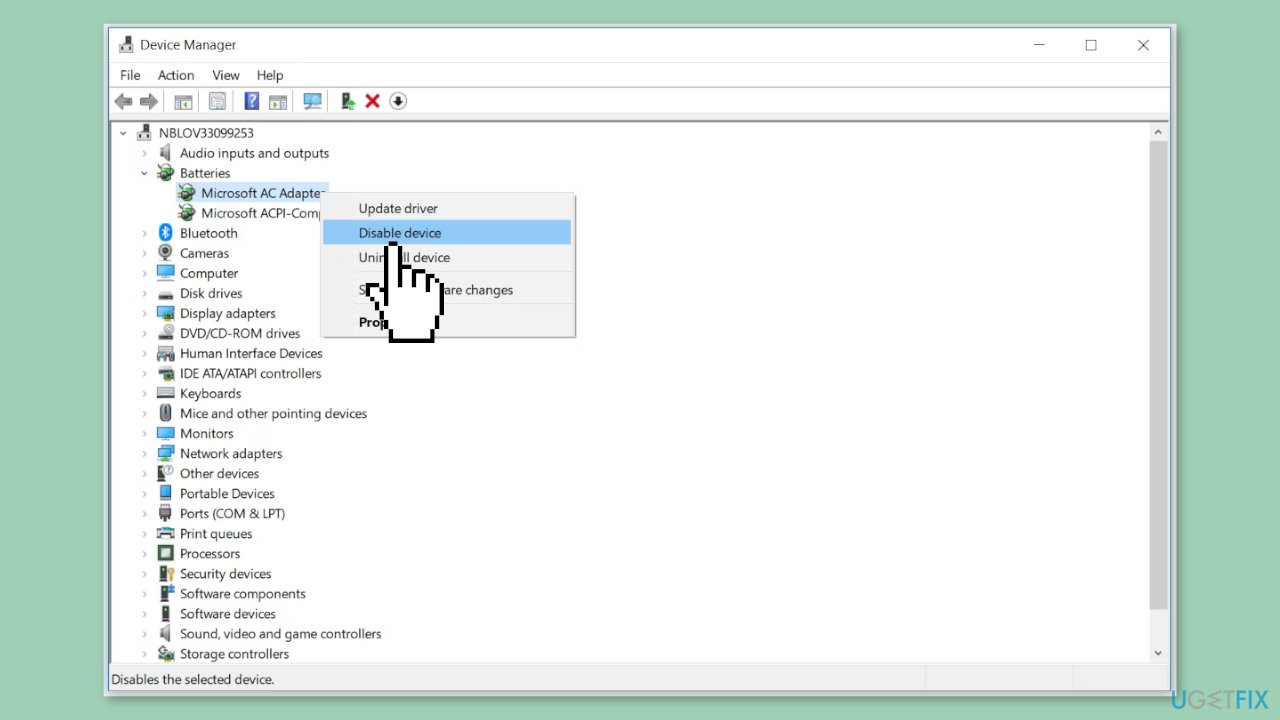
- After disabling both adapters, right-click on each adapter again and select Enable device.
- Restart your PC.
- Check if the battery icon appears in your system tray after the restart.
- If re-enabling the battery driver does not work, try reinstalling the battery drivers.
- Right-click on each adapter and select Uninstall device.
- After uninstalling the drivers, click on the Scan for hardware changes icon in the Device Manager menu.
- Restart your PC, and the system will automatically reinstall the battery adapters.
You can also use a dedicated utility, like [rev id="DriverFix"] that can find the best drivers for your machine and install them automatically.
Solution 7. Modify the Local Group Policy Editor
- Press the Windows key + R on your keyboard.
- In the Run dialog box, type gpedit.msc and press Enter to open the Local Group Policy Editor.
- In the navigation pane on the left-hand side, go to User Configuration and then Administrative Templates.
- In the right-hand side pane, double-click on Start Menu and Taskbar.
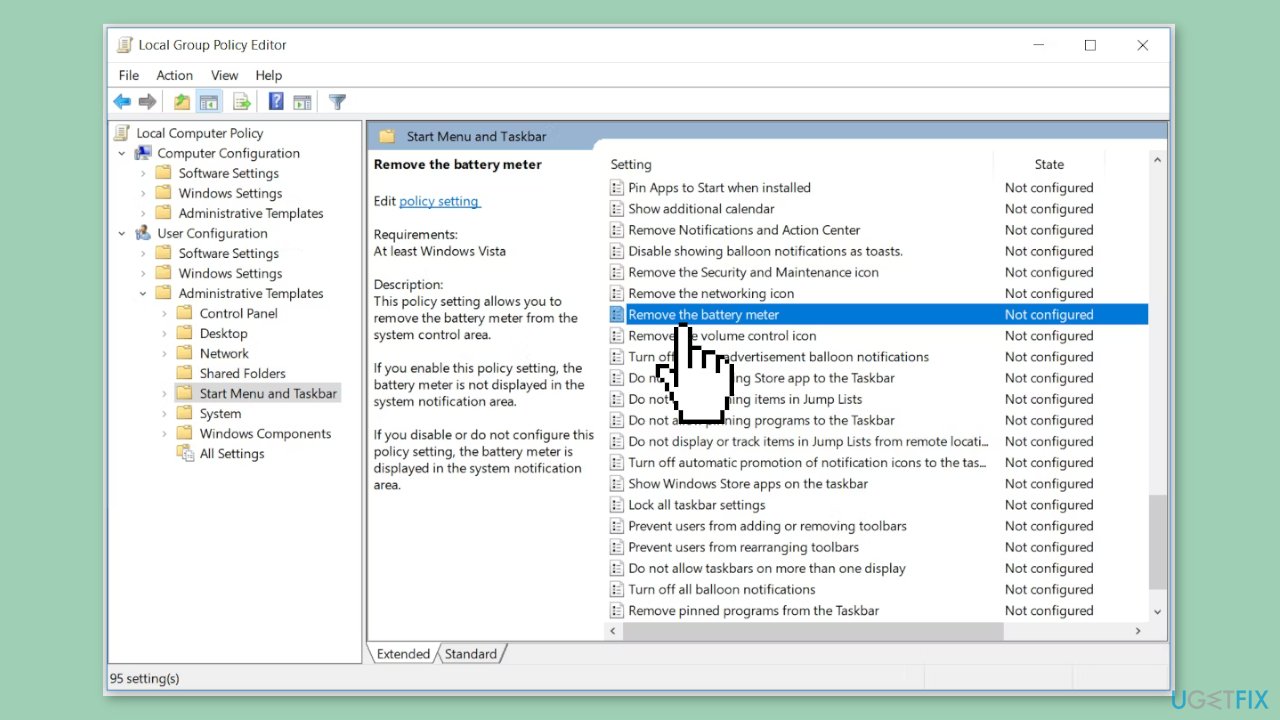
- In the new window that opens, locate and double-click on the Remove the battery meter option.
- A pop-up window will appear. Select either Disabled or Not Configured from the available options.
- Click on Apply and then click OK to save the changes.
- Restart your PC.
- After restarting, the battery icon should be restored and visible in your system tray.
Bottom line
To fix the missing battery icon, you can adjust taskbar settings, check power-related processes, run troubleshooting utilities, or modify group policy settings. If these solutions do not work, consider exploring additional methods or seeking further assistance.
Frequently asked questions
The battery icon may be missing due to incorrect settings or a corrupted system file. You can try enabling it through the Taskbar settings or running a system scan to fix any underlying issues.
To restore the battery icon in Windows 11, go to Settings > Personalization > Taskbar, and ensure that 'Battery' is toggled on under the Taskbar corner overflow settings.
If the battery icon is still missing, consider updating your graphics drivers or performing a system file check using the 'sfc /scannow' command in Command Prompt.




Report an issue
What's wrong with this guide? We review every report and update or remove content.
Report received — thank you. We'll review and fix it.
You need a free account to submit a report.
Be the first to comment