
How to fix BEX64 error in Windows?

Prefer to fix it yourself? The manual steps follow.
- 7methods
- 10 to 60 minutes
- Intermediate
Applies to Any 64-bit program that crashes with Problem Event Name BEX64 (games, Photoshop, Firefox, AutoCAD and others) on Windows 11, Windows 10 and Windows 7; BEX for 32-bit programs
7 methods in this guide
Hello. When I try to play video games on my Windows PC, I experience a crash with the BEX64 error. How do I fix it?
BEX64 is not a Windows error of its own. It is the label Windows gives a 64-bit program, usually a game, that it stopped after a memory access violation. The fix depends on what the crash report names, so read it first, then remove the program that hooks into the crashing app or repair Visual C++.
BEX64 means Windows closed a 64-bit program after it broke a memory protection rule, almost always exception code c0000005. Open Reliability Monitor and note the Fault Module Name. Then close or uninstall programs that hook into other apps, such as overlays, MacType, Razer Synapse or amBX (Fix 1), and install the latest Visual C++ Redistributable (Fix 2). Do not turn off DEP for the whole PC.
| Error | Problem Event Name: BEX64 in the details of a crash, usually with Exception Code: c0000005 and a Fault Module Name such as StackHash_0584. |
|---|---|
| Where it appears | In the has stopped working window of a crashing program, in Reliability Monitor and in Event Viewer > Windows Logs > Application. Mostly games, at launch, during play or on exit. |
| Main cause | Another program injects code into the crashing app (overlays, font, RGB and remote tools), or the app itself has a bug or a broken runtime. |
| Fastest fix | Close or uninstall the hooking program named in the reports (Fix 1), then install the latest Visual C++ Redistributable (Fix 2). |
| Also written as | BEX64 crash, Problem Event Name: BEX64, Event Name: BEX64, BEX64 StackHash error, BEX64 crash fault module. BEX without 64 is the same crash in a 32-bit program. |
| Affects | Windows 7, Windows 10 and Windows 11. Reports name GTA V, The Witcher 3, The Elder Scrolls Online, Photoshop, Firefox and AutoCAD, among many others. |
| Vendor status | No Microsoft article for BEX64 itself. One game publisher, for The Elder Scrolls Online, ties it to Visual C++ and tells players to install the latest Redistributable. |
| Where the cause is logged | Reliability Monitor (perfmon /rel) and Event Viewer: the Fault Module Name and Exception Code fields. |
| Time to fix | 10 to 20 minutes for Fix 1 and Fix 2. Up to an hour with a clean boot test or a memory test. |
Facts checked on 15 October 2026. Steps written for Windows 11 (25H2 and 26H2) and Windows 10 22H2, read against Microsoft Learn, Microsoft Q&A and a game publisher's support article.
What the BEX64 error means
BEX64 is a Problem Event Name, a label in Windows' crash report. It says that a 64-bit program was stopped because it tried to run or write memory it was not allowed to touch. The same crash in a 32-bit program is labelled BEX. We could not find a Microsoft page that spells out the abbreviation, so this guide does not guess at it.
Problem Event Name: BEX64. Application Name: GTA5.exe. Fault Module Name: StackHash_0584. Exception Code: c0000005. Exception Data: 0000000000000008. These are the lines from a real report on Microsoft Q&A, with the same values in The Witcher 3.
- Exception Code c0000005 is an access violation. Microsoft Learn says this is the status a program receives when Data Execution Prevention (DEP) stops it from running code in memory marked as data.
- DEP is a protection built into Windows since Windows XP. It makes attacks that overrun a memory buffer harder. It does not cause the bug, it only stops the program at the moment of the bug.
- The crash is in the program, not in Windows. Windows closes the program to protect the PC. Your files and Windows itself are not damaged by a BEX64 crash.
People search it as BEX64 error, BEX64 crash, Problem Event Name: BEX64 and BEX64 crash fault module. On Windows 10 and Windows 11 the crash window often closes at once, and the details are only in the logs described in the next section.
How to read the BEX64 report and find the fault module
The Fault Module Name decides which fix to start with. It is the file in which the crash happened. Read it before you change anything.
- Press Win + R, type
perfmon /reland press Enter. Reliability Monitor opens. - Select the day of the crash. A red circle with a cross marks it.
- In the lower list, double-click the line for your program with the status Stopped working.
- Read Problem Event Name, Application Name, Fault Module Name and Exception Code. Select Copy to clipboard to keep them.
- Alternative: press Win + R, type
eventvwr.msc, open Windows Logs > Application and look for an Error from Application Error or Windows Error Reporting at the time of the crash.
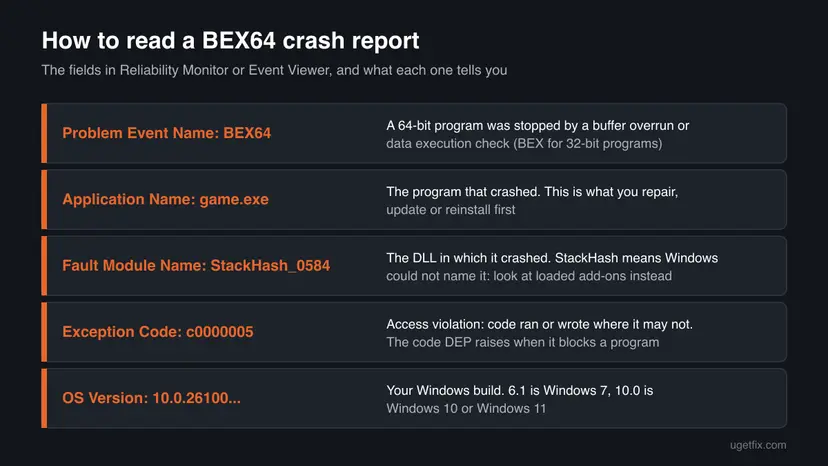
| Fault Module Name shows | What it points to | Start with |
|---|---|---|
| A DLL of another program, such as a font tool, an overlay, RGB, recording or remote access software | That program injects code into the crashing app | Fix 1 |
StackHash_ and four characters | Windows could not name the module. On Microsoft Q&A a helper explained that it is not positively identified | Fix 1, then Fix 2 |
A Microsoft runtime, such as msvcp140.dll or vcruntime140.dll | A damaged or old Visual C++ runtime | Fix 2 |
| The program's own .exe or DLL | A bug or damaged file in the program | Fix 3 |
A DLL of the graphics driver, such as Intel's igd10iumd64.dll in one Microsoft Q&A report | The graphics driver | Fix 5 |
ntdll.dll or KERNELBASE.dll | Little on its own: the crash passed through Windows code | Fix 1, then Fix 4 |
What causes BEX64 crashes, from the most common cause to the rare one
Microsoft has no list of causes for BEX64. The ranking below comes from the reports on Microsoft Q&A, the vendor forums on Google's first page and one publisher's support article. It is an order of likelihood, not a statistic.
| How often | Cause | Typical sign | Fix |
|---|---|---|---|
| Most often | A program that hooks into other apps: overlays, MacType, Razer Synapse, TeamViewer, the amBX service, RGB and monitoring tools | The crash started after you installed such a tool, or stops when you quit it | Fix 1 |
| Often | A missing, old or damaged Visual C++ runtime | One game or app crashes at launch. The publisher of The Elder Scrolls Online names this cause | Fix 2 |
| Often | A bug or damaged file in the program itself | Only this program crashes, sometimes only when you close it | Fix 3 |
| Less often | An unknown background service or startup app | The crash stops in a clean boot | Fix 4 |
| Less often | The graphics driver | The fault module is a driver DLL, or the crash began after a driver update | Fix 5 |
| Rarely | Unstable memory: overclock, XMP profile or a faulty RAM module | Many unrelated programs crash with different modules | Fix 6 |
| Rarely | Damaged Windows files or malware | Windows' own programs, such as explorer.exe, crash with BEX64 | Fix 7 |
Some websites say that BEX64 is caused by DEP and fix it by turning DEP off for the whole PC. DEP only stops the program at the moment of the faulty memory access. Turning it off hides the crash and leaves every program less protected, so this guide does not use it.
How to fix the BEX64 error in Windows
Fix 1 and Fix 2 are quick and solve most reports. Fix 3 repairs the program itself, Fix 4 finds an unknown conflict, and Fix 5 to Fix 7 cover the driver, the memory and Windows files.
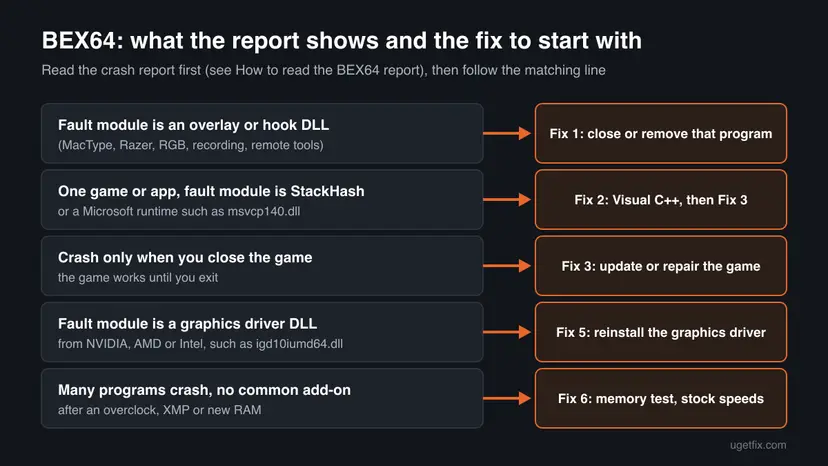
| What you see or have | Start with |
|---|---|
| An overlay, MacType, Razer Synapse, TeamViewer, amBX or an RGB tool is installed | Fix 1 |
| Fault module is StackHash or a Visual C++ file such as msvcp140.dll | Fix 2, then Fix 3 |
| Only one game crashes, or it crashes only when you close it | Fix 3 |
| You have no idea which program interferes | Fix 4 |
| Fault module is a graphics driver DLL | Fix 5 |
| Many programs crash after an overclock, XMP or new RAM | Fix 6 |
| explorer.exe or another Windows program crashes with BEX64 | Fix 7 |
Fix 1. Close or uninstall the program that hooks into the crashing app
10 minutesLow riskEveryone first, and above all when a font, overlay, RGB, recording or remote access tool is installed.
BEX64 reports most often name a program that loads its own DLL into other apps: MacType, Razer Synapse, TeamViewer and the amBX service come up again and again, and so do game overlays. When that DLL makes a mistake, the app it sits in is the one Windows stops.
- Check the Fault Module Name from the report. If it names a DLL of another program, that program is your first suspect.
- Quit tools that run in the system tray, such as MacType, Razer Synapse, TeamViewer, RGB and hardware monitoring tools. Right-click each icon and select Exit or Quit.
- Turn off in-game overlays in the settings of Steam, Discord, the graphics driver app and any recording app.
- Start the program again. If it no longer crashes, turn the tools back on one at a time to find the one that causes it.
- Update that tool from its maker, or uninstall it: Uninstall a program or app in Windows.

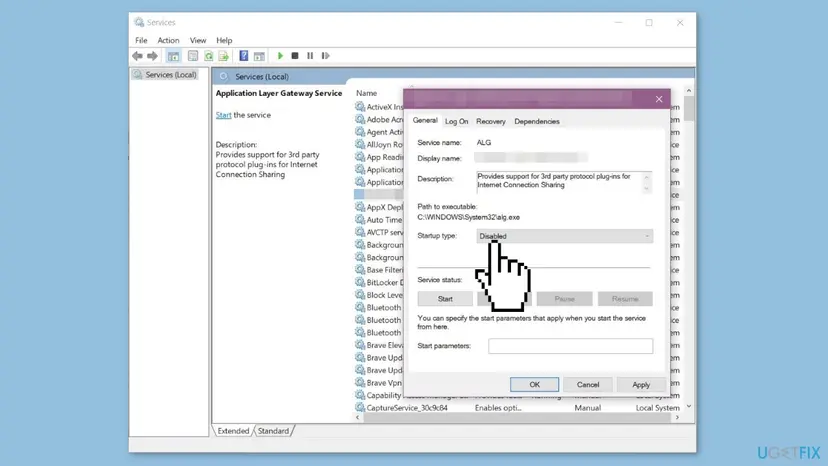
The amBX service belongs to software for ambient lighting and effects. Users report that stopping it ended their BEX64 crashes. Open Services with services.msc, double-click amBX, set Startup type to Disabled, select Stop and OK. Undo this if you use amBX lighting.
It worked if: The game or app starts and runs past the point where it crashed, and Reliability Monitor shows no new BEX64 entry.
If not: If it still crashes with every extra tool closed, repair the Visual C++ runtime with Fix 2.
Fix 2. Install the latest Microsoft Visual C++ Redistributable
5 to 10 minutesLow riskOne game or app crashes, the fault module is StackHash or a Visual C++ file, or Fix 1 did not help.
The publisher of The Elder Scrolls Online says its BEX64 crash can be attributed to Visual C++ and that installing the latest Visual C++ Redistributable from Microsoft resolves it. Most games and many apps run on this runtime, so a damaged copy breaks all of them.
- Open Microsoft's page Latest supported Visual C++ Redistributable downloads.
- Download the X64 installer. Download the X86 one too, because many 64-bit PCs also run 32-bit programs.
- Run each file. If setup offers Repair, select it; otherwise select Install.
- Restart the PC and start the program again.
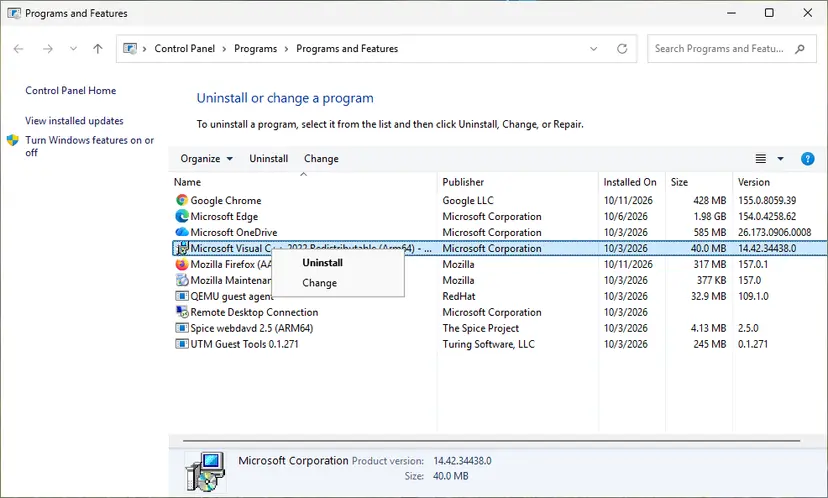
To repair every Visual C++ version that is already installed, and .NET too, follow How to repair Microsoft Visual C++ Redistributable and .NET Framework.
It worked if: Setup ends with Setup Successful or Repair Successful, and the program starts without the crash.
If not: If only this one program still crashes, repair or update it with Fix 3.
Fix 3. Update, repair or verify the program that crashes
10 to 30 minutesLow riskOnly one program crashes, or it crashes only when you close it.
A BEX64 crash is a bug in the program at that moment. Game forums on Google's first page are full of BEX64 crashes on exit, which only an update from the game's maker can fix. A damaged game file causes the same crash and a file check replaces it.
- Install the latest update of the program or game from its launcher or its maker's site.
- For a Steam, Epic, EA, Ubisoft or GOG game, verify the game files: How to verify game files in Steam, Epic Games, Xbox app, EA app, Battle.net and GOG Galaxy.
- For a Store app or a desktop app with a Repair button, repair it: How to repair or reset an app in Windows.
- Remove mods, plugins, add-ons and custom launch options, then try again.
- If it still crashes, uninstall the program, restart, and install a fresh copy from its official site.
If the game works and BEX64 appears only on exit, nothing is lost and the game is not damaged. Report it to the game's maker with the details from Reliability Monitor, and watch for a patch.
It worked if: The program runs and closes normally, with no new BEX64 line in Reliability Monitor.
If not: If a fresh copy still crashes, something else on the PC interferes. Find it with Fix 4.
Fix 4. Find the conflicting program with a clean boot
20 to 40 minutesLow riskFix 1 to Fix 3 did not help and you do not know which program interferes.
A clean boot starts Windows without other companies' services and startup apps, so nothing can hook into the crashing program. If it runs there, the cause is one of the programs you turned off, and you can find it in a few rounds.
- Start Windows in a clean boot: How to perform a clean boot in Windows.
- Start the program that crashed and use it the way that crashed it before.
- If it runs, turn half of the services back on in System Configuration, restart and test again.
- Keep halving the group that brings the crash back until one service or startup app is left.
- Update or uninstall that program, then return Windows to a normal startup as the procedure describes.

It worked if: The program runs in the clean boot, and you find the one service or startup app that brings BEX64 back.
If not: If it crashes even in a clean boot, the cause is in Windows, the driver or the hardware. Go to Fix 5.
Fix 5. Reinstall or roll back the graphics driver
15 minutesLow riskThe fault module is a DLL of the NVIDIA, AMD or Intel driver, or the crash began right after a driver update.
Games load the graphics driver's user mode DLL into their own process. In one Microsoft Q&A report, the crash log of The Witcher 3 named Intel's igd10iumd64.dll. A crash inside that file is fixed by another driver version, not by changing the game.
- If the crash started after a driver update, roll back the driver in Device Manager.
- Otherwise, download the newest driver for your graphics card from NVIDIA, AMD or Intel.
- Install it with the clean or factory reset option, if the installer offers one.
- Restart the PC and test the program again.
- Open Device Manager. Right-click Start and select Device Manager.

Device Manager lists devices by category; a yellow warning sign marks a device with a problem. Screenshot: Windows 11 26H2. - Open the device's Driver tab. Expand the category (for example Display adapters), right-click the device, select Properties and open the Driver tab. Driver Date and Driver Version show what is installed now.
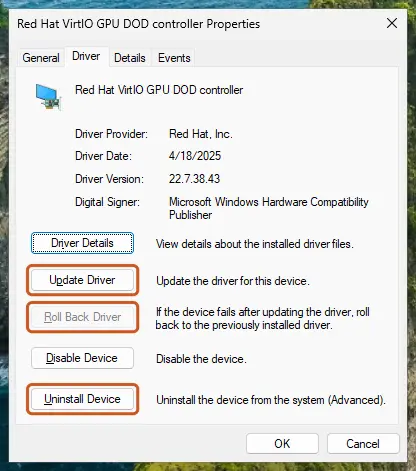
The Driver tab holds all three actions: update, roll back, uninstall. Screenshot: Windows 11 26H2. - Update the driver. Select Update Driver and let Windows search automatically. To use a driver you downloaded from the device maker, select Browse my computer for drivers instead and point to the unpacked folder.
These steps were written for Windows 11 24H2 and later. The full page with the other versions and what each result means: Update, roll back or reinstall a driver
It worked if: The program runs, and the next report, if any, no longer names the driver DLL.
If not: If many programs keep crashing with different fault modules, test the memory with Fix 6.
Fix 6. Test the memory and go back to stock speeds
30 to 60 minutesLow riskSeveral unrelated programs crash, each with a different fault module, or you overclock or use an XMP or EXPO profile.
An access violation is a program reading or writing the wrong memory address. When the memory itself returns wrong data, every program can hit that, which is why random BEX64 crashes in many apps point to the hardware.
- Undo any CPU or graphics card overclock in its tool.
- In the UEFI setup, turn off the XMP or EXPO memory profile for a test, or load the default settings.
- Run Windows Memory Diagnostic: How to test your RAM with Windows Memory Diagnostic.
- If you added RAM recently, test with the old modules only.
It worked if: The memory test reports no errors, and the crashes stop at default speeds.
If not: If the test finds errors, replace the faulty module. If not, repair Windows files with Fix 7.
Fix 7. Repair Windows files and scan for malware
20 to 40 minutesLow riskWindows' own programs, such as explorer.exe, crash with BEX64, or nothing above helped.
When a Windows program crashes with BEX64, a damaged system file or malware that injects code into it is more likely than a game bug. These two checks rule both out.
- Repair system files with DISM and SFC: Run DISM and SFC to repair Windows system files.
- Run a full scan, then a Microsoft Defender Offline scan: How to scan for malware with Microsoft Defender.
- Restart and check Reliability Monitor for new BEX64 entries over the next days.

It worked if: SFC reports that it found no integrity violations or repaired them, and the scan finds no threats.
If not: Collect the details listed under Still crashing below and send them to the program's maker.
If BEX64 crashes keep coming: what to collect and where to send it
The program's maker can only help with the crash details. Collect them before you write to support or to a forum.
- The full report from Reliability Monitor: select Copy to clipboard and paste it into a text file.
- The crash dump if Windows kept one. Look for
Report.werfiles inC:\ProgramData\Microsoft\Windows\WER\ReportArchive, in folders whose names start withAppCrash_and the program's name. - The list of tools that run in the background, such as overlays, RGB, font, recording and remote tools.
- The program's own log, if it writes one, and its version number.
| Where the crash happens | Who can fix it |
|---|---|
| One game or app, on several PCs | The program's maker: report it on their support site |
| One game or app, on your PC only | You: Fix 1 to Fix 5 |
| Many programs, different fault modules | Hardware: Fix 6, then a repair shop if the memory test fails |
| Windows programs such as explorer.exe | Windows: Fix 7, then a repair install of Windows: Reinstall Windows without losing files |
Windows 10 left support on 14 October 2025. The fixes above still work on Windows 10 22H2, but new games and drivers are tested on Windows 11 first.
How to avoid BEX64 crashes in the future
Most BEX64 crashes come from programs that hook into other apps and from old runtimes. These habits avoid both.
- Keep one overlay at most, and keep it updated.
- Install Visual C++ only from Microsoft's own page.
- Update games and graphics drivers from their makers.
- Test new RAM and overclocks before you rely on them.
- Check Reliability Monitor when something crashes.
- Turn off DEP for the whole PC with bcdedit.
- Install font smoothing or system hook tools you do not need.
- Run several RGB and monitoring tools at once.
- Download DLL files from DLL download sites.
- Ignore crashes that move from app to app.
Frequently asked questions
What does BEX64 mean?
BEX64 is the Problem Event Name that Windows writes in the report of a 64-bit program it stopped after a memory access violation. The report nearly always shows Exception Code c0000005, the status Microsoft Learn gives for a program that Data Execution Prevention stops from running code in a data area. BEX without 64 is the same crash in a 32-bit program. The name tells you the kind of crash, not its cause: for that, read the Fault Module Name.
Is the BEX64 error a virus?
No. BEX64 is a crash label, not a program and not a file you can find or delete. In rare cases malware that injects code into other programs can make them crash this way, which is why Fix 7 includes a Microsoft Defender scan when Windows' own programs crash. In most reports, the cause is an ordinary tool such as an overlay or a font utility that hooks into games and apps.
Should I turn off DEP to fix BEX64?
No. Old guides suggest the command bcdedit.exe /set {current} nx AlwaysOff, which turns DEP off for every program on the PC. DEP only stops a program at the moment of a faulty memory access, so turning it off hides the crash and weakens protection against attacks. If you already ran that command, run bcdedit.exe /set {current} nx OptIn in an elevated Command Prompt and restart. OptIn is the setting Windows client editions use by default.
What does StackHash mean in a BEX64 report?
StackHash followed by four characters, such as StackHash_0584, means Windows could not name the module in which the crash happened. On Microsoft Q&A, a helper explained that the fault module is not positively identified in this case. It is not a file you can repair. Look instead at what was loaded into the program: the overlays and hook tools in Fix 1, then the Visual C++ runtime in Fix 2.
Why does BEX64 appear only when I close the game?
The game crashes while it shuts down, often while it unloads an add-on, an overlay or its own engine. Several game forums on Google's first page describe exactly this pattern. Your progress is usually saved before that point and nothing is damaged. Turn off overlays (Fix 1), update the game (Fix 3), and report it to the game's maker with the Reliability Monitor details if it continues.
Does BEX64 have anything to do with Riot Vanguard or other anti-cheat?
BEX64 often appears in searches next to Vanguard, the anti-cheat of Riot Games. We could not find a Riot or Microsoft article that ties the two together. Anti-cheat software watches programs that inject code into games, so a conflict with an overlay or hook tool can show up around it. Remove such tools first (Fix 1), then follow the game publisher's own support for the anti-cheat.
Photoshop, Firefox or AutoCAD crashes with BEX64. Does this guide apply?
Yes, the same rules apply, because BEX64 is a Windows crash label, not a game error. Adobe's community, Mozilla Support and Autodesk all have threads or articles about BEX64 in their programs. Read the fault module first. Plugins and extensions are the program's own hooks, so turn them off before anything else, then update or repair the program as in Fix 3.
How do I fix BEX64 in Windows 11?
The steps are the same in Windows 11 and Windows 10. Open Reliability Monitor with perfmon /rel, read the Fault Module Name, then close or remove overlays and hook tools (Fix 1) and install the latest Visual C++ Redistributable (Fix 2). Windows 11 also has Microsoft Defender Offline and Windows Memory Diagnostic built in for the rarer causes in Fix 6 and Fix 7.
Can a BEX64 crash damage my PC or my files?
No. Windows closes the program precisely to stop the faulty memory access, so the rest of the system keeps running. You may lose unsaved work in the program that crashed, and a game may lose progress since its last save. If BEX64 crashes come with blue screens or freezes of the whole PC, test the memory with Fix 6, because that points to hardware.
Sources
- Microsoft Learn: Data Execution Prevention (learn.microsoft.com)
- Microsoft Q&A: BEX / BEX64 Problem Event Name (learn.microsoft.com)
- The Elder Scrolls Online Support: crash with Problem Event Name BEX64 on PC (help.elderscrollsonline.com)
Did this fix work?
One click, no account. It tells the next reader which guides are worth their time.
Questions and experiences: fix BEX64 error in Windows
Still broken, or found a fix we did not cover? Ask here: members and our editors answer. Reading is open; writing needs a free account.
…