How to fix
BGI DETECTED VIOLATION Blue Screen error
on Windows
Resolve the BGI DETECTED VIOLATION Blue Screen error on Windows 10 or 11 quickly and easily. Expert-tested solutions await you, updated 2025.

What causes How to fix BGI DETECTED VIOLATION Blue Screen error in Windows?
- Faulty driver on the computer
- Outdated drivers
- Corrupted system files due to improper Windows updates
- Malware damage
- Altered programs
Repairs Windows system files, removes malware, and restores a clean OS state — without reinstalling.
Hello. I get the blue screen error with a stop code claiming that the system detected a violation. It appears on Windows 10. I haven't done any changes recently, I think, so cannot pinpoint the time it triggered the issue. Can you help me solve this problem? I still can reboot the machine, but the blue screen has already reappeared.
BGI DETECTED VIOLATION Blue Screen of Death error in Windows is one of the devastating BSOD errors.[ref en-1] These are the worst kind of errors because not every instance ends in the proper reboot of the machine. These issues indicate that the machine encountered corruption, so the system needed to restart to avoid permanent damage and issues.
This is the issue related to Driver Verifier because these errors occur when there is a faulty driver on the computer that needs to be replaced or fixed. These alerts can also be falsely triggered, and your drivers might just be outdated, but the machine still working properly.
Drivers can be affected when the Windows updates[ref en-2] get installed, and that happens improperly, so these files and drivers or different system files get corrupted. BGI DETECTED VIOLATION Blue Screen error in Windows occurs out of nowhere, so troubleshooting is important at this point. Users report[ref en-3] this for a while, and there is no correlation in particular.
The quick solution for the issues with system data could be a quick scan with a tool like [d1]. This is the application that can clear malware damage and leftovers or damaged system files. This tool finds and repairs altered or corrupted programs, and system files on the machine, so you can move on with the other options.
1. Troubleshoot BSOD
- Open the Settings.
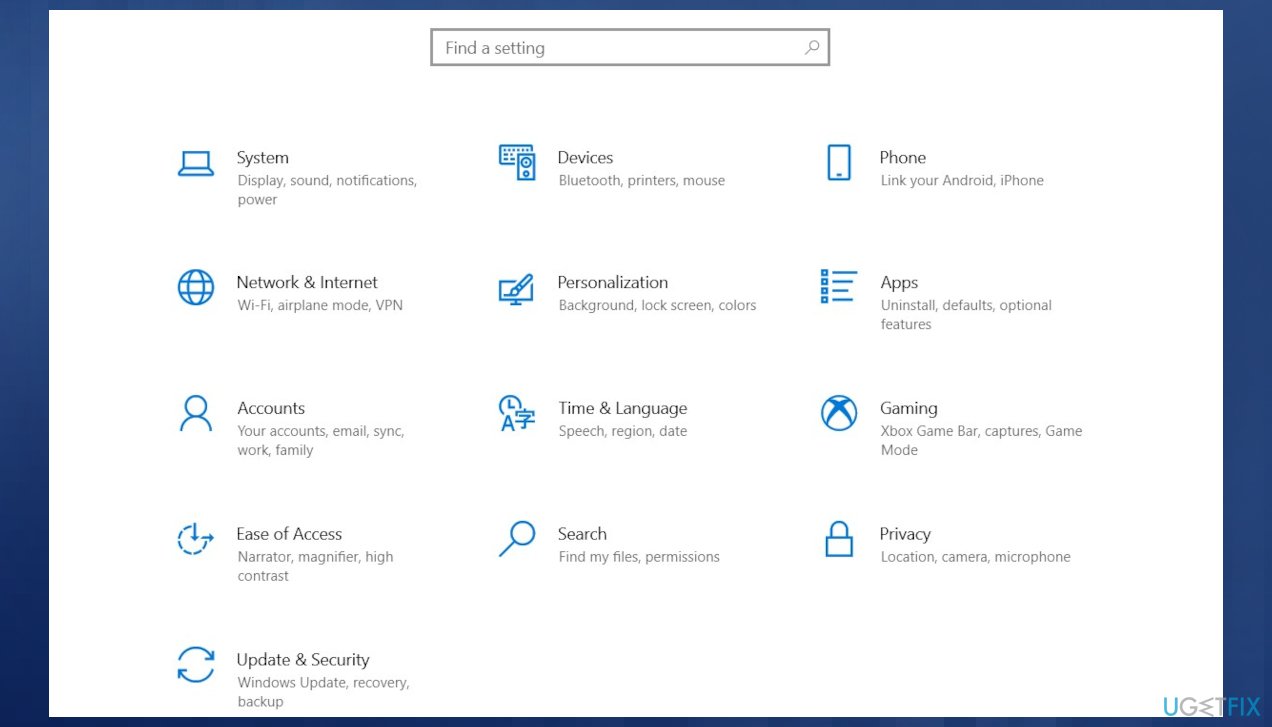
Detected violation blue screen error settings - Go to the Update & Security section.
- Select Troubleshoot from the menu.
- Select BSOD from the right pane and click Run the troubleshooter.
- Follow the instructions.
2. Update the BIOS
- Press Windows + R.
- Type msinfo32.
- Click OK.
- When the System information window appears, find the BIOS version.
- Go to the manufacturer's website and see the current BIOS version. If it is higher, download it.
3. Update device drivers
- Press Windows key + S and write device manager.
- Hit the Enter button to proceed.
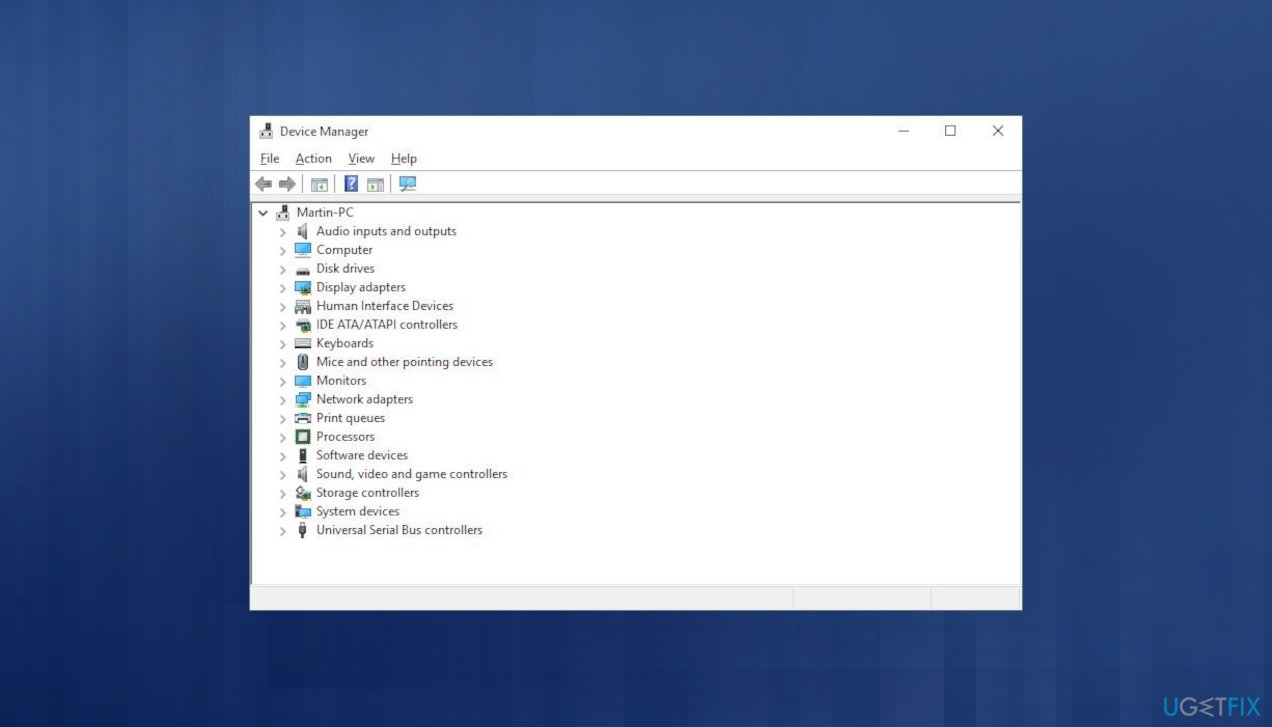
Detected violation blue screen error device manager - Look for the exclamation marks near any devices.
- If found, right-click and select the Update driver option.
- Select Search automatically for updated driver software.
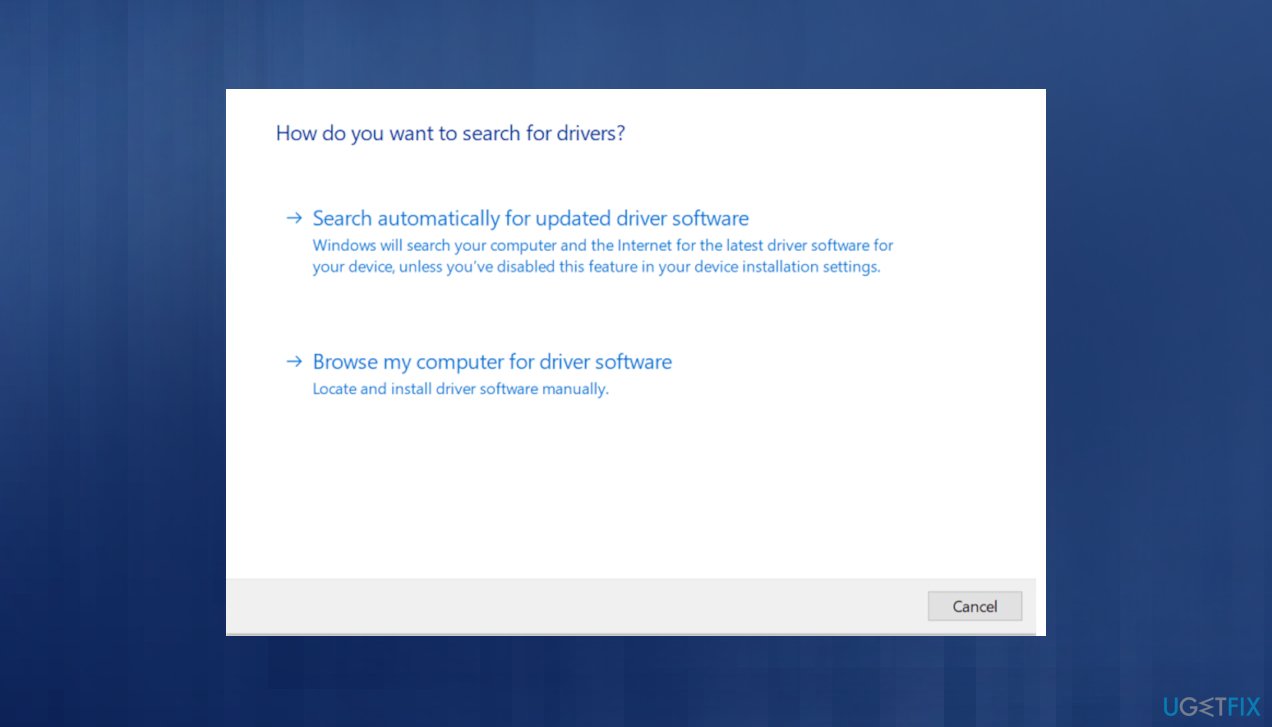
Detected violation blue screen error search drivers - After these steps, the newer version (if available) of the following driver will automatically download.
- Restart Windows.
4. Reset Driver Verifier
- Open Command Prompt in elevated mode.
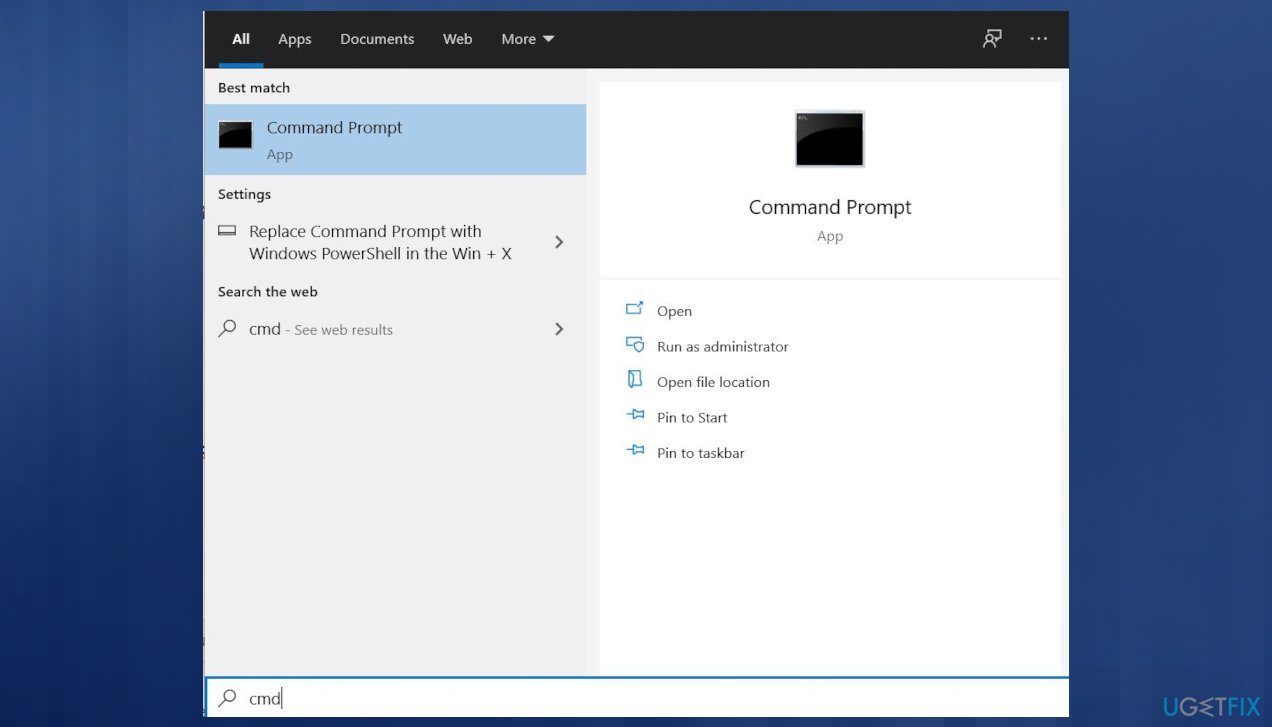
Detected violation blue screen error cmd - In the CMD prompt, type the command below and hit Enter:
verifier /reset - Reboot the machine after the process.
5. Check for OS updates
- Use the Windows Key + I key combination to open Settings.
- Locate the Update & security in the Settings app.
- Click on the Check for updates button under the Update status in order to check if there is a new version of Windows available.
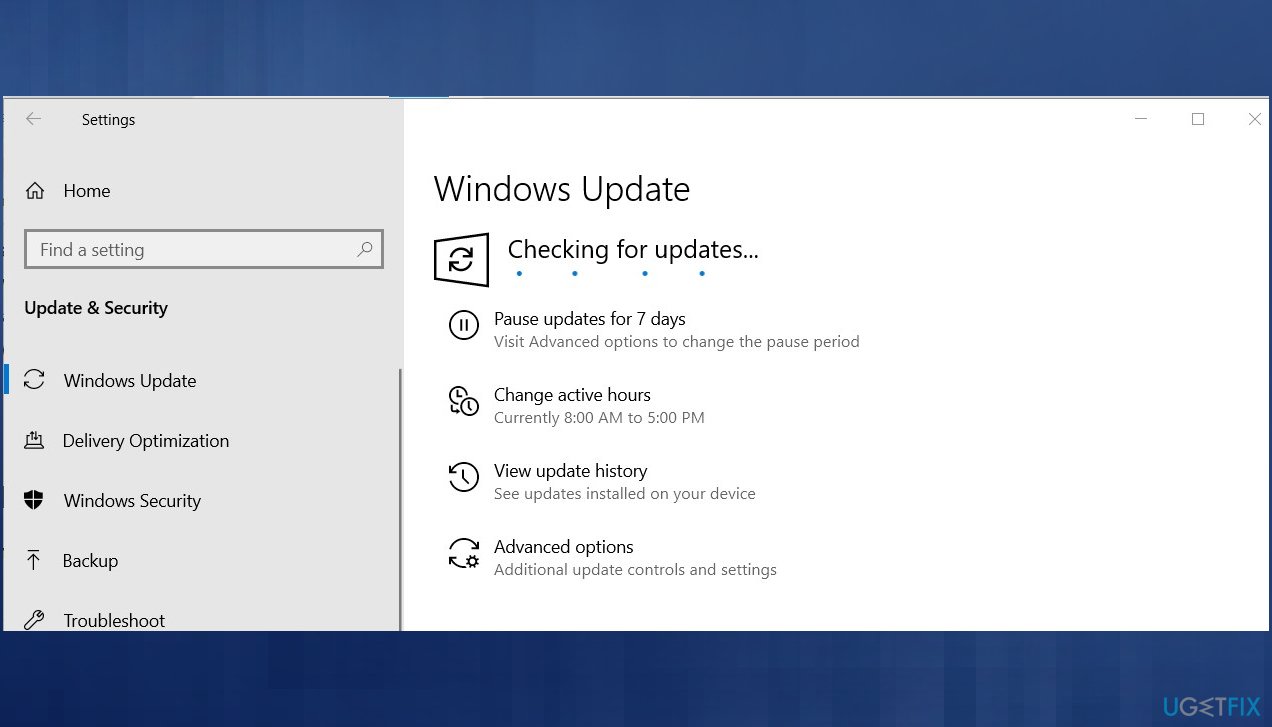
Detected violation blue screen error update check - If there is any, install the upgrade.
6. Run SFC and DISM scans
- Type cmd in Windows search.
- Right-click on Command Prompt and select Run as administrator.
- In Command Prompt, put the command and press Enter:
sfc /scannow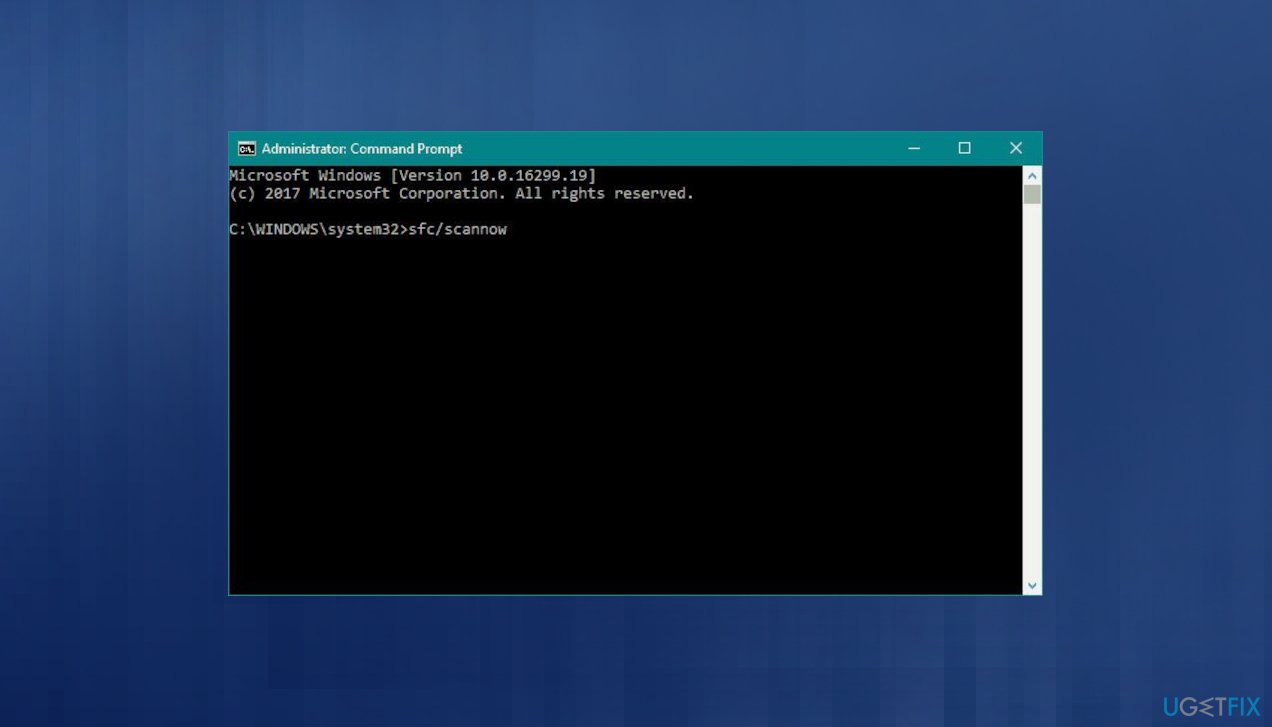
Detected violation blue screen error sfc - Run the DISM scan with Enter:
dism /online /cleanup-image /checkhealth
dism /online /cleanup-image /restorehealth - Restart your PC.
Bottom line
To fix the BGI DETECTED VIOLATION Blue Screen error, users can troubleshoot BSOD through the Settings menu, update the BIOS, and run a scan with a tool to repair corrupted files. If these solutions do not resolve the issue, further investigation into hardware or additional software conflicts may be necessary.
Frequently asked questions
This error is typically caused by faulty drivers, hardware issues, or software conflicts that can lead to system instability.
You can start by updating your drivers, running a system file check, and checking for hardware malfunctions using Windows 10's built-in diagnostic tools.
While some third-party tools may help, it's recommended to use trusted software and always create a system restore point before making any changes.




Report an issue
What's wrong with this guide? We review every report and update or remove content.
Report received — thank you. We'll review and fix it.
You need a free account to submit a report.
Be the first to comment