How to fix
BHDrvx64.sys BSOD
on Windows
Resolve the BHDrvx64.sys BSOD error in Windows 10 or 11 quickly and efficiently. Get expert-tested solutions that fix the issue in minutes.

What causes How to fix BHDrvx64.sys BSOD in Windows 10 or 11?
- Corrupted system files
- Third-party antivirus software malfunctions
- Outdated drivers
- Issues with BASH software
Repairs Windows system files, removes malware, and restores a clean OS state — without reinstalling.
Hello. I got a new Windows PC and it keeps crashing. I have experienced a BHDrvx64.sys BSOD multiple times. How can I stop it?
Windows is one of the most popular operating systems. Most people use Windows 10 but the newest version was recently released - Windows 11. A lot of people have switched and some are happy and others are not. With the new version of Windows, the most annoying issue that can appear - BSOD (Blue Screen Of Death)[ref en-1] crashes has not disappeared anywhere.
Users can experience these crashes on all Windows versions. Some people report a BHDrvx64.sys BSOD in Windows 10 and 11. The BHDrvx64.sys process is a driver for Windows operating systems. It is also known as BASH Driver or Symantec Heurisitcs Driver which belongs to BASH software of Utility Common Driver.
There are no specific reasons why this BSOD crash may happen. There are a couple of possibilities - your system files could be corrupted, third-party antivirus software[ref en-2] could be causing malfunctions or your drivers are outdated. In this guide, you will find 7 steps that could help you fix the BHDrvx64.sys BSOD in Windows 10 or 11.
If you want to avoid a lengthy troubleshooting process, you can use a maintenance tool like [d1] that can fix most system errors, corrupted files, registry issues. It is also a handy tool that can clear your browsers and system from cookies and cache[ref en-3] which can also cause a lot of Windows malfunctions. Otherwise, if you are ready to begin, make sure to follow the steps provided below very carefully.
Solution 1. Update Windows
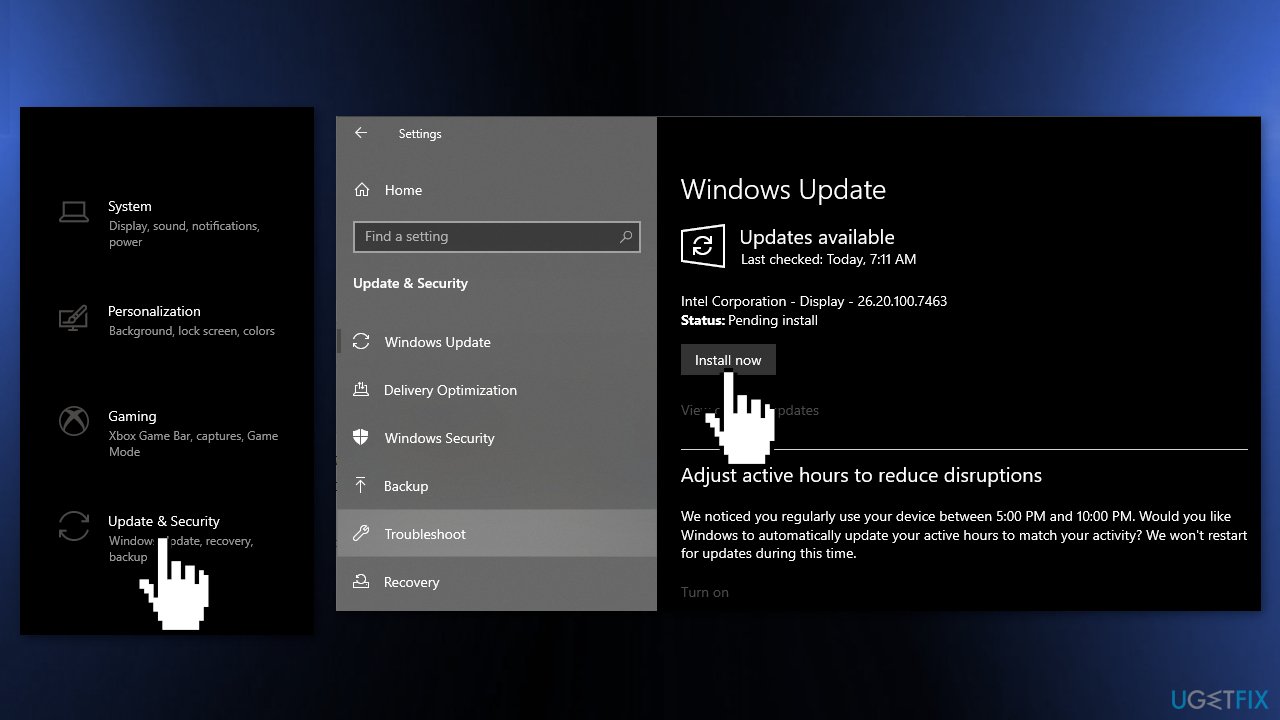
- Click Settings from your start menu and click Update & Security
- Choose Windows Upgrade from the left panel and click the Check for updates button, and then your computer will check for, download, and install any updates found
Solution 2. Fix Corrupted System Files
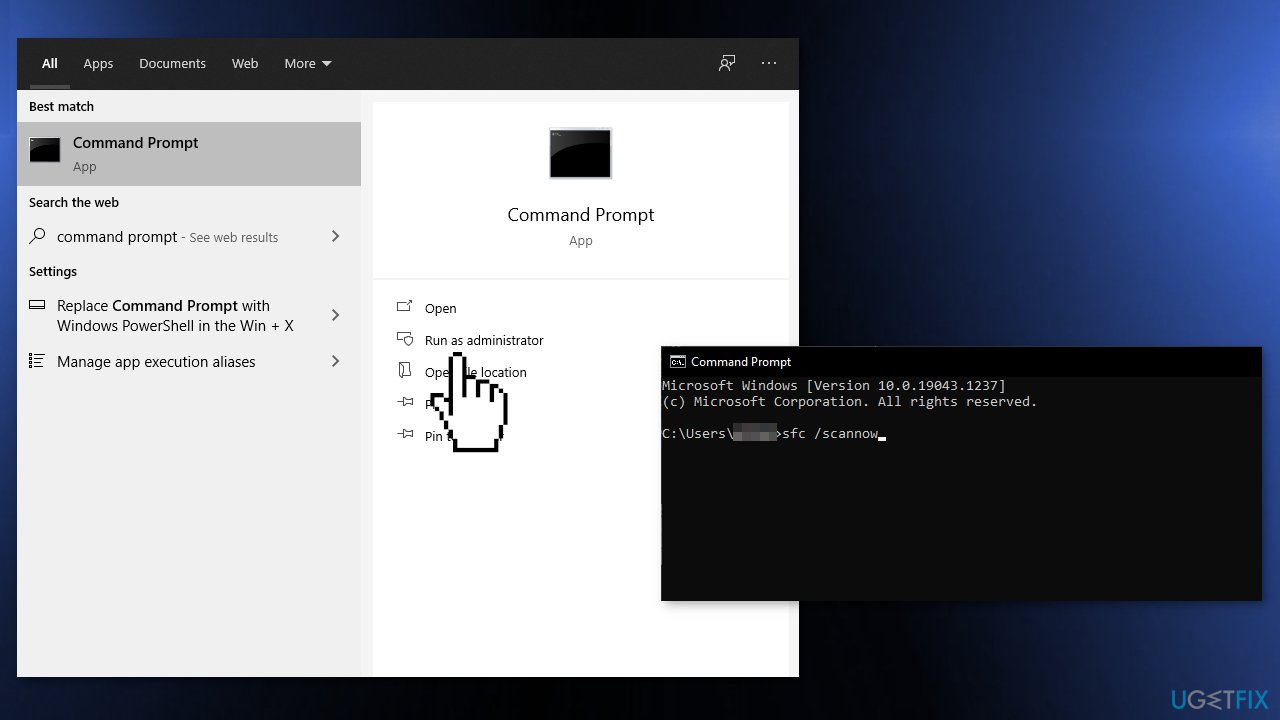
Use Command Prompt commands to repair system file corruption:
- Open Command Prompt as administrator
- Use the following command and press Enter:
sfc /scannow
- Reboot your system
- If SFC returned an error, then use the following command lines, pressing Enter after each:
DISM /Online /Cleanup-Image /CheckHealth
DISM /Online /Cleanup-Image /ScanHealth
DISM /Online /Cleanup-Image /RestoreHealth
Solution 3. Use System Restore
System Restore can roll back the system back to a previous point when the error was not present. Use this utility and choose a restore point before the error started appearing.
- Search for Control Panel in your taskbar
- Change the view mode to Large icons
- Click on Recovery, then Open System Restore
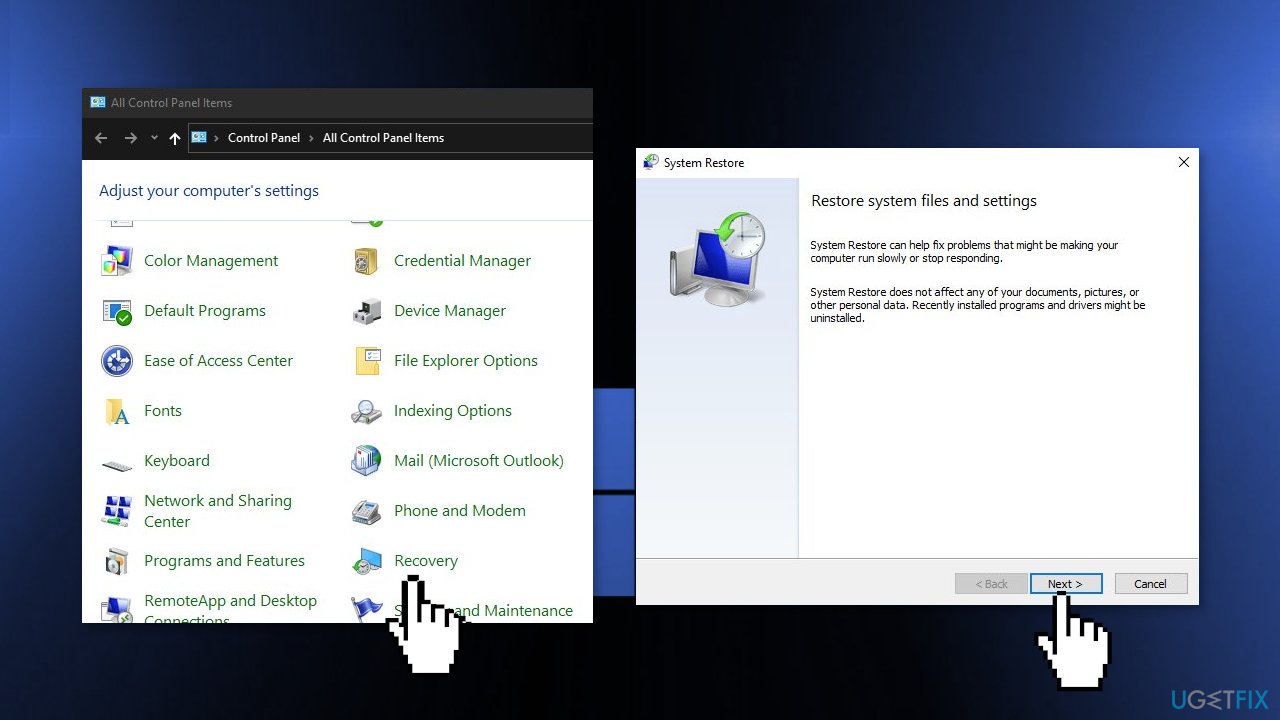
- If prompted, enter your user password
- Follow the on-screen instructions and wait for the wizard to complete the restoration
- Restart your computer
Solution 4. Uninstall Third-Party Security Software
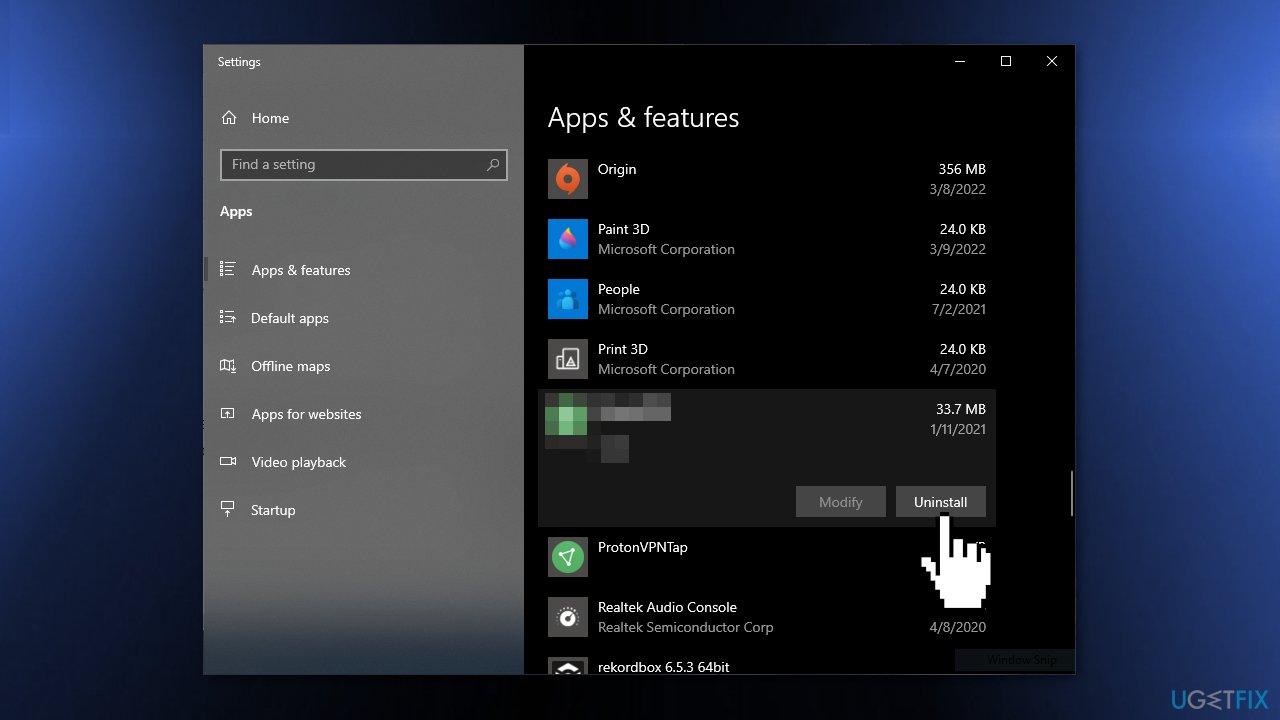
Some security programs might be conflicting with your applications, mistakenly perceiving some files as insecure. Thus, it is known that removing or disabling AV software helped some users when trying to get rid of BSODs.
- Type Apps and Features in the Search menu
- Find your Antivirus software in the list
- Click Uninstall
Solution 5. Run a Windows Defender Scan
- Click on Search
- Type windows security
- Press Enter
- When the app opens up, click on Virus & threat protection
- Select Scan options
- On the next page, check the option Full scan
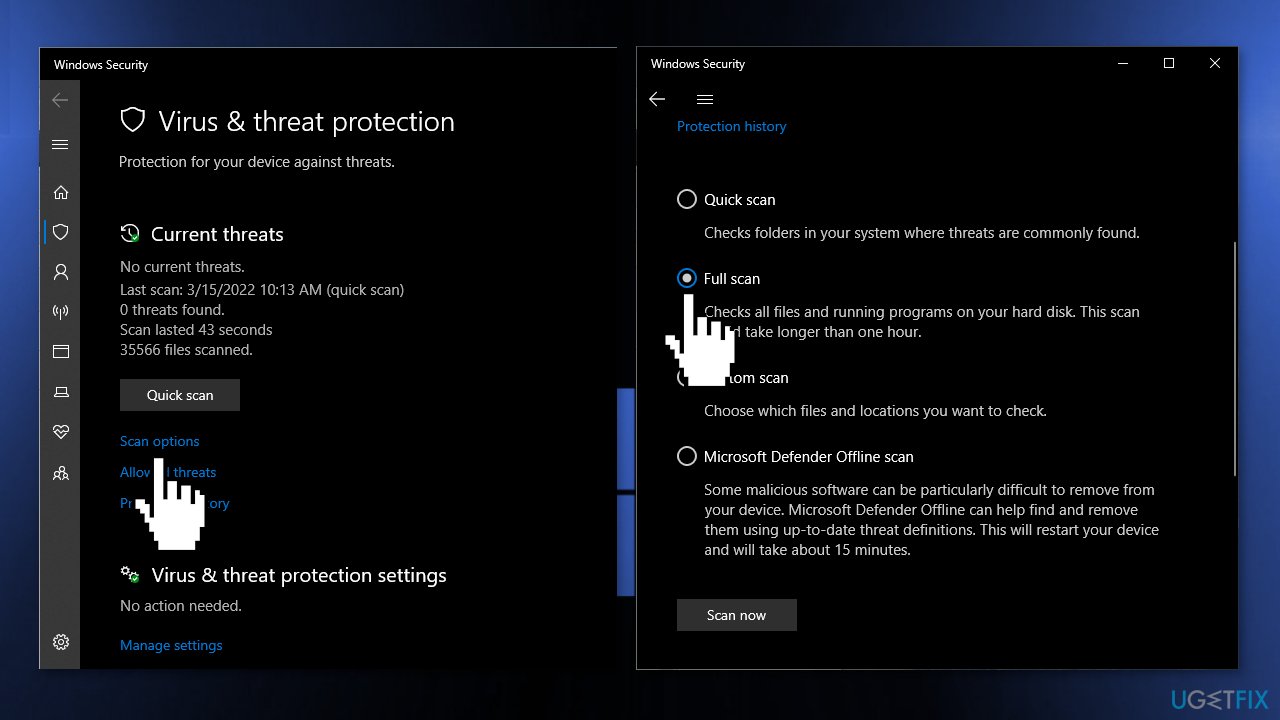
- Click on Scan now
- The tool will start scanning
- Once the process is finished, follow the on-screen instructions
Solution 6. Update Drivers
- Press Windows key + S and write device manager
- Hit the Enter button to proceed
- Look for the exclamation marks near any devices on the console
- If found, expand them, right-click and select the Update driver option
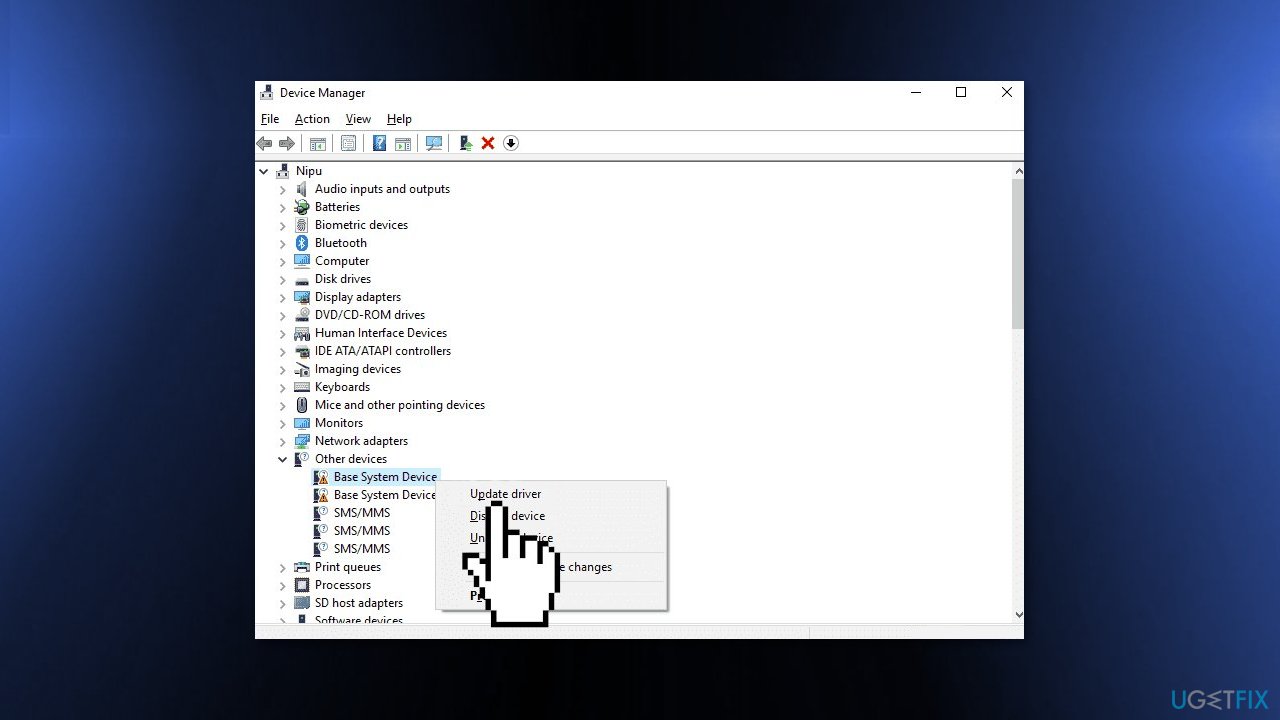
- Select Search automatically for updated driver software
- You can also use a tool like [rev id="DriverFix"] that can find the best drivers for your device and update them automatically
- After these steps, the newer version (if available) of the following driver will automatically download
- Restart Windows
Solution 7. Perform a Clean Install
Performing a clean install wipes out data from the PC, so please create backups before you proceed.
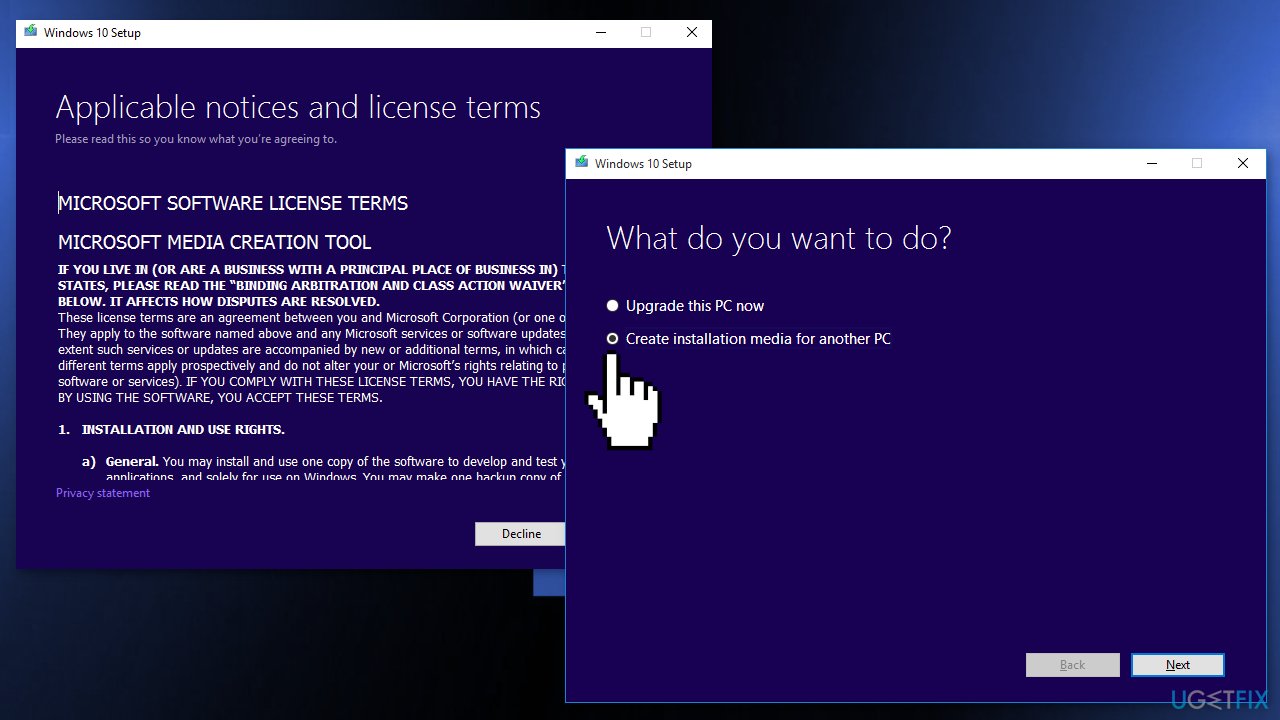
- Download the ISO file for Windows 10 or Windows 11
- Select Create installation media for another PC and click Next
- Select ISO file and click Next
- Click Finish
- Open the Windows ISO file you downloaded
- Open Setup and click Next
- Click Accept (Be prepared to wait; this next part may take a while)
- Click Install
- Wait for your system to restart and install Windows
Bottom line
To fix the BHDrvx64.sys BSOD, you can update Windows, repair corrupted system files using Command Prompt, and consider using a maintenance tool. If these solutions do not resolve the issue, further troubleshooting may be necessary.
Frequently asked questions
BHDrvx64.sys is a driver associated with Bitdefender antivirus software, and it may lead to Blue Screen of Death (BSOD) errors if the driver is corrupted or incompatible with your Windows version.
You can update the BHDrvx64.sys driver by opening the Device Manager, locating the Bitdefender entry, and selecting 'Update driver' to ensure you have the latest version.
To resolve the BSOD, you can try uninstalling Bitdefender, running the Windows Memory Diagnostic tool, or performing a system restore to a point before the issue began.




Report an issue
What's wrong with this guide? We review every report and update or remove content.
Report received — thank you. We'll review and fix it.
You need a free account to submit a report.
Be the first to comment