How to fix
“BitLocker waiting for activation” error
on Windows
Resolve the "BitLocker waiting for activation" error in Windows 10 or 11 effortlessly. Get expert-tested solutions for quick fixes!

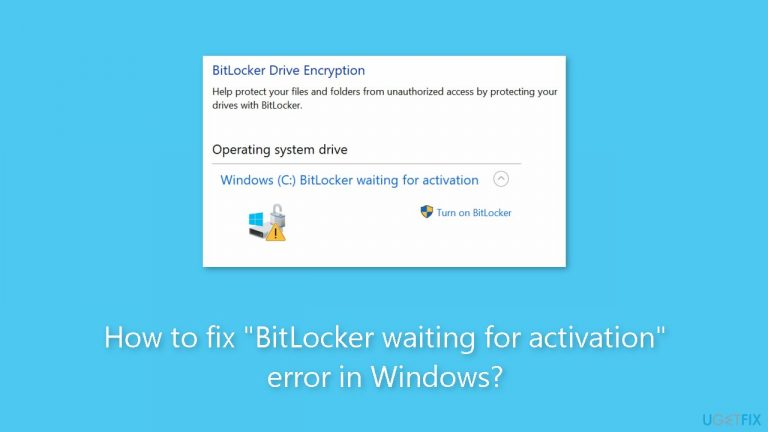
What causes How to fix “BitLocker waiting for activation” error in Windows?
- Hardware compatibility problems
- System configuration issues
- Delays in the encryption process
- Problems with other security applications
- Temporary files accumulation
Repairs Windows system files, removes malware, and restores a clean OS state — without reinstalling.
Hello. I keep getting the "BitLocker waiting for activation" error on my Windows PC. How do I fix it?
BitLocker is a disk encryption feature that comes with different editions of Microsoft Windows, including the Pro and Enterprise editions of Windows 10 and Windows 11. In order to secure the data from unauthorized access in the event that the device is lost, stolen, or otherwise compromised, it primarily serves to improve data security by encrypting the entire disk or a selected number of disks. BitLocker protects data with high-tech encryption techniques and requires a password, PIN, USB key, or other forms of authentication to access the encrypted drive.
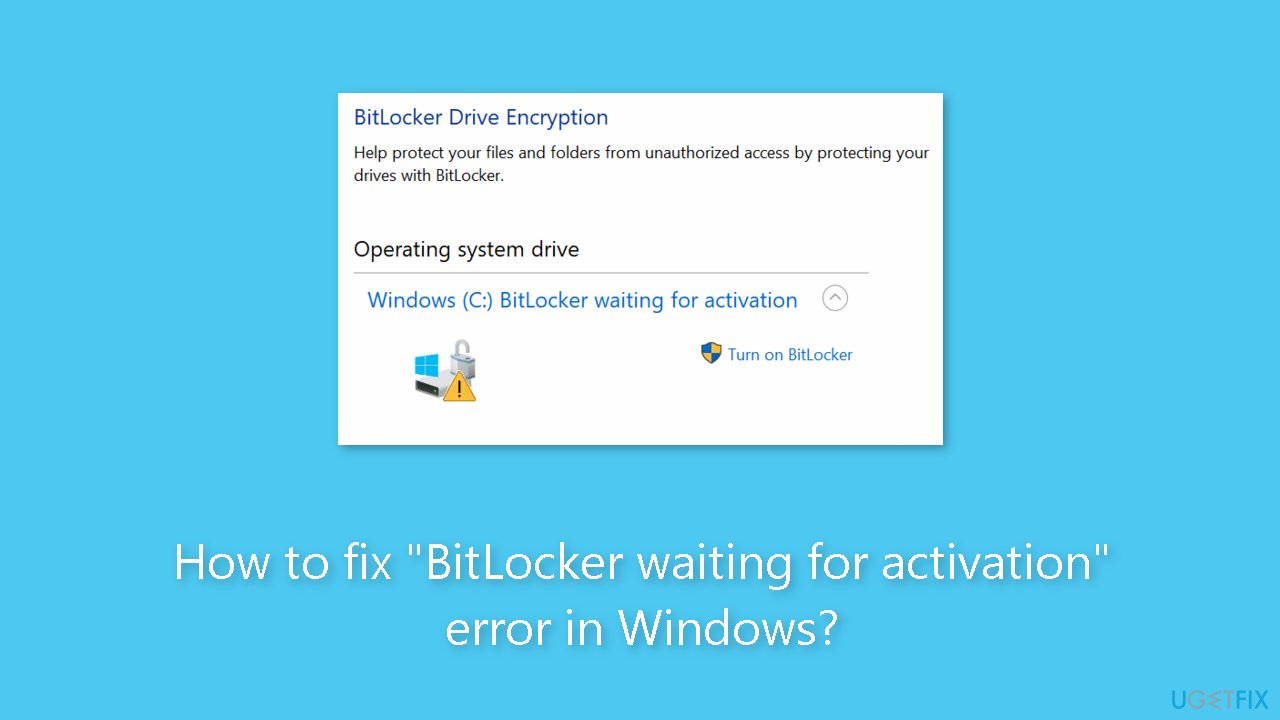
When BitLocker is unable to correctly activate or complete the encryption process, it will display the "BitLocker waiting for activation" error. Users who attempt to activate BitLocker on their drives but find it stuck in a state where activation doesn't proceed as planned may see this error message. The error may appear for a number of reasons, such as hardware compatibility problems, system configuration issues, or delays in the encryption process.
For users, the "BitLocker waiting for activation" problem might have a number of important ramifications. First of all, it raises security issues because the impacted drive is still not encrypted, potentially leaving confidential information vulnerable to intrusion. The user's private and confidential information is at risk as a result. Additionally, being unable to enable BitLocker can make it more difficult to follow security regulations, particularly in corporate settings where encryption is required.
Verifying system setups, updating drivers, and testing hardware compatibility are a few potential fixes. The problem could also be fixed by deleting temporary files or addressing any problems with other security applications. Before attempting any remedies that would require modifying disk encryption settings, it's also a good idea to back up any important data.
In this guide, you will find 5 steps that should help you fix "BitLocker waiting for activation" error in Windows. You can also run a repair tool like [d1] that can fix most system errors, BSODs,[ref en-1] corrupted files, and registry[ref en-2] issues. Otherwise, follow the step-by-step instructions below.
Method 1. Check Group Policy Settings
- Press the Windows key + R to open the Run dialog box.
- Type gpedit.msc into the Run dialog box and press Enter.
- The Group Policy Editor will open.
- Navigate through the following path in the Group Policy Editor:
Computer Configuration
Administrative Templates
Windows Components
BitLocker Drive Encryption
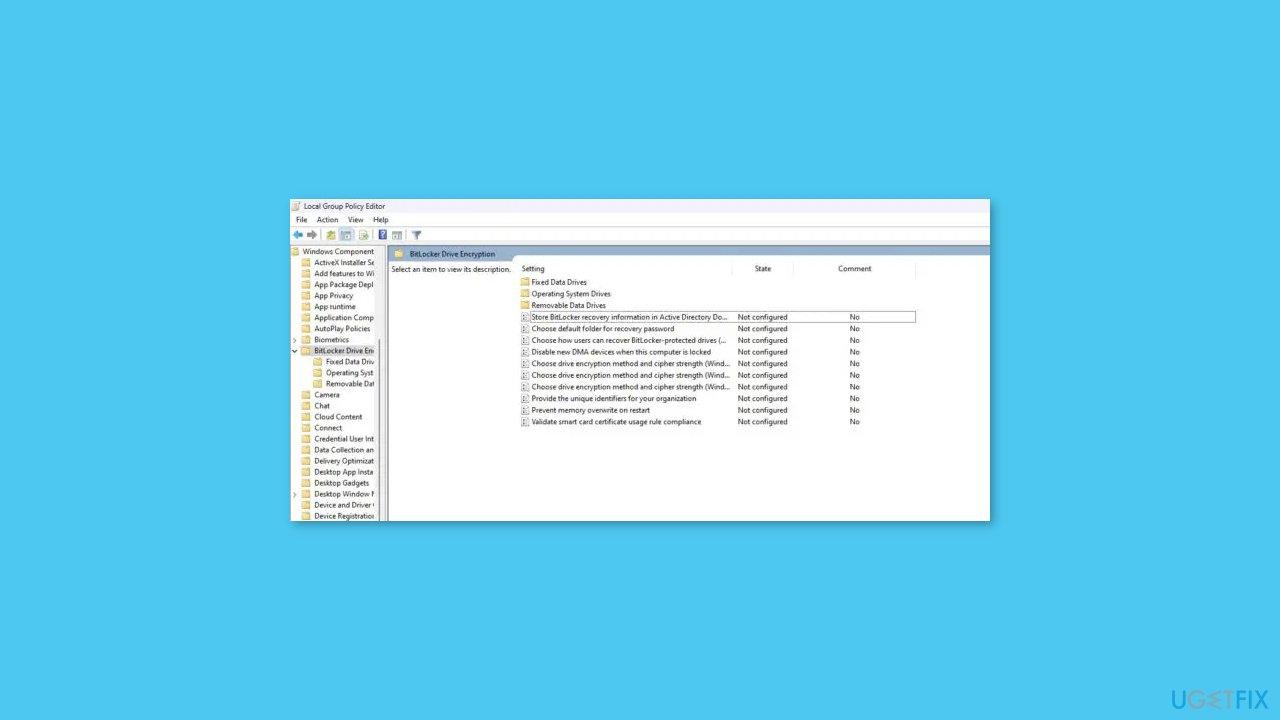
- In the BitLocker Drive Encryption section, you will find a list of policy settings.
- Configure the policy settings according to your requirements.
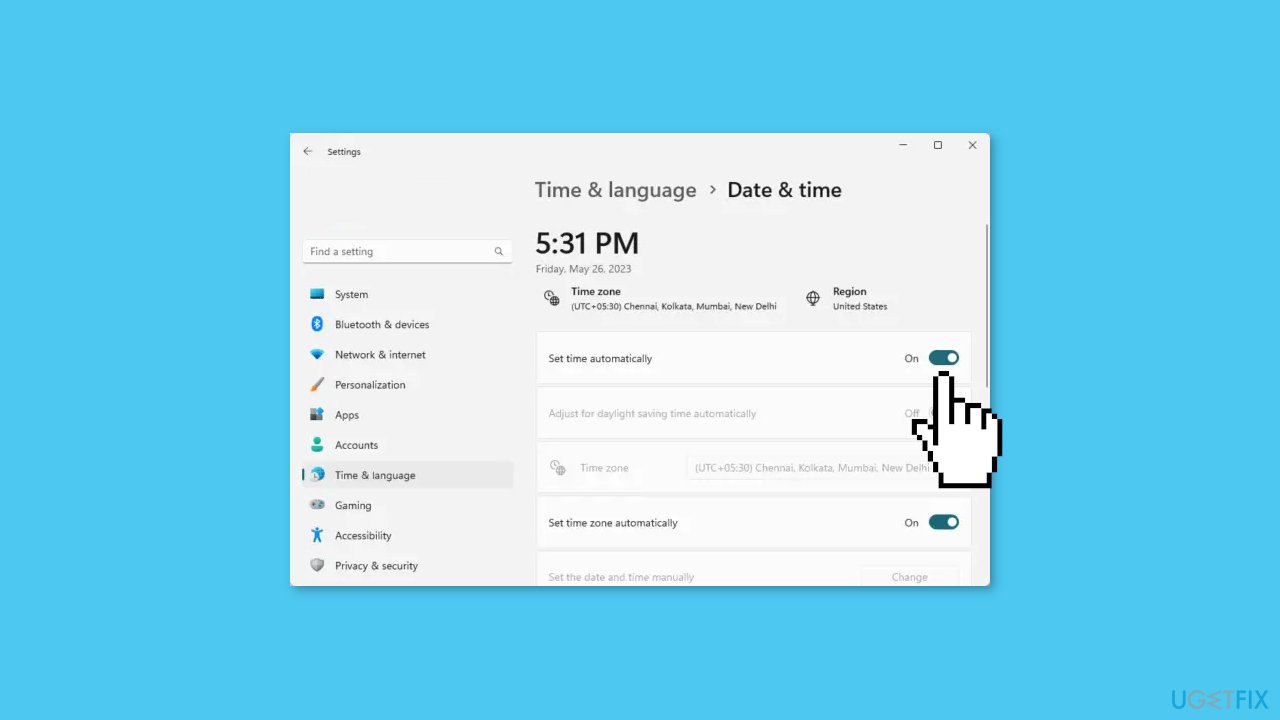
Method 2. Check Date and Time
- Press the Windows key + I to open the Settings menu.
- Go to Time & language and then select Date & time.
- In the Date & time section, activate the options:
- Enable Set time automatically and Set time zone automatically.
Method 3. Update Drivers
Try updating the faulty driver to see if it resolves the issue. You can do this automatically by using [rev id="DriverFix"], which will scan your PC for missing and out-of-date device drivers. Or you can update them manually:
- Open Settings.
- Click on Update & Security.
- Click on Windows Update.
- Click the Check for updates button.
- Click the View optional updates option.
- Click the Driver updates tab.
- Select the driver you want to update.
- Click the Download and install button.

If the View optional updates link is not available after checking for updates, then Windows Update does not have any new drivers or any updates for other products at that particular time.
Method 4. Reset BIOS
- Start your computer and immediately press the designated key:
- For most laptops, including Dell: Press F10.
- On an HP laptop: Press F2 (or refer to your hardware's instructions).
- While booting, look for the displayed keys on the bottom left or right corner of the screen.
- These keys indicate Boot Options or Setup access based on your hardware.
- Press the appropriate key to enter the BIOS setup when prompted.
- Once in the BIOS setup, locate the option to load setup defaults (often F9).
- Select the option to initiate the default settings restoration.
- A blue screen will appear with a prompt: Load Setup defaults?
- Click Yes to proceed with restoring the default BIOS settings.
- If required, navigate to the exit options or save changes menu within the BIOS setup.
- Reboot your computer and ensure it functions as expected with the default BIOS settings.
Method 5. Disable and Re-enable BitLocker
- Press the Windows key.
- Type Command Prompt in the search bar.
- Right-click on Command Prompt in the search results.
- Select Run as administrator.
- In the Command Prompt window, type:
manage-bde -off C:

- Press Enter to execute the command.
- To enable BitLocker, enter the following command:
manage-bde -on C:
- Press Enter to initiate the command.
Bottom line
To fix the 'BitLocker waiting for activation' error, users should verify system setups, update drivers, and test hardware compatibility. Additionally, deleting temporary files and addressing issues with other security applications may help. If these solutions do not work, consider running a repair tool to fix system errors.
Frequently asked questions
You can try restarting your computer and ensuring that the TPM is properly initialized in the BIOS settings. If that doesn't work, consider temporarily disabling and then re-enabling BitLocker.
Make sure that your Windows 11 system is up to date and that the TPM is enabled in the BIOS. Additionally, running the 'Manage BitLocker' tool and checking the encryption status can help.
You can use the Command Prompt to run the 'manage-bde -on' command followed by your drive letter to manually initiate BitLocker encryption, which might resolve the issue.




Report an issue
What's wrong with this guide? We review every report and update or remove content.
Report received — thank you. We'll review and fix it.
You need a free account to submit a report.
Be the first to comment