How to fix
Black screen on game launch
on Windows
Resolve the black screen issue on game launch in Windows 10 and 11 with easy fixes. Enjoy seamless gaming again—expert-tested solutions inside!

What causes How to fix black screen on game launch on Windows?
- Conflicts caused by Adaptive Sync, FreeSync, or G-Sync technologies
- Display errors triggered by recent Windows updates
- GPU or CPU overclocking affecting game initialization
- Fullscreen mode causing compatibility issues on some monitors
- Corrupted DirectX or system files
- Incomplete installation of required graphics libraries or game dependencies
Repairs Windows system files, removes malware, and restores a clean OS state — without reinstalling.
Every time I try to load any game, my screen goes black just before it hits the loading screen. My PC loads fine, and I can stream and browse without issues, but as soon as I launch a game, the screen goes black. I've tried tabbing out, but that does not help; I have to close the game to bring back my screen. Any help?
A black screen on game launch on Windows is a serious hindrance for gamers. The issue is shared by a variety of games on numerous different launchers, and the majority of users report that all their games just show them a black screen immediately after initialization.
In some cases, background music or sound is present, but the screen remains blank, and users need to forcefully need to shut down the game and retry it again later. This not only disrupts gameplay but also results in problems of possible system instability.
The black screen when launching games is not necessarily the error of a single game or publisher. Instead, it can be due to conflicts or incompatibilities that are systemwide, due to issues such as Windows updates or outdated graphics drivers. Some say the issue started after they updated, while others say it started after they changed the display settings or enabled features like FreeSync or G-Sync.
Although such standard steps as updating GPU drivers, verifying game files, or system requirements should be performed, they do not always resolve the problem. More specific causes behind the black screen on game launch include:
- Conflicts caused by Adaptive Sync, FreeSync, or G-Sync technologies.
- Display errors triggered by recent Windows updates.
- GPU or CPU overclocking affecting game initialization.
- Fullscreen mode causing compatibility issues on some monitors.
- Corrupted DirectX or system files.
- Incomplete installation of required graphics libraries or game dependencies.
Many users have resolved the black screen when launching games by tweaking launch settings, uninstalling specific Windows updates, or disabling overclocked hardware configurations. You’ll find detailed step-by-step instructions below. If you’re looking for a quicker, automated approach, using a trusted [d1] repair tool is highly recommended to help identify and fix system issues.
Fix 1. Verify game files
Corrupted game files can cause launch failures, and verifying them can fix the issue.
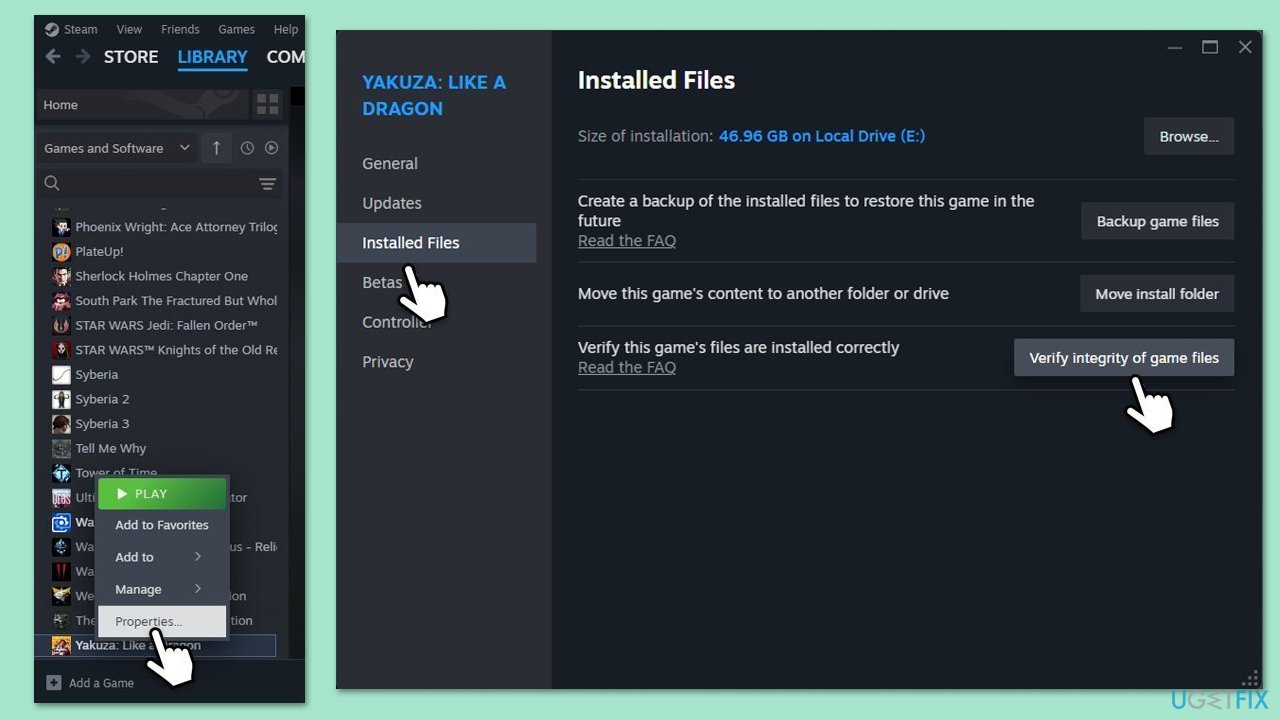
- Open Steam and go to your Library.
- Right-click on the the problematic game and pick Properties.
- Go to Installed Files and click Verify integrity of game files.
- Wait till the scan is finished and attempt to launch the game again.
Fix 2. Check system requirements
If your hardware is older, your games might not be able to launch due to too low system requirements. If your PC specs are high-end, skip this step.
- Visit the game’s official website for system requirements.
- Press Win + I on your keyboard, go to System > About to check your specs.
- Ensure your CPU, GPU, RAM, and OS version meet the minimum requirements.
- Update your OS or drivers if needed.
- Launch the game again.
Fix 3. Disable Adaptive Sync/FreeSync/G-Sync
Adaptive Sync technologies can conflict with games, causing black screens.
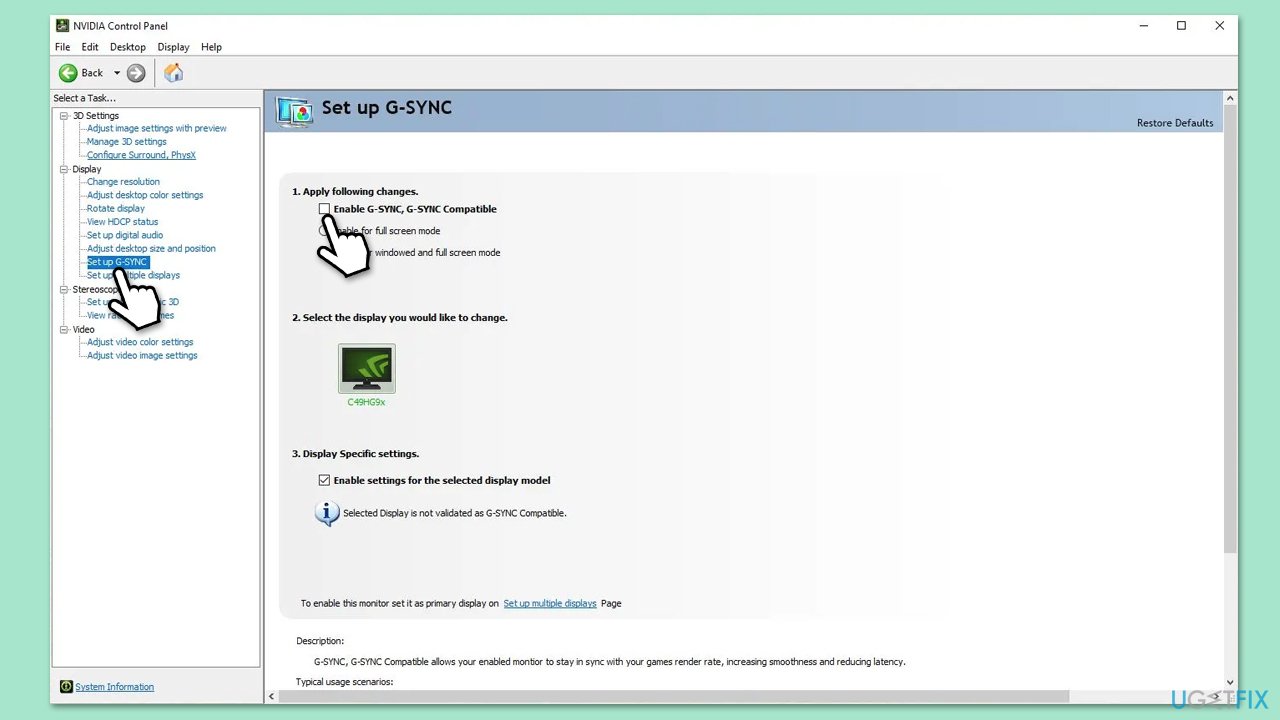
- For NVIDIA, open NVIDIA Control Panel, go to Display > Set up G-Sync, and uncheck Enable G-Sync.
- For AMD, open Radeon Software, go to Display, and toggle off FreeSync.
- Check your monitor’s OSD settings and disable FreeSync/G-Sync there.
- Click Apply and restart your computer.
- Launch the game to test.
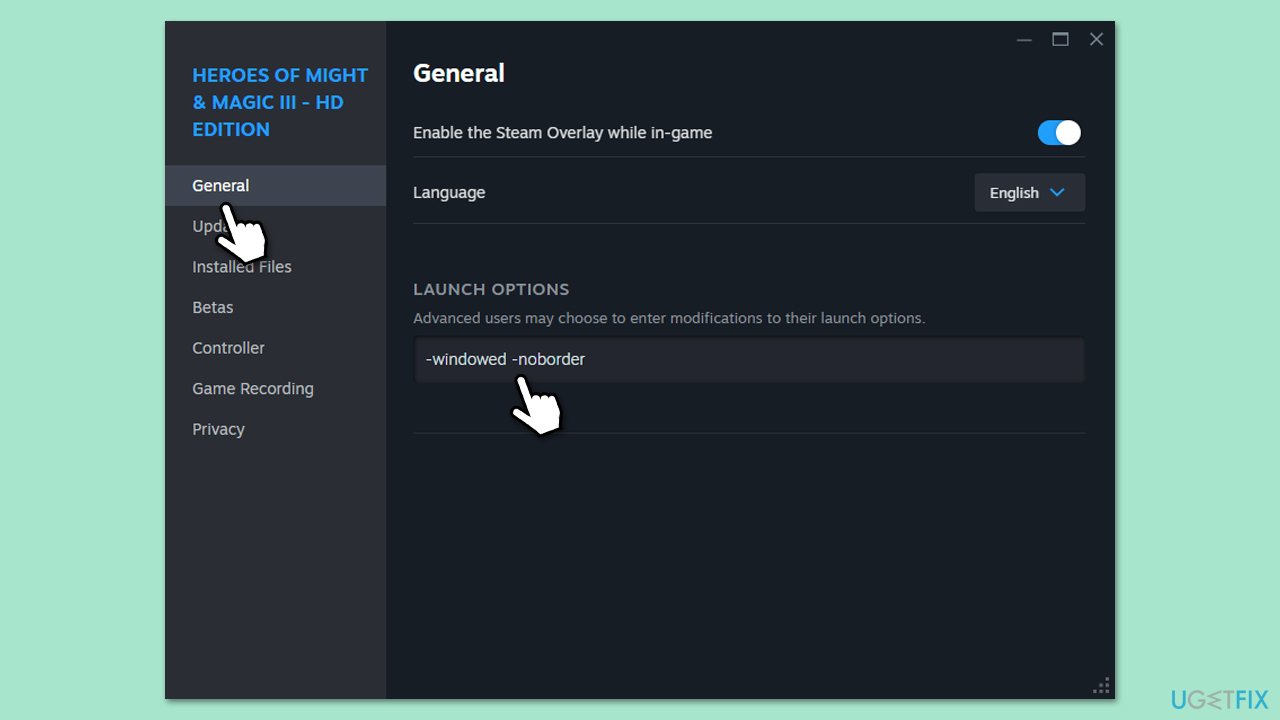
Fix 4. Change launch options to borderless window
Fullscreen mode can cause launch issues, and borderless windowed mode may help.
- Open your game launcher (e.g., Steam).
- Right-click the game, select Properties, and find Launch Options.
- Add -windowed -noborder to the launch options field.
- Close the properties window and launch the game.
- Check if the black screen problem is resolved.
Fix 5. Uninstall recent Windows updates
A recent update might cause compatibility issues with games, leading to black screens.
- Type Control Panel in Windows search and press Enter.
- Select Programs > Uninstall a program.
- Click on View installed updates on the left side of the window.
- Sort all the updates by date.
- Right-click on the most recent update and select Uninstall.
- Proceed with on-screen instructions.
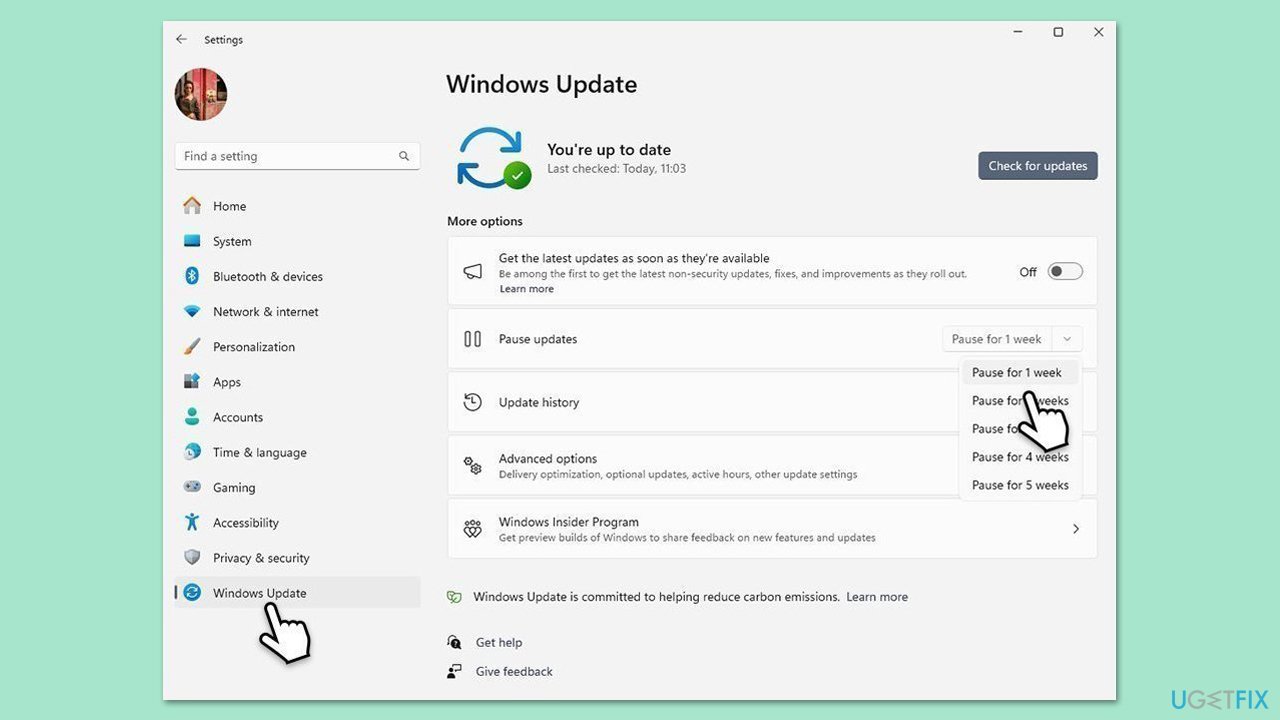
- Then, type Updates in Windows search and press Enter.
- Click Pause the updates for 7 days (in Windows 11, you can pick a different time period).
Fix 6. Disable overclocking
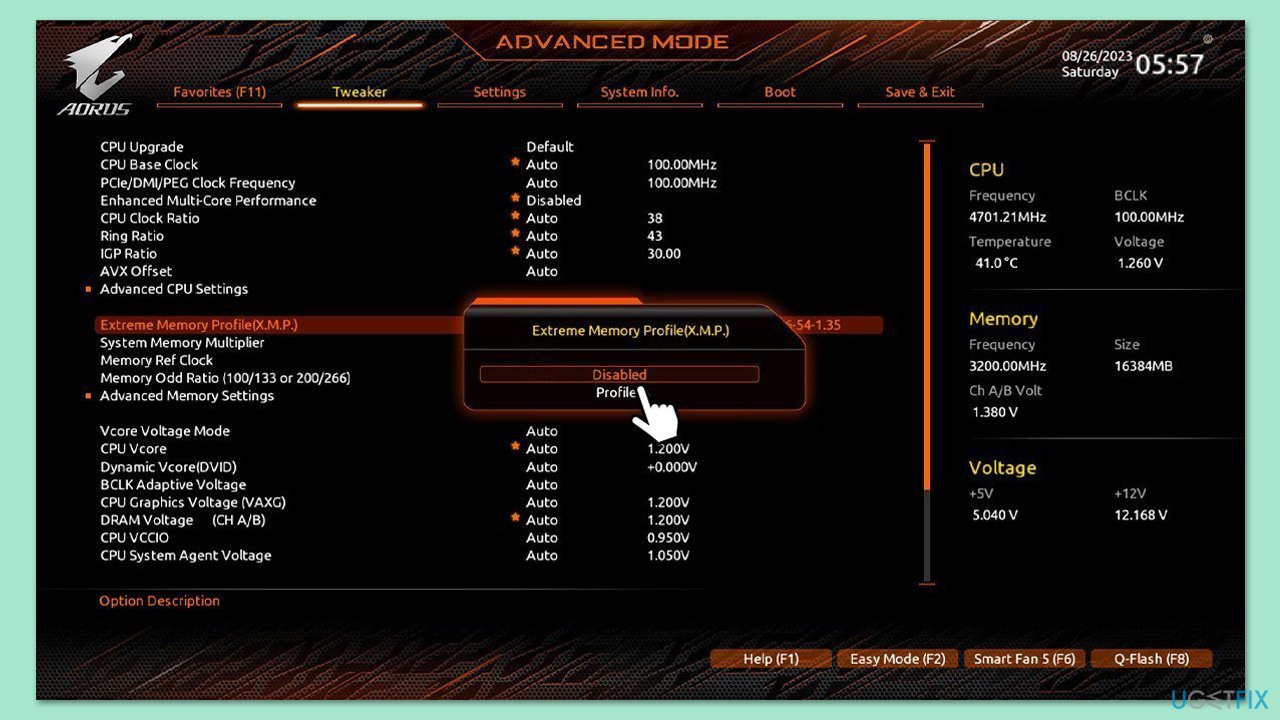
Overclocking may create instability during game launches, resulting in black screen.
- Restart your computer and press the BIOS key as it begins to boot up (typically F2, F10, F12, or Del, depending on the manufacturer).
- In the BIOS interface, navigate to the Advanced, Performance, or Overclocking tab (the name varies by motherboard).
- Look for options such as CPU Configuration, Overclocking Settings, or similar.
- Reset these settings to default or disable the overclocking options, including XMP.
- Save and Exit from BIOS, which will reboot your computer.
Fix 7. Update GPU drivers
Outdated or corrupted GPU drivers can prevent games from launching properly. Manual method below might not always be effective, so you can either download the driver from the official website or use tools such as [rev id="DriverFix"].
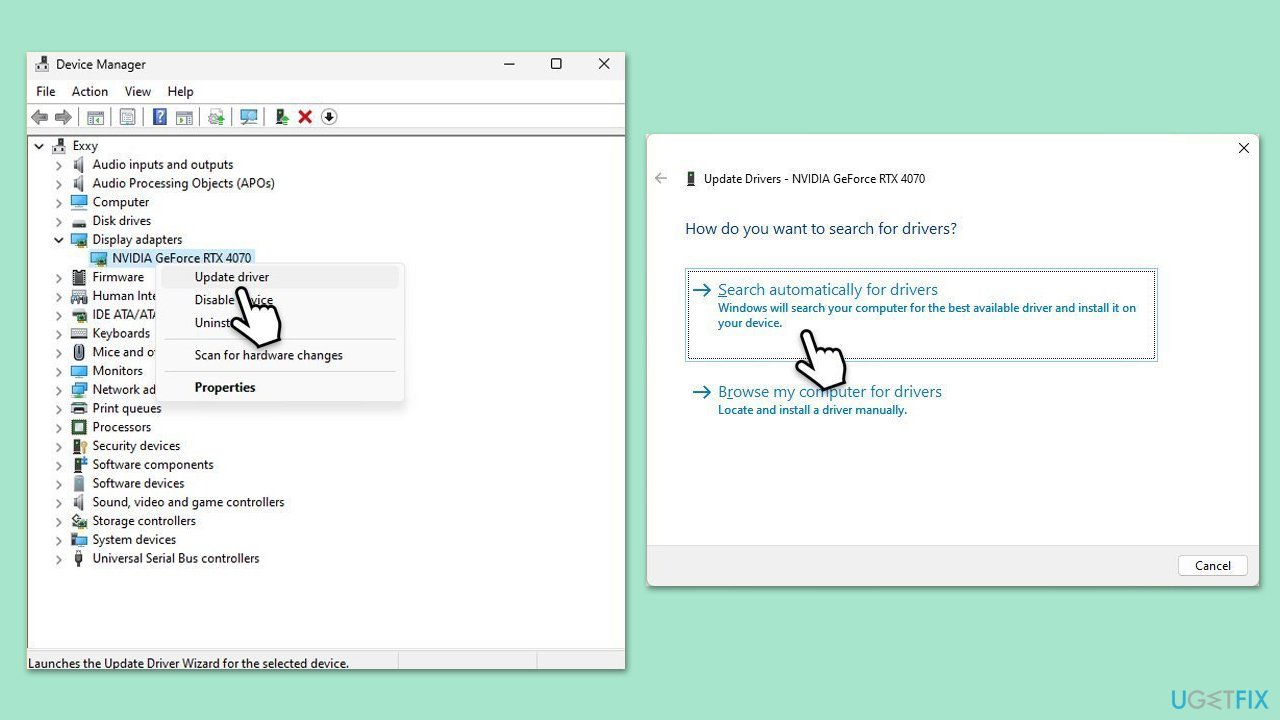
- Right-click on the Start button and select Device Manager from the menu.
- Expand the Display adapters section.
- Right-click on your graphics card and select Update driver.
- Pick Search automatically for drivers.
- If updates are found, allow them to install.
- Restart your PC after updating all necessary drivers.
Fix 8. Reinstall GPU drivers
If updating doesn’t work, a fresh driver installation can resolve deeper issues.
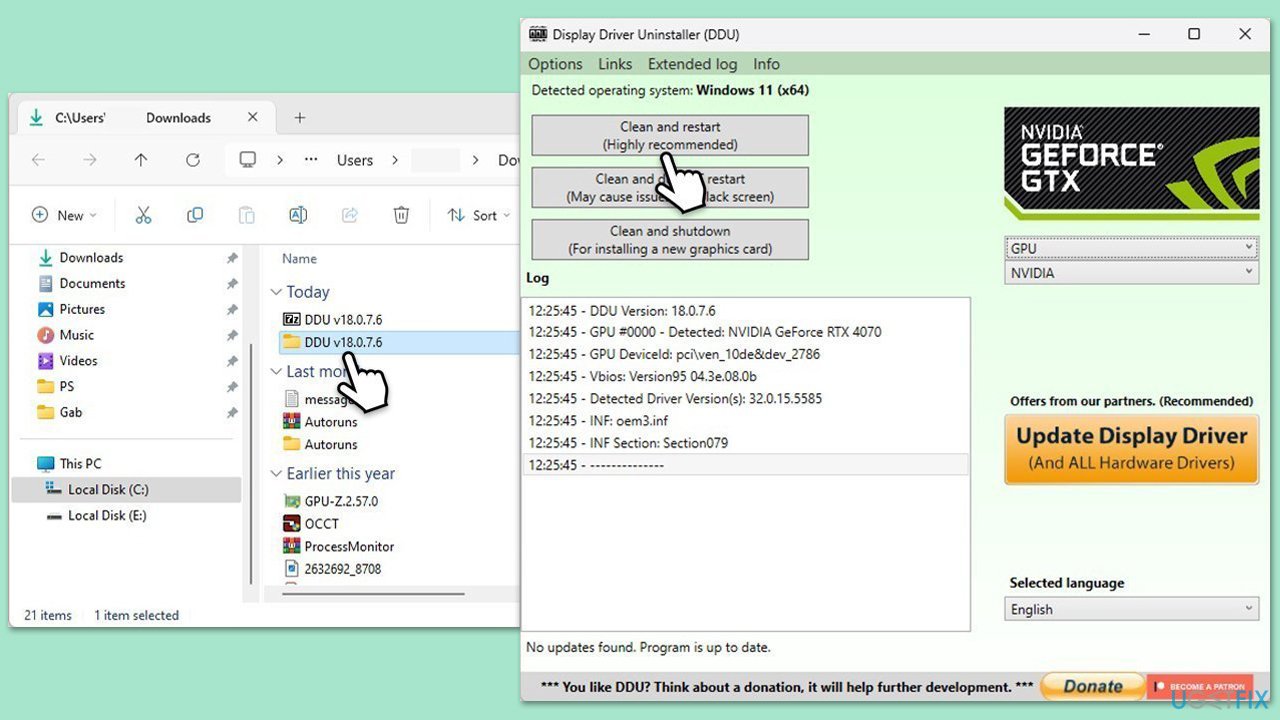
- Download DDU from the official website.
- Extract the compressed file, you should find the installer inside.
- Next, while holding the Shift button, click on Start > Restart.
- After a reboot, go to Troubleshooter > Advanced options > Startup settings > Restart.
- Press 4 or F4 to access Safe Mode.
- After a restart, go to the location where you downloaded DDU.
- Click on Display Driver Uninstaller.exe to open the program.
- Close the Options window.
- Under Device type, pick GPU from the drop-down menu.
- Click Clean and restart.
- Your PC will reboot.
Fix 9. Install the latest DirectX
DirectX is essential for producing visualizations and managing multimedia tasks in games. Outdated or corrupted DirectX files may prevent the game from launching.
- Press Win + E to open File Explorer and go to your main drive (by default, C:).
- Search for d3dx9.dll and delete all the search results (press Ctrl + A and then Shift + Del).
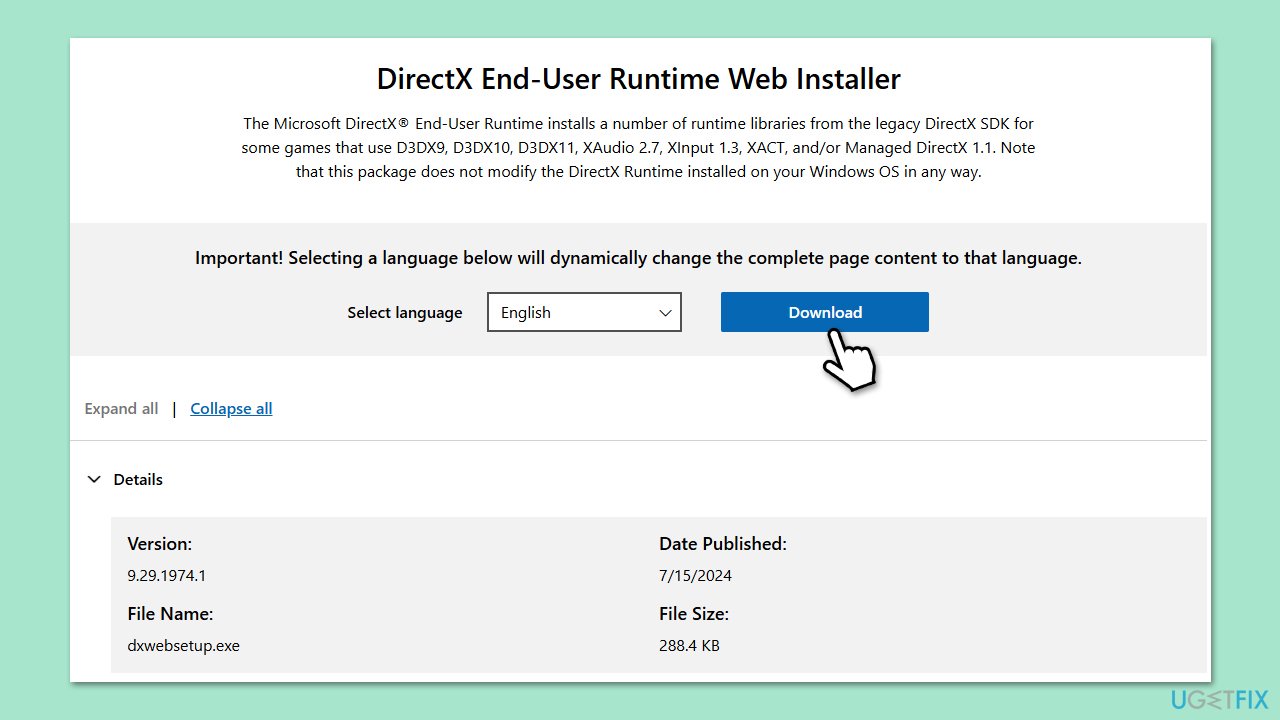
- Visit the official Microsoft DirectX End-User Runtime Web Installer download page.
- Download the setup file to your computer.
- Once the download is complete, open the setup file.
- Follow the on-screen instructions to install the latest version of DirectX.
- Complete the installation and restart your computer.
- After restarting, launch Steam and try to run the game again.
Bottom line
To fix the black screen on game launch, users can try tweaking launch settings, uninstalling specific Windows updates, or disabling overclocked hardware configurations. If these solutions do not resolve the issue, using a trusted repair tool is highly recommended to help identify and fix the problem.
Frequently asked questions
Try updating your graphics drivers and ensure that your Windows 10 is fully updated. If the issue persists, consider verifying the game files through the game launcher.
Check your display settings and make sure your graphics card is set as the default for the game. Additionally, try running the game in compatibility mode for an earlier version of Windows.
Yes, you can uninstall recent Windows updates that may have caused conflicts, or check for any pending updates that could improve compatibility with your games.




Report an issue
What's wrong with this guide? We review every report and update or remove content.
Report received — thank you. We'll review and fix it.
You need a free account to submit a report.
Be the first to comment