How to fix
Black Screen
on Windows
Resolve the black screen issue on Windows 10 quickly and efficiently with expert-tested solutions that restore your display in minutes.

What causes How to Fix Black Screen on Windows 10?
- Black screen after Windows 10 installation
- Black screen after Windows 10 upgrade
- Misleading monitor detection by Windows
- Presence of multiple graphics controllers
- Incorrect password entry
Repairs Windows system files, removes malware, and restores a clean OS state — without reinstalling.
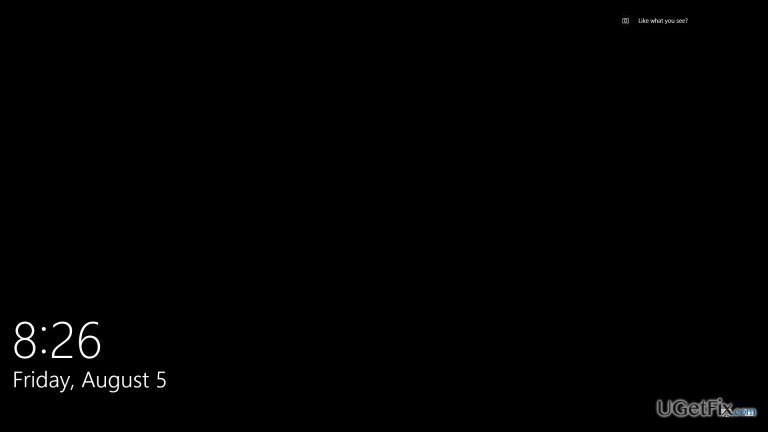
I’ve recently installed Windows 10 and I love it. However, it seems that there is some problem with it because when I sing in to Windows and the system boots, I see only a black screen with a responsive mouse cursor, data, and time. No matter how long I wait, the screen doesn’t change, so I have to reboot the system. It’s interesting that sometimes reboot works and Windows boots to a normal screen. Could you please comment on this?
Thousands of people have already reported about black screen issue on Windows 10. The issue usually appears right after installing Windows 10 from scratch or running its upgrade (Anniversary update in particular). This issue is related to hardware problems, which is why you will have to troubleshoot settings and fix them. According to Windows engineers, Windows boots to the black window when it is misled about monitors attached to it. To be more precise, if you have Intel graphics controller on board and additional graphic card attached, Windows system assumes that you have more than one monitor connected. Consequently, when it sends video signal to a monitor that is not present in reality, you see black Windows screen. Luckily, it’s easier to fix black login screen on Windows 10 than you think.
How to fix black screen on Windows 10?
Tip 1. When your Windows system is booted and you see a black window, most probably you see a static mouse pointer. Wait a while for a poise pointer to start moving and heeding to your commands. Now you have to press the Ctrl button once and enter your password.
NOTE: you will have to enter your password blindly because clicking Ctrl on your keyboard will place mouse cursor on the password box, but still you will not see anything except black screen.
Be very careful and make sure that you enter a correct password and then hit Enter. In case you mistyped the password, press Windows icon + P key, and down arrow key on your keyboard twice. Type your password one more time and hit Enter.
Tip 2. In case this did not help, try the trick with the power.
- Take out the battery.
- Unplug the power adapter.
- Hold Power button for at least 10 seconds.
- Put the battery in and connect the charger. Try to run the system and if the black screen is gone.
Tip 3. Disable Fast Startup
Fast Startup is intrinsic part of Windows 10, what means that it allows a fast booting of the system and faster access to the needed files. However, Fast startup may cause problems like black login screen. To turn it off, you have to do the following:
- Boot your system using Windows 10 Installation Media.
- At the bottom, click on Repair your Computer option.
- Select Troubleshoot and then Advanced Options.
- Click on Startup settings and then Restart.
- Opt for Safe mode with Networking.
- When your PC boots, navigate to Control Panel and select Power Options.
- Finally, select Choose What the Power Buttons Do on the left side.
Tip 4. Remove Display Adapter
- When you encounter the black screen on Windows 10, click Ctrl + Alt + Delete command to open Task Manager.
- If Task Manager Window shows up, click on File, New and enter explorer.exe to open Explorer window.
- Here you have to login and reinstall antivirus and graphic card.
- If you’ve successfully accessed Explorer window, then hold Windows key and press R simultaneously.
- Type hdwwiz.cpl in the dialogue box and press OK.
- Find your display adapter and expand it. Right-click on it and select Uninstall.
- Finally, go to the official website and download the latest version of the driver.
We hope that these steps have helped you to fix black login screen after Windows Anniversary Update. To end up this post, we would highly recommend you to install a PC optimization tool, such as [d1] because it will help to fix registries, cache, prevent malware infections, and similar errors that help to keep the best PC’s performance.
Bottom line
To fix the black screen issue on Windows 10, you can try pressing Ctrl and entering your password blindly, or use Windows icon + P key followed by the down arrow key to adjust display settings. If these solutions do not resolve the problem, further troubleshooting of hardware settings may be necessary.
Frequently asked questions
Try booting your PC in Safe Mode and uninstall the latest updates. If that doesn't work, consider rolling back your graphics drivers or performing a system restore.
You can attempt a Startup Repair by booting from a Windows installation media and selecting the repair option. If that fails, consider checking your hardware connections or performing a clean installation.
Yes, you can boot into Safe Mode and reinstall or update your display drivers through Device Manager. Make sure to download the latest drivers from the manufacturer's website.




Report an issue
What's wrong with this guide? We review every report and update or remove content.
Report received — thank you. We'll review and fix it.
You need a free account to submit a report.
Be the first to comment