How to fix
Black screen when receiving notifications
on Windows
Resolve the black screen issue when receiving notifications in Windows 10 or 11 with our expert-tested solutions. Fix it in minutes!

What causes How to fix black screen when receiving notifications in Windows?
- GPU driver issues
- Third-party app overlays
- System file corruption
- Background app conflicts
- Misconfigured display settings
Repairs Windows system files, removes malware, and restores a clean OS state — without reinstalling.
Whenever I receive a notification from some app (for example, Teams or Telegram), my screen temporary goes black for couple of seconds. This happens every time whenever some pop-up notification shows up and does not affect anything else (like when I'm gaming or launching apps, etc.). This is a weird behavior I've never seen before, and I have no idea what could be causing this. Any tips?
Windows notifications are among the core features on Windows that are used to inform users of app updates, messages, emails, and system events. They appear as pop-ups in the Action Center or as banners on the screen to prevent you from missing important alerts from apps like Discord or Telegram, or system processes.
While useful, sometimes notifications can cause unnecessary issues such as the screen turning black for a few seconds when a notification arrives, disrupting your work or gameplay.
This black screen issue during notifications has been encountered by users mostly after recent Windows updates like version 24H2. The screen will usually go black for 1-2 seconds before it goes back to normal, usually occurring on every notification from various apps. This can be especially frustrating while performing concentrated activities like video calling, gaming, or document work.
Based on user discussions in online forums, several potential causes have been identified. GPU driver issues, especially with Nvidia GPUs, are a common culprit, as outdated or incompatible drivers may struggle to handle notification rendering. It is not uncommon to occur after the newest Windows update because drivers sometimes become incompatible due to version mismatch.
Third-party app overlays, such as Discord’s in-game overlay, can also conflict with Windows’ notification system, causing display interruptions. Additionally, system file corruption, background app conflicts, or misconfigured display settings, like refresh rates or HDR, might contribute to the problem.
Several troubleshooting steps can help resolve black screen when receiving notifications, depending on its root cause. Updating or reinstalling GPU drivers, disabling app overlays, and repairing system files are effective solutions suggested by users. Adjusting notification settings or display configurations can also mitigate the issue.
Before proceeding with manual solutions below, we recommend you try running a scan with a powerful PC repair application [d1], capable of repairing various underlying Windows issues automatically.
Fix 1. Update all your drivers
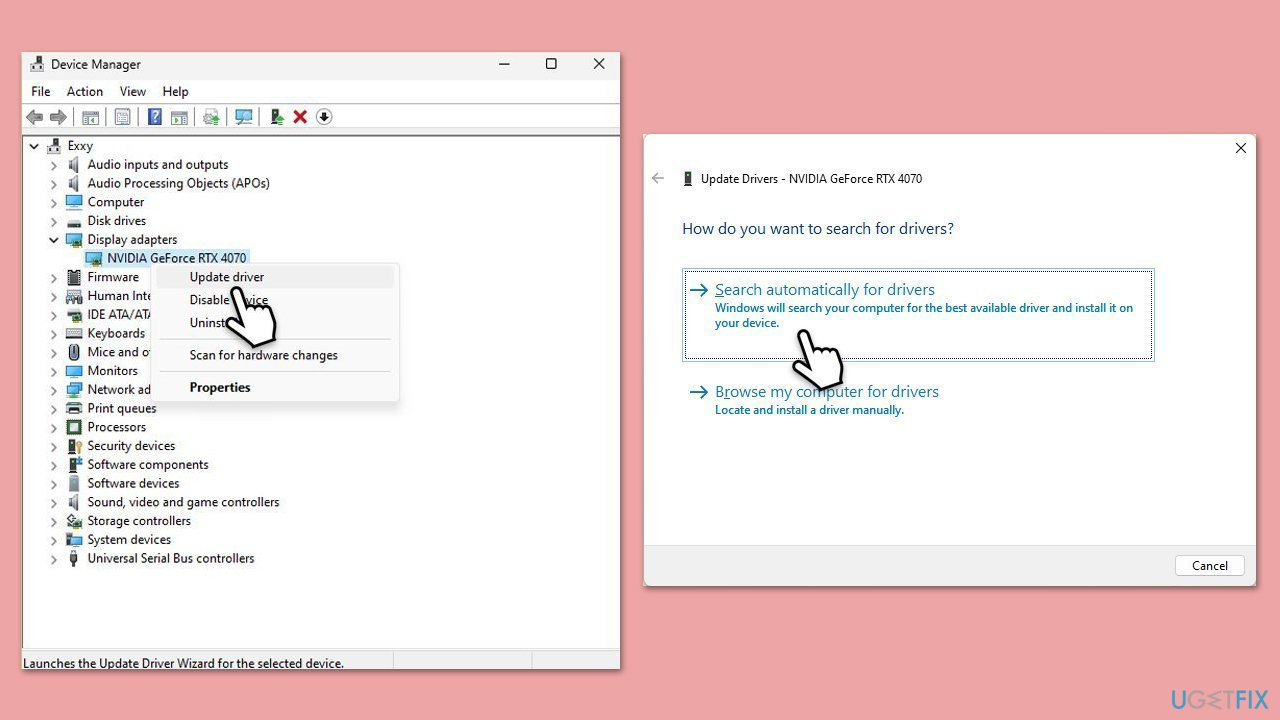
As mentioned above, drivers are among the most common reasons for the black screen issues with notifications. Thus, you should make sure that they are up-to-date. The easiest way to do so is by using an automatic tool such as [rev id="DriverFix"], although downloading them from the official websites or using Device Manager are also potential options.
- Right-click on Start and select Device Manager from the menu.
- Expand categories like Display adapters or Sound, video and game controllers.
- Right-click each device and select Update driver.
- Choose Search automatically for drivers and follow the prompts.
- Restart your computer after updating all relevant drivers.
- For a more robust and quick way to update drivers, we recommend choosing [rev id="DriverFix"].
Fix 2. Disable third-party app overlays
Discord
- Open Discord and click on the gear icon next to your username.
- Scroll down to the Activity Settings section and click on Game Overlay.
- Toggle off the switch next to Enable in-game overlay.
- Restart Discord to ensure the changes take effect.
Steam
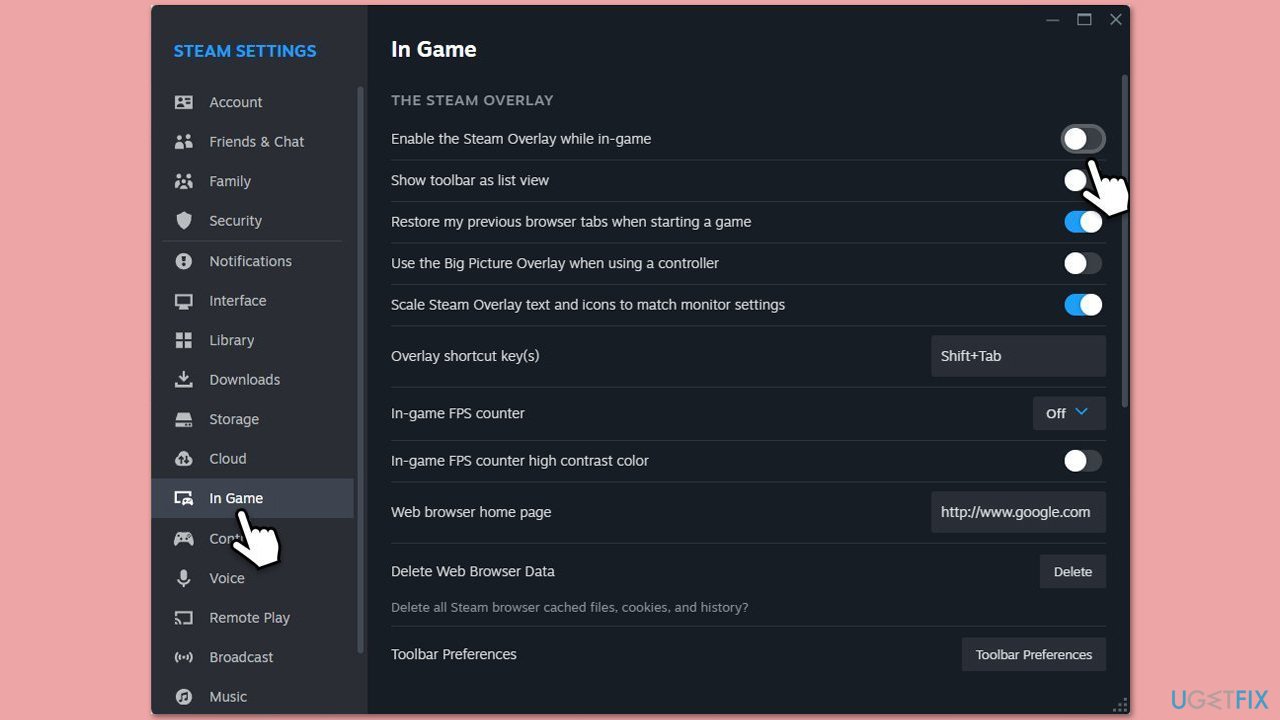
- Open your Steam client.
- Go to your game library and right-click on FF16.
- Select Properties.
- Disable the Enable the Steam Overlay while in-game option location in General settings.
Game Bar
- Right-click on Start and select Settings.
- Go to Gaming.
- Under Xbox Game Bar, toggle off Enable Xbox Game Bar for things like recording game clips, chatting with friends, and receiving game invites.
- Restart your computer to ensure the overlay is completely disabled.
Fix 3. Check display settings
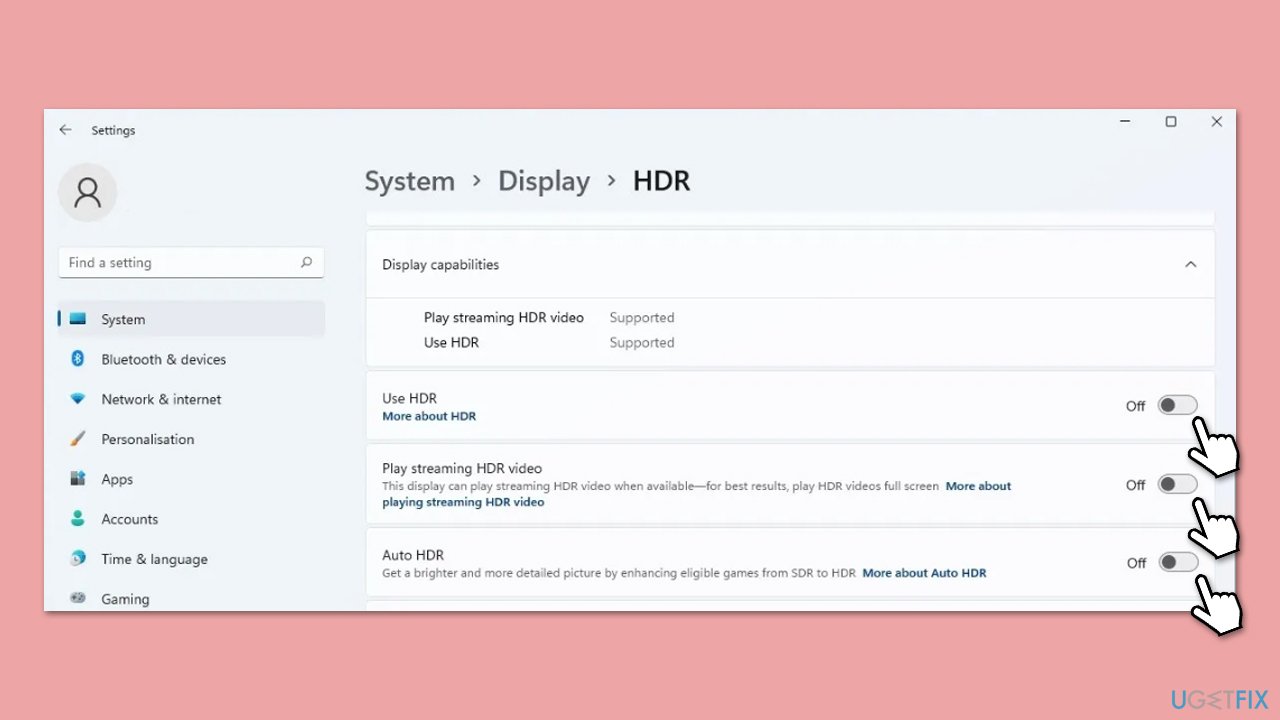
Incorrect display settings, such as refresh rates or HDR, can cause display interruptions when notifications appear, especially on high-performance GPUs.
- Right-click on Start and pick Settings.
- Go to System > Display > Advanced display.
- Check the refresh rate and set it to a standard value (e.g., 60Hz).
- If HDR is enabled, toggle it off under Windows HD Color settings.
- Restart your computer and test with a notification.
Fix 4. Run SFC and DISM scans
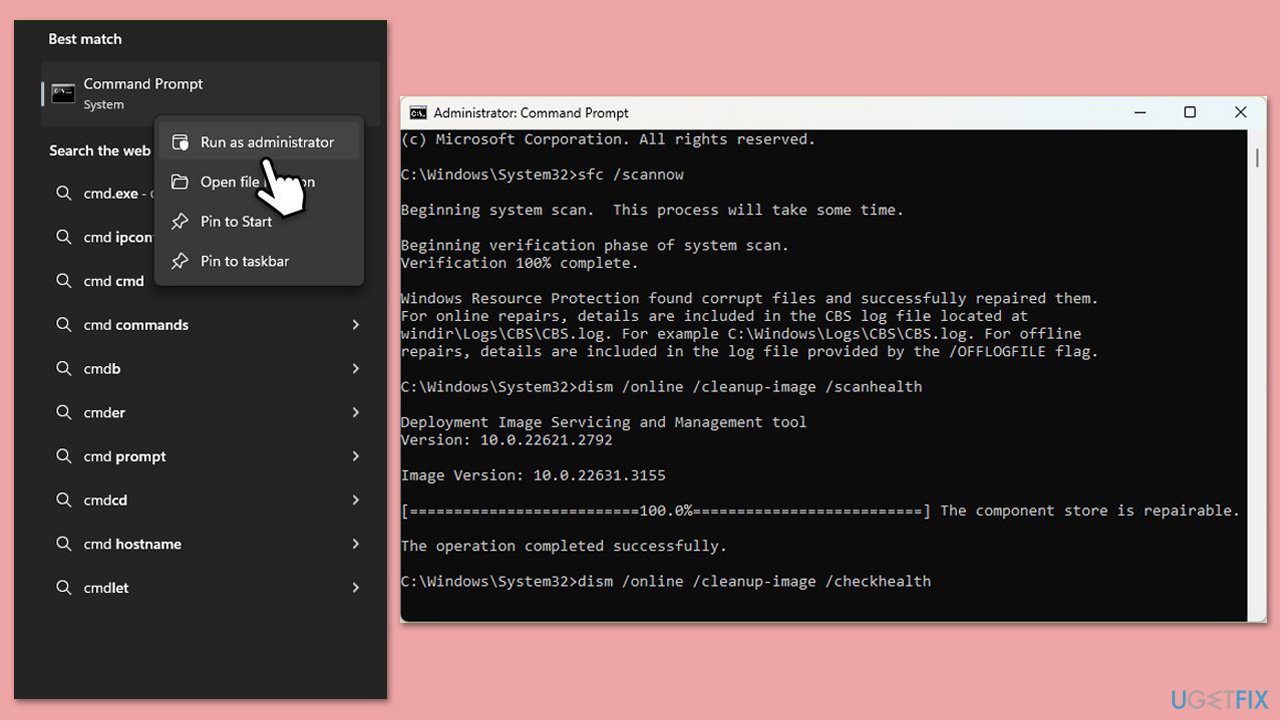
Corrupted system files can disrupt how Windows handles notifications, potentially causing display issues. SFC and DISM tools can repair these files.
- Type in cmd in Windows search.
- Right-click on Command Prompt and select Run as administrator.
- User Account Control will ask you whether you want to allow making changes to the system - click Yes.
- In the Command Prompt window, paste the following command and press Enter:
sfc /scannow - Wait for the scan to complete.
- Once the SFC scan is finished, run the following set of DISM commands, pressing Enter after each one:
DISM /Online /Cleanup-Image /CheckHealth
DISM /Online /Cleanup-Image /ScanHealth
DISM /Online /Cleanup-Image /RestoreHealth
(Note: if you get an error executing this last command, add /Source:C:\RepairSource\Windows /LimitAccess to it and try again). - Restart your PC after executing these commands.
Fix 5. Adjust notification settings
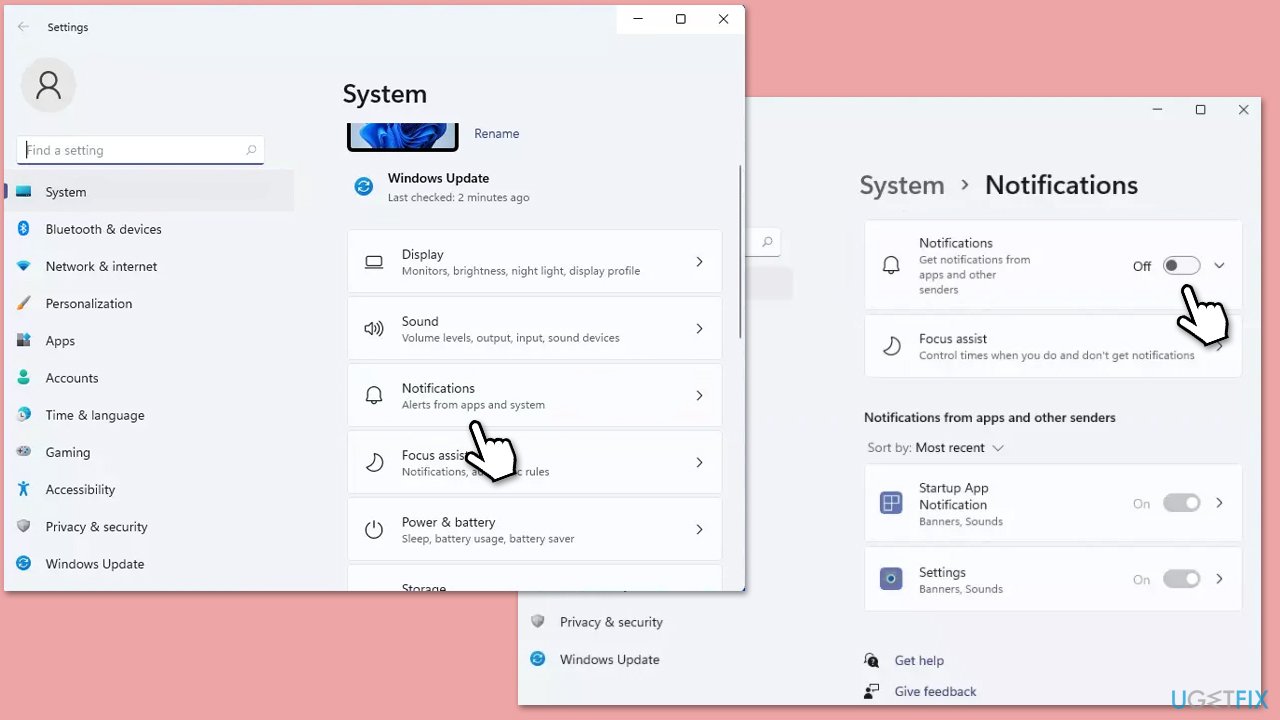
Misconfigured notification settings might cause conflicts with the display system, leading to black screens. Turning off or adjusting notifications can help.
- Right-click on Start and pick Settings.
- Go to System > Notifications.
- Scroll to Notifications from apps and other senders and toggle off apps causing issues (e.g., Discord, Outlook).
- Alternatively, click an app and turn off Show notification banners.
- Test by sending a notification from another app to see if the issue persists.
Fix 6. Uninstall a recent update
If one of the recent updates has caused the issue, uninstalling it is an option. However, if it was a major update such as 24H2, you are unlikely to roll back easily. Instead, check our guide on how to do that in an alternative way.
- Type Control Panel in Windows search and press Enter.
- Select Programs > Uninstall a program.
- Click on View installed updates on the left side of the window.
- Sort all the updates by date.
- Right-click on the most recent update and select Uninstall.
- Proceed with on-screen instructions.
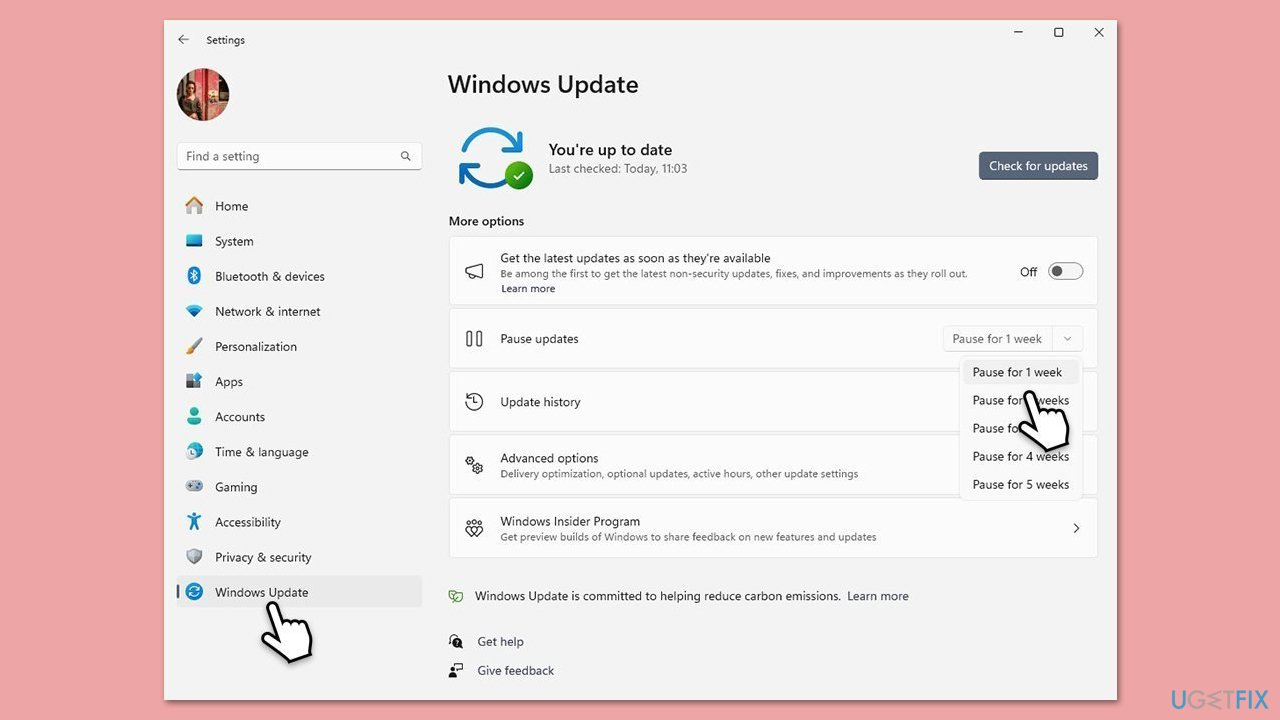
- Then, type Updates in Windows search and press Enter.
- Click Pause the updates for 7 days (in Windows 11, you can pick a different time period).
Bottom line
To resolve the black screen issue when receiving notifications, users can update or reinstall GPU drivers, disable app overlays, and repair system files. Adjusting notification settings or display configurations may also help. If none of these solutions work, further investigation into system settings or seeking professional support may be necessary.
Frequently asked questions
Try updating your graphics drivers and check for any pending Windows updates, as these can often resolve display issues. If the problem persists, consider adjusting your notification settings or disabling any third-party applications that may interfere.
You can start by running the built-in troubleshooter for Windows Store apps, which may help identify any conflicts. Additionally, resetting the graphics driver by pressing Win + Ctrl + Shift + B can also remedy the issue.
Yes, go to Settings > System > Notifications & actions and adjust the notification settings for specific apps to see if that alleviates the black screen issue in Windows 10 or Windows 11.




Report an issue
What's wrong with this guide? We review every report and update or remove content.
Report received — thank you. We'll review and fix it.
You need a free account to submit a report.
Be the first to comment