How to fix
Blank “Get Help” app window
on Windows
Resolve the blank "Get Help" app window in Windows 11 effortlessly. Follow our expert-tested guide for quick fixes and regain your support access!

What causes How to fix blank “Get Help” app window in Windows 11?
- Incomplete or corrupted system updates
- Network connectivity issues
- Conflicting software or antivirus
- App file corruption
- Display or System Settings conflicts
Repairs Windows system files, removes malware, and restores a clean OS state — without reinstalling.
So I clicked "Get Help" in Windows 11 and all I see is just an empty window with nothing in it. How can I get help if there's nothing there?
Some Windows 11 users have reported encountering a blank window when trying to use the "Get Help" app, a tool designed to offer support and troubleshooting assistance directly within the operating system. Instead of displaying helpful information, the app opens with an empty screen, leaving users unable to access the guidance they seek. This issue can be particularly frustrating, as it limits the ability to resolve other potential problems within the system through the app itself.
Reports from users suggest that this blank screen issue may be related to a variety of underlying causes. One common factor is outdated or incomplete system updates, which can lead to app functionality problems. Some users also point to network connectivity issues, particularly when the "Get Help" app relies on online resources that cannot load properly. In other cases, conflicts with system services or settings, such as Windows Display settings or application permissions, may prevent the app from displaying content as intended.
Additionally, certain software conflicts, particularly involving third-party antivirus programs, may interfere with the "Get Help" app’s ability to function properly. The corruption of app-related files or a malfunction within the Windows Store, from which the app receives updates, can also contribute to the problem.
Potential causes of the blank "Get Help" app window include:
- Incomplete or corrupted system updates: Missing or failed updates may prevent the app from loading its interface correctly.
- Network connectivity issues: A weak or disrupted internet connection can lead to incomplete content loading within the app.
- Conflicting software or antivirus: Third-party security software may block or interfere with the app, leading to display problems.
- App file corruption: Corrupted files within the "Get Help" app or its dependencies might cause it to fail when attempting to load its resources.
- Display or System Settings conflicts: Misconfigured settings related to display scaling or system permissions can also contribute to this issue.
To address these issues, users may explore several potential solutions, including checking for and installing any missing system updates, ensuring stable network connectivity, and adjusting relevant system settings. In some cases, repairing or resetting the "Get Help" app itself can resolve the issue. If the problem persists, using [d1] repair tools may provide a more in-depth solution to restore the app's functionality and prevent further disruptions.
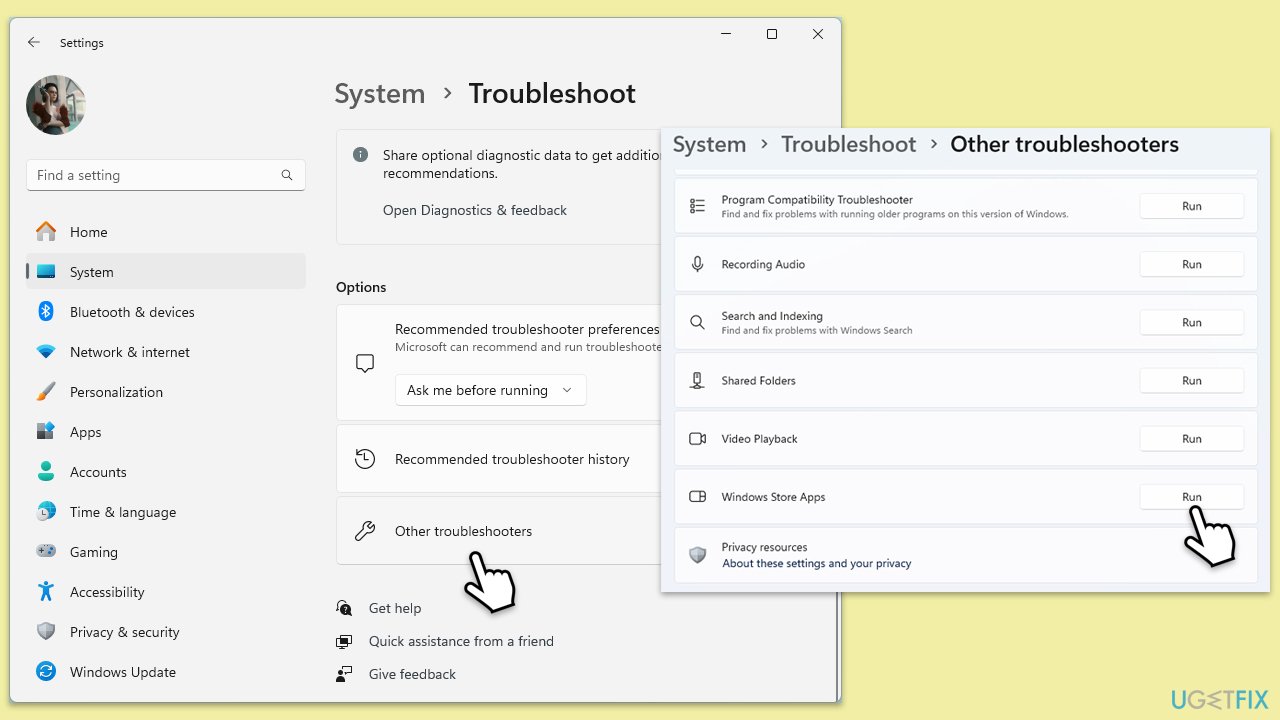
Fix 1. Run the Windows Store apps troubleshooter
The Windows Store Apps troubleshooter is a built-in tool designed to detect and fix common issues with apps from the Microsoft Store, including the "Get Help" app.
- Press Win + I to open Settings.
- Navigate to System > Troubleshoot > Other troubleshooters.
- Scroll down and find Windows Store Apps.
- Click Run next to it.
- Follow the on-screen instructions to complete the troubleshooting process.
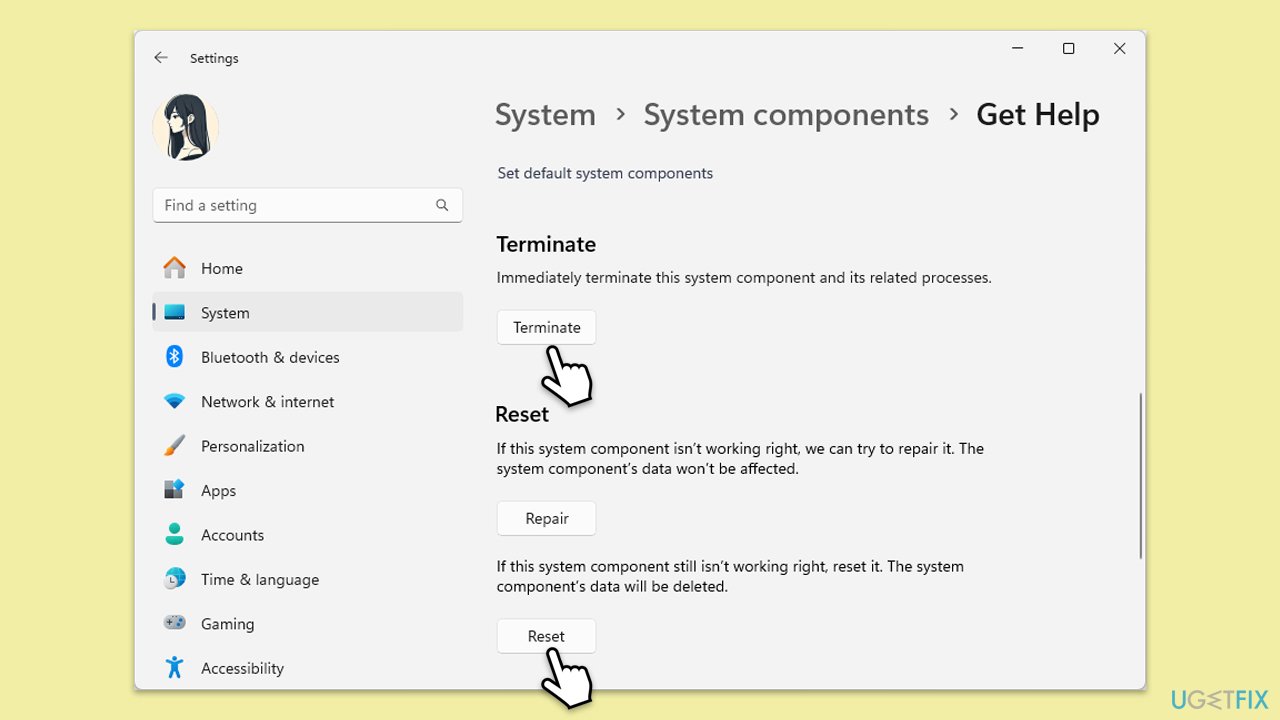
Fix 2. Reset the "Get Help" App
Resetting the app can resolve issues caused by corrupted settings or cached data.
- Type Get Help in the Windows search.
- Right-click on the result and select App settings.
- Scroll down and click Terminate.
- Next, in the Reset section click the Reset button.
- Confirm the action when prompted.
Fix 3. Update the "Get Help" App
Ensuring that the app is up-to-date can fix bugs and improve functionality.
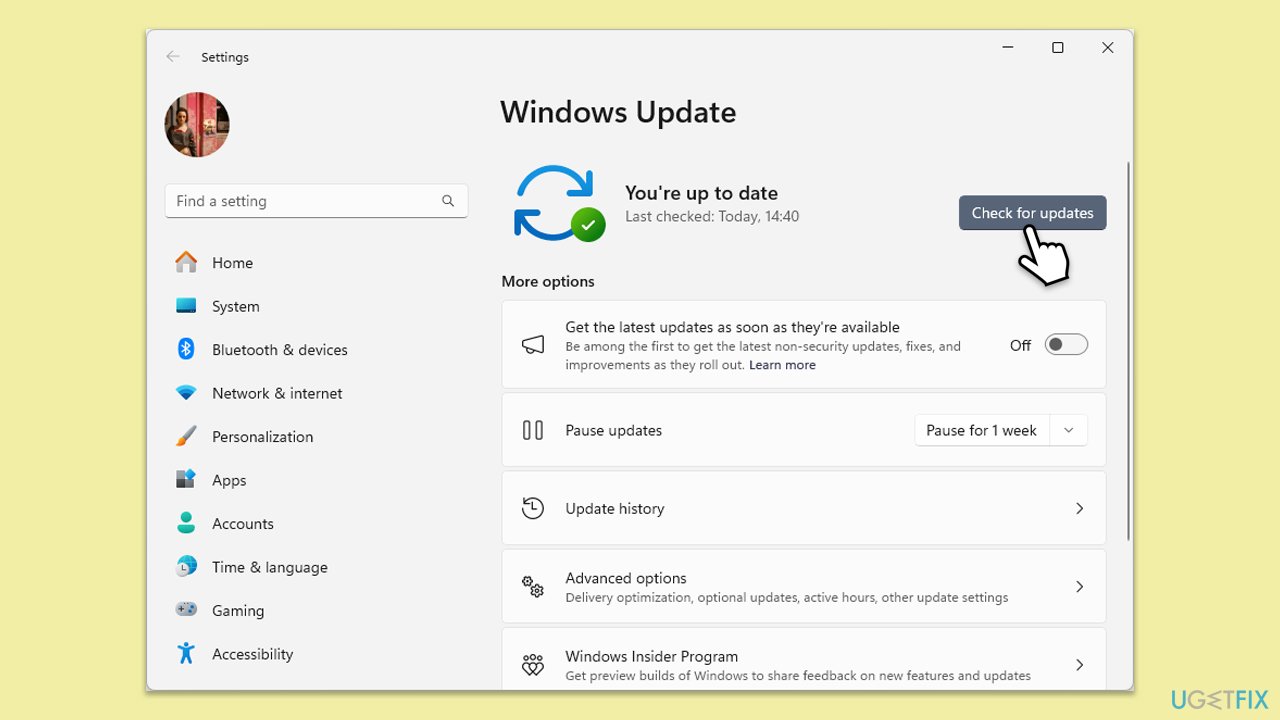
- Type Updates in Windows search and press Enter.
- Here, click Install updates or Check for updates.
- Wait till Windows downloads and installs all the files.
- If optional updates are available, install them as well.
- Reboot your system.
Fix 4. Reinstall the "Get Help" app using Terminal
Reinstalling the app can replace missing or corrupted files that are causing the issue.
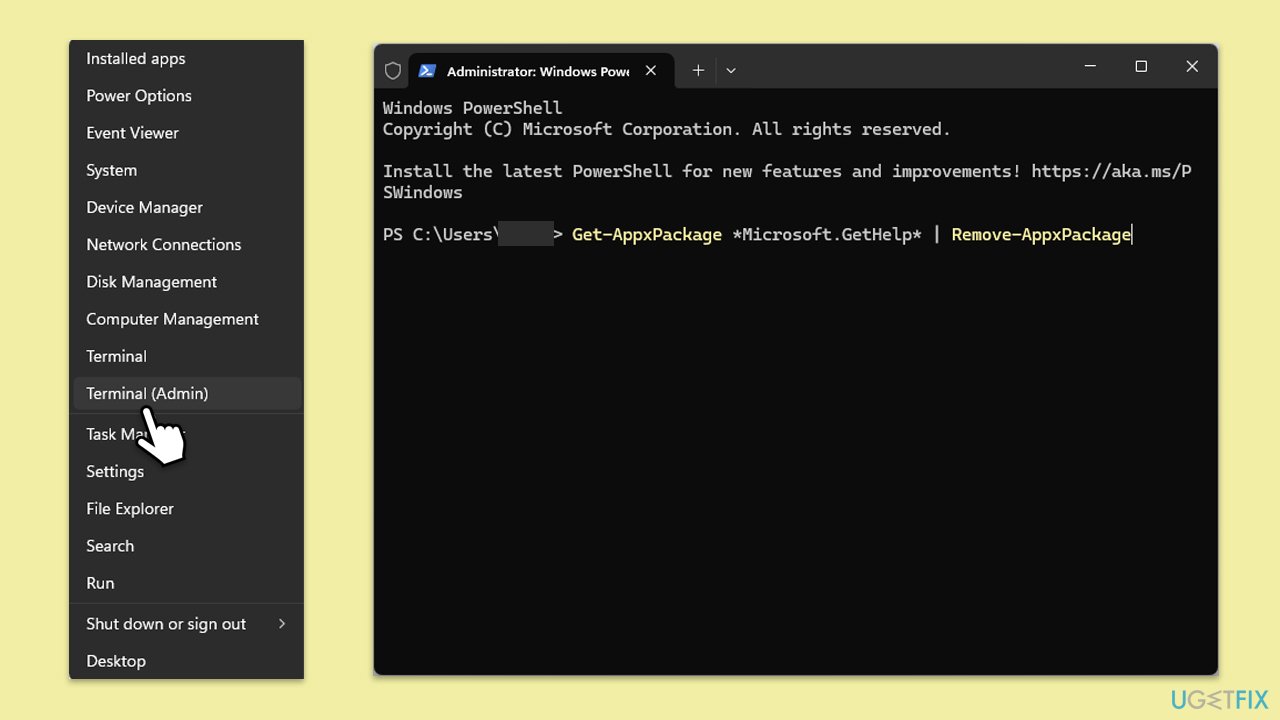
- Right-click on the Start button and select Windows Terminal (Admin).
- In the PowerShell window, type the following command and press Enter:
Get-AppxPackage *Microsoft.GetHelp* | Remove-AppxPackage - After the app is uninstalled, open the Microsoft Store.
- Search for Get Help and click Install to reinstall the app.
Fix 5. Check internet connectivity
A stable internet connection is essential for the "Get Help" app to function properly, as it may need to fetch content online.
- Verify that your device is connected to the internet.
- Try opening a web browser and navigating to a website to test connectivity.
- If you're experiencing network issues, restart your router or connect to a different network.
Fix 6. Disable third-party antivirus
Sometimes, antivirus or security software can interfere with app functionality.
- Locate your antivirus software icon in the system tray.
- Right-click the icon and choose the option to disable or pause protection.
- Launch the Get Help app to see if the issue persists.
- Re-enable your antivirus software after testing.
Fix 7. Run SFC and DISM
Repair corrupted system files as follows:
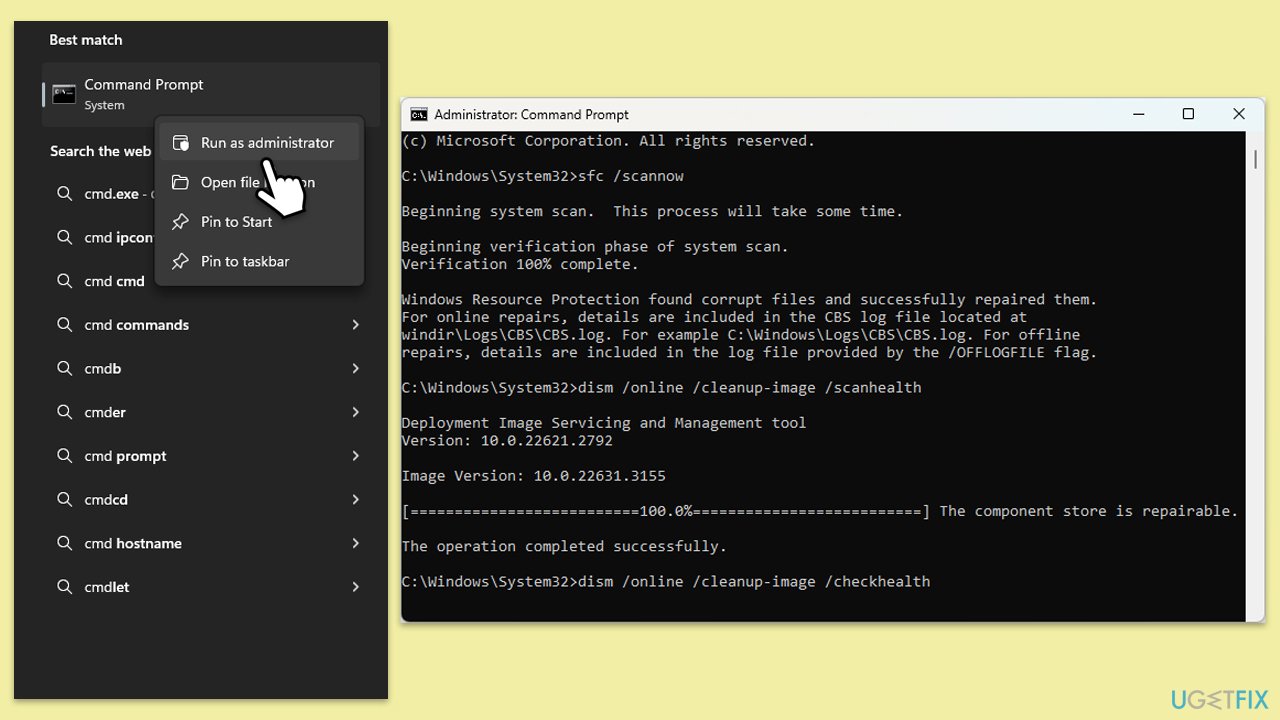
- Type cmd in Windows search box.
- Right-click on Command Prompt and select Run as administrator.
- The User Account Control window will ask whether you allow changes - click Yes.
- Copy and paste the following command, pressing Enter after:
sfc /scannow - Wait till the scan is finished. If Windows finds system file integrity violations, it will attempt to fix them. After this, use the set of the following commands, pressing Enter each time:
DISM /Online /Cleanup-Image /CheckHealth
DISM /Online /Cleanup-Image /ScanHealth
DISM /Online /Cleanup-Image /RestoreHealth - (Note: if you get an error executing this last command, add /Source:C:\RepairSource\Windows /LimitAccess to it and try again).
- Close down the Command Prompt and restart your system.
Bottom line
To address the blank 'Get Help' app window, users can check for and install any pending system updates, ensure a stable internet connection, and review any third-party antivirus settings that may be interfering. Additionally, users should consider repairing or resetting the app and checking display settings. If none of these solutions work, further troubleshooting may be necessary.
Frequently asked questions
Try resetting the 'Get Help' app by going to Settings > Apps > Apps & features, finding the app, and selecting 'Advanced options' to reset it. If that doesn't work, consider reinstalling the app through the Microsoft Store.
Yes, you can use PowerShell to reinstall the 'Get Help' app by running the command 'Get-AppxPackage Microsoft.GetHelp | Remove-AppxPackage' followed by 'Get-AppxPackage Microsoft.GetHelp | Add-AppxPackage'.
Ensure your Windows 11 is up to date by checking for updates in Settings > Windows Update, as Microsoft often releases patches that can resolve such app issues.




Report an issue
What's wrong with this guide? We review every report and update or remove content.
Report received — thank you. We'll review and fix it.
You need a free account to submit a report.
Be the first to comment