How to fix
Blue Screen error BAD_POOL_HEADER
on Windows
Resolve the BAD_POOL_HEADER Blue Screen error on Windows 10 and 11 effortlessly. Follow our expert-tested solutions to fix the issue in minutes!


What causes How to fix Blue Screen error BAD_POOL_HEADER on Windows?
- Software conflict
- RAM issues
- Disk corruption
- Driver problems
- Hardware failure
Repairs Windows system files, removes malware, and restores a clean OS state — without reinstalling.
Hello, I need some help with the BAD POOL HEADER Blue Screen error. After a reboot, it shows up again (sooner or later). Should I be concerned? It is really annoying because the blue screen pops up at times when I'm doing something on my PC, stopping everything I do. Really frustrating. Any help with this, please?
BAD_POOL_HEADER is a Blue Screen of Death error[ref en-1] that forces a Windows computer shut down and a restart, which is a common characteristic for BSODs. While, in some cases, such behavior stops as soon as the PC restarts, other fatal crashes might prevail and repeat again. Bad Pool Header is one of the issues that will most likely not going away until a proper fix is applied.
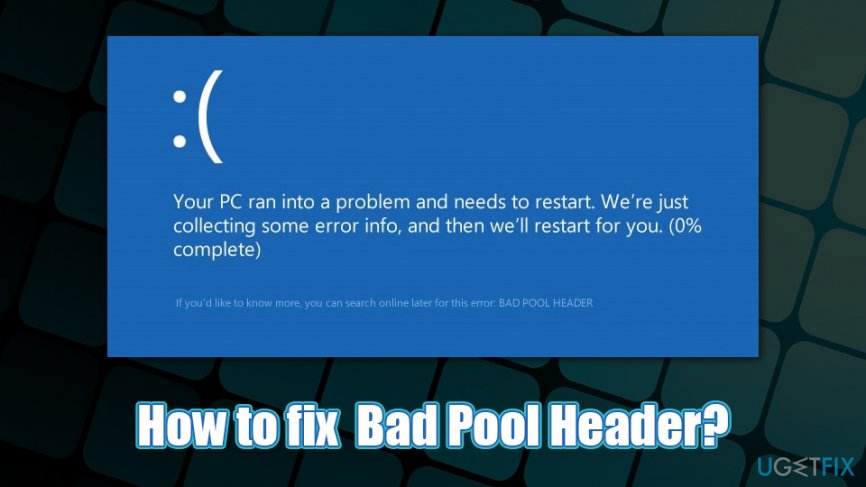
On older Windows systems, such as XP and 7, users encountering BAD_POOL_HEADER error would see a lot of technical details about the issue. Nonetheless, because most users can't make much sense of it, with the release of Windows 10, BSODs were stripped of this data. As a result, Bad Pool Header error will display the following generic information:
Your PC ran into a Problem and needs to restart. We're just collecting some error info, and then we'll restart for you (0% complete)
If you would like to know more, you an search online later for this error: BAD POOL HEADER
Now, in order to fix Bad Pool Header error, one must first understand what it actually means, as not much information is provided in the BSOD message. This code indicates that Windows ran into a problem when using an API[ref en-2] and allocating memory for a particular task, i.e., it is having memory management issues. As a consequence, the Windows system cannot handle any tasks that utilize the hard drive or RAM.
There are several reasons for BAD_POOL_HEADER to show up, including:
- software conflict
- RAM issues
- disk corruption
- driver[ref en-3] problems
- hardware failure, etc.
While you should be able to fix Bad Pool Header error without major difficulties - we provide several solutions below, and you should follow them step by step - in some cases, hardware replacement might be mandatory. Some hardware components, such as RAM, might deteriorate over time, instead of just breaking completely one day, and that's why Bad Pool Header might indicate something serious.
How to fix Blue Screen Error BAD_POOL_HEADER on Windows?
First of all, you should start from the very obvious solutions, such as a restart. If that does not solve your problem, it means you need some additional time investment.
Because BAD_POOL_HEADER can be caused by software conflict, you should check whether you have Dell Sonic Global VPN program installed on your system, as users claimed that removing it helped them fix Bad Pool Header. However, if you ensure that all patches are applied to the app, it should not create critical errors anymore, as developers are notified about such problems and fix bugs like this.
Nevertheless, before you proceed with Bad Pool Header fixes provided below, we would like to suggest you [d1]. This tool is designed to repair Windows and fix it due to various damage (e.g., malware) automatically.
Fix 1. Boot into Safe Mode
If you cannot access Windows for some reason, proceed with the following steps (otherwise, skip this solution):
- Reboot your computer
- As soon as Windows logo is shown, press the Power button to interrupt the boot sequence
- Repeat the above step two more times – this should automatically boot you into Advanced Startup mode
- Select Troubleshoot > Advanced options > Startup Settings and pick Restart
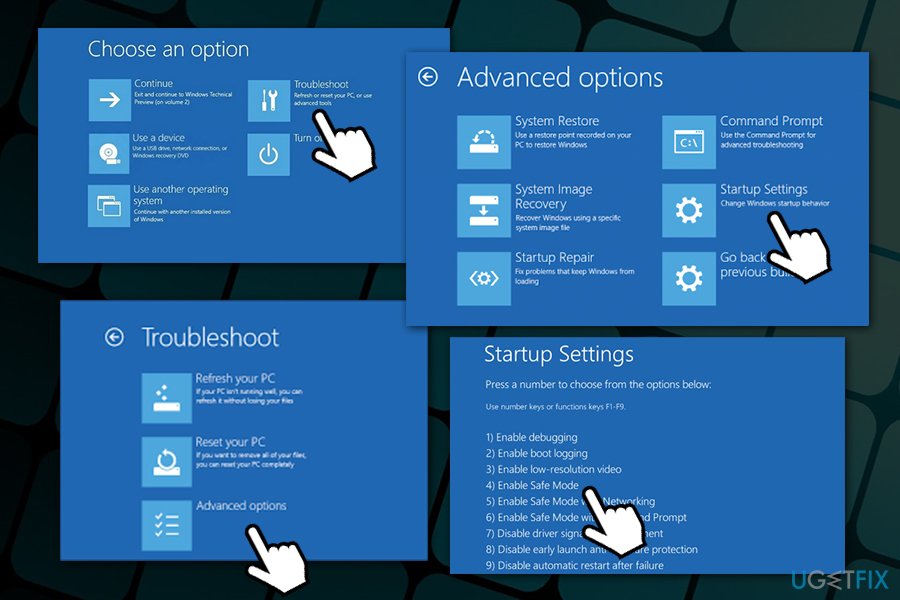
Fix bad pool header error windows access safe mode - After another restart, pick F4/4 to access Safe Mode or F5/5 to access Safe Mode with Networking
Fix 2. Apply the latest Windows updates
Windows updates should always be applied as soon as they come out as they patch the system from security flaws and also fix various stability and functionality issues. Thus, make sure your OS is running the latest version:
- Right-click on Start and select Settings
- Pick Update & Security
- Click Check for updates
- Wait till Windows downloads and installs relevant data
- Reboot your machine and check it it help you remove Bad Pool Header error
Fix 3. Disable Fast startup
While this feature might be useful, it is known to cause certain issues. Disable Fast Startup as follows:
- In Windows search, type Control Panel and press Enter
- Select Small icons view
- Click Power Options
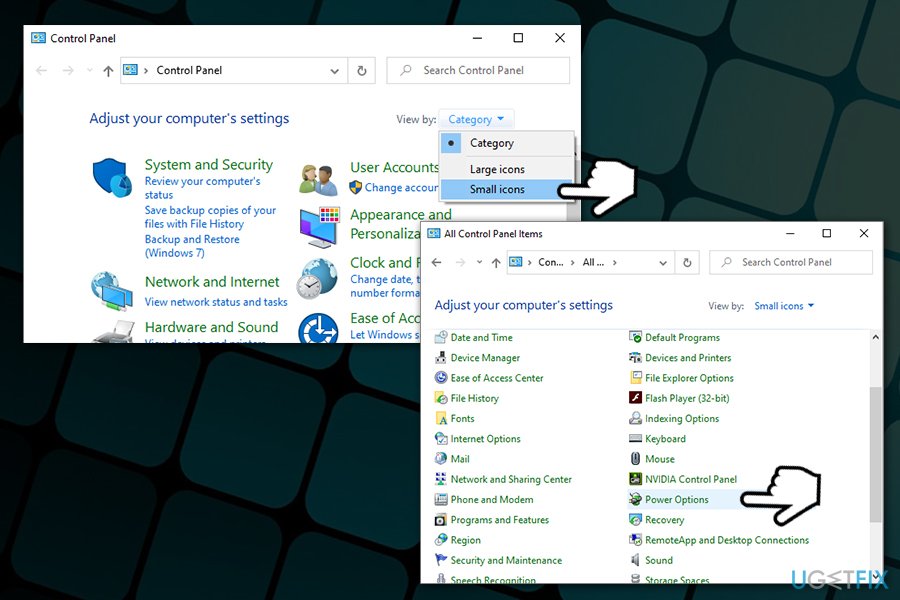
Fix bad pool header error windows access control panel - On the left side of the window, select Choose what the power buttons do
- Pick the Change settings that are currently unavailable option at the top
- Remove the tick from the Turn on fast startup (recommended) option and select Save changes
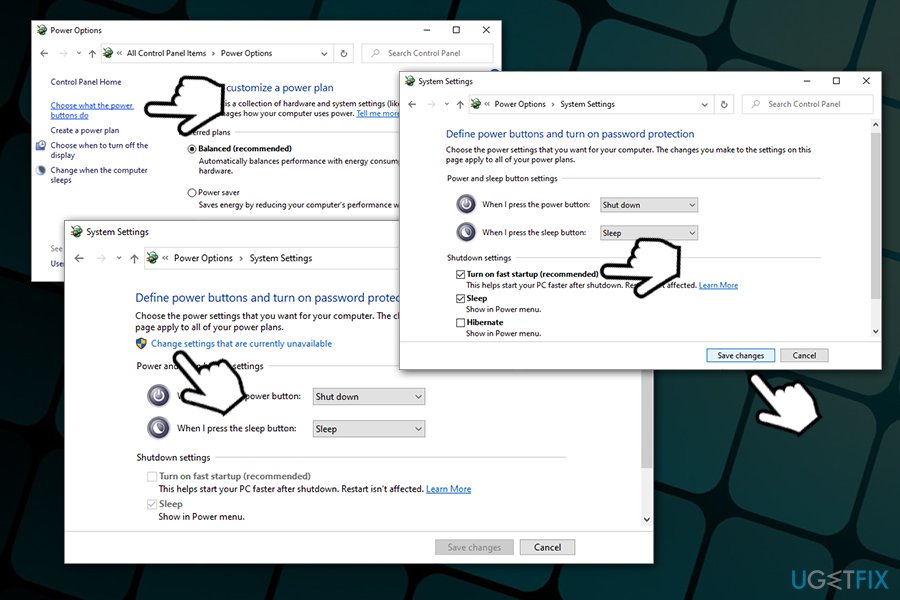
Fix bad pool header error windows turn off fast startup
Fix 4. Run Windows Memory Diagnostics Tool
To check RAM for failures, run Windows Memory Diagnostics:
- In Windows search, type in Windows Memory Diagnostics and hit Enter
- Pick Restart now and check for problems (recommended)
- Wait till Windows restarts and performs a full check
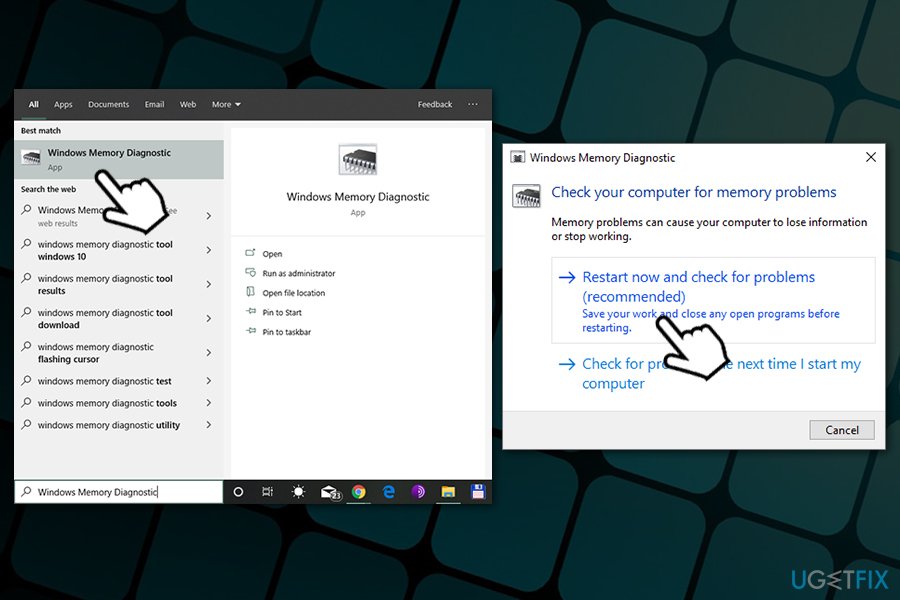
Fix bad pool header error windows run memory diagnostics
Fix 5. Update relevant drivers
Some malfunctioning drivers might cause BAD_POOL_HEADER error. Fix them as follows:
- Right-click on Start button and select Device Manager
- In the Device Manager window, check if any drivers are marked with a yellow exclamation mark
- Right-click on such a driver and select Update Drivers
- Now pick Search automatically for updated driver software
Fix 7. Run SFC and DISM
Perform the following checks:
- Type in cmd into Windows search
- Right-click Command Prompt search result and pick Run as administrator
- Next, type in the following command and press Enter:
sfc /scannow
- Wait for the scan to finish - Windows will report what it found and fixed
- Reboot and check if Bad Pool Header persists
- If it does, open Command Prompt as administrator again and type in the following command:
DISM /Online /Cleanup-Image /RestoreHealth
- Wait till the scan is finished and reboot
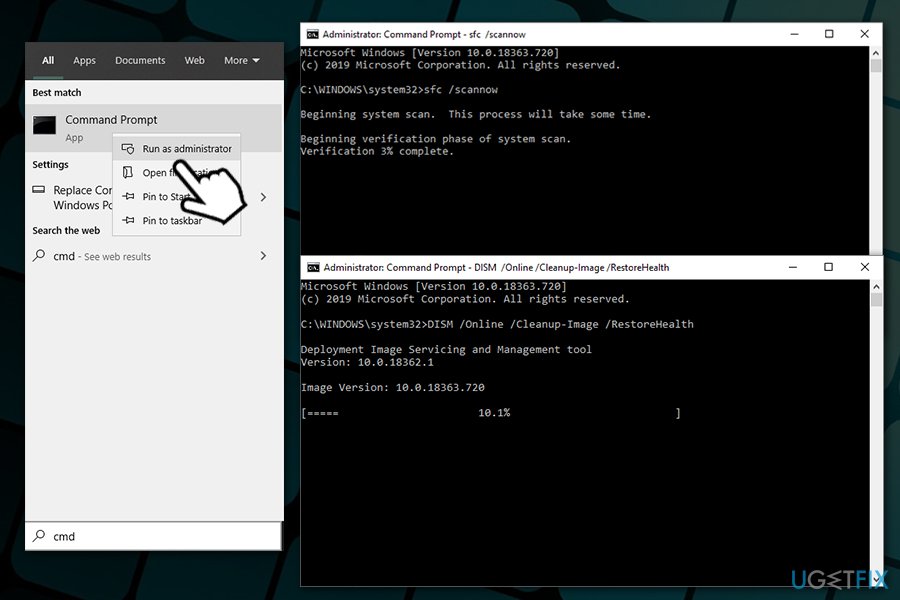
Fix bad pool header error windows run sfc and dism
Fix 8. Perform System Restore
If nothing else helped you fix Bad Pool Header, use System restore (you will lose any applications you installed in that time, although this will not affect your personal files like pictures or documents):
- Press Win + R simultaneously
- Type in rstrui.exe, press Enter and select Next
- Select a restore point with a known good system configuration
- Pick Next and press Finish
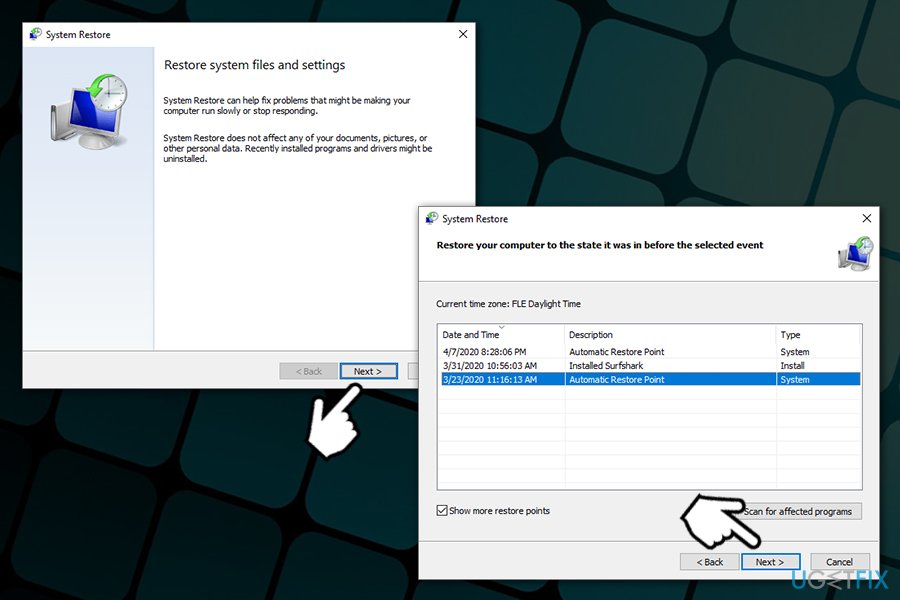
Fix bad pool header error windows perform system restore
Bottom line
To fix the Bad Pool Header error, you can try resolving software conflicts, checking RAM for issues, repairing disk corruption, updating or reinstalling drivers, and inspecting hardware for failures. If these solutions do not work, consider seeking professional help or replacing faulty hardware.
Frequently asked questions
The BAD_POOL_HEADER error typically occurs due to faulty drivers, corrupted system files, or hardware issues. It's important to check for recent driver updates or hardware changes to identify the cause.
To fix the BAD_POOL_HEADER error on Windows 11, you can try booting into Safe Mode, uninstalling problematic drivers, or running the Windows Memory Diagnostic tool to check for RAM issues.
To prevent the BAD_POOL_HEADER error on Windows, keep your system and drivers updated, regularly check for hardware malfunctions, and ensure your antivirus software is not causing conflicts.




Report an issue
What's wrong with this guide? We review every report and update or remove content.
Report received — thank you. We'll review and fix it.
You need a free account to submit a report.
Be the first to comment