How to fix
Blue Screen error DRIVER_CORRUPTED_EXPOOL
on Windows
Resolve the DRIVER_CORRUPTED_EXPOOL Blue Screen error on Windows 10 quickly and efficiently. Get expert-tested solutions that work, fixed in minutes!

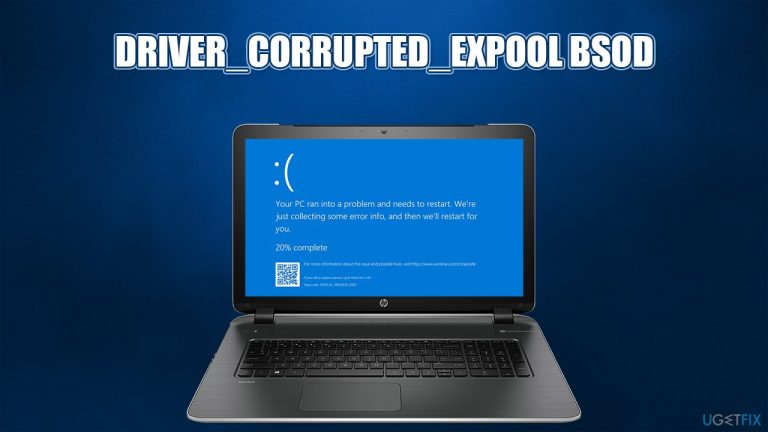
What causes How to fix Blue Screen error DRIVER_CORRUPTED_EXPOOL on Windows 10?
- Outdated drivers
- Incorrectly configured drivers
- Memory issues
- Driver conflict
- Irrelevant software
- Malware infection
Repairs Windows system files, removes malware, and restores a clean OS state — without reinstalling.
Hi, I hope you can help me with this. I suddenly got the DRIVER_CORRUPTED_EXPOOL BSOD. Before it appeared, I noticed that the system runs much slower than it used to before. I received this error several times already, and I have no clue of what is causing it. Any solutions?
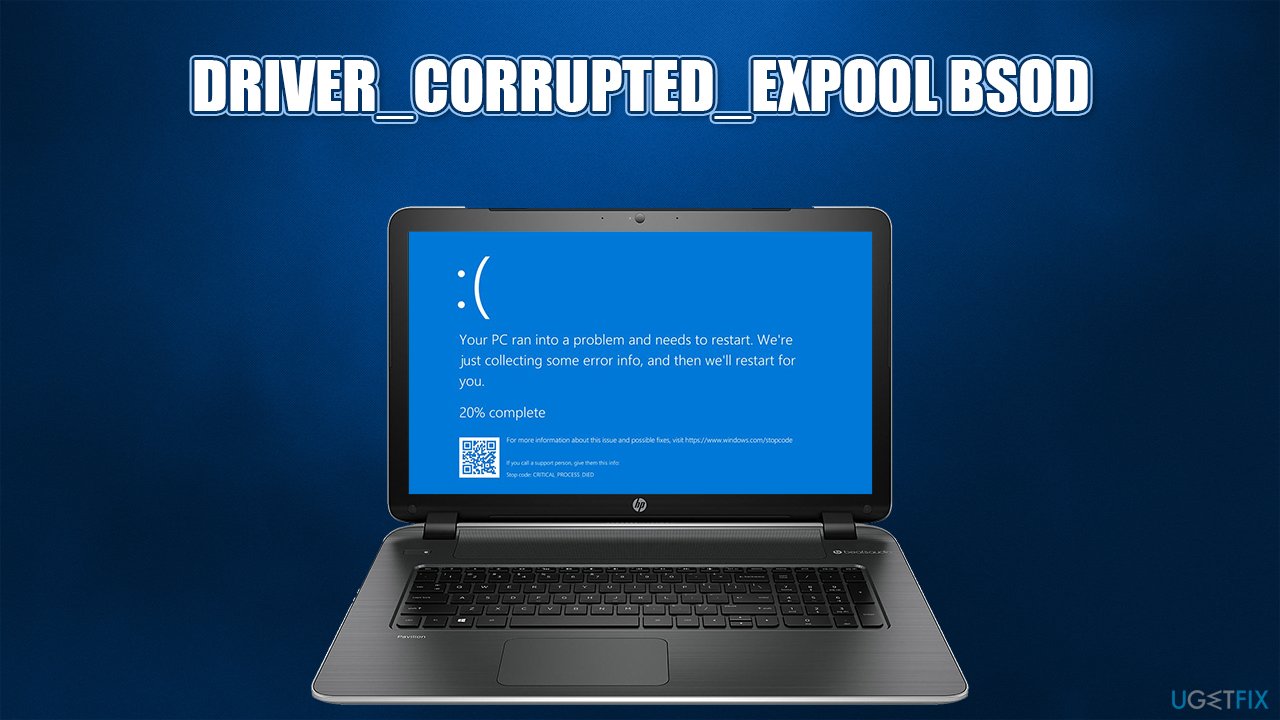
DRIVER_CORRUPTED_EXPOOL is a Blue Screen of Death[ref en-2] (BSOD) error that interrupts everything that the user is doing and reboots the PC immediately. This action might seem annoying initially, but it is required to prevent damage to Windows operating system. Hence, such occurrences are also often referred to as Stop errors.
In most cases, once the PC bluescreens with DRIVER_CORRUPTED_EXPOOL (bug check 0x000000C5),[ref en-1] it immediately restarts and recovers. However, the problems start when the same issue is recurring - users might not only suffer from lost work progress or data, but it may also indicate some deeper troubles within the operating system.
Usually, the BSOD shows up soon after the user initiates some software or hardware changes on the system, although it is not a rule, as it might start appearing seemingly out of nowhere. DRIVER_CORRUPTED_EXPOOL error indicates that the driver is trying to access the memory that is no longer existent.
According to Windows experts, this bug is usually caused by outdated or incorrectly configured drivers or memory issues. However, driver conflict, irrelevant software, or malware[ref en-3] infection should not be excluded as the possible triggers as well.
While DRIVER_CORRUPTED_EXPOOL BSOD tends to show up once and then disappear (in some rare cases can repeat from time to time), it shouldn’t be ignored anyway. The fact that you have received it once means that you have to fix the driver-related issue because it may influence your PC performance, the functionality of applications, boot time, and so on.
Luckily, there are several fixed that have answered the purpose and helped people fix DRIVER_CORRUPTED_EXPOOL stop error. Manual fixes below can help you with that. However, if you want a quick solution for all your Blue screens and other errors, we highly recommend you initiate a scan with [d1] repair software. Keep in mind that if the BSODs began because of malware infection, the tool will also delete the infection and fix the file corruption caused by it.
Method 1. Check the drivers
- Right-click on Start button and select Device Manager.
- Once the new window opens, you should see a list of drivers on the left side. To see if any of them are problematic, double click on each of them to see if they are not marked with a yellow exclamation mark.
- If you found the one that is malfunctioning, right-click n it and select Update Driver Software.
- Then select Search automatically for drivers and wait.
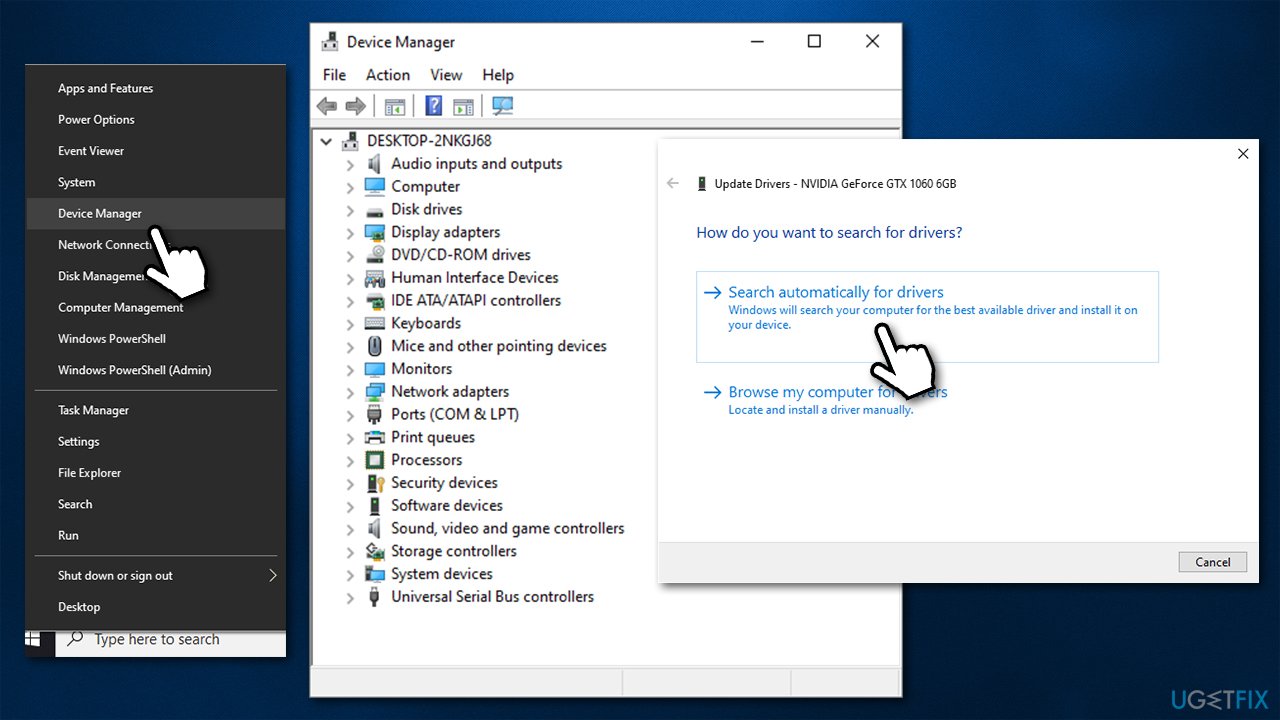
How to fix blue screen error driver corrupted expool on windows10 check drivers - Once the driver is updated, close everything and restart your PC.
Note: Device Manager is far from perfect tool when it comes to driver updating - there are thousands of hardware manufacturers that the computer can be comprised from. Therefore, we recommend using an automated driver updater [rev id="DriverFix"]
Method 2. Run Windows Updates
If the previous fix did not help, try to update your Windows system. For that, you have to:
- Press Win key, type Windows Update, and click on the first option from the search results.
- Click Check for updates and wait until the system initiates the search automatically.
How to fix blue screen error driver corrupted expool on windows10 reset this pc - If you find a list of available updates, select Install updates and wait for them to get installed.
- Finally, reboot the system.
Method 3. Use a System Restore Point
This method works only if you have had a system restore point created before. It has to be done when your PC’s performance is at its best, so that you could get back to it when the matters get worse. If you are not sure if you have created a System Restore Point, you can check that by doing the following:
- Click Win key and type Create a Restore point in the search bar.
- Click on the search results and select System Protection on the new window.
- After that, click on System Restore and Next.
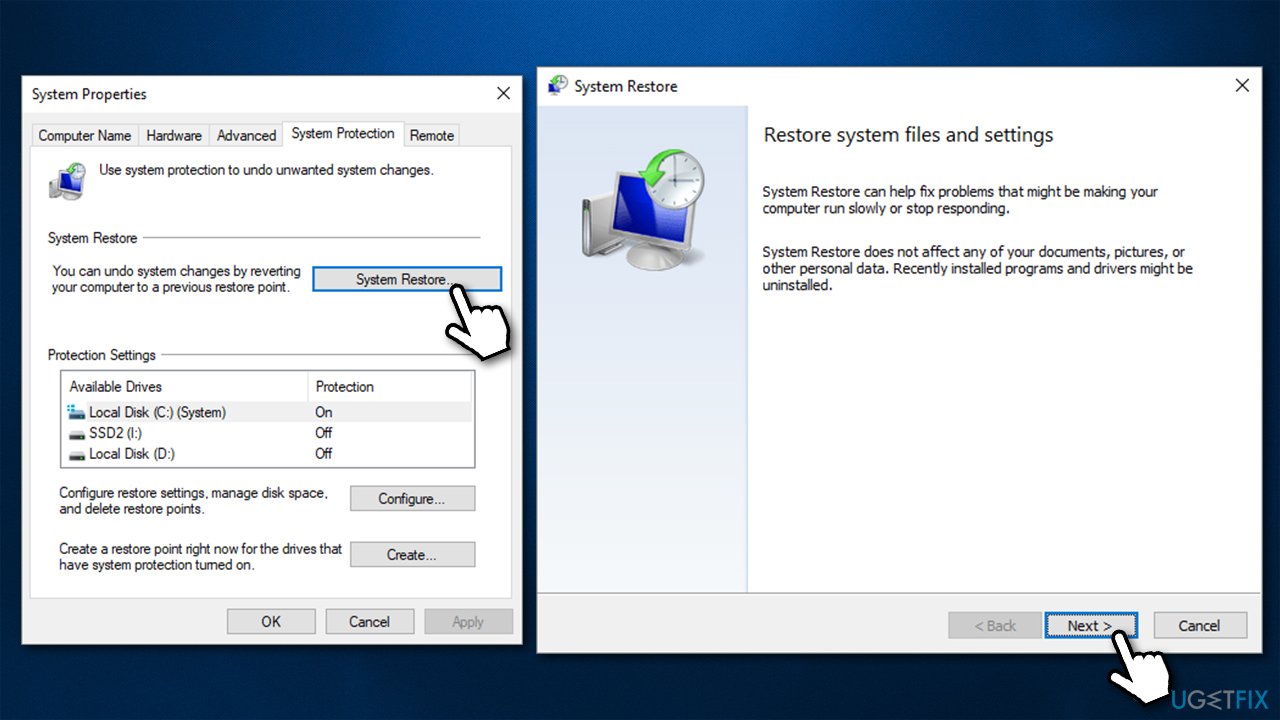
How to fix blue screen error driver corrupted expool on windows10 use system restore - Now you should see the list of created system restore points. If you have created one or more, select the latest one, and click Next.
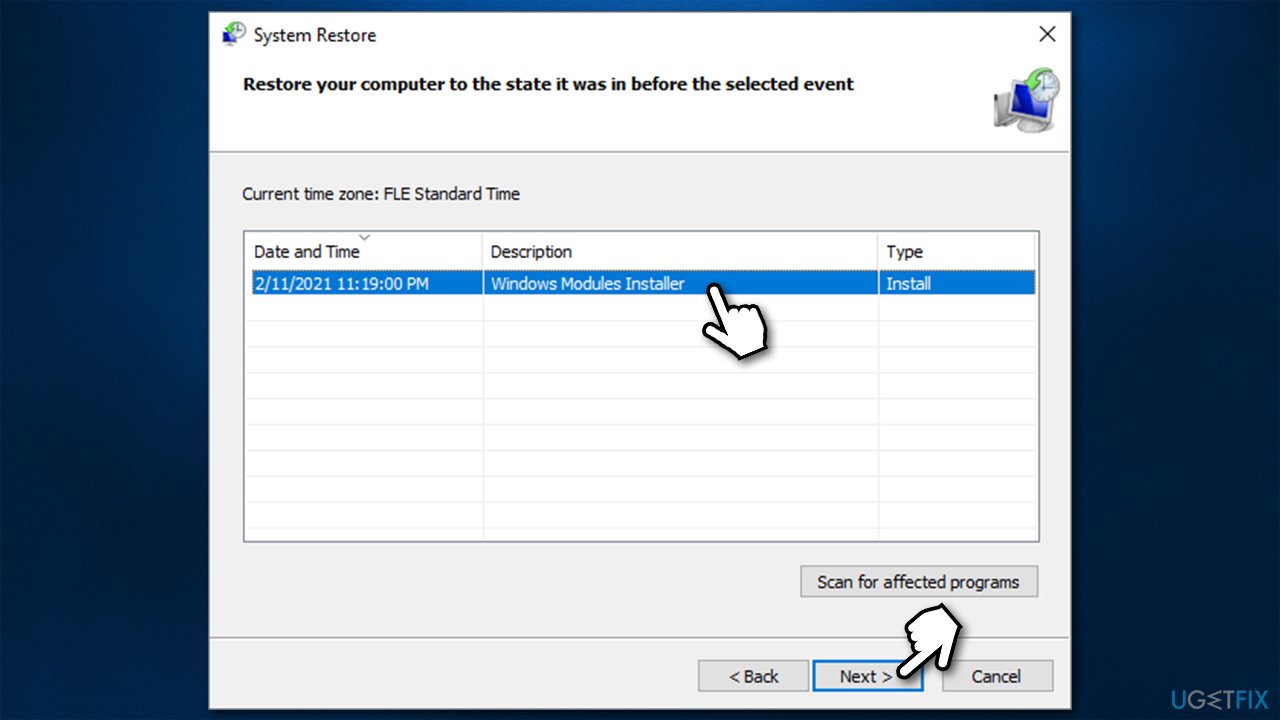
How to fix blue screen error driver corrupted expool on windows10 use system restore2 - Finally, click Finish and let the system to restore.
Method 4. Run SFC scan
System File Checker can determine whether Windows system files are corrupted, and will attempt to fix them.
- Type in cmd in Windows search.
- Right-click on Command Prompt result and select Run as administrator.
- In the new window, type in the sfc /scannow command and press Enter.
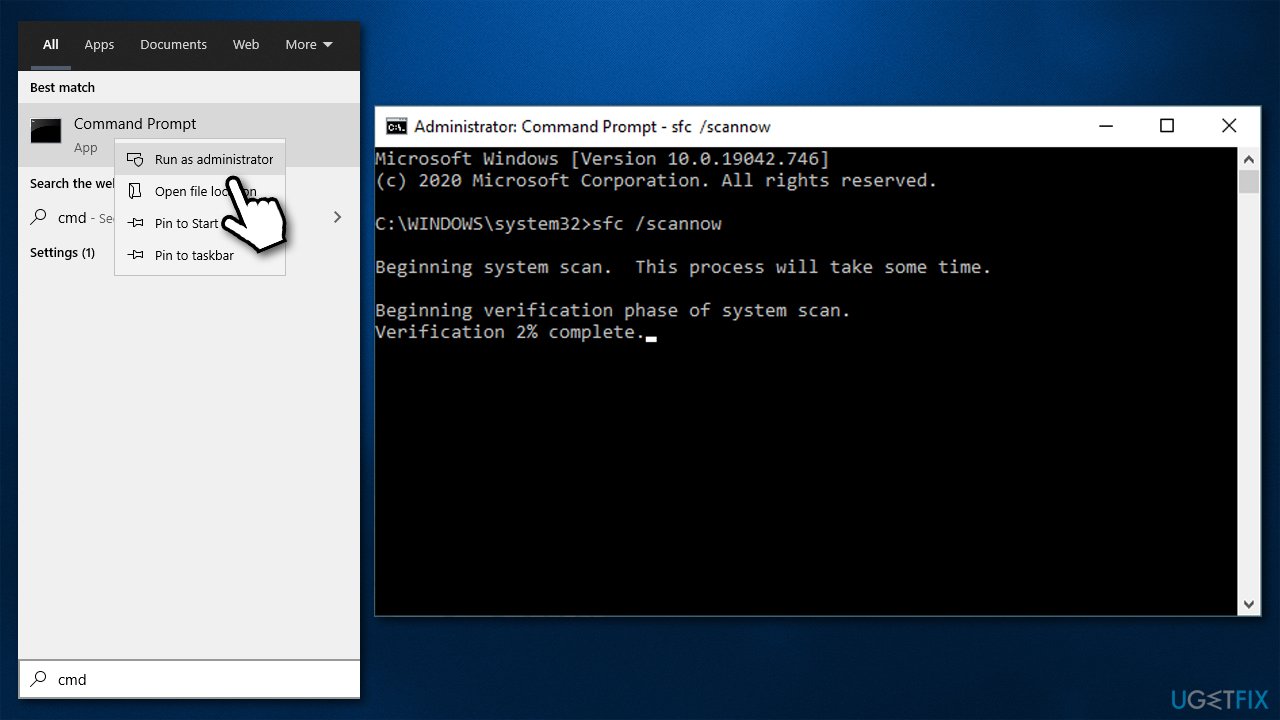
How to fix blue screen error driver corrupted expool on windows10 run sfc - Wait till Windows performs the scan and reports findings.
- Restart your PC.
Method 5. Reset Windows
Older Windows versions such as Windows XP were a nightmare to reinstall, as everything had to be redone from scratch. Luckily, Microsoft vastly improved this process - you no longer need to backup your personal files for the process. Instead, you can use the Widows Reset function - here's how:
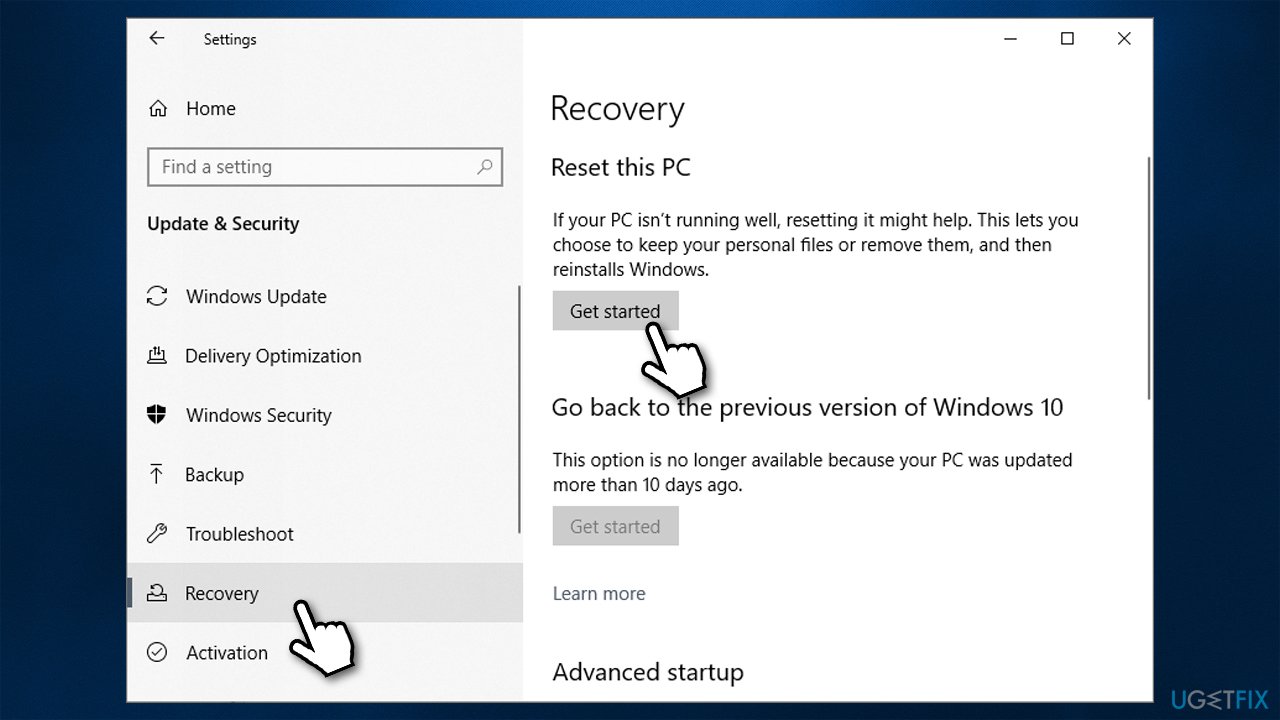
- Right-click on Start and then select Settings.
- Go to Update & Security and pick Recovery on the left side of the window.
- Find Reset this PC section and click Get Started.
How to fix blue screen error driver corrupted expool on windows10 reset this pc - Select Keep my files and Cloud download.
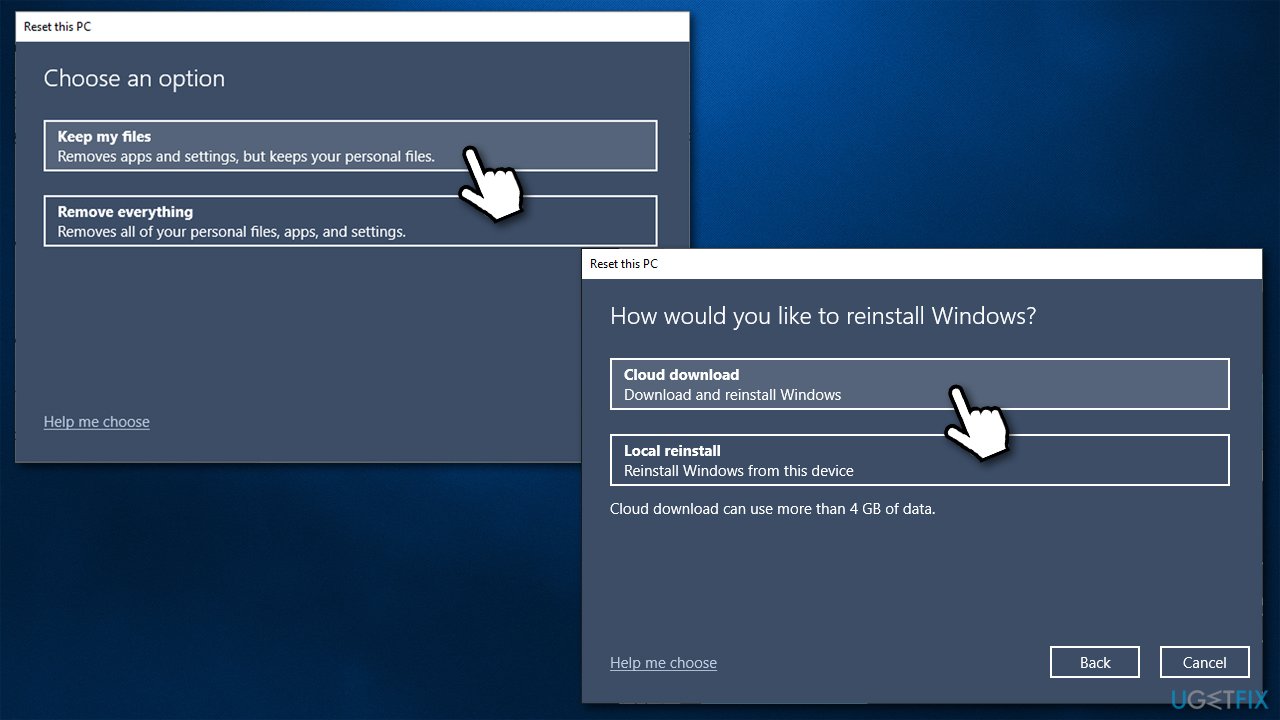
How to fix blue screen error driver corrupted expool on windows10 reset this pc2 - Proceed with on-screen instructions to finalize the process.
Bottom line
To fix the DRIVER_CORRUPTED_EXPOOL error, you can update or reconfigure your drivers, check for memory issues, and remove any irrelevant software or malware. If these manual fixes do not resolve the issue, consider using repair software for a quick solution.
Frequently asked questions
This error is often caused by faulty drivers, corrupted system files, or hardware issues. Updating drivers and running system diagnostics can help identify the underlying problem.
You can update drivers by going to Device Manager, right-clicking on the device, and selecting 'Update Driver'. Alternatively, you can visit the manufacturer's website for the latest driver versions.
Yes, you can run the System File Checker tool by opening Command Prompt as an administrator and typing 'sfc /scannow'. This will scan and repair any corrupted system files that may be causing the error.




Report an issue
What's wrong with this guide? We review every report and update or remove content.
Report received — thank you. We'll review and fix it.
You need a free account to submit a report.
Be the first to comment