How to fix
Blue Screen WORKER_INVALID Error
on Windows
Resolve the WORKER_INVALID error on Windows 10 quickly and easily. Follow our expert-tested guide for effective solutions and get back on track!

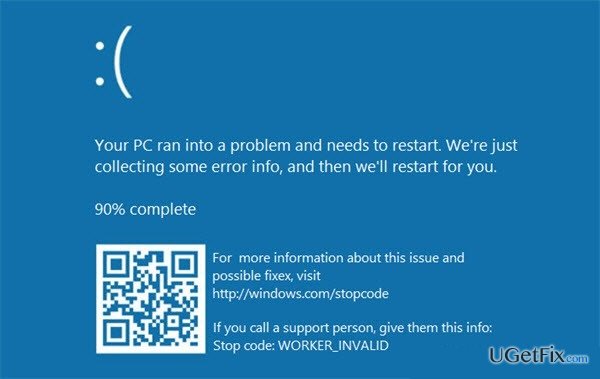
What causes How to Fix Blue Screen WORKER_INVALID Error on Windows 10?
- Missing updates
- Driver failure
- Touchpad issues
- Malware or virus presence
Repairs Windows system files, removes malware, and restores a clean OS state — without reinstalling.
A few days ago I’ve upgraded Windows 8.1 to Windows 10. Right after that, the machine started throwing a BSOD, which indicates WORKER_INVALID as an error code. It shows up while booting and the screen remains blue for several seconds. The last time I tried to reboot the system, the BSOD did no vanished for more than 10min, so I forced the system to shut down by pressing the power button and that helped. I’m afraid that the next time I need to restart the system it won’t start… Please help! What should I do to fix this issue?
Blue Screen of Death error is a warning that Windows operating system is malfunctioning and might be encountering a serious issue. Therefore, an immediate response is crucial to prevent serious system damage. Unfortunately, but Windows 10 BSOD errors are a very common phenomenon, especially after upgrading from the earlier versions. One of the latest BSOD is WORKER_INVALID, which has a value of 0x000000E4. It’s a well-known fact that blue screen errors are commonly triggered by missing updates or driver failure, so the starting point for WORKER_INVALID fix would be to install all possible Windows Updates and check for driver updates as well. Several people have reported that the issue might step from the touchpad issues, so disabling it temporarily is also worth trying. Since people have already reported about this bug in the official Microsoft’s forum, we believe that Microsoft’s engineers have already started looking for a solution. However, before the patch is released, there are a couple of things that you can try to fix WORKER_INVALID error manually.
How to Fix WORKER_INVALID BSOD on Windows 10?
There are some regular fixes that apply to most of the Windows 10 bugs, so before you start performing some advanced WORKER_INVALID error fixes, here’s what you can try:
- Run a scan with a professional anti-malware in case there is a virus on the system. For this purpose, you may use [d1]. It will delete malware/virus, as well as fully optimize the entire system.
- Install available Windows Updates.
Click Win key + S -> select Update & Security -> Click Check for Updates - Check for malfunctioning drivers
-Right-click Win key -> Select Device Manager
-Check all drivers if there are any marked with a yellow exclamation mark. If you find any, click them one by one and select Update Driver Software
Several people have pointed out Etron USB3.0 Host Controller driver to be the culprit, so if you have it running on the system, make sure that it’s up-to-date. - Make sure that your PC is free of suspicious third-party applications.
In case none of these steps helped you to remove WORKER_INVALID BSOD from the screen, you should try these methods:
Method 1. Disable Touchpad
- Click Win key + X and select Device Manager.
- Find the touchpad, right-click it, and select Disable.
If the BSOD has gone, then the touchpad is the culprit for sure. In this case, you should keep the touchpad disabled until Microsoft releases a patch. Try using a mouse instead of a touchpad temporarily.
Method 2. Run DISM scan
- Click Win key + X and select Command Prompt (Admin).
- Type the following command and press Enter after each of them:
DISM /Online /Cleanup-Image /CheckHealth
DISM /Online /Cleanup-Image /ScanHealth
DISM /Online /Cleanup-Image /RestoreHealth - Once done, reboot the system.
Method 3. Use a System Restore Point
If you have been using Windows 10 for some time and created a Restore Point, the emergence of WORKER_INVALID bug means that it’s about time to use a System Restore Point. For this purpose, do the following:
- Hold power button to turn off your PC and then restart the system.
- Before the log-in screen, press F8 to boot into Safe Mode.
- Log in to your account if required.
- Once the system boots up, disable your antivirus.
- Click Win key and type System Restore.
- Select Create a restore point, select System Restore and hit Next.
- Select the latest systems restore point and click Next.
Bottom line
To fix the WORKER_INVALID BSOD error on Windows 10, you should start by installing all available Windows Updates and checking for driver updates. Additionally, consider disabling the touchpad temporarily and running a scan with a professional anti-malware tool. If these steps do not resolve the issue, further advanced troubleshooting may be necessary.
Frequently asked questions
The WORKER_INVALID error is often caused by corrupt system files, incompatible drivers, or hardware issues. Identifying recent changes to your system can help pinpoint the source of the problem.
You can resolve the WORKER_INVALID error by performing a system scan with the SFC tool, updating drivers, or restoring your system to a previous state. If the issue persists, consider checking your hardware components.
To prevent the WORKER_INVALID error, regularly update your Windows 10 system and drivers, and run periodic maintenance checks on your hardware. Additionally, avoid installing unverified third-party software that could lead to system instability.




Report an issue
What's wrong with this guide? We review every report and update or remove content.
Report received — thank you. We'll review and fix it.
You need a free account to submit a report.
Be the first to comment