How to fix
Bluetooth driver not working (Code 52)
on Windows
Resolve Bluetooth driver issues (Code 52) in Windows 10 and 11 quickly. Follow our expert-tested solutions and get your devices connected again!

What causes How to fix Bluetooth driver not working (Code 52) in Windows?
- Windows unable to verify the Bluetooth driver's digital signature
- Corrupted system files
- Issues with the Bluetooth driver installation
- Fast startup feature causing conflicts
- Incompatibility of the Bluetooth driver with the current Windows version
Repairs Windows system files, removes malware, and restores a clean OS state — without reinstalling.
Hello. I tried to turn on Bluetooth on my Windows laptop but it did not work. I looked in the Device Manager, and I saw that the driver had an error (Code 52). Is there a way to fix this?
When using Bluetooth on a Windows computer, users may receive an error message stating that the Bluetooth driver[ref en-1] is not functioning properly and displaying a "Code 52" error. This problem occurs when Windows is unable to verify the Bluetooth driver's digital signature.
The Bluetooth driver is a piece of software that allows the computer to communicate with Bluetooth-enabled devices like headphones, speakers, and smartphones. It allows users to wirelessly transfer files, listen to music, and make phone calls.
The Code 52 error can prevent users from using Bluetooth devices or cause them to experience connectivity issues. For example, the computer may not be able to detect Bluetooth devices, or the connection may be unstable and prone to disconnection.
Reinstalling the driver, running the troubleshooter, or disabling fast startup are all possible solutions to the Code 52 error. However, some of these solutions necessitate advanced computer system knowledge and should be approached with caution to avoid further complications.
In this guide, you will find 7 steps that should help you fix Bluetooth driver not working (Code 52) in Windows. However, you can also try a system repair tool like [d1] that can fix most system errors, BSODs,[ref en-2] corrupted files, and registry[ref en-3] issues. Otherwise, follow the step-by-step instructions below.
Method 1. Fix Corrupted System Files
Use Command Prompt commands to repair system file corruption:
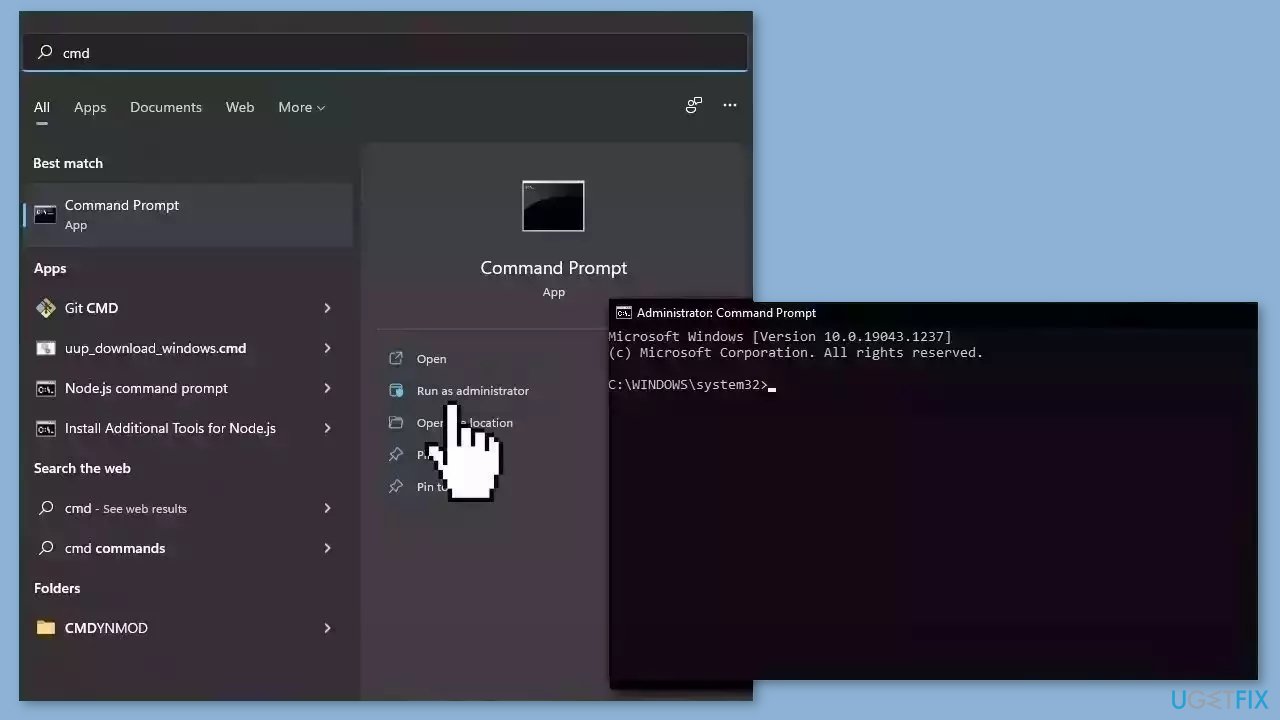
- Open Command Prompt as administrator
- Use the following command and press Enter:
sfc /scannow
- Reboot your system
- If SFC returned an error, then use the following command lines, pressing Enter after each:
DISM /Online /Cleanup-Image /CheckHealth
DISM /Online /Cleanup-Image /ScanHealth
DISM /Online /Cleanup-Image /RestoreHealth
Method 2. Run the Bluetooth Troubleshooter
- Open the Settings window.
- In the Settings menu, select System > Troubleshoot > Other troubleshooters.
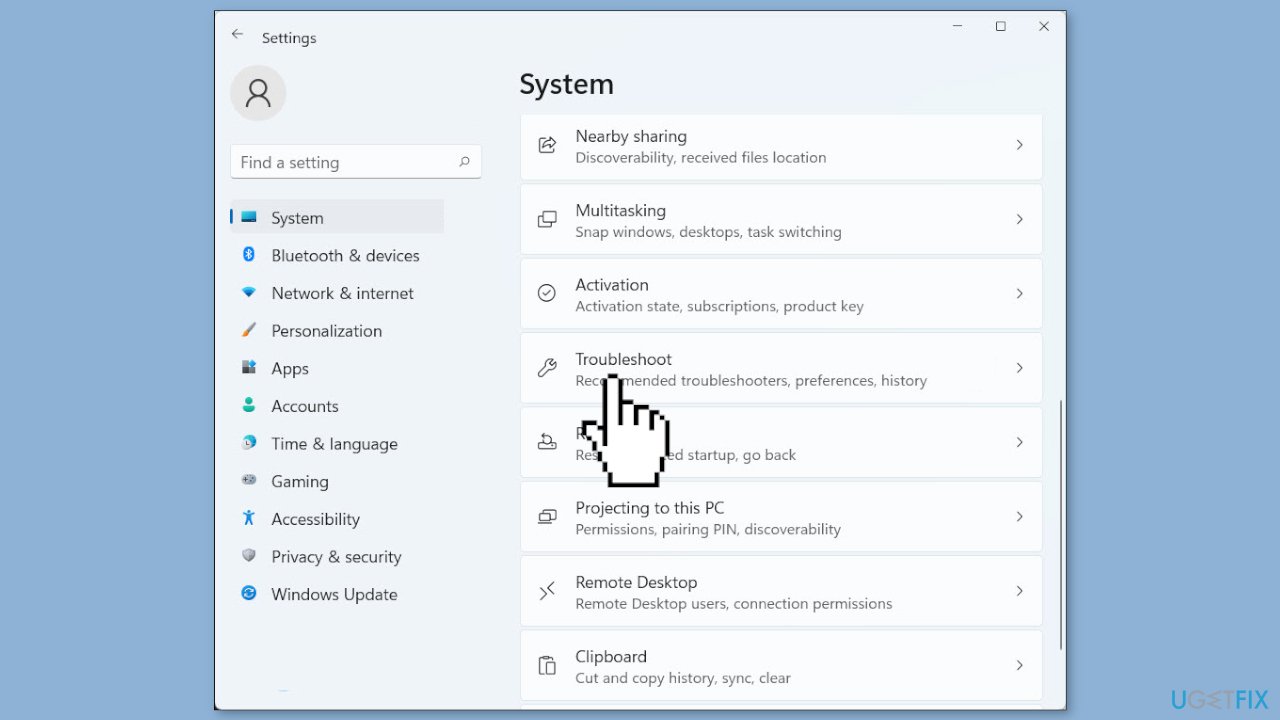
- Scroll down to the Bluetooth section and click Run.
- Follow the on-screen instructions to finish the process.
- Check if the problem has been resolved.
Method 3. Run Hardware and Devices Troubleshooter
- Run Command Prompt as an administrator.
- Type the following command in the elevated command prompt window and press Enter:
msdt.exe -id DeviceDiagnostic
- The Hardware and Devices Troubleshooter will open.
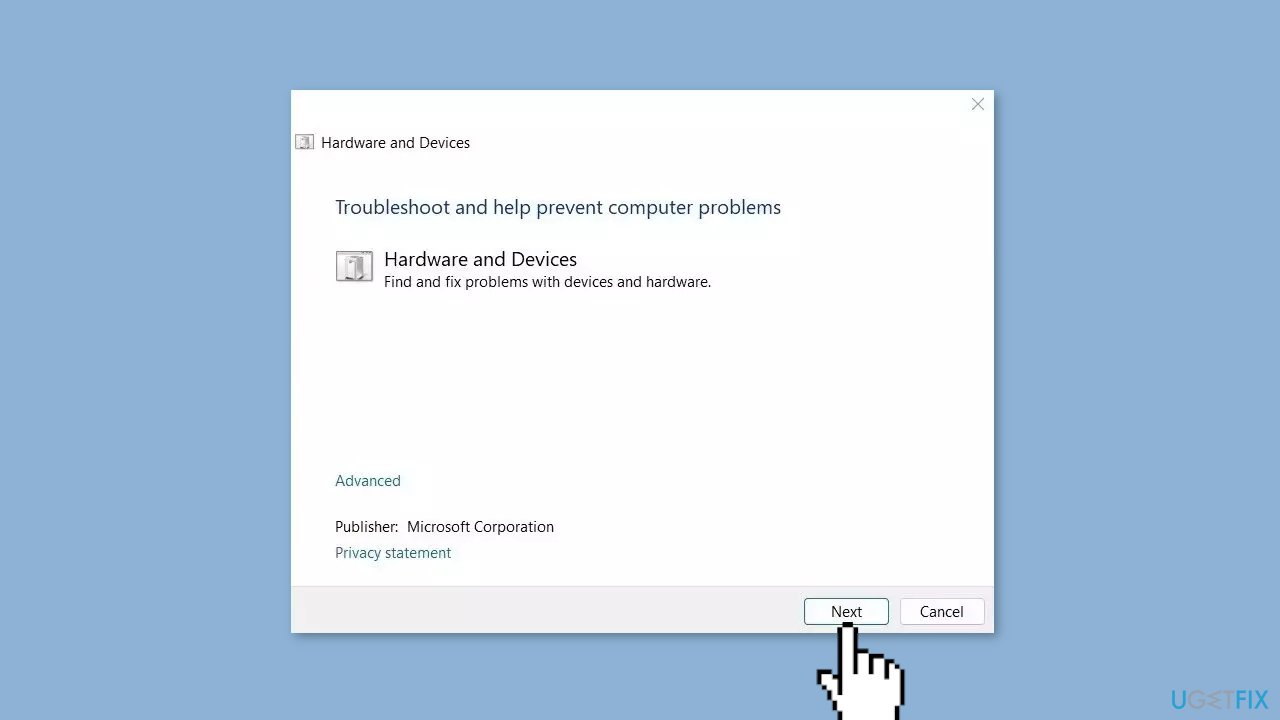
- Click Next to initiate the scan process.
- Follow the on-screen instructions.
- After completing the above steps, restart your computer.
- Check whether the arrow keys are now functioning properly.
Method 4. Restart Bluetooth Support Service
- Open the Services app by pressing the Windows key + R to open the Run dialog box. Then, type services.msc and press Enter.
- Locate the Bluetooth Support Service from the list of services.
- Right-click on the service and select Start if it is stopped. If the service is already running, select Restart from the right-click context menu.
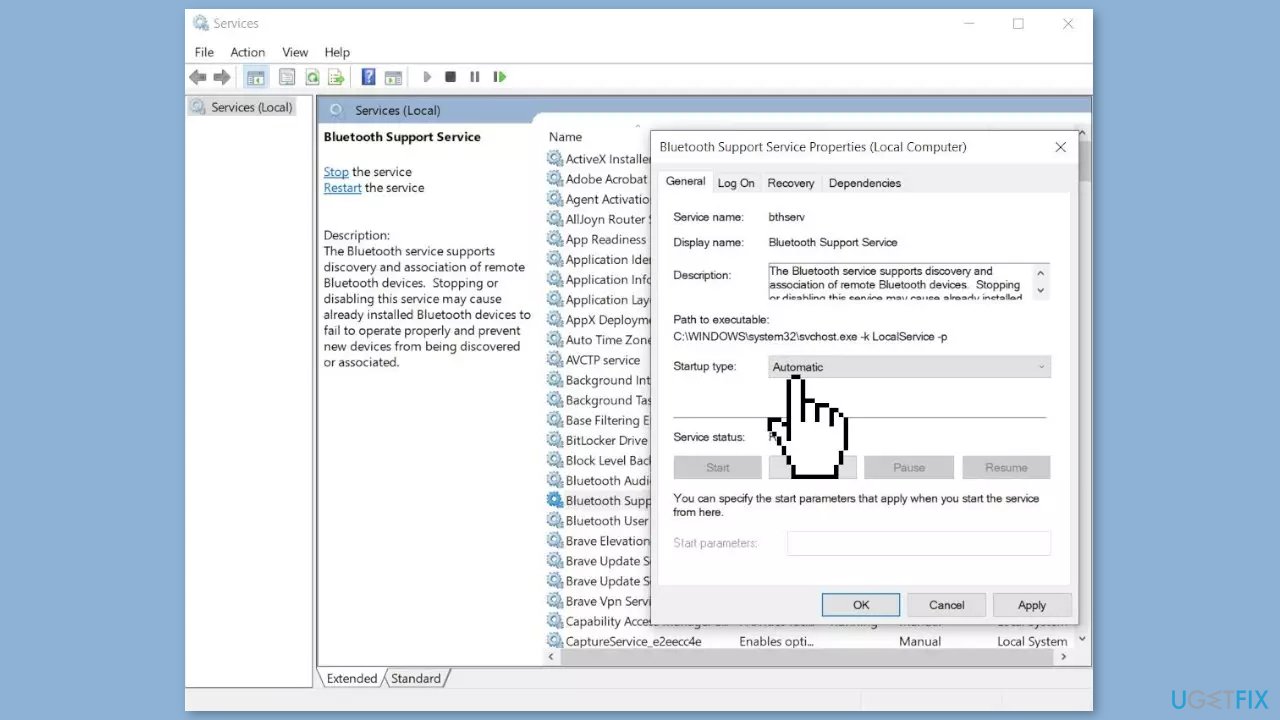
- Now, double-click on the Bluetooth Support Service to open its Properties.
- Select the General tab from the top of the window.
- Set the Startup type to Automatic from the drop-down menu.
- Click Apply and then click OK to save the changes.
Method 5. Disable Fast Startup
- Press the Start button on your computer.
- Search for Control Panel.
- Under View by, select Small icons.
- Select Power Options.
- On the left side of the window, click Choose what power buttons do.
- Click Change settings that are currently unavailable.
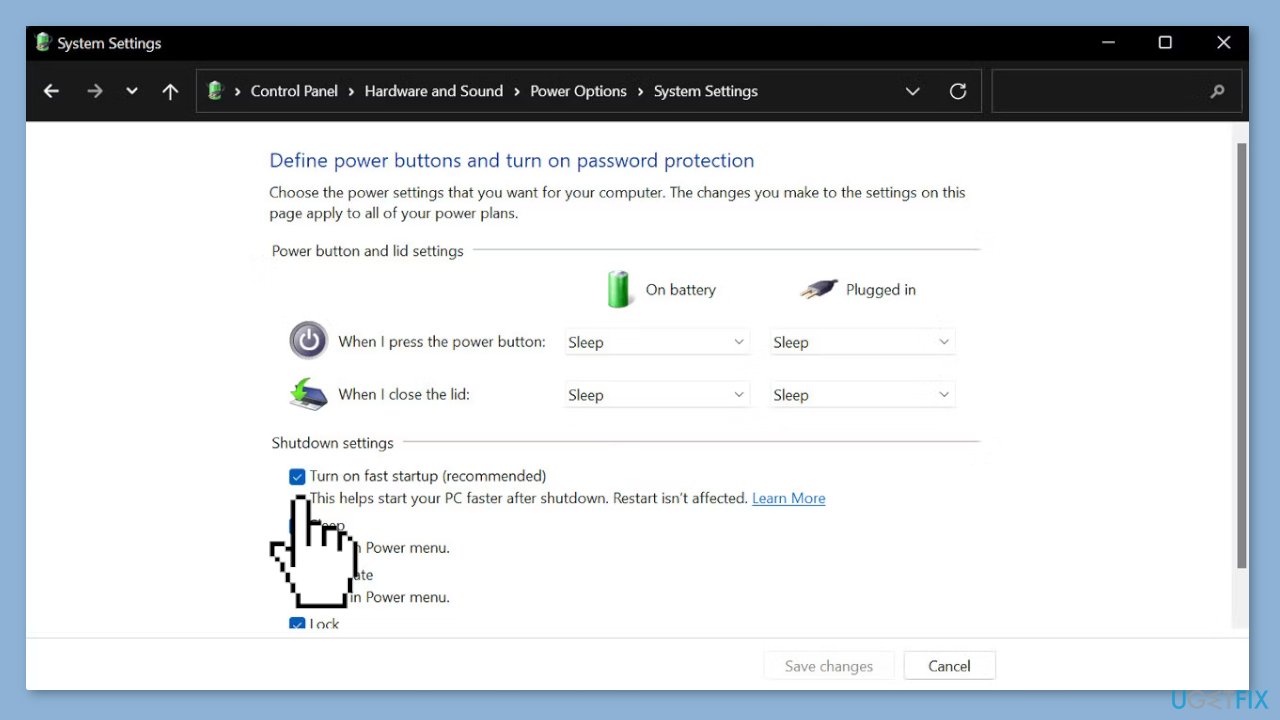
- Under Shutdown settings, find Turn on fast startup and uncheck the box next to it.
- Power off the system by clicking the Shut down button.
- Pull the power cable from the computer and wait for 15 minutes.
- Power the computer back on.
Method 6. Rollback or Reinstall Bluetooth Driver
- Click on the Windows Start button on the bottom left corner of the screen.
- Type Device Manager in the search bar and click on the app that appears.
- In the Device Manager window, locate the Bluetooth category and expand it.
- Right-click on your Bluetooth adapter and select Properties from the context menu.
- In the Properties window, click on the Driver tab.
- Click on the Roll Back Driver button.
- Select a reason for rolling back the driver and click Yes to confirm the action.
- The previous driver version for the Bluetooth adapter will be installed.
- Once the rollback process is complete, close the Properties window and Device Manager.
If rolling back the driver did not resolve the problem, reinstall it:
- Open Device Manager, locate the Bluetooth category, and expand it.
- Right-click on your Bluetooth adapter and select Uninstall device from the context menu.
- Check the box that says Delete the driver software for this device and click Uninstall.
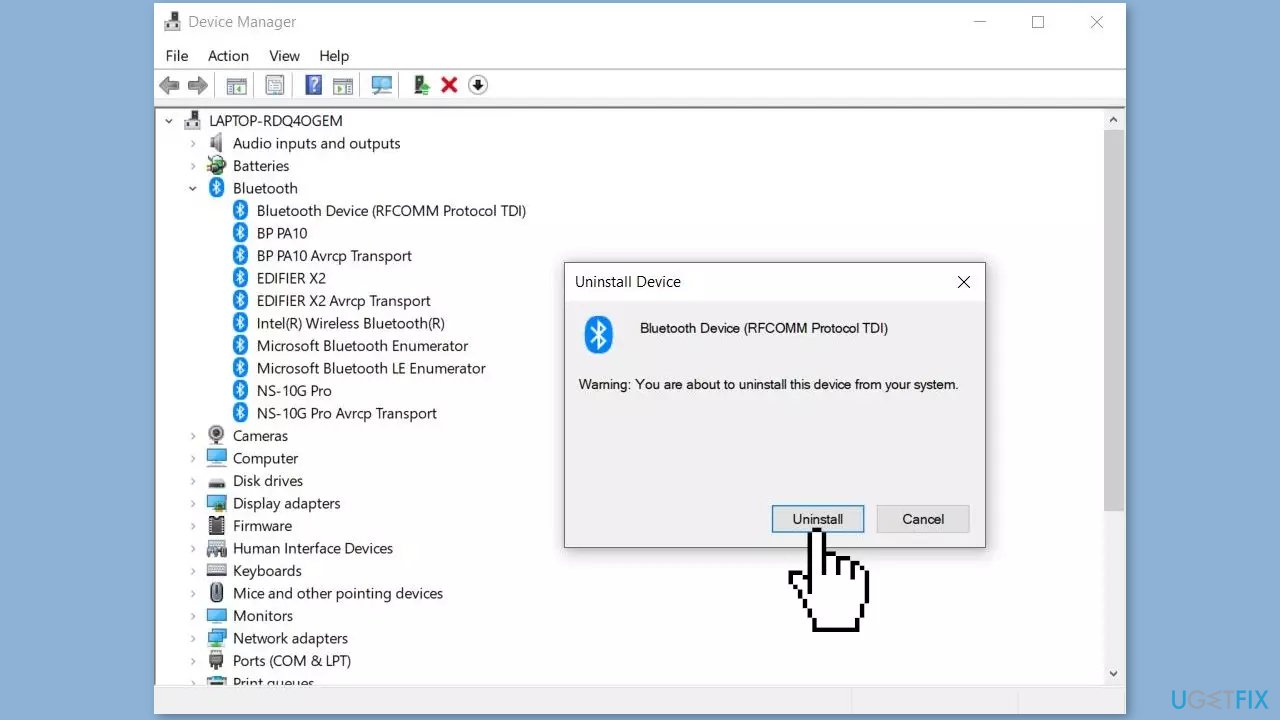
- Once the adapter is uninstalled, click on the Action menu at the top of the Device Manager window.
- Select Scan for hardware changes from the dropdown menu.
- Windows will now automatically detect the Bluetooth adapter and install the necessary drivers.
- Once the installation process is complete, check if the Bluetooth adapter is working correctly.
Method 7. Use System Restore
System Restore is a feature in Microsoft Windows that allows users to revert their computer's state to a previous point in time. This can be helpful if you have made changes to your system that are causing problems.
- Press the Windows key + R on your keyboard to open the Run box.
- Type SystemPropertiesProtection and press Enter.
- Go to the System Protection tab.
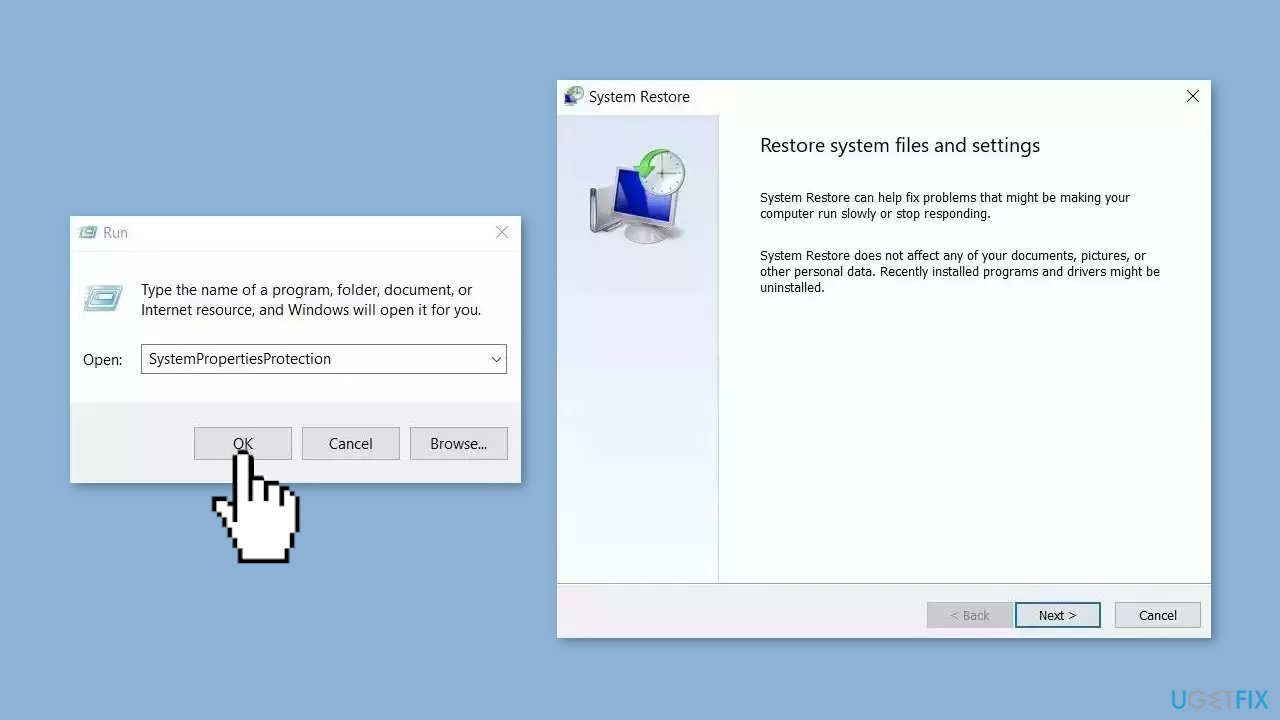
- You will see the System Restore… button. Click it to run System Restore.
- Follow the prompts until you can select a restore point.
- Select the one you want (ideally before the issue started occurring) and go ahead with the process.
Bottom line
To fix the Bluetooth driver not working (Code 52) issue, you can repair corrupted system files using Command Prompt, run the Bluetooth troubleshooter, or disable the fast startup feature. If these methods do not resolve the problem, consider using a system repair tool or seeking further technical assistance.
Frequently asked questions
Code 52 indicates that the driver for the Bluetooth device is not digitally signed, which can prevent it from working correctly. This often occurs after a Windows update or if the driver was manually installed.
To resolve Code 52, you can try uninstalling the problematic driver and then reinstalling it from the manufacturer's website, ensuring it's the latest version. Additionally, you can disable driver signature enforcement temporarily to allow the installation of unsigned drivers.
Disabling driver signature enforcement can allow unsigned drivers to work, but it may expose your system to security risks. It's recommended to only use this method as a temporary solution and to revert back to the original settings after fixing the issue.




Report an issue
What's wrong with this guide? We review every report and update or remove content.
Report received — thank you. We'll review and fix it.
You need a free account to submit a report.
Be the first to comment