How to fix
Bluetooth keyboard paired but not working
on Windows
Fix Bluetooth keyboard issues on Windows 10 and 11 effortlessly. Get expert solutions that work in minutes, with screenshots for clarity.

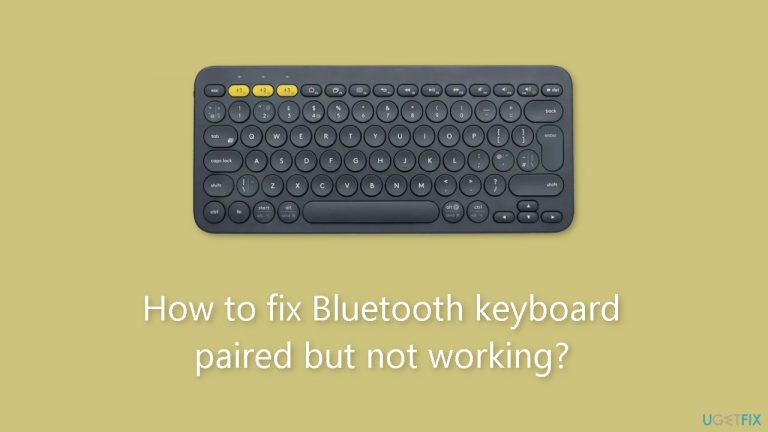
What causes How to fix Bluetooth keyboard paired but not working?
- Connectivity problems
- Software bugs
- Driver conflicts
- Low or empty battery
- Interference from adjacent devices
Repairs Windows system files, removes malware, and restores a clean OS state — without reinstalling.
Hello. I just bought a new Bluetooth keyboard, it paired successfully but it is still not working. How can I fix this? Any suggestions would be appreciated.
It can be an irritating problem for users when a Bluetooth keyboard is successfully paired with a device but does not work. Because users are unable to enter commands and data via the keyboard, this issue mainly affects the user experience and productivity, potentially slowing down or impeding their work. Users may become frustrated and lose faith in the dependability of the Bluetooth connection as a result of this problem.
There are various reasons why a linked Bluetooth keyboard might not function properly. The most frequent offenders are connectivity problems, software bugs, and driver[ref en-1] conflicts. The keyboard's battery could occasionally be low or empty. Furthermore, interference from adjacent devices could break the Bluetooth connection and cause keyboard issues.
Depending on the unique circumstances of the person, this issue may have different effects. It may cause tasks and projects to be delayed in a professional context, which could have an impact on deadlines. It can interfere with keyboard-based recreational pursuits, online learning, and communication in home or school settings. As a temporary fix, users may turn to using an on-screen keyboard or a physical wired keyboard, but these are not always practical or handy solutions.
Users might think about a few potential strategies to fix the issue of a paired but non-working Bluetooth keyboard. These could involve checking for software updates, reinstalling or updating keyboard drivers, making sure the keyboard has enough battery life, and addressing connectivity problems. Relocating the Bluetooth keyboard and the linked device to an area with fewer electronic devices may assist in strengthening the connection if interference is suspected.
In this guide, you will find 4 steps that should help you fix Bluetooth keyboard paired but not working. You can also run a maintenance tool like [d1] that can fix most system errors, BSODs,[ref en-2] corrupted files, and registry[ref en-3] issues. Otherwise, follow the step-by-step instructions below.

Solution 1. Run the Hardware and Devices Troubleshooter
- Press the Windows key + R to open the Run window.
- Type cmd into the text box and hit Enter to open Command Prompt.
- Type msdt.exe -id devicediagnostic and press Enter to open the Hardware and Devices troubleshooter.
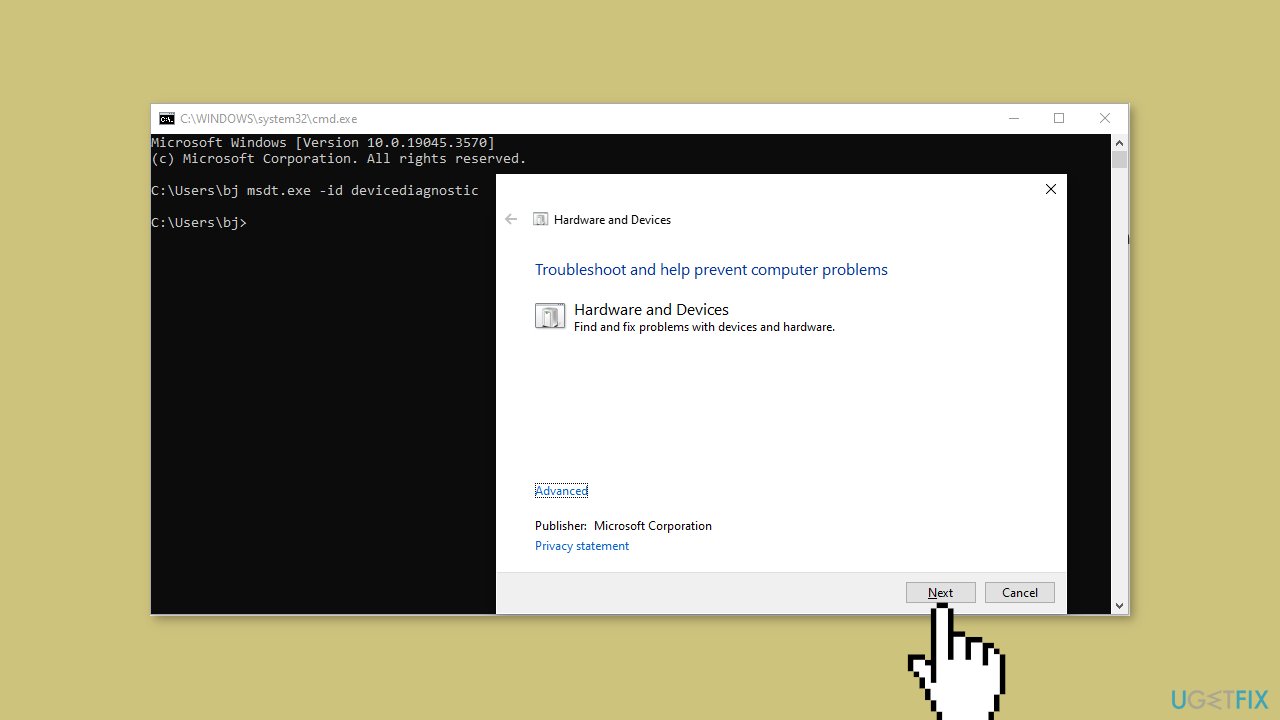
- Click on the Next button to run the troubleshooter.
- Wait for the process to complete.
Solution 2. Run the Bluetooth Troubleshooter
- Press the Windows key + I to open Windows Settings.
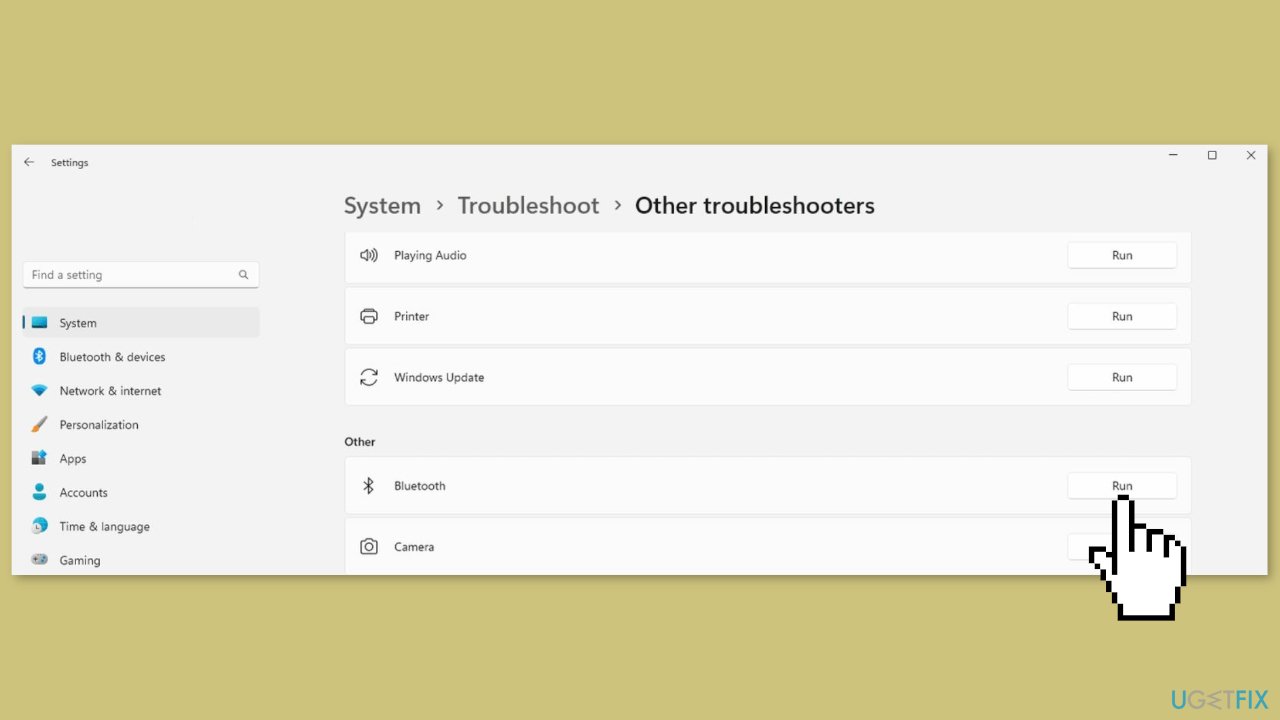
- Choose Update & Security > Troubleshoot, then click on the Additional troubleshooters on the right pane.
- Navigate to the Bluetooth option and click on the Run the troubleshooter button.
Solution 3. Restart the Bluetooth Support Service
- Press the Windows key + R to open the Run dialog box.
- Type services.msc into the box and hit Enter to open the Services window.
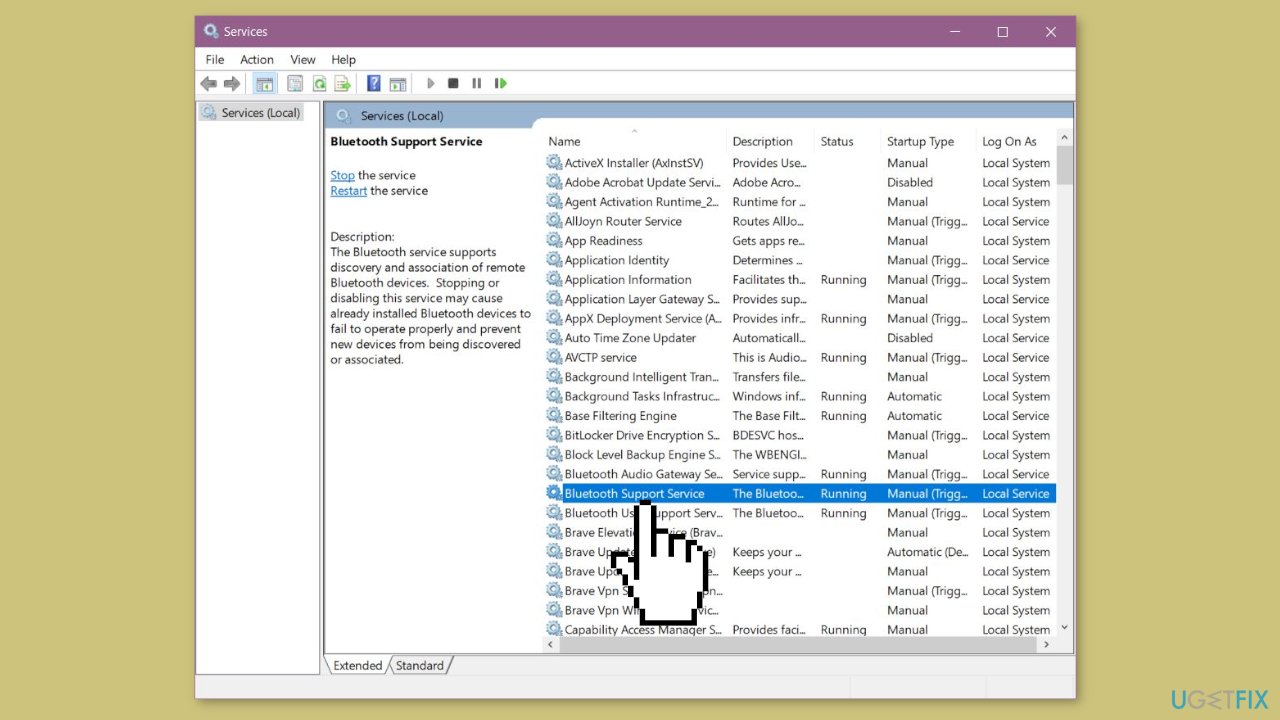
- Locate the Bluetooth Support Service choice and right-click on it to choose Restart from the context menu.
- Double-click on the service to open the Properties window.
- Select Automatic from the drop-down menu of Startup type, then click Apply > OK to save the change.
Solution 4. Reinstall the Keyboard Driver
- Right-click on the Windows icon at the bottom right corner.
- Choose Device Manager from the context menu.
- Expand the Keyboards selection and right-click on the keyboard.
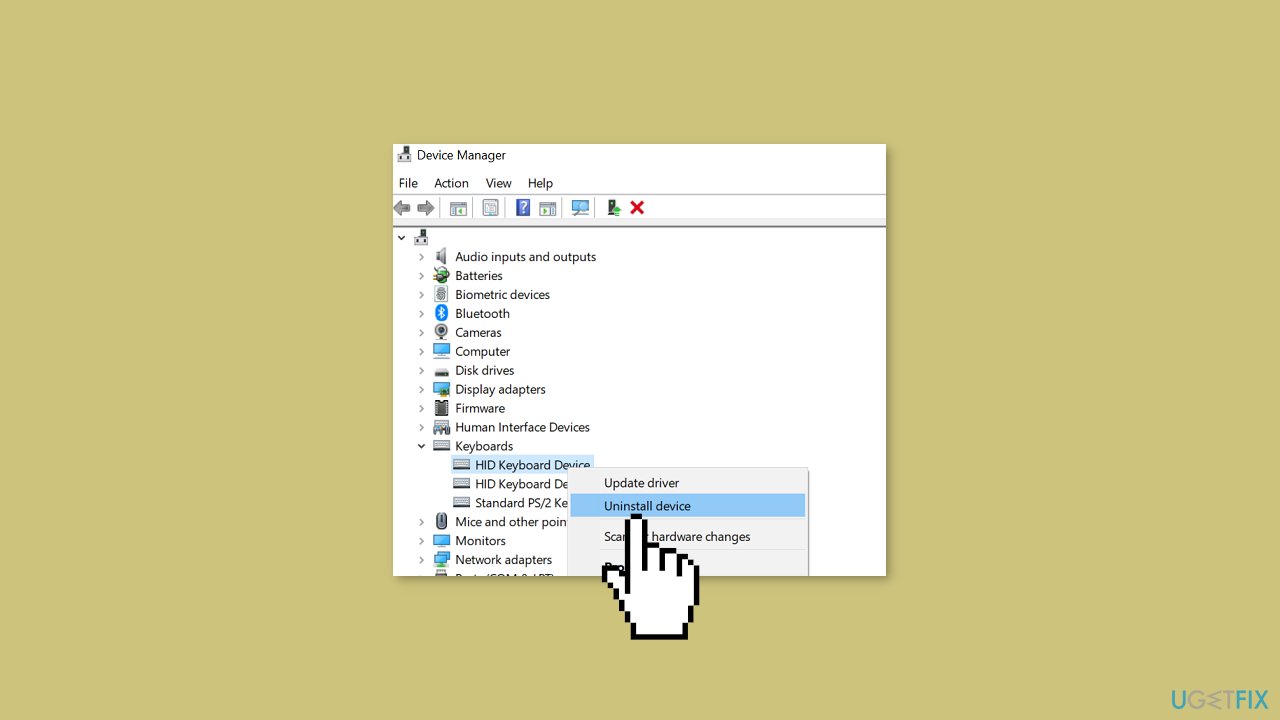
- Choose Uninstall device from the right-click menu and click Uninstall again to confirm.
- Reboot your computer. The computer will download the required and latest driver for your computer automatically.
You can also use a dedicated utility like [rev id="DriverFix"] that can find the best drivers for your machine and install them automatically.
Bottom line
To fix a Bluetooth keyboard that is paired but not working, consider checking for software updates, reinstalling or updating keyboard drivers, ensuring the keyboard has sufficient battery life, and addressing any connectivity issues. If these steps do not resolve the problem, you may want to use an on-screen keyboard or a physical wired keyboard as a temporary solution.
Frequently asked questions
This issue may arise due to outdated drivers or a temporary connection glitch; try updating your Bluetooth drivers and restarting your computer.
Go to Settings > Devices > Bluetooth & other devices, remove the keyboard, and then re-pair it to establish a fresh connection.
If the keyboard remains unresponsive, check for Windows updates or consider testing the keyboard with another device to rule out hardware issues.




Report an issue
What's wrong with this guide? We review every report and update or remove content.
Report received — thank you. We'll review and fix it.
You need a free account to submit a report.
Be the first to comment