How to fix
Bluetooth mouse not working after Windows update
on Windows
Resolve Bluetooth mouse issues after a Windows 10 or 11 update quickly and effectively with our expert-tested solutions. Fixed in minutes!


What causes How to fix Bluetooth mouse not working after Windows update?
- Windows 10 update bug
- Driver issues
- Connection problems
- Power management settings
Repairs Windows system files, removes malware, and restores a clean OS state — without reinstalling.
Hi. I think I got another Windows 10 update bug. A couple of days Feature Update 2004 has been installed and since then my Bluetooth mouse keeps disconnecting. Are there any fixes or should I roll back the update? Thanks!
The mouse is the main accessory to stationary PC users. Even laptop users use the mouse in priority to touchpads[ref en-1] as its much more convenient. There are several types of PC mouse that can be used, i.e. wired, Bluetooth, and USB[ref en-2]. All of them have their plusses and minuses, though the wired mouse has lost its popularity right after the wireless mouse has been represented a decade ago.
We address this article to people who have issues with the Bluetooth mouse on Windows 10. Upon the release of the Windows 10 feature update, we have noticed an increasing number of users' reports that they cannot connect to the Bluetooth mouse or it keeps disconnecting.
The vast majority of people started raising a question on how to connect Bluetooth mouse after the release of Windows 10 Feature Update 2004[ref en-3]. The same problem happens for people using the Bluetooth keyboard and other Bluetooth-connected devices, so a presumption can be made that Microsoft left a bug related to Bluetooth connection. Indeed, problems with the mouse are very annoying as people may be restricted from using the PC if they do not have a surrogate mouse.
There are various reasons why the Bluetooth mouse keeps disconnecting or does not work after Windows 10 update, including:
- Windows 10 update bug;
- Driver issues;
- Connection problems;
- Power management settings;
Although many people claim to have fixed the Bluetooth mouse issues by rolling back Windows 10 update, we do not recommend doing to the extremes immediately. Uninstalling the update leaves the system outdated and more vulnerable. Therefore, before putting the blame on the update, try alternative Bluetooth mouse fixes.
Restart Bluetooth service
One of the most primitive Bluetooth mouse fixes is to restart the system, restart the Bluetooth service, and then turn the mouse on and off. If you are not aware of how to restart the service, follow these simple steps:
- Press Windows key + R and type services.msc in the search bar.
- Click Enter.
- When the Services opens, find the Bluetooth Support Service and right-click on it.
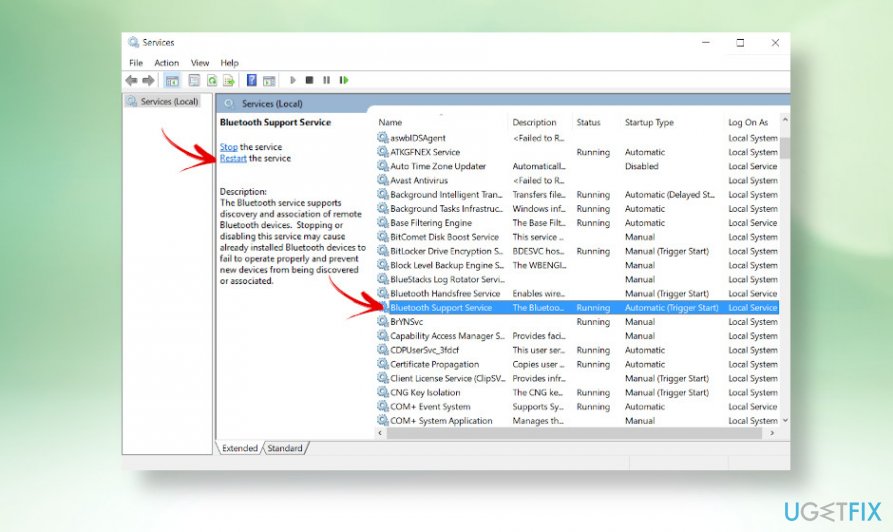
- Select the Restart option.
- Alternatively, you can open Command Prompt with administrative privileges and type the Restart-Service bthserv command
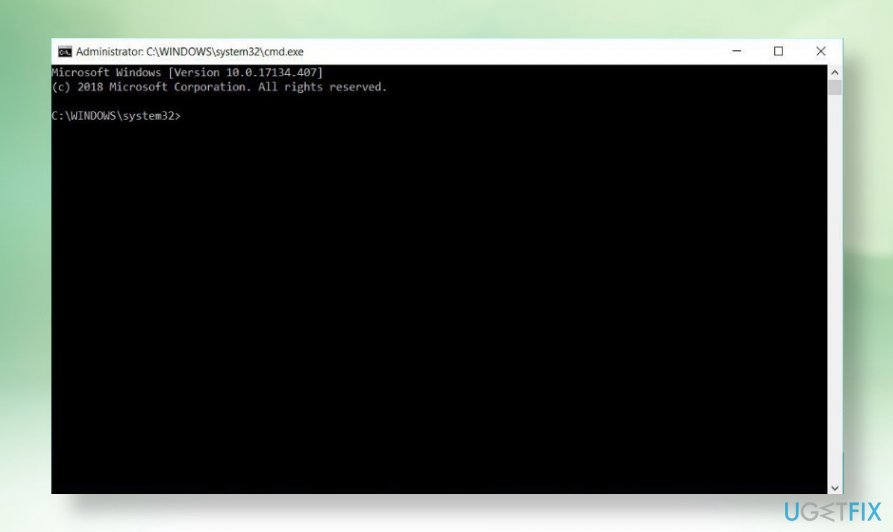
- Press Enter to enable it.
Update Bluetooth drivers
- Right-click on Windows key and type Device Manager.
- Open the Device Manager and scroll down till you find Bluetooth.
- Double-click on the Bluetooth section to expand it. Find your Bluetooth mouse and double-click on it.
- Then select Update driver software.
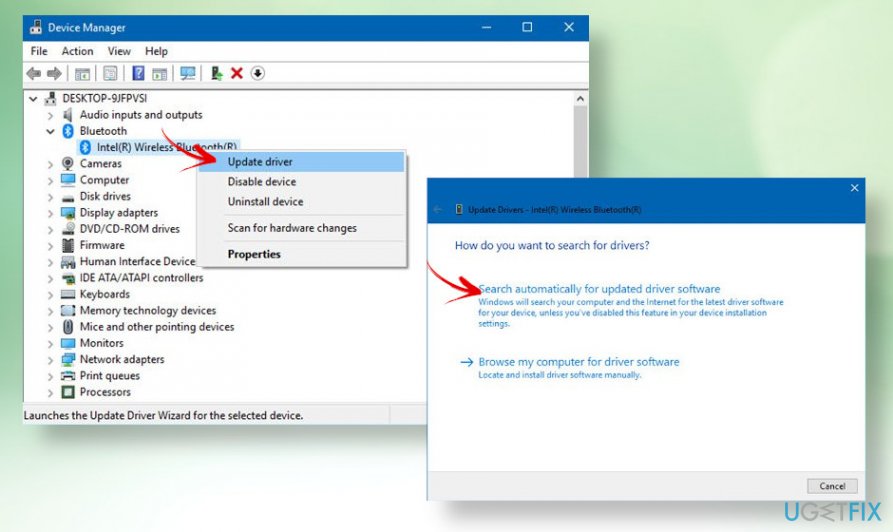
- A pop-up window should load asking you to select one of the following - search automatically for driver update software or browser my computer for driver software.
- Select the first option and wait for the system to search for the update.
- Right after the install, restart the machine and reconnect Bluetooth mouse.
Modify the Power and Sleep settings
In some of the cases, Bluetooth mouse connection may start disabling randomly if the Power and Sleep settings have been modified by the Windows 10 update. To check that, follow these steps:
- Press Windows key + I to open Settings.
- Navigate to System and open the Power & Sleep tab.
- Uncheck the On battery power, stay connected to WiFi while asleep and When plugged-in, stay connected to WiFi while asleep options.
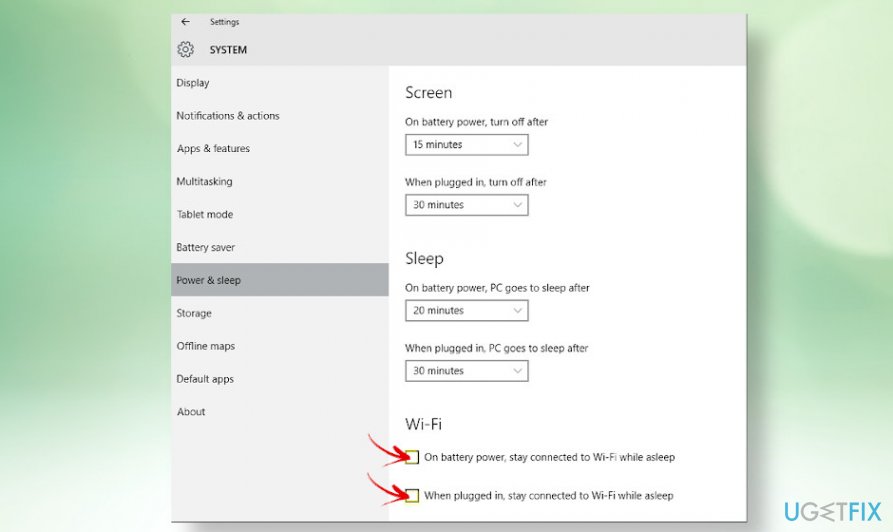
- Close the Settings window, restart the mouse and check if the Bluetooth problem has been fixed.
Roll back the update to fix Bluetooth mouse connection problems
If you are not satisfied with the latest Windows 10 feature update, as in this case V2004, you have ten days to roll back to the previous version. Upon ten days period, the system could not be recovered because Windows automatically deletes the file for rolling back to free up disk space. If you still have time to roll back the update, here's how you can do that:
- Press Windows key + I to open Settings.
- Open Update & Security section and heed to Recovery.
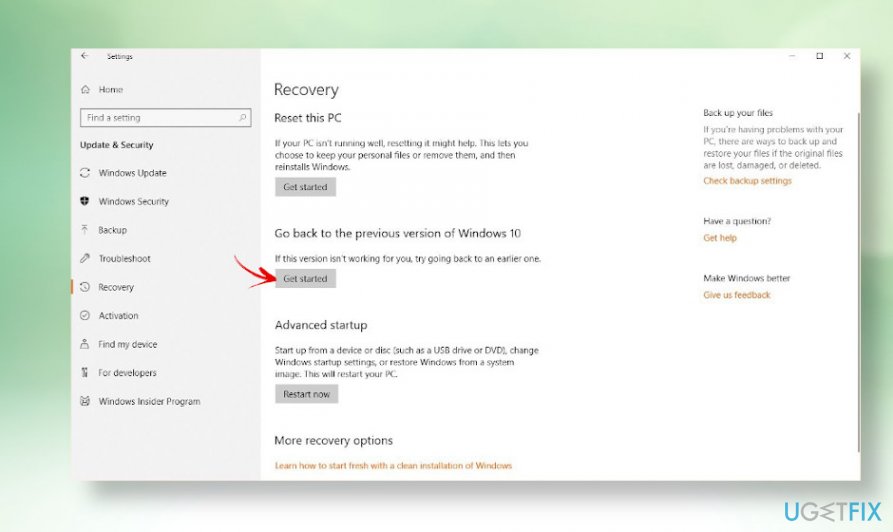
- Under the Go back to the previous version of the Windows 10 option, select Get started and let the system do the recovery automatically.
Hopefully, you have successfully fixed not working Bluetooth mouse on Windows. If you need further assistance because none of the fixes worked, please contact us and we'll try to help you individually.
Bottom line
To address the Bluetooth mouse issues, try restarting the system, restarting the Bluetooth service, and turning the mouse on and off. If these fixes do not resolve the problem, consider exploring other Bluetooth mouse fixes before rolling back the Windows update.
Frequently asked questions
Try removing the Bluetooth mouse from your device list and then re-pairing it. You can do this by going to Settings > Devices > Bluetooth & other devices.
Ensure that your Bluetooth drivers are updated by checking Device Manager for any available updates. If issues persist, run the Bluetooth troubleshooter found in Settings > Update & Security > Troubleshoot.
Yes, you can roll back the update by going to Settings > Update & Security > Windows Update > View update history > Uninstall updates, and select the relevant update.




Report an issue
What's wrong with this guide? We review every report and update or remove content.
Report received — thank you. We'll review and fix it.
You need a free account to submit a report.
Be the first to comment