How to fix
“Bluetooth Not Available” Error
on Windows
Easily resolve Bluetooth connectivity issues on Windows 10 and Windows 11 with expert-tested solutions. Get your devices connected in minutes!


What causes How to Fix “Bluetooth Not Available” Error on Mac OS X?
- Bluetooth hardware module not detected
- Bluetooth preferences corrupted
- Recent OS update causing compatibility issues
- System Management Controller (SMC) issues
Repairs Windows system files, removes malware, and restores a clean OS state — without reinstalling.
Hello. I was trying to connect the Apple Magic Mouse to my Mac computer and it displayed an error saying "Bluetooth Not Available". Restarting Bluetooth doesn't help and I cannot find Bluetooth panel in the System Preferences as well. Can you help me, please?
"Bluetooth Not Available" error on Mac OS X prevents you from connecting any wireless device to your computer. It doesn't matter whether it is a mouse, a keyboard or headset. You can also notice that System Profiler displays "No Information Found" once you try to search for Bluetooth hardware module[ref en-1]. Besides, Bluetooth panel is not accessible on the System Preferences, and its icon appears with a crooked line through it.
We have noticed that Apple community encounters "Bluetooth Not Available" error after updating Yosemite to El Capitan or the latter one to Sierra OS[ref en-3]. All the indicators mentioned above show that this is not a simple issue. Therefore, if you try to mend the problem of random disconnects of your wireless devices, restarting Bluetooth[ref en-2] might help.

However, to fix "Bluetooth Not Available" error, you will have to discard Bluetooth preferences and pair your desired devices with your Mac again. Those who are not experienced enough should follow the guide below which will briefly explain how to re-sync Bluetooth gadgets in Method 1.
In some cases, even this may not help. Likewise, we attach instructions on how to reset the System Management Controller (SMC). If the first method failed, make sure to try the second technique. Note that Method 2 might fix "Bluetooth: Not Available" error, but it works differently for each type of Mac. Hence, you should follow the guide below and pick the instructions which are designed for the Mac computer you possess.
Method 1. Create a new .plist extension file for Bluetooth configuration
- Close all your tabs/windows/apps/system preferences which might try to connect via Bluetooth on Mac;
- Open Finder;
- Press Command+Shift+G.
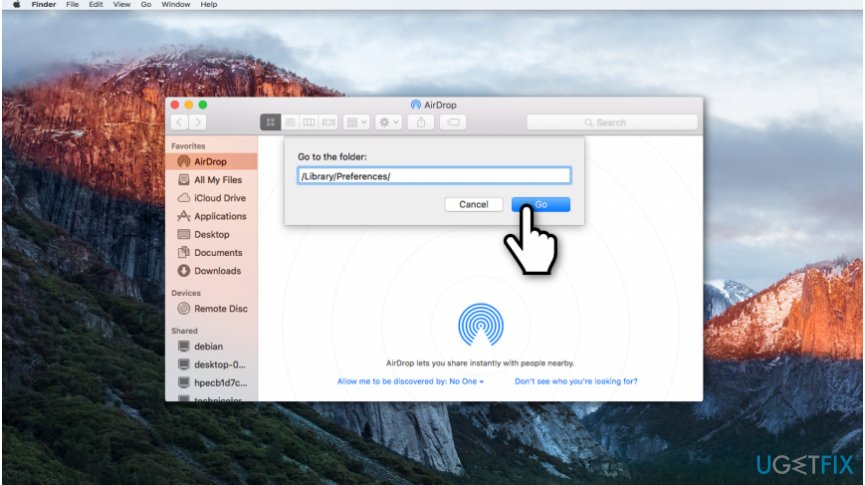
Open finder on mac - Once the "Go to the folder" window appears, type /Library/Preferences/.
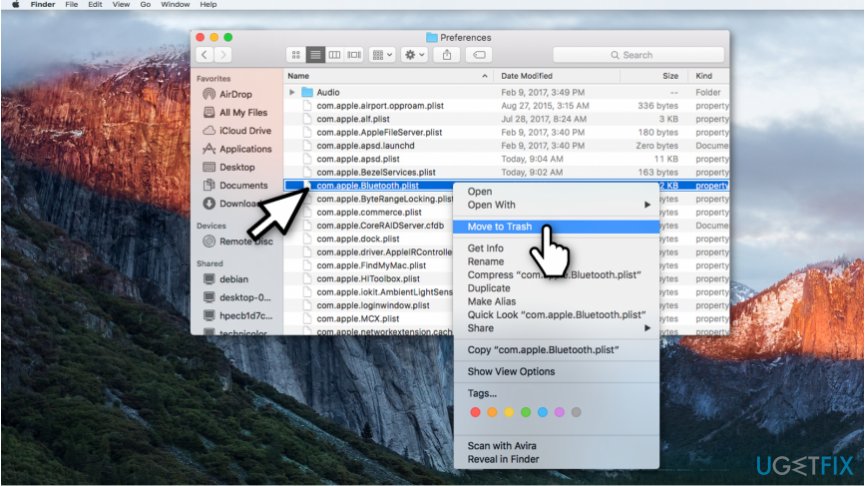
Delete com apple bluetooth plist extension - Search for all files with com.apple.Bluetooth.plist extension and delete them from Mac;
- Close Finder and click on the Apple menu.

Shut down your mac - Select Shut down;
- After several minutes, restart your Mac and reconnect the wireless devices.
Method 2. Reboot System Management Controller (SMC)
MacBook and MacBook Pro with detachable batteries:
- Shut down your Mac and remove the battery;
- Make sure that your power adapter is disconnected;
- Hold your Power button pressed for 10 seconds;
- Connect your power adapter and attach the battery;
- Turn on your Mac and reboot it.
MacBook Pro, MacBook Air and MacBook Pro Retina with non-detachable batteries:
- Shut down your Mac;
- Connect the power adapter.
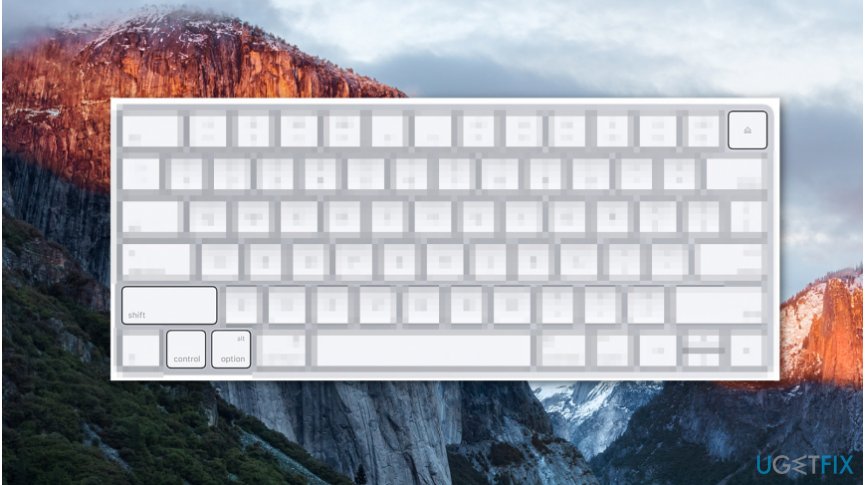
Press shift control option power button - Hold Control+Shift+Option+Power buttons pressed together for several seconds;
- Reboot your Mac.
Mac Pro, iMac, Mac Mini:
- Turn off the Mac;
- Make sure that the power cord is disconnected;
- Press the Power button for approximately 5-10 seconds;
- Connect the power cord and reboot your Mac.
Bottom line
To fix the 'Bluetooth Not Available' error, you can delete the Bluetooth preferences file and re-pair your devices. If this does not resolve the issue, consider resetting the System Management Controller (SMC). If none of these methods work, further troubleshooting may be necessary.
Frequently asked questions
This error can occur due to outdated drivers or if the Bluetooth service is disabled in the Device Manager. Check your Bluetooth settings and ensure your drivers are up to date.
You can run the Bluetooth troubleshooter by going to Settings > Update & Security > Troubleshoot > Additional troubleshooters, and selecting Bluetooth. Additionally, ensure that your Bluetooth device is powered on and in range.
If your Bluetooth adapter is not showing, try restarting your computer and checking the Device Manager for any hidden devices. If it's still missing, you may need to reinstall or update your Bluetooth drivers.




Report an issue
What's wrong with this guide? We review every report and update or remove content.
Report received — thank you. We'll review and fix it.
You need a free account to submit a report.
Be the first to comment