How to fix
Bluetooth On/Off button missing
on Windows
Resolve the Bluetooth On/Off button issue in Windows 10 or 11 effortlessly. Get expert-tested solutions with zero traces left.


What causes How to fix Bluetooth On/Off button missing in Windows?
- Bluetooth driver is outdated or corrupted
- Bluetooth Support Service is not running
- Recent Windows update caused issues
- System glitch
- Windows Explorer needs to be restarted
Repairs Windows system files, removes malware, and restores a clean OS state — without reinstalling.
Hello. I wanted to turn on Bluetooth on my Windows PC but the option to do it is missing. I was looking for half an hour and I can't find it anywhere. What should I do?
Bluetooth is a popular technology for connecting wireless devices to computers, such as headphones, mice, keyboards, and smartphones. Bluetooth is built into Windows, and there is an On/Off button in the Action Center to turn it on or off. However, some users may encounter a frustrating issue in which the Bluetooth On/Off button is missing from the Action Center.
There could be several reasons why Windows lacks a Bluetooth On/Off button. One possible explanation is that the Bluetooth driver[ref en-1] has become outdated or corrupted. Another possibility is that the Bluetooth Support Service is not running or has been turned off. In some cases, a recent Windows update or a system glitch may be to blame.
One possible solution for the missing Bluetooth On/Off button is to update or reinstall the Bluetooth driver. Users can also check if the Bluetooth Support Service is running and configure it to start automatically. Another option is to restart Windows Explorer or reset the Action Center. If none of these solutions work, users can try restoring or resetting Windows.
In this guide, you will find 9 steps that should help you fix Bluetooth On/Off button missing in Windows. However, if you want to skip the lengthy manual troubleshooting process, you can try using a maintenance tool like [d1]. It can fix most system errors, BSODs,[ref en-2] corrupted files, and registry[ref en-3] issues. Otherwise, follow the step-by-step instructions below.

Solution 1. Run the Bluetooth Troubleshooter
- Head to the Start menu.
- Click on Settings.
- Click on Update & Security.
- Click on Troubleshoot.
- Click on Additional troubleshooters.
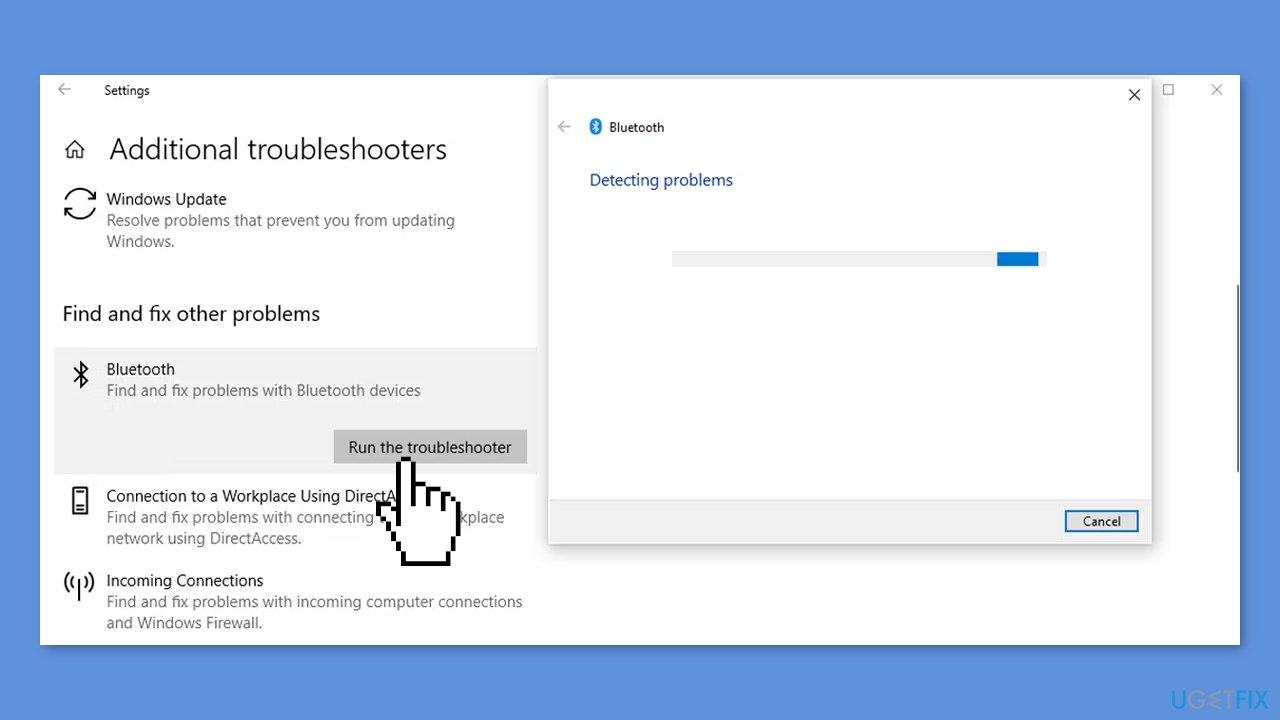
- From the Find and fix other problems menu, select Bluetooth.
- Click on Run the troubleshooter.
Solution 2. Use the Hardware and Device Troubleshooter
- Open the Start menu search bar.
- Search for Command Prompt.
- Select Run as administrator from the right-click menu.
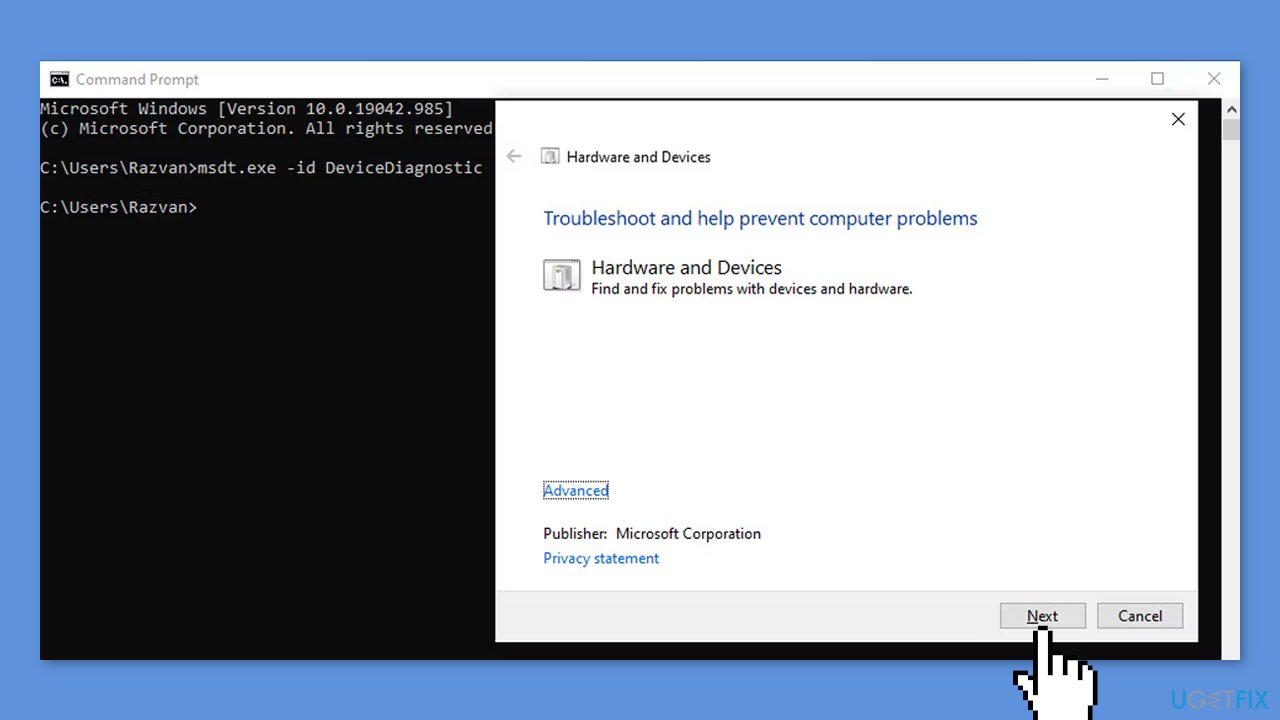
- Input msdt.exe -id DeviceDiagnostic into the Command Prompt.
- Press Enter. This will open the troubleshooter.
- Click on Next to launch the scan.
Solution 3. Restart the Bluetooth Support Service
- Open the Start menu search bar.
- Search for Services.
- Select the Best match from the results.
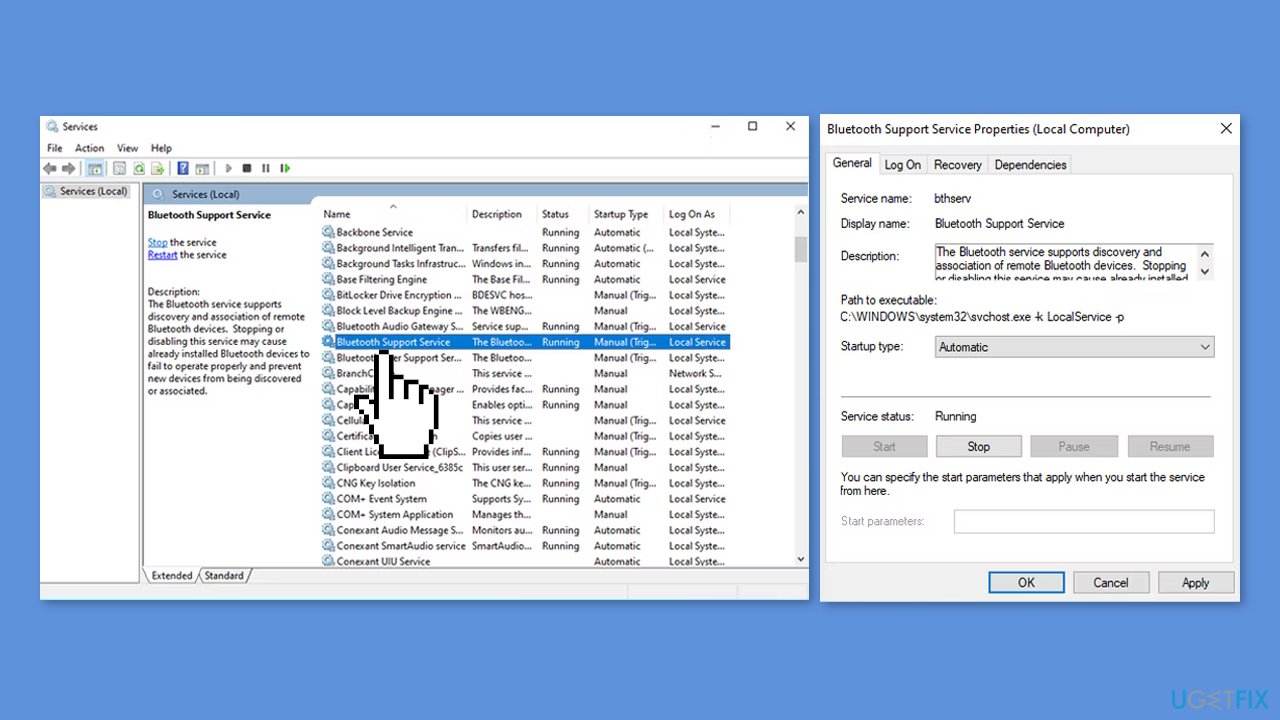
- Double-click Bluetooth Support Service to open the Properties window.
- Check the Service status at the bottom of the window. It should be Running.
- If the status is Running, click Stop and then click Start for a quick restart.
- If the status is not Running, use the drop-down menu next to Startup Type and select Automatic.
- Click the Apply button to save the new settings.
Solution 4. Change the Quick Actions Menu
- Press the Windows key + A to open the Action Center.
- Select Manage notifications from the top-right corner of the Action Center.
- Click Edit your quick actions. This will open the Action Center menu.
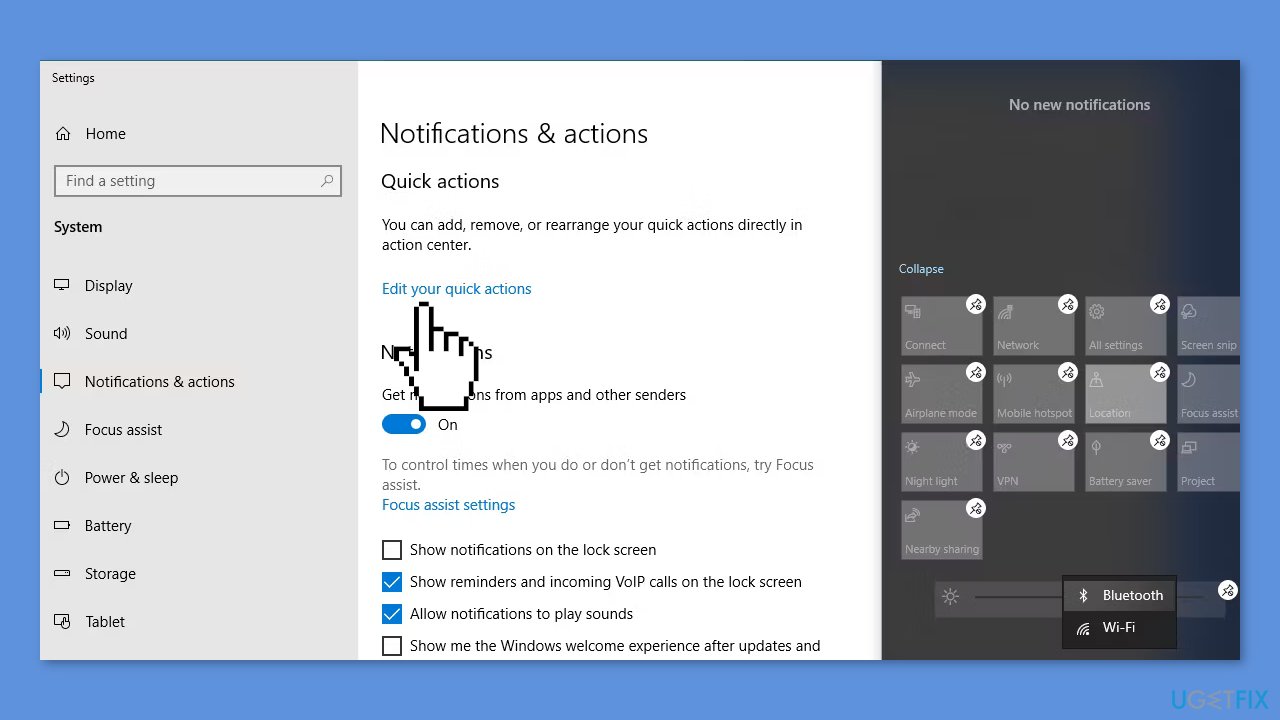
- Select Add.
- Select Bluetooth.
- Select Done.
Note: When editing mode is enabled, you can move the tiles around as you want. If you want the Bluetooth tile to be part of the collapsed menu, move it to the top row.
Solution 5. Check if Your PC Supports Bluetooth
- Press the Windows key + I to open the Settings panel.
- Click on Devices.
- Check if the Bluetooth & other devices menu is visible. If it is visible, your device supports Bluetooth technology.
- If the menu is not visible, open the Start menu search bar.
- Search for Device Manager and select the Best match from the results.
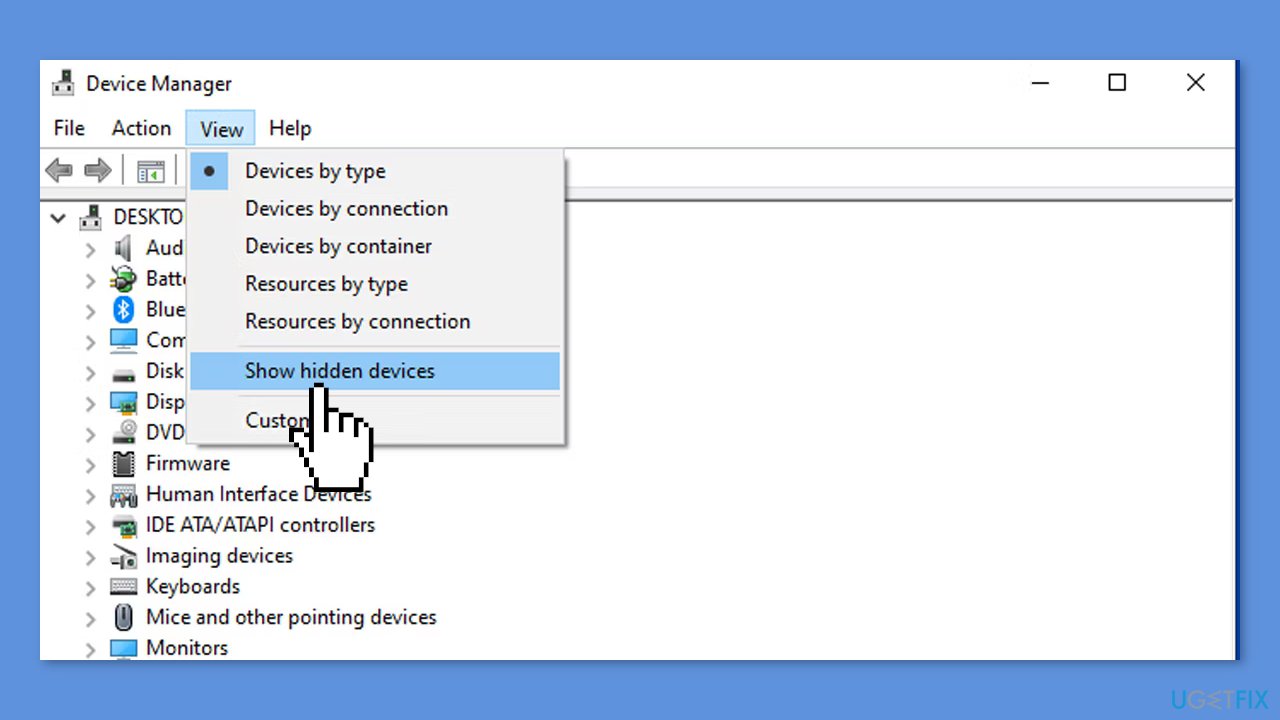
- Check if there is a Bluetooth menu inside the available devices list.
Solution 6. Edit Bluetooth Settings
- Click on Start and press on Settings.
- Click on Devices and choose Bluetooth & other devices.
- Under Related settings, click More Bluetooth Options.
- Select the Options tab.
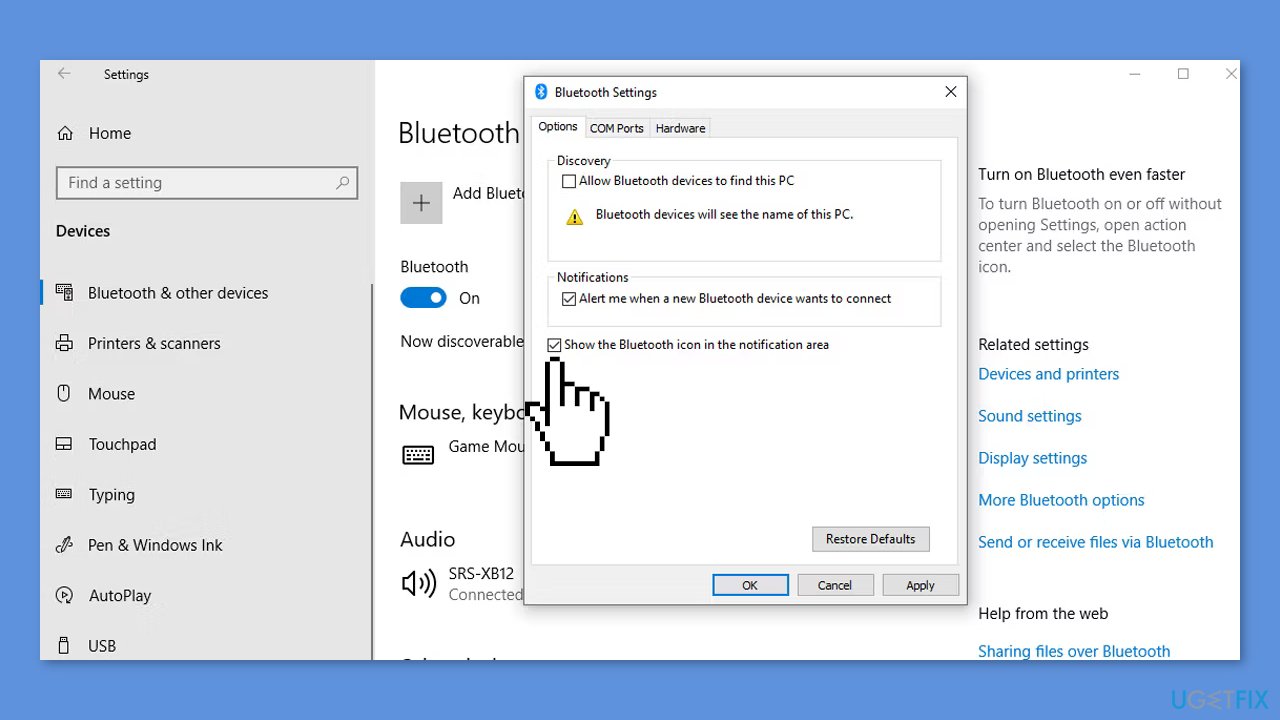
- Check the box next to Show the Bluetooth icon in the notification area.
- Click on Apply and OK.
Solution 7. Turn Off Fast Startup
- Click on Start and search for Settings.
- Click on System.
- From the left-hand menu, select Power & sleep.
- Click on Additional power settings.
- Click on Choose what the power button does.
- Select Change settings that are currently unavailable.
- Uncheck the box next to Turn on fast startup (recommended).
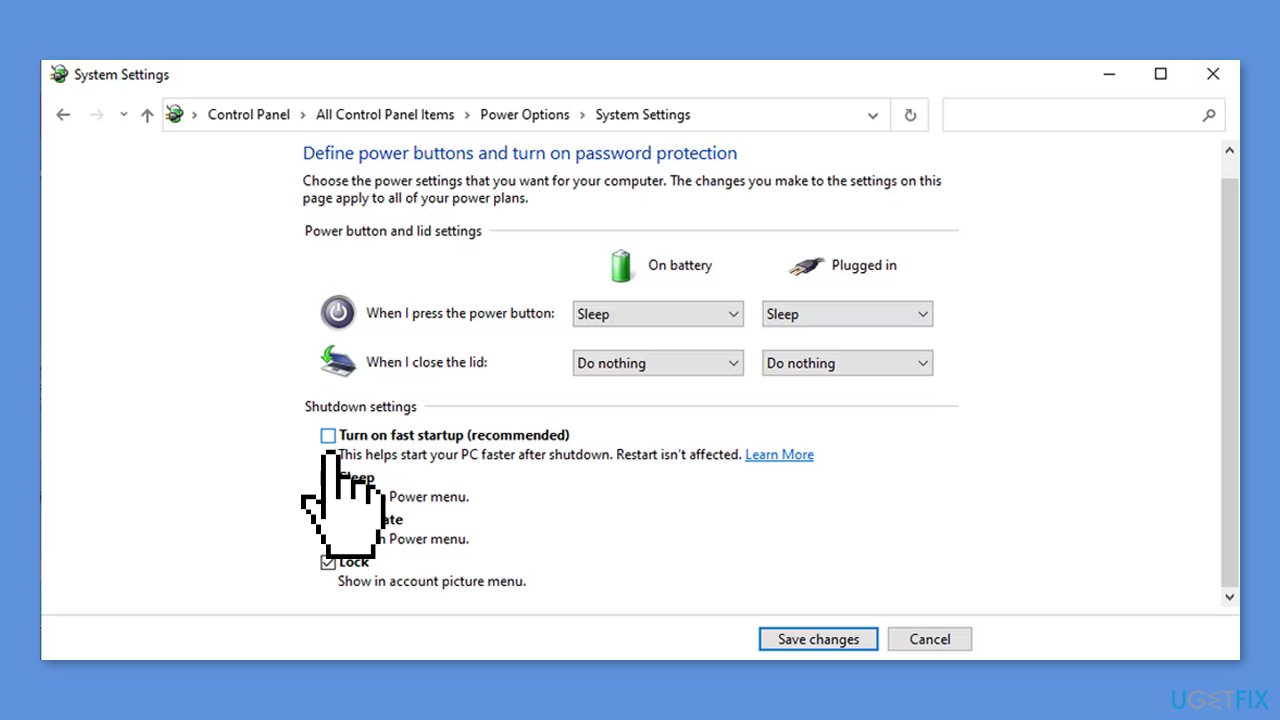
- Click on the Save changes button.
Solution 8. Run Startup Repair
- Press and hold Shift at the Windows sign-in screen.
- Click on Power.
- Click on Restart. Your PC should now display the boot screen.
- Click on Troubleshoot and press on Advanced options.
- Click on Startup Repair.
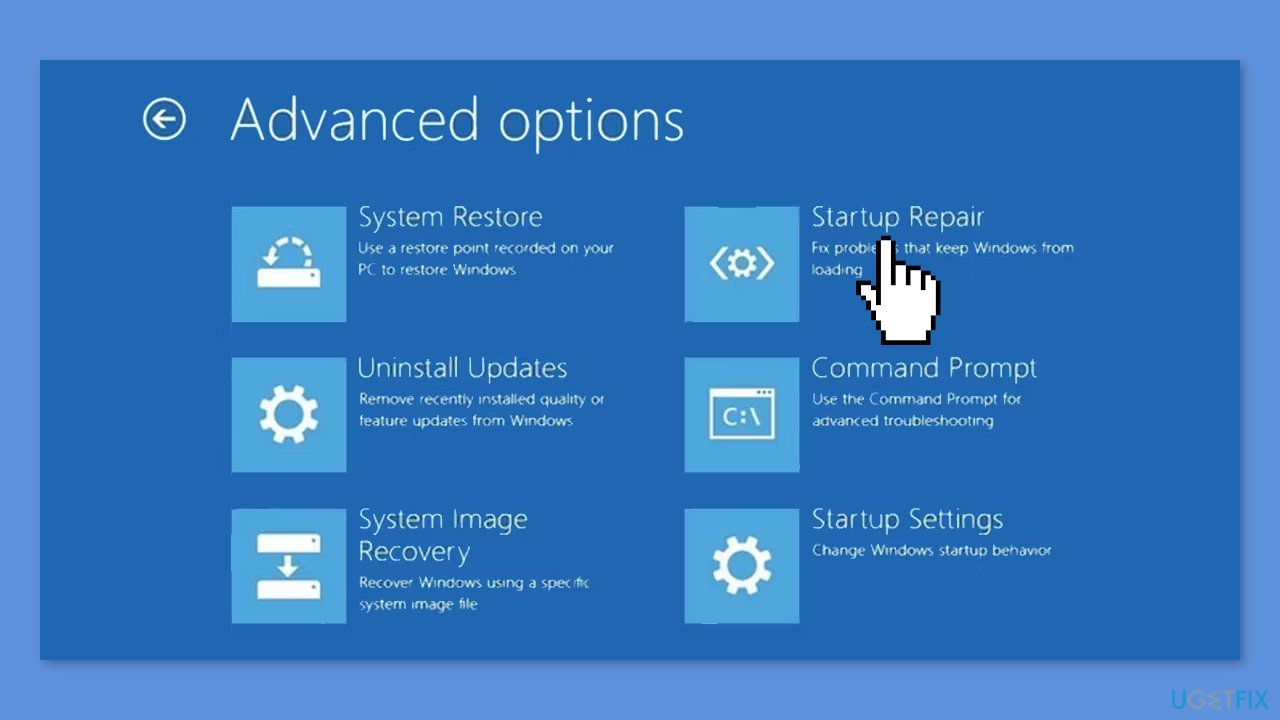
- Choose an administrator account and enter the password if required.
- Click on Continue.
- Restart your PC after the Startup Repair tool has finished running.
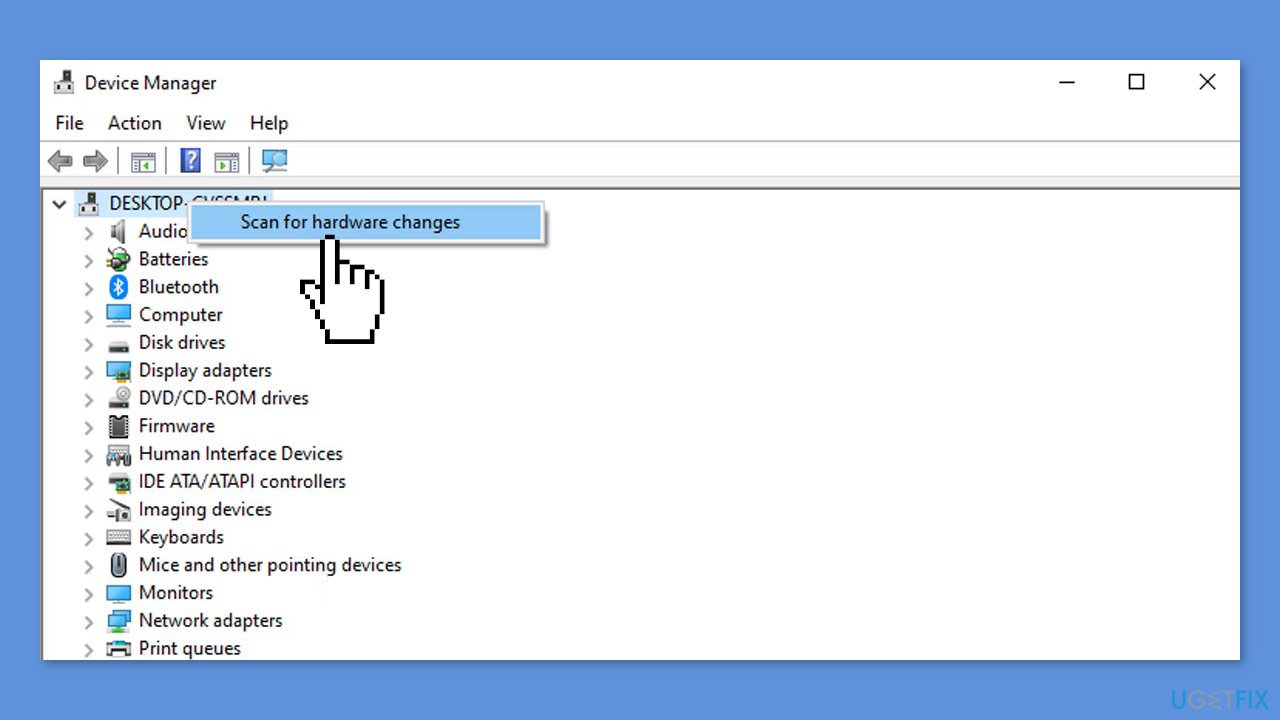
Solution 9. Scan for Hardware Changes
- Open the Start menu search bar.
- Search for Device Manager.
- Your device should be first on the list.
- Right-click on your device.
- Select Scan for hardware changes.
Bottom line
To fix the missing Bluetooth On/Off button, you can update or reinstall the Bluetooth driver, check the Bluetooth Support Service, or restart Windows Explorer. If these solutions do not work, consider restoring or resetting Windows.
Frequently asked questions
First, ensure that your Bluetooth drivers are updated by checking the Device Manager. If that doesn't work, try running the Bluetooth troubleshooter in Windows Settings.
You can start by restarting the Bluetooth Support Service from the Services app, then check if the button reappears in the Action Center. Additionally, make sure your device's Bluetooth is enabled in Settings under Devices.
Yes, you can attempt to reinstall the Bluetooth drivers or use the System File Checker tool to repair any corrupted system files that might be affecting Bluetooth functionality.




Report an issue
What's wrong with this guide? We review every report and update or remove content.
Report received — thank you. We'll review and fix it.
You need a free account to submit a report.
Be the first to comment