How to fix
Boot Configuration Data Error Code: 0xc0000185
on Windows
Resolve Boot Configuration Data Error Code: 0xc0000185 on Windows 10 with our expert-tested solutions. Get your PC running smoothly again, fixed in minu…


What causes How to Fix Boot Configuration Data Error Code: 0xc0000185 on Windows 10?
- Boot Configuration Data is corrupted
- Missing Windows Boot Manager entry in BCD store
- Corruption of Boot\BCD file
- Lack of crucial information in Boot Configuration Data
- Error may occur due to system misconfiguration
Repairs Windows system files, removes malware, and restores a clean OS state — without reinstalling.
All of a sudden, when I try to start my laptop, a blue screen showed up saying that I have boot configuration data missing. Error code 0xc0000185. I’m using a Dell laptop, which runs Windows 10 OS.
I tried to reboot the system, but the same error appeared, so I’m stuck without knowing what steps I should take. Please help!
"The Boot Configuration Data for your PC is missing some required information" is a BSOD error, which is also recognized as Error code: 0xc0000185. The error message explicitly indicates the fact that this bug is related to the boot configuration data, which has either been corrupted or lacks for crucial information. Consequently, the system cannot boot unless the PC owner applies some remedies to restore the missing or damaged data.
The 0xc0000185 error does not occur on Windows 10 OS exceptionally. However, peope's reports indicate the fact that Windows 10 PCs and laptops are the most vulnerable to this error.
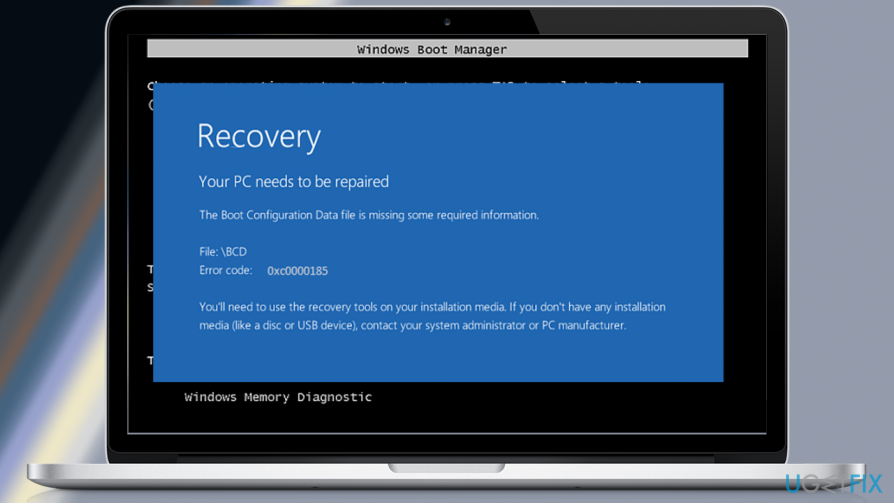
Likewise boot configuration data error 0xc0000034, the error 0xc0000185 is usually triggered by the Windows Boot Manager (Bootmgr)[ref en-1] entry, which is missing in the Boot Configuration Data (BCD) store.
Besides, “The boot configuration Data for your PC is missing or contains errors” BSOD[ref en-2] may also emerge due to the corruption of Boot\\BCD file.
The 0xc0000185 error falls for the group of fatal Windows errors because it prevents the system from booting and accessing the desktop. Consequently, all personal data becomes inaccessible.
Nevertheless, it doesn’t mean that your computer has crashed permanently and you will be no longer able to use it. The Boot Configuration Error Code 0xc0000185 on error can be fixed with a bootable Windows Installation Media. Perform a system recovery[ref en-3] and the error should be resolved.
Fixing Boot Configuration Data Error 0xc0000185 on Windows 10
In some rare cases, "The boot configuration Data for your PC is missing or contains errors" alert with a bug check 0xc0000185 disappears when a PC owner force the system to shut down and then turns it on again.
Therefore, try to power cycle your PC and check if you can log into your desktop. If so, we would highly recommend installing [d1] and scanning the system with it. This tool has a list of Windows’ system file copies, so it may fix or replace the damaged or missing boot configuration files.
If, however, you are stuck with the 0xc0000185 error on the system’s boot phase, there’s the only method that you can use, i.e. to create the Windows 10 installation media using a USB or DVD. Once you create the bootable Windows installation media, follow these steps:
- Plug-in or insert the Windows 10 installation media and reboot the PC.
- Press any key to boot from the installation media.
- Select language, time, currency, and keyboard/input method and press Next.
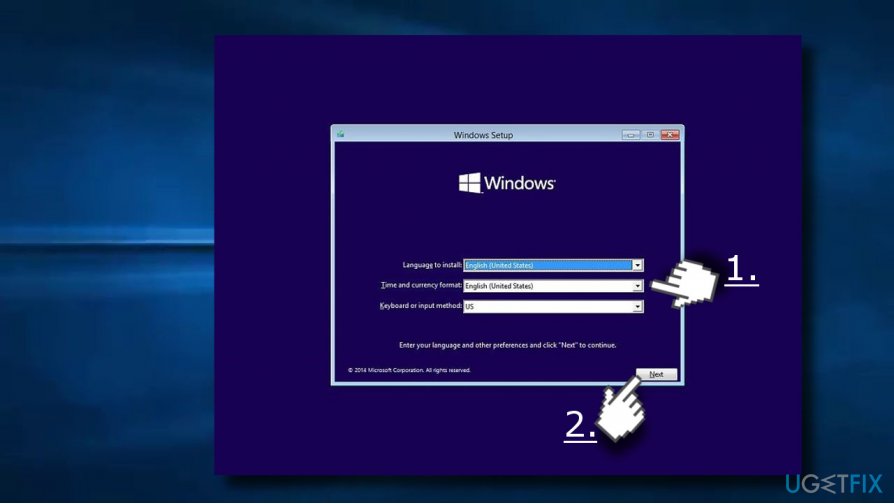
Boot from usb - Click Repair your computer (NOT Install Windows)and select the type of OS you want to repair.
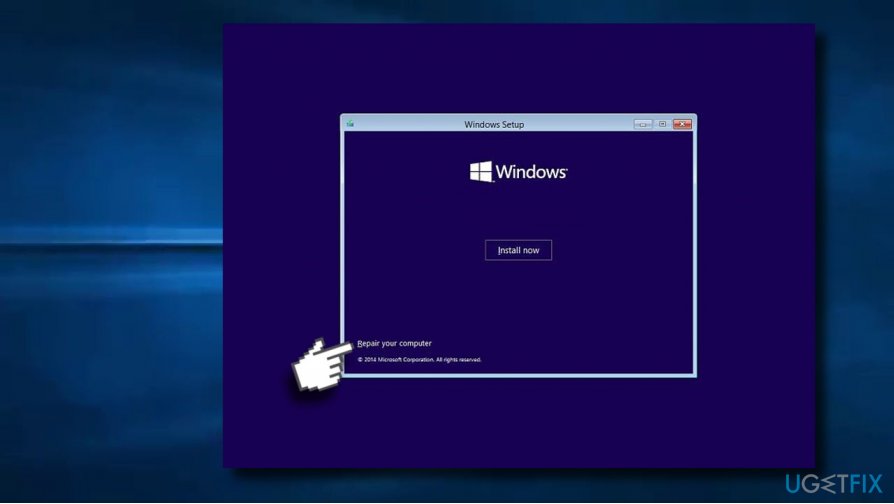
Click repair your pc - Click Troubleshoot.
- Select Advanced and click Automatic Repair or Startup Repair.
- When the system detects the OS, select the one that is running on your PC.
- Finally, unplug the USB or remove DVD bootable media and try to boot your device.
Some people reported that they cannot fix the error using the Windows 10 installation media as the process ends up with the same BSOD. If that's happening to you as well, try to do the following:
- Click Power button and try to boot your PC.
- Press F8 key repeatedly at boot and select Repair your computer.
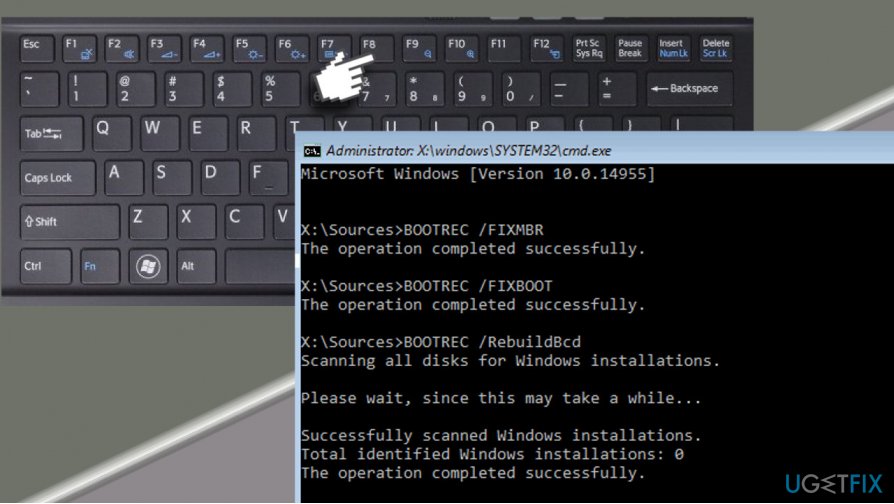
Use command prompt - Select Command Prompt and type the following commands (press Enter after each one). NOTE: space before / is necessary:
bootrec /fixMBR
bootrec /fixBoot
bootrec /rebuildBCD
Hopefully, these steps have helped you to fix boot configuration data error 0xc0000185. Please let us know if you are still facing it so that we could analyze the bug further and provide you with alternative solution methods.
NOTE: some people have reported that after fixing “The boot configuration Data for your PC is missing or contains errors” error, the system became more sluggish and unresponsive.
In this case, we would recommend installing all available Windows Updates, including drivers. The information provided on this page will explain how to do that.
Bottom line
The Boot Configuration Data Error Code 0xc0000185 can be fixed using a bootable Windows Installation Media to perform a system recovery. In some cases, simply power cycling the PC may resolve the issue. If these solutions do not work, further troubleshooting may be necessary.
Frequently asked questions
The 0xc0000185 error usually occurs due to corrupted or missing Boot Configuration Data (BCD), which can happen after a failed Windows update, hardware failure, or improper shutdown.
You can rebuild the BCD by booting from a Windows 10 installation media, selecting 'Repair your computer,' then navigating to 'Troubleshoot' > 'Advanced options' > 'Command Prompt' and using the 'bootrec /rebuildbcd' command.
Yes, you can try using the Windows Recovery Environment by repeatedly pressing F8 during boot to access 'Startup Repair,' which may fix the BCD without needing installation media.




Report an issue
What's wrong with this guide? We review every report and update or remove content.
Report received — thank you. We'll review and fix it.
You need a free account to submit a report.
Be the first to comment