How to fix
Boot Configuration Error Code 0xc0000454
on Windows
Resolve the Boot Configuration Error Code 0xc0000454 on Windows 10 effortlessly with our expert-tested solutions. Get your PC running smoothly again!


What causes How to Fix Boot Configuration Error Code 0xc0000454 on Windows 10?
- Boot Configuration Data (BCD) is missing
- Corrupted Boot\BCD file
- Windows Boot Manager (Bootmgr) entry is missing
- Recent Windows 10 updates causing issues
- Black screen error during startup
Repairs Windows system files, removes malware, and restores a clean OS state — without reinstalling.
For the past couple of weeks, my laptop started malfunctioning during the bootup phase. When I start it up, the system delivers an error code 0xc0000454, which says ‘The boot configuration data for your PC is missing or contains errors.’ Usually, I have to wait several minutes until the system successfully boots the windows screen. However, sometimes the booting process gets stuck and I have to reboot the system several times. Could someone please help?
The Error Code 0xc0000454 is a black screen error,[ref en-1] which emergence is associated with the Windows 10 Creators Update. This bug either was very rare and easily solvable earlier or did not exist at all because there is practically no information about it yet. Regarding people’s reports, it gets clear that the problem harasses only Windows 10 users who have installed the latest updates.
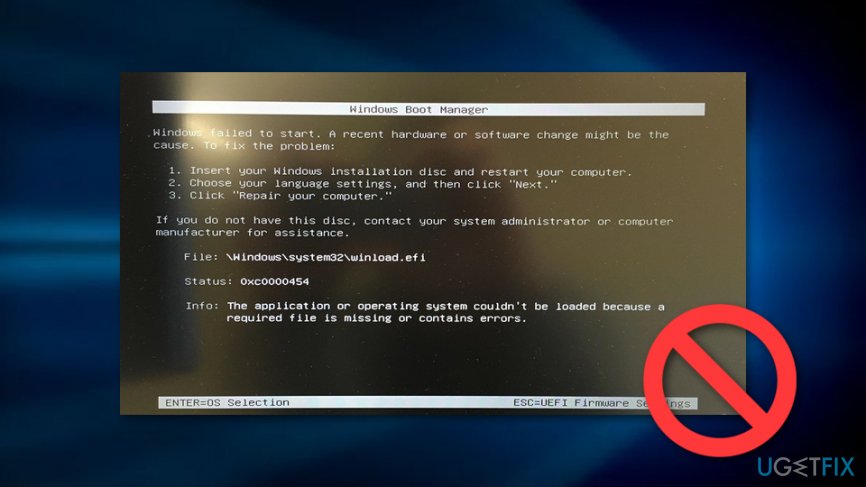
The 0xc0000454 error always shows up during the Windows 10[ref en-3] startup before the Windows screen shows up. The message indicates the fact that ‘The boot configuration data for your PC is missing or contains errors.’ Through investigation of this problem revealed that the problem is related to the Windows Boot Manager (Bootmgr)[ref en-2] entry, which, for some reason, is missing in the Boot Configuration Data (BCD) store, or corrupted Boot\\BCD file.
Usually, boot configuration errors like 0xc0000454 can usually be solved without the help of a professional IT specialist. Nevertheless, these errors are considered as fatal as they often prevent the system from booting, which is why the only way to fix them is to boot the system using a bootable Windows Installation Media and perform a system recovery using it. So, if you can’t access your PC or have to restart the system several times to work around the bug, try to perform the steps provided down below:
How to Fix Boot Configuration Error Code 0xc0000454 on Windows 10?
The error 0xc0000454 fix method depends on whether you manage to boot up the system or not.
Method 1. Run Startup Repair using preinstalled recovery option
If you have managed to successfully turn on your machine, then try to fix the bug by following these steps:
- Remove all external drives (CD, DVD USB) from the device and reboot it by pressing Power button.
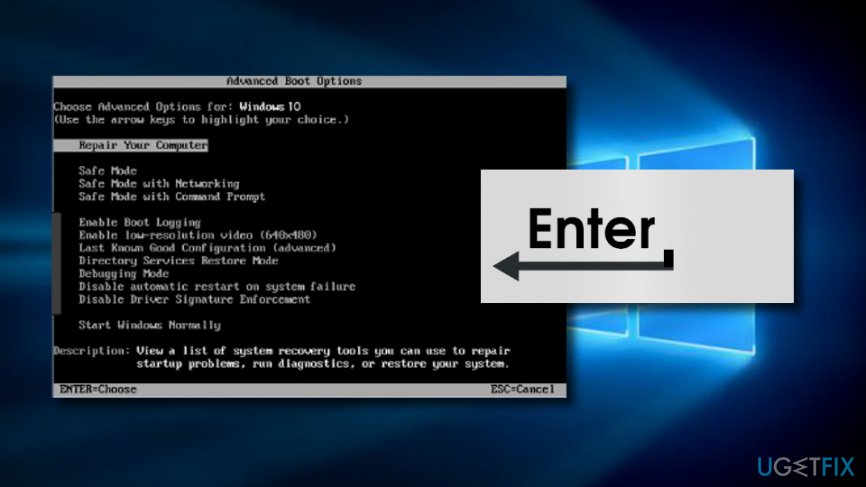
- Then, press and hold F8 key before the Windows logo shows up.
- Using the arrow keys on your keyboard, go to the Repair your computer and then press Enter.
Fix error on windows - Opt for keyboard layout and click Next.
- Now you have to select user name, type in the password, and press OK.
- When the System Recovery Option menu shows up, select Startup Repair.
- If necessary, reboot the system.
Method 2. Run Startup Repair using Windows 10 installation media
If you cannot boot into your PC normally because the system gets stuck with the 0xc0000454 error during the boot phase, you should create Windows 10 installation media using a USB or DVD drive and plug it to your device. Once done, follow these instructions:
- Reboot the PC.
- Press any key to boot from the installation media.
- Select language, time, currency, and keyboard/input method and press Next.
- Click Repair your computer (NOT Install Windows) and select the type of OS you want to repair.
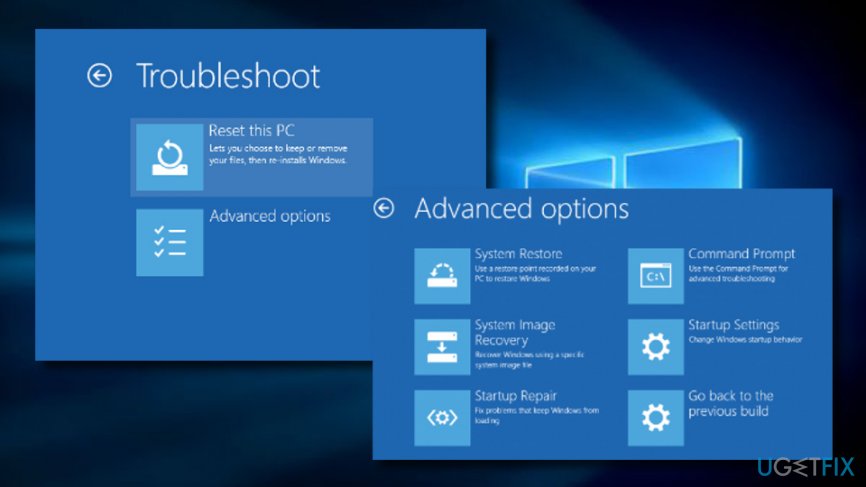
- Click Troubleshoot.
- Select Advanced and click Automatic Repair or Startup Repair.
Troubleshoot on windows - When the system detects the OS, select the one that is running on your PC.
- Finally, unplug the USB or remove DVD bootable media and try to boot your device.
If these steps did not help and after system's reboot you encountered the error 0xc0000454 again, try these steps"
- Click Power button and try to boot your PC.
- Press F8 key repeatedly at boot and select Repair your computer.
- Select Command Prompt and type the following commands (press Enter after each one). NOTE: space before / is necessary:
bootrec /fixMBR
bootrec /fixBoot
bootrec /rebuildBCD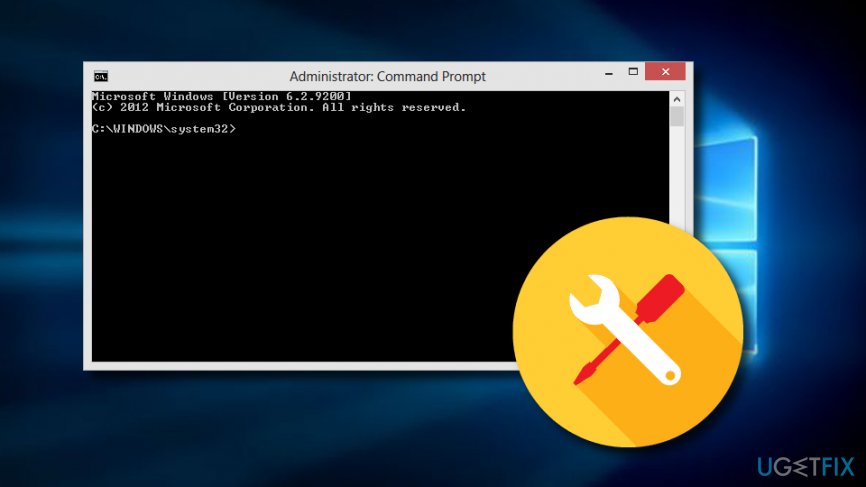
TIP: once the 0xc0000454 error is fixed, we would recommend installing [d1] and regularly scanning the system with it. This tool is known as an optimization tool, meaning that it will take care of your system to prevent it from running into errors.
Bottom line
To fix the Boot Configuration Error Code 0xc0000454, you can try running Startup Repair using the preinstalled recovery option if you can boot your system. If that doesn't work, you may need to use bootable Windows Installation Media for system recovery. If none of these methods resolve the issue, consider seeking professional IT assistance.
Frequently asked questions
This error typically occurs due to corrupted boot configuration data or issues with the hard drive. It can also be triggered by improper shutdowns or malware infections.
To use Automatic Repair, boot your PC from a Windows 10 installation media, select 'Repair your computer,' then navigate to 'Troubleshoot' > 'Advanced options' > 'Startup Repair'.
Yes, you can often resolve this error by rebuilding the Boot Configuration Data using Command Prompt from the recovery environment without needing to reinstall Windows 10.




Report an issue
What's wrong with this guide? We review every report and update or remove content.
Report received — thank you. We'll review and fix it.
You need a free account to submit a report.
Be the first to comment